Troubleshooting SMS Delivery Issues
Print
Modified on: Thu, 3 Sep, 2026 at 12:36 PM
SMS & Messaging
Troubleshooting SMS Delivery Issues
Diagnose and resolve SMS delivery problems to ensure your messages reach contacts successfully.
What You'll Learn
This guide walks you through common SMS delivery issues and their solutions. You'll learn how to check message statuses, interpret delivery reports, and resolve the most frequent problems that prevent messages from reaching your contacts.
Understanding SMS delivery mechanics helps you maintain reliable communication with your contacts and quickly identify when intervention is needed.
1
Understanding SMS Delivery Statuses
LeadConnector tracks every SMS through multiple stages from send to delivery. Each status provides insight into where your message is in the delivery pipeline and whether any issues have occurred.
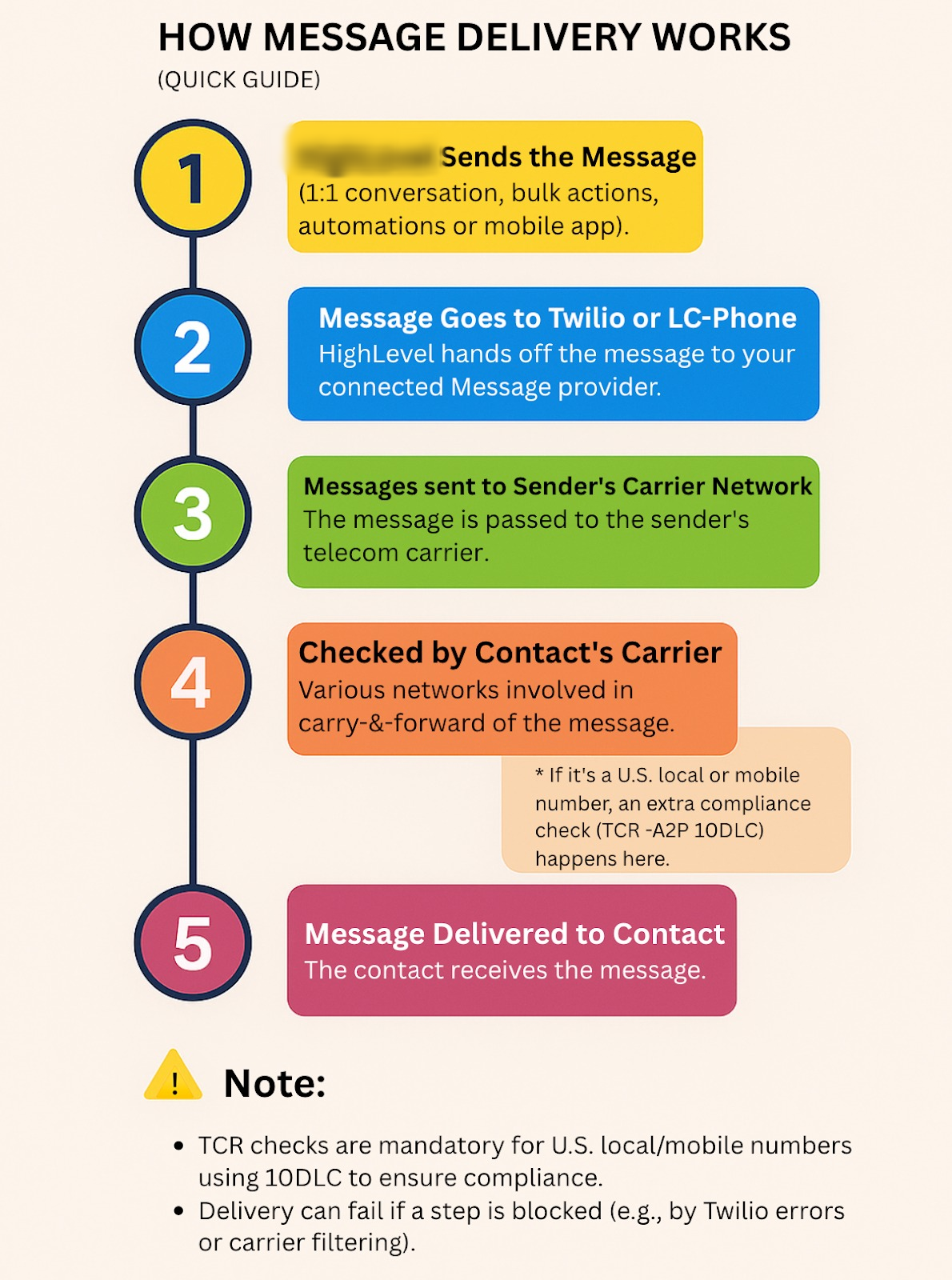
| Status | Meaning |
|---|
| Queued | Message is waiting to be sent to the carrier |
| Sent | Message has been transmitted to the carrier network |
| Delivered | Carrier confirmed the message reached the recipient's device |
| Undelivered | Message failed to reach the recipient after multiple attempts |
| Failed | Message could not be sent due to an error (invalid number, blocked content, etc.) |
| Pending | Message is in transit but delivery confirmation has not been received yet |
Important
A "Sent" status does not guarantee delivery. Only "Delivered" status confirms the message reached the recipient's device. Some carriers do not provide delivery receipts, in which case messages may remain in "Sent" status indefinitely.
2
How to Check SMS Delivery Status
LeadConnector provides multiple ways to monitor SMS delivery. Choose the method that best fits your workflow.
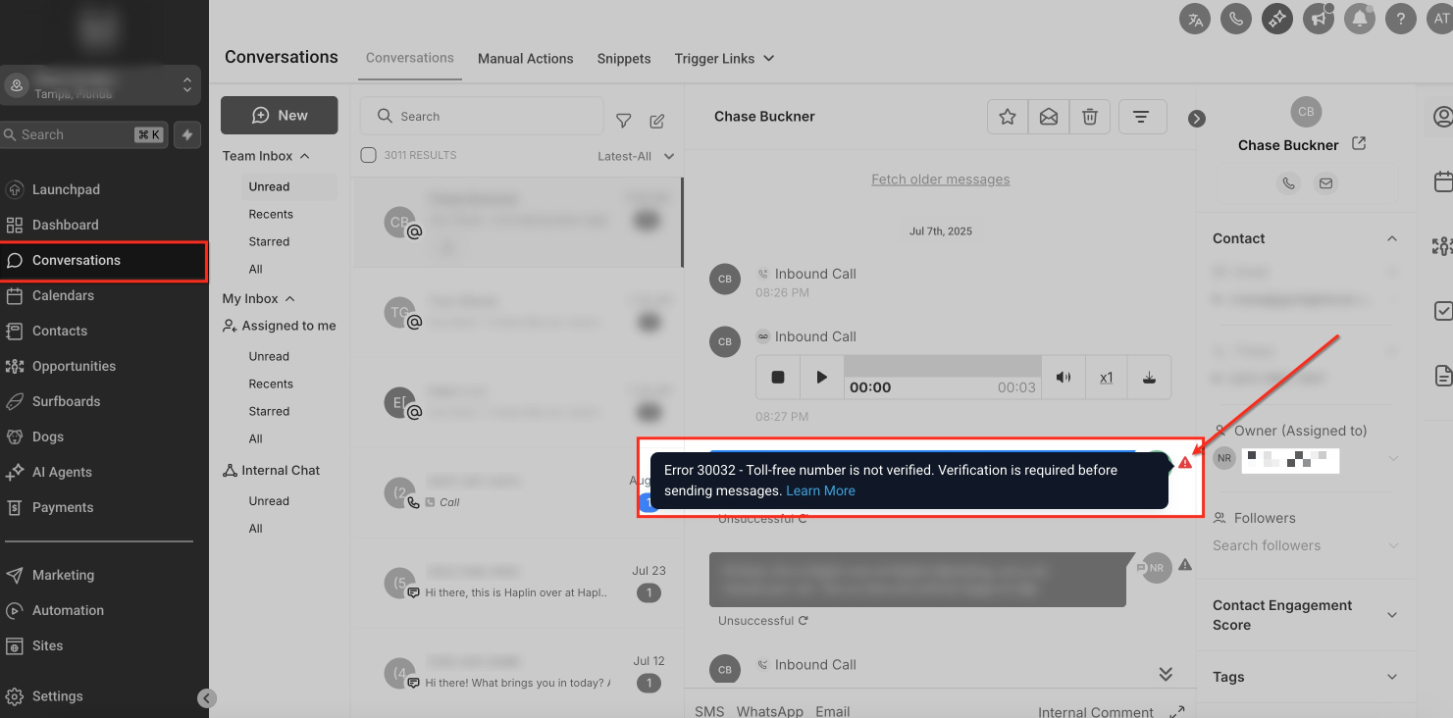
Step 1
Check Status in Contact Conversations
Navigate to the Conversations tab and open the contact's message thread. Each SMS displays a status indicator below the message bubble showing whether it was delivered, sent, or failed.
Step 2
Review Detailed Logs in Message History
Go to Settings → Phone Numbers, select your SMS-enabled number, and click Message Logs. This view shows all sent and received messages with timestamps, statuses, and error codes if applicable.
Step 3
View Delivery Reports in Campaigns
For bulk SMS campaigns, open the campaign and click View Report. The report displays delivery statistics including successful deliveries, failures, and opt-outs segmented by status.
3
Common Delivery Issues and Solutions
Most SMS delivery problems fall into a few categories. Understanding the root cause helps you apply the right fix quickly.
Issue 1
Invalid or Improperly Formatted Phone Numbers
Symptoms: Messages show "Failed" status with error code indicating invalid destination.
Solution: Verify the phone number is complete, includes country code (e.g., +1 for US/Canada), and contains no special characters except the leading +. Remove any spaces, parentheses, or dashes. The number should be in E.164 format: +[country code][area code][local number].
ssue 2
Contact Opted Out or Blocked Your Number
Symptoms: Messages fail to send to a specific contact who previously received messages successfully.
Solution: Check the contact's opt-out status in their profile under Contact Details → SMS Preferences. If they opted out, you cannot send marketing messages unless they opt back in. Transactional messages may still be permitted depending on your compliance settings. To allow the contact to opt back in, provide an alternative communication channel or use a different phone number designated for opt-in requests.
Issue 3
Message Content Blocked by Carrier Filters
Symptoms: Messages show "Undelivered" or "Failed" with carrier rejection codes. This often happens with mass messaging or content flagged as spam.
Solution: Review your message content for common spam triggers: excessive capitalization, multiple exclamation points, suspicious links, or prohibited keywords. Use a registered 10DLC campaign number for marketing SMS to improve deliverability. Avoid sending identical messages to large groups in rapid succession. If using URL shorteners, ensure they are carrier-approved or use your own branded domain.
Issue 4
Recipient's Phone is Off or Out of Coverage
Symptoms: Message remains in "Sent" or "Pending" status for an extended period, then changes to "Undelivered".
Solution: Carriers typically retry delivery for 24-72 hours. If the device remains unreachable, the message expires. No action is needed on your part; the system handles retries automatically. Consider reaching out via email or other channels if urgent. The contact will not receive the message once it expires, even when their device comes back online.
Issue 5
Sending Number Not Properly Configured
Symptoms: All messages from a specific number fail immediately or are rejected by carriers.
Solution: Verify your phone number is active and properly provisioned for SMS. Go to Settings → Phone Numbers and confirm SMS capability is enabled. If using a toll-free number or 10DLC, ensure your brand and campaign registrations are approved. Newly registered numbers may experience a warm-up period where carrier filters are more aggressive; gradually increase sending volume over 2-4 weeks.
ssue 6
Exceeding Rate Limits
Symptoms: Some messages in a bulk send show "Queued" for extended periods or fail after initial messages succeed.
Solution: Carriers impose sending limits based on number type and reputation. Standard long codes can typically send 1 message per second; toll-free numbers and 10DLC have higher limits but still have caps. Space out large campaigns or use multiple phone numbers to distribute load. Check your number's rate limit in Settings → Phone Numbers under the number's details page.
4
Best Practices for Reliable SMS Delivery
Following these practices reduces delivery issues and maintains strong sender reputation with carriers.
Validate Phone Numbers at Collection — Use real-time validation when collecting contact information to prevent invalid numbers from entering your database. LeadConnector's phone field validation automatically checks format and flags suspicious entries.
Maintain Clean Contact Lists — Regularly remove contacts who have hard-bounced (invalid numbers) or opted out. Sending to bad numbers damages sender reputation and can lead to carrier filtering.
Use Compliant Opt-In Processes — Ensure contacts explicitly consent to receive SMS. Include clear opt-in language and provide easy opt-out instructions in every marketing message (e.g., "Reply STOP to unsubscribe").
Register for 10DLC if Sending Marketing Messages — Business messaging on standard long codes requires 10DLC registration. This significantly improves deliverability and throughput for marketing campaigns while ensuring carrier compliance.
Monitor Delivery Metrics — Track delivery rates in your message logs and campaign reports. A sudden drop in delivery percentage indicates a potential issue requiring investigation.
Personalize Messages When Possible — Generic mass messages are more likely to be filtered. Use custom values to personalize greetings and content based on contact data.
Respect Quiet Hours — Avoid sending messages late at night or early morning (generally 9 PM - 8 AM local time). This reduces opt-outs and spam complaints.
Test Before Bulk Sends — Send test messages to yourself and team members before launching large campaigns. Verify formatting, links, and content render correctly on different devices.
5
Frequently Asked Questions
Q: Why does my message show "Sent" but the contact says they never received it?
"Sent" means the message left LeadConnector and was accepted by the carrier network, but it doesn't confirm delivery to the device. The contact's phone may have been off, out of service, or their carrier may have filtered the message. Some carriers also don't provide delivery receipts. If this happens frequently with a specific contact, ask them to check their spam/blocked messages folder or contact their carrier.
Q: How long does it take for an SMS to be delivered?
Most SMS messages deliver within seconds under normal conditions. Delays can occur during network congestion, high-volume sending periods, or if the recipient's device is temporarily unavailable. Messages typically retry for 24-72 hours before expiring. If a message remains in "Sent" status for more than a few hours, check the contact's phone number and carrier status.
Q: Can I resend a failed SMS?
Yes. First, identify and fix the cause of the failure (invalid number, opt-out status, blocked content, etc.). Then compose and send a new message. Simply clicking resend on a failed message without addressing the root cause will result in another failure. Check the error code in the message logs to understand why it failed initially.
Q: What does "Carrier Violation" or "Error 30007" mean?
This indicates the carrier blocked your message due to content or compliance issues. Common causes include prohibited content (illegal services, certain health claims, financial scams), unregistered 10DLC usage, or exceeding spam thresholds. Review carrier messaging policies, register your campaign if required, and ensure your message content complies with TCPA and carrier guidelines. Repeated violations can result in number suspension.
Q: Why do some international SMS messages fail?
International SMS has additional restrictions. Some countries block messages from foreign numbers, require sender registration, or have strict content regulations. Ensure your phone number is enabled for international SMS in Settings → Phone Numbers. Delivery rates and speeds vary significantly by country. For reliable international messaging, consider using a local phone number in the recipient's country or an alternative channel like WhatsApp.
Q: What should I do if my delivery rate suddenly drops?
A sudden drop in delivery rate indicates a systemic issue. Check for recent changes to message content, sending patterns, or phone number configuration. Review error codes in message logs to identify patterns. Common causes include a spike in spam complaints, carrier filtering changes, or number registration issues. If the problem persists after troubleshooting, contact LeadConnector support with your phone number and example message IDs showing failures.
Q: Are there character limits for SMS messages?
Standard SMS supports 160 characters for simple text. Messages exceeding this limit are automatically split into multiple segments and reassembled by the recipient's device. Each segment counts as a separate message. When using special characters, emojis, or non-Latin alphabets, the limit drops to 70 characters per segment due to encoding requirements. LeadConnector displays the segment count as you type to help you optimize message length.
Q: Can I track when a contact reads my SMS?
Standard SMS does not support read receipts. You can only confirm delivery to the device, not when or if the contact opened the message. To track engagement, include a trackable link in your message and monitor click activity, or use two-way conversation features and watch for reply interactions. MMS and RCS messaging (where supported) offer enhanced tracking capabilities including read receipts.
Need Help?
If you continue experiencing SMS delivery issues after following this guide, LeadConnector support can help investigate carrier-level problems and number configuration.
- Go to Settings → Support in your dashboard
- Provide your phone number, the contact's number, and example message IDs from the message logs
- Include screenshots of error messages or delivery status reports
- Describe when the issue started and any recent changes to your messaging setup
Did you find it helpful?
Yes
No
Send feedback Sorry we couldn't be helpful. Help us improve this article with your feedback.
