
SMS messaging includes safeguards that help protect deliverability as sending volume grows. These safeguards include the Messaging Ramp, sending limits, temporary compliance restrictions, contact-level DND, sender identification, and opt-out requirements.
This guide explains the difference between each restriction type, what can happen when workflows attempt to send SMS during a restriction, and how to identify and recover affected messages without rebuilding your automations.
What is the SMS Messaging Policy?
The SMS Messaging Policy defines the requirements and safeguards used to keep business messaging compliant and deliverable. It applies to Application-to-Person (A2P) messaging, including one-to-one messages, workflows, bulk actions, and other automated SMS activity.
- Consent: Send SMS only to contacts who have provided valid permission. Consent cannot be purchased, sold, or exchanged.
- Opt-Out: Contacts must have a clear way to revoke consent, such as replying STOP.
- Sender Identification: Initial messages must clearly identify the business that obtained the consent.
- Acceptable Content: Messaging must follow applicable carrier, industry, and legal requirements.
- No Filtering Evasion: Practices intended to bypass carrier filtering or enforcement are prohibited.
Key Benefits of Following the Messaging Policy
Healthy sending practices reduce carrier filtering and prevent avoidable disruptions to conversations and automated workflows. Understanding the restriction types also makes recovery faster when messaging is temporarily unavailable.
- Improved Deliverability: Build a healthier messaging reputation with carriers.
- Fewer Restrictions: Reduce risk from high opt-out rates, poor lists, and excessive delivery errors.
- Safer Automation: Understand how failed SMS actions can affect contacts already moving through workflows.
- Clearer Recovery: Know where to find restriction details and affected workflow executions.
- Better Consent Management: Keep sender identification, opt-out language, and DND behavior aligned with messaging requirements.
Understanding SMS Sending Restrictions
Not every SMS restriction has the same cause. Identifying whether the issue comes from the Messaging Ramp, account-level compliance monitoring, or a contact's DND status determines what needs to happen next.
| Restriction Type | What Causes It | Impact |
|---|---|---|
| Ramp / Sending-Limit Restriction | The applicable outbound sending limit is reached. | Additional outbound SMS/MMS attempts can fail while the restriction is active. |
| Compliance Restriction | Opt-out rates, delivery-error rates, or other messaging-policy concerns exceed acceptable thresholds. | Outbound SMS can fail until the temporary restriction is lifted. |
| Contact-Level DND | A contact opts out or a qualifying delivery condition activates DND. | SMS is blocked for that contact rather than for the entire account. |
Important: A sending-limit restriction and a compliance restriction are different. Sending limits control volume, while compliance restrictions are triggered by messaging-health or policy concerns.
Messaging Ramp-Up & Sending Limits
The Messaging Ramp gradually increases sending capacity while a newer messaging account establishes healthy sending behavior. Sending limits apply across qualifying outbound SMS activity and should be considered when planning workflows, campaigns, and bulk sends.
| Level | SMS Sending Limit |
|---|---|
| 1 | 500 |
| 2 | 750 |
| 3 | 1,000 |
| 4 | 1,500 |
| 5 | 2,000 |
| 6 | 3,500 |
| 7 | 5,000 |
| 8 | 5,000+ |
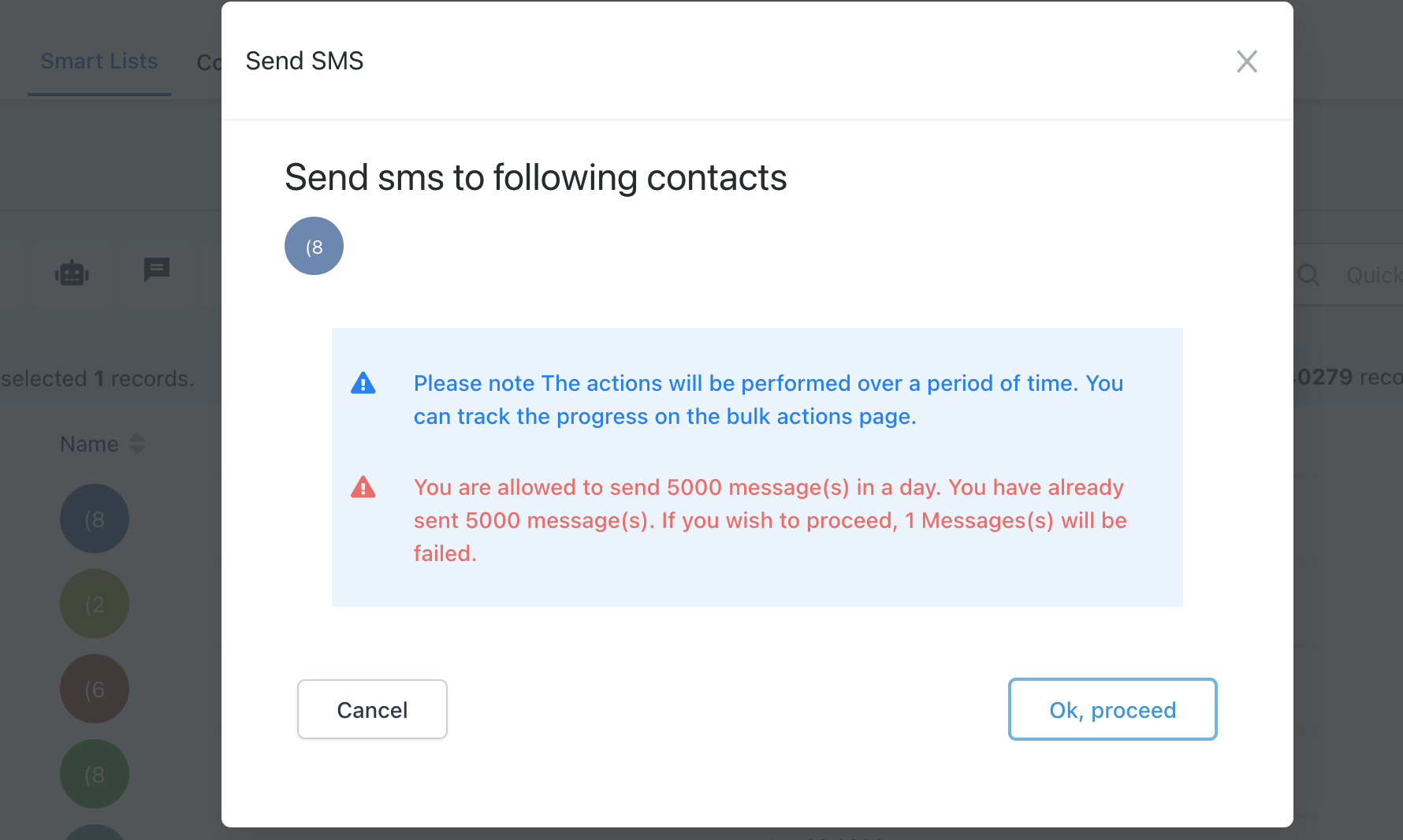
When the available sending limit has already been reached, the bulk SMS confirmation warns that additional messages will fail if the send continues.
When the applicable limit is reached, additional outbound SMS attempts can fail until sending becomes available again. This affects messages sent manually as well as SMS actions that execute through automation.
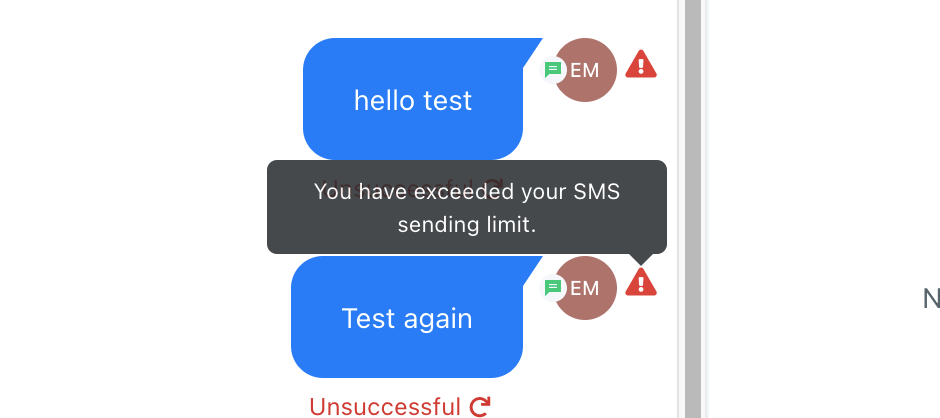
An outbound message attempted after the applicable SMS sending limit is exceeded can appear as unsuccessful.
Inbound messages can still be received: An outbound messaging restriction does not remove inbound conversations or contact records.
What Happens to Workflows During an SMS Restriction?
A messaging restriction affects outbound SMS delivery, but it should not be treated as a universal pause of the workflow engine. This distinction is important when contacts are already inside automations or continue qualifying for workflow triggers during a restriction period.
- If a workflow reaches a Send SMS action while outbound SMS is restricted, that SMS can fail.
- Failed SMS messages are not automatically retried after the restriction ends.
- Do not assume a contact is automatically held at the SMS action until sending becomes available again.
- Other workflow behavior depends on the automation's design.
- Review Workflow Execution Logs to see the exact path taken by an affected contact.
What about new contacts entering a funnel?
An SMS restriction does not delete contacts or automatically stop every non-SMS workflow action. Contacts may still qualify for triggers and move through automation logic, but an SMS action reached while outbound messaging is unavailable can fail.
For time-sensitive funnels, consider fallback logic such as email, internal notifications, waits, or delivery-error handling so the customer journey does not depend on a failed SMS being automatically retried later.
How to Find Affected Contacts
- Go to Automation → Workflows.
- Open the affected workflow.
- Open Execution Logs.
- Locate contacts whose Send SMS action occurred during the restriction window.
- Open the execution details to review the action result and the contact's workflow path.
How to Recover After a Messaging Restriction
Recovery should focus on identifying the restriction, correcting its cause, and reviewing any SMS actions that failed while sending was unavailable. Avoid immediately resending everything without first confirming that the underlying issue has been resolved.
- Identify the restriction type.
Review the Messaging Ramp and Restriction History to determine whether the issue is volume-related or compliance-related. - Wait for the active restriction to end.
Do not repeatedly attempt high-volume sends while outbound SMS is unavailable. - Correct the root cause.
For compliance restrictions, review consent, list quality, sender identification, opt-out language, message content, and delivery errors. - Review Workflow Execution Logs.
Identify Send SMS actions that failed while the restriction was active. - Resend or re-enroll only where appropriate.
Failed SMS messages are not automatically retried. Avoid creating duplicate communication when recovering affected contacts. - Monitor the next sends.
Confirm successful delivery before returning to higher-volume activity.
You do not need to rebuild a workflow simply because SMS was temporarily restricted. Review affected executions and recover only the contacts or messages that require follow-up.
Compliance Restrictions and Restriction History
High opt-out and delivery-error rates can indicate poor consent practices, invalid numbers, or carrier filtering. Messaging-health signals are monitored and can result in a temporary outbound SMS restriction when documented thresholds are reached.
| Metric | Healthy Guidance | Restriction Threshold |
|---|---|---|
| Opt-Out Rate | Keep as low as possible | Approximately 3% |
| Delivery Error Rate | Keep under documented warning thresholds | Approximately 10% |
How to Check Restriction History
- Go to Settings → Phone System → Advanced Settings.
- Open Restriction History.
- Review the restriction type, reason, timestamp, and applicable metrics.
SMS DND and Carrier Filtering
DND protects individual contacts from receiving messages when they have opted out or when their number should no longer receive SMS. Unlike an account-level restriction, DND normally affects the specific contact and communication channel.
- Channel-Specific DND: SMS can be disabled independently from email, calls, and other communication channels.
- Opt-Out DND: Standard unsubscribe responses can activate SMS DND for the contact.
- Outbound Blocking: When SMS DND is active, additional SMS attempts to that contact are blocked.
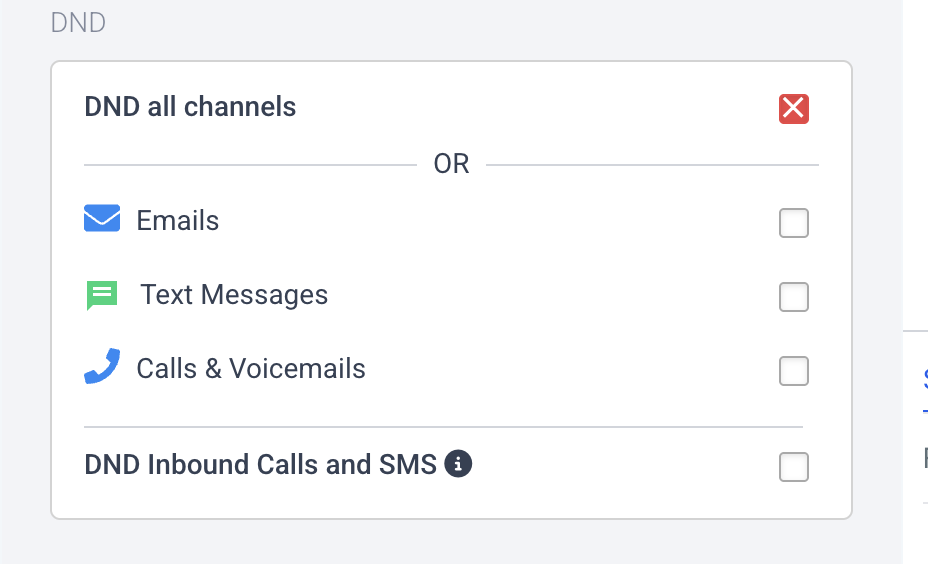
DND settings can be managed by communication channel, allowing Text Messages to be controlled independently from email and calls.
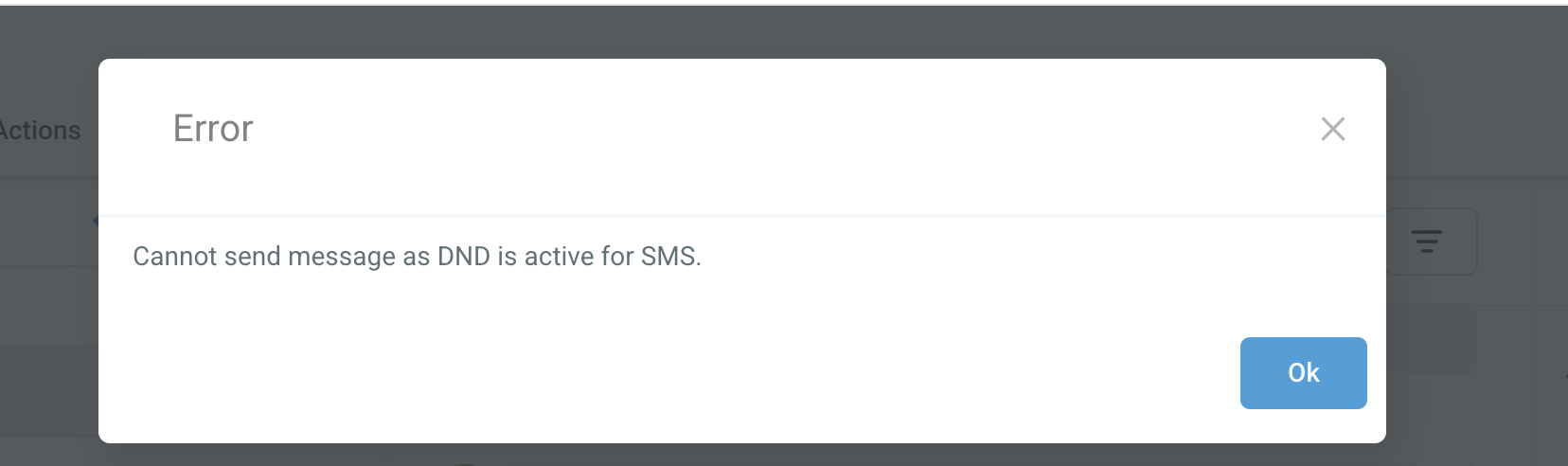
When SMS DND is active, an outbound message attempt can be blocked with a DND error.
Sender Identification, Consent & Opt-Out Requirements
Clear consent and sender identification help recipients understand who is messaging them and how to stop future messages. These requirements also reduce complaints and carrier filtering.
- Consent must belong to the sender: Do not use purchased or transferred consent lists.
- Identify the sender: The initial outbound message should clearly identify the business that obtained the contact's consent.
- Include opt-out language: Initial messages must give recipients a clear way to opt out.
- Respect opt-outs: Once SMS consent is revoked, future SMS should not continue unless the contact validly opts back in.
How to Set Up SMS Compliance Settings
SMS Compliance settings automatically help add sender identification and opt-out language to outbound messages. Configuring these settings correctly makes compliance text more consistent across conversations.
- Go to Settings → Phone System → Advanced Settings.
- Open the SMS Compliance tab.
- Enable Make SMS compliant by adding an opt out message.
- Click Customize if you need to edit the opt-out wording.
- Enable Make SMS compliant by adding a sender information.
- Customize the Sender ID and general sender text when needed.
- Set how often the Sender ID and opt-out message should be included in ongoing conversations.
- Save your changes and send a test SMS to verify the final message.
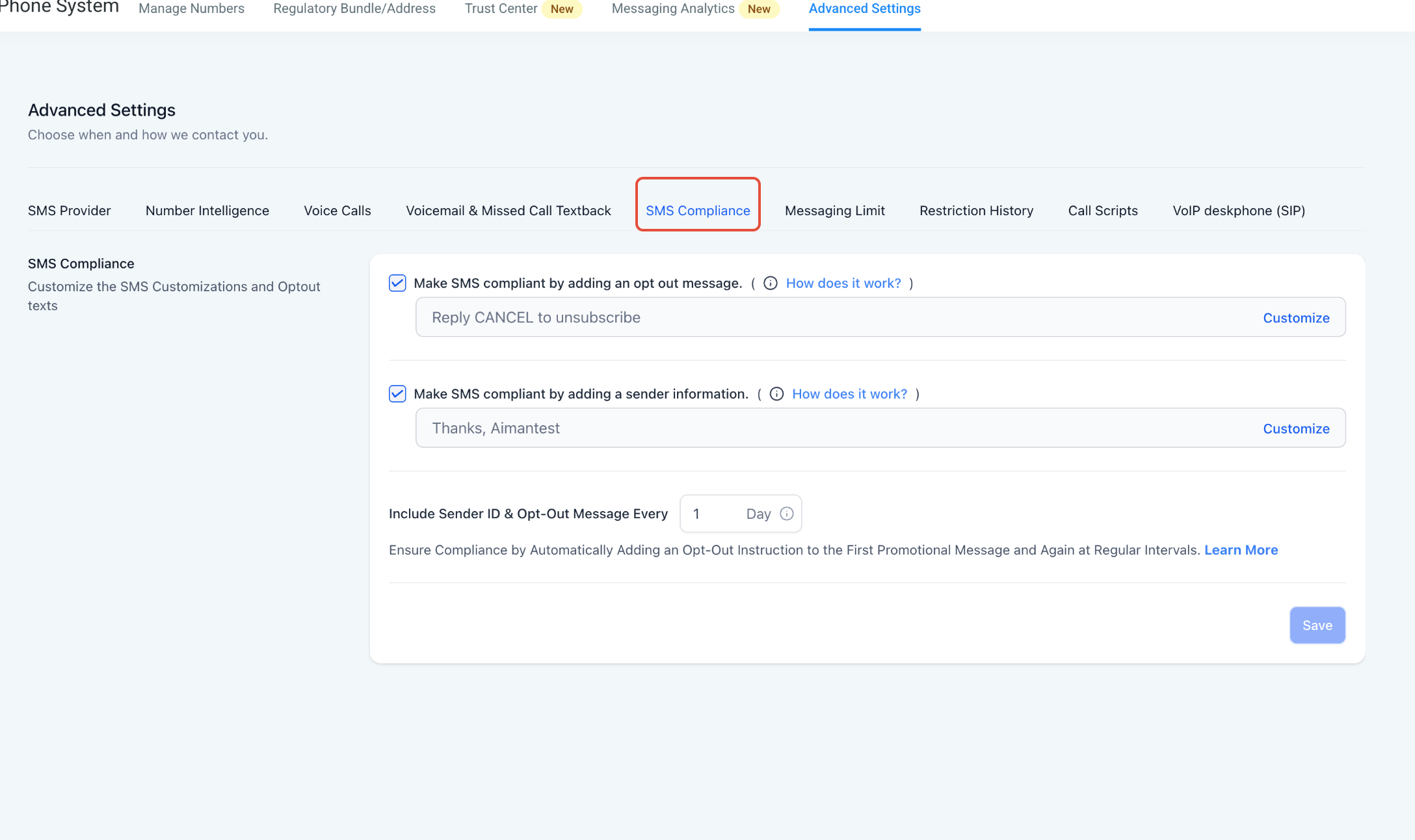
The SMS Compliance tab controls automatic opt-out text, sender information, and how frequently those details are added to outbound conversations.
Customize Sender Information
The Sender ID identifies the business sending the message. When customizing the general text, keep {{senderID}} in the message so the configured Sender ID can be inserted automatically.
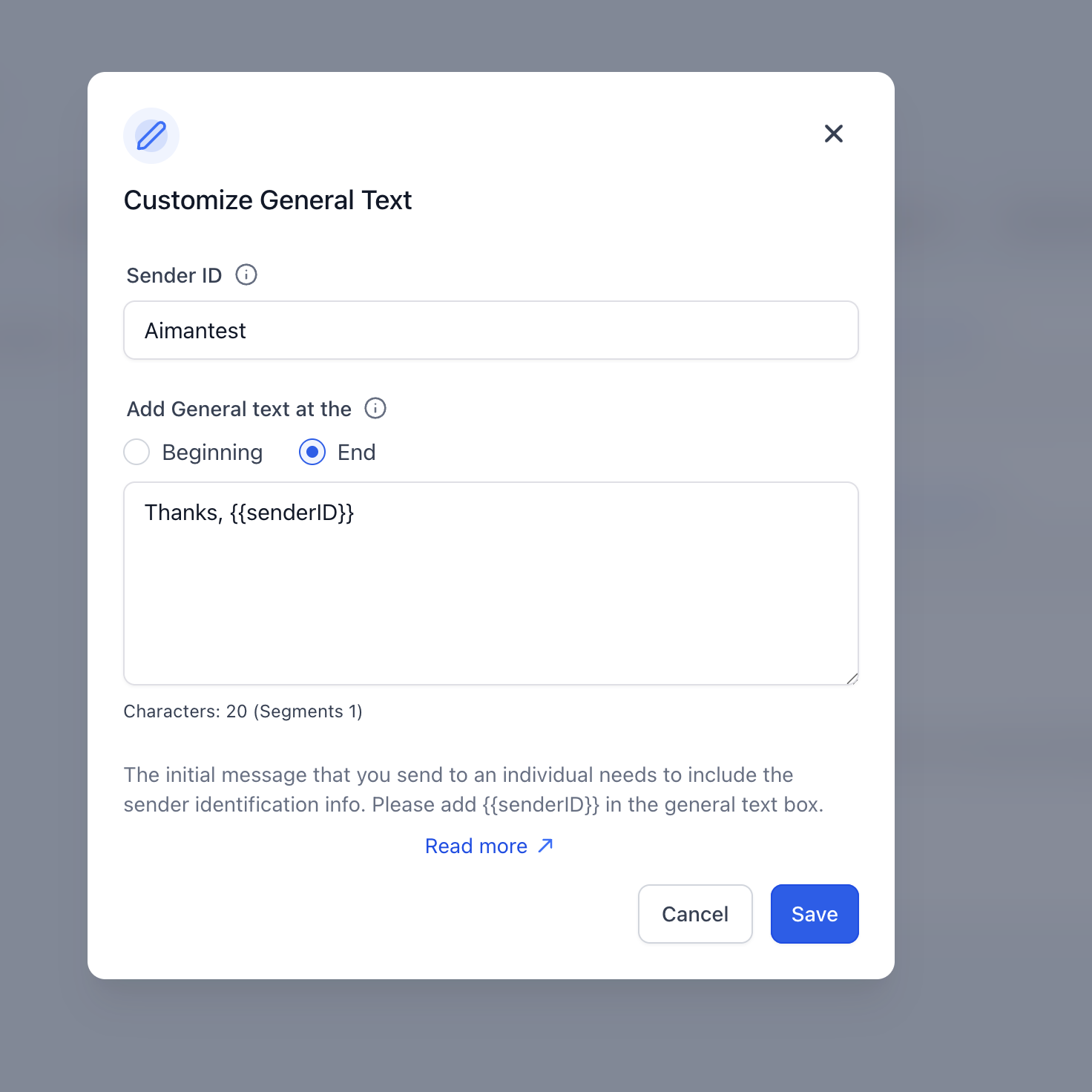
Customize the Sender ID, whether the general text appears at the beginning or end of the message, and the text that accompanies the Sender ID.
Verify the First Outbound Message
After saving the SMS Compliance settings, send a test message to verify that the outbound SMS contains the expected sender identification and opt-out instructions.
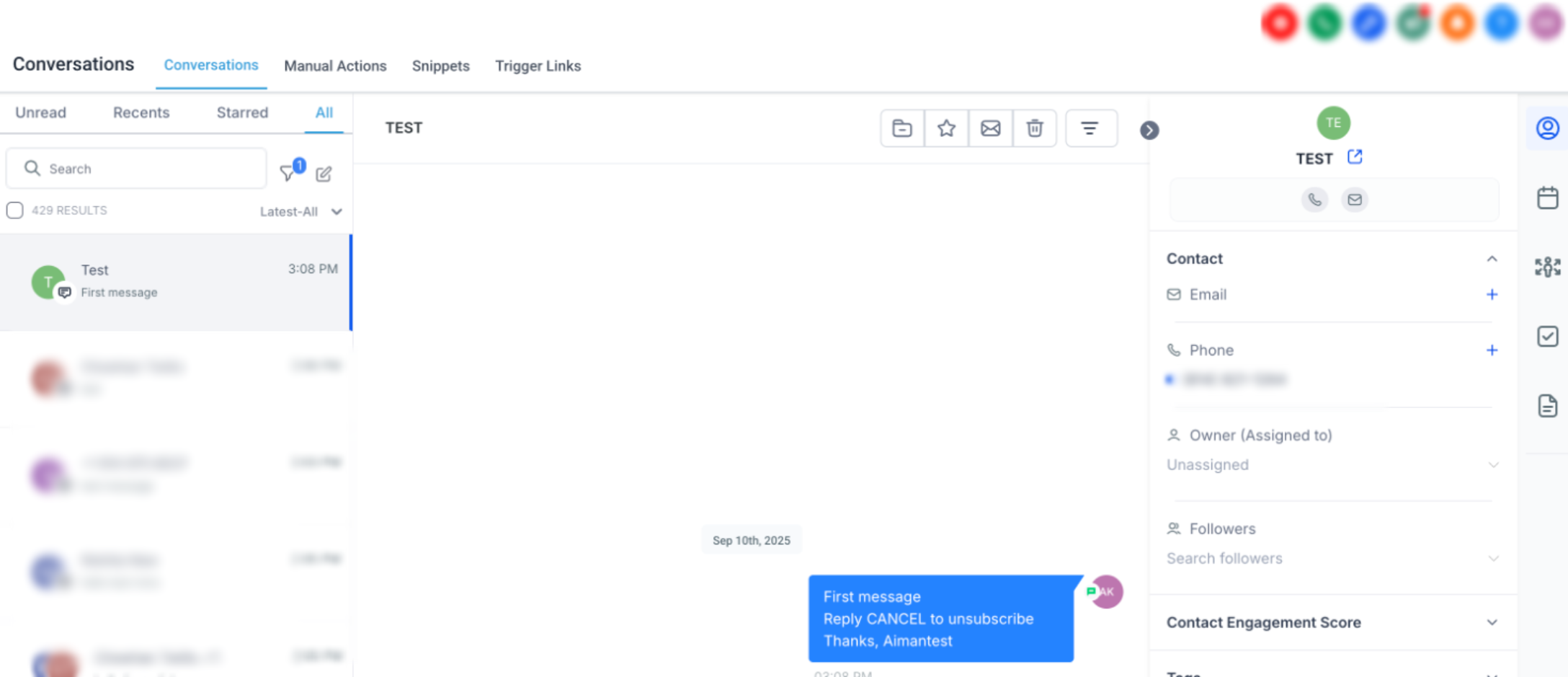
The first outbound message shows the configured opt-out instruction and sender identification appended to the original SMS.
Troubleshooting Messaging Restrictions
Start troubleshooting by identifying whether the problem is account-wide, contact-specific, or limited to a workflow execution. Reviewing the exact restriction or error prevents unnecessary resends and helps protect deliverability.
Review the Messaging Ramp or applicable sending limit before attempting additional outbound SMS.
Open Workflow Execution Logs and review the affected action. Failed SMS messages are not automatically retried after the restriction ends.
Open Restriction History and review the restriction reason and related metrics. Correct the underlying issue before resuming high-volume sends.
Check the contact's SMS DND status and review the failed message before attempting another send.
Frequently Asked Questions
Need Help?
If SMS is still unavailable after the expected restriction period or messages continue to fail after the underlying issue has been corrected, review the sending limit, Restriction History, workflow logs, and contact DND status before contacting Support.
- Confirm whether the sending limit has been reached.
- Review Restriction History for an account-level restriction.
- Check the affected contact's SMS DND status.
- Review Workflow Execution Logs when an automated SMS failed.
- Confirm sender identification and opt-out settings are configured correctly.
- Review recent delivery errors and opt-out activity.
- Send a controlled test SMS after the restriction has ended.
When contacting Support, include enough detail to identify the restriction and any affected messages or workflow executions.
- The affected sending phone number
- The approximate date and time the restriction began
- The restriction type or reason shown in Restriction History
- The workflow name, if automated SMS was affected
- Examples of affected contacts or messages
- Any delivery or workflow error details
- Screenshots of the applicable sending-limit, restriction, DND, or workflow information