Download AI Studio Project Codebase as ZIP
Print
Modified on: Mon, 7 Sep, 2026 at 7:05 AM
AI Studio
Download AI Studio Project Codebase as ZIP
Export your complete AI Studio project codebase as a ZIP file and continue development anywhere you want.
What You'll Learn
This article explains how to download your AI Studio project codebase as a ZIP file, giving you full access to your code outside the platform.
You'll learn how to download the latest version of your project, access older versions from your project history, and understand what this capability means for your development workflow.
1
What Is Download Codebase?
Download Codebase allows you to export your complete AI Studio project as a ZIP file. This gives you direct access to all the code files that make up your website or application.
The ZIP file contains your entire project structure, including all HTML, CSS, JavaScript, and other code files you've built within AI Studio. You can extract this ZIP file on your local machine and work with the code in any development environment you prefer.
This feature also includes access to older versions of your project. If you've made changes over time and want to download a previous version, you can select any version from your project history and download it as a separate ZIP file.
Downloading your AI Studio codebase gives you complete flexibility over how you develop and deploy your project.
Edit in Your Preferred Environment — Take your code to any code editor or IDE you prefer. Make manual changes, add custom functionality, or refactor code outside of AI Studio.
Continue Development with AI Coding Agents — Use external AI coding tools to continue building your project. The downloaded codebase is ready to work with any AI assistant or development tool.
Keep Local Backups — Store offline copies of your project for version control, backup purposes, or archival. You control where your code lives.
Deploy Anywhere — Host or deploy your application on any platform, server, or hosting service. Your project is no longer limited to AI Studio infrastructure.
Access Project History — Download any previous version of your project. Useful for reverting to earlier states or comparing changes across iterations.
3
How to Download the Latest Codebase
You can download your current project codebase using two different methods. Both methods download the latest version of your project as a ZIP file.
Option 1: Download from the Code Section
Step 1
Navigate to Code
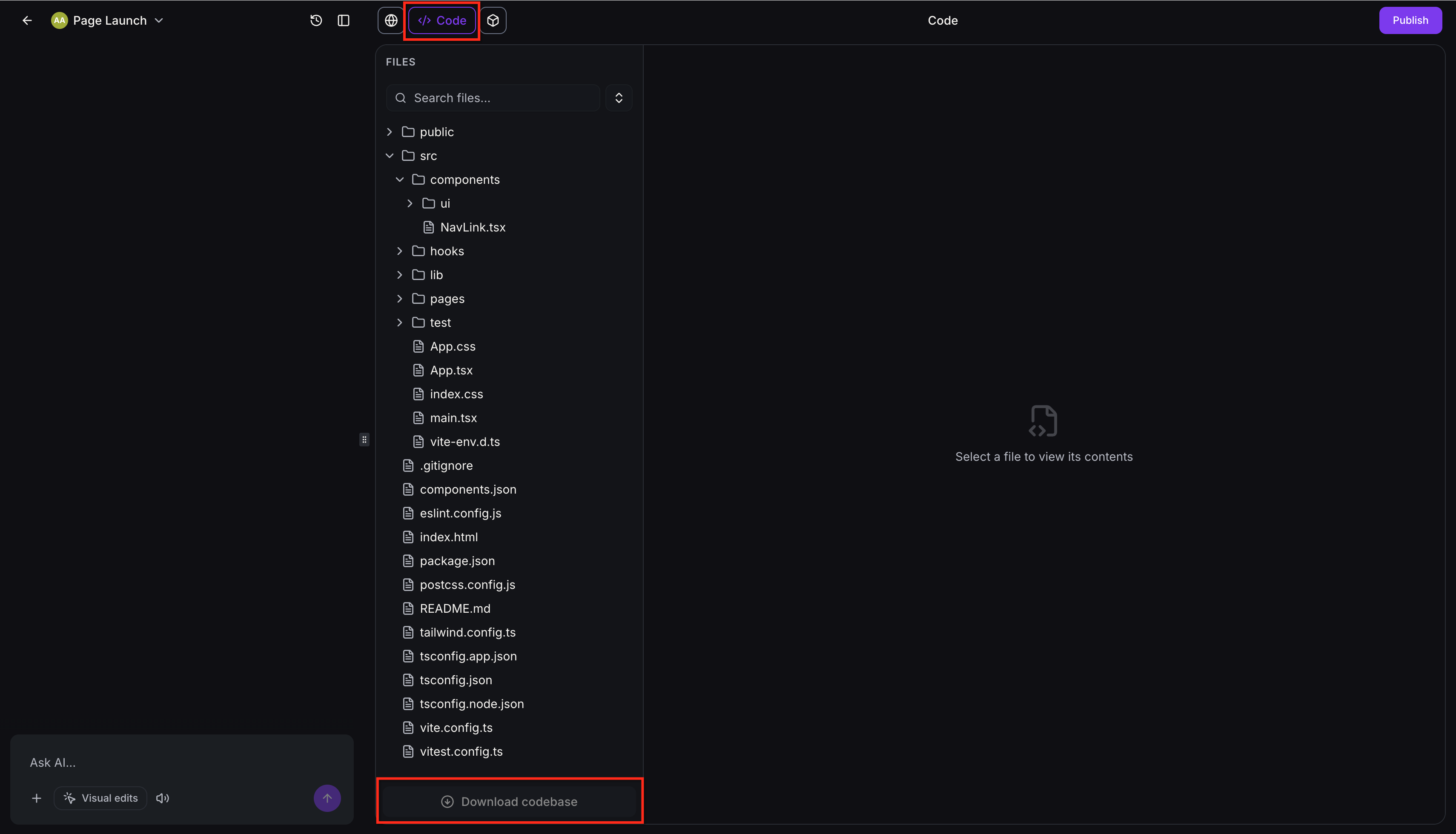
Open your AI Studio project and click Code from the top navigation menu.
Step 2
Scroll to the Bottom
Scroll down to the bottom of the Code section.
Step 3
Click Download Codebase
Click the Download Codebase button. Your project will be packaged and downloaded as a ZIP file to your computer.
Option 2: Download from Project Settings
Step 1
Navigate to Project Settings
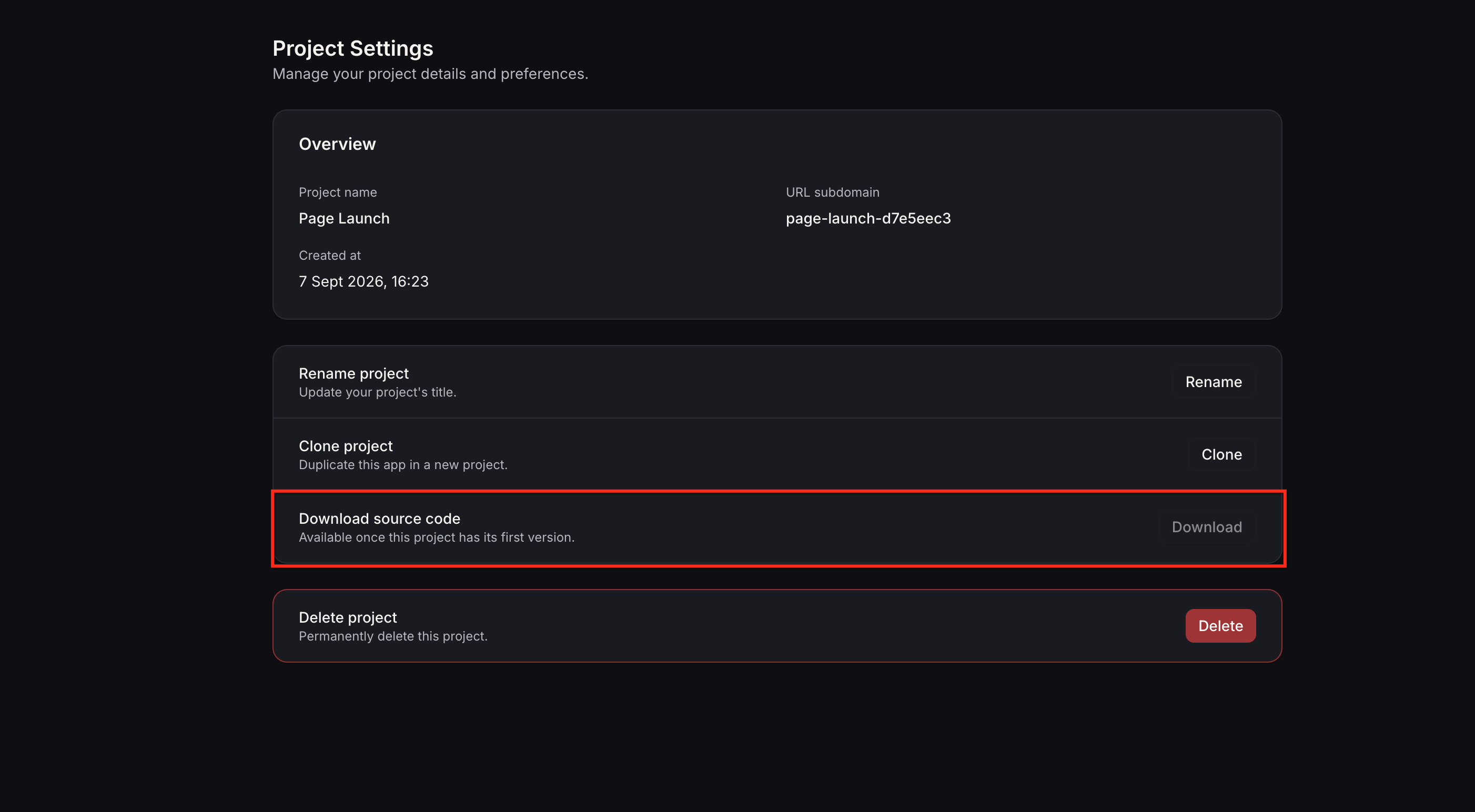
Open your AI Studio project and navigate to Project Settings.
Step 2
Find Download Codebase
Locate the Download Codebase option in the settings panel.
Step 3
Download the ZIP
Click the button to download your project as a ZIP file.
Success
After clicking the download button, your browser will save the ZIP file to your default downloads folder. You can then extract the ZIP file to access all your project files.
4
How to Download Older Versions
If you need to access a specific previous version of your project, you can download any version from your project history as a separate ZIP file.
Step 1
Open Version History
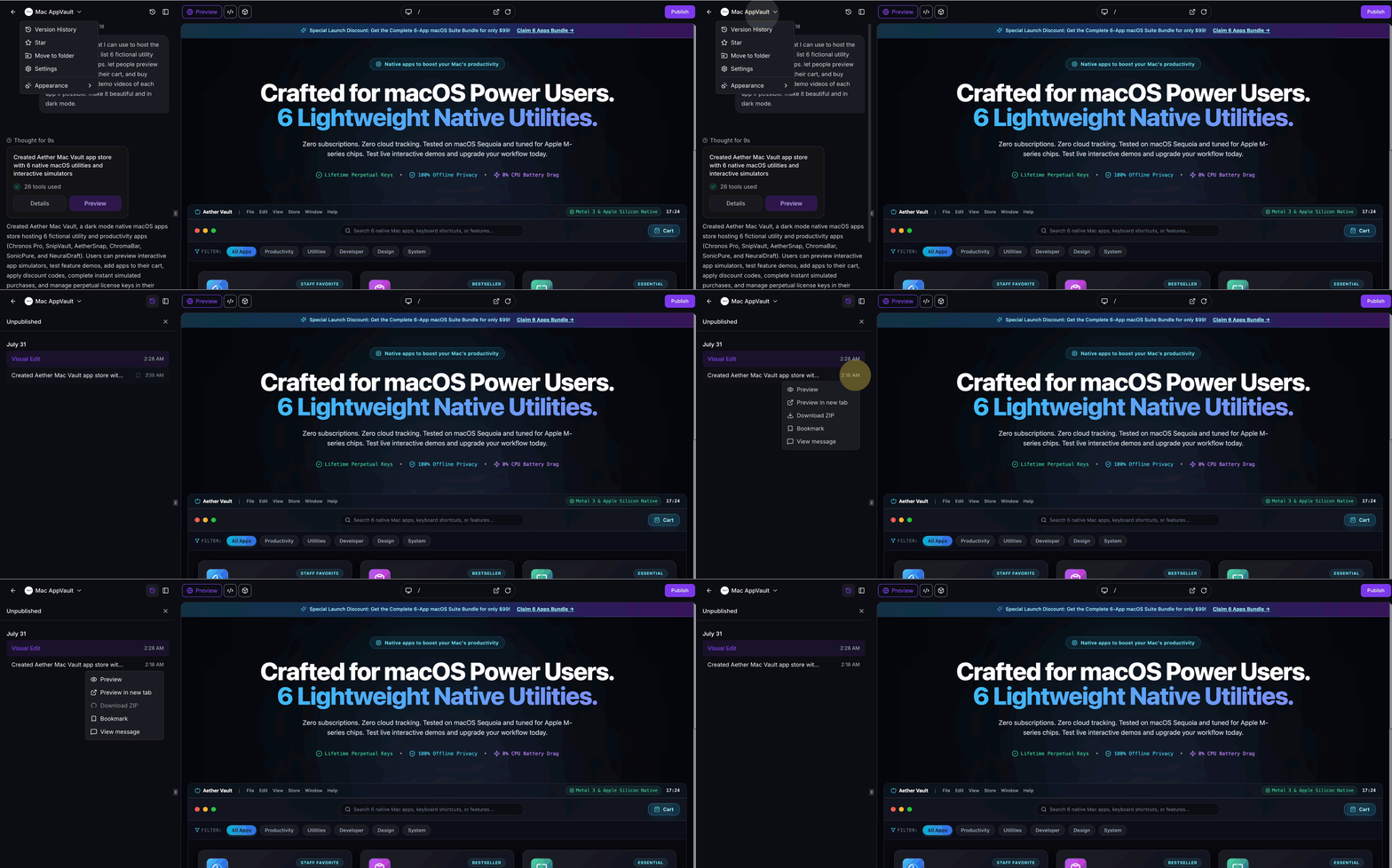
Navigate to your project's Version History. This panel shows all saved versions of your project over time.
Step 2
Select a Version
Locate the version you want to download. Each version entry displays the date and time it was saved.
Step 3
Open the Version Menu
Click the three-dot menu (⋮) next to the version you want to download.
Step 4
Select Download ZIP
From the menu, select Download ZIP. The selected version of your project will be downloaded as a ZIP file.
Tip
Downloading older versions is useful for comparing code changes, reverting to previous functionality, or retrieving code from a specific point in your project timeline.
5
Frequently Asked Questions
Q: What file format is the downloaded codebase?
The codebase is downloaded as a ZIP file. After downloading, you can extract the ZIP file on your computer to access all your project files in their original folder structure.
Q: Does downloading the codebase remove my project from AI Studio?
No. Downloading your codebase creates a copy of your project files. Your project remains fully intact and accessible within AI Studio. You can continue working on the project inside AI Studio even after downloading the code.
Q: Can I upload the downloaded code back to AI Studio after making changes?
Currently, AI Studio does not support re-uploading ZIP files. If you make changes to the downloaded code outside AI Studio, those changes will not automatically sync back to your AI Studio project. The downloaded code is intended for external development or deployment.
Q: What types of files are included in the ZIP?
The ZIP file contains all files that make up your AI Studio project, including HTML, CSS, JavaScript, images, and any other assets you've added to the project. The file structure matches how your project is organized within AI Studio.
Q: How many older versions can I download?
You can download any version that appears in your project's Version History. The number of available versions depends on how many times your project has been saved and how long those versions have been retained in your history.
Q: Can I host the downloaded code on my own server?
Yes. Once you download the codebase, you have full access to the files and can host them on any server or deployment platform you choose. The code is yours to use as needed.
Q: Is there a limit to how many times I can download my codebase?
No. You can download your codebase as many times as you need. Each download creates a fresh copy of your project files at that moment in time.
Q: Will the downloaded code work immediately, or does it require configuration?
The downloaded code is a static export of your project files. Depending on your project's complexity, you may need to configure environment variables, API keys, or server settings to run the code outside of AI Studio. Simple static websites should work immediately when hosted.
Need Help?
If you encounter issues downloading your codebase or have questions about working with the downloaded files:
- Open your AI Studio project and navigate to the Help or Support section for in-app assistance.
- Check that your browser allows file downloads and that you have sufficient storage space on your computer.
- If a download fails, try using a different browser or clearing your browser cache before attempting the download again.
Did you find it helpful?
Yes
No
Send feedback Sorry we couldn't be helpful. Help us improve this article with your feedback.
