Rich Link Previews in Communities
Print
Modified on: Mon, 7 Sep, 2026 at 7:37 AM
Community Engagement
Rich Link Previews in Communities
Automatically display engaging link previews with images, titles, and descriptions when sharing URLs in community posts and comments.
What You'll Learn
This article explains how rich link previews enhance community engagement by automatically displaying visual previews of shared links including images, titles, and descriptions.
You'll understand how the feature works, what content displays in previews, and how to manage link previews in your community posts and comments.
1
What are Rich Link Previews?
Rich link previews are visual representations of shared URLs that automatically display when community members post links in posts or comments. Instead of showing plain text URLs, the system generates attractive preview cards containing the linked content's image, title, and description.
This feature works automatically for any URL shared in your community, transforming standard links into engaging visual elements that provide context before users click through. The preview displays metadata extracted from the destination website, giving community members a clear understanding of where the link leads.
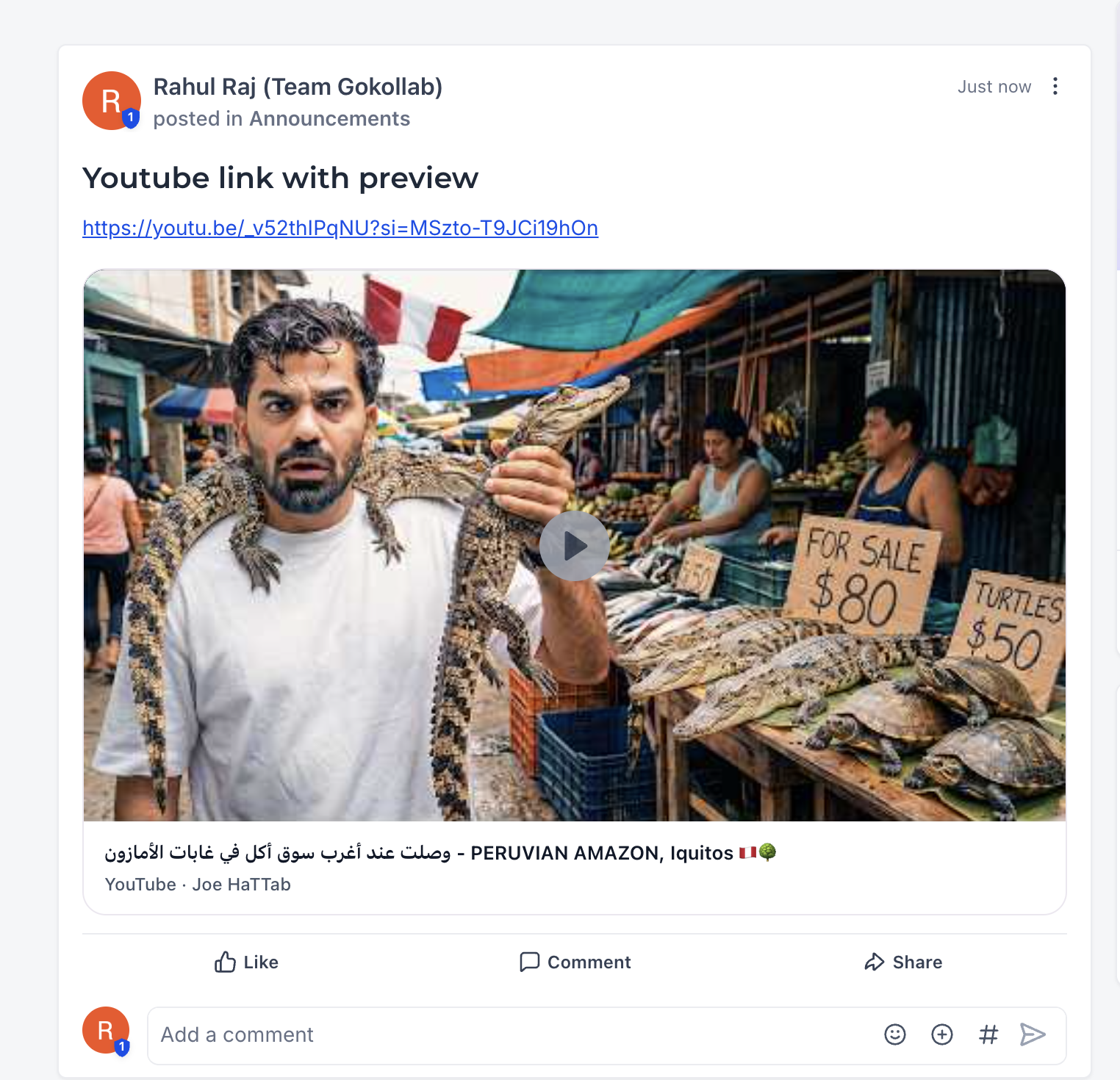
Rich link previews enhance the community experience by making shared content more engaging and informative. The visual nature of link previews increases click-through rates and helps members quickly assess whether shared resources are relevant to their interests.
Enhanced Visual Appeal — Preview cards with images and formatted text make community feeds more attractive and professional compared to plain URL strings.
Improved Context — Members see what content they'll access before clicking, reducing confusion and building trust in shared resources.
Higher Engagement — Visual previews naturally draw attention and encourage more interaction with shared content throughout the community.
Automatic Operation — The system generates previews automatically without requiring any manual setup or configuration from community members.
Consistent Experience — All shared links display in a uniform preview format, creating a cohesive and polished community interface.
3
How Rich Link Previews Work
When a community member shares a URL in a post or comment, LeadConnector automatically processes the link to extract preview information. The system retrieves metadata from the destination website and displays it as a formatted preview card within the community feed.
Component 1
Featured Image
The preview displays the primary image from the shared webpage, providing a visual anchor for the content. This image appears prominently at the top of the preview card.
Component 2
Title
The page title or headline from the destination URL appears as bold text, giving members an immediate understanding of the content topic.
Component 3
Description
A brief summary or excerpt from the linked page provides additional context about what members will find when they click through to the full content.
Component 4
Domain Display
The source website's domain name appears in the preview, helping members identify the content origin and assess trustworthiness.
How It Works
The system automatically detects URLs when posted and generates previews in real-time. No additional actions are required from the person sharing the link or community administrators.
4
Frequently Asked Questions
Q: Do I need to enable rich link previews in my community?
No configuration is required. Rich link previews are automatically enabled for all communities and generate whenever a URL is posted.
Q: What happens if a website doesn't have preview metadata?
If a website doesn't provide the necessary metadata for preview generation, the URL will display as plain text without a visual preview card.
Q: Can I customize what appears in the link preview?
No. The preview content is automatically extracted from the destination website's metadata and cannot be edited within LeadConnector. The source website controls what information appears in previews.
Q: Will link previews work for all types of URLs?
Rich link previews work for most standard web URLs that include proper metadata. Some specialized link types or URLs with access restrictions may not generate previews.
Q: Can community members disable previews by default?
There is no global setting to disable automatic preview generation. Members must remove previews individually from each post or comment using the X button on the preview card.
Q: Do link previews work in both posts and comments?
Yes. Rich link previews generate automatically whenever a URL is shared in either community posts or comments on posts.
Q: What if the preview shows outdated or incorrect information?
Preview content reflects the metadata available from the destination website at the time the URL is posted. If the source website updates its content, the preview in your community post will not automatically update. You can remove the outdated preview using the X button.
Q: Can I share multiple links with previews in one post?
Yes. You can include multiple URLs in a single post or comment, and each eligible link will generate its own rich preview card within the content.
Need Help?
If you have questions about rich link previews or encounter issues with preview generation, our support team is ready to assist.
- Access your community settings to review configuration options
- Test link previews with different URL types to understand behavior
- Contact support through the in-app help widget if previews aren't generating as expected
Did you find it helpful?
Yes
No
Send feedback Sorry we couldn't be helpful. Help us improve this article with your feedback.
