
AI-Generated SMS Messages in Workflows
This guide explains how to use AI to generate SMS messages within workflows, enabling you to create contextually relevant and personalized text messages without manual composition.
You'll discover how to configure AI prompts, incorporate contact data, use conversation history, and optimize your automated SMS communications for better engagement.
What is AI-Generated SMS in Workflows?
AI-Generated SMS in Workflows is a feature that allows workflows to automatically compose SMS messages using artificial intelligence. Instead of writing static message templates, you provide AI with instructions and context, and it generates personalized messages tailored to each contact.
This capability appears within the SMS action in workflows, where you can choose to use AI to create message content. The AI uses your prompt instructions, contact custom field data, and previous conversation history to craft contextually appropriate messages.
The generated messages can be sent directly or stored in custom fields for review, giving you flexibility in how you deploy AI-created content in your communication workflows.
Key Benefits
AI-generated SMS messages enhance your workflow automation by making communications more adaptive and personalized without additional manual effort.
How AI SMS Generation Works
The AI SMS generation process combines several data sources and your instructions to create contextually relevant messages automatically.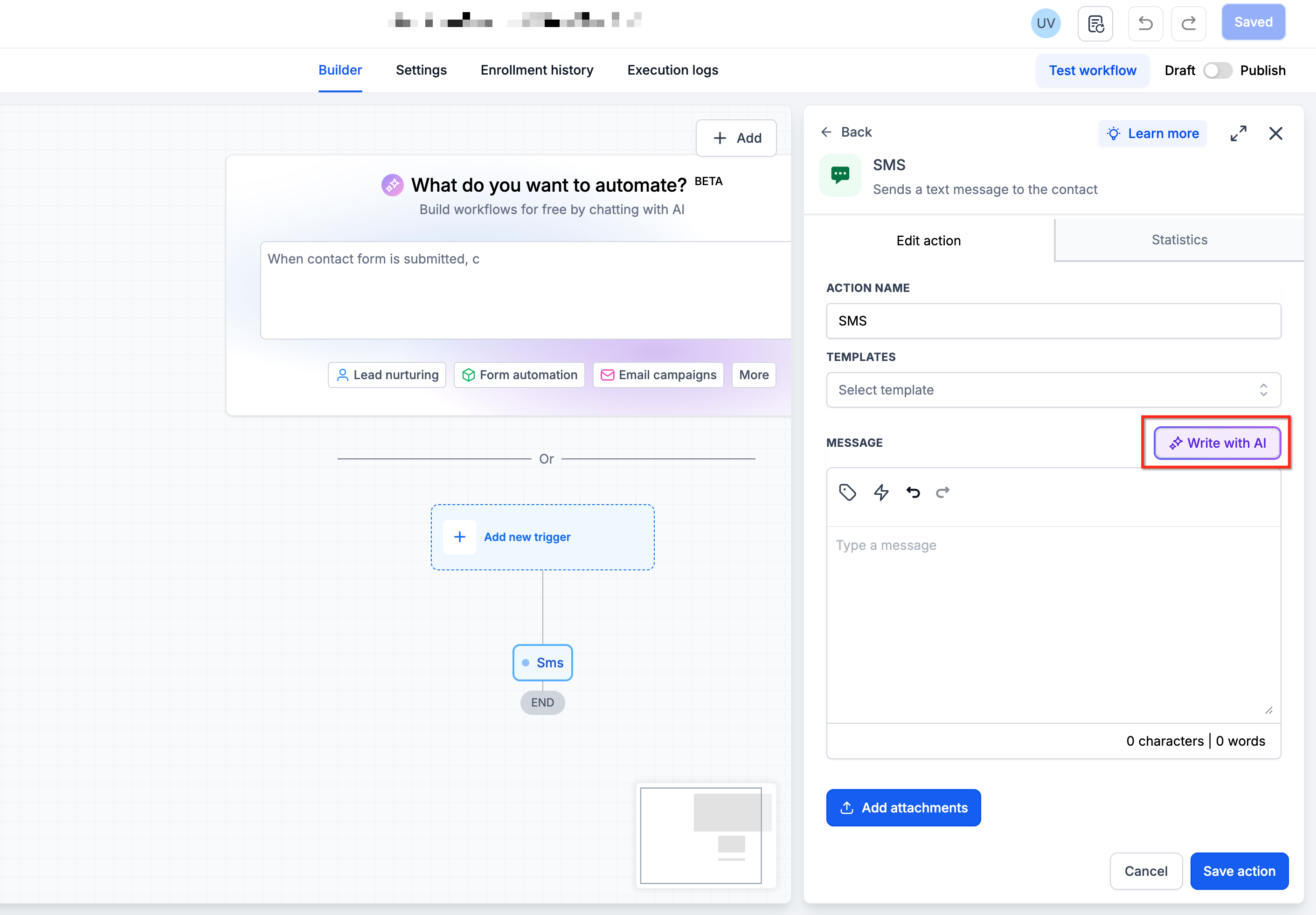
You provide natural language instructions describing what you want the AI to write. The prompt can include tone, purpose, specific details to include, and any constraints like message length.
The AI accesses contact custom fields you reference in your prompt, pulling in specific data like names, appointment dates, purchase history, or any other stored information to personalize the message.
When enabled, the AI reviews the contact's previous messages in the conversation thread, allowing it to reference past topics, answer questions, or maintain conversational flow.
The AI synthesizes all inputs to compose a message that follows your instructions while incorporating the relevant contact data and conversation context.
The AI generates a new message each time the workflow action runs. Messages are not stored or reused from previous executions.
How to Set Up AI-Generated SMS Messages
Follow these steps to configure AI-generated SMS messages within your workflow SMS actions.
In your workflow builder, add or edit an SMS action at the point where you want to send the AI-generated message.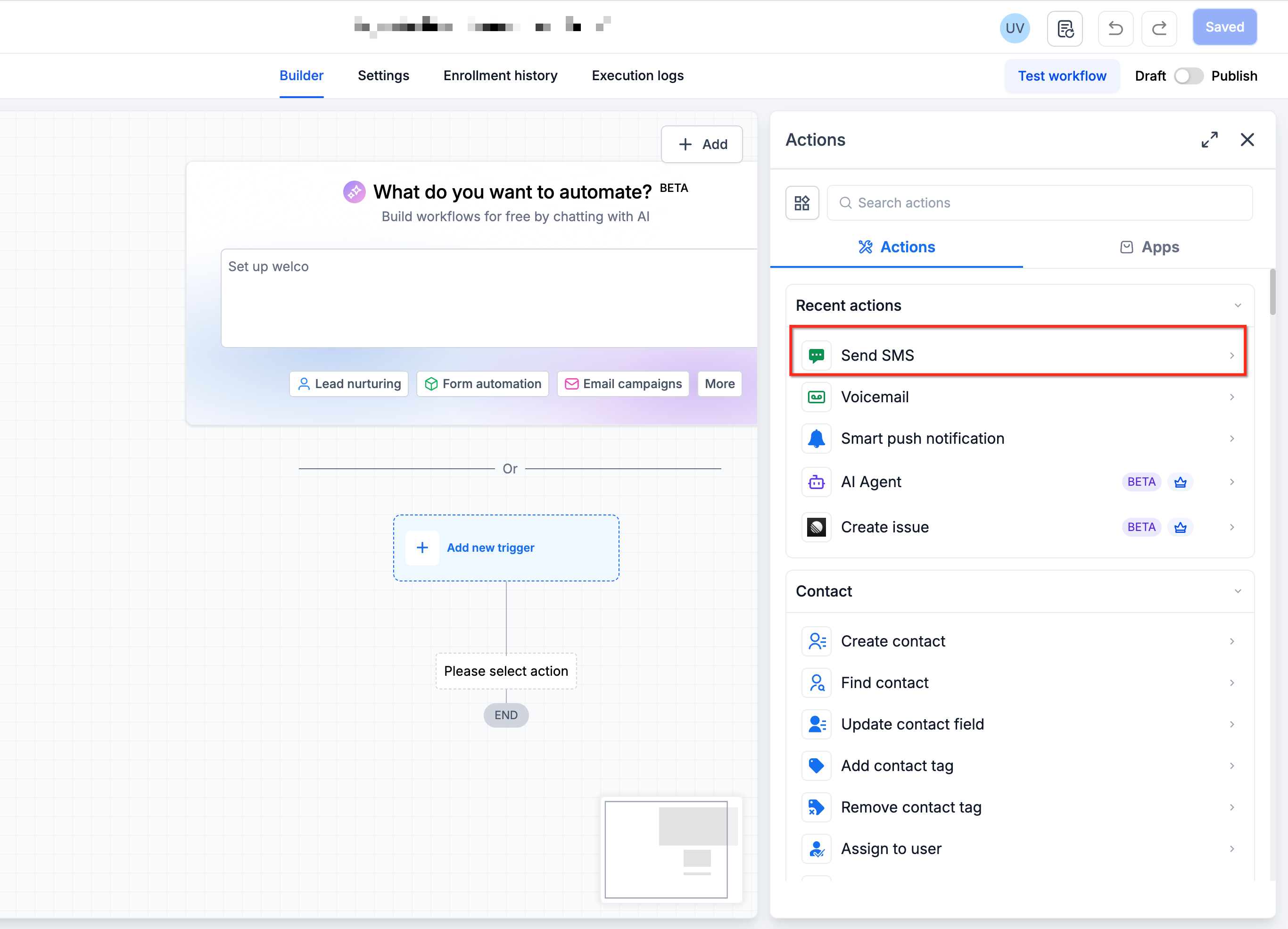
In the SMS action configuration, look for the "Write with AI" option or toggle. Enable this feature to activate AI message generation.
In the prompt field, write clear instructions for the AI describing what message you want. Include:
- The purpose of the message (reminder, follow-up, confirmation, etc.)
- Tone and style (professional, friendly, casual, formal)
- Specific information to include
- Any length constraints or formatting requirements
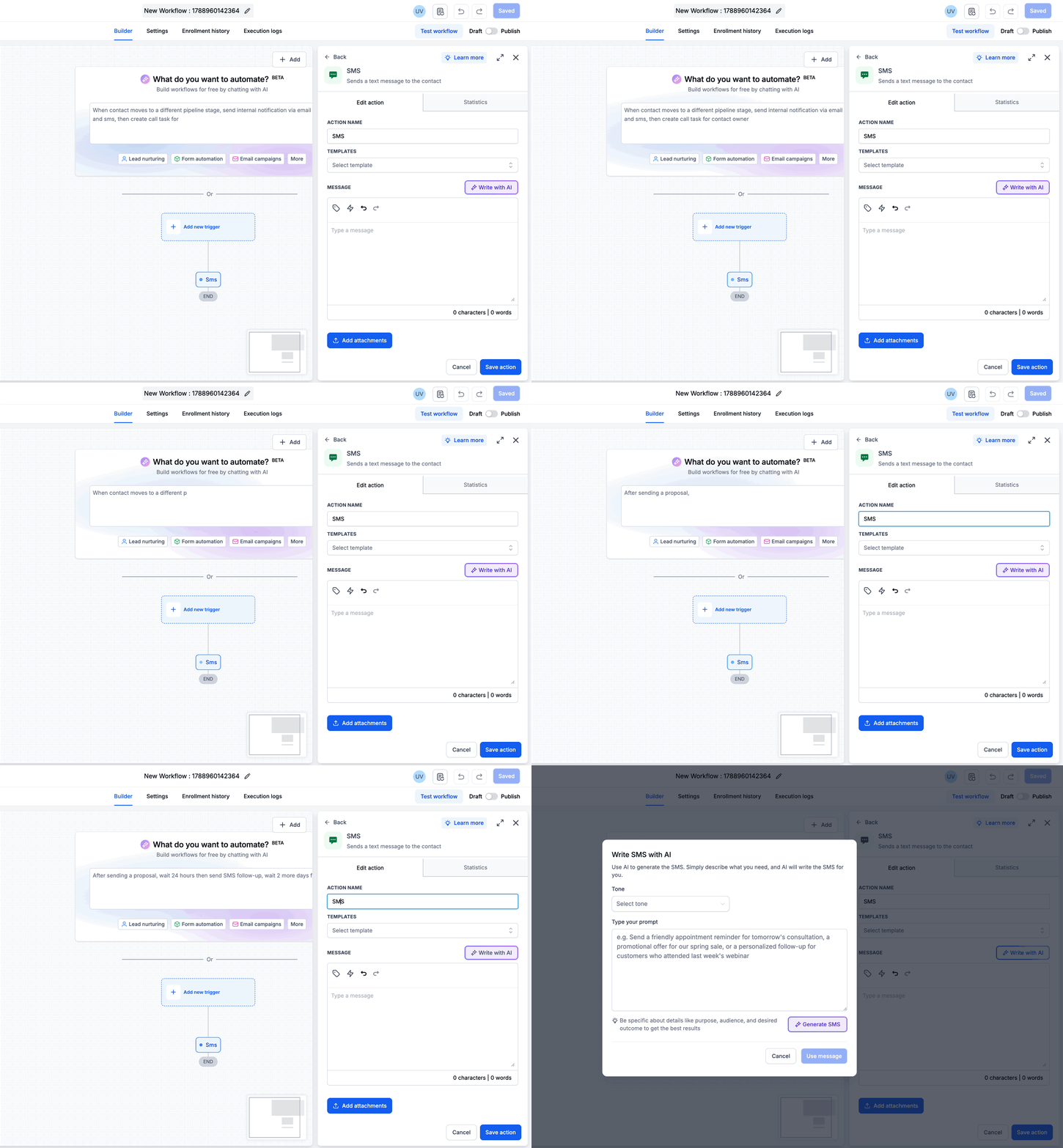
To include contact-specific data in your prompt, reference custom fields using the custom field picker or by typing the field name in your instructions. For example: "Include the contact's {{custom_field.appointment_date}} in the message."
The AI will automatically pull values from these fields for each contact.
To allow the AI to reference previous messages in the conversation thread, enable the "Use conversation history" or "Include chat context" option. This allows the AI to create messages that respond to or acknowledge earlier communications.
Decide how the AI-generated message will be used:
- Send immediately: The workflow sends the AI-generated message directly to the contact
- Save to custom field: The generated message is stored in a specified custom field for later review or manual sending
Select your preferred option in the action settings.
Before activating the workflow, test it with sample contacts to verify the AI generates appropriate messages. Review the generated content for accuracy, tone, and completeness.
Start with clear, specific prompts and refine based on the AI's output. The more detailed your instructions, the more consistent and accurate the generated messages will be.
Best Practices for AI SMS Prompts
Optimize your AI-generated SMS messages by following these proven practices for writing effective prompts.
Clearly state the message's goal in your prompt. Instead of "send a message," write "send an appointment confirmation message" or "send a follow-up message asking about their experience." Specific purposes lead to more focused, relevant messages.
Include tone descriptors in your prompt: "friendly and conversational," "professional and concise," "warm and empathetic," or "direct and action-oriented." This ensures the AI matches your brand voice and the situation's requirements.
SMS messages have character limits, and recipients prefer concise texts. Specify length in your prompt: "Keep the message under 160 characters" or "Write a brief message, 2-3 sentences maximum." This prevents overly long messages that may be truncated or ignored.
Only include custom fields that add value to the message. If appointment date is relevant, include it; if a field isn't necessary for the context, omit it. Too many data points can make prompts cluttered and messages confusing.
If you want recipients to take specific actions, tell the AI to include those instructions: "End the message by asking them to reply YES to confirm" or "Include a link to the booking page." Clear CTAs improve response rates and campaign effectiveness.
Enable conversation history when the message should respond to or acknowledge previous exchanges. For initial outreach or standalone messages, conversation history may not be necessary and can be disabled to keep the AI focused on your specific instructions.
Run tests with contacts that have different custom field values and conversation histories. This reveals how the AI adapts to various data scenarios and helps you identify prompt improvements needed for edge cases.
Monitor response rates and message quality after deployment. If messages aren't performing as expected, refine your prompt with more specific instructions, adjust tone guidance, or modify the custom fields included.
AI-generated messages are not reviewed before sending when configured to send immediately. Always test thoroughly before deploying workflows that send directly to contacts, or use the "save to custom field" option for human review workflows.
Frequently Asked Questions
If you need assistance setting up AI-generated SMS messages or have questions about workflow configuration, follow these steps:
- Navigate to the Workflows section in your account
- Click the help icon within the SMS action configuration for inline guidance
- Use the in-app chat to connect with support for real-time assistance
- Review your workflow test results to identify specific issues with message generation