Block Checkout When No Shipping Rate Available
Print
Modified on: Thu, 10 Sep, 2026 at 7:11 AM
E-Commerce
Block Checkout When No Shipping Rate Available
Prevent incomplete orders by automatically blocking checkout when shipping rates cannot be calculated for customer addresses.
What You'll Learn
This article explains how to configure checkout blocking when shipping rates are unavailable, helping you prevent order fulfillment issues and improve customer experience.
You'll learn when to use this feature, how to enable it, and what customers will see when shipping is unavailable for their location.
1
What is Checkout Blocking for Missing Shipping Rates?
Checkout blocking is a protective feature that prevents customers from completing their purchase when the system cannot calculate shipping rates for their delivery address. This ensures you don't receive orders you cannot fulfill due to shipping limitations.
When enabled, this feature automatically detects whether your shipping integrations (such as ShipStation, EasyPost, or manual shipping profiles) can provide a valid shipping rate for the customer's location. If no rate is available—typically due to geographic restrictions, carrier limitations, or service area constraints—the checkout process is blocked.
This feature is particularly valuable when you use third-party shipping integrations that may have regional limitations, or when you've configured specific shipping zones that don't cover all locations.
Enabling checkout blocking when shipping rates are unavailable provides several advantages for your business operations and customer experience:
Prevent Unfulfillable Orders — Stop orders from being placed when you cannot ship to the customer's location, eliminating the need for manual cancellations and refunds.
Reduce Customer Frustration — Inform customers immediately during checkout rather than after payment that shipping is unavailable, creating a more transparent purchasing experience.
Streamline Operations — Eliminate the administrative burden of processing cancellations, issuing refunds, and handling customer service inquiries for orders that cannot be shipped.
Maintain Accurate Records — Keep your order data clean by preventing invalid transactions from entering your system in the first place.
Protect Revenue Metrics — Avoid skewing your sales data with orders that will ultimately be cancelled and refunded due to shipping constraints.
3
How to Enable Checkout Blocking
Follow these steps to configure checkout blocking when shipping rates are unavailable:
Step 1
Access Payments Settings
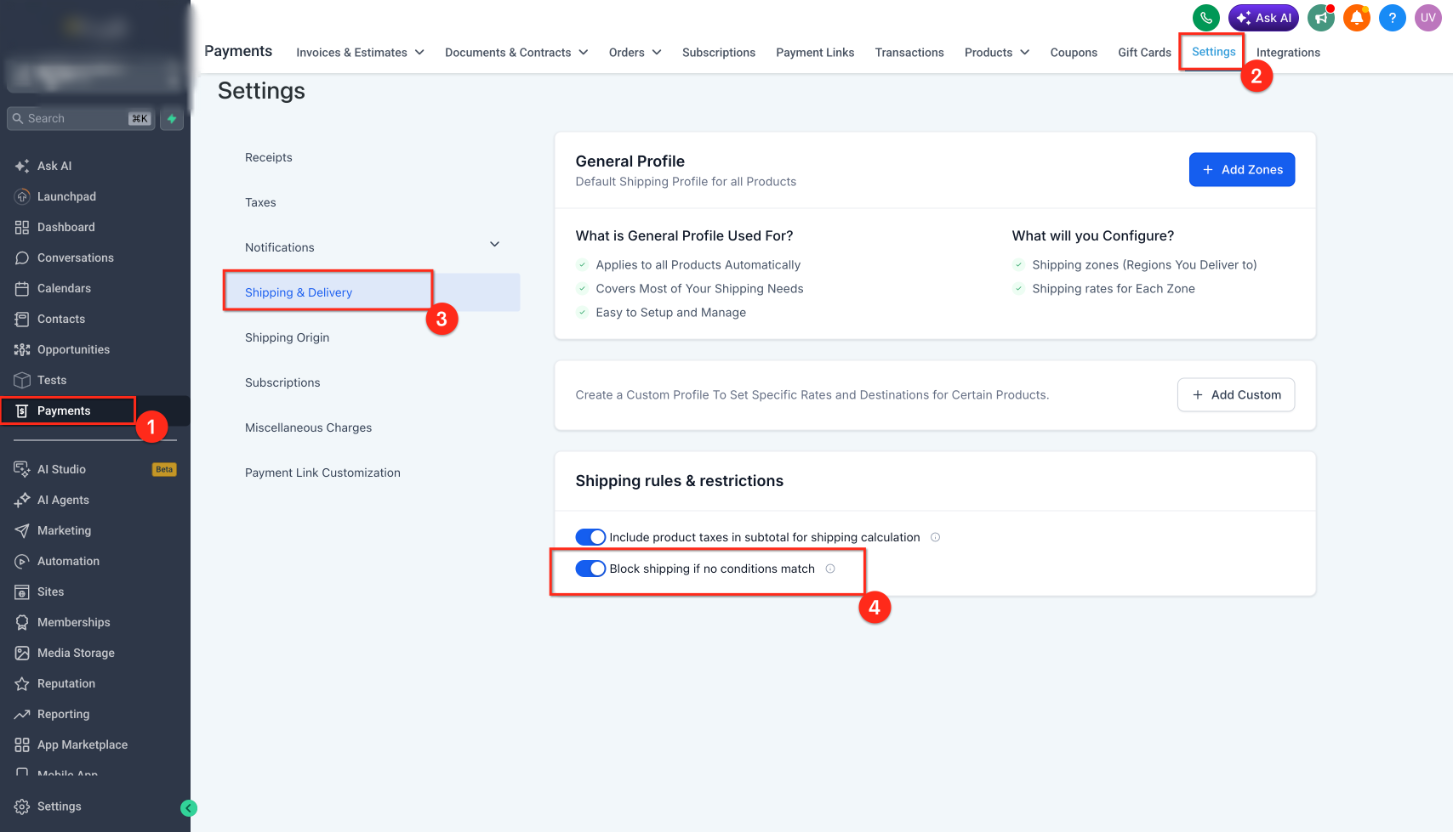
Navigate to Payments > Settings > Shipping in your LeadConnector dashboard.
Step 2
Open Shipping Configuration
Click on the Shipping tab to access shipping-related settings.
Step 3
Enable the Blocking Feature
Locate the setting labeled "Block Shipping at Checkout when no rate is available" and toggle it to the enabled position.
Step 4
Save Your Changes
Click Save to apply the new setting. The feature will immediately take effect for all future checkout attempts.
Important
This setting applies globally to all your payment forms and checkout pages. Ensure your shipping integrations are properly configured before enabling this feature to avoid unintentionally blocking legitimate orders.
4
Customer Experience When Blocked
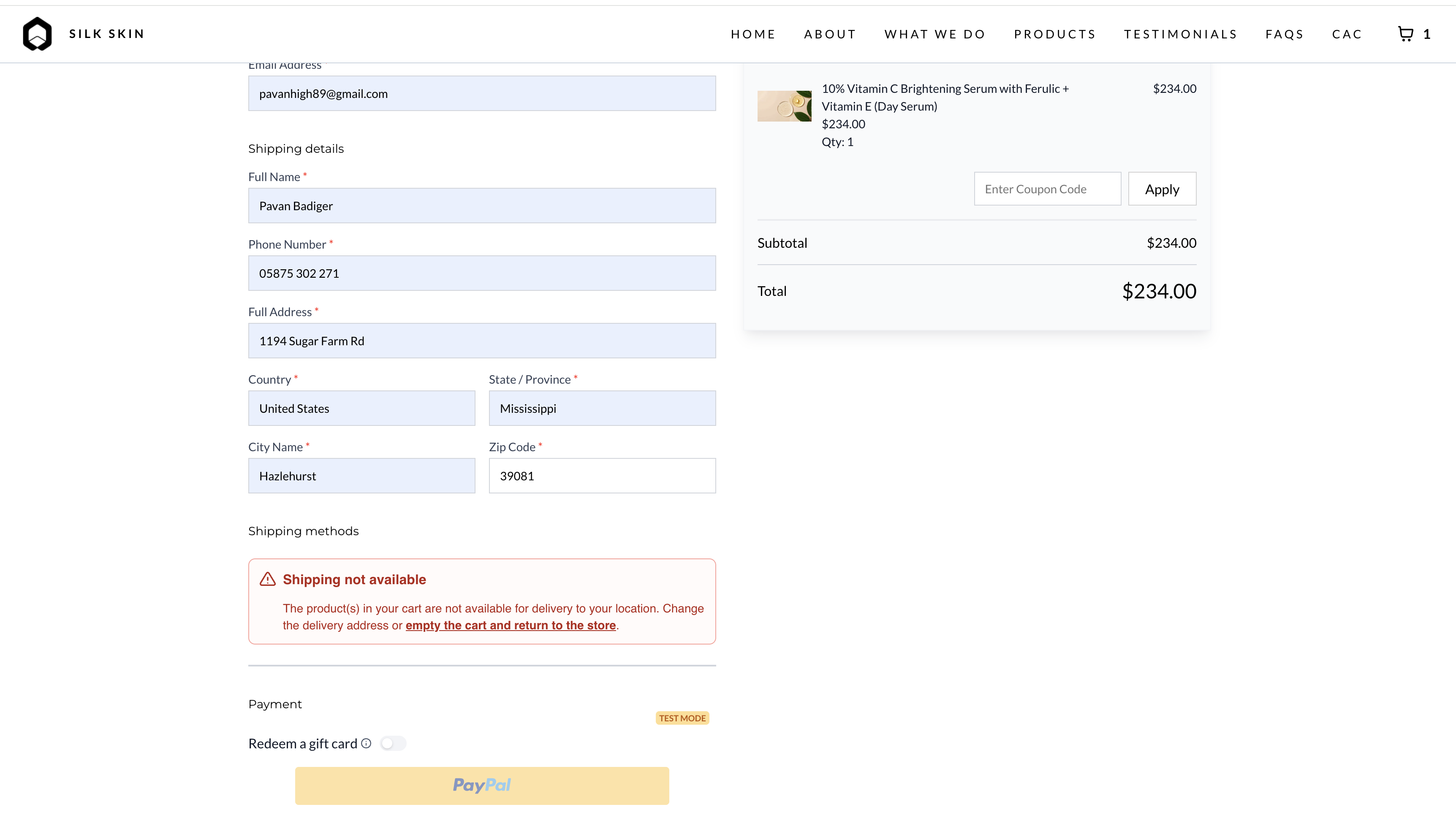
When checkout blocking is enabled and a customer attempts to purchase from a location where shipping is unavailable, they will see a clear error message during the checkout process.
The error appears after the customer enters their shipping address but before payment is processed. The message typically states: "Shipping is not available for your location. Please verify your address or contact support."
This notification prevents the customer from proceeding to payment, ensuring they understand the shipping limitation before attempting to complete their purchase. Customers can:
- Verify they entered their address correctly
- Try an alternative shipping address if available
- Contact your support team to discuss shipping options
- Abandon the purchase if shipping to their location is not possible
Best Practice
Consider adding information about your shipping coverage areas to your product pages or checkout page header. This helps set customer expectations before they reach the shipping address step, reducing potential frustration.
Need Help?
If you need assistance configuring checkout blocking or troubleshooting shipping rate issues:
- Review your shipping integration settings to ensure they're properly configured
- Check that your shipping zones and rates are correctly defined for your service areas
- Test checkout with various addresses to verify the blocking feature works as expected
- Contact support through the in-app help widget if you encounter unexpected blocking behavior
5
Frequently Asked Questions
Q: Will this feature block all checkouts if I haven't configured any shipping methods?
Yes. If no shipping integrations or manual shipping profiles are configured, the system will not be able to calculate any shipping rates, and all checkouts will be blocked when this feature is enabled. Ensure you have at least one shipping method configured before enabling this setting.
Q: Can I customize the error message customers see when checkout is blocked?
Currently, the error message is standardized and cannot be customized. However, you can provide additional shipping information on your product pages or in your checkout page header to set customer expectations before they encounter this message.
Q: Does this feature work with all shipping integrations?
Yes, checkout blocking works with ShipStation, EasyPost, and manual shipping profiles. The system checks whether any configured shipping method can provide a rate for the customer's address. If none can, checkout is blocked.
Q: What happens if a shipping integration is temporarily down when a customer tries to check out?
If your shipping integration experiences an outage or API error, the system will be unable to calculate rates and checkout will be blocked. Consider this when deciding whether to enable this feature, especially if you rely on a single shipping integration. Having backup manual shipping profiles can help maintain checkout availability during integration outages.
Q: Can I enable this feature for specific products or forms only?
No, this is a global setting that applies to all payment forms and checkout pages. Once enabled, it will block checkout whenever shipping rates are unavailable, regardless of which product or form the customer is using.
Q: Will customers be able to contact me if their checkout is blocked?
The error message suggests customers contact support, but it does not automatically provide contact information. We recommend including clear contact details in your checkout page footer or header so customers can easily reach you if they encounter shipping issues.
Q: How can I test this feature without affecting real customers?
Use test mode in your payment settings and attempt checkout with various addresses—including those outside your configured shipping zones. This allows you to verify the blocking feature works correctly before enabling it in production. You can also temporarily enable the feature during off-peak hours to test with real checkout flows.
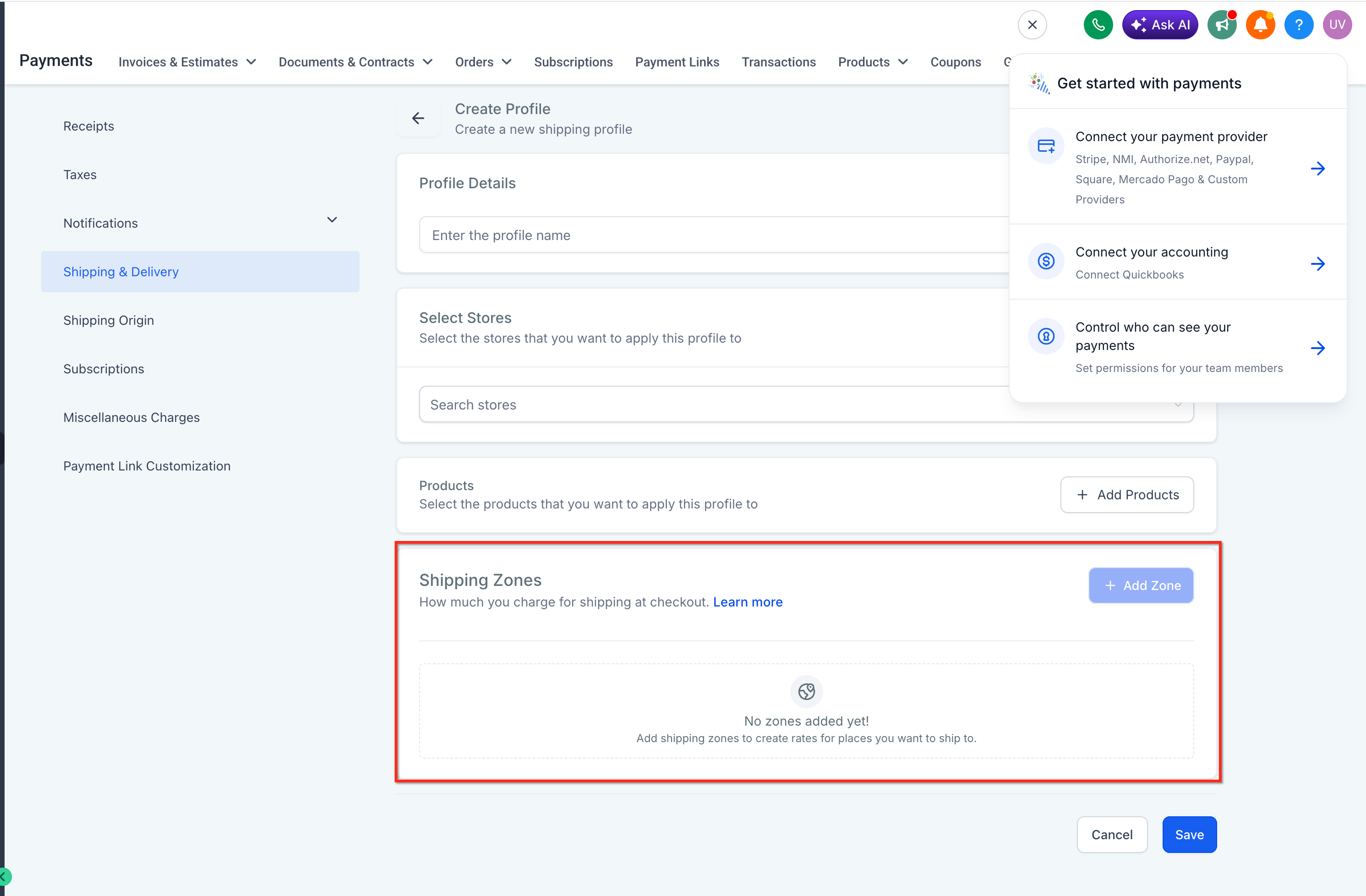
Q: What's the difference between this and setting shipping zones in my shipping profile?
Shipping zones define where you're willing to ship and what rates apply. This blocking feature enforces those zones by preventing checkout when no configured shipping method (zones, integrations, or profiles) can serve the customer's address. Think of zones as defining your coverage, and this feature as enforcing it at checkout.
Did you find it helpful?
Yes
No
Send feedback Sorry we couldn't be helpful. Help us improve this article with your feedback.
