
Share and Preview Product Pages from Your Store
This article explains how to share direct links to specific product pages in your store and preview products before publishing them to customers.
You'll learn how to generate shareable links, use preview functionality, and understand the technical details behind product page URLs.
What is Product Page Sharing?
Product page sharing allows you to generate direct links to individual product pages in your LeadConnector store. These links can be shared with customers, used in marketing campaigns, or sent for internal review before a product goes live.
This feature includes preview functionality that lets you view how a product page will appear to customers even before you publish it. You can share preview links with team members or stakeholders to gather feedback and ensure everything looks correct before making products available for purchase.
Key Benefits
This feature streamlines product management and improves collaboration by giving you more control over how and when products are shared.
How to Share a Product Page
Follow these steps to generate and share a direct link to any published product in your store.
Navigate to Payments → Products in your LeadConnector account.
Click on the product you want to share to open its details page.
In the product details, locate the Share icon or link option and click it to copy the direct URL to your clipboard.
Paste the copied link into your marketing materials, emails, social media posts, or share it directly with customers. The link will take them directly to that specific product page in your store.
Direct product links work great in email marketing campaigns, allowing you to feature specific products and drive customers directly to purchase pages without extra navigation steps.
How to Preview an Unpublished Product
The preview feature lets you view and share how a product will appear to customers before you publish it. This is useful for internal reviews and quality checks.
In Payments → Products, select the product you want to preview. The product should be in draft or unpublished status.
Look for the Preview button or icon in the product details. Click it to open a preview of how the product page will appear to customers.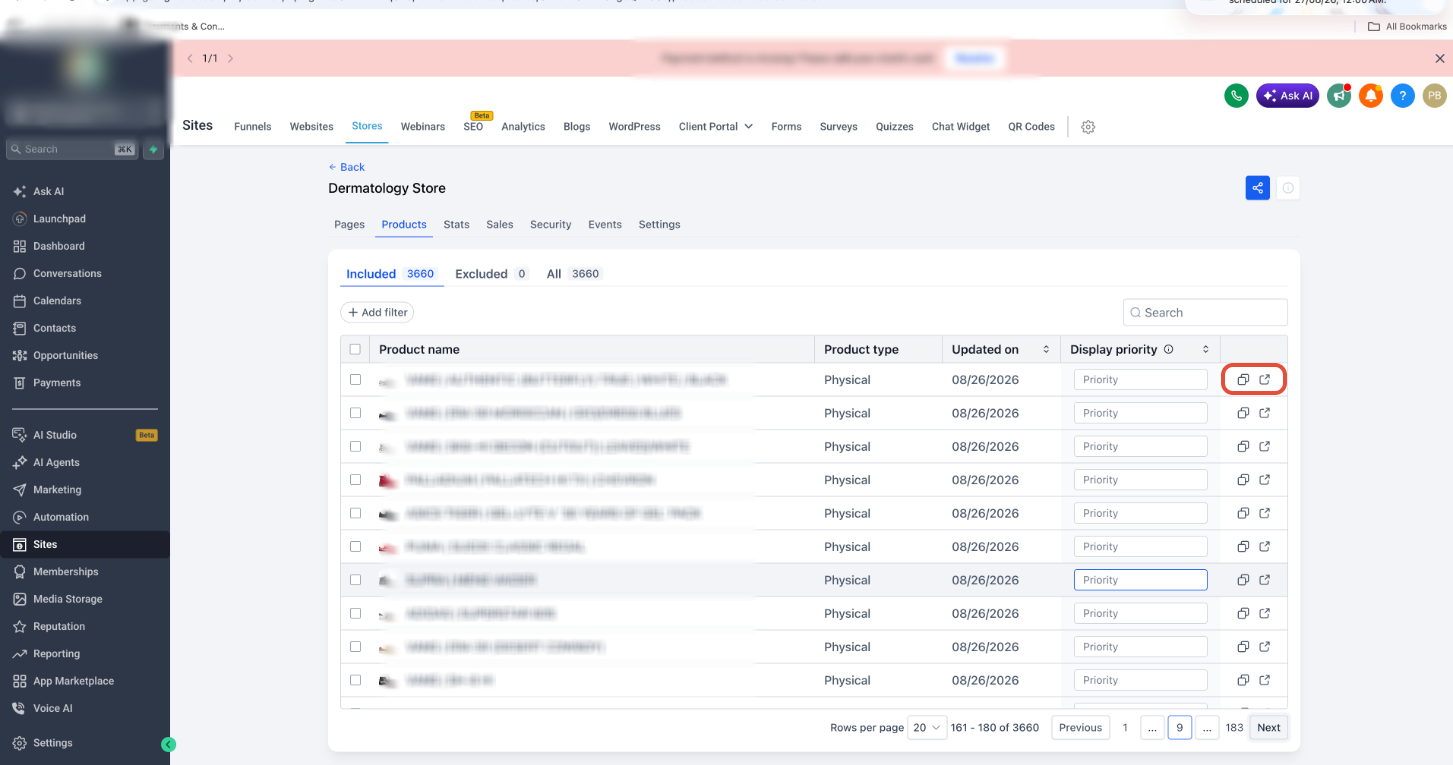
Check all product information, images, pricing, descriptions, and layout to ensure everything displays correctly. The preview shows exactly how customers will see the page once published.
If you want others to review the product, copy the preview URL from your browser and share it with team members. They can view the product page without needing access to your LeadConnector account.
Preview links for unpublished products are temporary and intended for internal review only. Once a product is published, the standard product page link should be used for customer-facing purposes.
Understanding Product Page URLs
Product page URLs in LeadConnector follow a consistent structure that makes them easy to identify and use in your marketing efforts.
Published product pages use this format:
yourdomain.com/store/product-name
Product URLs are automatically generated from your product name and are designed to be search engine friendly. The URL includes the product name in a readable format, which helps with search visibility and makes links more trustworthy when shared.
If you change a product name after it has been published, the URL may update to reflect the new name. Consider this when sharing product links in permanent marketing materials or campaigns.
Frequently Asked Questions
If you have questions about sharing product pages or need assistance with your store setup:
- Navigate to Payments → Products to access your product management area
- Review your store settings to ensure custom domains and branding are configured correctly
- Test preview links in different browsers to verify they display correctly for reviewers
- Contact LeadConnector support if you encounter issues with product URLs or sharing functionality