
Schedule when a Form, Survey, or Quiz starts and stops accepting responses, then control what visitors see before it opens and after it closes. You can open immediately or on a specific date, set an optional closing date, apply a time zone to the schedule, and display a custom page or redirect visitors when submissions are unavailable.
Note: Scheduling is optional. Existing Forms, Surveys, and Quizzes continue using their normal availability when Schedule visibility is not enabled.
TABLE OF CONTENTS
How Scheduled Availability Works
Scheduled Availability defines when a Form, Survey, or Quiz accepts responses.
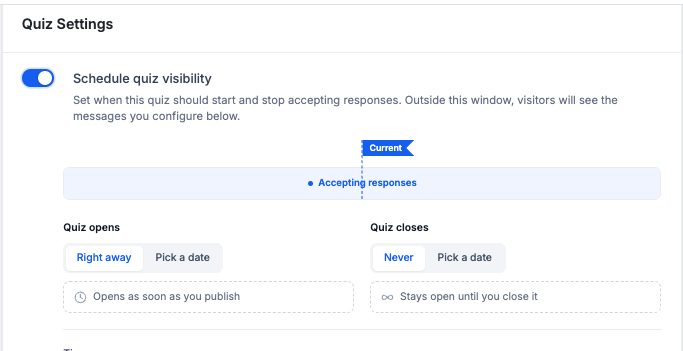
- Opens — Right away: Starts accepting responses when the item is available.
- Opens — Pick a date: Starts accepting responses at the selected date and time.
- Closes — Never: No scheduled closing time is applied.
- Closes — Pick a date: Stops accepting new responses at the selected date and time.
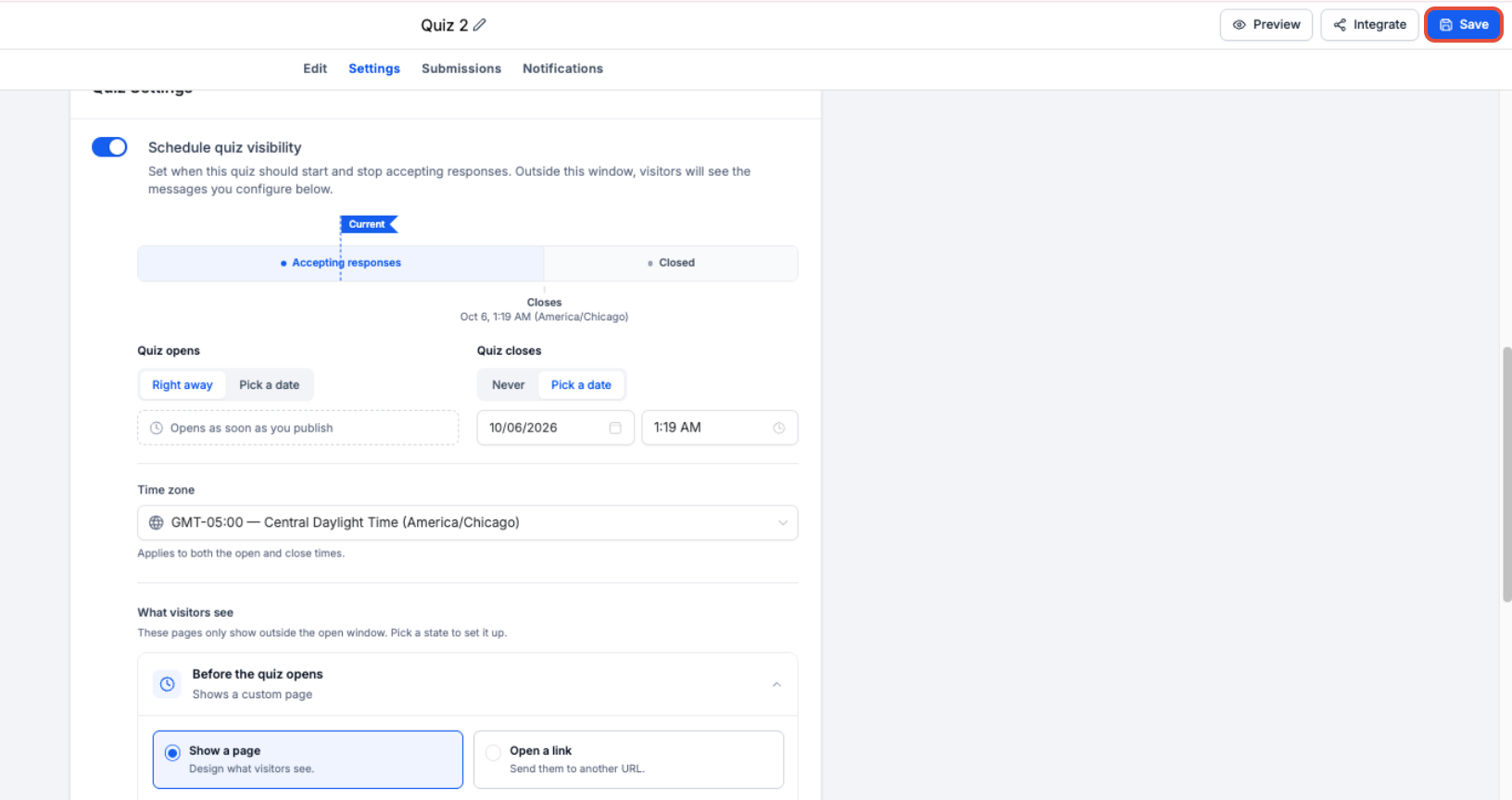
- Time zone: The selected time zone applies to both the opening and closing schedule.
When dates are configured, the availability timeline shows whether the item is Not open yet, Accepting responses, or Closed.

Set Up Scheduled Availability
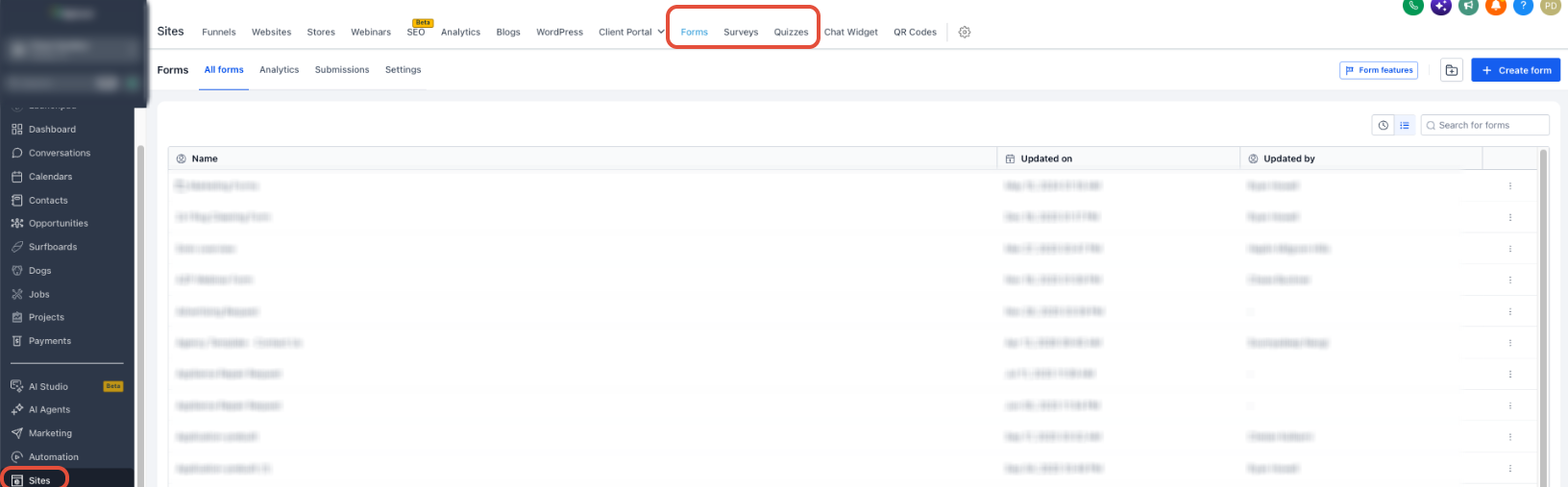
Step 1: Open the Form, Survey, or Quiz
- From the Sub-Account view, go to Sites.
- Open Forms, Surveys, or Quizzes.
- Open the item you want to schedule.
Step 2: Enable Schedule Visibility
- Open the Settings tab.
- Locate the Form, Survey, or Quiz settings.
- Enable Schedule visibility.
Step 3: Configure the Opening and Closing Window
- For Opens, choose Right away or Pick a date.
- If you select Pick a date, choose the opening date and time.
- For Closes, choose Never or Pick a date.
- If you select Pick a date, choose the closing date and time.
- Select the Time zone that should control the schedule.

Step 4: Configure the Before-Open Experience
Choose what visitors should experience when they arrive before the scheduled opening time.
- Expand the applicable Before ... opens setting.
- Choose Show a page or Open a link.
- If using a page, customize the visitor-facing message.
- Preview the result.

Step 5: Configure the After-Close Experience
Choose what visitors should see after the closing time, when new responses are no longer accepted.
- Expand the applicable After ... closes setting.
- Choose Show a page or Open a link.
- Configure the message or destination URL.
- Preview the result.

Step 6: Save and Test
- Click Save.
- Review the opening and closing dates and time zone.
- Preview the before-open and after-close experiences.
- Test any redirect URLs before sharing the Form, Survey, or Quiz.
Frequently Asked Questions
Q: Does scheduled availability work with Forms, Surveys, and Quizzes?
Yes. Schedule visibility is available for all three builder types.
Q: Do I have to configure both an opening date and a closing date?
No. You can open immediately or on a specific date, and you can leave the item open indefinitely or configure a closing date.
Q: Does the same time zone apply to opening and closing?
Yes. The selected schedule time zone applies to both configured times.
Q: What happens when the closing time is reached?
New submissions are blocked automatically, and visitors see the configured after-close page or redirect.
Q: Will closing the item delete previous submissions?
No. The closing schedule controls new responses only. Existing submissions are not deleted.
Need Help?
If the Form, Survey, or Quiz is opening or closing at the wrong time, or visitors are seeing the wrong experience, verify that:
- Schedule visibility is enabled.
- The opening and closing dates and times are correct.
- The selected time zone matches the intended schedule.
- The correct before-open or after-close experience was configured.
- Any redirect URL opens correctly.
- The latest changes were saved before testing.
If the issue continues, collect the affected Form, Survey, or Quiz, configured opening and closing times, selected time zone, expected behavior, actual behavior, and relevant screenshots before contacting support.