
A 301 redirect permanently sends visitors and search engines from an old URL to a new destination. In your account, you can create redirects for an entire domain or a specific URL path and send visitors to a custom URL, funnel step, or website page.
This guide explains how to create and manage 301 redirects, when to use them, and how to troubleshoot common redirect issues.
TABLE OF CONTENTS
- What is a 301 URL Redirect?
- Key Benefits of 301 URL Redirects
- When Should You Use a 301 Redirect?
- How to Set Up 301 Redirects
- 301 Redirect vs Canonical URL
- Best Practices for 301 Redirects
- Common Issues & Troubleshooting
- Frequently Asked Questions
What is a 301 URL Redirect?
A 301 URL redirect is a permanent redirect from one URL to another. It tells browsers and search engines that the original URL has moved permanently, helping visitors reach the correct page even if they click an old link. 301 redirects can send traffic from a selected domain or path to a custom URL, funnel step, or website page.
A 301 redirect is commonly used when you rename a page, change a funnel or website path, move content to a different destination, or want an old URL to continue working after updates are made.
Key Benefits of 301 URL Redirects
- Improved visitor experience: Sends visitors from old URLs to the correct destination automatically.
- Reduced broken links: Helps prevent 404 errors when pages are renamed, deleted, or moved.
- SEO continuity: Signals to search engines that a URL has permanently moved and helps preserve continuity when URLs are changed.
- Domain consolidation: Redirects traffic from one domain version to another, such as a
wwwversion to a root domain. - Flexible destination options: Allows redirects to custom URLs, funnel steps, or website pages.
When Should You Use a 301 Redirect?
Use a 301 redirect when a URL has permanently changed and visitors should automatically be sent to a new destination.
Common scenarios include:
- Renaming a funnel step or website page path
- Moving content to a different URL
- Replacing or deleting a page while preserving traffic from existing links
- Migrating content to another domain
- Redirecting an old campaign or landing-page URL to a current page
- Consolidating domain versions when one URL should permanently point to another
Note: If multiple URLs should remain accessible but you only want search engines to recognize one as the preferred version, consider using a canonical URL instead of a 301 redirect.
How to Set Up 301 Redirects
Follow these steps to configure 301 redirects for your domains:
Step 1: Navigate to URL Redirects
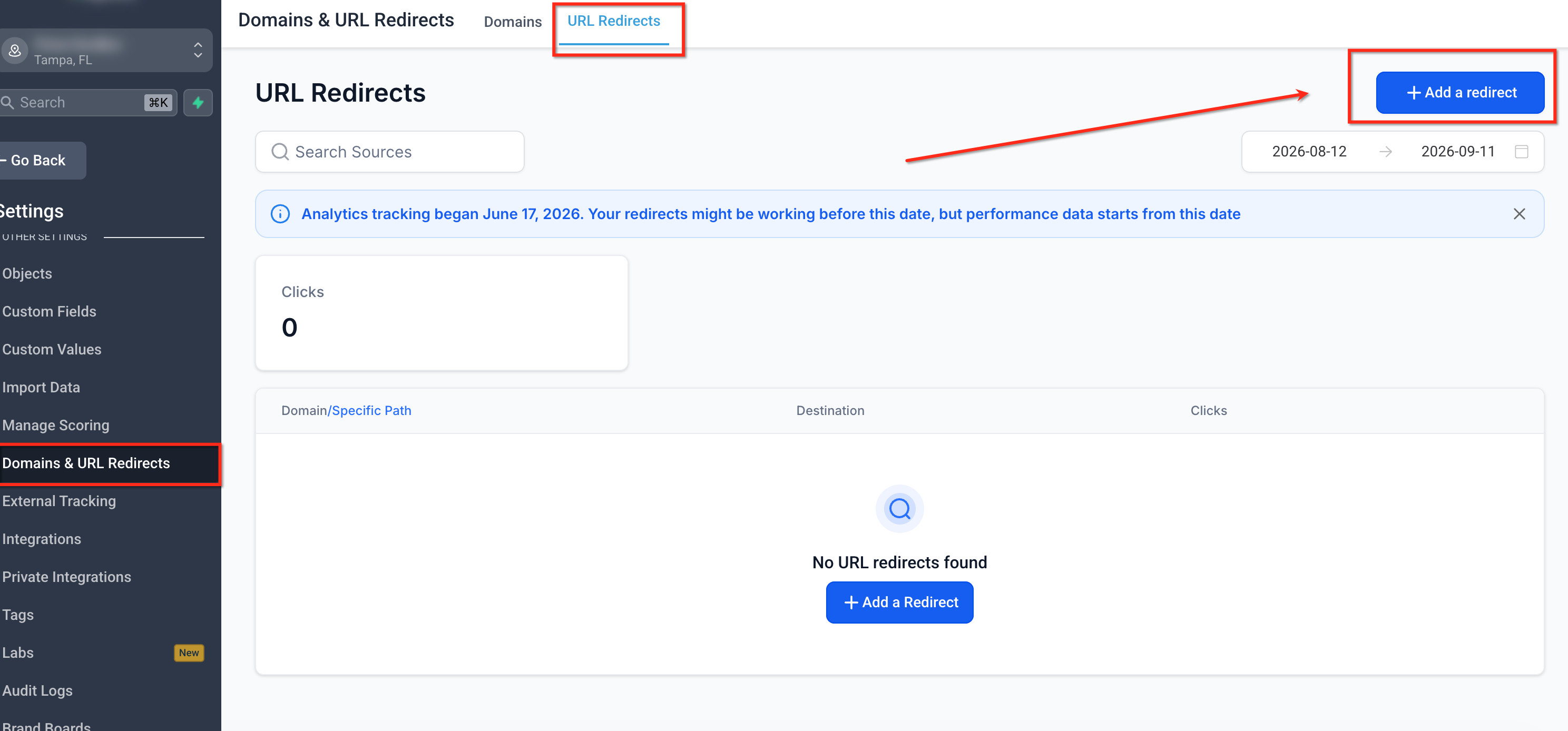
- Go to Settings > Domains & URL Redirects.
- At the top of the page, select the URL Redirects tab. This opens the redirect management view where you can create, search, edit, or delete redirects.
Step 2: Add a New Redirect
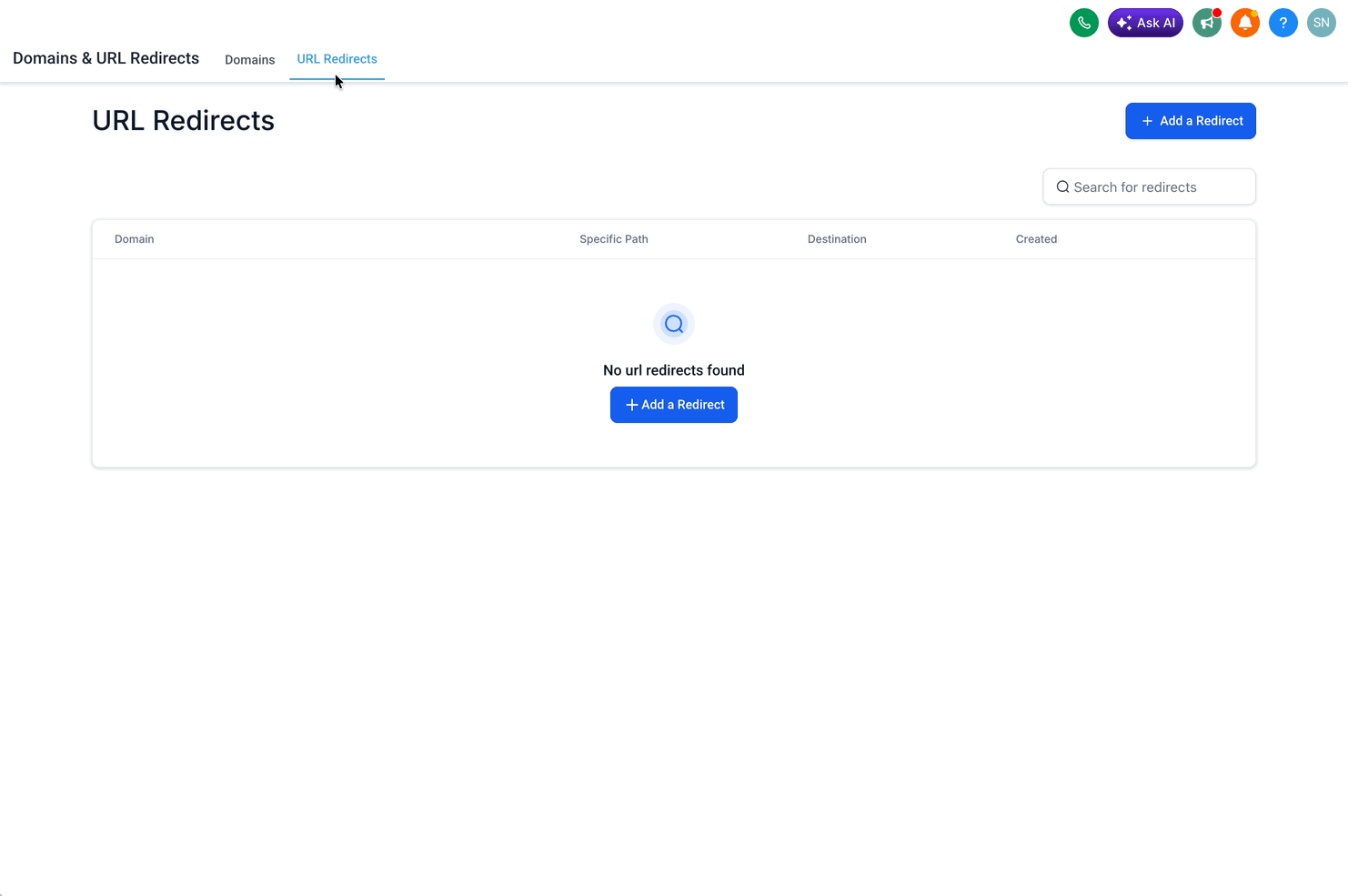
Click + Add Redirect in the top-right corner.
If there are no existing redirects, you may also see an option to add your first redirect from the main redirect screen.
- The Add Redirect setup window will open.
Step 3: Select the Source Domain
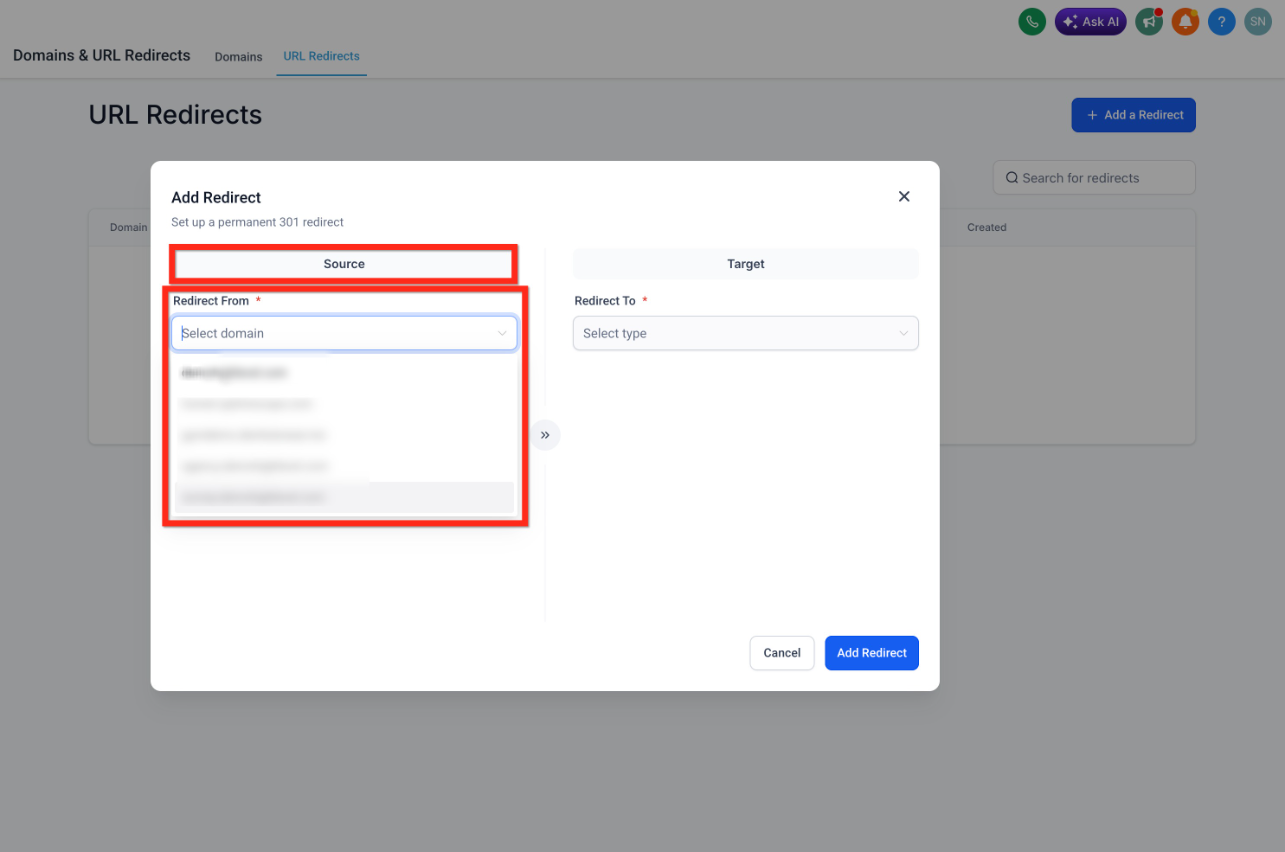
Note: Source domain must already be added to your account.- Under the Source section, click the Redirect From dropdown.
Select the domain you want to redirect from.
The dropdown will show the domains currently available in your account.
Step 4: Choose What You Want to Redirect
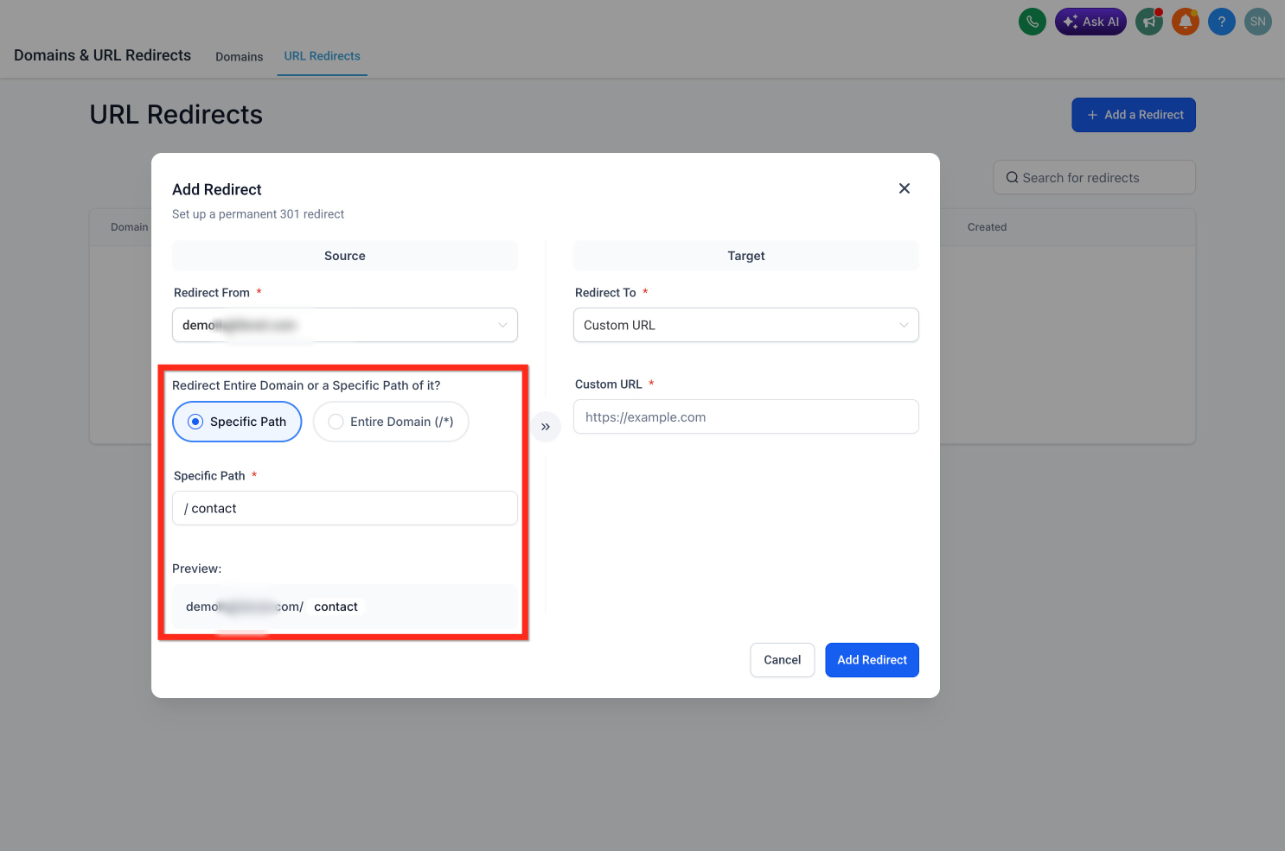
After selecting the source domain, choose whether you want to redirect the entire domain or only a specific path.
You can choose one of the following options:
Option 1: Redirect a Specific Path
Select this option if you only want to redirect one page or path from the domain.
For example, if you want to redirect: yourdomain.com/contact you would enter the specific path, such as:
/contact
Use this option for pages like a home page, contact page, thank-you page, or any other individual page.
Important: Avoid Special Characters in Redirect Paths
When creating a redirect for a specific path, do not include special characters such as?,%,&,=, or#in the redirect path. These characters can prevent the redirect from working as expected.
For the most reliable redirect paths, use clean URL slugs containing lowercase letters, numbers, hyphens (-), and forward slashes (/) for supported nested paths.
Nested paths: Your supports nested URL paths. When creating redirects for nested pages, enter the complete supported path, such as/resources/guides/getting-started.
Recommended:/special-offer
Avoid:/special?offer=summer&utm_source=email
If your original URL contains query parameters, enter the clean URL path rather than including the query string when configuring the redirect.
Option 2: Redirect the Entire Domain
Select this option if you want the whole domain to redirect to another destination.
For example, all traffic from: yourdomain.com would be redirected to the target you select.
Step 5: Select the Redirect Target
Under the Target section, choose where you want visitors to be redirected.
You can redirect users to one of the following destination types:
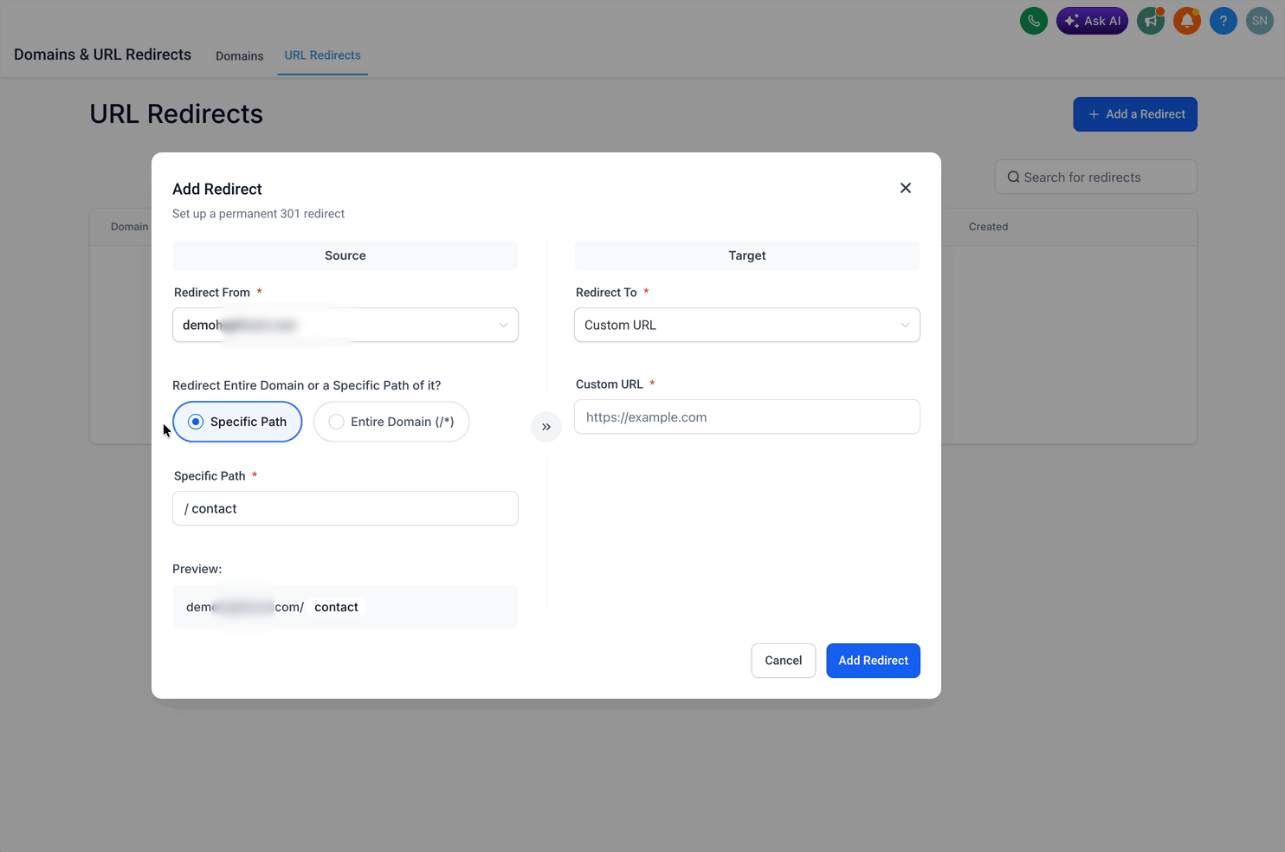
Option 1: Custom URL
Use this option if you want to redirect visitors to any external or custom URL.
- Select Custom URL.
- Enter the full destination URL.
- Click Add Redirect.
For example, you can redirect users to a thank-you page, external website, or any other URL.
Option 2: Funnel
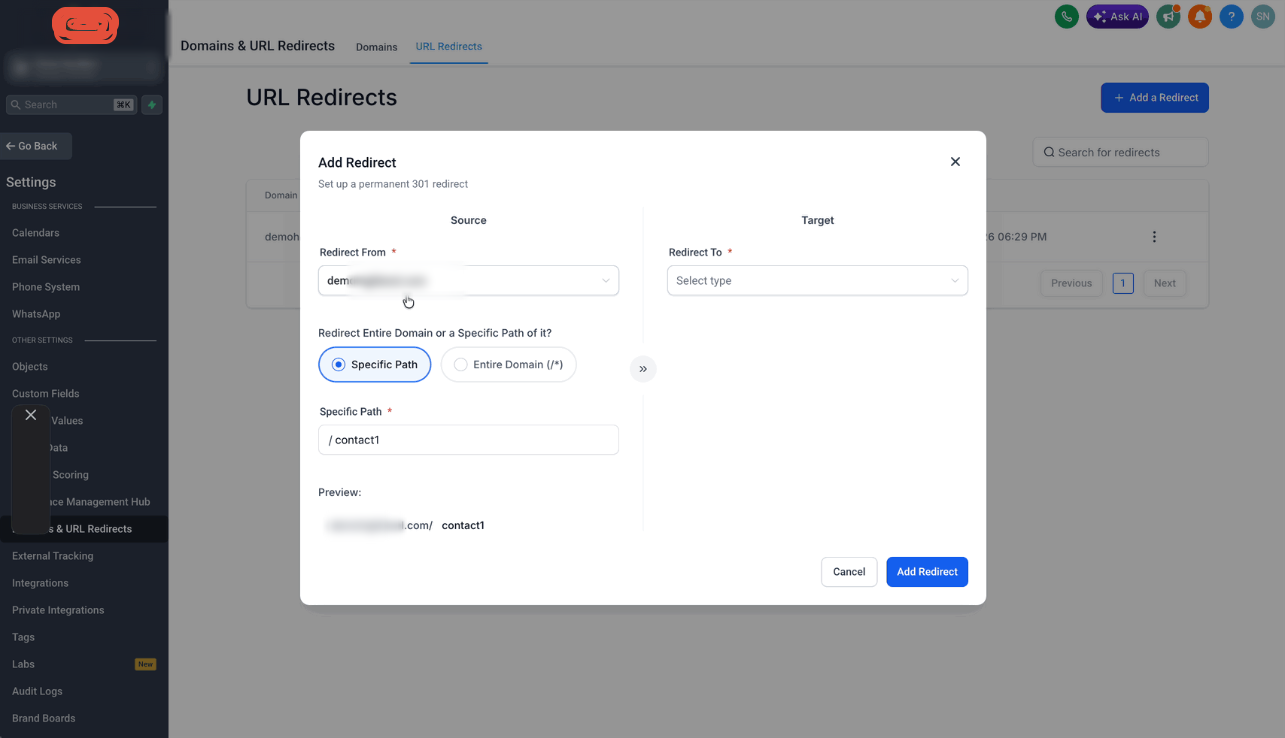
Use this option if you want to redirect visitors to a funnel connected to the selected domain.
- Select Funnel.
Choose the funnel from the dropdown.
Only funnels linked to the selected domain will appear.
Select the funnel step where you want visitors to land.
You can select only one funnel step at a time.
- Click Add Redirect.
Option 3: Website
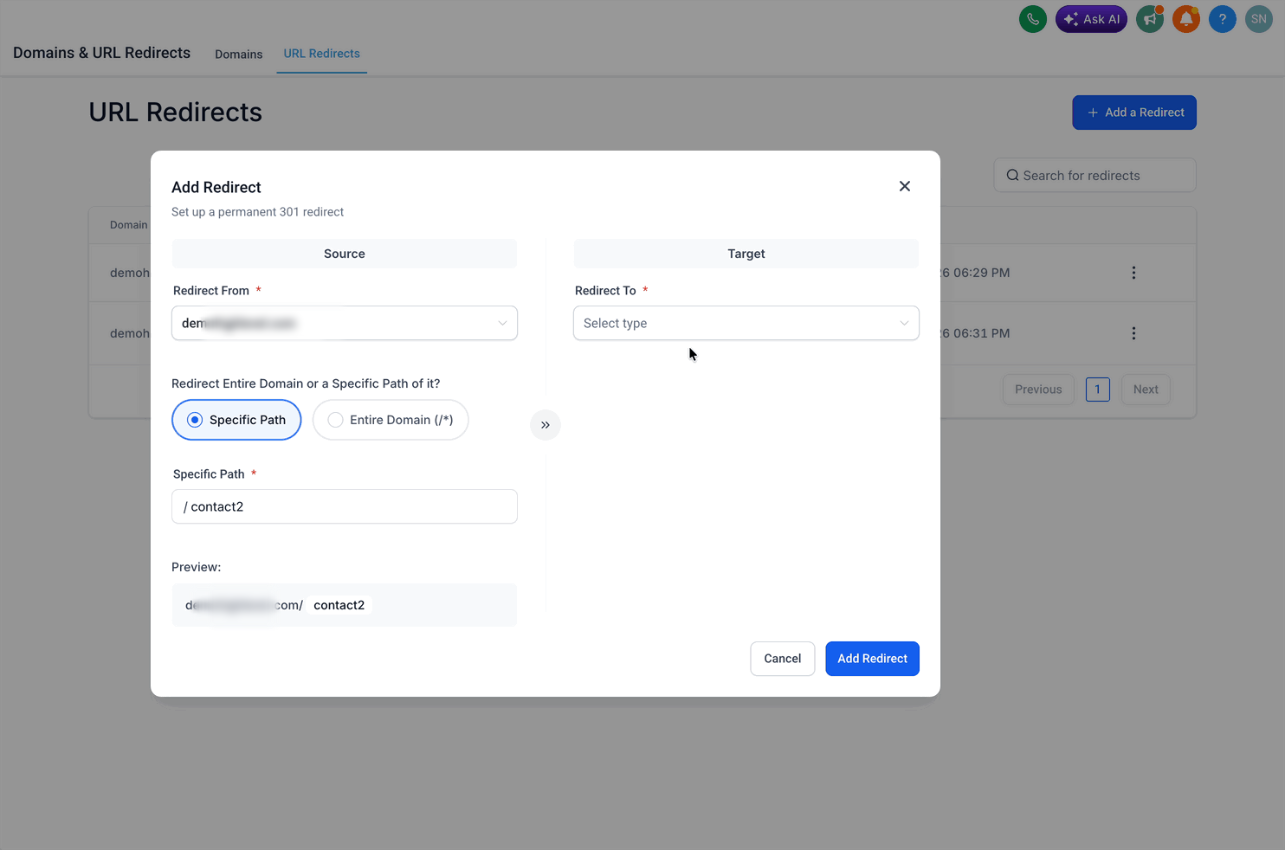
Use this option if you want to redirect visitors to a website page connected to the selected domain.
- Select Website.
Choose the website from the dropdown.
Only websites linked to the selected domain will appear.
- Select the website page where you want visitors to land.
- Click Add Redirect.
301 Redirect vs Canonical URL
Use a 301 redirect when the old URL should no longer be used and visitors should automatically reach the new destination. Use a canonical URL when multiple URLs remain accessible but search engines should treat one as the preferred version.
| Use | 301 Redirect | Canonical URL |
|---|---|---|
| Visitors should automatically go somewhere else | Yes | No |
| Old URL should permanently move to a new URL | Yes | No |
| Multiple URLs should remain accessible | No | Yes |
| Tell search engines which accessible URL is preferred | Indirectly through the move | Yes |
| Browser URL changes | Yes | No |
Best Practices for 301 Redirects
- Use absolute URLs (e.g., https://newsite.com/page) to prevent errors.
- Avoid redirect chains: Redirect the original URL directly to the final destination whenever possible. For example, avoid
Page A → Page B → Page C. Instead, configurePage A → Page C. - Check for broken redirects regularly to ensure they work properly.
Common Issues & Troubleshooting
| Issue | What to Check |
|---|---|
| Redirect isn't working | Confirm the source domain is connected and the source path exactly matches the URL being accessed. |
| Redirect loop | Make sure the destination does not redirect back to the source URL. |
| 404 after changing a page path | Confirm a redirect exists from the old path to the new page and that the destination page is published. |
| Funnel isn't available as a target | Confirm the funnel is linked to the selected source domain. |
| Website isn't available as a target | Confirm the website is linked to the selected source domain. |
| Specific path redirect fails | Remove query parameters or unsupported special characters and use the clean URL path. |
| Unexpected redirect behavior | Check for other redirects that may affect the same source or destination. |
| Google still shows the old URL | Search engines may need time to recrawl the page. Use Google Search Console to inspect/request indexing where appropriate. |
Frequently Asked Questions
Q: What is a 301 redirect?
A 301 redirect is a permanent redirect from one URL to another. It helps send visitors and search engines to the correct webpage when a URL has changed.
Q: Can I edit or delete a redirect after creating it?
Yes. Return to Settings > Domains & URL Redirects > URL Redirects to manage existing redirects.
Q: Why should I use 301 redirects?
301 redirects help preserve SEO rankings, prevent broken links, improve the visitor experience, consolidate domain versions, and ensure outdated links still lead to relevant pages.
Q: Can I redirect an entire domain?
Yes. When creating a redirect, you can choose to redirect the entire domain so all traffic from that domain is sent to the selected target destination.
Q: Can I redirect only one specific page or path?
Yes. You can choose to redirect a specific path if you only want one page or URL path to redirect. For example, you can redirect yourdomain.com/test-one by entering the specific path, such as test-one.
Q: What target options are available for redirects?
You can redirect visitors to a Custom URL, a Funnel step, or a Website page. Funnel and website options only show items linked to the selected domain.
Q. Should I use a 301 redirect or canonical URL?
Use a 301 redirect when visitors should permanently move from an old URL to a new destination. Use a canonical URL when multiple URLs remain accessible but one should be treated as the preferred version by search engines.
Q. Should I create a redirect after changing a funnel or website page path?
Yes, if the previous URL was already being used. A redirect helps visitors using old links reach the new page and avoids sending them to an unavailable URL.
Q: Why is my funnel or website not showing in the redirect target dropdown?
Funnels and Websites that are linked with a domain are only listed.
Q: What can cause redirect issues?
Common issues include redirect loops, 404 errors, and slow load times. To avoid these, make sure you are not redirecting a URL to itself, confirm the target page exists, and avoid using too many redirects.
Q: What are some best practices for setting up 301 redirects?
Use absolute URLs, avoid redirect chains, check for broken redirects regularly, and use REGEX redirects carefully to prevent incorrect redirects.