
Learn how to create and submit a WhatsApp template, add valid numbered variables, fix inline validation errors, and avoid common variable-placement issues before review. You will also learn how the updated Reputation review-request preset handles variables automatically.
What is a WhatsApp Template?
WhatsApp templates are pre-approved message formats used for business-initiated WhatsApp communication. Templates can include text, variables, optional media, and interactive buttons before being submitted for approval.
The template builder checks supported variable syntax and placement while you create the template. Invalid variables are flagged inline so they can be corrected before the template is saved.
Key Benefits of WhatsApp Template Variable Validation
Inline validation helps catch formatting mistakes while the template is still being written, reducing avoidable corrections after submission and making variable requirements easier to understand.
- Immediate feedback: Invalid variables are identified directly in the template builder.
- Fewer avoidable rejections: Common variable-format problems can be corrected before submission.
- Clearer formatting: The builder guides users toward supported numbered placeholders such as
{{1}}and{{2}}. - Reliable presets: New Reputation review-request templates use a valid structure without ending the Body in a variable.
Template Category Validation
Selecting the correct template category helps reviewers understand the purpose of your message. Category requirements are separate from variable validation, so both the message content and variable structure should be correct before submission.
- Marketing: Promotional offers, announcements, engagement, and similar promotional communication.
- Utility: Transactional or customer-requested updates such as confirmations, reminders, and service information.
- Authentication: Authentication and verification messages that follow the supported authentication structure.
Before You Create a WhatsApp Template
Confirming WhatsApp access and preparing your message content in advance helps you move through template creation without interruptions.
- The sub-account has an active WhatsApp connection.
- WhatsApp onboarding has been completed successfully.
- You know the appropriate template category and language.
- You have realistic sample values ready for any variables used in the template.
How to Create a WhatsApp Template
Creating the template in the correct order makes it easier to validate required fields, variables, and sample content before submission.
From your sub-account, go to Settings > WhatsApp > Templates, then click Create Template.
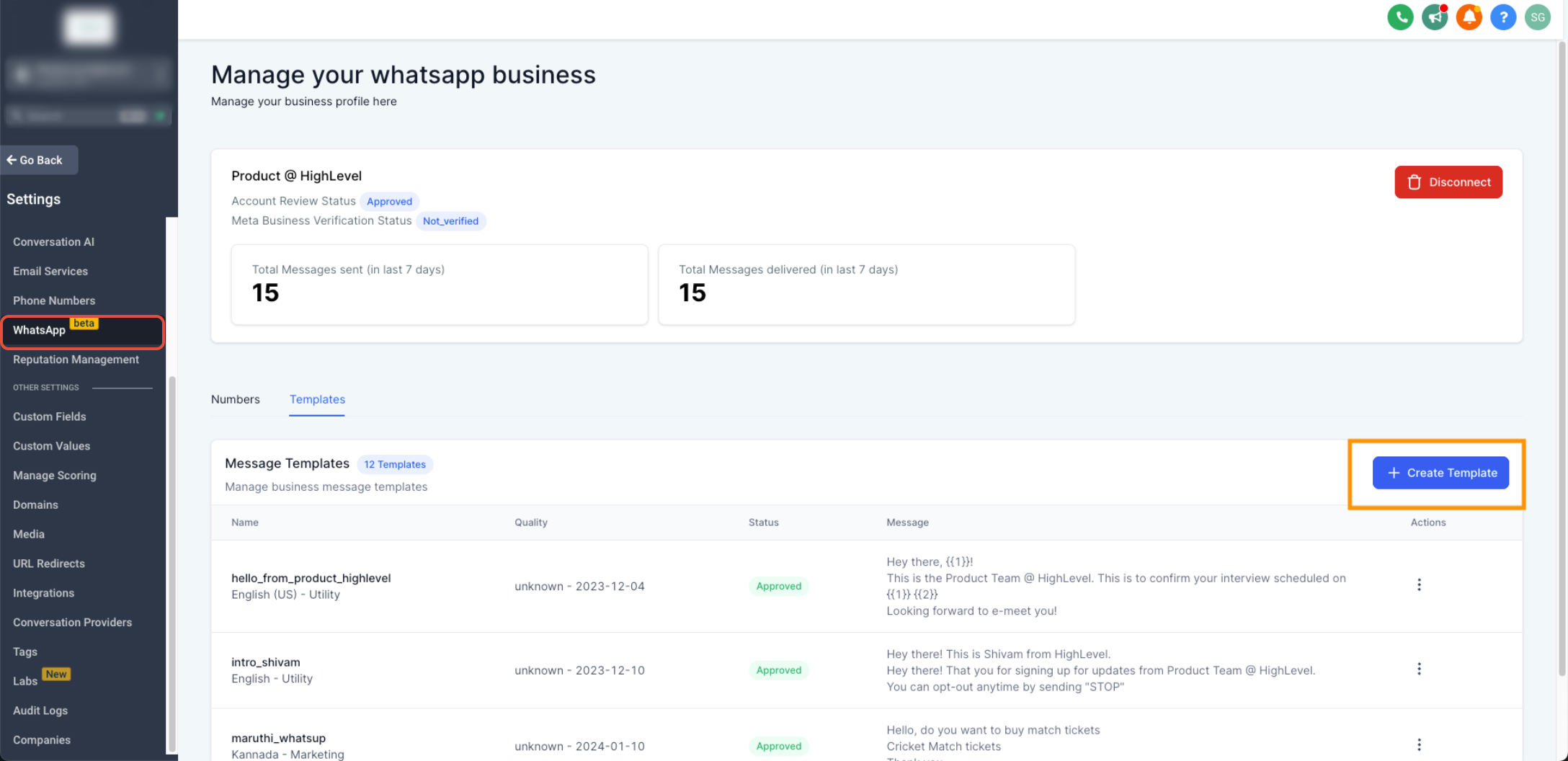
- Template Name: Enter a supported template name using lowercase letters and underscores.
- Category: Select Marketing, Utility, or Authentication based on the message purpose.
- Language: Select the template language.
- Header: Optionally add text, supported media, or a custom variable where available.
Write the main message in the Body. Use Add Variable for dynamic placeholders such as {{1}} and {{2}}. A short Footer can also be added when needed.
Enter a realistic sample value for every variable used so reviewers can understand how the completed message will appear.
Add supported interactive buttons when the template requires an action, such as Quick Reply, Visit Website, Call Phone Number, Copy Offer Code, or Marketing Opt-Out.
Variable Validation Rules
The template builder checks supported variable syntax and Body placement as you type. When a validation rule fails, the affected field is flagged inline and the template cannot be saved until the variable is corrected.
| Rule | Valid | Invalid |
|---|---|---|
| Numbered placeholder | {{1}}, {{2}} | {{1$}} |
| Balanced braces | {{1}} | {{1 or {{1}}} |
| Body placement | Hi {{1}}, your appointment is confirmed. | {{1}} your appointment is confirmed. |
A WhatsApp template Body cannot begin or end with a variable. Add regular text before and after the placeholder.
Valid: Hi {{1}}, your order is ready.
Invalid: {{1}} your order is ready.
Invalid: Your order is ready for {{1}}
Malformed variables are validated in both the Header and Body. The beginning/end placement restriction specifically applies to the Body. Correct the highlighted variable before saving the template.
Reputation Review-Request Preset
The default Reputation review-request preset has been updated so new templates no longer end with a trailing variable. New review-request templates created from the preset should meet the Body variable-placement rule without requiring a manual correction.
Submit and Track Approval Status
Inline variable validation removes common formatting problems before submission, but the complete template is still reviewed for category, content, and policy compliance.
- Review the template content, category, variables, sample values, and buttons.
- Correct any inline variable-validation errors.
- Click Create when the template is ready.
- Return to Settings > WhatsApp > Templates to monitor the template status.
Edit, Resubmit, or Clone a WhatsApp Template
Existing templates can be updated after a rejection or cloned when you want to reuse an approved structure. Variable validation also helps catch supported formatting problems while editing cloned or resubmitted content.
- Go to Settings > WhatsApp > Templates.
- Open the three-dot menu for the template.
- Select Edit template, make the required changes, then submit again.
- Open the three-dot menu for the template you want to duplicate.
- Select Clone template.
- Rename the template and update any content, variables, or buttons as needed.
- Correct any inline validation errors, then create the new template.
Frequently Asked Questions
Before Contacting Support
- Confirm each variable uses a numbered format such as
{{1}}or{{2}}. - Check for missing, extra, or unsupported characters inside the variable braces.
- Make sure the Body does not begin or end with a variable.
- Review any inline error shown under the Header or Body field.
- Confirm all required template fields and sample values are complete before saving.
Still Need Help?
Contact Support with the affected sub-account, template name, template category, variable format being used, the exact validation message shown, and a screenshot of the affected Header or Body field. Do not include passwords, access tokens, API keys, or other sensitive credentials.