
WhatsApp Templates WhatsApp Template Statuses and Best Practices Understand WhatsApp template approval, inline variable validation, common rejection reasons, sending requirements, and template statuses. |
Learn how WhatsApp template review works, which variable problems are caught before saving, which issues can still cause rejection, how to interpret template statuses, and what to check before sending.
- What are WhatsApp Message Templates?
- Key Benefits of WhatsApp Template Best Practices
- Template Migration
- Sample Variable Values
- Variable Validation Before Save
- Approval Process
- Common Template Rejection Reasons
- Sending WhatsApp Templates
- WhatsApp Template Statuses
- How to Review and Manage Templates
- Frequently Asked Questions
- Need Help?
What are WhatsApp Message Templates?
WhatsApp message templates are pre-approved message formats used for business-initiated Marketing, Utility, and Authentication communication. Approved templates allow businesses to initiate messaging outside the 24-hour customer service window while following WhatsApp requirements.
Templates must pass the WhatsApp review process before they can be used. After approval, their quality status can also change based on customer feedback and other quality signals.
Key Benefits of WhatsApp Template Best Practices
Following template formatting and quality best practices helps reduce avoidable submission problems and makes it easier to maintain reliable WhatsApp messaging after approval.
- Earlier error detection: supported variable-format problems are flagged in the template builder before saving.
- Fewer avoidable submissions: malformed placeholders can be corrected before review.
- Clearer troubleshooting: builder validation errors are separated from review-stage rejection reasons.
- Better template health: monitoring quality and status changes helps identify templates that may need attention.
Template Migration — Important Notice
Understanding how templates are brought into your account helps prevent confusion when a template exists in the connected WhatsApp Business Account but is not available in the sub-account.
When you first connect your WhatsApp Business Account, existing templates are imported as part of onboarding.
After the initial import, templates should be created and managed inside your account for consistent availability.
Best practice: Create new WhatsApp templates from Settings > WhatsApp > Templates so they are available in supported messaging areas.
Sample Variable Values
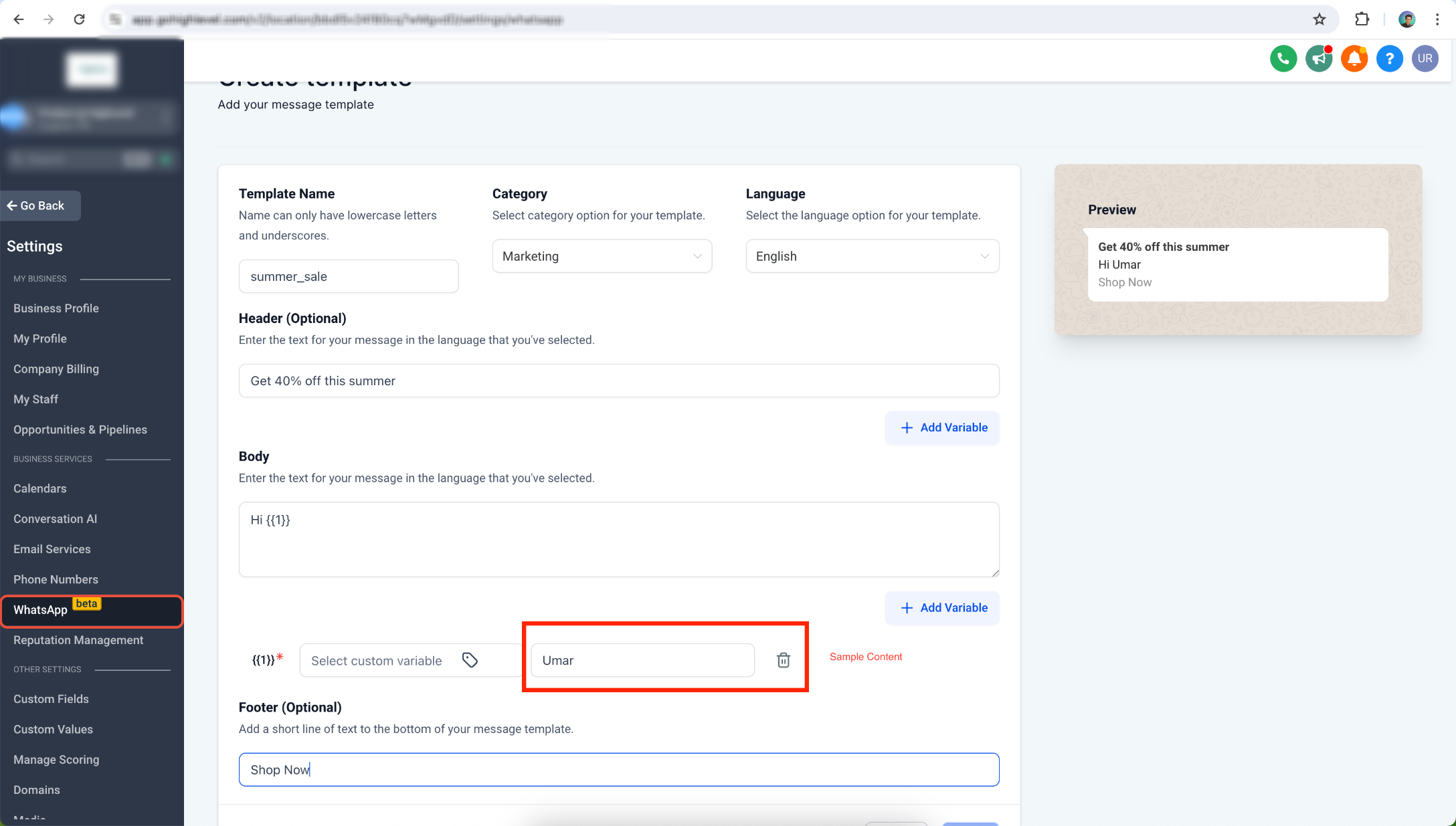
Sample values show how dynamic content will look when the template is sent. Every variable used in a template should have a realistic sample value during template creation.
Variable Validation Before Save
The WhatsApp template builder validates supported variable formatting while you type. Instead of allowing certain invalid placeholders to be saved and discovered later during review, the affected Header or Body field is flagged immediately and saving is blocked until the error is corrected.
| Validation Rule | Valid Example | Invalid Example |
|---|---|---|
| Use numbered variables | {{1}}, {{2}} | {{1$}} |
| Use balanced braces | {{1}} | {{1 or {{1}}} |
| Add text around Body variables | Hi {{1}}, your order is ready. | {{1}} your order is ready. |
A template Body cannot begin or end with a variable. Add regular text before and after the placeholder. This placement rule applies specifically to the Body.
Malformed variables such as unsupported characters, missing braces, or extra braces are flagged in both the Header and Body where variables are supported.
Reputation Review-Request Preset
The default Reputation review-request preset has also been updated. New templates created from the preset no longer end the Body with a trailing variable, so the preset meets the Body-placement validation rule without requiring a manual correction.
Approval Process
Passing the builder's inline checks confirms that the supported variable-validation rules have been satisfied. The complete template still goes through review for category, content, formatting, and policy compliance.
Common Template Rejection Reasons
Some variable-format problems are prevented before saving, while other formatting, content, or policy issues may still be identified during review. Knowing the difference helps you troubleshoot at the correct stage.
Caught Before Save
- Malformed or unbalanced variable braces, such as
{{1or{{1}}}. - Unsupported variable tokens or characters, such as
{{1$}}. - A Body that begins or ends with a variable.
May Still Be Identified During Submission or Review
- Non-sequential variables, such as
{{1}},{{2}}, and{{4}}when{{3}}is missing. - Too many variable parameters relative to the message content.
- Content that does not meet WhatsApp Business or Commerce requirements.
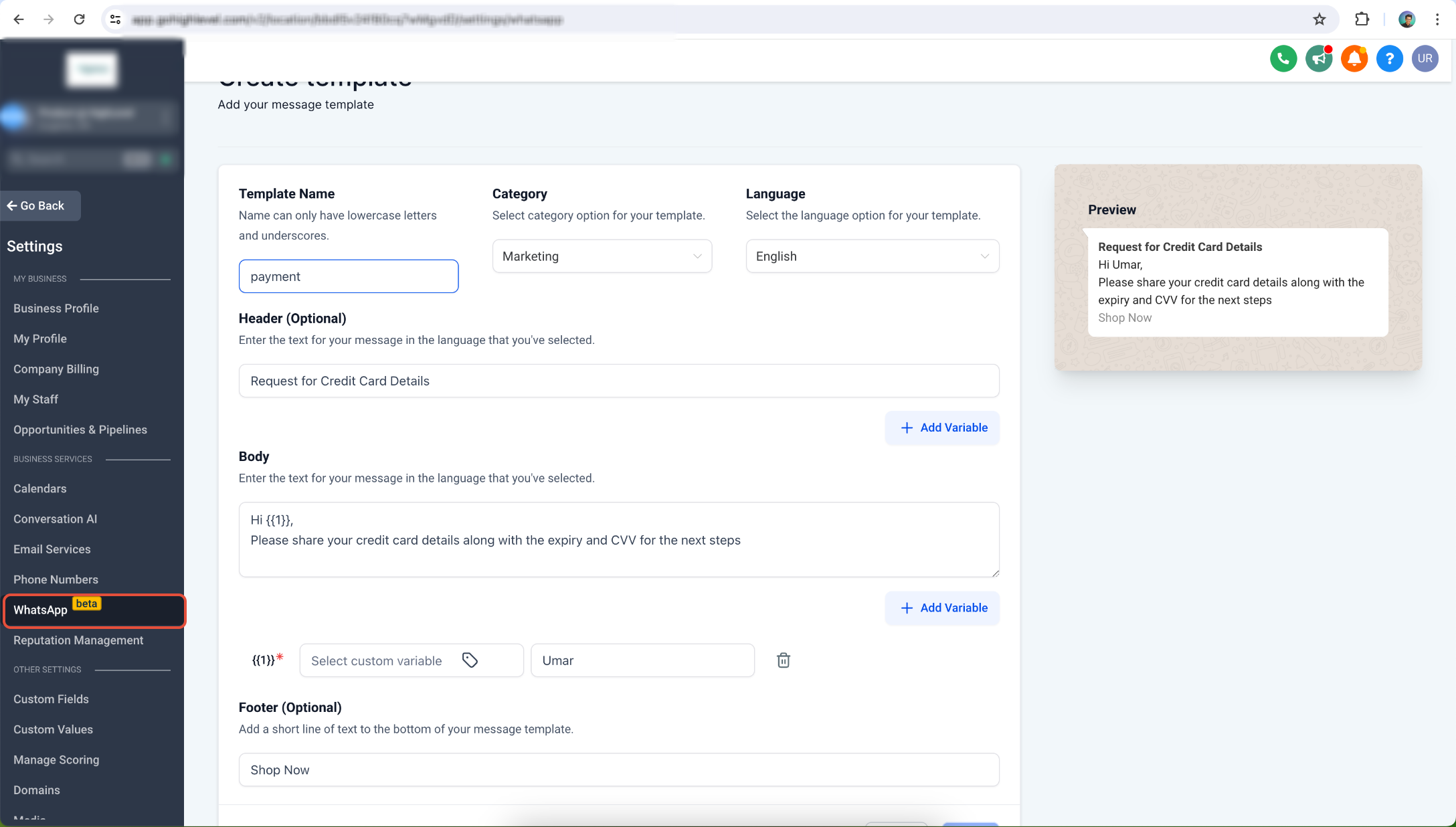
- Requests for prohibited or sensitive information.
- Threatening, abusive, or otherwise prohibited content.
- Unsupported character, length, or formatting requirements.
- Duplicate templates with substantially the same Body and Footer content.
Sending WhatsApp Templates
Approved templates allow your business to initiate supported WhatsApp conversations, including communication outside the 24-hour customer service window.
Once a template is Active, it can be selected in supported messaging areas. Continue monitoring template quality because a previously active template can later be paused or disabled.
Best practice: Send relevant messages to contacts who expect to hear from your business. Negative feedback can affect template quality and availability.
WhatsApp Template Statuses
Template status tells you whether a message is still being reviewed, ready to send, experiencing quality issues, or unavailable. Check the current status before troubleshooting a template that cannot be used.
| Status | What It Means |
|---|---|
| In Review | The template is still being reviewed. |
| Rejected | The template was not approved. Review the rejection reason before editing, resubmitting, or appealing. |
| Active - Quality Pending | Approved and ready to send, but not enough quality feedback has been collected yet. |
| Active - High Quality | The template is active and has strong quality signals. |
| Active - Medium Quality | The template is active but receiving some negative quality signals. Monitor it closely. |
| Active - Low Quality | The template remains active but is at greater risk of being paused. |
| Paused | The template cannot currently be sent because of quality-related restrictions. |
| Disabled | The template is unavailable for sending. |
| Appeal Requested | An appeal has been submitted and is awaiting a decision. |
How to Review and Manage WhatsApp Templates
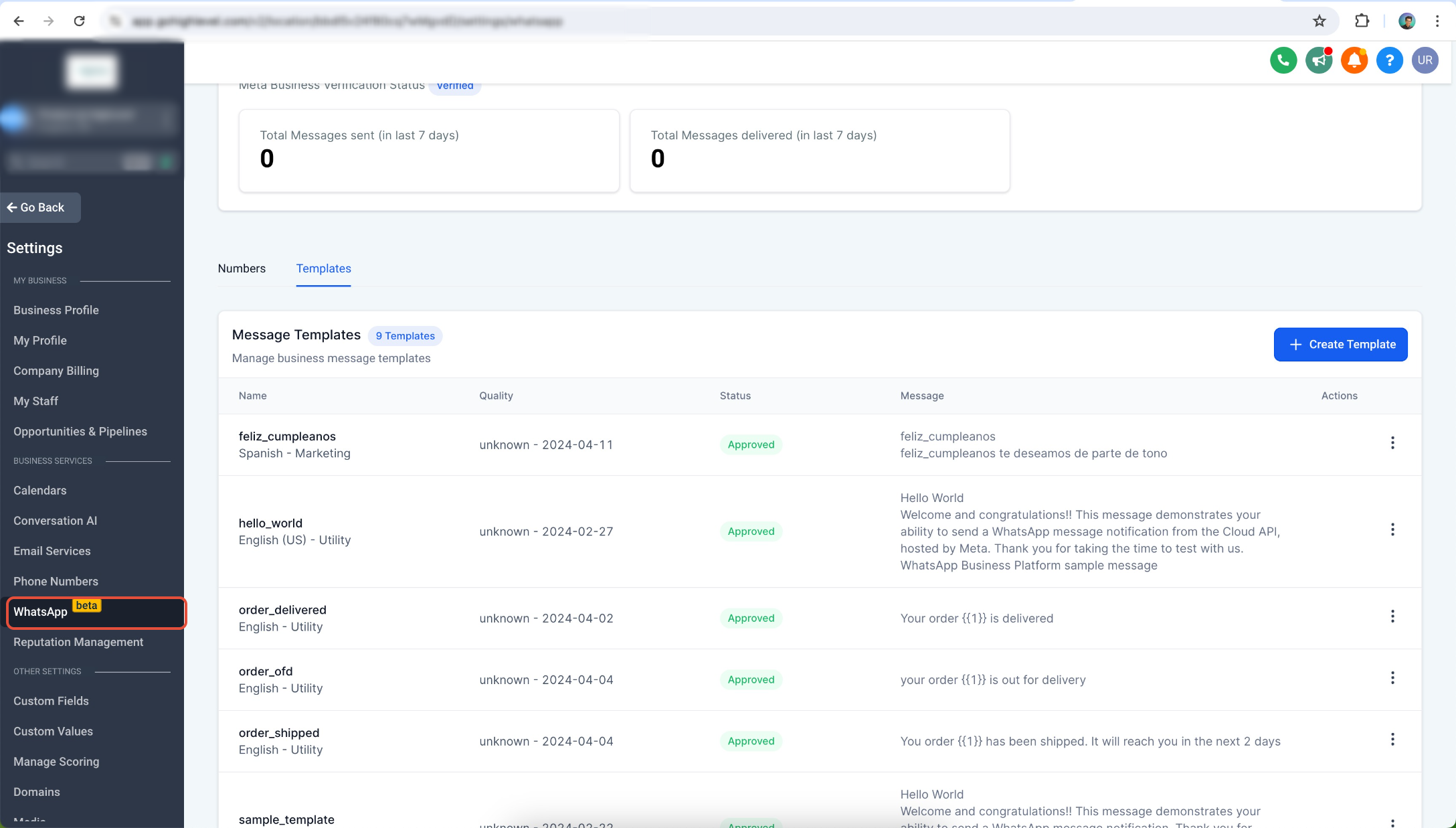
Checking template status and validation errors from one place makes it easier to determine whether a template needs editing, additional review time, or quality improvements.
- Go to Settings > WhatsApp > Templates.
- Locate the template you want to review.
- Check its current status before making changes.
- If you are creating or editing a template, correct any inline Header or Body variable errors before saving.
- If the template was rejected, review the rejection reason and update the applicable content or formatting.
- After approval, continue monitoring quality status as the template is used.
Frequently Asked Questions
Before Contacting Support
- Confirm each variable uses a numbered format such as
{{1}}or{{2}}. - Check for missing, extra, or unsupported characters inside variable braces.
- Make sure the Body does not begin or end with a variable.
- Check the current template status before attempting to send it.
- If the template was rejected, review the rejection reason before editing or resubmitting.
- If the template is Active but quality is dropping, review message relevance and recipient expectations.
Still Need Help?
Contact Support with the affected sub-account, template name, current template status, template category, the exact validation or rejection message shown, and screenshots of the affected fields. Do not include passwords, API keys, access tokens, or other sensitive credentials.