
Learn how to insert URL Parameters through the Custom Value Picker, add fallback text, format incoming values, reuse parameters across supported elements, and pass dynamic values through links. The native workflow removes the need to manually type URL-parameter syntax when creating new dynamic page content.
What are URL Parameters?
URL Parameters are key-value pairs added to a page URL that pass information into the page. These values can dynamically personalize supported page content for each visitor.
For example, if a page is opened with:
https://example.com/offer?city=AustinA URL Parameter configured with the name city can display Austin directly in the page content. The Custom Value Picker lets you configure this without manually entering template syntax.
Key Benefits of URL Parameters
The native URL Parameter workflow makes dynamic text easier to configure and provides more control over what visitors see when URL data is incomplete or inconsistently formatted.
- No-Code Setup: Insert and configure URL Parameters directly from the Custom Value Picker.
- Default Values: Display fallback content when a parameter is missing or empty.
- Text Formatting: Apply UPPERCASE, lowercase, Title Case, or Sentence case to incoming values.
- Cleaner Display: Hyphens and underscores in incoming values are automatically converted to spaces.
- Broader Coverage: Use URL Parameters across supported text areas, including button text and sub-text.
- Safe Rendering: Incoming parameter values are sanitized before they are displayed on the page.
Supported Builders and Elements
URL Parameters can be inserted into supported text areas across multiple page-building experiences, allowing the same personalization workflow to be reused across different customer-facing pages.
| Supported Builders | Supported Text Areas |
|---|---|
|
|
How to Set Up URL Parameters
Configuring URL Parameters through the Custom Value Picker keeps the parameter name, fallback content, and formatting rules attached to the token itself. This makes dynamic content easier to build and edit without manually managing URL-parameter syntax.
Open the Funnel, Website, Store, or Webinar page you want to personalize, then edit a supported text element or button.
Open the Custom Value Picker, then select URL Parameter.
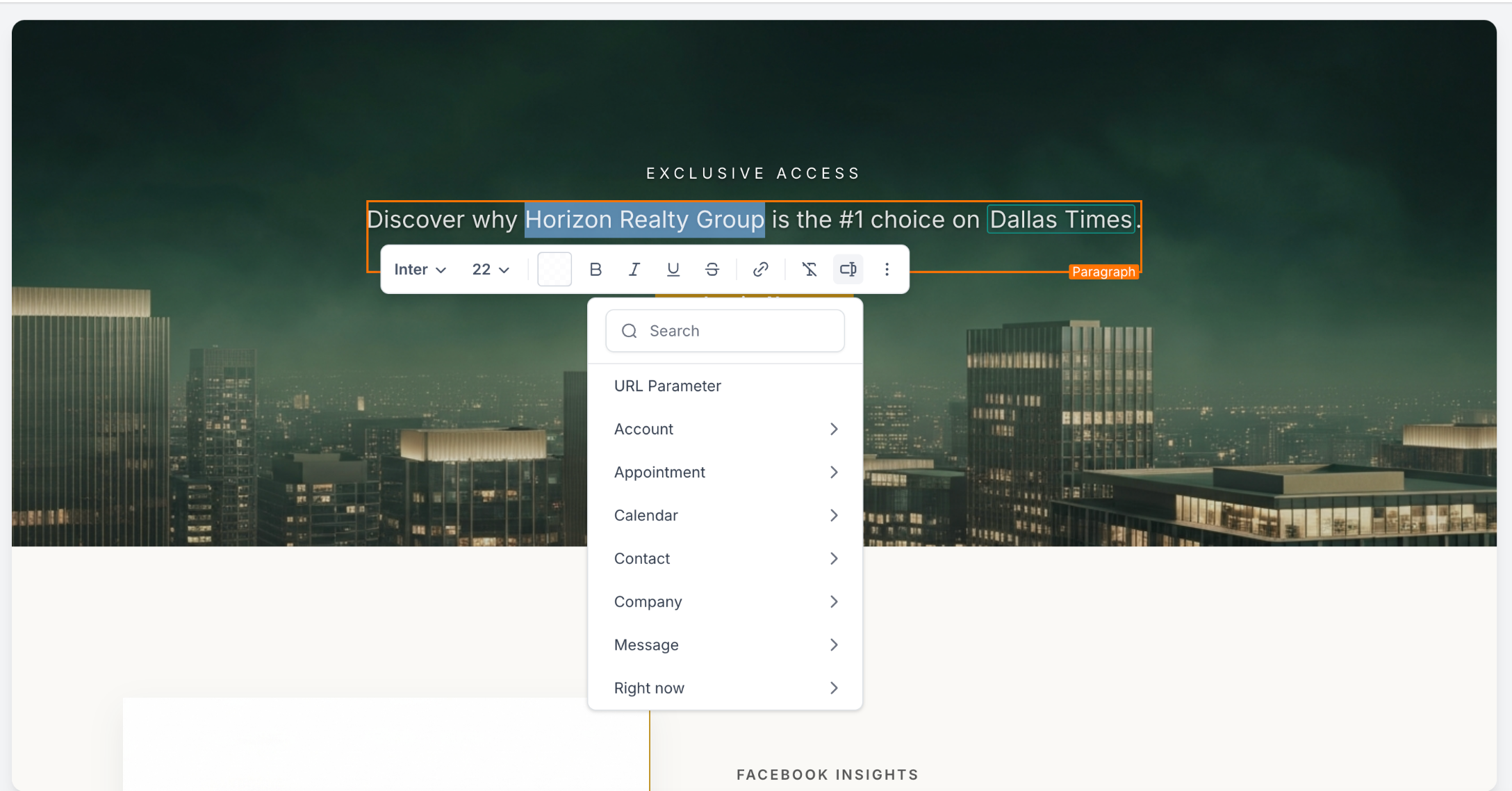
Enter the parameter name, configure a default value if needed, and optionally select a text transformation.
Insert the URL Parameter into the element. The parameter appears as a visual token in the editor instead of raw template syntax. Select the token whenever you need to update its settings.
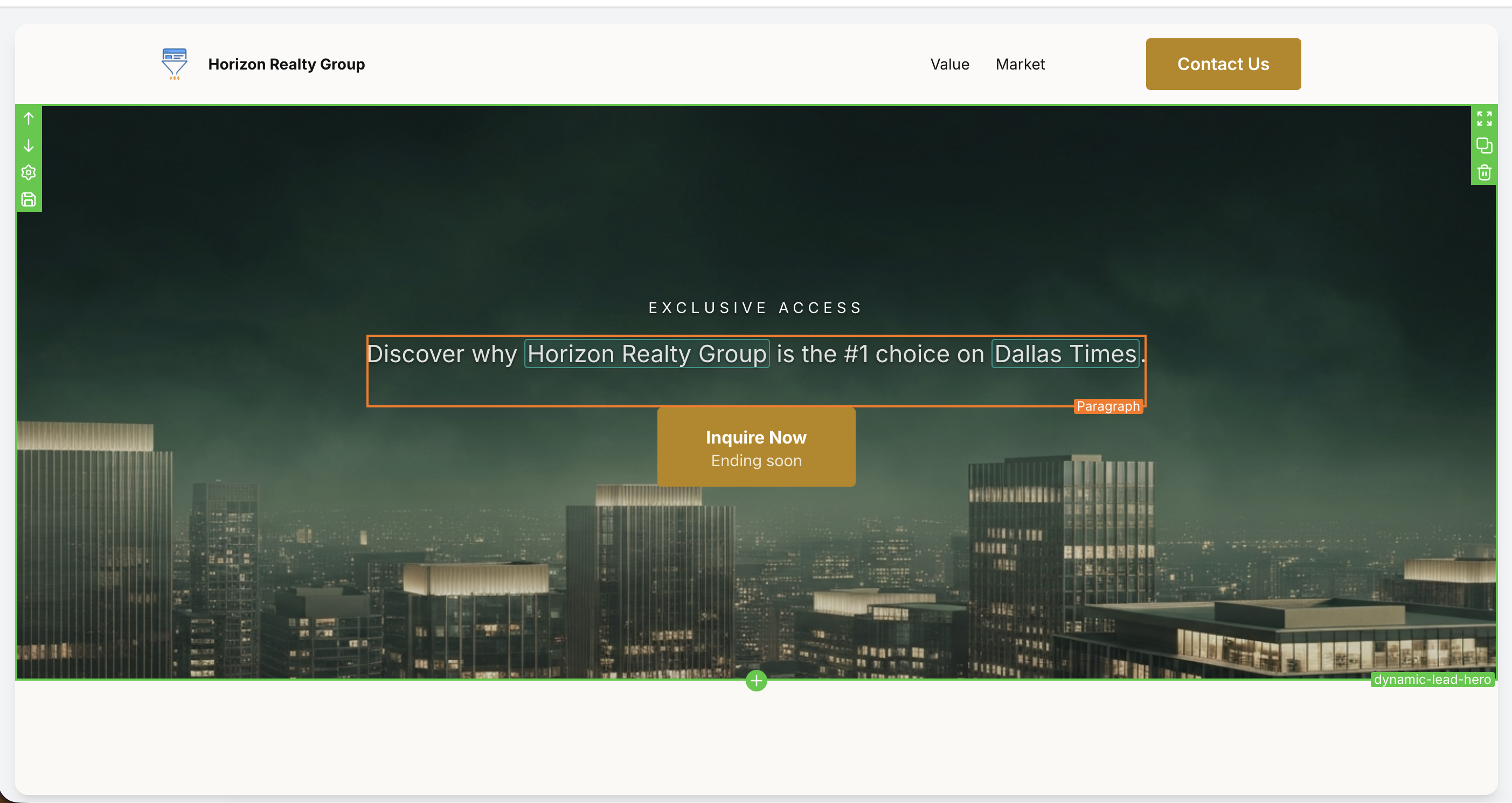
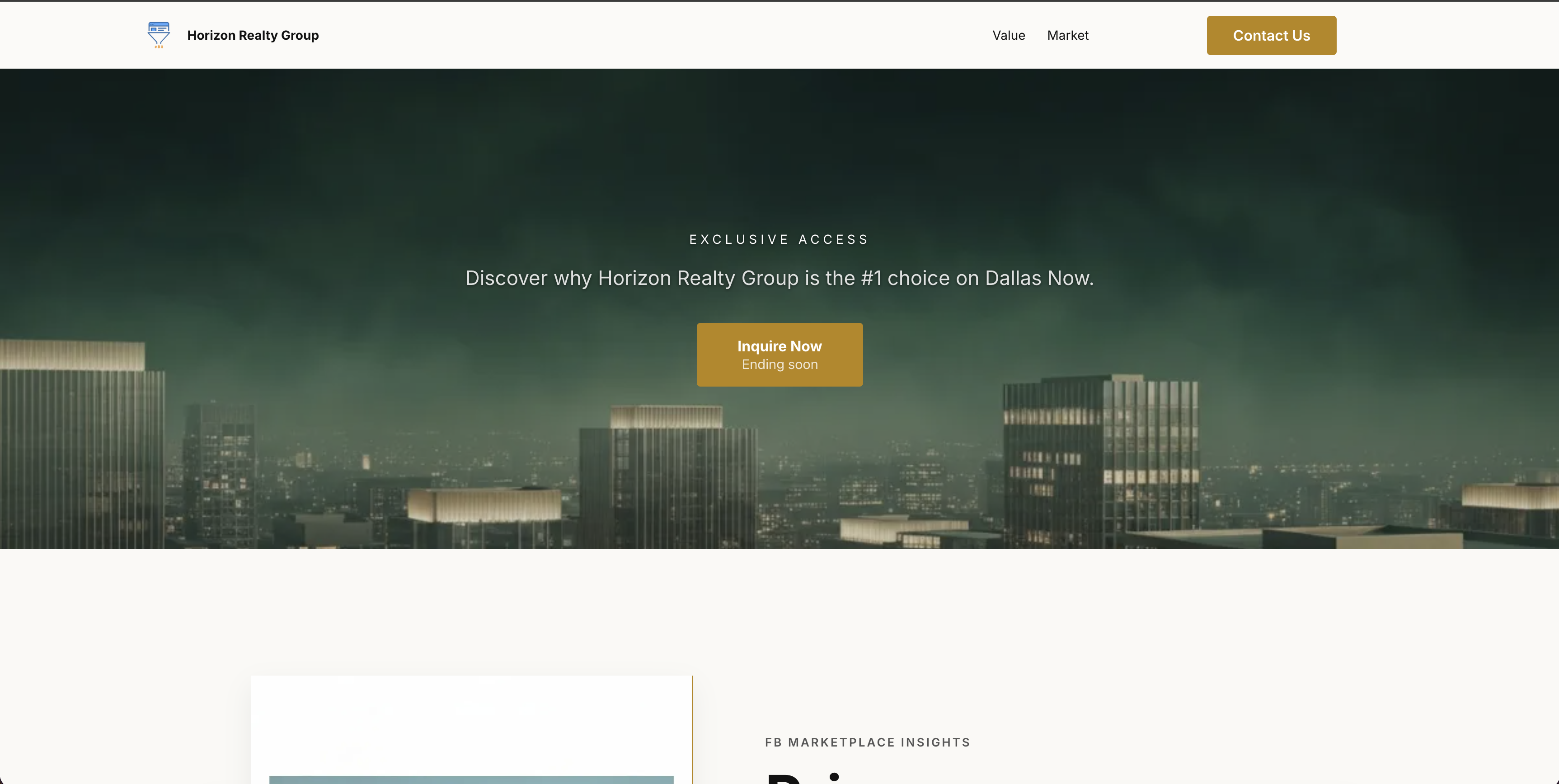
Save and publish the page, then open it with the matching parameter in the URL.
For example, opening ?city=Austin causes a token configured for city to display Austin.
Set a Default Value
A default value controls what visitors see when the expected URL Parameter is missing or contains no value. This prevents dynamic areas from appearing blank.
For example, if a token is configured for city, its default is displayed when either of these conditions occurs:
- The URL does not contain a
cityparameter. - The URL contains an empty parameter such as
?city=.
Good to know: Default values are configured per token. You can enter fallback text or use an existing Custom Value as the default.
Format URL Parameter Text
Text transformations let you control the capitalization of incoming URL values without changing the parameter itself. Separator normalization also makes common UTM-style values easier to read.
| Transformation | Example |
|---|---|
| UPPERCASE | DALLAS NOW |
| lowercase | dallas now |
| Title Case | Dallas Now |
| Sentence case | Dallas now |
Separator normalization: Hyphens and underscores in incoming values are automatically converted to spaces. For example, emergency-plumber becomes emergency plumber. Applying Title Case would display it as Emergency Plumber.
URL Parameter Behavior
Understanding how URL Parameters are matched and rendered helps you build predictable personalization across pages and campaigns.
?City= and ?city= can match the same configured parameter.URL Parameters in Links
Passing a URL Parameter through a link and displaying that parameter on the destination page are two parts of the same personalization flow. The link supplies the value; the URL Parameter token determines where and how the value appears.
A URL can pass a fixed value:
https://example.com/page?city=AustinYou can also use a merge field in a link so the value changes for each contact:
https://example.com/page?first_name={{contact.first_name}}On the destination page, configure a URL Parameter token named first_name wherever you want that incoming value to appear.
Frequently Asked Questions
Before Contacting Support
- Confirm the parameter name in the URL matches the name configured in the token.
- Check whether the URL Parameter has a value or is empty.
- Confirm a default value is configured if the page should display fallback content.
- Verify the page has been saved and published after the token was added or changed.
- Test the published page with a simple parameter such as
?city=Austin. - Check the token's text transformation if the displayed capitalization is unexpected.
Still Need Help?
Contact Support with the affected sub-account, page type, page URL, parameter name, example test URL, configured default value, selected text transformation, and screenshots showing the token configuration and published result. Do not include passwords, API keys, access tokens, or other sensitive credentials.