
Assets Protected Snapshots (Called "IP Protected" Earlier)
Assets Protected Snapshots allow protected assets to be reused within the same agency while continuing to restrict external redistribution. This guide explains how protected assets behave when they are loaded into sub-accounts, used to create or refresh snapshots, included in mixed snapshots, and reviewed before external sharing.
The protection boundary is the agency. Inside the agency, protected assets can be reused. When protected assets would leave the agency through external sharing or resale, they remain restricted.
What Are Assets Protected Snapshots?
Assets Protected Snapshots help snapshot creators protect assets from unauthorized external redistribution while still allowing the receiving agency to use those assets in its normal internal snapshot workflows. Understanding where the protection applies is important because protected assets are no longer blocked from reuse simply because they originated from another protected snapshot.
When Assets Protection is applied to a snapshot, the protected status stays attached to the applicable assets. A receiving agency can load and reuse those assets across its own sub-accounts and can include them when creating or refreshing snapshots for internal use.
The restriction is enforced when protected assets would leave that agency. Protected assets cannot be redistributed or resold to another agency, while eligible non-protected assets can still be shared.
Importing a protected snapshot: After a protected snapshot is imported into your agency, its protected assets can be loaded into your sub-accounts and reused in internal snapshot workflows. Their protected status remains attached.
Key Benefits of Assets Protected Snapshots
Assets Protection gives agencies more flexibility to build with legitimately received assets without removing the safeguards established by the original snapshot creator. Internal snapshot workflows can continue normally while external redistribution controls remain in place.
How Assets Protection Works
Assets Protection separates internal reuse from external redistribution. The key boundary is the agency: protected assets can move through snapshot workflows inside the agency, but their protected status prevents them from being redistributed outside that agency.
| Scenario | Protected Asset Behavior |
|---|---|
| Load into another sub-account in the same agency | Allowed |
| Reuse in another internal snapshot | Allowed |
| Create or refresh a snapshot using protected assets | Allowed within the agency |
| Share a snapshot to another agency | Protected assets are excluded |
| Resell a snapshot outside the agency | Protected assets remain restricted |
| Share a mixed snapshot | Non-protected assets can be shared; protected assets are excluded |
Important: Reusing a protected asset within your agency does not remove or change its protected status. The protection continues to follow the asset.
Reuse Protected Assets Within Your Agency
Protected assets can participate in normal snapshot workflows throughout the same agency. This removes the previous internal-use restriction while preserving the protection that applies when the asset would be redistributed externally.
You can use protected assets to:
- Load a protected snapshot into your agency's sub-accounts.
- Reuse protected assets across multiple sub-accounts in the same agency.
- Create another snapshot from a sub-account containing protected assets.
- Include protected assets when refreshing an existing snapshot.
- Build internal snapshots that contain both protected and non-protected assets.
The protected status remains attached as the assets move through these internal workflows. Creating another snapshot from a sub-account does not make a protected asset externally redistributable.

Protected Assets in Mixed Snapshots
A mixed snapshot contains both protected and non-protected assets. Each asset is evaluated according to its protection status, which means protected content does not prevent eligible content from being shared.
A snapshot does not become completely unshareable simply because it contains one or more protected assets.
Review Protected Assets Before Sharing
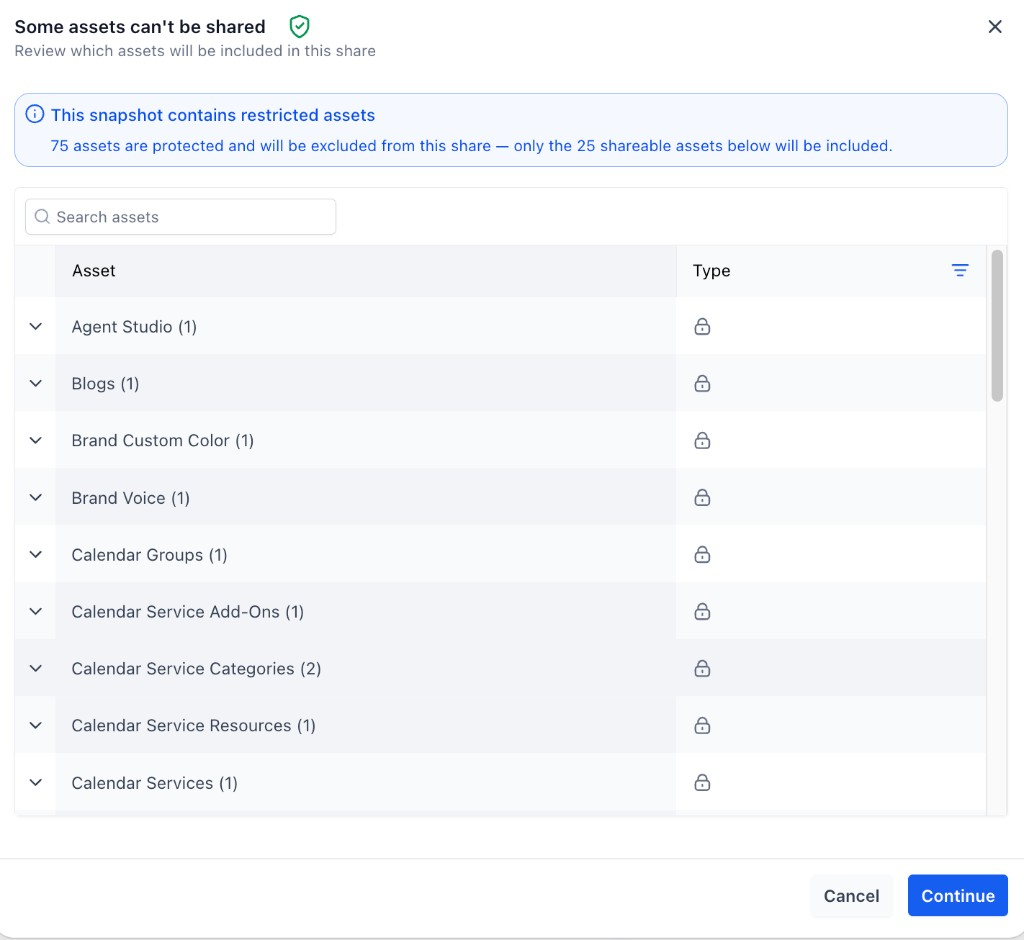
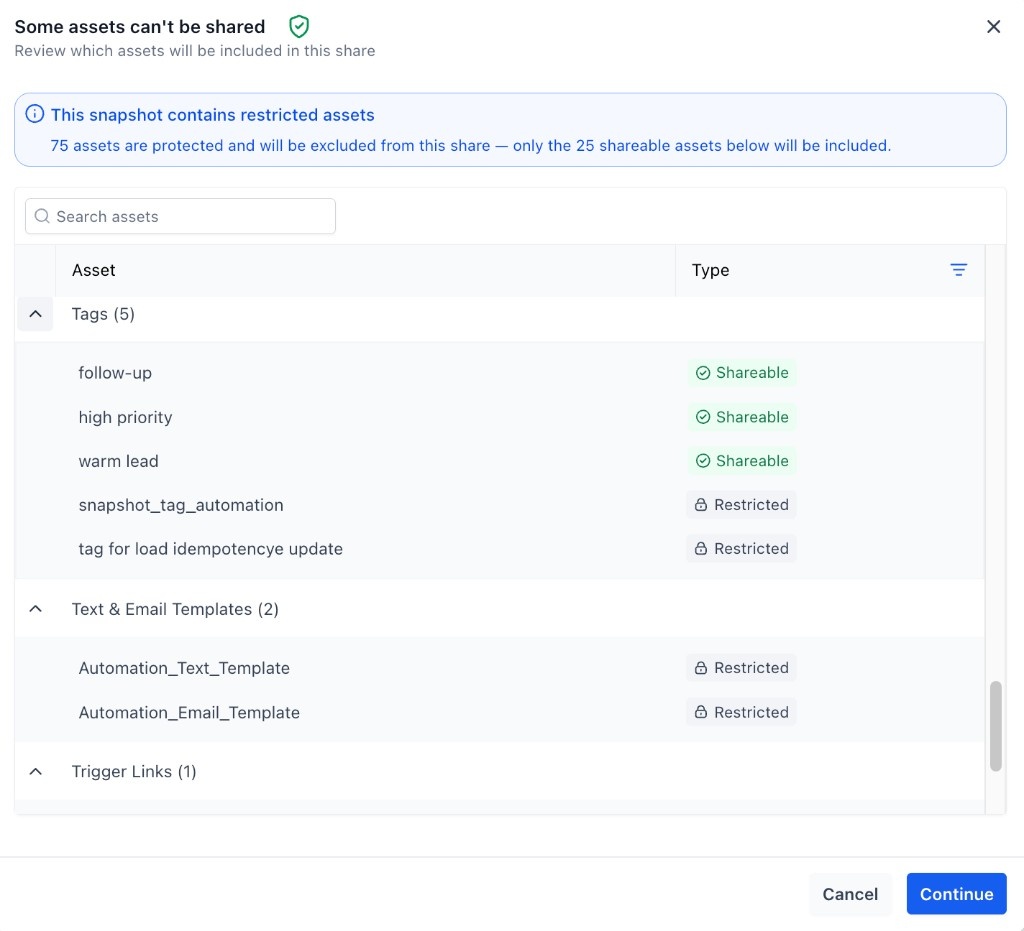
Reviewing a snapshot before it leaves your agency helps you understand which assets will be included in the external share. The sharing experience identifies protected content before you continue so you can see what will be excluded.
If protected assets are present, the sharing experience provides a breakdown of the protected assets that cannot be shared and the eligible assets that can continue. You can expand asset groups to review individual items before proceeding.
How To Set Up Assets Protected Snapshots
Properly enabling Assets Protection ensures that recipients can use protected content inside their agency without being able to redistribute that protected content externally. The same protection remains attached when the assets are later used in internal Create or Refresh workflows.
Enable Assets Protection When Sharing a Snapshot
Assets Protection is applied when you generate a protected share from the snapshot sharing workflow. Enabling it before distributing the snapshot establishes the protection that follows the assets after they are imported by the receiving agency.
- From Agency View, go to Account Snapshots > My Snapshots.
- Locate the snapshot you want to share.
- Open the snapshot's action menu and select Share Snapshot.
- Select the appropriate sharing option for the recipient.
- Turn on Assets Protected.
- Generate the share link.
- Send the link to the intended recipient.
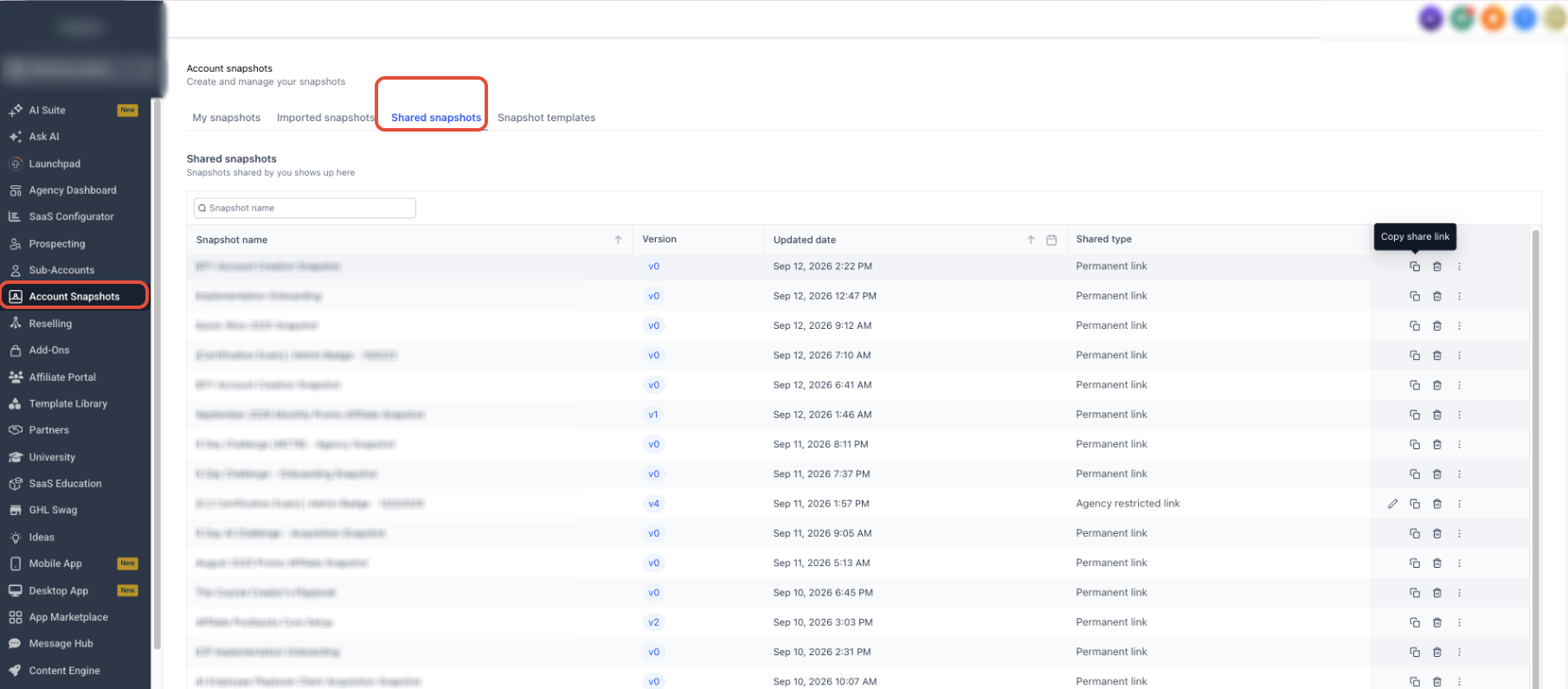
Sharing reminder: Assets Protection is established when the protected share is generated. Recipients can reuse those assets inside their agency, but the protected assets cannot be redistributed outside that agency.
Create or Refresh a Snapshot Using Protected Assets
Protected assets no longer need to be removed when you create or refresh a snapshot for use inside your agency. The asset selector identifies protected content while still allowing it to be selected for the internal snapshot.
- From Agency View, go to Account Snapshots.
- Create a new snapshot or choose an existing snapshot to refresh.
- Select the source sub-account or continue into the asset-selection step.
- Review the available assets. Protected assets are identified with a shield indicator.
- Select the protected and non-protected assets you want included for internal use.
- Complete the Create or Refresh action.
The protected assets remain protected after they are included in the newly created or refreshed snapshot.
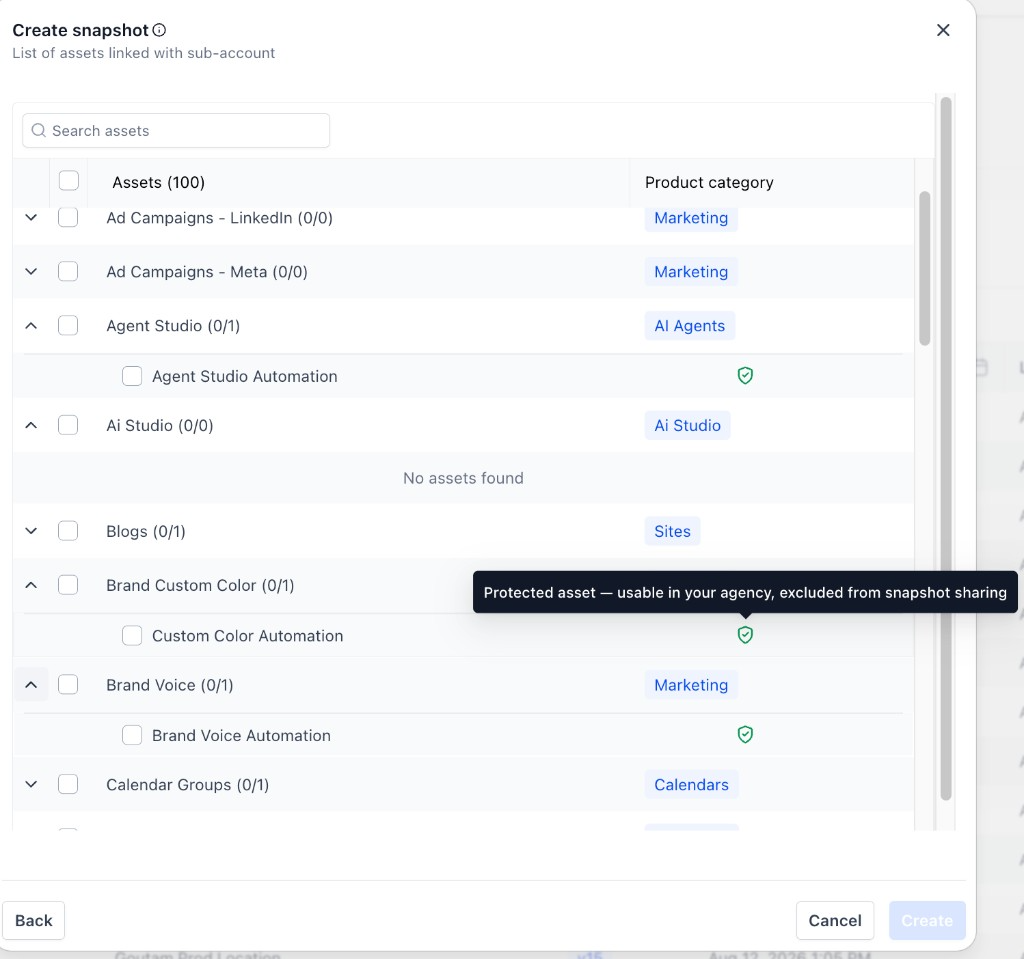
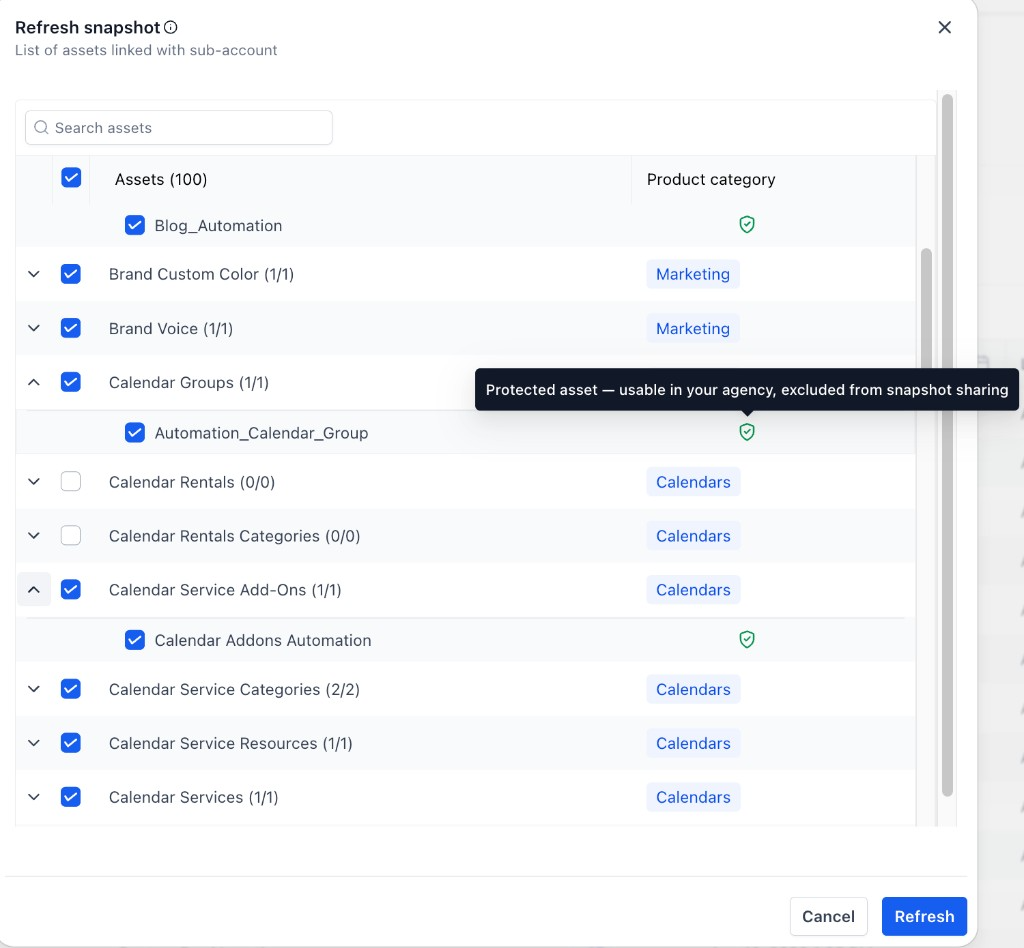
Create and Refresh behavior: Protected assets can be selected when creating a new snapshot or refreshing an existing snapshot for internal use. Including them in another snapshot does not remove their protected status.
Share a Snapshot That Contains Protected Assets
A snapshot does not become completely unshareable because protected content is present. When a mixed snapshot is shared outside your agency, the protected assets are separated from the eligible assets before the share is completed.
- Open the snapshot sharing workflow.
- Select the external sharing option you want to use.
- Review the protected and shareable assets shown before continuing.
- Confirm which assets will be excluded from the external share.
- Continue with the share.
Protected assets remain behind and are not redistributed to the other agency. Eligible non-protected assets are included in the external share.
You do not need to remove every protected asset from a mixed snapshot before sharing it externally.
Frequently Asked Questions
Need Help?
If protected assets are not behaving as expected, use the checks below to confirm whether the workflow is internal to your agency or attempting to distribute assets externally.
- Protected assets are missing while creating or refreshing a snapshot: Confirm that you are working with a sub-account and snapshot inside the same agency. Protected assets should remain available for internal Create and Refresh workflows.
- A protected asset cannot be shared: Check whether the destination is another agency. Protected assets remain restricted when they would leave the current agency.
- A mixed snapshot contains protected assets: You can still continue with external sharing. The protected assets are excluded while eligible non-protected assets continue through the share.
- You are unsure what will be excluded: Review the asset breakdown shown during the sharing workflow before completing the share.
- You reused a protected asset internally: Internal reuse does not remove protection. The protected status continues to follow the asset.
- You are still unable to complete the workflow: Confirm that the snapshot was imported successfully, verify that you are operating inside the intended agency, and retry the Create, Refresh, or Share workflow after reviewing the asset protection indicators.