
This guide explains SaaS V1 and V2 plan-change behavior, how to enable client-initiated upgrades and downgrades, how eligible V1 subscriptions stay synchronized after a supported plan change, and what to expect for billing, invoices, taxes, and historical subscription mismatches.
SaaS V1 and SaaS V2 use different billing architectures. SaaS V1 continues to use Stripe as its system of record. The new V1 subscription bridge does not convert V1 subscriptions into V2 subscriptions; it keeps the corresponding subscription in the V1 selling sub-account aligned when a supported upgrade or downgrade occurs.
What is Upgrading or Downgrading a SaaS Plan for a Location?
Upgrading or downgrading a SaaS plan moves a client sub-account from one configured SaaS subscription tier to another. A plan change can affect billing, product and price information, feature access, usage limits, and when applicable, the client's billing interval.
Clients can perform supported self-service plan changes when the appropriate SaaS Configurator settings are enabled. Agencies can also manage plan changes according to the billing architecture used by the subscription.
For eligible SaaS V1 subscriptions sold through a selling sub-account, supported upgrades and downgrades now synchronize the Stripe subscription with the corresponding subscription stored in that selling sub-account.
Key Benefits of SaaS Plan Changes
Well-configured upgrade and downgrade workflows give clients flexibility while helping agencies keep plan access and billing data aligned. The new V1 subscription bridge also reduces the chance of stale product, price, invoice, or tax information after supported plan changes.
SaaS V1 vs. SaaS V2 Plan-Change Behavior
SaaS V1 and V2 can coexist, but they use different billing systems of record. Identifying which architecture owns the subscription is important before changing billing details or troubleshooting plan-change behavior.
| Behavior | SaaS V1 | SaaS V2 |
|---|---|---|
| Billing system of record | Stripe | The selected Agency Sub-Account |
| New subscription bridge | Applies to eligible V1 subscriptions sold through the supported selling-sub-account workflow. | Not the scope of this V1 bridge because V2 already uses the Agency Sub-Account architecture. |
| Billing interval changes | Managed according to the Stripe/V1 subscription configuration. | Monthly and annual intervals can be changed as part of a supported plan change. |
| Proration | May be handled through the V1/Stripe billing workflow. | No proration for tier changes, billing interval changes, or combined tier and interval changes. |
SaaS V2 Billing Interval Changes
SaaS V2 clients can move between monthly and annual billing while changing to another supported SaaS plan. This allows the tier and billing interval to be selected in the same plan-change experience.
Important: SaaS V2 does not support proration for plan-tier changes, billing-interval changes, or changes that combine both.
SaaS V1 Subscription Sync After a Plan Change
Eligible SaaS V1 subscriptions can exist in both Stripe and the selling sub-account used to sell the SaaS plan. The subscription bridge keeps these two records aligned when a supported SaaS upgrade or downgrade occurs, reducing billing differences between the systems.
| Before the Subscription Bridge | With the Subscription Bridge |
|---|---|
| The SaaS plan change updated the Stripe subscription. | The supported SaaS plan change updates the Stripe subscription and the corresponding selling-sub-account subscription. |
| The selling-sub-account subscription could continue referencing an older product or price. | The selling-sub-account subscription receives the current product and price information. |
| Invoices generated from stale sub-account subscription data could reference incorrect plan details. | Invoices generated from the selling sub-account can reflect the current product and price after the plan change. |
| Tax could be calculated using outdated plan information. | Tax is recalculated against the current plan information when the supported plan change occurs. |
Which SaaS V1 Subscriptions Are Covered?
The bridge is intended for the SaaS V1 selling pattern where the SaaS product is created in Stripe, imported into an agency-owned selling sub-account, and sold from that sub-account through a supported payment link or funnel.
Supported pattern: SaaS Plan → Stripe Product → Product imported into the selling sub-account → Subscription sold through the selling sub-account → Supported SaaS upgrade or downgrade.
Historical Subscription Mismatches
The subscription bridge is not a retroactive backfill. If the Stripe subscription and selling-sub-account subscription became mismatched before this behavior was introduced, the existing mismatch is not automatically repaired simply because the bridge is now available.
Existing mismatches: A future supported upgrade or downgrade can update both records through the new flow. Until a qualifying plan change occurs, older mismatches may remain.
What the New Sync Does Not Guarantee
The subscription bridge is tied to supported SaaS upgrade and downgrade events. Avoid extending this behavior to unrelated subscription changes unless that workflow explicitly supports the same synchronization.
- Do not assume arbitrary manual edits made directly in Stripe trigger the same bridge.
- Do not assume cancellations, pauses, resumptions, or failed-payment states use this upgrade/downgrade synchronization unless documented separately.
- The V1 bridge does not change SaaS V2 architecture.
- Stripe remains the SaaS V1 billing system of record.
How To Set Up Client Plan Changes
Plan-change permissions determine whether clients can manage upgrades or downgrades without contacting your agency. Configure these settings before directing clients to Company Billing so the intended plans and actions are available.
Allow Upgrades for All Future SaaS Clients
The agency-level upgrade setting applies your preferred self-service behavior to SaaS accounts created through the SaaS Configurator moving forward.
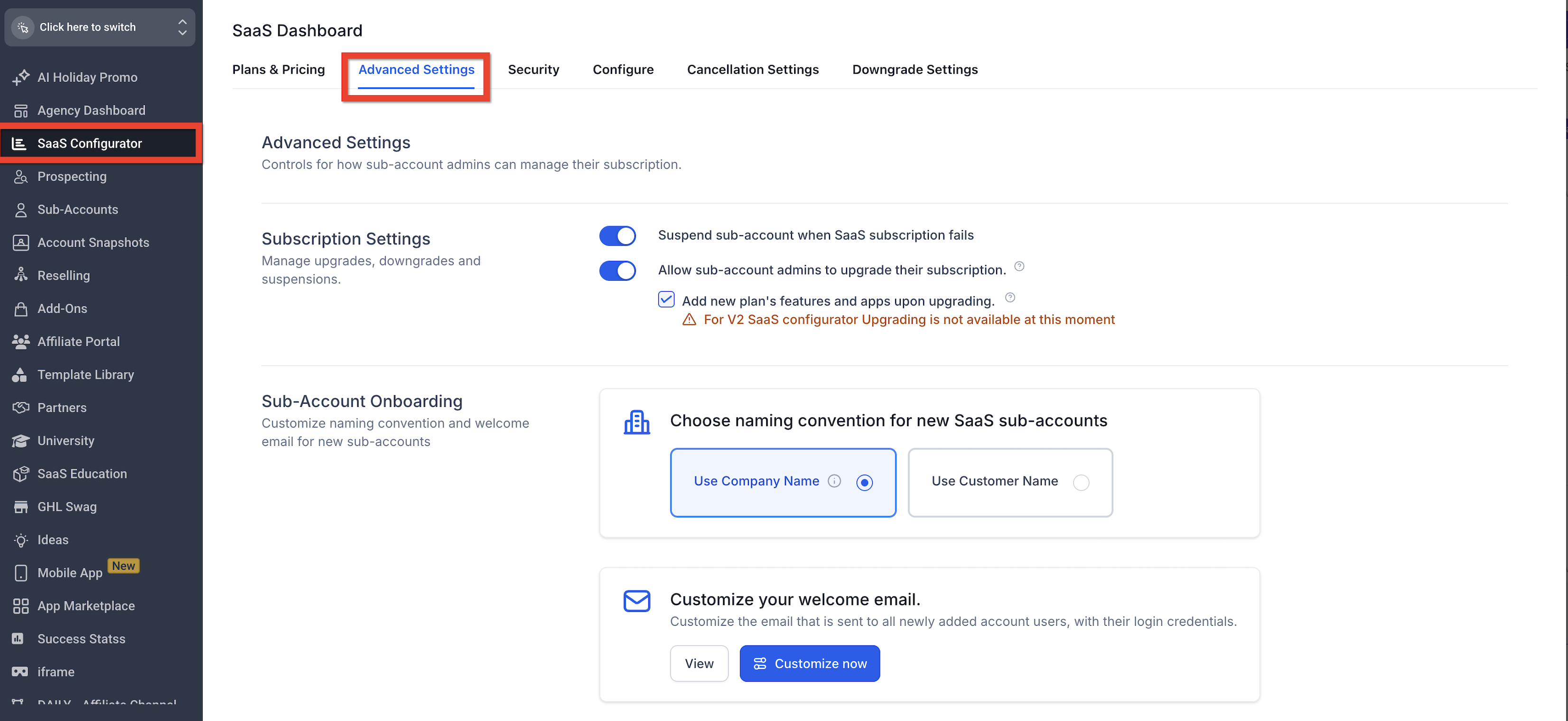
- Sign in to your Agency account.
- Open SaaS Configurator.
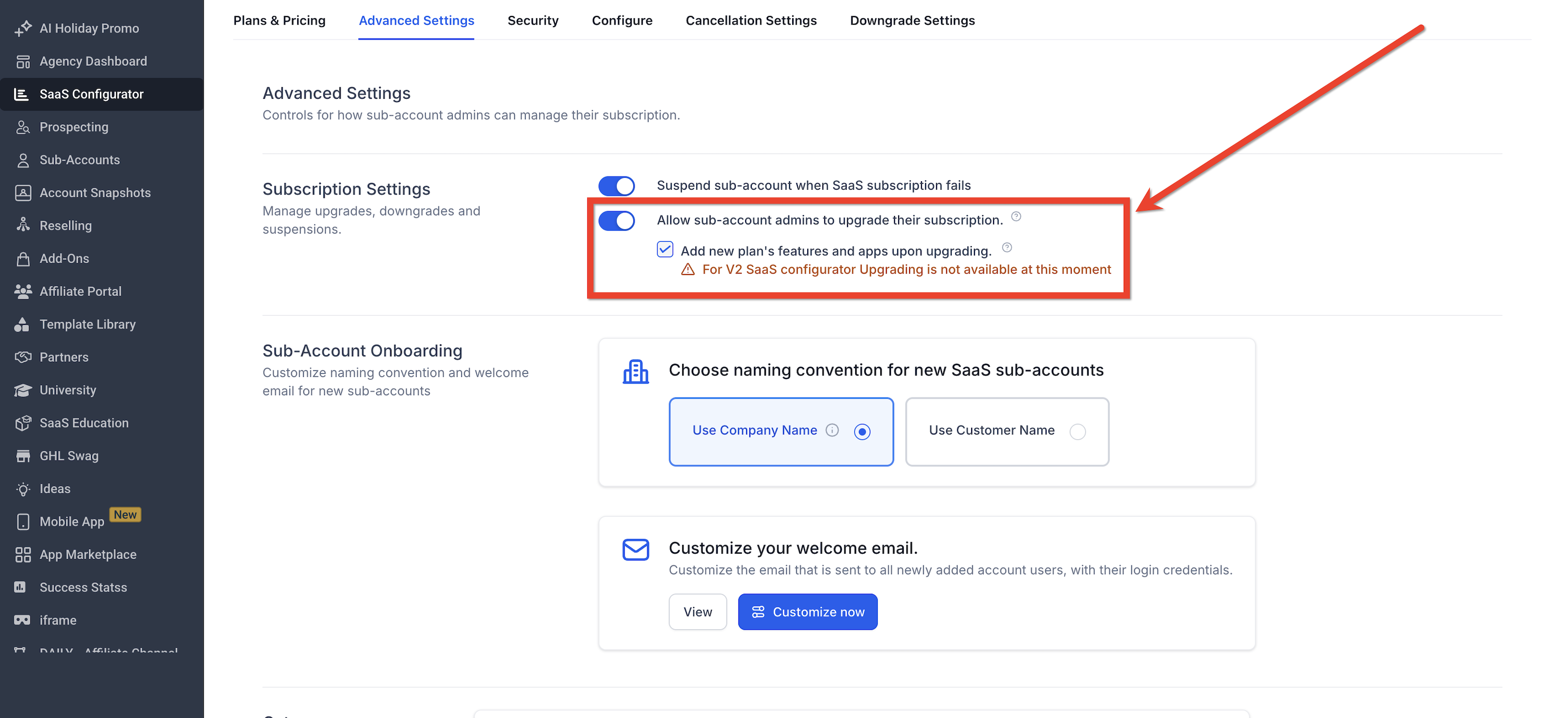
- Open Advanced Settings.
- Enable Allow sub-account admins to upgrade their subscription.
- If clients should receive new plan features and apps immediately after upgrading, enable Add New Plans Features and Apps Upon Upgrading.
Allow Upgrades for a Specific Client
Per-client controls let you enable self-service upgrades for an individual sub-account without changing the agency-wide default for other clients.
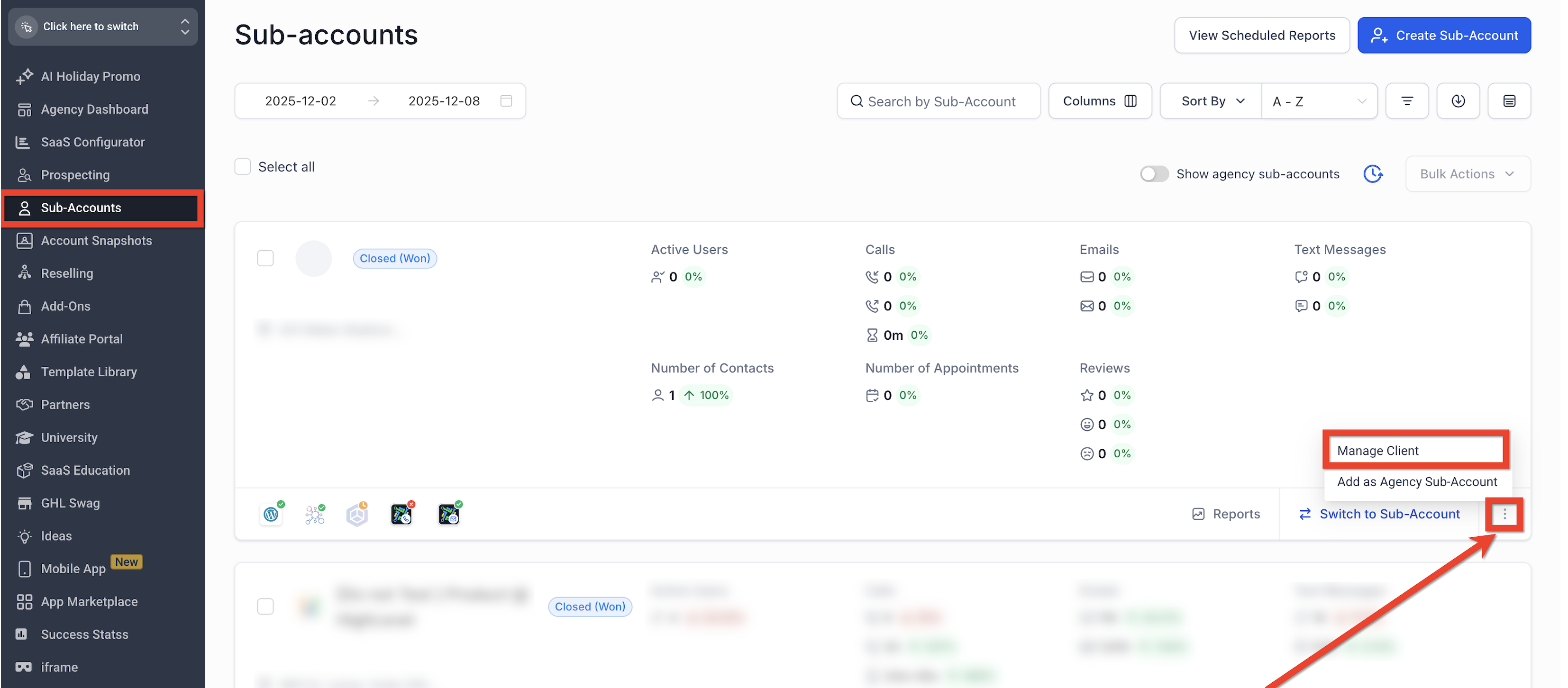
- Sign in to your agency account.
- Go to Sub-accounts.
- Find the client sub-account and select ⋯ > Manage Client.
- Enable Allow sub-account admins to upgrade their subscription.
- Enable Add New Plans Features and Apps Upon Upgrading if the upgraded feature set should become available immediately.

Configure Client-Initiated Downgrades
Downgrades use separate settings from the upgrade permission. You can decide whether clients may downgrade themselves, collect downgrade reasons, and optionally configure retention offers before a lower-tier plan is scheduled.
Configure downgrade behavior in SaaS Configurator > Downgrade Settings. Eligible downgrades take effect according to the configured downgrade flow, typically at the start of the next billing cycle.
How Clients Change Their SaaS Plan
Clients can manage available plan changes from their billing area when your agency has enabled the relevant self-service permissions. The exact options shown depend on the client's current plan, plan category and level, currency, architecture, and your configured upgrade or downgrade rules.
Client Upgrade Flow
The upgrade flow lets an eligible client select a higher plan and complete the associated billing change from Company Billing.
Sign in to the client sub-account and go to Settings > Company Billing.
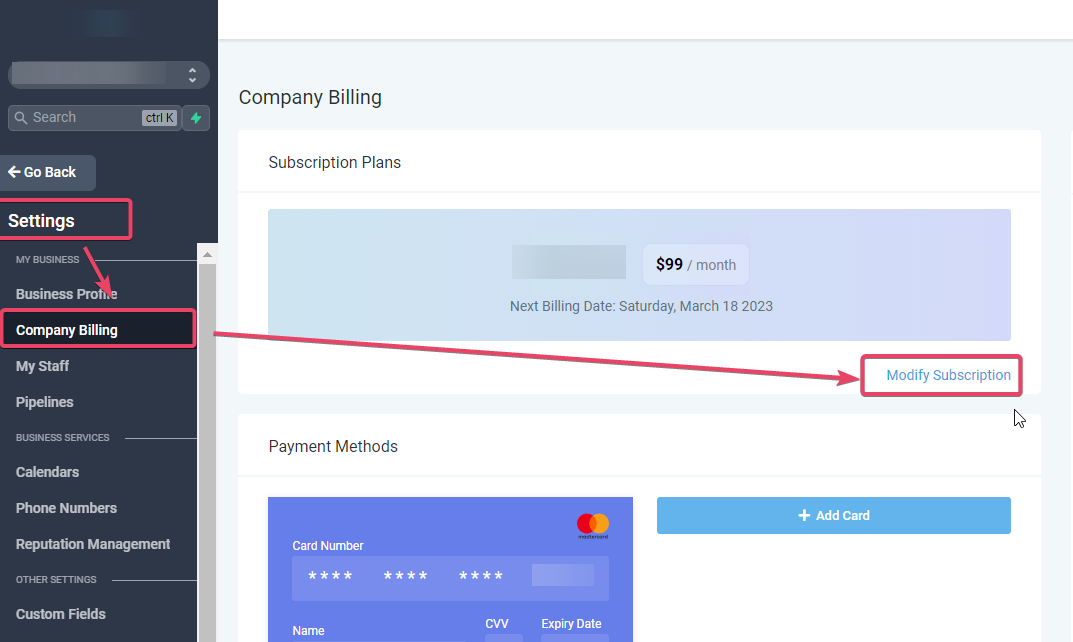
Click Upgrade to view the plans available to the client.
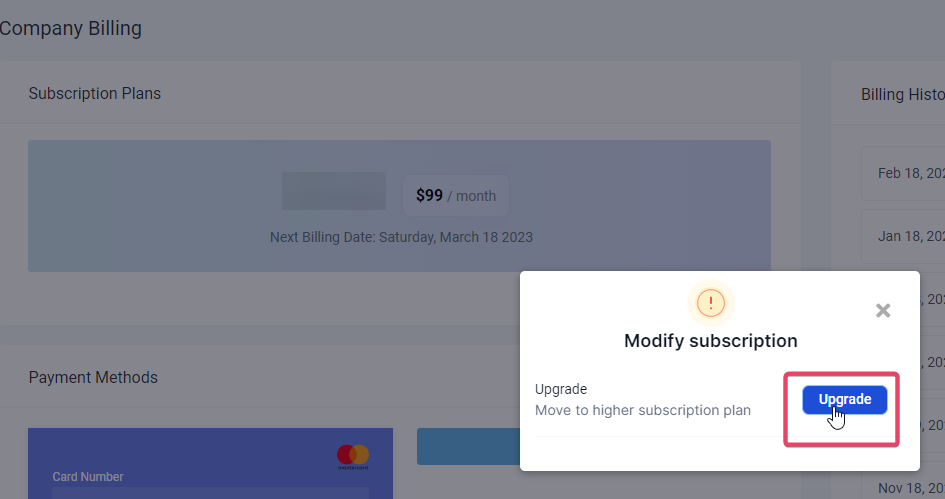
Select the destination SaaS plan. Available choices depend on the configured plan category, level, pricing, currency, and client eligibility.
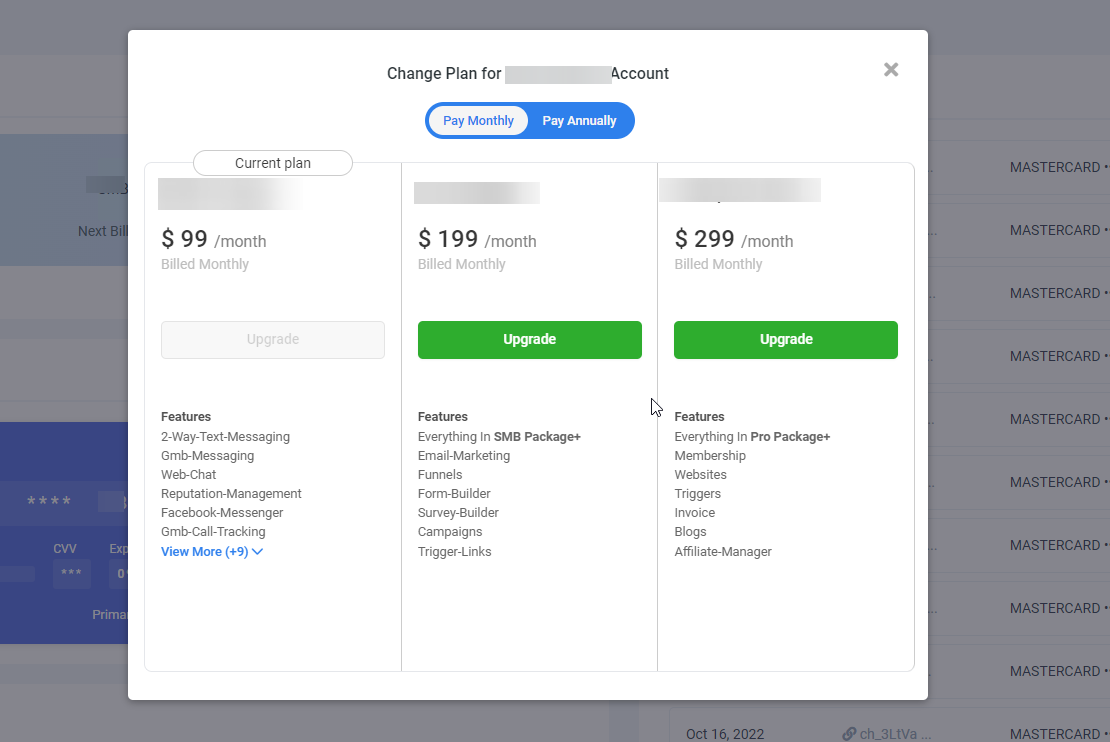
Review the plan price and available billing interval options. For SaaS V2 subscriptions, monthly and annual billing can be changed as part of the supported plan change.

Review the final billing information and select Confirm & Pay. If immediate feature access is enabled by the agency, the client can receive the new plan's configured features and apps when the upgrade completes.

Eligible SaaS V1 subscriptions: When the supported upgrade completes, the subscription bridge updates both the Stripe subscription and the corresponding subscription in the selling sub-account.
Client Downgrade Flow
When self-service downgrades are enabled, clients can initiate a move to a lower plan from their billing settings. Downgrades can include a required reason and optional retention offer, and eligible changes are scheduled according to your downgrade configuration.
Typical client path: Account Settings → Billing → Modify Subscription → Downgrade.
Downgrade timing: If a downgrade is scheduled for the start of the next billing cycle, the V1 subscription synchronization should be understood as occurring when the qualifying downgrade takes effect—not merely when the client first requests it.
Agency-Side SaaS V1 Plan Changes
SaaS V1 continues to use Stripe as its billing system of record, so agencies may still need to work with the customer's Stripe subscription in legacy or manual scenarios. Direct Stripe edits should be treated separately from the supported SaaS upgrade/downgrade event that triggers the new subscription bridge.
Important: Do not assume an arbitrary manual Stripe edit automatically updates the corresponding subscription in the selling sub-account. The new bridge is documented for supported SaaS upgrade/downgrade events. After a direct Stripe edit, verify the subscription state and client feature access.
Find the SaaS V1 Customer in Stripe
Use the client's invoice information to identify the correct Stripe customer before making a manual V1 subscription change. This helps avoid modifying the wrong customer record.
- Open the client sub-account and go to Settings > Company Billing.
- Select View for an invoice in Billing History.
- Copy the invoice number.
- Search for that invoice in Stripe and open it.
- Select the customer shown in the invoice's billing details to open the correct Stripe customer profile.


Change the SaaS V1 Subscription in Stripe
For a manual V1 change, edit the customer's existing Stripe subscription carefully and confirm the intended price and billing behavior before saving.
- Open the customer's active subscription in Stripe.
- Select the edit control for the subscription.
- Remove the current price and add the correct price for the destination SaaS plan.
- Review any Stripe proration or billing adjustments that apply to the V1 change.
- Save the subscription update.


Verify Feature Access and Subscription Alignment
After a direct Stripe change, verify the client's plan access in the agency and confirm that any corresponding selling-sub-account subscription reflects the intended state. Manual Stripe edits are not the same as a supported SaaS plan-change event.
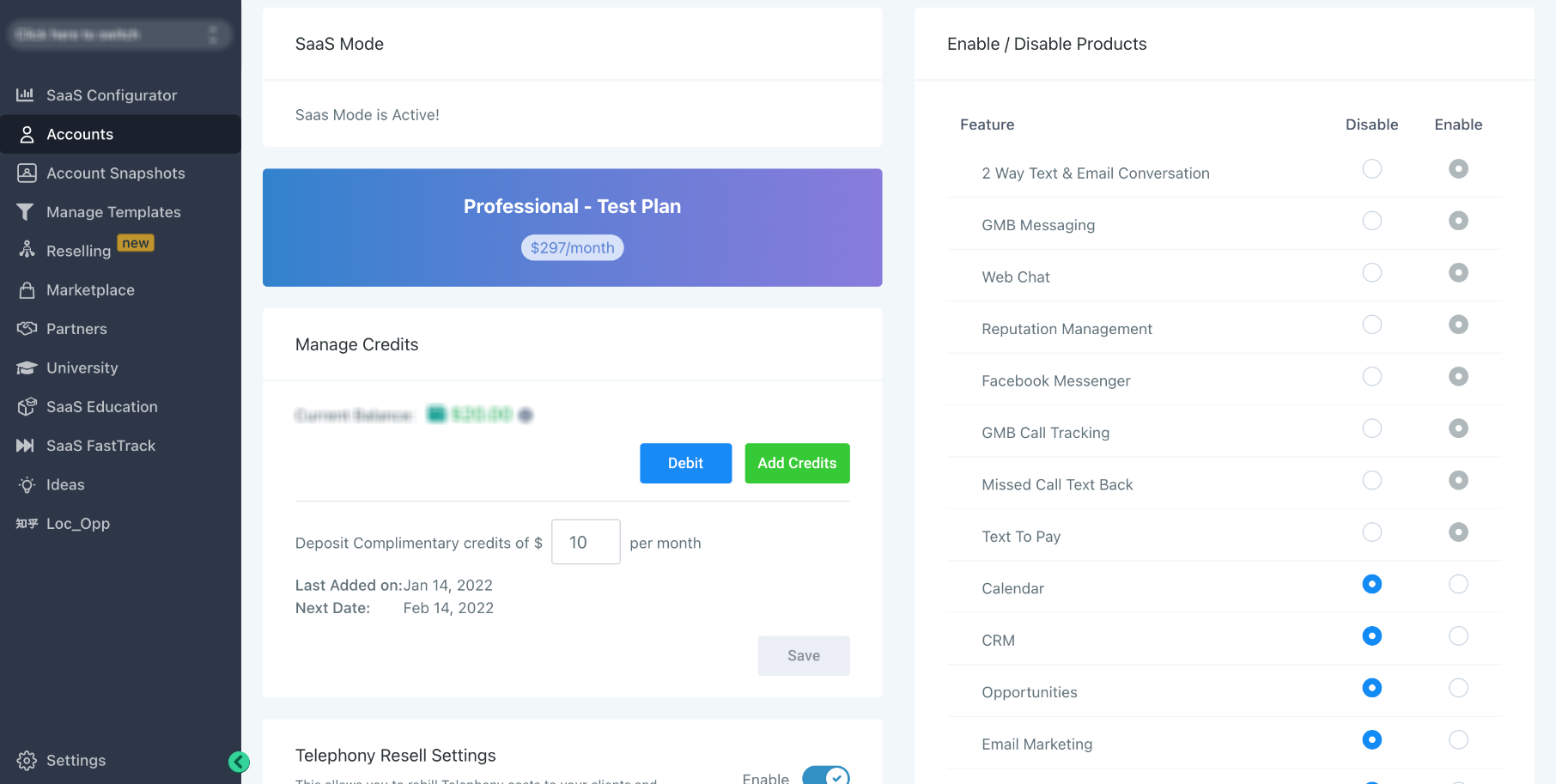
- Return to the agency view and open the client's account details.
- Verify that the client's accessible features match the intended destination plan.
- Save any required feature-access changes.
- If the subscription was originally sold through a V1 selling sub-account, verify that the sub-account subscription is not left with stale product or price information.
Frequently Asked Questions
Need Help?
If a SaaS plan change does not behave as expected, use the checks below to identify the most common causes before making another billing change.
- The destination plan is missing: Verify the plan category, plan level, currency, pricing configuration, and the client's self-service permissions.
- The client cannot upgrade: Confirm that Allow sub-account admins to upgrade their subscription is enabled at the agency or client level.
- The client cannot downgrade: Review the separate downgrade settings and confirm that self-service downgrades are enabled for the intended workflow.
- A downgrade has not changed the subscription yet: Check whether the downgrade is scheduled for the next billing cycle. Synchronization occurs when the qualifying downgrade takes effect.
- A historical V1 mismatch still exists: Older mismatches are not automatically backfilled. A future supported upgrade or downgrade can update both the Stripe and selling-sub-account subscription records.
- A direct Stripe edit did not update the selling sub-account: Manual Stripe edits should not be assumed to trigger the subscription bridge. Verify the corresponding sub-account subscription and feature access manually.
- An invoice still shows old plan details: Confirm that the subscription went through a supported V1 upgrade or downgrade and that the corresponding selling-sub-account subscription reflects the current product and price.
- Tax appears incorrect after a plan change: Verify that the qualifying V1 plan change completed and that the selling-sub-account subscription contains the current plan information used for tax calculation.
- Feature access does not match the new plan: Confirm whether immediate feature access is enabled and verify the client's configured feature set after the plan change.