
Learn how to enable self-service downgrades, configure downgrade reasons and retention discounts, understand when a downgrade becomes effective, track activity, and recognize when eligible SaaS V1 subscription synchronization occurs.
Scheduling a downgrade does not immediately change the client's active plan. The client keeps the current plan and features until the scheduled effective date. For an eligible SaaS V1 selling-sub-account subscription, synchronization occurs when the supported downgrade becomes effective.
What are Downgrade Settings for SaaS Clients?
Downgrade Settings in the SaaS Configurator control whether sub-account admins can move themselves to a lower-tier SaaS plan. Agencies can enable or disable self-service downgrades, customize the reasons clients choose when downgrading, and optionally present eligible clients with a retention discount before the downgrade is scheduled. This creates a structured downgrade path while preserving visibility into churn reasons and outcomes.
Key Benefits of Configuring Downgrade Settings for SaaS Clients
A structured downgrade experience gives clients more control while helping agencies preserve revenue, understand churn, and maintain predictable billing behavior. Configuring these settings before clients need them also reduces manual support work during plan changes.
Behavior & Billing Rules
Downgrade timing determines when billing and feature access actually change. Understanding these rules helps agencies explain the client experience accurately and distinguish a scheduled downgrade from one that has already become effective.
- Monthly discount duration: For eligible monthly subscriptions, the retention discount applies for the number of months configured by the agency.
- Annual discount duration: For eligible annual subscriptions, the discount applies for one year.
- Scheduled effective date: The downgrade takes effect at the start of the next billing cycle.
- No mid-cycle proration: This scheduled downgrade flow does not create a mid-cycle refund or partial charge.
- Access until the change: Clients keep their current-plan features until the scheduled effective date.
- Keep My Plan: Clients can cancel a scheduled downgrade before its effective date and remain on the current plan.
- Upgrades remain available: Eligible clients can still access supported upgrade options from Billing.
Retention outcome: If a client accepts the discount offer, the downgrade is canceled. The client remains on the current plan and the discount begins according to the configured billing-cycle behavior.
SaaS V1 Subscription Sync at the Effective Date
Eligible SaaS V1 subscriptions sold through a selling sub-account can have both a Stripe subscription and a corresponding subscription record in that selling sub-account. Because a configured downgrade is future-effective, the subscription bridge should be understood in relation to the date the lower plan actually becomes active.
| Stage | What Happens |
|---|---|
| Downgrade scheduled | The current plan remains active. The client keeps current-plan features until the effective date. |
| Discount accepted | The downgrade is canceled, so the lower plan does not become effective. |
| Keep My Plan selected | The scheduled downgrade is canceled before it becomes effective. |
| Downgrade becomes effective | For an eligible V1 selling-sub-account subscription, the supported plan-change flow updates Stripe and the corresponding selling-sub-account subscription. |
After an eligible V1 downgrade becomes effective: The current product and price can remain aligned between the supported subscription records, downstream invoices can reflect the new plan information, and applicable tax can be recalculated using current plan data when tax is already configured.
Not retroactive: Historical mismatches between Stripe and an existing selling-sub-account subscription are not automatically backfilled. A future qualifying plan change can update both records through the supported synchronization flow.
Manual Stripe edits: Do not assume arbitrary subscription changes made directly in Stripe trigger the selling-sub-account synchronization. The bridge is documented for supported SaaS upgrade and downgrade events.
How To Set Up the Downgrade Flow
Configure the downgrade flow before enabling it for clients so the available reasons, retention offer, and timing match your agency's billing and retention strategy. The global setting controls whether eligible sub-account admins can access the self-service downgrade experience.
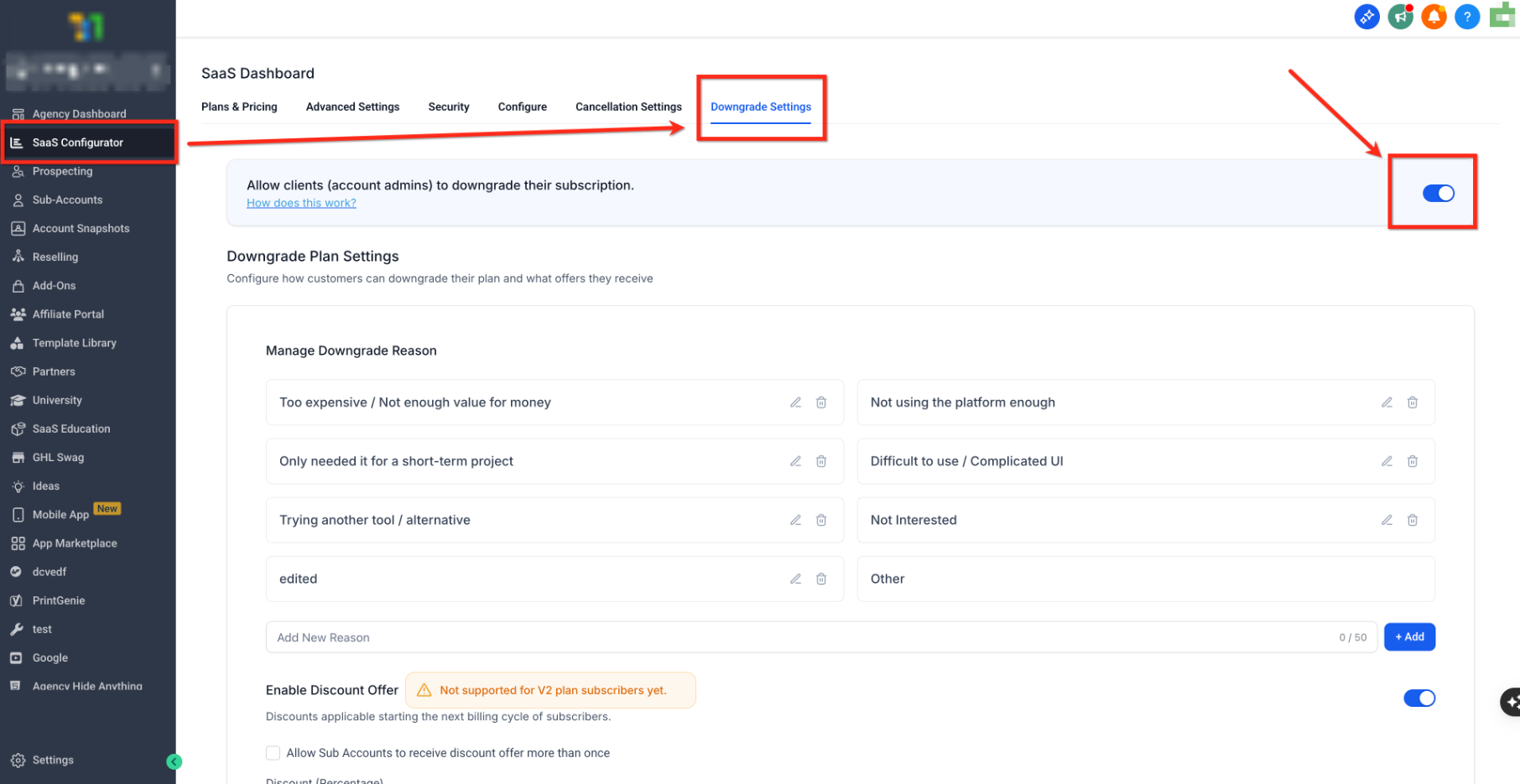
Step 1: Enable Downgrades
Enabling the downgrade option makes the self-service downgrade action available to eligible client administrators. Keep the setting off if your agency wants all downgrade requests handled manually.
- From Agency View, go to SaaS Configurator > Downgrade Settings.
- Turn Allow clients (account admins) to downgrade their subscription ON or OFF.
Note: When the setting is disabled, clients do not see the self-service downgrade option in their billing settings.
Step 2: Manage Downgrade Reasons
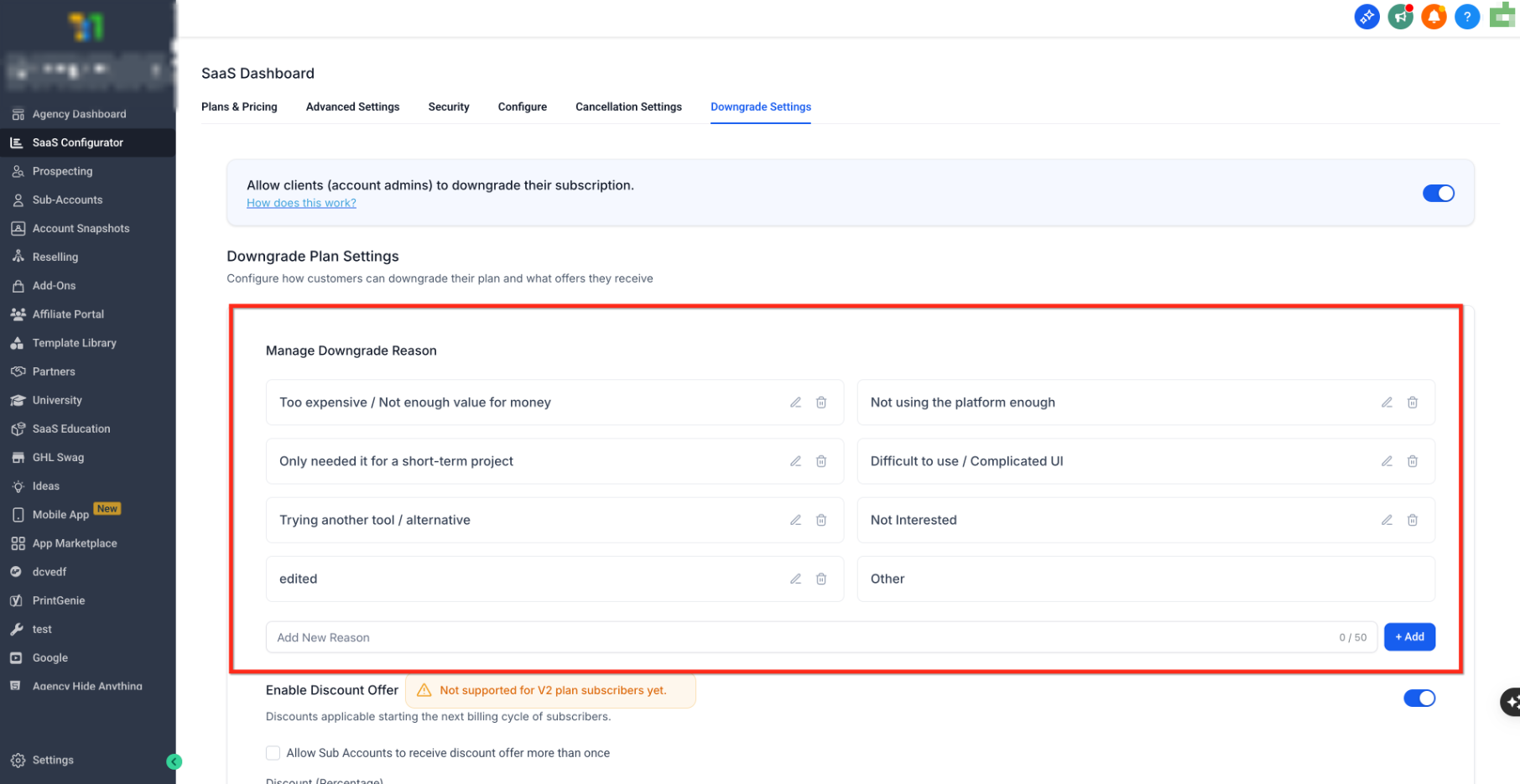
Downgrade reasons capture structured feedback at the moment a client considers moving to a lower plan. Use reasons that help your team identify actionable pricing, adoption, or product trends.
- Start with the provided default reasons, such as pricing or feature-usage concerns.
- Edit existing reasons to match your business.
- Remove reasons that are not relevant.
- Add new reasons up to the supported character limit.
Tip: Keep downgrade reasons concise and distinct so Activity Logs can reveal meaningful churn patterns instead of collecting overlapping answers.
Step 3: Configure Discount Offers
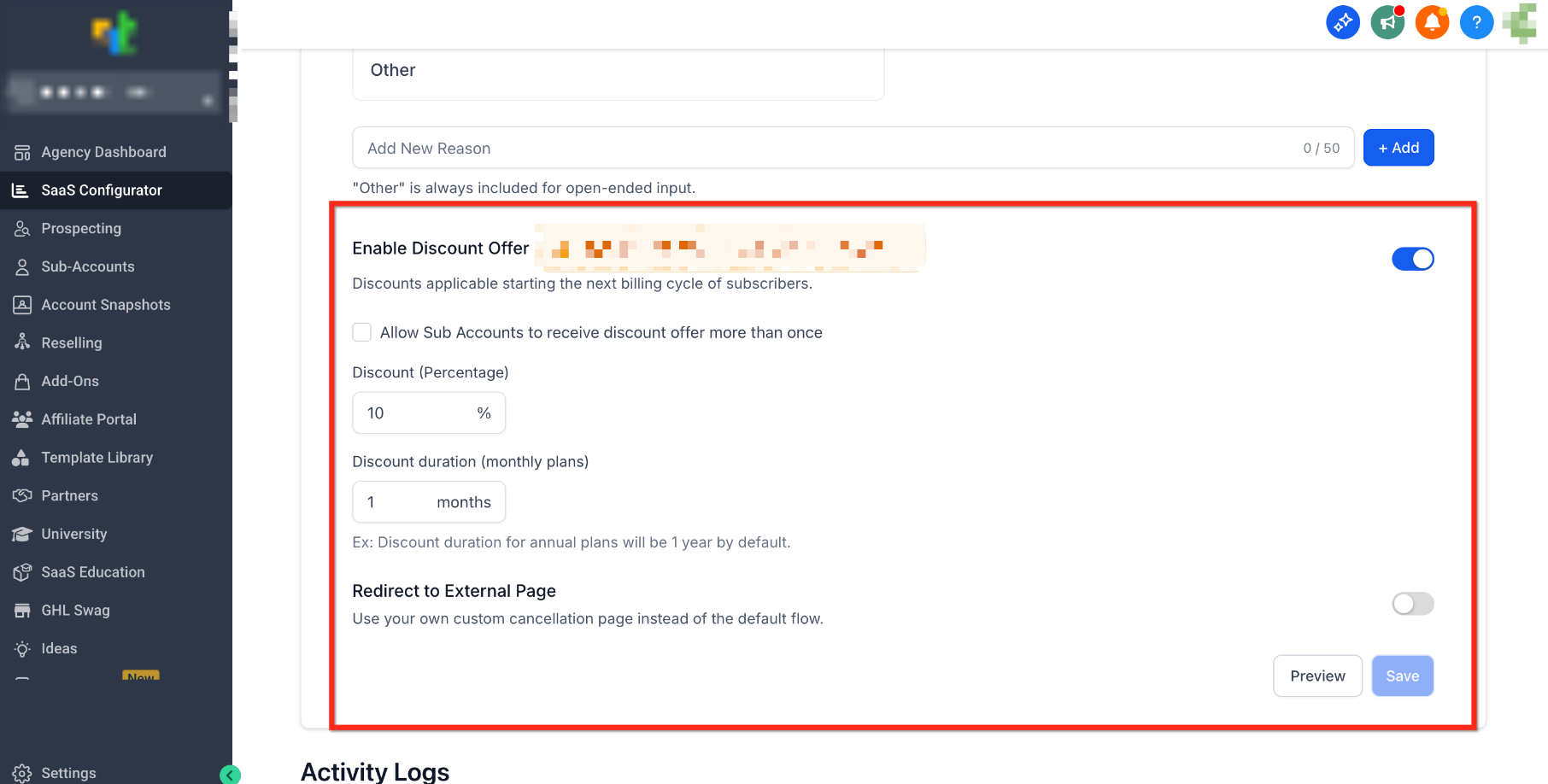
A retention discount can give an eligible V1 client a reason to remain on the current plan before the downgrade is scheduled. If the client accepts the offer, the downgrade is canceled and the client stays on the existing plan.
- Turn Enable Discount Offer ON.
- Enter the discount percentage.
- For monthly plans, configure the discount duration.
- Choose whether an eligible client can receive the offer more than once.
- Click Save.
V1 only: Discount deflections are currently available for supported SaaS V1 flows and are not currently supported for V2 downgrade flows.
Customer Downgrade Flow
The customer flow separates the decision to downgrade from the date the new plan becomes active. Clients first choose a reason and, when eligible, see the configured retention offer before the downgrade is scheduled for the next billing cycle.
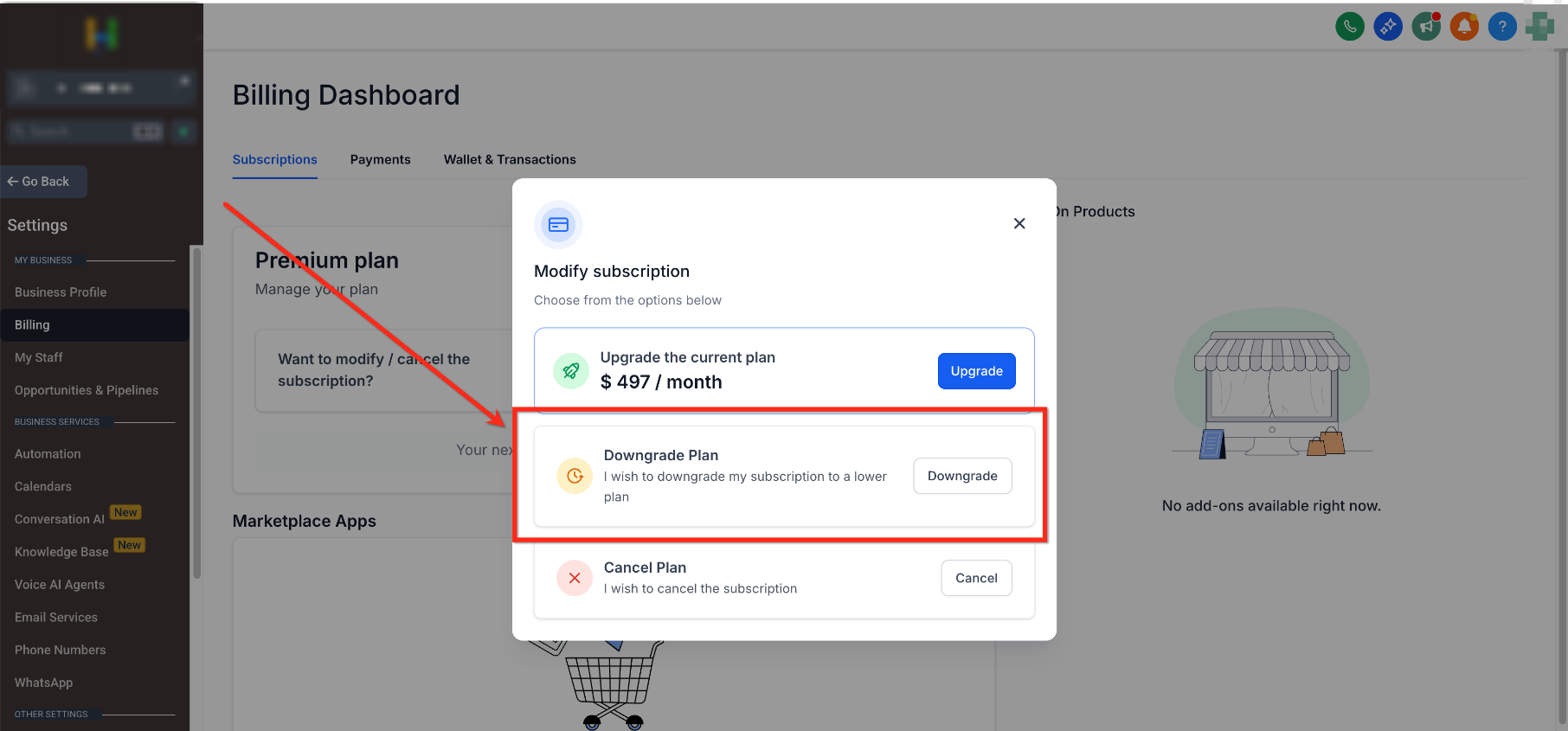
- Go to Account Settings > Billing > Modify Subscription > Downgrade.
- Select a downgrade reasonfrom the agency's configured list.

- If an eligible V1 retention offer is enabled, review the discount. If the client accepts it, the downgrade is canceled and the client remains on the current plan.
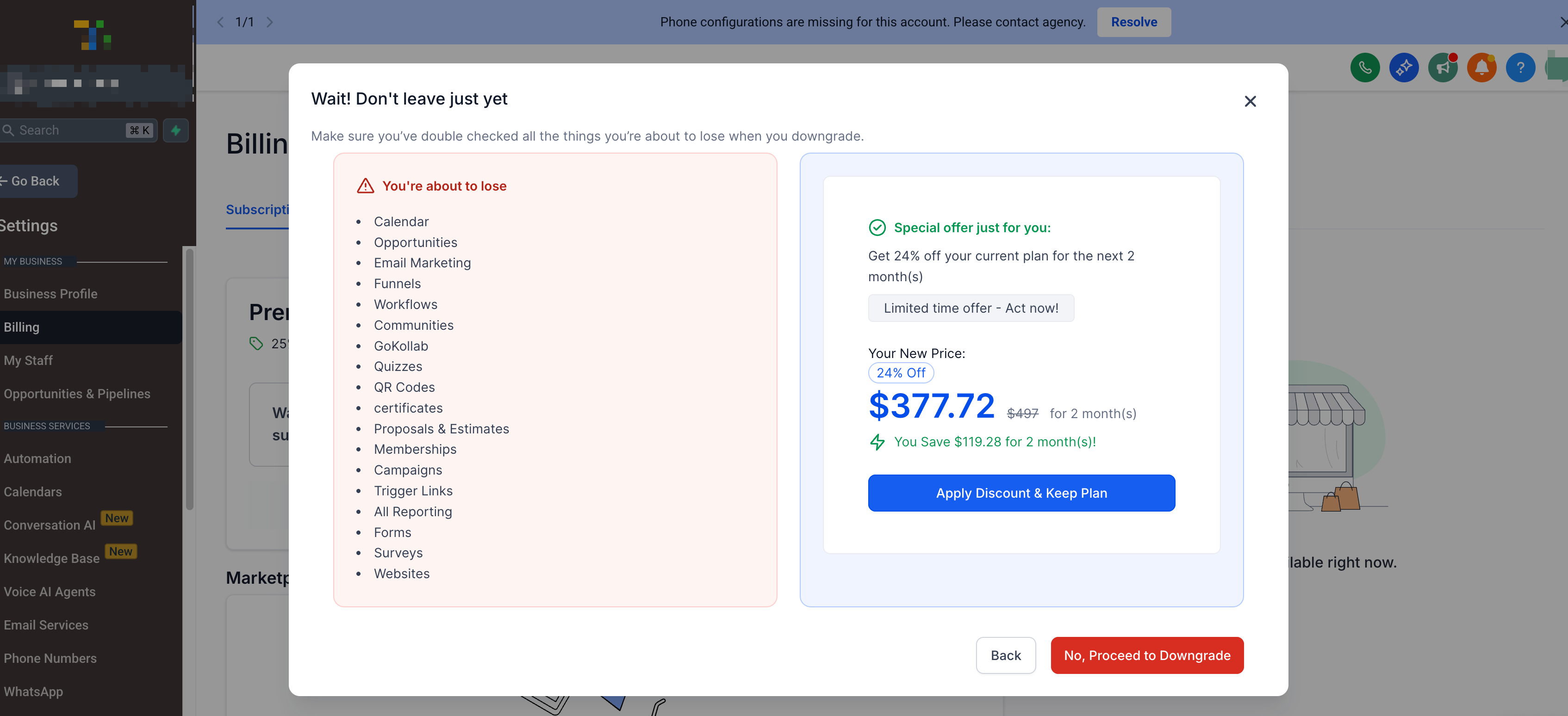
- If the client declines or skips the available deflection, the downgrade is scheduled for the start of the next billing cycle.
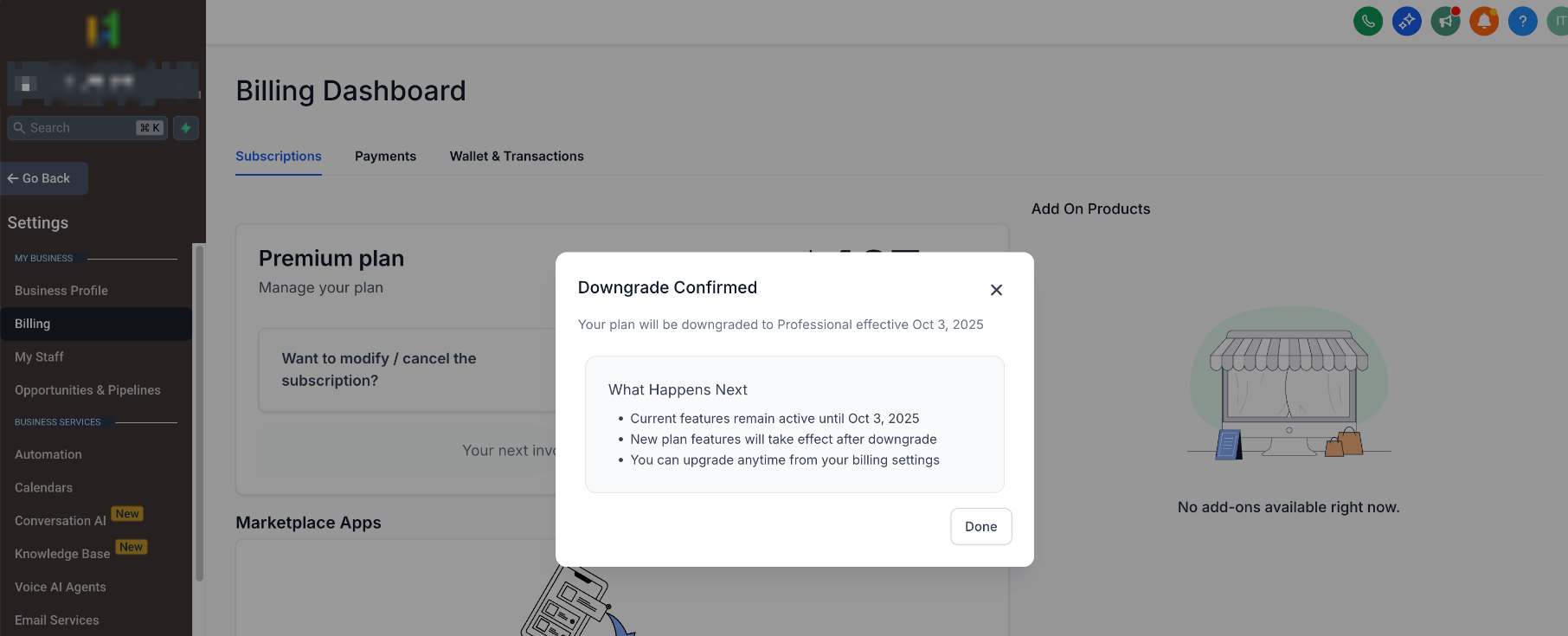
Before the effective date: The client remains on the current plan. If they select Keep My Plan, the scheduled downgrade is canceled and the lower plan never becomes effective.
Track Activity Using Downgrade Logs
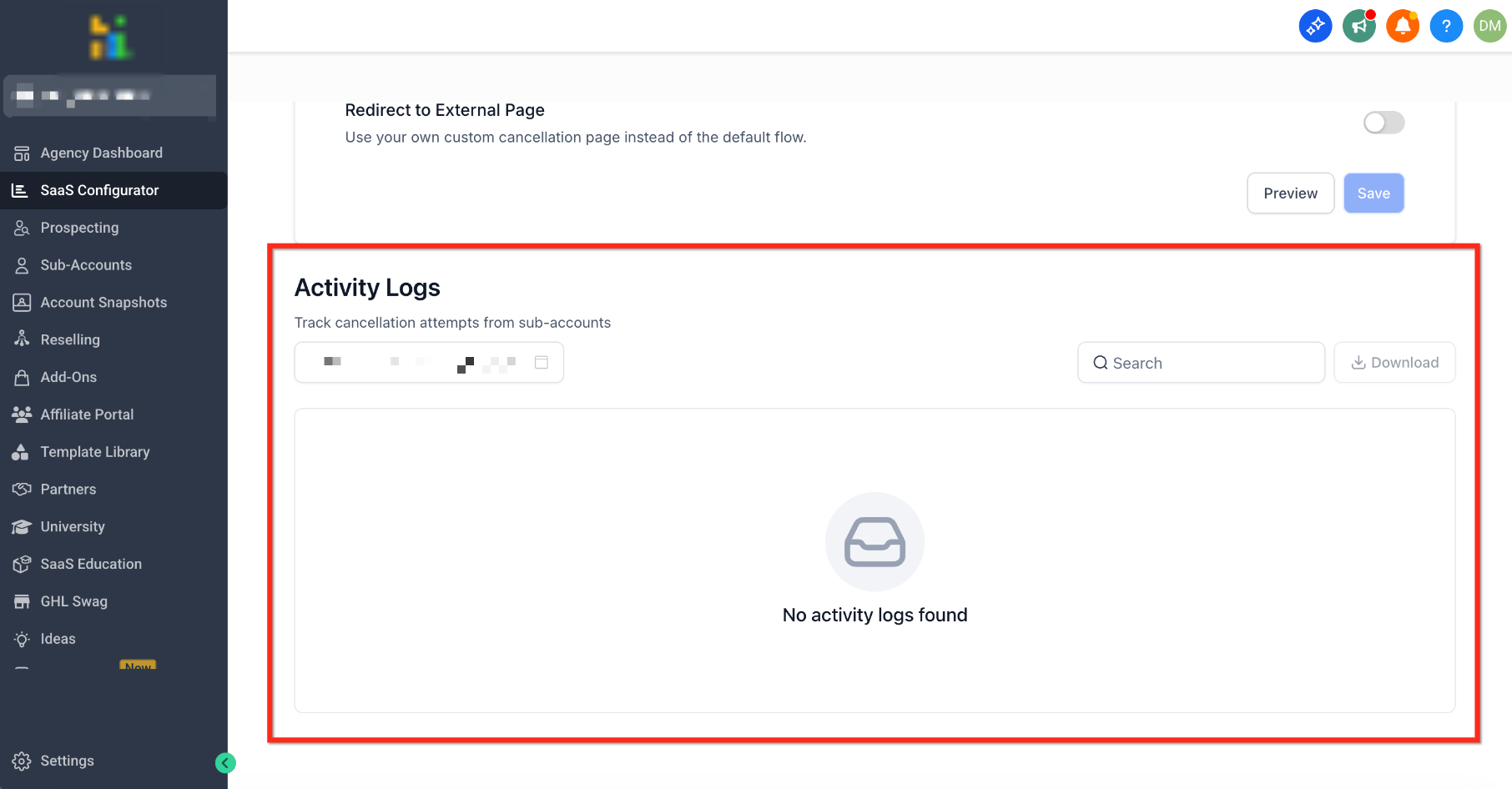
Activity Logs help agencies identify why clients consider downgrading, which offers successfully retain clients, and which plan changes proceed. Exportable records also provide a useful audit trail for support and retention analysis.
- Go to SaaS Configurator > Cancellation Settings and scroll to Activity Logs.
- Review available information such as the sub-account, timestamp, outcome, downgrade reason, plan change, next billing date, and initiating user.
- Use Download to export the available activity data for reporting or deeper analysis.
Frequently Asked Questions
Need Help?
If a scheduled downgrade or retention offer is not behaving as expected, first identify whether the client is using SaaS V1 or SaaS V2 and confirm the downgrade has actually reached its effective date.
- If the downgrade was only scheduled: The current plan and features should remain active until the next billing cycle.
- If the client accepted a discount: The downgrade should be canceled and the client should remain on the current plan.
- If Keep My Plan was selected: The scheduled downgrade should no longer become effective.
- For eligible SaaS V1 subscriptions: After the downgrade becomes effective, verify both Stripe and the corresponding selling-sub-account subscription reflect the current plan.
- For older V1 mismatches: Historical differences are not automatically backfilled.
- For manual Stripe changes: Do not assume a direct edit automatically triggers the selling-sub-account synchronization.
- For SaaS V2: Discount deflections are not currently available in the downgrade flow.