
Learn what happens to tracking code when a page is copied, why page-level code is excluded, when to use page-level versus site-wide tracking, and how to safely restore and test tracking on the copied page.
Before manually adding tracking code to a copied page, check whether the same script is already configured at the funnel or website level. Adding the same tracking script at both levels can cause duplicate pageviews, events, or conversions.
2. Key Benefits of Excluding Page-Level Tracking Code
3. Why Tracking Code Is Not Copied
4. Page-Level vs. Site-Wide Tracking Code
5. How To Add Tracking Code After Copying a Page
6. How To Verify Tracking Is Working
7. Troubleshooting Missing or Duplicate Tracking
8. Frequently Asked Questions
9. Need Help?
What Happens to Tracking Code When You Copy a Page?
When a funnel step or website page contains tracking code added directly to that page, copying the page does not copy that page-level tracking code. The page design and supported content can be duplicated, but the copied page starts without the original page's tracking script.
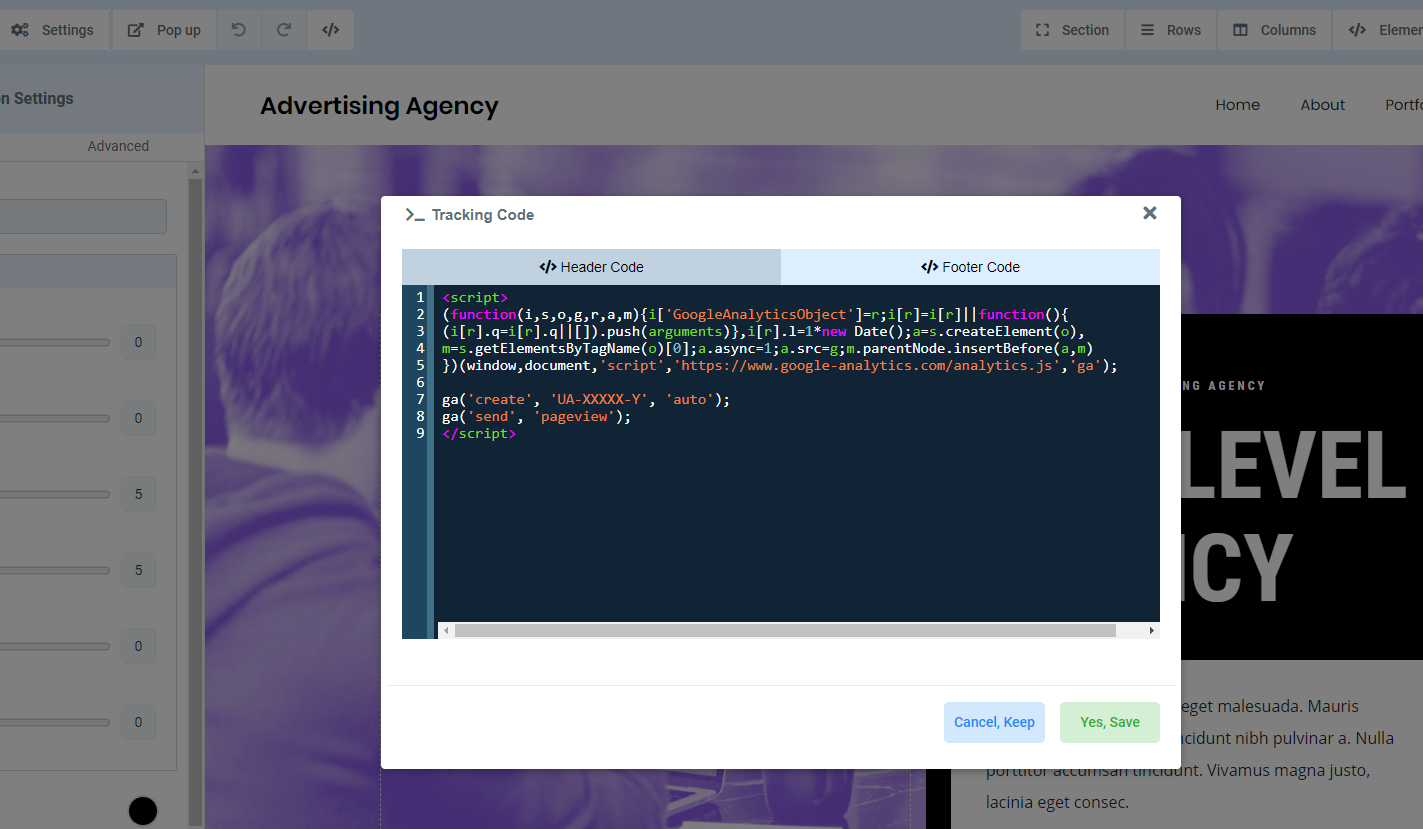
For example, the original page below contains a page-specific analytics script in its Tracking Code area.
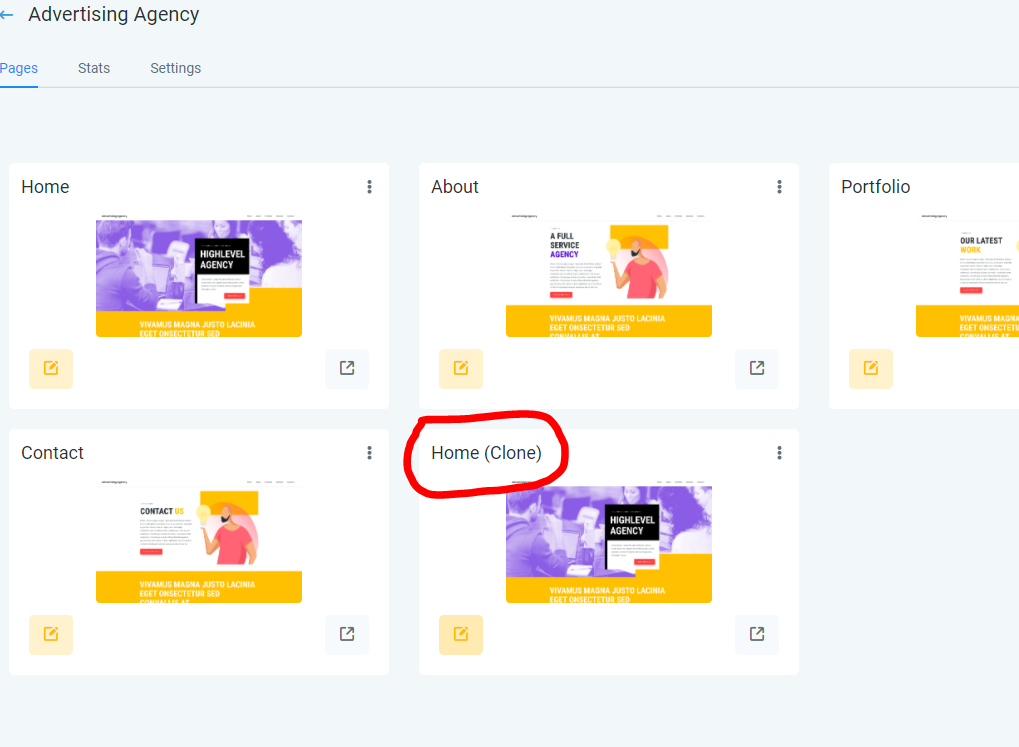
After that page is copied, the duplicated page appears alongside the original.
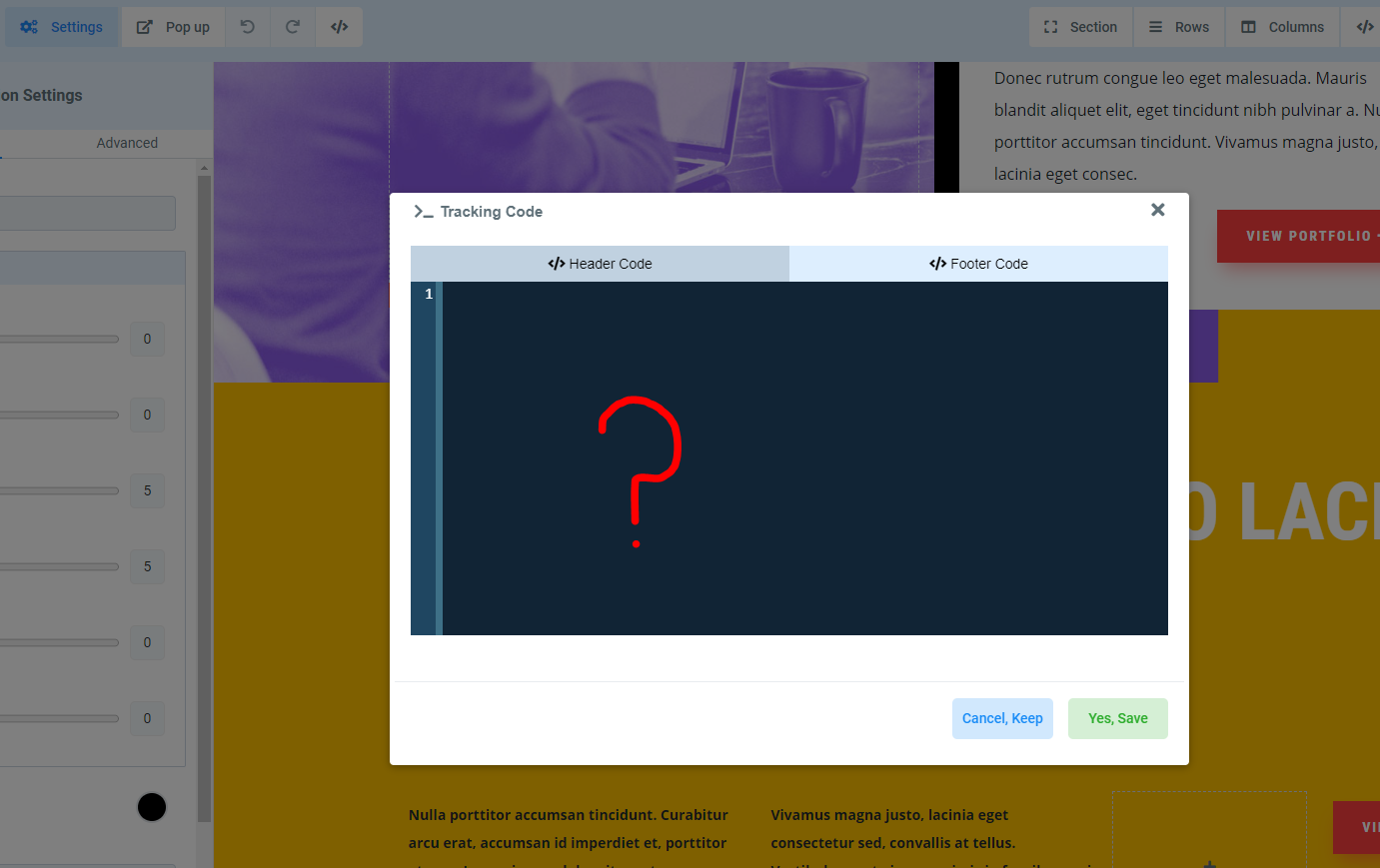
When the copied page's Tracking Code area is opened, the original page-specific code is not carried over.
Key Benefits of Excluding Page-Level Tracking Code
Keeping page-level tracking code out of copied pages gives you an opportunity to confirm that the new page should use the same tracking configuration before analytics or advertising events begin firing.
- Prevents Duplicate Events: Helps avoid accidentally firing the same pageview or conversion script more than once.
- Protects Page-Specific Tracking: Prevents scripts intended for one page from automatically running on another.
- Reduces Incorrect Attribution: Helps keep analytics and advertising events tied to the intended page or funnel step.
- Safer Sharing: Reduces the chance of account-specific pixels or tracking IDs being carried into another account unintentionally.
- Encourages Intentional Setup: Lets you decide whether the tracking belongs only on one page or across the entire funnel or website.
Why Tracking Code Is Not Copied
Page-level tracking scripts are often tied to a specific page, campaign, conversion event, analytics property, advertising account, or business. Automatically carrying those scripts into a copied page can cause inaccurate reporting or expose tracking configuration where it was not intended to be used.
This becomes especially important when a page is reused in another funnel, website, account, or agency. The copied page should be reviewed and assigned the correct tracking configuration for its new purpose.
Page-Level vs. Site-Wide Tracking Code
Choosing the correct tracking level helps prevent unnecessary duplication. Use page-level tracking when a script should run only on one page, and site-wide tracking when the same script should run across the entire funnel or website.
| Tracking Type | Best For | Where It Is Added |
|---|---|---|
| Page-Level Tracking | Scripts or events that should run only on a specific funnel step or website page. | Open the page in the builder and use the Tracking Code/code icon to access Header Tracking or Footer Tracking. |
| Site-Wide Tracking | Scripts that should run across all pages or steps in the selected funnel or website. | Open the funnel or website Settings and use the Head tracking code or Body tracking code fields. |
Example: A general Google Analytics or Meta Pixel base script may be appropriate at the funnel or website level when it should run on every page. A conversion event that should fire only on a thank-you page may be better suited to that individual page.
How To Add Tracking Code After Copying a Page
Re-add tracking only after confirming what the copied page should measure. This prevents the new page from using a tracking ID, conversion event, or script that belongs to the original page.
Add Tracking to One Page
- Go to Sites.
- Open Funnels or Websites, depending on where the copied page is located.
- Open the funnel or website containing the copied page.
- Open the copied page in the builder.
- Click the Tracking Code or code icon.
- Paste the correct page-specific script into Header Tracking or Footer Tracking, based on the script provider's instructions.
- Click Save.
- Preview and test the page before sending live traffic to it.
Add Tracking Across the Entire Funnel or Website
- Open the applicable funnel or website.
- Open its Settings.
- Locate Head tracking code or Body tracking code.
- Paste the tracking script into the location required by the provider.
- Save the changes.
- Verify the script on the published pages that should use it.
Avoid duplicate placement: If the same base tracking script already exists in the funnel or website settings, do not automatically add another copy at the page level. Add only the page-specific event code required for that page, if applicable.
How To Verify Tracking Is Working
Testing after copying a page confirms that the correct script is running on the correct destination and that events are not being recorded more than once.
- Save and publish the copied page when it is ready for testing.
- Open the published page in a new browser session.
- Complete the action you expect to track, such as viewing the page, submitting a form, or reaching a confirmation page.
- Use the analytics or advertising provider's testing tool, when available, to confirm the expected event was received.
- Check that the event is associated with the correct page or URL.
- Confirm the event fires only the intended number of times.
- Use browser developer tools and network activity if additional troubleshooting is required.
Tracking code may not appear in static page source. Head and body tracking code can be injected dynamically in the browser. When validating a script, use the provider's testing tools or browser network activity instead of relying only on View Page Source.
Troubleshooting Missing or Duplicate Tracking
Missing data and duplicate events usually come from where the script is installed, whether the copied page has been configured, or whether the same code exists at multiple tracking levels.
| Issue | What To Check |
|---|---|
| Tracking disappeared after copying a page | This is expected for page-level tracking. Open the copied page and add the correct page-specific script if it is still required. |
| The copied page records no analytics events | Check both the copied page's Tracking Code area and the funnel or website Settings to confirm where the script is installed. |
| Events fire twice | Check whether the same script is installed at both the page level and the funnel or website level. |
| The wrong conversion fires on the copied page | Confirm that the copied page uses the correct event code, tracking ID, analytics property, pixel, and destination URL. |
| Code does not appear in View Page Source | Tracking code can be injected dynamically. Test with browser network tools or the tracking provider's diagnostic tools instead. |
| Custom code affects page rendering | Temporarily remove custom code, page-level tracking code, and custom CSS to isolate the script causing the issue. |
Frequently Asked Questions
Need Help?
If tracking is still missing, duplicated, or reporting unexpected events after the page is copied, check the installation level before changing the script.
- Check both the individual page and the funnel or website settings for duplicate scripts.
- Confirm the tracking ID, analytics property, pixel, and event name belong to the copied page.
- Test the published page rather than relying only on the editor preview.
- Use the tracking provider's diagnostic or test-event tools when available.
- Temporarily remove custom scripts one at a time if the page layout or behavior changes unexpectedly.
- Record the affected page URL, script location, expected event, actual result, browser, and timestamp before contacting support.
Do not include private API keys, access tokens, passwords, or other sensitive credentials in screenshots or support requests.