
Ask AI Split View gives you a side-by-side workspace for using Ask AI while keeping the page you are working on visible and interactive. Instead of having the Ask AI panel float over your content, you can dock it beside supported pages and continue navigating or working while you chat.
TABLE OF CONTENTS
- What is Split View in Ask AI?
- Key Benefits of Split View in Ask AI
- Where is Split View Available
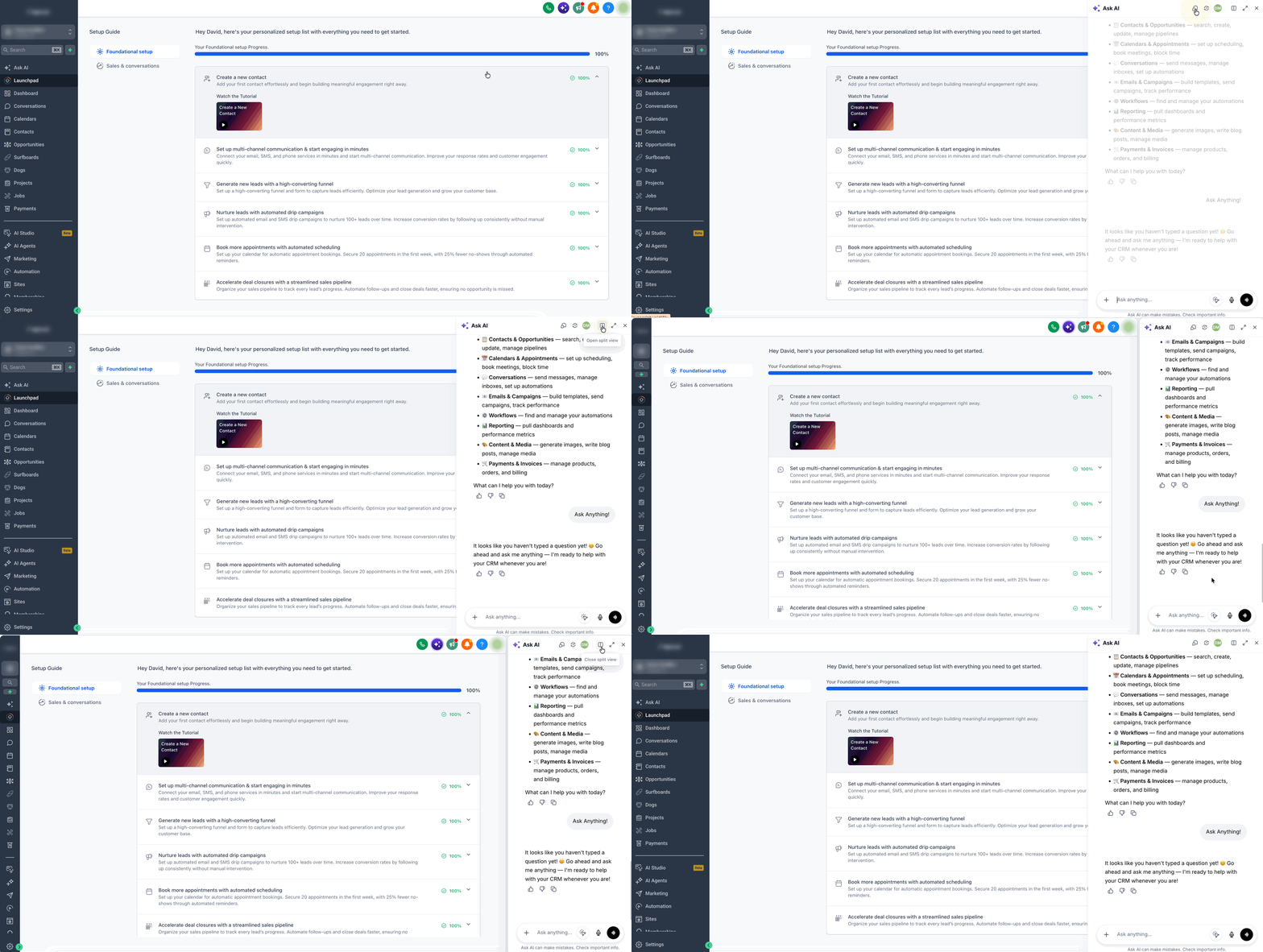
- How to Turn on Ask AI Split View
- Frequently Asked Questions
What is Split View in Ask AI?
Ask AI Split View is a docked view that places the Ask AI panel beside your workspace. It is designed for workflows where you want to reference or interact with the current page while simultaneously using Ask AI.
When Split View is enabled, the page remains visible and clickable while you chat. You can navigate the page, review information, and continue working without closing Ask AI or having the floating panel cover the content you need to see.
Your Split View preference is also remembered as you navigate. If you move to a screen where Split View is not currently supported, Ask AI switches to its floating view. When you return to a supported screen, your Split View preference is restored automatically.
Key Benefits of Split View in Ask AI
- Work side by side: Keep Ask AI and your workspace visible at the same time.
- Keep your page accessible: Continue clicking, scrolling, and interacting with the page while chatting with Ask AI.
- Reduce interruptions: Avoid repeatedly opening, closing, or moving a floating Ask AI panel to see the content underneath.
- Maintain your preferred view: It remembers your Split View preference as you navigate between supported and unsupported screens.
Where is Split View Available
Split View is currently supported in the following areas:
- Dashboard
- Launchpad
- Calendars
- Calendar view
- Appointments
- Troubleshoot
- Calendar Settings
- Preferences
- Availability
- Connections
- Services
- Rentals
When you navigate to an unsupported screen, the Open split view option is hidden and Ask AI opens as a floating panel. Your Split View preference is not lost. When you return to a supported screen, Split View returns on its own.
Note: Split View availability only affects whether Ask AI can be docked beside the page. Page element selection and automatic page context can also work with the floating Ask AI panel when a host page is available.
How to Turn on Ask AI Split View
- Log in and navigate to a screen that supports Split View.
- Open Ask AI by clicking the button in the upper-right corner.
- In the Ask AI panel header, click Open split view.
- Ask AI docks beside the current page. Continue interacting with the page while asking Ask AI questions or providing instructions.
- To return to the floating panel, click Close split view from the Ask AI panel header.
Frequently Asked Questions
Q: Why don't I see the Open split view option?
The page you are viewing may not currently support Split View. On unsupported screens, the Split View control is hidden and Ask AI uses its floating panel instead.
Q: Do I have to enable Split View again when I return to a supported screen?
No. If Split View is your saved preference, Ask AI automatically returns to the docked layout when you navigate back to a supported screen.
Q: Can I continue interacting with the page while Split View is open?
Yes. The page remains visible and clickable while Ask AI is docked beside it.
Q: Does page element selection require Split View?
No. Page element selection is an Ask AI capability and can also work with the floating Ask AI panel where a host page is available.
Q: Does Split View have page context?
Yes. Ask AI can use page context while Split View is open, including page element selection and automatic page context on supported host pages. These capabilities are not limited to Split View and can also work when Ask AI is open as a floating panel.