
Learn which Stripe prices can be imported, how to import an eligible recurring price into the correct sub-account, how SaaS V1 and SaaS V2 differ, and how to troubleshoot a Stripe plan that is missing from Funnel Products.
The Import From Stripe workflow applies to eligible recurring or subscription prices. One-time prices and metered recurring prices cannot be imported through this recurring-price workflow. For SaaS V1 funnel sales, also confirm that the selling sub-account is connected to the same Stripe account used at the agency level.
2. Key Benefits of Importing Stripe Products
3. Prerequisites and Limitations
4. SaaS V1 vs. SaaS V2: Which Product Source Should You Use?
5. How To Import a Stripe Plan for Funnel Products
6. Troubleshooting a Stripe Plan That Does Not Appear
7. Frequently Asked Questions
8. Need Help?
What Is Importing a Stripe Plan for Funnel Products?
Importing a Stripe plan creates the corresponding product and recurring price inside the selected sub-account so the product can be used in supported payment experiences such as funnel order forms.
A product does not become selectable in a funnel simply because it exists in Stripe. The eligible recurring price must first be imported into the same sub-account where the funnel is being configured.
For SaaS V1, this workflow is also used when an agency creates a Stripe-based SaaS plan and then imports that SaaS product into the agency-owned selling sub-account before adding it to a funnel or supported payment flow.
Key Benefits of Importing Stripe Products
Importing an eligible Stripe price gives the platform the product and pricing information required to use that item within supported checkout experiences in the selected sub-account.
- Funnel Availability: Imported products and recurring prices can be selected in supported funnel order forms.
- Centralized Product Management: Imported products become visible under Payments → Products in the applicable sub-account.
- Recurring Billing Support: Eligible recurring Stripe prices can be brought into the platform without manually rebuilding the original subscription product.
- SaaS V1 Selling Support: Agencies using the SaaS V1 workflow can import Stripe-based SaaS products into the selling sub-account before selling them through a funnel.
Prerequisites and Limitations
Confirm that the Stripe price meets the current import requirements before troubleshooting the funnel itself. A price that is not eligible for import cannot become available through this workflow.
| Requirement | What It Means |
|---|---|
| Recurring / Subscription price | The Stripe price must use recurring subscription billing. |
| Live mode | The price must exist in Stripe Live mode. Test-mode prices are not eligible for the live import workflow. |
| Not metered | Metered recurring prices cannot be imported through this workflow. |
| Not previously imported | A Stripe price that has already been imported will no longer appear as an available option under Import From Stripe. |
| Correct sub-account | Import the price into the same sub-account where the funnel will sell the product. |
| SaaS V1 Stripe connection | For the SaaS V1 selling-sub-account pattern, the agency and selling sub-account should use the same Stripe account. |
One-time prices: One-time Stripe prices cannot be imported through the recurring-price import workflow. Create the applicable one-time product or price directly in the platform instead.
SaaS V1 vs. SaaS V2: Which Product Source Should You Use?
SaaS V1 and SaaS V2 use different billing architectures. Identifying which architecture owns the product prevents unnecessary Stripe troubleshooting and helps ensure you use the correct funnel-product workflow.
| Architecture | System of Record | Funnel Product Workflow |
|---|---|---|
| SaaS V1 | Stripe | Import the applicable Stripe SaaS product and price into the selling sub-account, then select it in the funnel. |
| SaaS V2 | Selected Agency Sub-Account | Confirm the SaaS product exists under Payments → Products in the selected Agency Sub-Account, then select it directly in the funnel. Stripe import is not the V2 product-source workflow. |
SaaS V1 subscription-sync note: Eligible SaaS V1 subscriptions sold through a selling sub-account can keep the Stripe subscription and corresponding selling-sub-account subscription aligned after supported upgrades or downgrades. This does not replace the initial Stripe product-import requirement, and it does not retroactively repair older mismatches unless a qualifying plan change occurs.
How To Import a Stripe Plan for Funnel Products
Import the eligible Stripe price into the same sub-account where the funnel is being configured. After the import completes, confirm the product exists under Payments before adding it to the checkout.
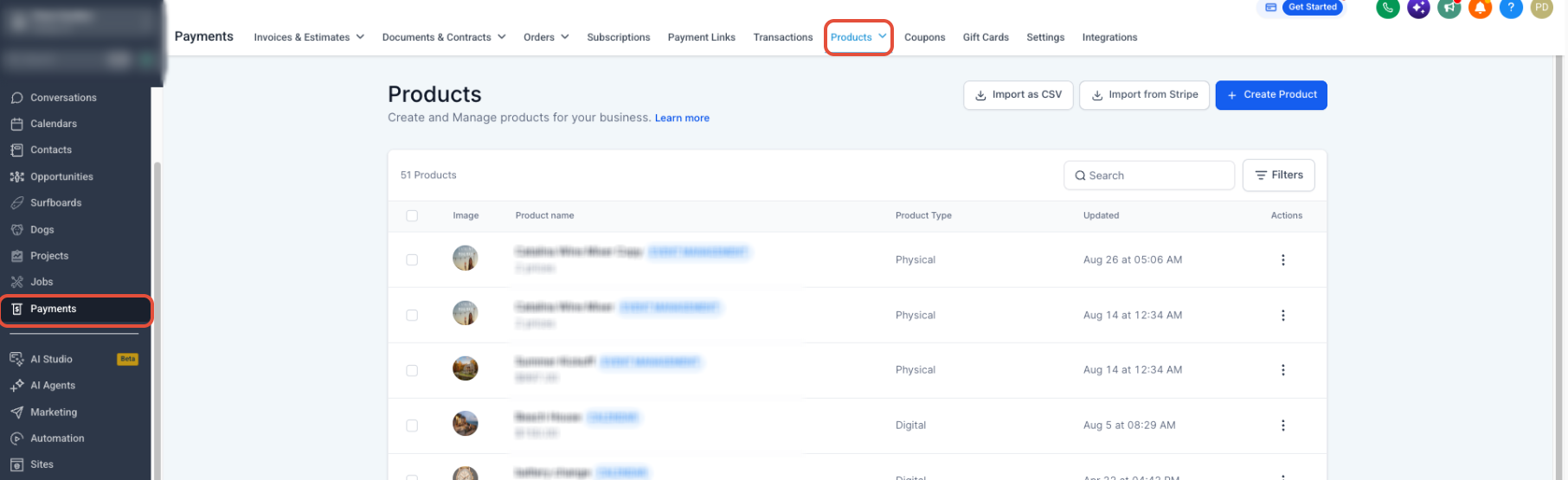
- Open the sub-account where the product will be sold.
- Select Payments from the left navigation menu.
- Select Products.
- Click Import From Stripe.
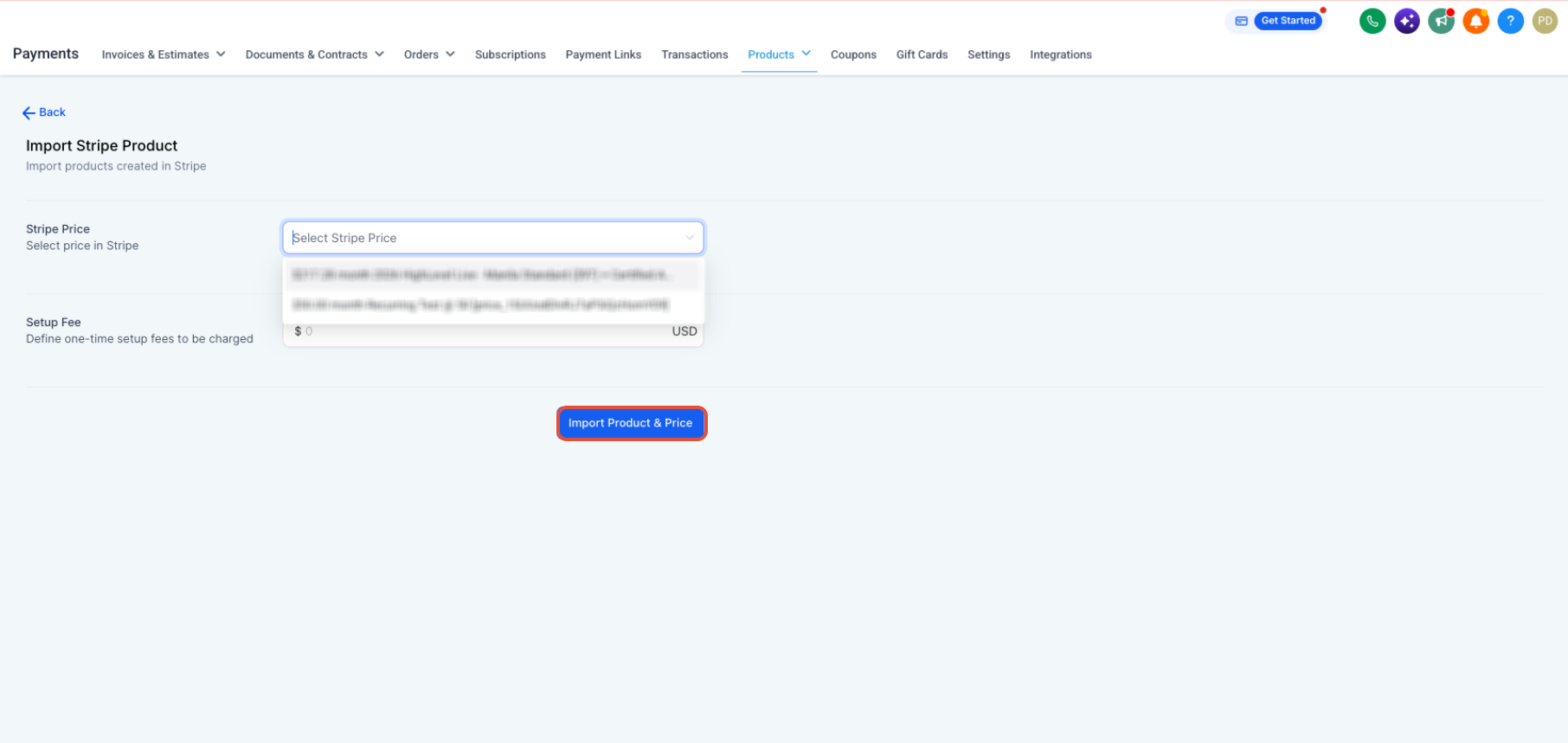
- Search for the applicable Stripe product.
- Review the available recurring prices.
- Select the eligible product and price you want to import.
- Complete the import.
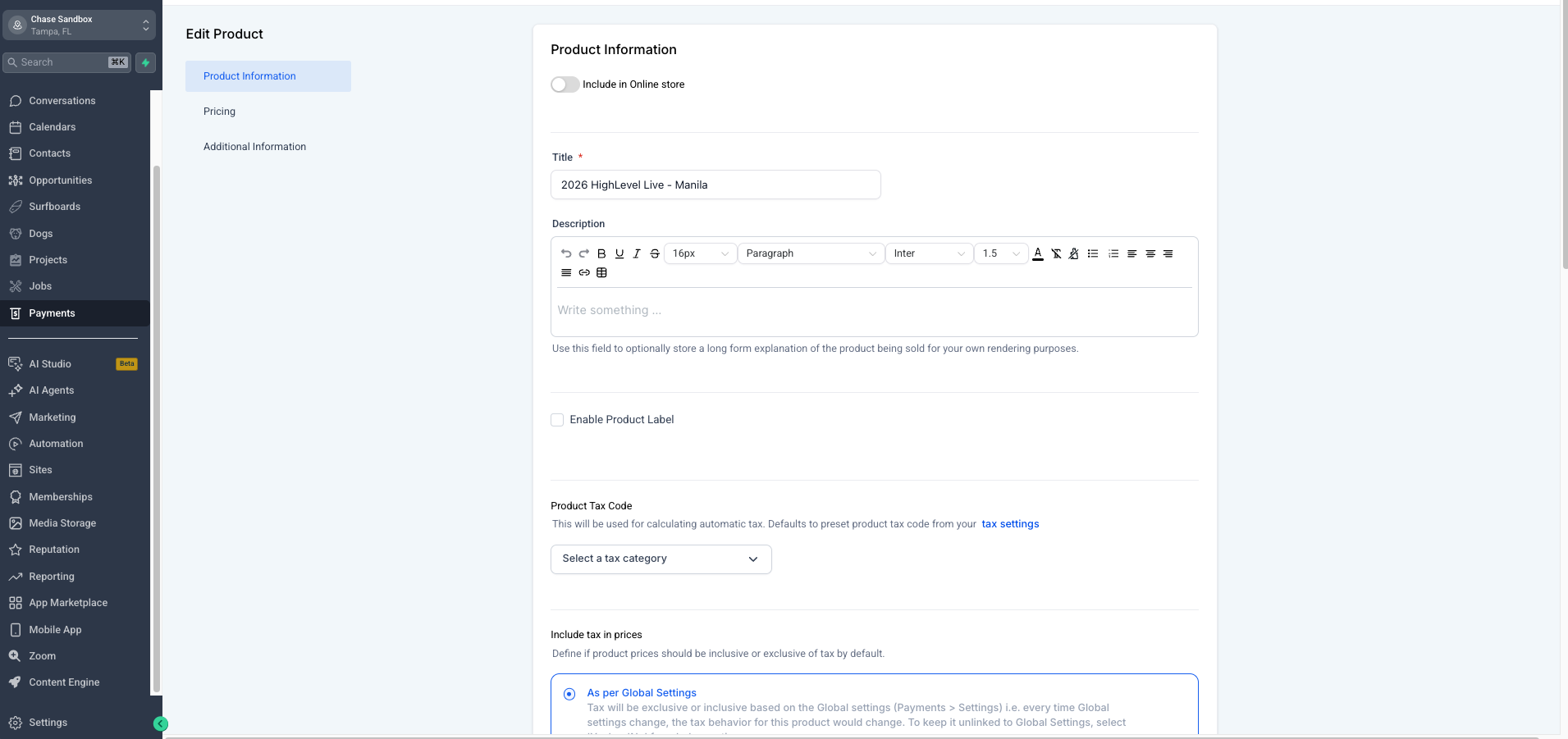
- Confirm that the imported product appears under Payments → Products.
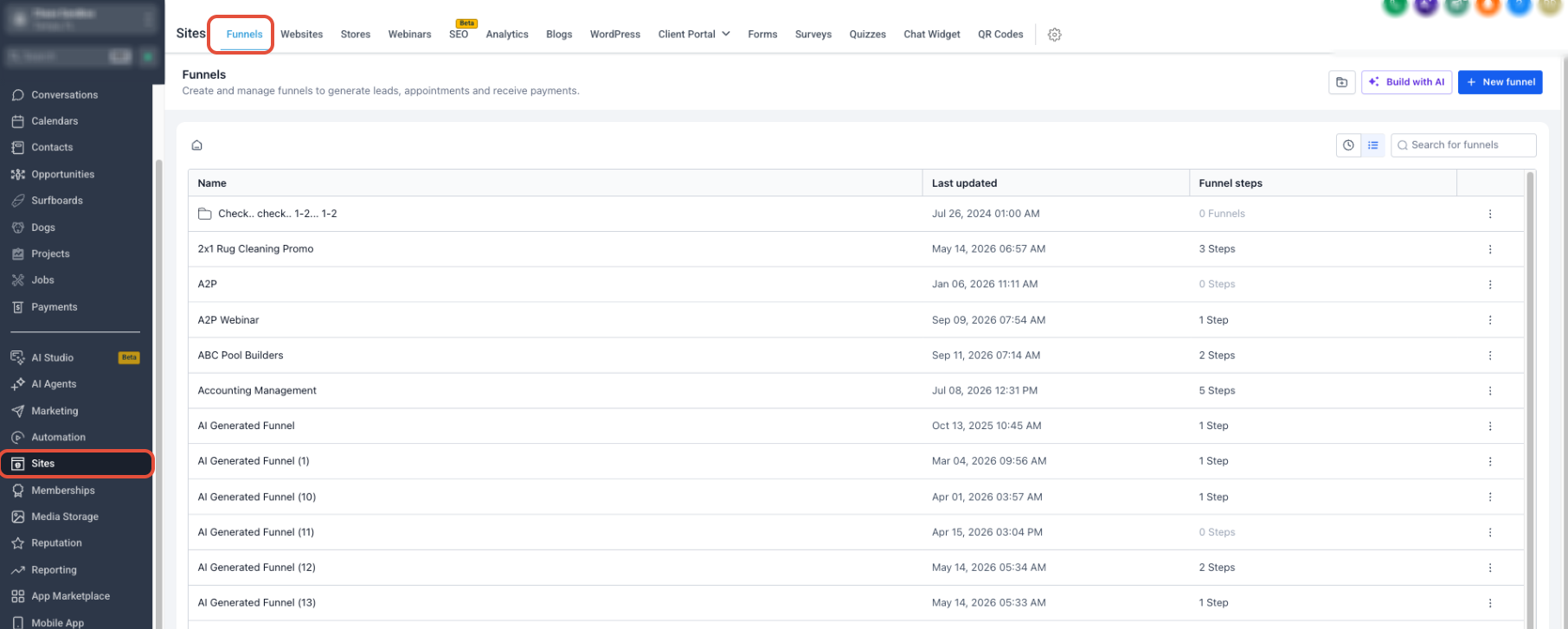
- Select Sites from the left navigation menu.
- Select Funnels.
- Open the funnel where the product will be sold.
- Open the applicable order form or product configuration.
- Select the imported product and recurring price.
- Save and publish the funnel after its checkout configuration has been tested.
Troubleshooting a Stripe Plan That Does Not Appear
Identify where the product is missing before changing its configuration. A plan missing from the Stripe import selector has different causes from a product that has already been imported but is missing from a funnel.
| Issue | What To Check |
|---|---|
| The price was already imported | Previously imported Stripe prices are removed from the available Import From Stripe choices. Check Payments → Products before assuming the import failed. |
| The price is in Stripe Test mode | The import workflow requires an eligible Live-mode Stripe price. A Test-mode price will not appear as the live recurring price used by the funnel. |
| The price is one-time | One-time Stripe prices cannot be imported through this recurring-price workflow. Create the applicable one-time product or price directly in the platform. |
| The price is metered | Metered recurring prices are not supported by the recurring Stripe price import workflow. |
| The product is being imported into the wrong sub-account | The product must exist under Payments → Products in the same sub-account where the funnel is being configured. |
| The SaaS V1 agency and selling sub-account use different Stripe accounts | Compare the Stripe connection under Agency View → Settings → Stripe with the Stripe connection under the selling sub-account's Payments → Integrations. The supported V1 funnel workflow expects the same Stripe account. |
| The price was changed directly in Stripe | Stripe-side pricing changes do not automatically update the corresponding platform product or price. Import the new eligible Stripe price according to the supported workflow. |
| A SaaS V1 product was created but never imported into the selling sub-account | Creating a V1 SaaS plan at the agency level does not by itself make the Stripe product available in a selling sub-account's funnel. Import the applicable Stripe product into that selling sub-account first. |
| You are using SaaS V2 | SaaS V2 uses the selected Agency Sub-Account as the system of record. Confirm the product exists in that sub-account rather than troubleshooting the V1 Stripe import path. |
Quick diagnostic: If you can see the product under Payments → Products but not in the funnel, confirm that you are working in the same sub-account and review the funnel product configuration. If you cannot see the price under Import From Stripe, verify eligibility, Live mode, prior-import status, and the Stripe account connection first.
Frequently Asked Questions
Need Help?
Use where the product disappears from the workflow to determine what to check next.
- Missing under Import From Stripe: Confirm the price is recurring, Live, not metered, not already imported, and belongs to the connected Stripe account.
- Visible under Payments but missing in the funnel: Confirm the funnel and product are in the same sub-account and review the order-form product configuration.
- SaaS V1 product missing: Confirm the agency and selling sub-account use the same Stripe account and that the Stripe product was imported into the selling sub-account.
- SaaS V2 product missing: Confirm the product exists in Payments → Products in the selected Agency Sub-Account.
- Price changed in Stripe: Do not expect the existing platform price to update automatically. Import the new eligible Stripe price.
- Still unresolved: Record the product name, Stripe Product ID, Stripe Price ID, affected sub-account, where the product stops appearing, and screenshots of the relevant screens before contacting support. Do not share passwords, secret keys, or other private credentials.