
Learn how User Limits control sub-account-level users, how to configure plan-level allowances, which users count toward the limit, and how client-specific overrides work for SaaS sub-accounts.
SaaS plans allow unlimited users by default unless a User Limit is enabled. The configured limit applies only to sub-account-level users; agency-level users assigned to the sub-account do not count toward the limit.
What Are User Limits for SaaS Sub-Accounts?
User Limits let agencies control the maximum number of sub-account-level users that can be added to a SaaS sub-account. This makes it possible to include different user allowances as part of your SaaS packaging.
By default, SaaS plans allow unlimited users unless a User Limit is configured. The limit applies only to sub-account-level users. Agency-level users assigned to the sub-account do not count toward the configured limit.
User Limits are supported for both SaaS V1 and SaaS V2 plans.
Key Benefits of User Limits for SaaS Sub-Accounts
User Limits help agencies package user allowances with SaaS plans while maintaining flexibility for individual clients who need a different number of users.
- Plan-Based User Allowances: Define the maximum number of sub-account-level users available with a SaaS plan.
- Flexible SaaS Packaging: Use different user allowances across SaaS plans to support different service tiers.
- Client-Specific Overrides: Set a different User Limit for an individual SaaS sub-account without changing the underlying plan.
- Automatic Plan Alignment: When a qualifying plan change applies a new plan limit, the sub-account can inherit the User Limit configured for that plan.
Prerequisites and Limitations
Understanding which users count toward the limit helps you choose the appropriate allowance for each SaaS plan and prevents agency-level users from being included in the sub-account user calculation.
- The feature applies to sub-accounts using SaaS plans.
- User Limits are supported for SaaS V1 and SaaS V2 plans.
- The configured limit applies only to sub-account-level users.
- Agency-level users assigned to the sub-account do not count toward the limit.
- SaaS plans allow unlimited users by default until a User Limit is enabled.
- The User Limit controls how many sub-account-level users can be added to the SaaS sub-account.
How To Setup User Limits for a SaaS Plan
Configuring a User Limit at the plan level defines the maximum number of sub-account-level users available to sub-accounts using that SaaS plan.
- From Agency View, select SaaS Configurator.
- Select Plans & pricing.
- Locate the SaaS plan you want to update.
- Select Edit details.
- Select the Pricing tab.
- Locate User limit and enable the toggle.
- Enter the maximum number of users allowed in the sub-account.
- Select Save changes.
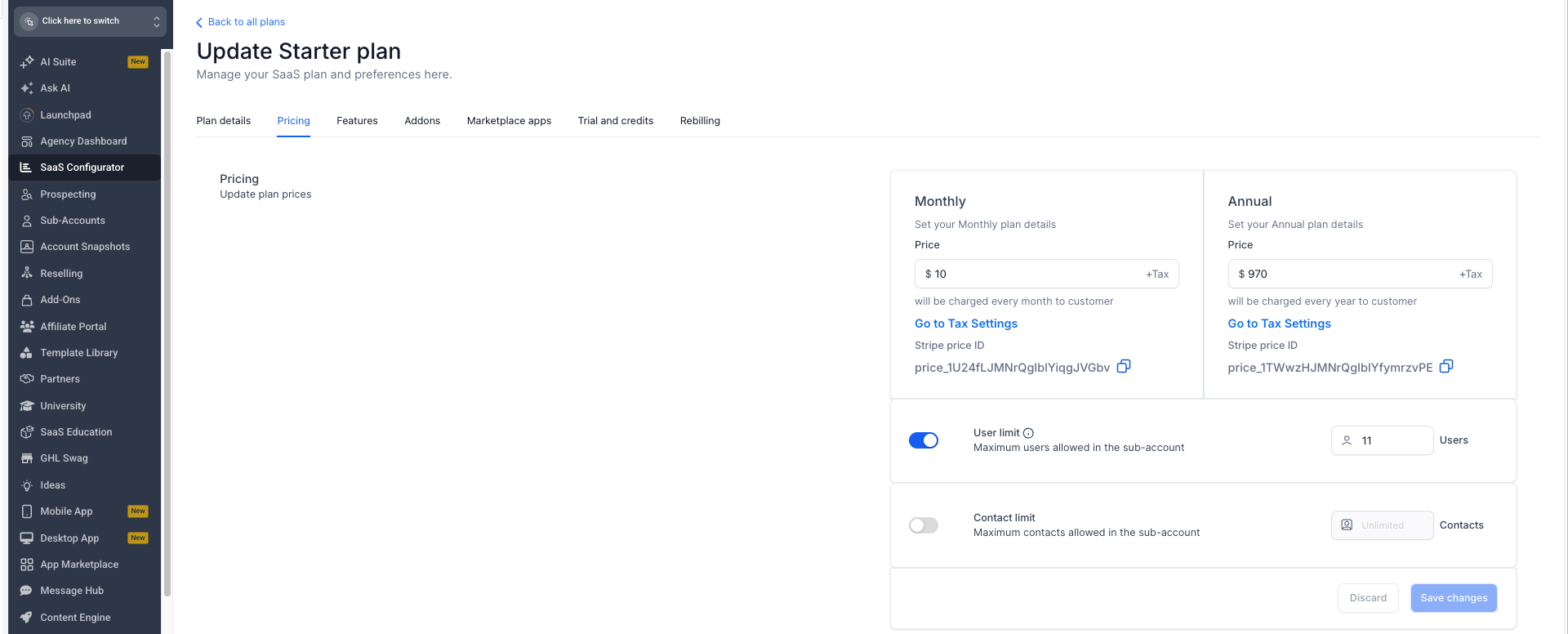
Plan behavior: When a qualifying sub-account subscribes to or moves to the plan, the User Limit configured for that plan is applied to the sub-account.
How To Override the User Limit for a Specific Sub-Account
An individual User Limit override lets an agency give a specific SaaS client a different user allowance without changing the standard limit for every sub-account using the same SaaS plan.
Setup path pending verification: Confirm the current navigation path to the individual sub-account User Limit before publishing step-by-step instructions for this override.
An individual sub-account override takes precedence over the User Limit configured for its SaaS plan.
Existing User Limits documentation states that upgrading to another SaaS plan resets the override and applies the User Limit configured for the new plan.

Frequently Asked Questions
Need Help?
If a User Limit is not behaving as expected, first determine whether the issue is with the SaaS plan configuration or an individual sub-account override.
- No limit appears to apply: Confirm that User limit is enabled on the applicable SaaS plan and that the plan changes were saved.
- The user count seems higher than expected: Confirm whether the users are sub-account-level users or agency-level users assigned to the account. Agency-level users do not count toward the configured limit.
- A client has a different allowance from the plan: Check whether an individual User Limit override has been configured for that sub-account.
- The allowance changed after a plan change: Review the User Limit configured on the new SaaS plan, because a qualifying plan change can apply the new plan's limit.
- The override option cannot be located: Confirm the current account-management navigation available to your agency before making changes.
- Still unresolved: Record the SaaS plan name, configured User Limit, affected sub-account, current sub-account-level user count, and screenshots of the relevant settings before contacting support. Do not include passwords or other sensitive credentials.