
Learn when Pause and Resume actions are available, how to choose between an indefinite or dated pause, how invoice handling works during the pause period, how to resume billing, and which permissions affect subscription management.
Pause and Resume actions are not available for every subscription. The controls you see can vary based on the payment provider, current subscription status, and your assigned Payments permissions. Always review the actions available on the specific subscription before making a billing change.
2. Key Benefits of Pause and Resume Subscriptions
3. Prerequisites and Limitations
4. How To Pause a Subscription
5. How Invoices Behave While a Subscription Is Paused
6. How To Resume a Subscription
7. How Pause and Resume Activity Appears in Exports
8. Frequently Asked Questions
9. Need Help?
What Is Pause and Resume Subscriptions?
Pause and Resume Subscriptions lets you temporarily interrupt the normal recurring billing lifecycle of an eligible subscription without canceling the subscription completely. This is useful when a customer needs a temporary billing break but expects to continue the subscription later.
You can pause an eligible subscription Indefinitely or choose a Custom Date. A custom-date pause is designed to resume when the selected pause period ends, while an indefinite pause remains paused until you manually resume it.
If a custom-date subscription needs to restart sooner, you can manually resume it before the scheduled resume date when the Resume action is available.
Key Benefits of Pause and Resume Subscriptions
Pausing gives billing teams more flexibility when a customer needs a temporary interruption without requiring the subscription to be canceled and recreated later.
- Temporary Billing Flexibility: Pause an eligible recurring subscription instead of canceling it completely.
- Flexible Pause Duration: Choose an indefinite pause or set a custom resume date.
- Early Manual Resume: Resume a custom-date pause before the selected pause period ends when needed.
- Invoice Control: Choose between the documented Draft and Mark as void invoice-handling options during the pause.
- Pause Tracking: Export pause-related dates with subscription data for billing analysis and recordkeeping.
Prerequisites and Limitations
Subscription lifecycle controls are context-sensitive. Confirm that the subscription is available in the Payments area and that your user permissions allow the required action before troubleshooting a missing Pause or Resume option.
- The subscription must be available under Payments → Subscriptions.
- Pause and Resume availability can depend on the subscription's payment provider.
- The subscription's current status can affect which actions are available.
- The user must have the appropriate Subscriptions permissions within the Payments module.
- Not every payment provider or subscription state supports every lifecycle action.
Provider support: Do not assume Pause and Resume is supported for every recurring payment provider simply because that provider can create subscriptions. Check the available actions on the specific subscription.
Review a User's Subscription Permissions
Subscription permissions determine whether a staff member can view and manage recurring billing lifecycle actions. Review these permissions when one user can manage a subscription but another user cannot.
- From the applicable Sub-Account, select Settings.
- Select My Staff.
- Open the user whose access you want to review.
- Expand Roles & Permissions.
- Review the permissions under Subscriptions and grant only the lifecycle access required for the user's role.
- Save the user's permission changes.
How To Pause a Subscription
Pausing an eligible subscription lets you define both the length of the billing pause and how scheduled invoices should be handled during that period. Review both settings carefully before confirming the change.
- Open the applicable Sub-Account.
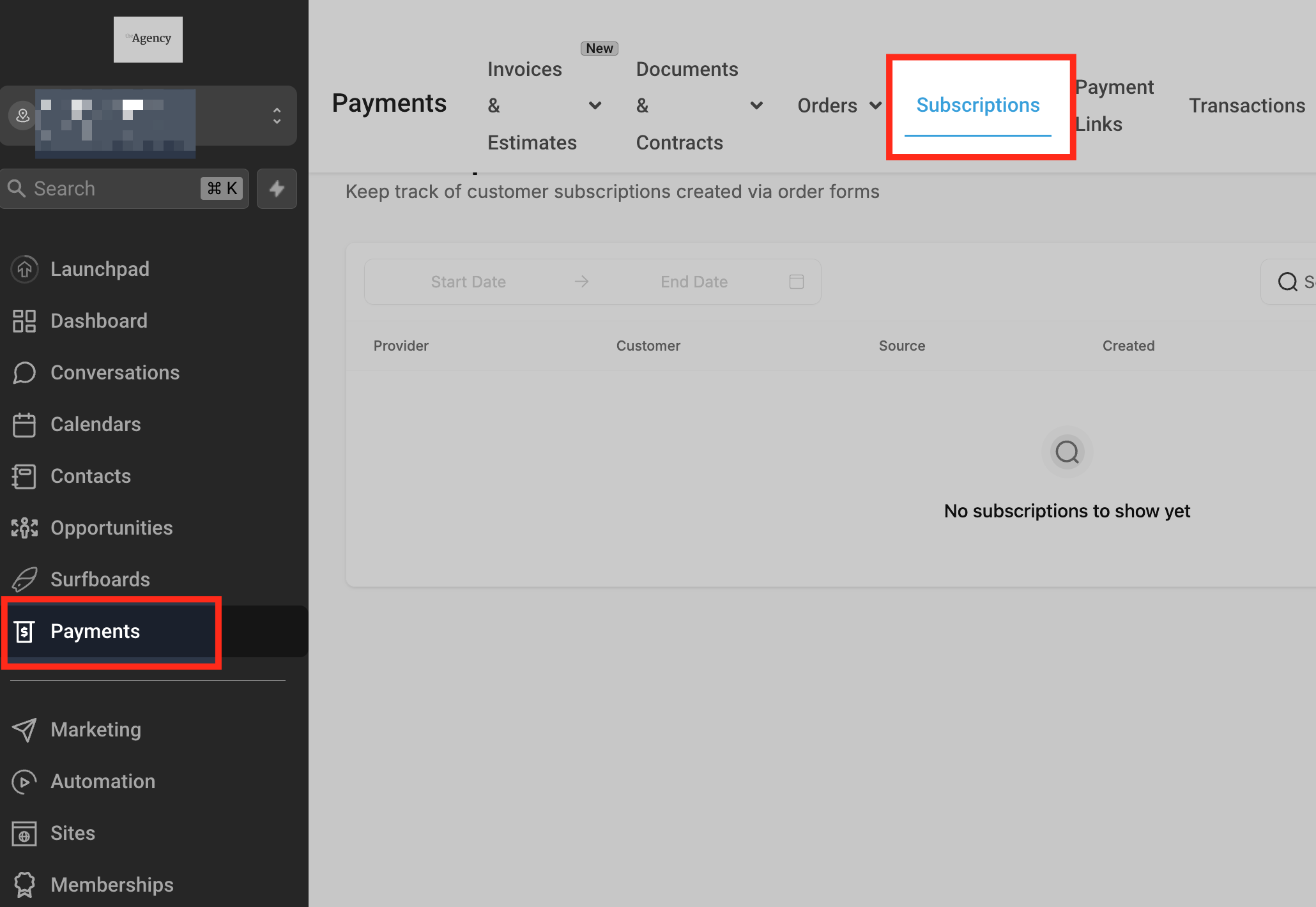
- Go to Payments → Subscriptions.
- Locate the subscription you want to pause.
- Open the three-dot menu for the subscription.
- Select the available pause action.
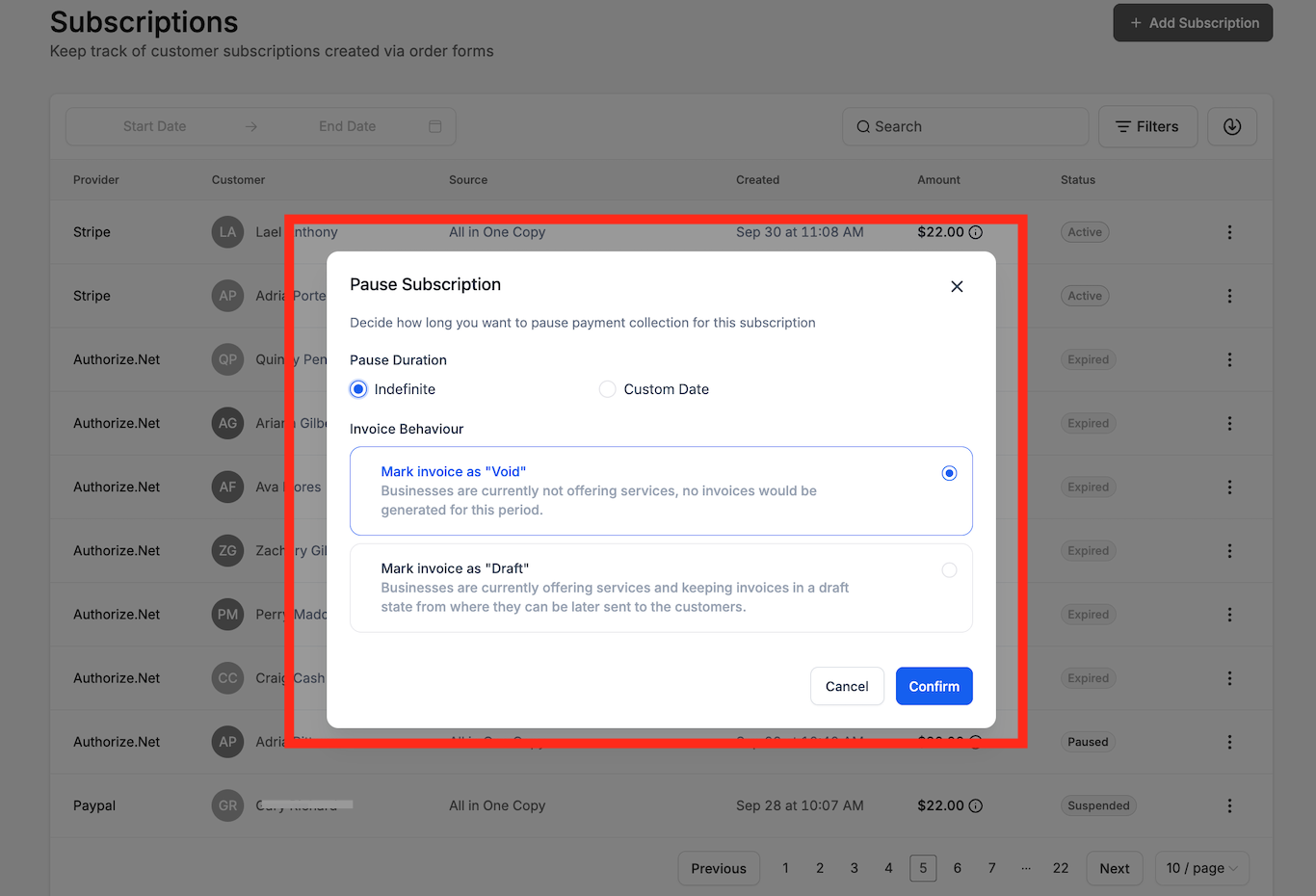
- Choose the pause duration:
- Indefinite: Keeps the subscription paused until you manually resume it.
- Custom Date: Lets you select when the pause period should end. You can still manually resume the subscription earlier.
- Choose the invoice behavior you want to use during the pause.
- Review the selections and confirm the pause.
How Invoices Behave While a Subscription Is Paused
Invoice behavior controls how scheduled billing is handled during the pause period. The pause workflow provides two invoice-handling preferences: Draft and Mark as void.
| Option | How It Is Used |
|---|---|
| Draft | Keeps the applicable invoices in draft mode so they can be reviewed and handled later. |
| Mark as void | Uses the documented void behavior for scheduled billing during the selected pause period. |
Choose deliberately: Draft and Mark as void serve different billing workflows. Select the option that matches how you intend to handle scheduled billing records while the subscription is paused.
How To Resume a Subscription
Resuming returns a paused subscription to its recurring billing lifecycle when the provider, subscription status, and your permissions support the action. Custom-date pauses can also reach the end of their selected pause period without requiring an early manual resume.
- Open the applicable Sub-Account.
- Go to Payments → Subscriptions.
- Locate the paused subscription.
- Open the three-dot menu.
- Select Resume.
- Review the confirmation prompt and confirm the resume action.
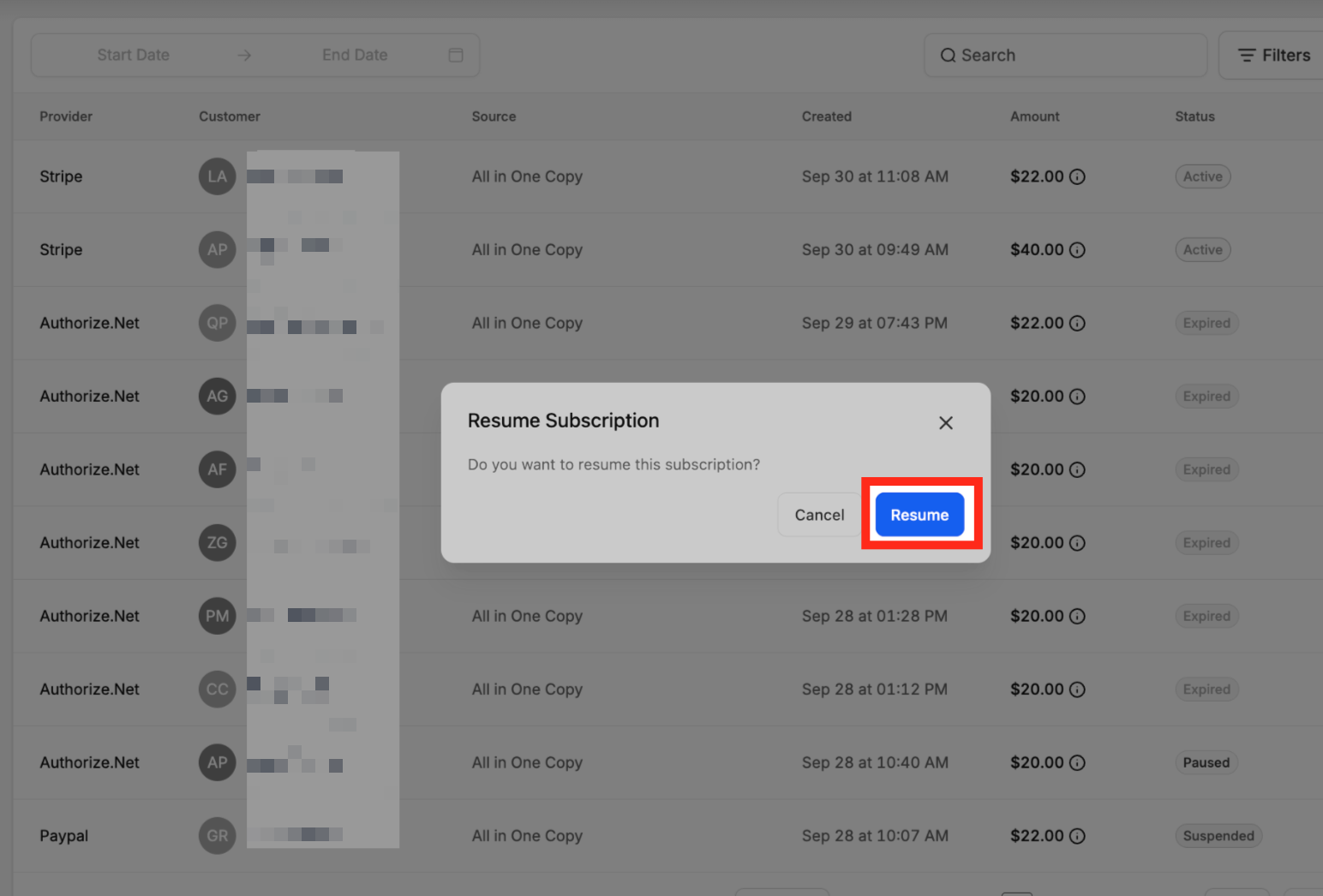
Custom Date vs. Indefinite: A custom-date pause can end at the selected time or be resumed manually earlier. An indefinite pause requires a manual resume.
How Pause and Resume Activity Appears in Exports
Subscription exports can help billing teams analyze pause activity outside the Payments dashboard. Current CSV exports include pause-related dates that can be used for reporting, reconciliation, and retention analysis.
| Export Field | What It Represents |
|---|---|
| Last paused on date | The most recent pause timestamp available for the subscription. |
| Resumed on date | The actual date the subscription resumed from a paused state. |
| Pause end date | The expected end date of the most recent dated pause when applicable. |
Frequently Asked Questions
Need Help?
- Pause is missing: Confirm the subscription's current status, payment provider, and your Subscriptions permissions.
- Resume is missing: Confirm that the subscription is currently paused and that your user role allows subscription lifecycle changes.
- Another user sees different options: Compare the users' Roles & Permissions settings under Subscriptions.
- The subscription should resume later: Review whether the pause was configured as Custom Date or Indefinite. Indefinite pauses require manual resume.
- Invoice handling is not what you expected: Review whether Draft or Mark as void was selected when the subscription was paused.
- You need pause history: Export the subscription data and review the pause-related date columns.
- Still unresolved: Record the affected subscription, payment provider, current subscription status, expected action, actual behavior, and screenshots before contacting support. Do not include payment credentials, passwords, or other sensitive information.