
Learn how to connect Facebook to Ad Manager, choose the correct Meta ads account and Page, add more Pages, and resolve common connection or permission issues.
When Facebook asks which Pages to share, keep all applicable Pages selected. Deselecting a previously authorized Page during reconnection can remove access for an existing connection.
What Does the Facebook Connection Do?
Connecting Facebook gives Ad Manager access to the Meta assets needed for campaign creation. During setup, you connect your Facebook profile, a Meta ads account, and at least one Facebook Page.
Key Benefits
A correct Facebook connection keeps the Meta assets you need available directly inside Ad Manager.
- Access Meta Assets: Use connected Facebook Pages and Meta ads accounts in Ad Manager.
- Simplify Campaign Setup: Connect required assets before creating Meta campaigns.
- Reduce Permission Issues: Correct authorization helps prevent missing Pages and ad accounts.
Prerequisites
Confirm your Meta access before starting so the required Facebook Page and ads account appear during connection.
- Access to the correct sub-account
- Ad Manager enabled for the sub-account
- The correct Facebook profile
- Access to the required Meta Business Portfolio
- Access to the Meta ads account
- Access to the Facebook Page
- An active Meta ads account
- The required Facebook permissions
How To Connect Facebook to Ad Manager
Use the Facebook profile that already has access to the Meta ads account and Page you want to use.
- Open the correct sub-account.
- Go to Marketing → Ad Manager.
- If prompted, click Activate Ads Manager.
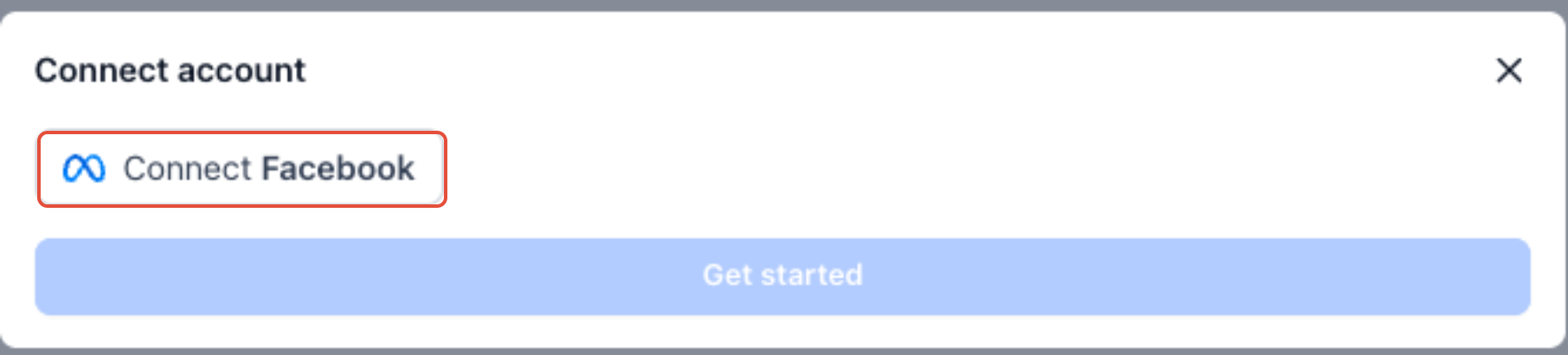
- On the setup screen, click Connect Facebook.
- Sign in to the correct Facebook profile and complete authorization.
- Keep all applicable Facebook Pages selected during authorization.
- Select the required Meta ads account.
- Select the Facebook Page you want to use.
- Click Connect.
- Click Get started after both assets show as connected.
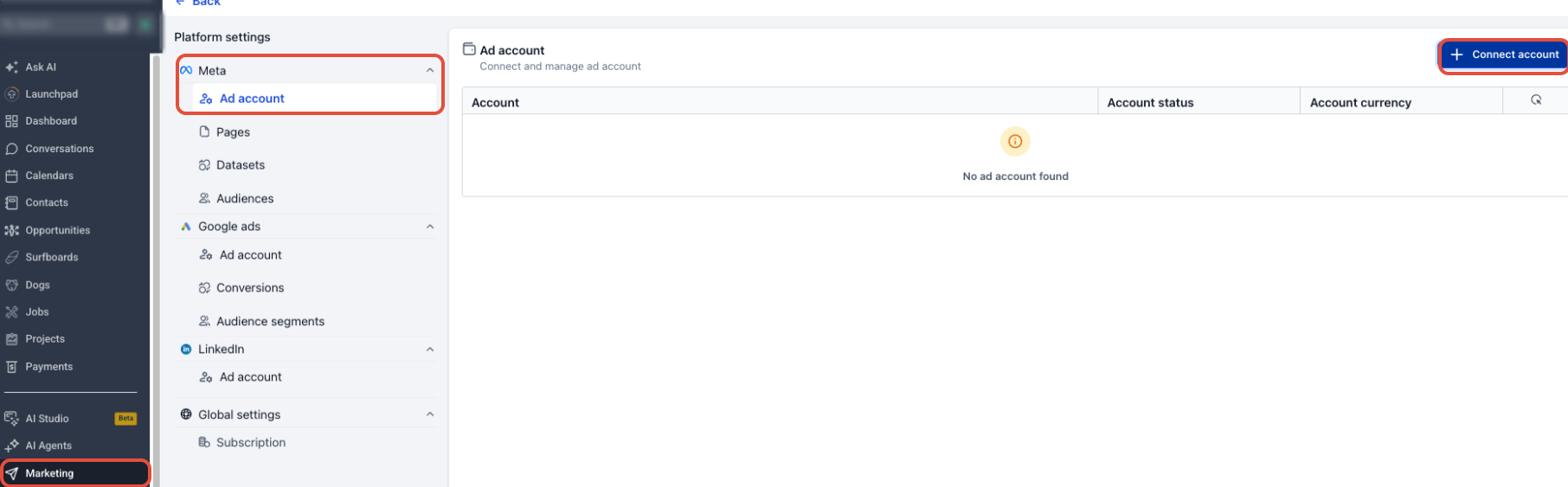
How To Connect Additional Facebook Pages
Additional Pages can be added after the initial setup without repeating the full Ad Manager activation process.
- Go to Marketing → Ad Manager.
- Open Settings → Platform settings.
- Locate Facebook pages.
- Click + Connect Facebook Page(s).
- Complete Facebook authorization.
- Select the additional Page or Pages.
Important: Keep previously authorized Pages selected when reconnecting the same Facebook profile.
Troubleshooting Facebook Connection Issues
Most connection problems are caused by the wrong Facebook profile, missing Meta permissions, or incomplete authorization.
Facebook Page or Ads Account Is Missing
- Confirm you are signed in to the correct Facebook profile.
- Confirm the profile has access to the correct Meta Business Portfolio.
- Confirm access to the required Facebook Page and Meta ads account.
- Confirm the Meta ads account is active.
- Reconnect Facebook after correcting access or permissions.
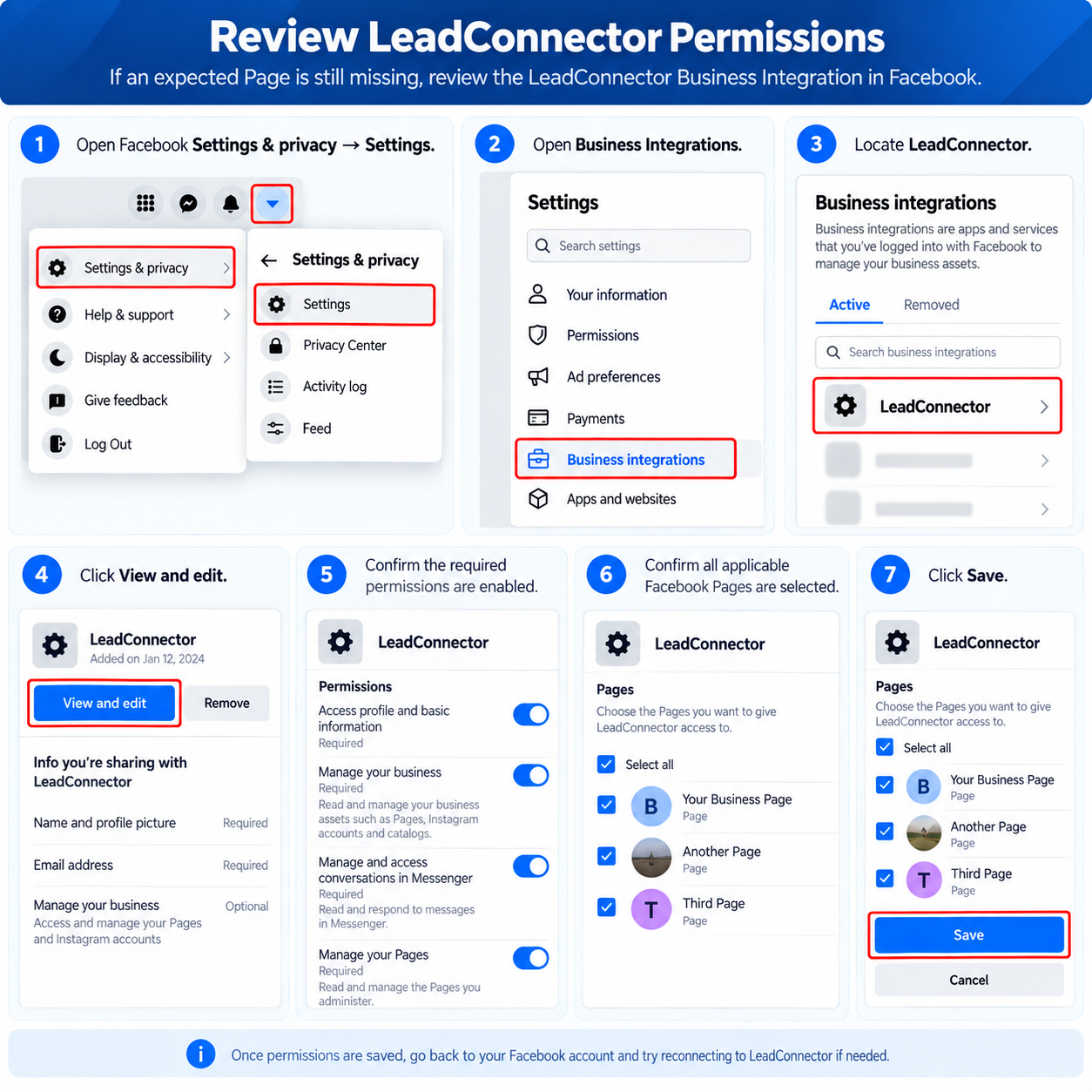
Review LeadConnector Permissions
If an expected Page is still missing, review the LeadConnector Business Integration in Facebook.
- Open Facebook Settings & privacy → Settings.
- Open Business Integrations.
- Locate LeadConnector.
- Click View and edit.
- Confirm the required permissions are enabled.
- Confirm all applicable Facebook Pages are selected.
- Click Save.
Get Started or Connect Button Is Disabled
- Confirm a valid Meta ads account is selected.
- Confirm a Facebook Page is connected.
- Confirm Facebook authorization completed successfully.
Wrong Facebook Profile Was Connected
- Log out of the incorrect Facebook profile.
- Sign in with the profile that has access to the required Meta assets.
- Return to Ad Manager and reconnect Facebook.
- Select the correct ads account and Page.
Frequently Asked Questions
Need Help?
- Page is missing: Confirm the connected Facebook profile has access to the Page and that the Page is selected in LeadConnector permissions.
- Ad account is missing: Confirm the Facebook profile has access to the correct Meta Business Portfolio and active ads account.
- Connect is disabled: Verify that Facebook authorization completed and a valid Meta ads account and Page are selected.
- Wrong profile connected: Sign out of Facebook, sign in with the correct profile, and repeat the connection process.