
Learn how to create a Text Snippet for SMS, organize saved messages, insert Snippets into Conversations, and reuse SMS content in a Send SMS workflow action.
Reusable SMS content is created as a Text Snippet. The current HiRise Snippets experience is automatically enabled, and users accessing Snippets through Conversations need View & Manage Conversations access.
What Are SMS Snippets?
SMS Snippets are reusable Text Snippets for messages you send frequently. They help teams reuse approved SMS content while still allowing the message to be reviewed or edited before sending.
Common uses include:
- Appointment reminders
- Lead follow-ups
- Support responses
- Business hours or contact information
- Promotional messages
Key Benefits of SMS Snippets
SMS Snippets reduce repetitive typing and make commonly used messages easier for teams to find, personalize, and reuse.
- Save Time: Reuse frequently sent SMS content instead of rewriting it.
- Improve Consistency: Give team members standardized messaging for common situations.
- Personalize Messages: Add supported Custom Values for dynamic contact or account information.
- Stay Organized: Use folders, search, and management controls to maintain your Snippet library.
- Support Automation: Reuse saved content when configuring supported Send SMS workflow actions.
Prerequisites and Limitations
Using the correct Snippet type and confirming user access helps ensure reusable SMS content is available where your team needs it.
- Create reusable SMS content as a Text Snippet.
- Snippets are managed within the relevant Sub-Account.
- Users accessing Snippets through Conversations need View & Manage Conversations access.
- The HiRise Snippets page is automatically enabled; no Labs setting is required.
- RCS Snippets and WhatsApp Templates use separate messaging experiences.
- SMS length can affect message segments and sending cost.
How To Create and Manage an SMS Snippet
Create SMS content as a Text Snippet so it can be saved, organized, and quickly reused by your team.
- From the Sub-Account View, go to Conversations.
- Select Snippets.
- Click + New Snippet.
- Select Add Text Snippet.
- Enter a descriptive name and message.
- Add supported Custom Values when personalization is needed.
- Review the message, character count, and SMS segment information.
- Click Save.
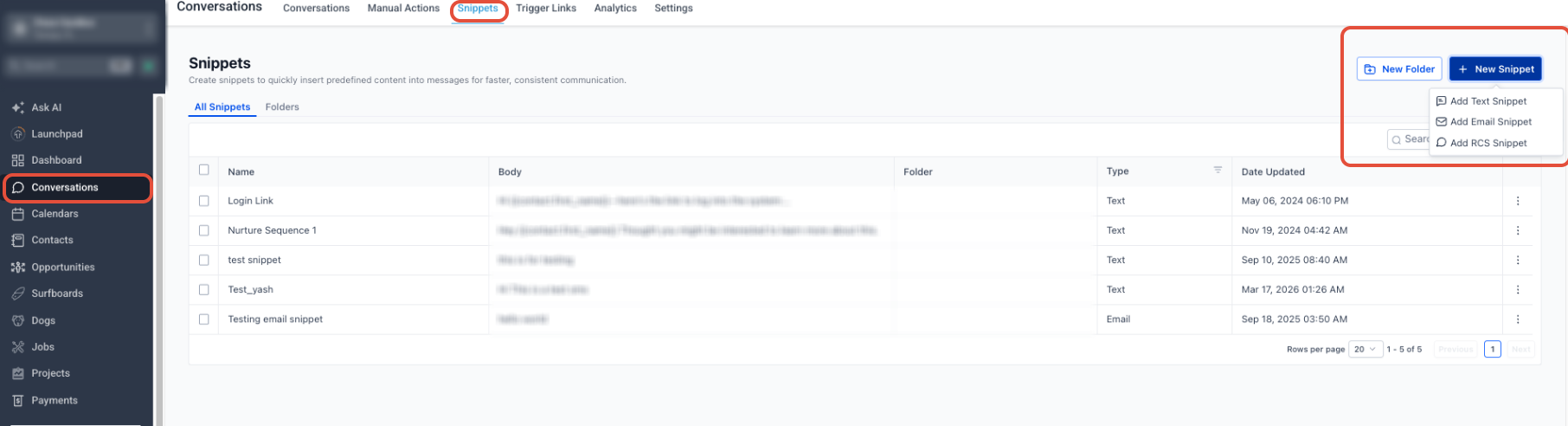
Alternate Access: Snippets can also be accessed from Marketing → Snippets.
Organize and Update Snippets
Keeping your Snippet library organized makes approved messages easier to find and reduces the chance of outdated content being reused.
- Use Search to find Snippets by name or keyword.
- Use New Folder to group related messages.
- Use the three-dot menu (⋮) to move, edit, duplicate, or delete a Snippet.
How To Use an SMS Snippet in Conversations
Inserting a Snippet into Conversations quickly populates prepared SMS content while still allowing you to review and edit the message before sending.
- Go to Conversations and open the contact conversation.
- Select the appropriate text messaging channel.
- Click the Snippets icon in the message composer.
- Search for or select the Text Snippet you want to use.
- Review the populated message and dynamic information.
- Make any necessary edits.
- Send the message.
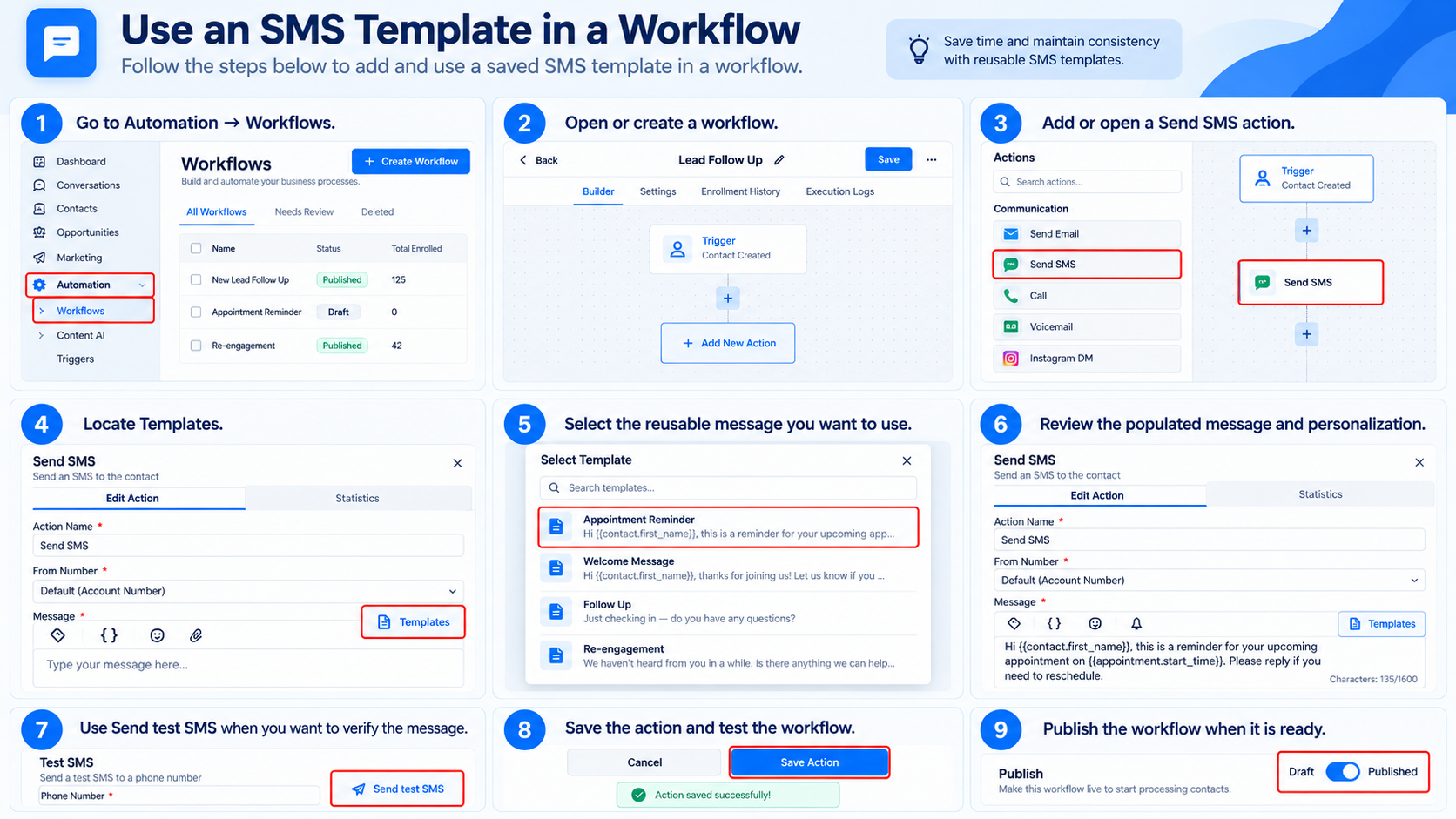
How To Use SMS Content in Workflows
The Send SMS workflow action includes a Templates selector that can populate the message with saved reusable content, helping keep automated messages consistent.
- Go to Automation → Workflows.
- Open or create a workflow.
- Add or open a Send SMS action.
- Locate Templates.
- Select the reusable message you want to use.
- Review the populated message and personalization.
- Use Send test SMS when you want to verify the message.
- Save the action and test the workflow.
- Publish the workflow when it is ready.
Frequently Asked Questions
Need Help?
- Snippets are not visible: Confirm the user has View & Manage Conversations access.
- A Snippet is hard to find: Use Search or organize related messages into folders.
- Custom Values are blank: Confirm the required contact or account information exists before sending.
- Workflow SMS content looks incorrect: Use Send test SMS and verify the message before publishing the workflow.