
Learn how to add additional email addresses, choose the primary address, import and export contact email data, handle emails during contact merges, and search additional emails with the Find Contact workflow action.
A contact can store up to 10 additional email addresses in addition to one primary email, for a maximum of 11 email addresses. Only one address can be designated as primary at a time.
2. Key Benefits of Multiple Email Addresses
3. Prerequisites and Limitations
4. How To Add Additional Email Addresses
5. How To Set the Primary Email Address
6. How To Import Additional Email Addresses
7. How To Export Contact Email Data
8. How Multiple Emails Work When Merging Contacts
9. How To Find Contacts by Additional Email in Workflows
10. Frequently Asked Questions
11. Need Help?
What Are Multiple Email Addresses for Contacts?
Multiple email addresses let you keep several addresses on one contact instead of creating separate contact records for the same person. This is useful when a contact has personal, business, billing, or other alternate email addresses.
A contact can have:
- 1 primary email address
- Up to 10 additional email addresses
- Up to 11 email addresses total
The primary email remains the contact's standard Email field. Additional addresses stay connected to the contact and can be used in supported import, merge, export, and workflow-matching experiences.
Key Benefits of Multiple Email Addresses
Keeping alternate addresses on one contact helps consolidate customer data and reduces the need to maintain duplicate records for the same person.
- Keep One Contact Profile: Store personal, business, billing, and alternate addresses on the same contact.
- Choose a Primary Email: Identify which email the platform should treat as the contact's standard Email field.
- Import Additional Emails: Add alternate addresses in bulk through CSV imports.
- Export Contact Data: Include the email-related fields you need by configuring visible columns before exporting.
- Preserve Email Data During Merges: Review email values and choose the appropriate primary email when combining duplicate contacts.
- Improve Workflow Matching: Configure Find Contact to search additional email addresses when needed.
- Centralize Contact Data: Keep multiple identifiers connected to the same customer record instead of spreading information across duplicates.
Prerequisites and Limitations
Understanding how the platform treats primary and additional emails helps prevent unexpected results when sending messages, importing contacts, merging records, or configuring workflows.
- Each contact can store up to 10 additional email addresses plus one primary email.
- Only one email can be designated as the primary email at a time.
- The primary email is the contact's standard Email field.
- The primary email is used by features that rely on the contact's standard Email field.
- Additional emails can be imported through CSV using the Additional Email field.
- The Find Contact workflow action searches the primary Email field by default. Additional email matching must be enabled separately.
- Contact merges cannot be undone, so review the Master record and email values carefully before confirming.
How To Add Additional Email Addresses
Add alternate addresses directly from the contact record when the same person uses multiple email addresses. Keeping them on one profile helps preserve a single source of truth for that contact.
- Open the applicable Sub-Account View.
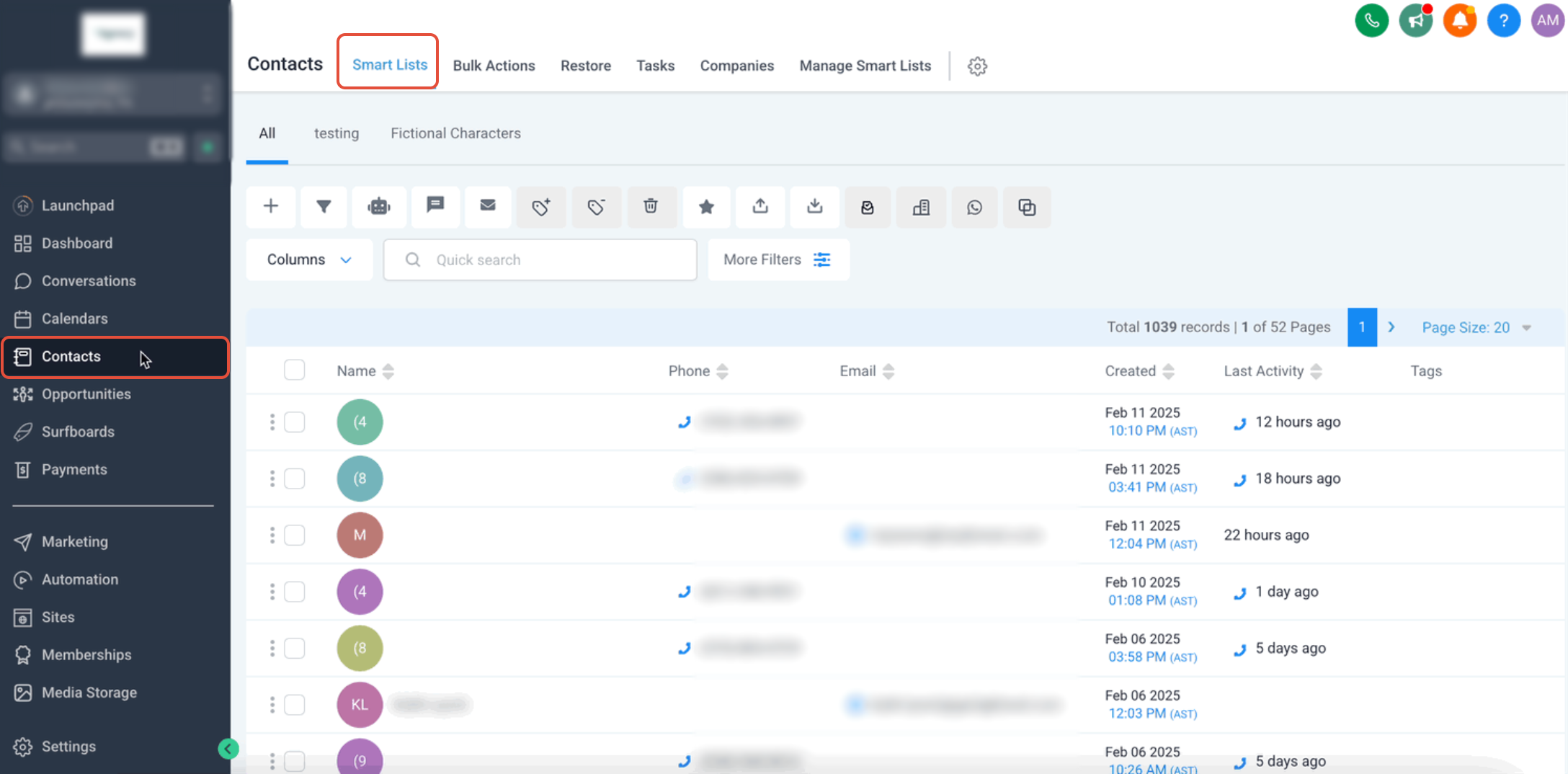
- Go to Contacts.
- Search for and open the contact.
- Open the contact details and locate the Email Address area.
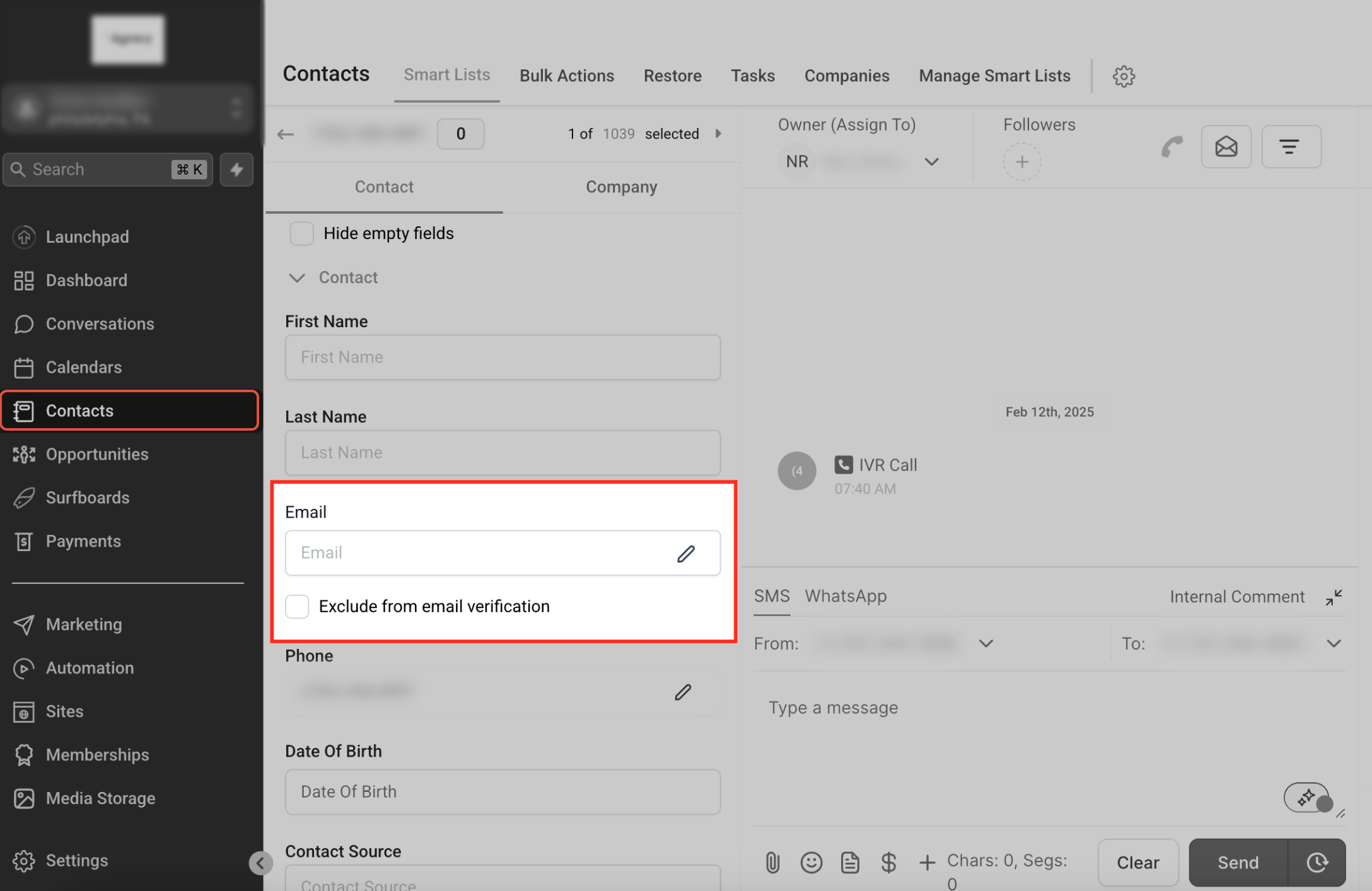
- Click Add Another Email.
- Enter the additional email address.
- Repeat as needed for other alternate addresses.
- Click Save Changes.
Limit: You can add up to 10 additional email addresses. After the supported limit is reached, the option to add another email is no longer available.
How To Set the Primary Email Address
The primary email is the address stored in the contact's standard Email field. Choosing the correct primary address is important because platform features that rely on the standard contact Email field use this value.
- Open the applicable contact record.
- Locate the Email Address area.
- Find the email address you want to make primary.
- Click the star icon next to that address.

Important: Only one email address can be primary at a time. Review the selected address before using the contact in campaigns, automations, or other features that rely on the standard Email field.
How To Import Additional Email Addresses
CSV imports are useful when you need to add alternate email addresses across many contacts at once. Correct formatting and field mapping help the platform store the additional addresses without replacing the primary email.
Step 1: Prepare the CSV
Preparing the file correctly before uploading reduces field-mapping errors and helps keep multiple email addresses attached to the intended contact.
- Create a separate column for Additional Email.
- Enter alternate email addresses in that column.
- If a contact has multiple additional emails, separate the addresses with commas.
billing@example.com, personal@example.com, assistant@example.comStep 2: Start the Contact Import
Start a CSV import from Contacts so the platform can read the contact fields and map the alternate-email column.
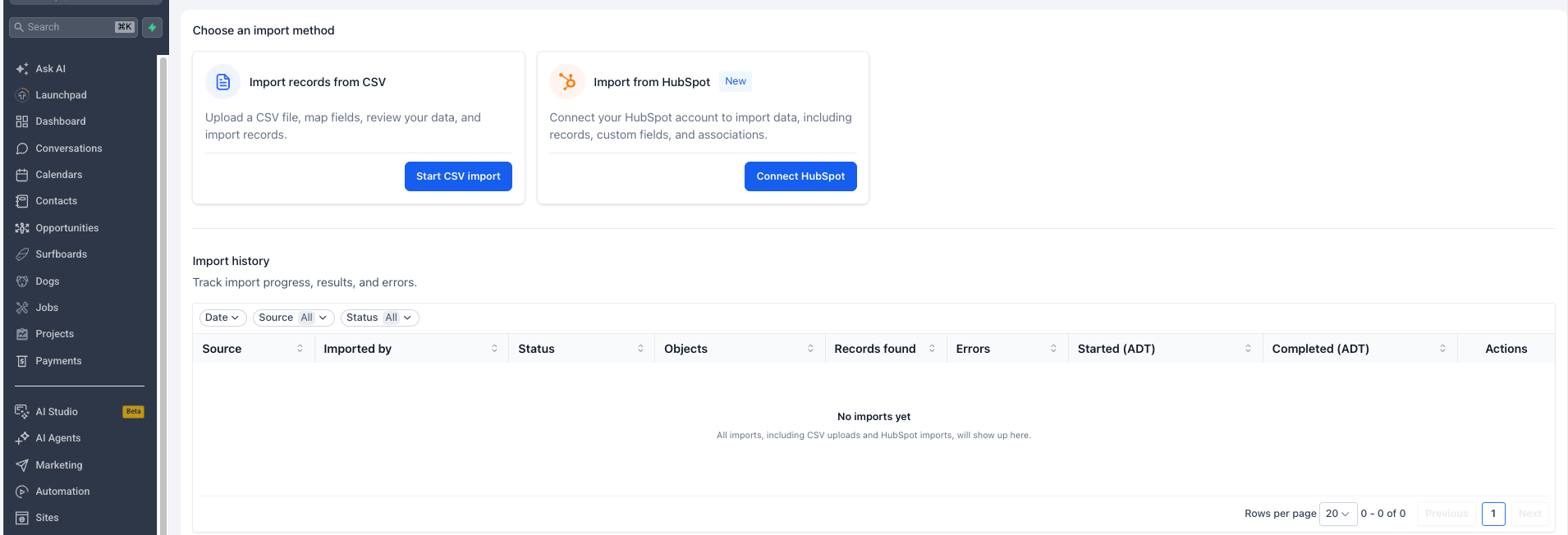
- Go to Contacts.
- Click Import.
- Under Import records from CSV, click Start CSV import.
Step 3: Upload and Map Additional Emails
Field mapping tells the platform which CSV column contains the alternate addresses that should be stored as additional emails.
- Upload the CSV file.
- Continue to field mapping.
- Map the alternate-email column to Additional Email.
- Review the remaining mappings.
- Complete the import.
Updating existing contacts? Review the import type and contact deduplication settings before starting so the platform matches and updates the intended records.
How To Export Contact Email Data
Contact exports use the fields currently visible in the Contacts table. Configure the table fields before exporting so the CSV includes the email information you need.
- Go to Contacts → Smart Lists.
- Filter or select the contacts you want to export.
- Open Manage Fields.
- Make the email-related columns you need visible in the Contacts table.
- Select the contacts.
- Click Export or use the applicable export option from the contact actions.
- Confirm the export.
The platform processes contact exports in the background. Completed bulk actions can be reviewed from the Bulk Actions area.
Tip: Review the visible fields in the Contacts table before starting the export so the CSV contains the contact information you need.
How Multiple Emails Work When Merging Contacts
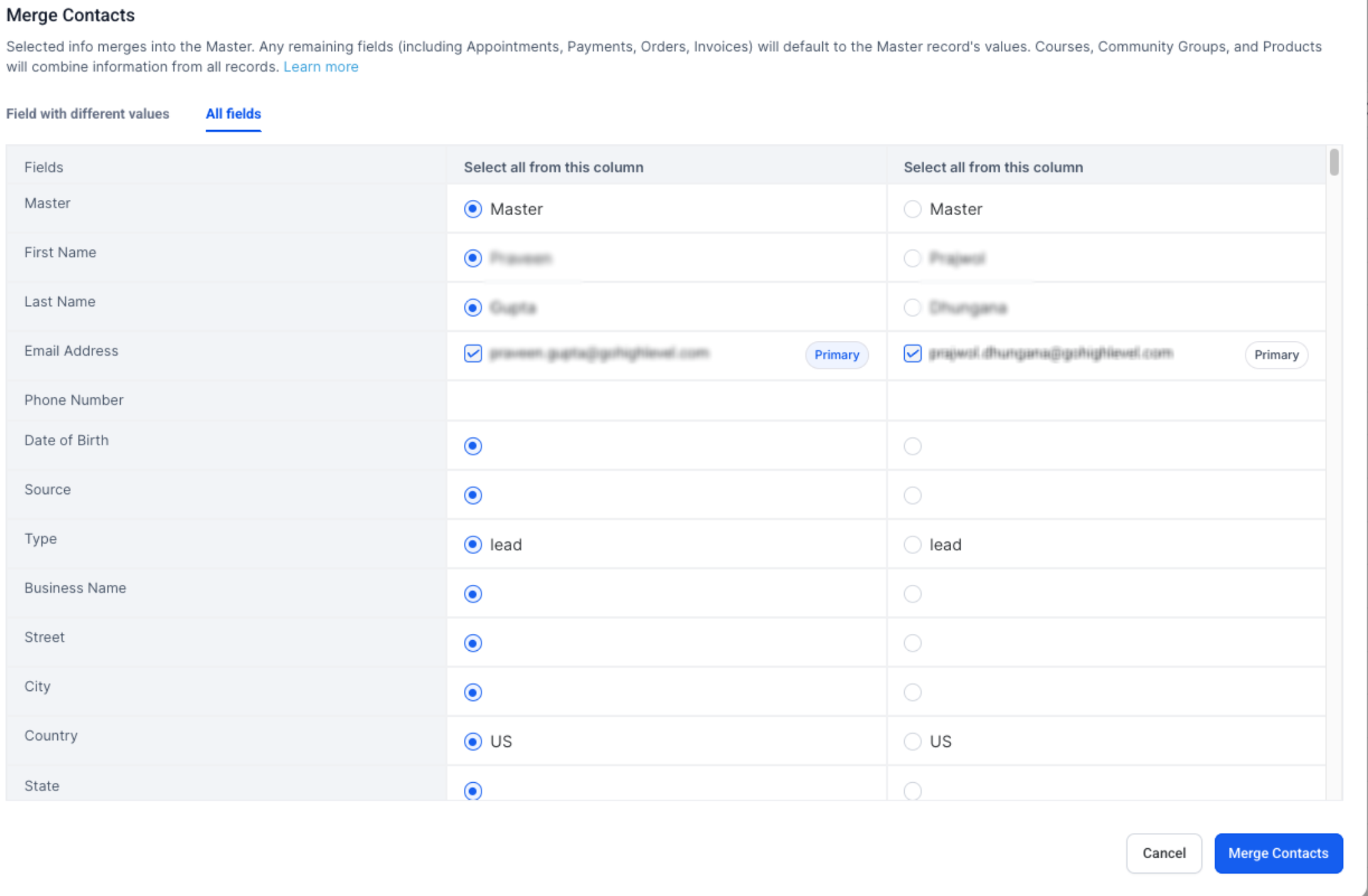
Merging duplicate contacts combines supported information into one Master record. The merge screen lets you review conflicting values and decide which information should remain before the records are combined.
Step 1: Select the Duplicate Contacts
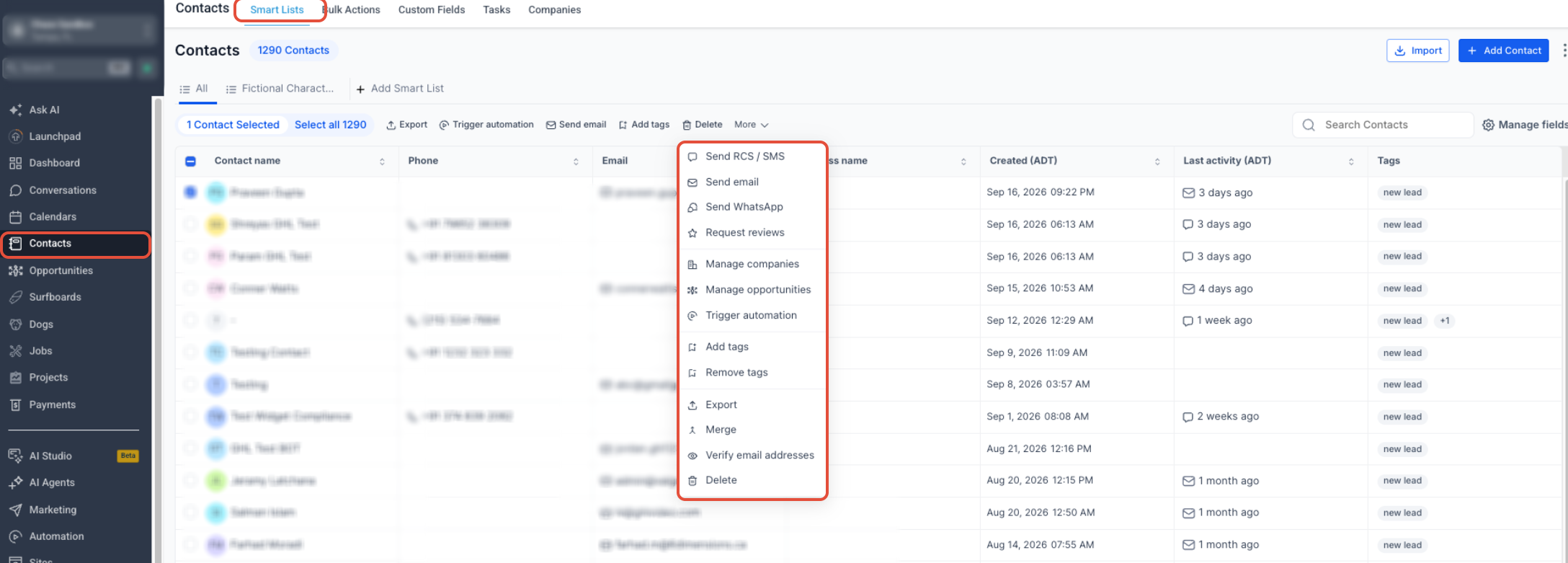
Start from Smart Lists so you can select the duplicate contact records and open the Merge action.
- Go to Contacts → Smart Lists.
- Locate the duplicate contacts.
- Select the contacts you want to combine.
- Click More.
- Select Merge.
Step 2: Review the Merge
The Merge Contacts screen lets you choose the Master record and review fields that contain different values before completing the merge.
- Choose which contact should remain as the Master.
- Review the fields that contain different values.
- Review the available Email Address values.
- Choose the values you want retained in the merged record.
- Confirm which email should remain primary.
Step 3: Complete the Merge
Once the correct Master record and field values are selected, complete the merge to combine the supported information into one contact.
- Review the selections one final time.
- Click Merge Contacts.
Important: Contact merges cannot be undone. Review the Master record, email addresses, and conflicting fields carefully before clicking Merge Contacts.
How To Find Contacts by Additional Email in Workflows
The Find Contact workflow action searches the contact's primary Email field by default. Enable additional-email matching when a workflow should also locate contacts whose matching email value is stored as an additional address.
- Go to Automation → Workflows.
- Open an existing workflow or create a new one.
- Add the Find Contact action.
- Under the standard fields used for matching, select Email.
- Enable the option to include additional emails in the search.
- Complete the remaining Find Contact configuration.
- Save the action.
Why this matters: Enabling this option lets Find Contact match an email value even when that address is stored as an additional email instead of the contact's primary email.
Frequently Asked Questions
Need Help?
- Add Another Email is unavailable: Confirm the contact has fewer than 10 additional email addresses.
- The wrong email is being used: Review which address is marked as primary in the contact's Email Address area.
- Additional emails are not importing: Confirm the CSV uses an Additional Email column and that multiple addresses are separated with commas before mapping the field.
- An email field is missing from an export: Make the required email field visible in the Contacts table before exporting.
- A workflow cannot find a contact by an alternate address: In Find Contact, use Email as the match field and enable the option to include additional emails.
- You are merging duplicate contacts: Review the Master record, email values, and primary email carefully because the merge cannot be undone.