
Learn how SaaS plan add-ons work, who pays for bundled products, how to add products in the SaaS Configurator, how the cost calculator supports pricing decisions, and what to review for existing or canceled SaaS customers.
Add-ons bundled directly inside a SaaS plan are billed to the agency, not individually to the subscribing sub-account. Include the add-on cost in your SaaS pricing so the plan covers your agency cost and desired margin.
What Are SaaS Plan Add-Ons?
SaaS plan add-ons are paid products that agencies can package directly with a recurring SaaS subscription. Bundling these products lets a qualifying customer receive the selected capabilities as part of the SaaS package instead of purchasing each bundled product separately.
Depending on current availability, the Add-Ons area of the SaaS Configurator can include products such as:
- WordPress
- Ad Manager
- Listings
- AI Employee
- Other supported add-ons displayed in the Configurator
Availability can change: Always use the current Add-Ons area in the SaaS Configurator to confirm which products and prices are available to your agency.
Key Benefits of SaaS Plan Add-Ons
Bundling add-ons helps agencies create more complete SaaS packages while keeping product selection, provisioning, and cost visibility inside the SaaS Configurator.
- Create Differentiated Plans: Include different products across plan tiers to build distinct SaaS offers.
- Automate Provisioning: Supported bundled add-ons are provisioned when a qualifying customer purchases the SaaS plan.
- Simplify Packaging: Manage included products from the same Configurator used for plan features and pricing.
- See Agency Costs Up Front: Review the displayed cost of selected add-ons before finalizing the plan.
- Protect Margins: Use the combined add-on cost when deciding how much the SaaS subscription should cost customers.
Prerequisites and Limitations
Reviewing your billing setup, plan structure, and product availability before adding paid products helps prevent provisioning issues and unexpected agency costs.
- You need access to Agency View → SaaS Configurator.
- Create a new SaaS plan or open an existing plan you are permitted to edit.
- Use the applicable SaaS billing architecture and payment setup for the plan.
- A SaaS plan must contain at least one product feature before the plan can be completed.
- Available add-ons and pricing depend on what is currently displayed in your SaaS Configurator.
- The agency is responsible for the cost of add-ons bundled directly into the SaaS plan.
- Marketplace Apps use their own dedicated SaaS Configurator area and eligibility rules rather than the standard Add-Ons configuration.
How To Add Products to a SaaS Plan
Add products only after reviewing the plan's pricing and target customer. Each selected product adds to the agency's ongoing cost, so the final SaaS subscription price should account for the complete bundle.
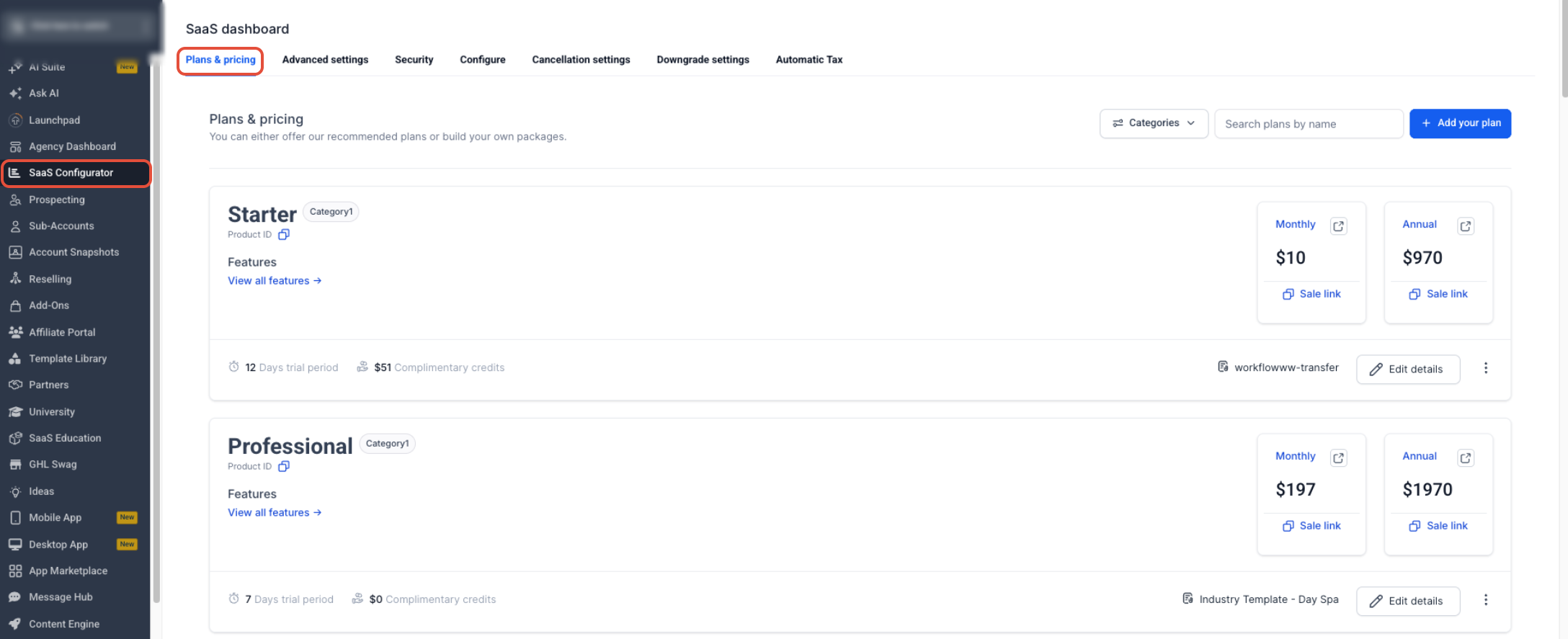
Step 1: Open the SaaS Configurator
Open the plan you want to configure so you can review its features, pricing, and optional products together.
- Switch to Agency View.
- Click SaaS Configurator.
- Create a new SaaS plan or open an existing plan.
Step 2: Select Add-Ons
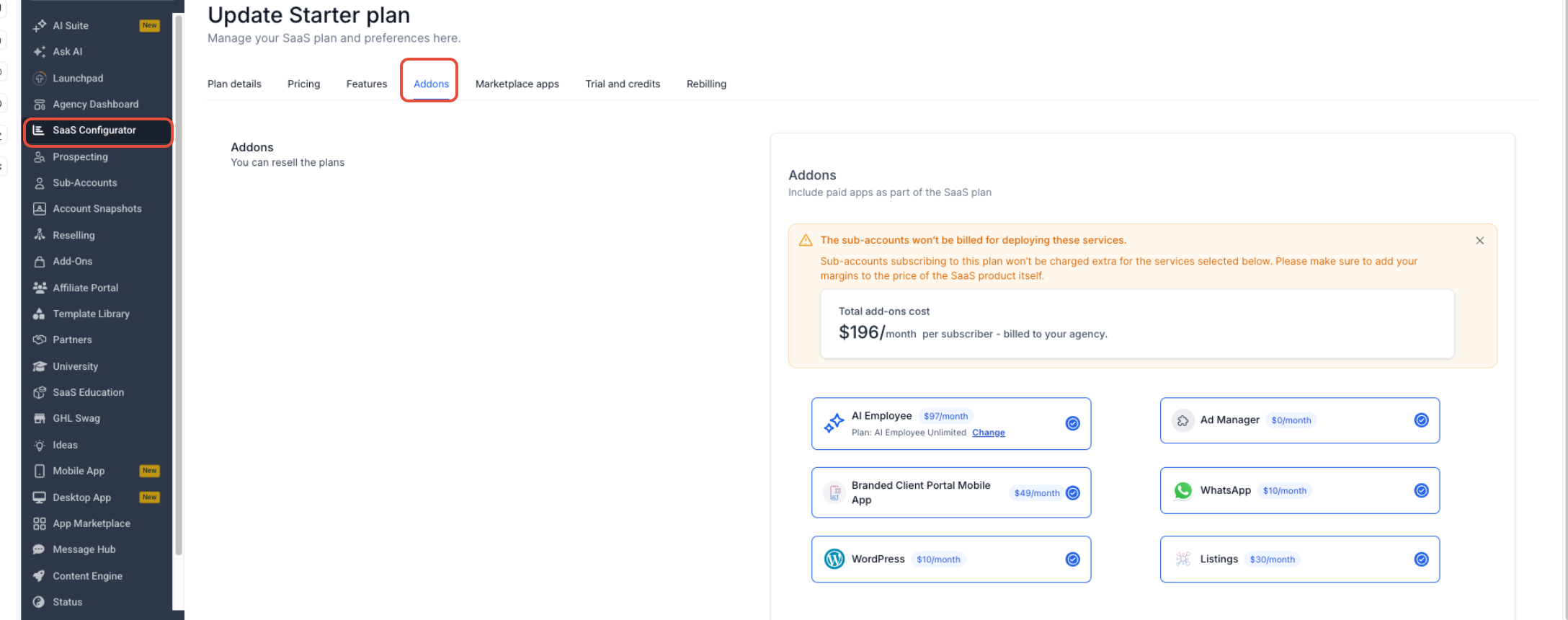
The Add-Ons area displays the paid products currently available for direct deployment with the SaaS plan.
- Open the plan's Add-Ons section.
- Review the available products and agency-billing notice.
- Select the add-ons you want included with the plan.
Step 3: Review the Add-On Cost
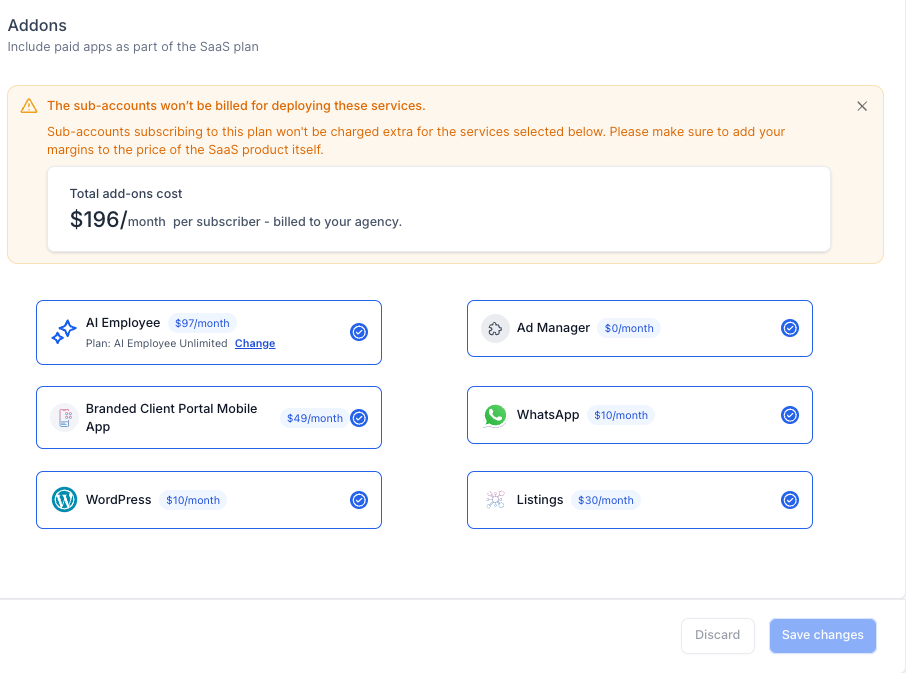
The cost calculator updates as products are selected or removed, giving you a clearer view of the agency's recurring cost per subscriber.
- Review the displayed cost for each selected product.
- Review the combined add-on cost shown by the Configurator.
- Use the total when determining the customer-facing SaaS subscription price.
Step 4: Review and Save the Plan
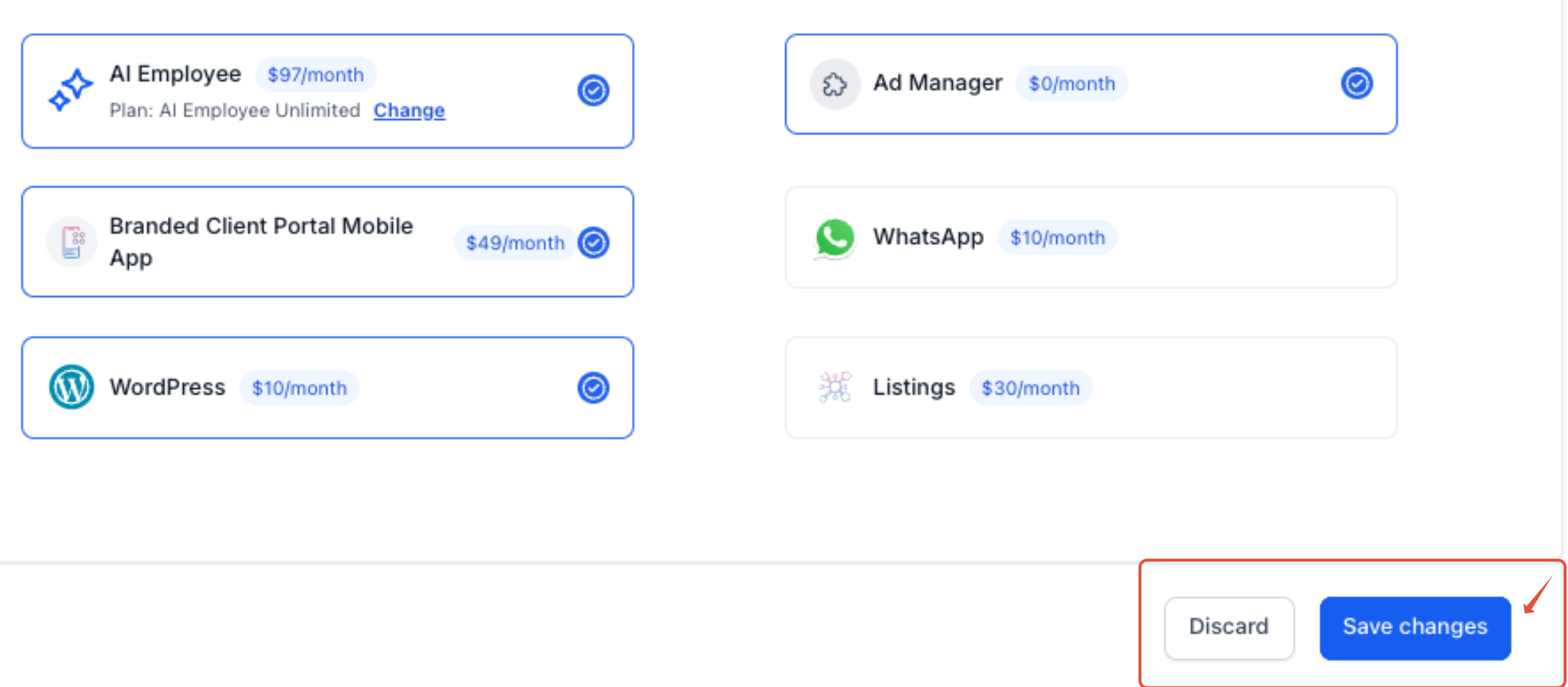
Reviewing the complete plan before saving helps confirm that pricing, entitlements, and optional products align with the package you intend to sell.
Review applicable plan settings, including:
- Plan details and category
- Pricing
- Features and snapshot
- Add-ons
- Marketplace Apps, when applicable
- Trial and credits
- Usage billing
Save the plan after confirming the configuration.
How Add-On Billing Works
Add-ons bundled inside SaaS plans use a direct-deployment model. Understanding who receives the product and who pays for it is essential when calculating the selling price of the plan.
Direct Deployment: When an add-on is included directly in a SaaS plan, the subscribing sub-account receives the bundled product, but the agency is billed for the add-on.
- The agency is billed for selected bundled add-ons.
- The sub-account is not individually charged for those add-ons through the bundled SaaS plan.
- The Configurator displays the agency's current add-on costs.
- The agency should include those costs when calculating the SaaS subscription price.
Pricing the Plan
Plan pricing should cover the agency's add-on costs along with any other plan expenses and the margin the agency wants to retain.
Example: If the Configurator shows that the bundled add-ons cost your agency $100 per month per subscriber, your SaaS plan price should account for at least that $100 before considering other costs and your desired margin.
Always use the current prices displayed in the SaaS Configurator rather than relying on older examples or historical pricing.
Managing Existing SaaS Customers
Updating a plan's bundle is not a substitute for managing products already provisioned to existing sub-accounts. Review current subscribers separately whenever you change included add-ons or when a SaaS subscription ends.
When You Change the Plan
Bundle changes apply to future provisioning and should not be assumed to retroactively update products that have already been provisioned to existing customers.
- Review the sub-accounts currently using the plan.
- Compare their active add-ons with the updated plan configuration.
- Add or remove products separately when required for an existing customer.
When a SaaS Customer Cancels
Canceling the main SaaS subscription does not automatically uninstall bundled add-ons. Review the sub-account's active products and remove add-ons that should no longer remain active.
Important: If a bundled add-on remains active after the SaaS customer cancels, the agency can continue to incur the add-on cost. Review and remove products manually when required.
Frequently Asked Questions
Need Help?
- An expected add-on is missing: Review the current Add-Ons area of the SaaS Configurator because product availability can change.
- The plan cost is higher than expected: Review every selected add-on and the combined agency cost shown in the Configurator.
- An existing customer did not receive a newly added product: Do not assume plan changes apply retroactively. Review that sub-account and add the product separately when required.
- An agency charge continues after SaaS cancellation: Check the canceled customer's active add-ons and remove products that should no longer remain active.
- You need to include a Marketplace App: Use the dedicated Marketplace Apps configuration in the SaaS Configurator rather than the standard Add-Ons area.