
Learn how to enable Prospecting in a sub-account, understand how prospects become CRM contacts, automate follow-up, route Prospect AI leads into pipelines, and migrate existing Agency prospects into a sub-account.
Agency-level Prospecting focuses on lead discovery and reporting. CRM functionality such as Contacts, Opportunities, email, SMS, and workflow automation is available when Prospecting is used inside an eligible sub-account.
2. Key Benefits of Prospecting in Sub-Accounts
3. Prerequisites and Limitations
4. How To Enable Prospecting in a Sub-Account
5. How Prospects Enter the CRM
6. How To Automate Prospect Follow-Up
7. How To Send Prospect AI Leads to a Pipeline
8. How To Migrate Agency Prospects to a Sub-Account
9. Frequently Asked Questions
10. Need Help?
What Is Prospecting in Sub-Accounts?
Prospecting inside a sub-account combines business discovery and marketing audit reporting with the CRM and automation tools available in the sub-account. This makes it possible to move from finding a business to creating a contact, starting follow-up, and managing the sales process without leaving the sub-account.
Depending on your Prospecting access, sub-account Prospecting can work with:
- Contacts
- Opportunities and pipelines
- Workflows
- Email and SMS outreach
- Marketing audit reports
- Prospect AI and other Premium capabilities, when included with your access
Agency-level Prospecting is useful for lead discovery and reporting. Sub-account Prospecting is the better fit when the team also needs CRM follow-up, sales pipelines, and automation.
Key Benefits of Prospecting in Sub-Accounts
Using Prospecting where your CRM already lives reduces manual handoffs between lead discovery and sales follow-up, helping teams act on newly generated prospects faster.
- Sync Prospects to CRM: Save generated prospects as usable CRM contacts inside the same sub-account.
- Automate Follow-Up: Trigger workflows when new prospects are generated.
- Route Leads to Pipelines: Create or update Opportunities through workflows or supported Prospect AI pipeline integration.
- Use Prospect AI: Discover prospects automatically and route future qualifying leads into selected CRM pipelines when the feature is available.
- Reach Prospects Directly: Use email, SMS, assignments, tags, and other CRM tools from the sub-account.
- Reduce Context Switching: Keep discovery, CRM management, and follow-up in one working environment.
Prerequisites and Limitations
Prospecting access depends on whether the sub-account qualifies for the Prospecting Free Tier or has Prospecting Premium. Confirm the account type and subscription before troubleshooting missing features.
Prospecting Free Tier for Agency Sub-Accounts
The Free Tier is designed primarily for an agency's own internal sub-accounts and provides core Prospecting access where the agency's CRM and automation workflows are managed.
- The location must be marked as an Agency Sub-Account.
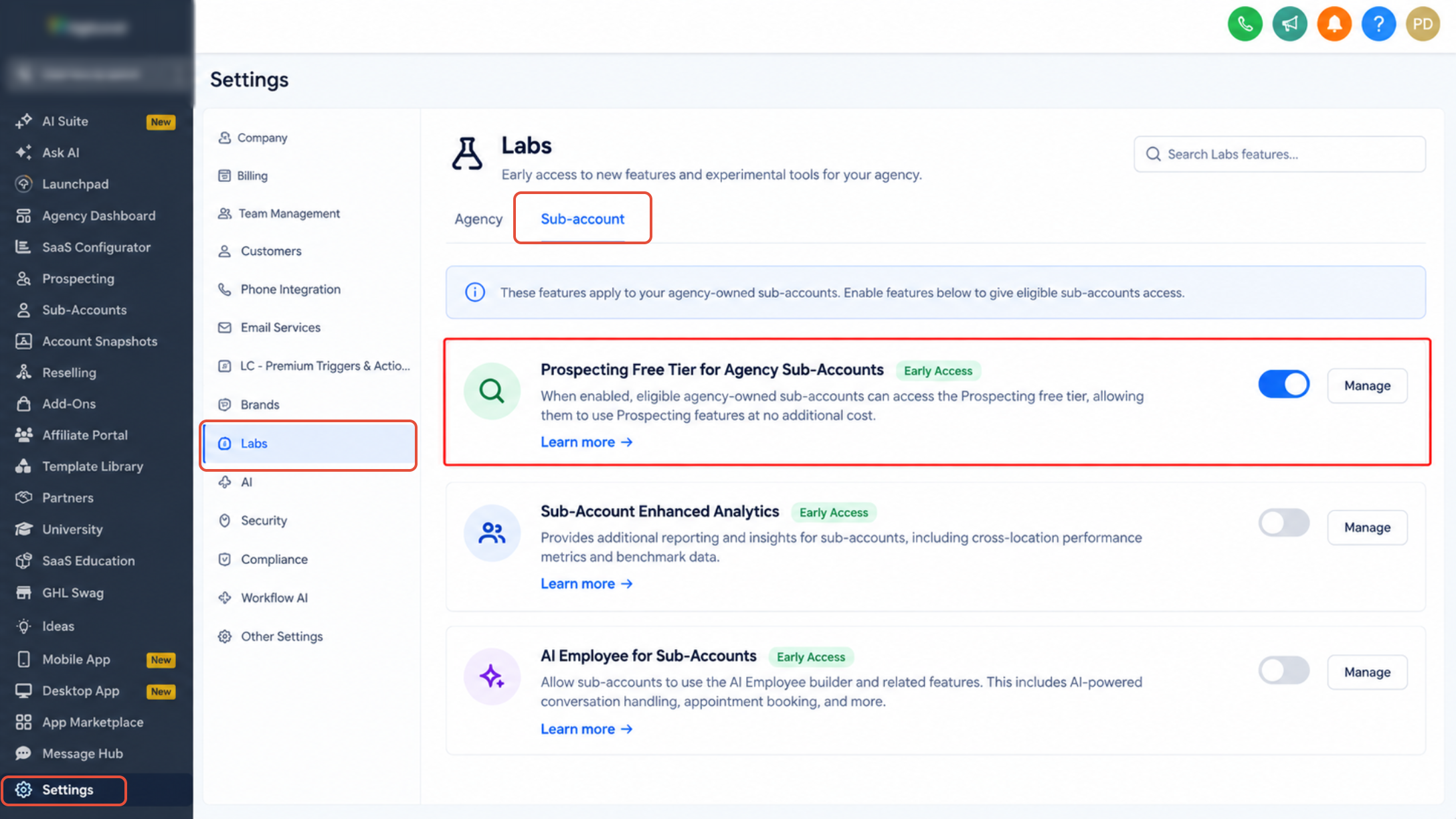
- The Prospecting Free Tier feature must be enabled through the applicable Agency Labs toggle.
- Current Prospecting Free Tier requirements state that marking a location as an Agency Sub-Account requires the $497 Agency plan.
- Free Tier access is intended primarily for internal agency prospecting rather than advanced client-facing Prospecting use cases.
Prospecting Premium
Prospecting Premium is intended for expanded prospecting, reporting, enrichment, and client-facing use cases and can be enabled directly for a sub-account.
Premium can be activated by:
- Enabling and reselling Prospecting from Agency View → Reselling.
- Purchasing Prospecting Premium directly inside the sub-account.
- Linking an eligible Agency Prospecting Premium subscription to one sub-account.
How To Enable Prospecting in a Sub-Account
Choose the activation method that matches the sub-account's intended use. Agency-owned internal locations can use the Prospecting Free Tier when eligible, while client-facing and advanced use cases generally use Prospecting Premium.
Option 1: Enable the Prospecting Free Tier
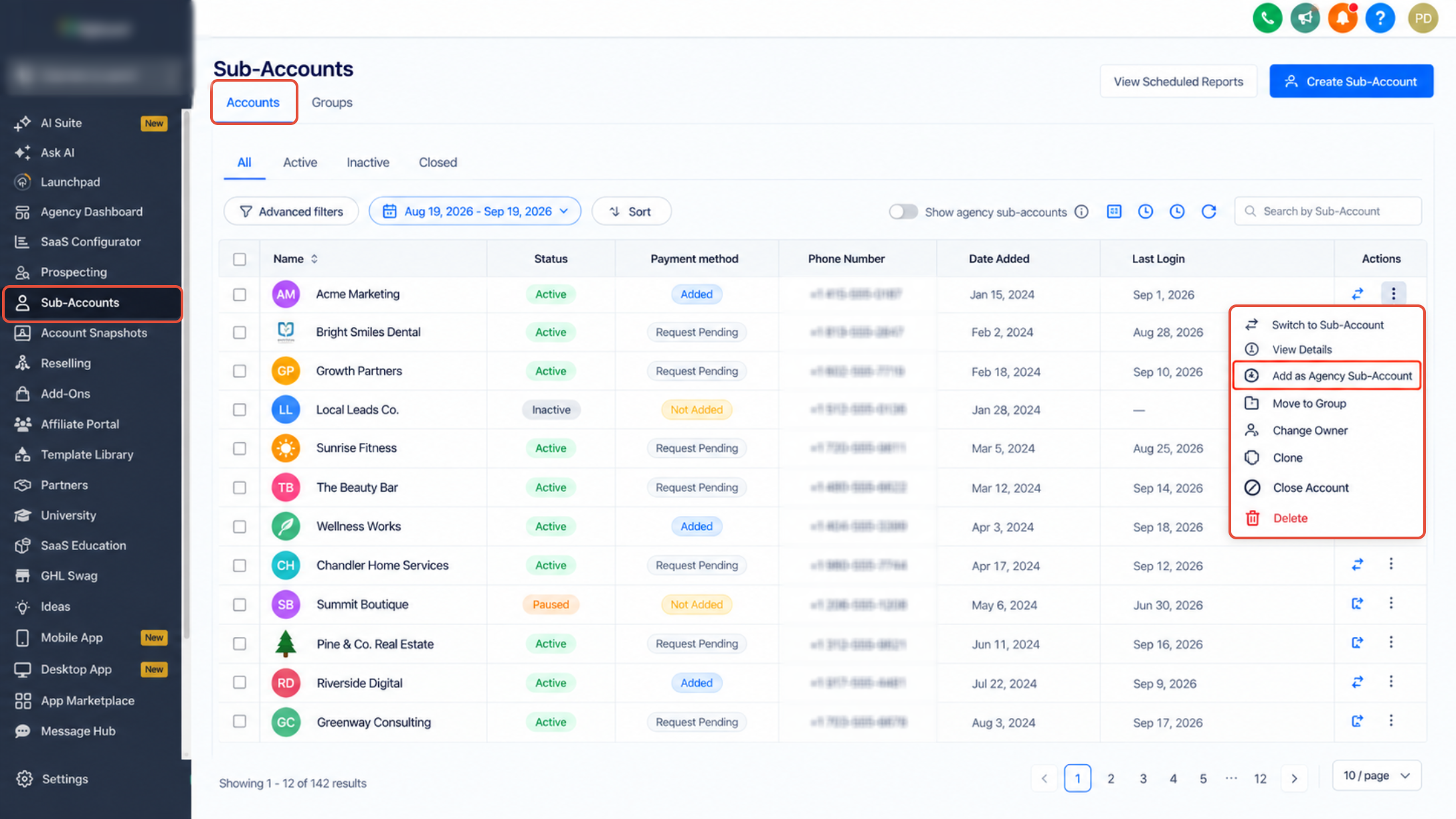
Marking the location as an Agency Sub-Account identifies it as an agency-owned location that can receive eligible Free Tier Prospecting access.
- From Agency View, go to Sub-Accounts.
- Locate the applicable sub-account.
- Open the three-dot menu.
- Select Add as Agency Sub-Account.
- Confirm the applicable Prospecting Free Tier feature is enabled in Agency Labs.
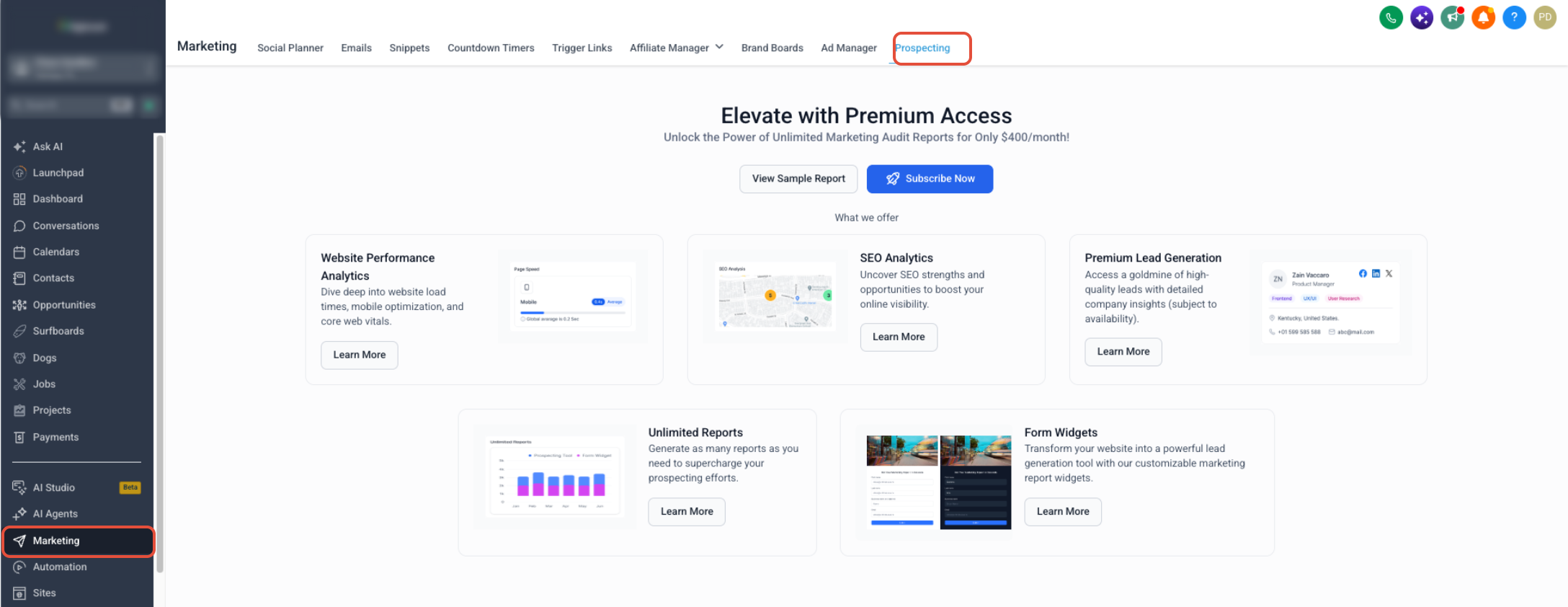
- Open the sub-account.
- Go to Marketing → Prospecting.
Option 2: Enable Prospecting Premium
Premium can be activated through agency reselling, direct sub-account purchase, or by linking an eligible Agency Premium subscription.
Using Reselling:
- From Agency View, open Reselling.
- Enable the option to resell Prospecting.
- Configure the offer as needed.
- Open the applicable sub-account.
- Go to Marketing → Prospecting.
- Complete the Prospecting Premium activation or purchase flow.
Premium can also be purchased directly from the sub-account. Agencies that already have an eligible Agency Prospecting Premium subscription can link one sub-account to that subscription through the Agency Prospecting subscription settings.
How Prospects Enter the CRM
Prospecting can automatically turn saved businesses into CRM contacts inside the sub-account. The Contact Creation setting controls this behavior and helps determine whether a saved prospect should also become a contact record.
Contact Creation
Contact Creation is enabled by default and can be managed from the Prospecting settings. When enabled, saving a prospect creates a business contact using the prospect information available at that time.
- Go to Marketing → Prospecting.
- Open Settings.
- Open Contacts.
- Review the Contact Creation setting.
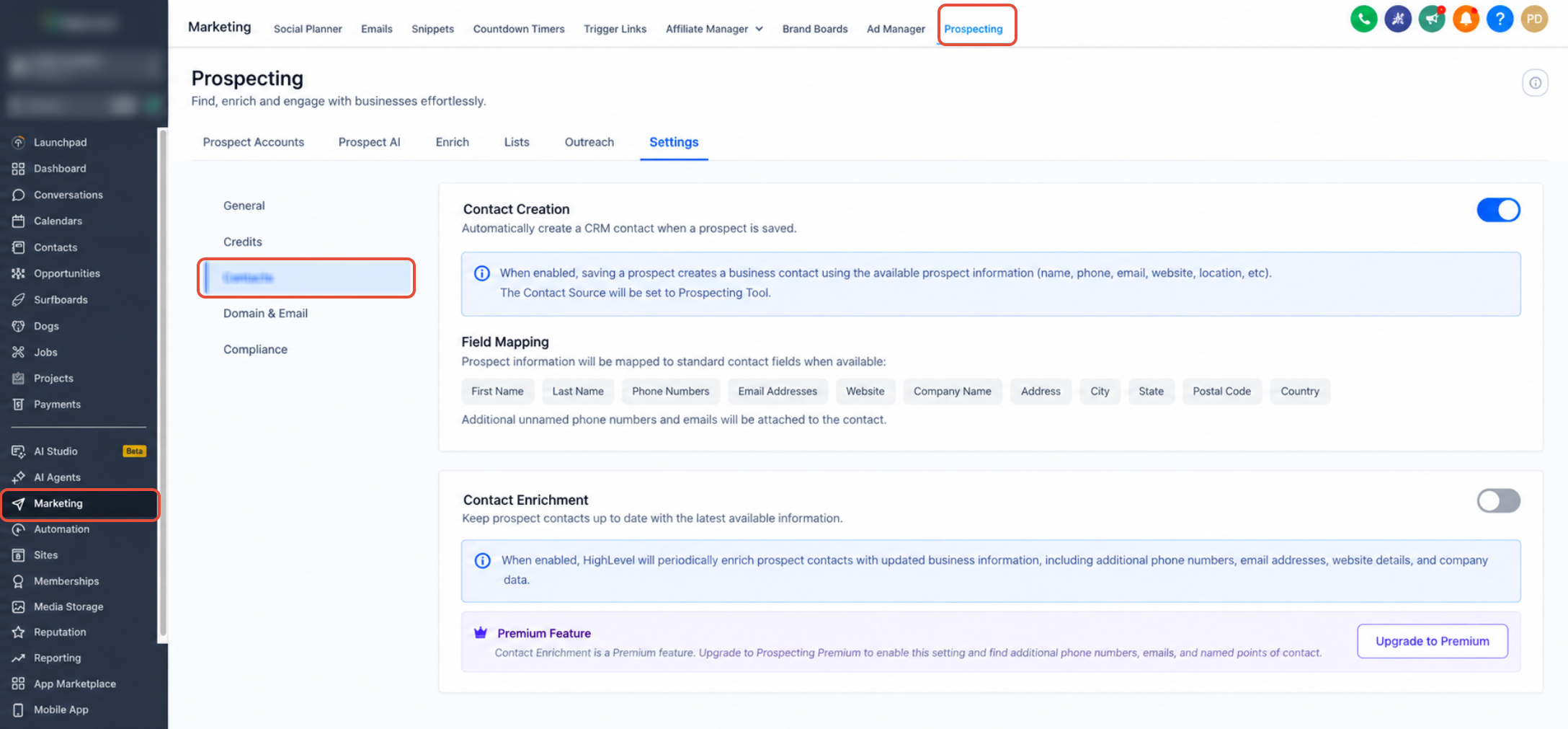
When Contact Creation is enabled:
- Saving a prospect creates one business contact in the CRM.
- Available phone numbers, emails, website information, and location data can be mapped into standard contact fields.
- Additional unnamed phone numbers and emails remain attached to the business contact.
- The Contact Source is identified as Prospecting Tool.
Premium enrichment: Contact Enrichment is a Premium feature and is off by default. When enabled, it can find additional phone numbers, emails, and named points of contact. Named points of contact can be stored as separate CRM contacts depending on the configured Prospecting contact settings.
How To Automate Prospect Follow-Up
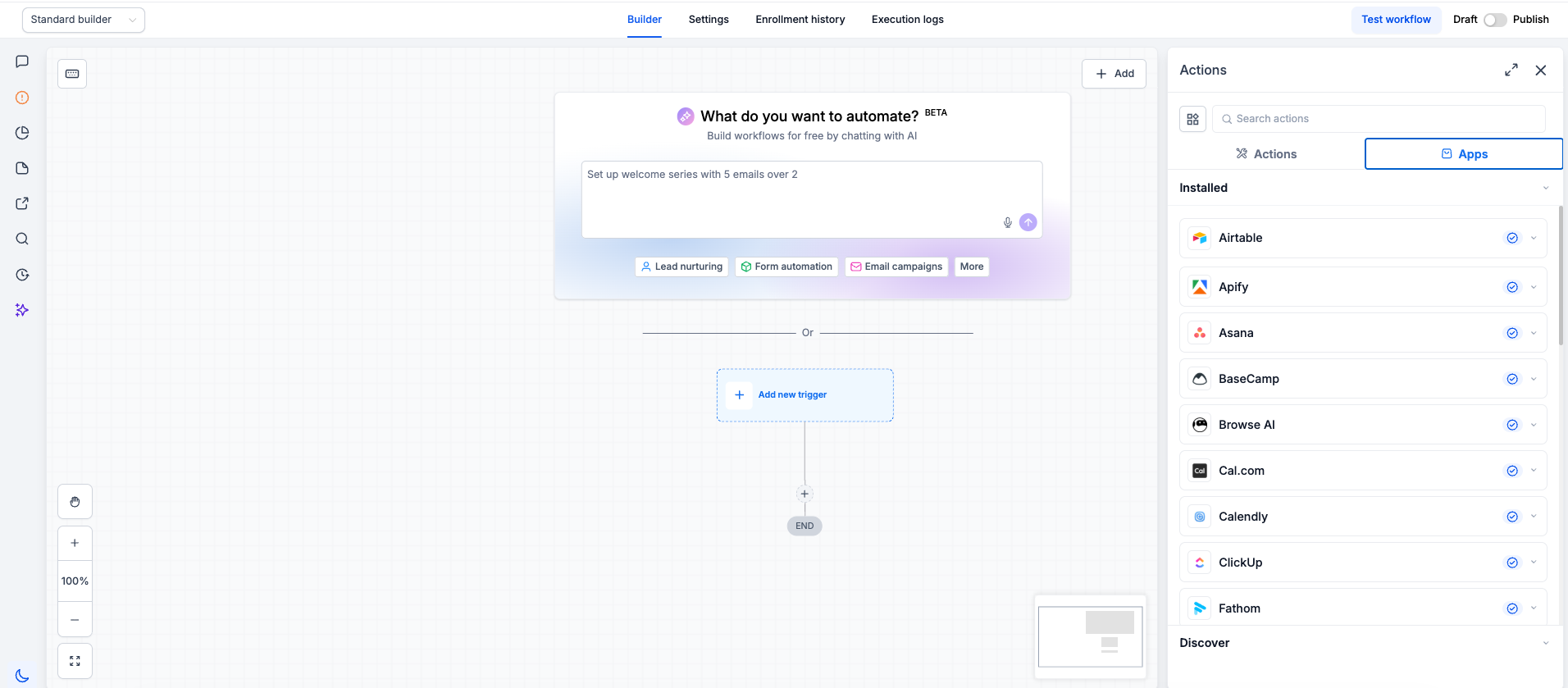
The Prospect Generated workflow trigger lets you start automation as soon as a new prospect is generated. Filters help separate leads based on how they entered Prospecting or their conversion potential.
- Go to Automation → Workflows.
- Create a workflow or open an existing workflow.
- Add the Prospect Generated trigger.
- Add filters when needed.
Available Prospect Source filters include:
- In-App
- Widget
- Prospect AI
You can also use supported filters such as Conversion Rate to create different follow-up paths for higher- or lower-priority prospects.
- Add the actions you want the workflow to run.
- Save the trigger and actions.
- Publish and test the workflow.
Common follow-up actions include:
- Send an email
- Send an SMS
- Add a tag
- Notify a team member
- Create or update an Opportunity
- Start a nurture sequence
How To Send Prospect AI Leads to a Pipeline
Prospect AI can automatically route newly discovered prospects into a selected CRM pipeline and stage when the agent is configured inside a sub-account. Pipeline integration is not available for Agency-level Prospect AI agents.
- Open the applicable sub-account.
- Go to Marketing → Prospecting.
- Open Prospect AI.
- Open an existing AI agent or create a new one.
- Click Edit.
- Locate the Lead Enrichment portion of the agent configuration.
- Enable Save new prospects to Contacts.
- Enable Also add to a pipeline stage.
- Select the Pipeline.
- Select the destination Stage.
- Save the agent.
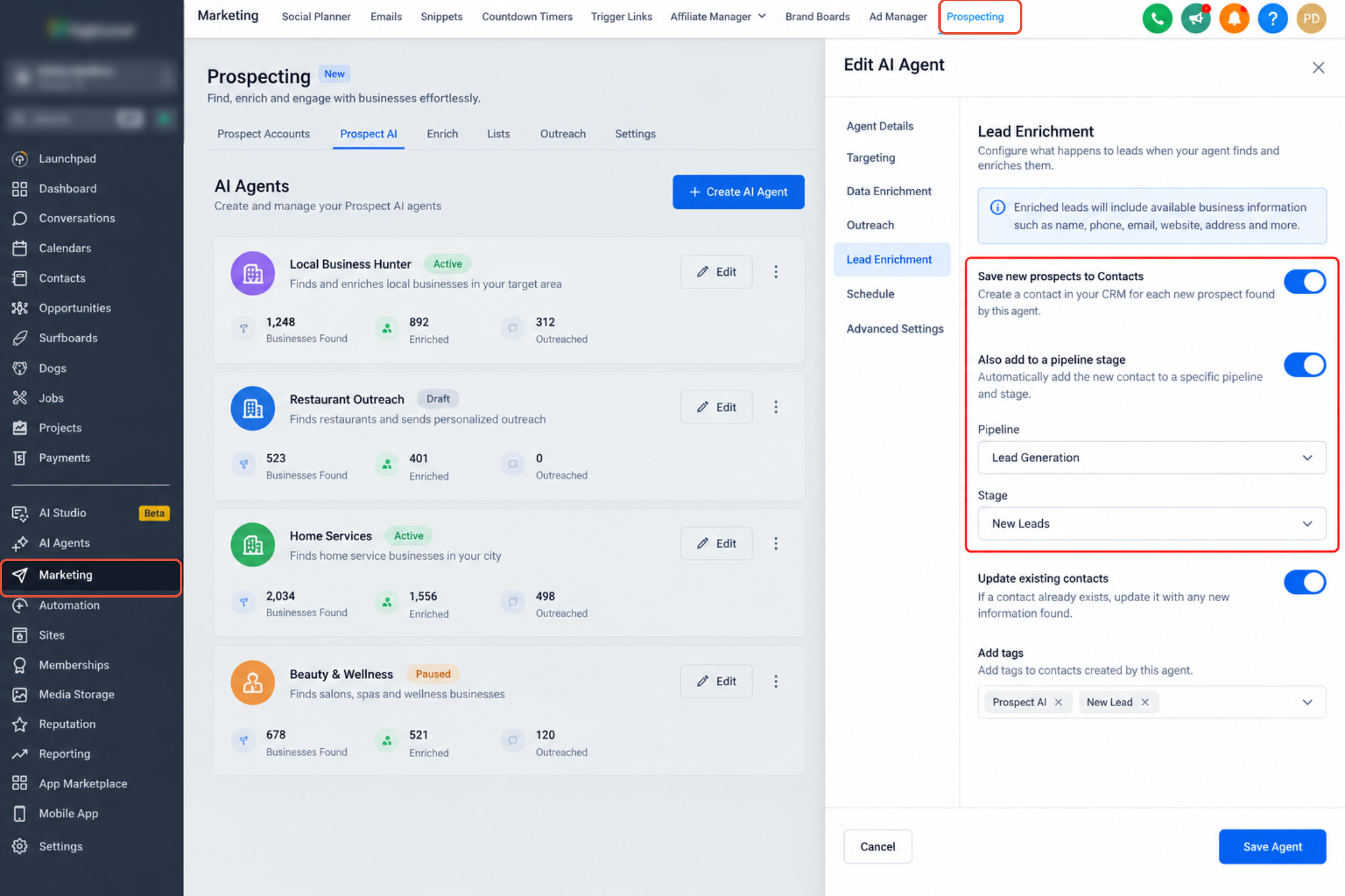
Important: Pipeline settings apply to prospects discovered after the configuration is saved. Existing prospects are not retroactively moved into the selected pipeline or stage.
How To Migrate Agency Prospects to a Sub-Account
Prospect migration copies existing Agency-level prospects into a Premium-enabled sub-account so the destination team can use its CRM, workflows, pipelines, and communication tools for follow-up.
Requirement: The destination sub-account must have an active Prospecting Premium subscription. Only eligible Premium-enabled sub-accounts appear as migration destinations.
- From Agency View, open Prospecting.
- Go to Settings.
- Open Migrate.
- Click Migrate Prospects.
- Select the destination sub-account.
- Click Select Prospects.
- Select one, multiple, or all eligible prospects.
- Click Migrate.
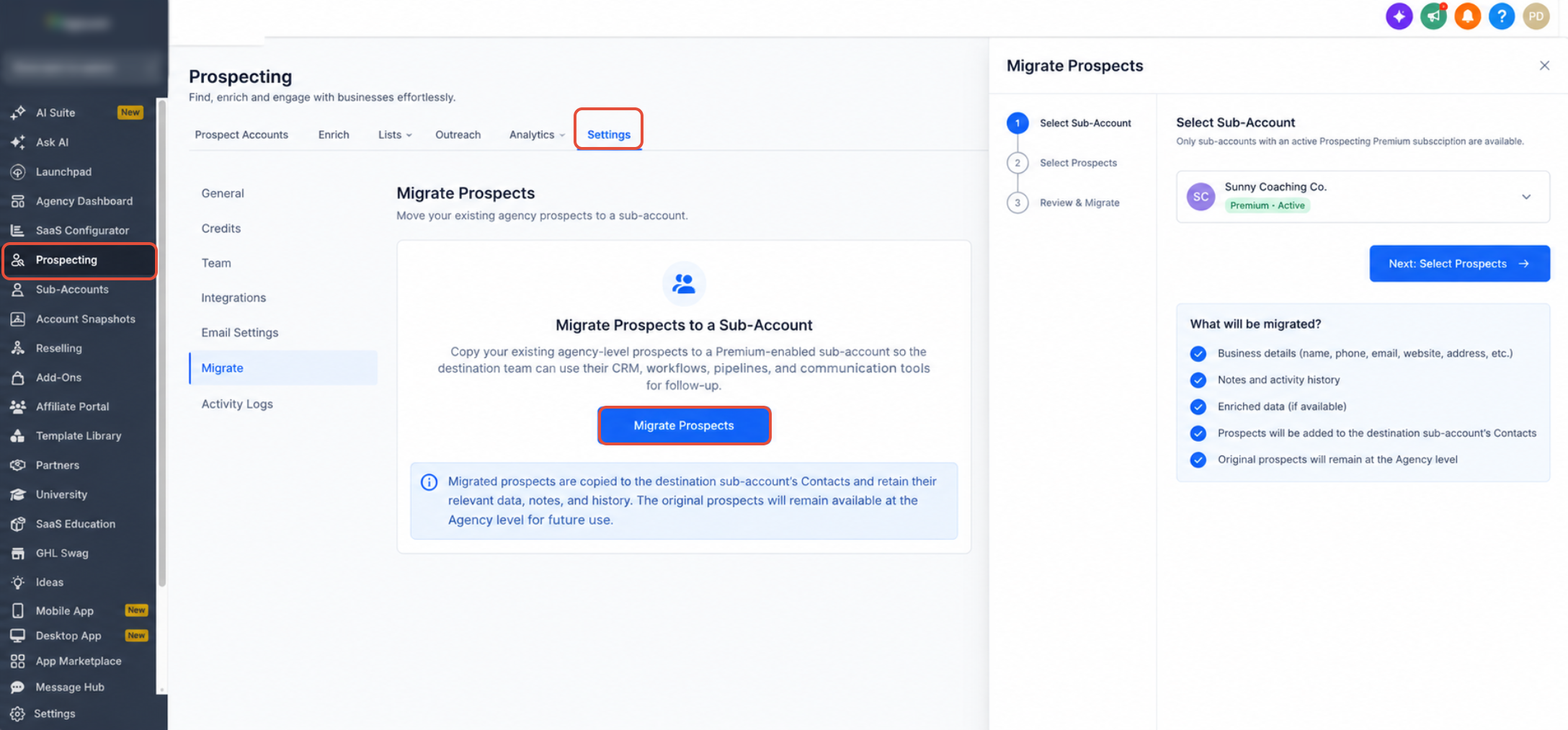
After migration, the selected prospects are added to the destination sub-account's Contacts and retain their relevant data, notes, and history. The original prospects remain available at the Agency level for future use.
Frequently Asked Questions
Need Help?
- Prospecting is missing in a sub-account: Confirm the location has the required Prospecting access and, for Free Tier use, is marked as an Agency Sub-Account with the applicable Agency Labs feature enabled.
- A saved prospect did not become a CRM contact: Go to Marketing → Prospecting → Settings → Contacts and confirm Contact Creation is enabled.
- A workflow is not starting for a prospect: Review the Prospect Generated trigger and confirm its Prospect Source filters match how the prospect was generated.
- Prospect AI leads are not entering the pipeline: Confirm Save new prospects to Contacts and Also add to a pipeline stage are enabled and that a valid Pipeline and Stage are selected.
- An existing Prospect AI lead did not move after changing the pipeline settings: Pipeline routing applies to future prospects discovered after the configuration is saved.
- A sub-account is missing from the migration destination list: Confirm the destination has the required active Prospecting Premium access.