
Granular WhatsApp user permissions give administrators more control over who can make changes to WhatsApp settings. Instead of relying on one broad permission, administrators can allow or restrict specific actions, such as creating templates, editing Flows, managing phone numbers, updating the business profile, or disconnecting WhatsApp.
These controls help reduce unintended configuration changes while giving users access that matches their responsibilities.
TABLE OF CONTENTS
- What Are WhatsApp User Permissions?
- Key Benefits of WhatsApp User Permissions
- Available WhatsApp Permissions
- How WhatsApp Permissions Work
- Default Permission Behavior
- What Happens When a User Does Not Have Permission
- How to Set Up WhatsApp User Permissions
- Frequently Asked Questions
What Are WhatsApp User Permissions?
WhatsApp user permissions are granular access controls that determine which WhatsApp configuration actions an individual user can perform. They provide more precise control over sensitive WhatsApp settings without requiring administrators to remove a user's broader access to WhatsApp.
There are seven individual WhatsApp permissions:
Create/edit WhatsApp templates
Delete WhatsApp templates
Create/edit WhatsApp Flows
Delete/deprecate WhatsApp Flows
Update WhatsApp business profile
Add/manage WhatsApp phone numbers
Disconnect WhatsApp integration
These permissions are enforced in the application and through supported API requests.
Key Benefits of WhatsApp User Permissions
Granular permissions let administrators delegate WhatsApp management without giving every user the ability to change every part of the integration.
More precise access control: Allow users to perform only the WhatsApp configuration actions required for their role.
Reduced operational mistakes: Limit template edits, Flow changes, phone-number management, profile updates, and disconnect actions to authorized users.
Safer delegation: Give users access to selected WhatsApp administrative functions without automatically granting access to every setting.
Consistent enforcement: Apply the same permission checks to supported actions in both the user interface and API.
Simpler troubleshooting: Check WhatsApp permissions when a user cannot perform a specific configuration action.
Flexible role management: Adjust access as user responsibilities change.
Available WhatsApp Permissions
Each WhatsApp permission controls a specific type of configuration change. Separating these actions allows administrators to grant access according to a user's responsibilities instead of relying on one broad permission for all WhatsApp management.
Create/edit WhatsApp Templates
Allows the user to create new WhatsApp templates and make supported changes to existing templates.
Delete WhatsApp Templates
Allows the user to delete WhatsApp templates where deletion is supported. This permission is separate from creating or editing templates. Administrators can let users maintain template content without also granting deletion access.
Create/edit WhatsApp Flows
Allows the user to create new WhatsApp Flows and make supported changes to existing Flows. For more information about using Flows, see WhatsApp Flows for Appointment Booking.
Delete/deprecate WhatsApp Flows
Allows the user to perform supported delete or deprecate actions on WhatsApp Flows. Keeping this permission separate from Flow creation and editing helps protect published or existing Flows from unintended removal or deprecation.
Update WhatsApp business profile
Allows the user to update supported WhatsApp Business Profile information. For details about available profile settings, see WhatsApp Business Profile Management.
Add/manage WhatsApp phone numbers
Allows the user to perform supported actions for adding and managing phone numbers connected to WhatsApp. This permission is useful when phone-number administration should be limited to specific users while others continue working with WhatsApp messaging features.
Disconnect WhatsApp integration
Allows the user to disconnect the WhatsApp integration. Because disconnecting WhatsApp can interrupt connected WhatsApp functionality, administrators can reserve this permission for users responsible for integration management.
How WhatsApp Permissions Work
WhatsApp permissions control configuration actions performed by an individual user. The seven permissions apply to actions that change WhatsApp configuration, such as creating, editing, deleting, managing, or disconnecting supported WhatsApp resources.
Read and preview behavior continues to use the existing broader WhatsApp access permissions. Removing a create or edit permission does not automatically remove all visibility into that WhatsApp resource.
This distinction allows administrators to restrict configuration changes without necessarily preventing users from viewing information they need.
Default Permission Behavior
Granular WhatsApp permissions use an opt-out rollout so existing users do not unexpectedly lose access when the permissions become available.
Supported existing users included in the rollout initially receive all seven permissions. Administrators can then disable individual permissions when a user should no longer perform a particular WhatsApp action.
What Happens When a User Does Not Have Permission
Permission enforcement prevents restricted users from completing the corresponding WhatsApp action even when they can otherwise access WhatsApp.
When a required WhatsApp permission is disabled:
The corresponding action is disabled in the interface.
Contextual permission messaging or a tooltip appears for the restricted control.
Supported direct API requests for the unauthorized action are rejected with a
403 Forbiddenresponse.
For example, a user may be able to open the WhatsApp Templates area but be unable to create or edit a template if the Create/edit WhatsApp templates permission is disabled.
If a user cannot create a template, edit a Flow, manage a phone number, update the business profile, or disconnect WhatsApp, check their WhatsApp permissions before treating the behavior as a product issue.
How to Set Up WhatsApp User Permissions
Configuring individual WhatsApp permissions lets you match each user's access to their responsibilities while protecting sensitive configuration actions.
Review the user's role and expected WhatsApp tasks before disabling permissions to avoid interrupting necessary day-to-day work.
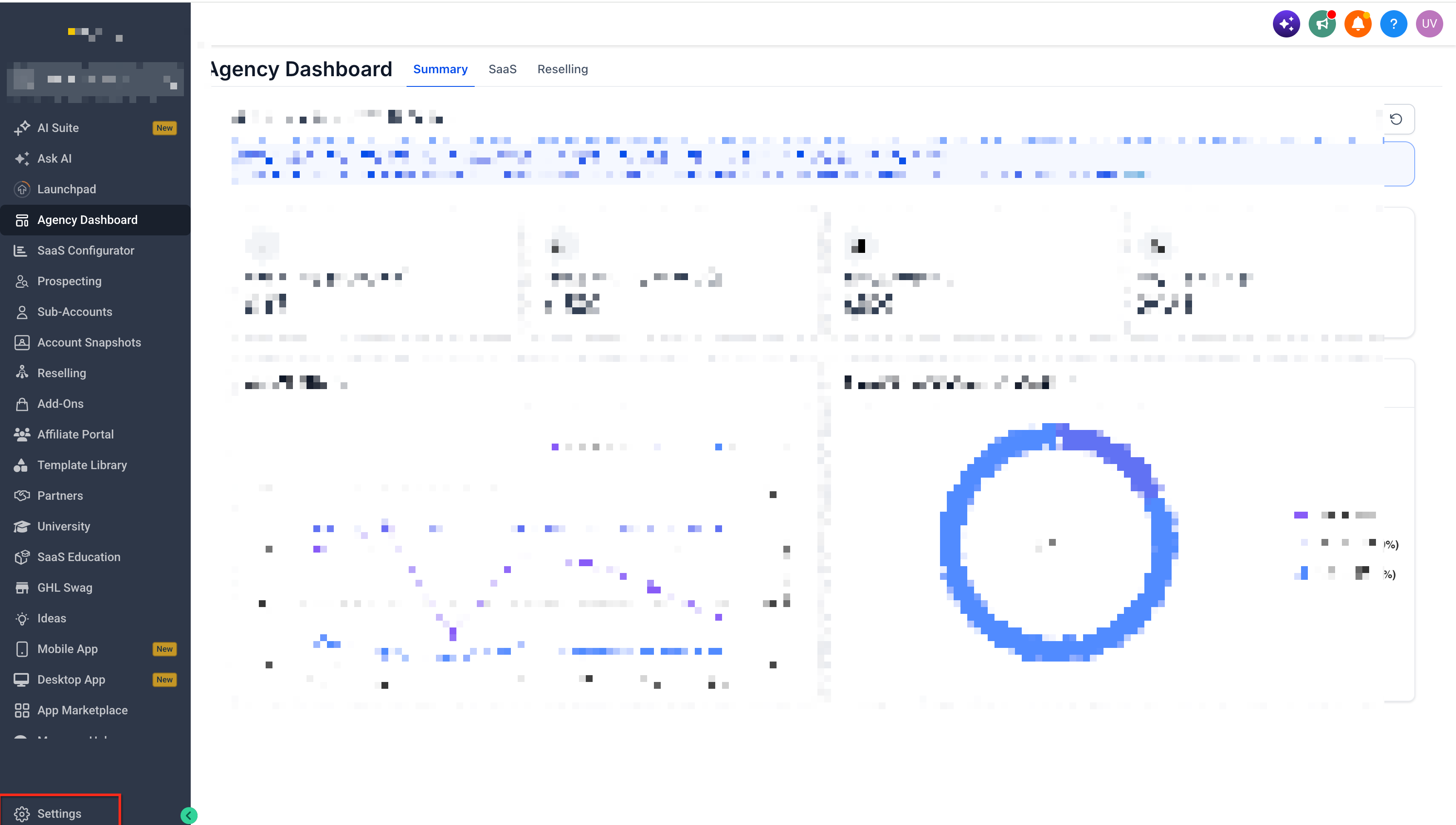
Go to Settings.
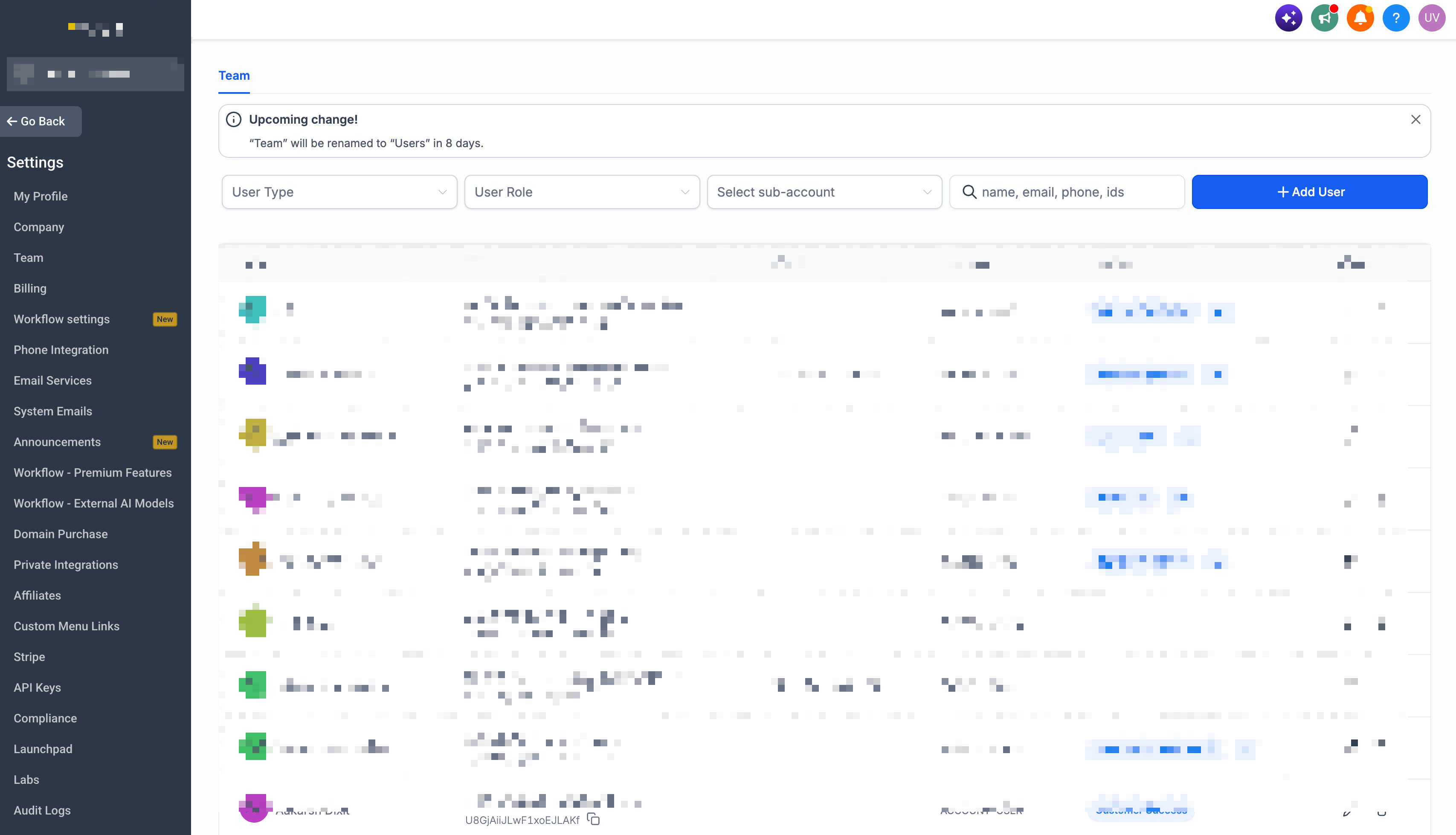
Open the user management area.
Locate the user you want to update and open their user settings.
Open Roles & Permissions.
Locate the WhatsApp permission section.
Enable or disable each permission based on the actions the user should be allowed to perform:
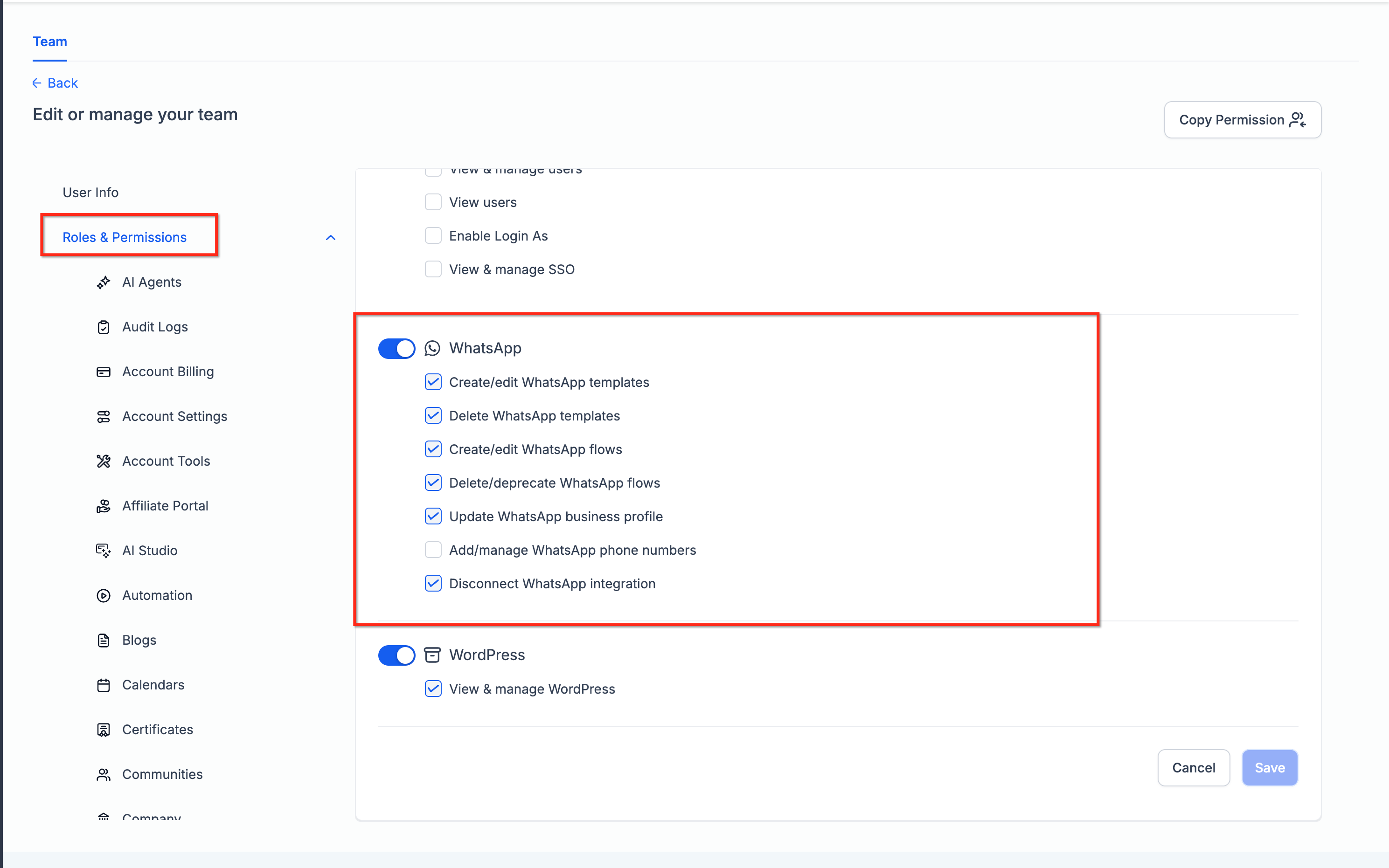
Create/edit WhatsApp templates
Delete WhatsApp templates
Create/edit WhatsApp Flows
Delete/deprecate WhatsApp Flows
Update WhatsApp business profile
Add/manage WhatsApp phone numbers
Disconnect WhatsApp integration
Save the changes.
Tip: If a user suddenly cannot perform a specific WhatsApp configuration action, compare that action with the seven WhatsApp permission toggles before changing broader access permissions.
Frequently Asked Questions
Why can a user open WhatsApp Settings but not create a template?
The user may have access to WhatsApp but not the Create/edit WhatsApp templates permission. Check the user's Roles & Permissions settings and confirm that the required WhatsApp permission is enabled.
Can I allow someone to edit templates without letting them delete templates?
Yes. Template creation/editing and template deletion use separate permissions, so administrators can control the two actions independently.
Can I let a user create WhatsApp Flows without allowing them to delete or deprecate existing Flows?
Yes. Create/edit WhatsApp Flows and Delete/deprecate WhatsApp Flows are separate permissions.
Does removing a create or edit permission prevent the user from viewing the resource?
Not necessarily. Granular permissions govern supported configuration changes, while read and preview paths continue to use the existing broader WhatsApp access controls.
What happens if an integration tries to perform a WhatsApp action that the user is not permitted to perform?
For supported API operations protected by these permissions, unauthorized mutation requests return a 403 Forbidden response.