Ask AI gives you a faster way to create workflows using natural-language prompts. Instead of starting in the Workflow Builder, you can describe the automation you want within Ask AI and let the AI build it for you. This article shows you how to create, review, refine, and finish a workflow using Ask AI.
TABLE OF CONTENTS
Create Workflows Directly from Ask AI
When you create a workflow in Ask AI, the generated workflow appears in a live preview so you can review the structure before opening the Workflow Builder. You can select individual triggers and actions to inspect their configuration, then continue the conversation to request changes.
Ask AI updates the workflow based on your follow-up instructions. When the workflow is ready, open it in the Workflow Builder to make any manual edits, test it, and publish it.
Workflow creation is also available through Ask AI on WhatsApp, giving you another way to start building automations.
Note: Ask AI supports conversational edits, but manual editing is not available in the preview panel. Use the Workflow Builder for manual changes, testing and publishing.How to Create a Workflow with Ask AI
- Open Ask AI and start a new chat.
Describe the workflow you want to create.
Example: "Create a workflow that sends an email when someone submits a form, notifies my team, and creates a task to call the contact."
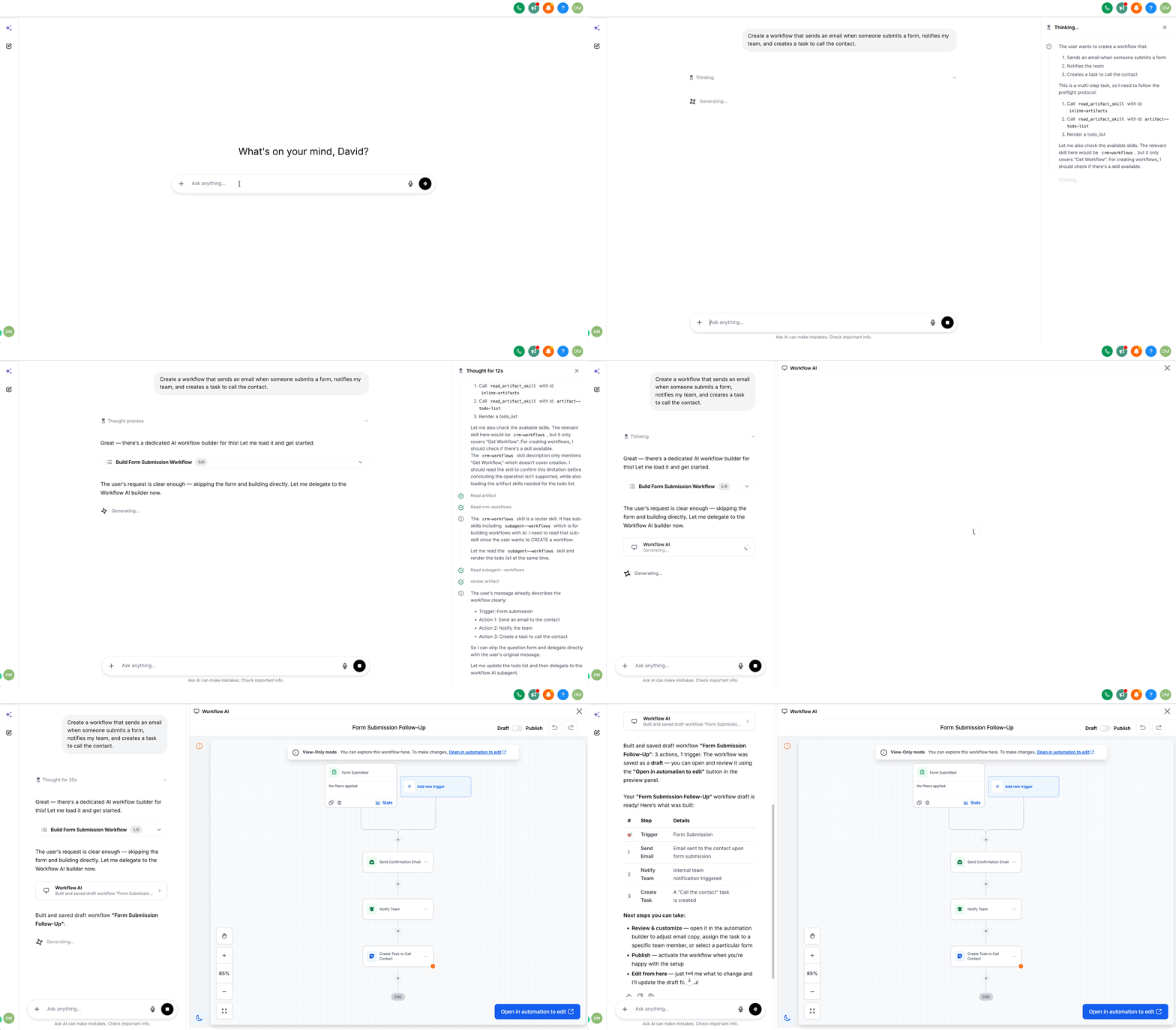
- Review the generated workflow in the preview panel. Select any trigger or action to review its configuration.
- Tell Ask AI what you want to change. Ask AI updates the workflow based on your instructions.
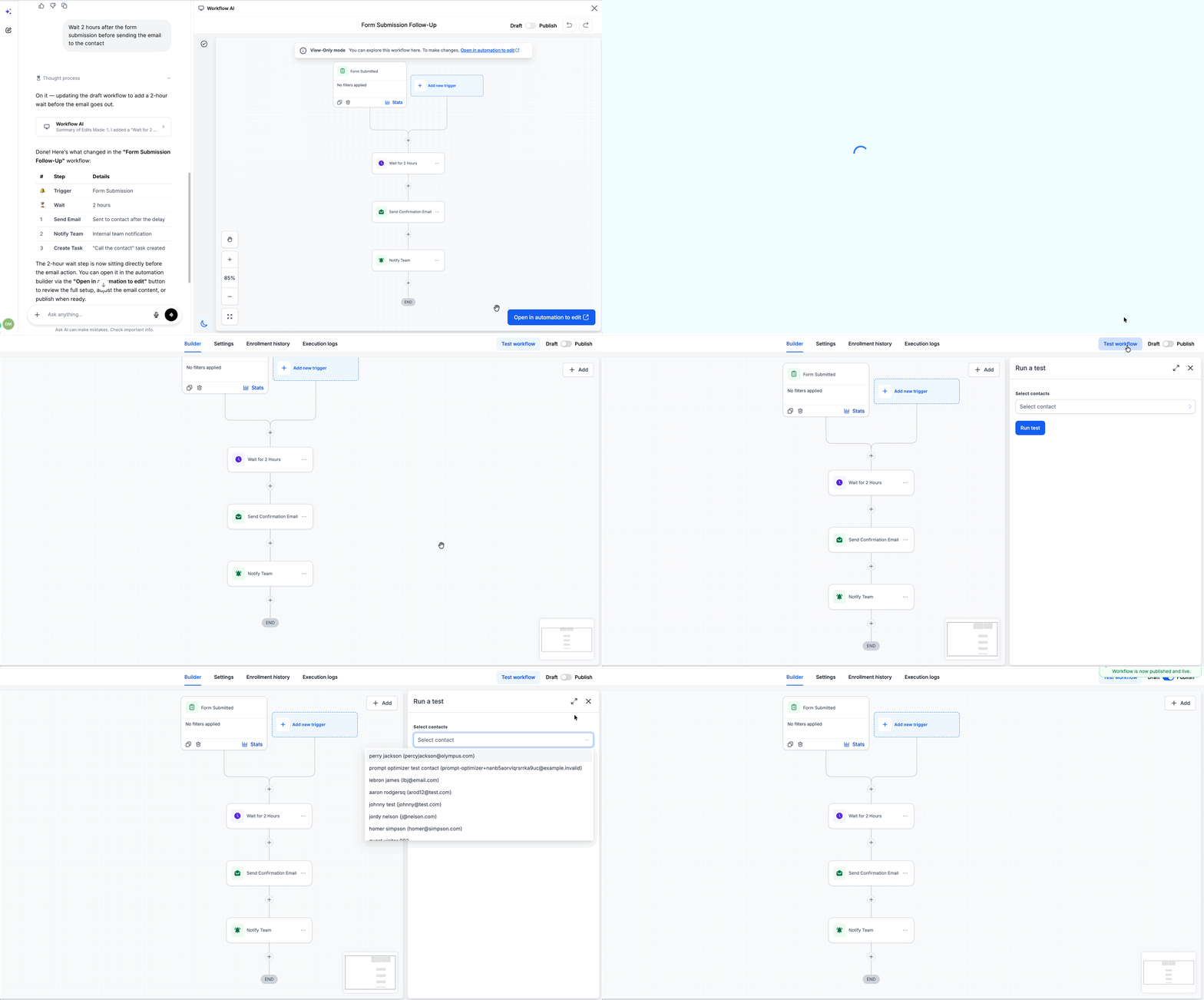
Example: "Wait 2 hours after the form submission before sending the email to the contact"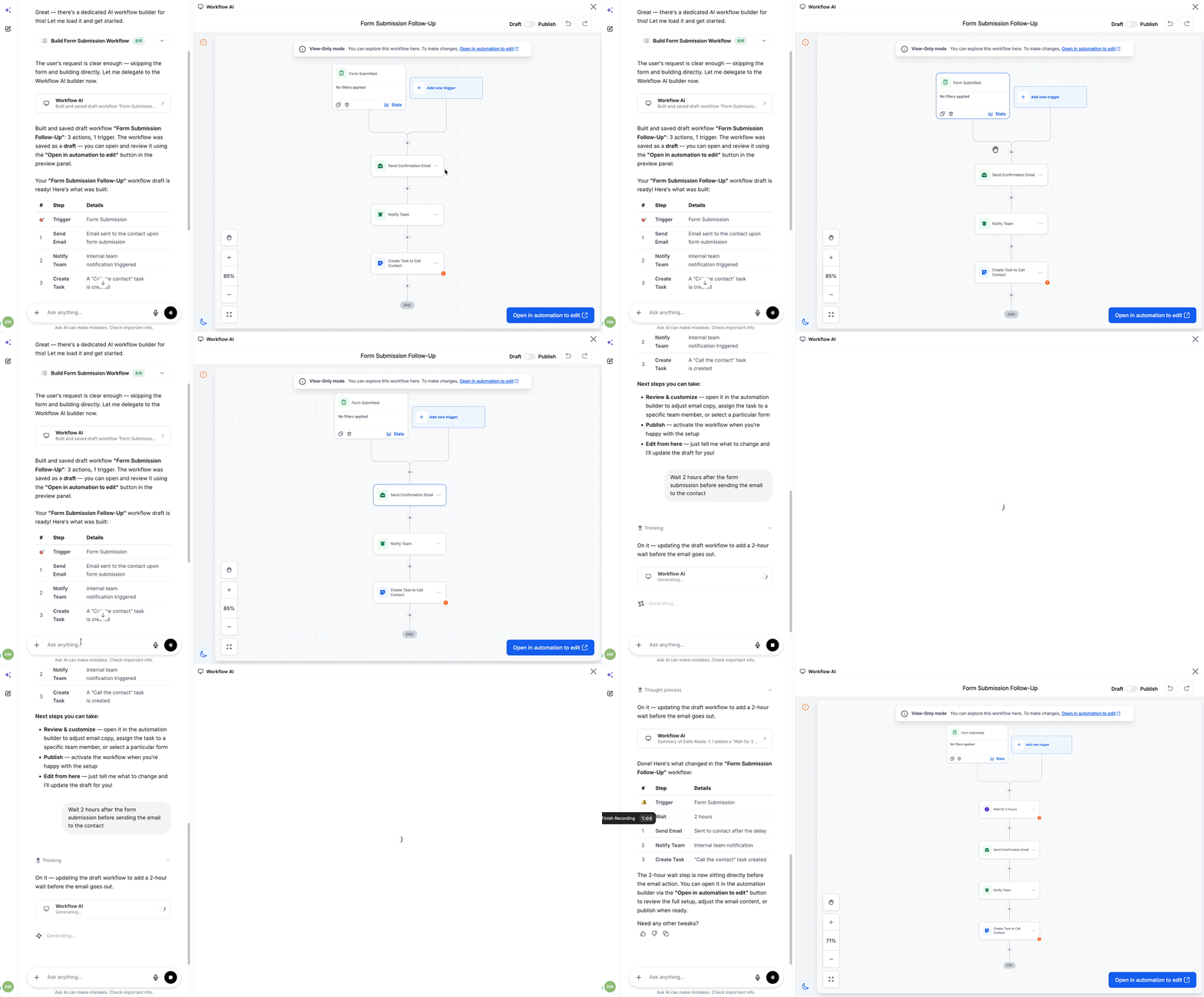
- Click Open in automation to edit when you're ready to continue in the Workflow Builder.
- Make any manual changes, test the workflow, and publish it from the builder. For more information on how to use the workflow builder, see: Workflow AI Assistant