
Ask AI Memory helps provide more personalized and relevant AI responses by remembering useful details about you, your business, and your preferences across conversations. Memory Settings gives you visibility and control over saved memories, including tools to search, delete, clear, and import information from another AI assistant.
On mobile, you can manage these details directly from Ask AI instead of repeatedly providing the same context in new conversations.
TABLE OF CONTENTS
- What is Ask AI Memory?
- Key Benefits of Ask AI Memory
- Viewing and Searching Saved Memories
- Deleting Saved Memories
- Importing Memories From Another AI Assistant
- Ask AI Memory vs. Chat History
- Ask AI Memory vs. Skills
- How to Set Up and Manage Ask AI Memory on Mobile
- Frequently Asked Questions
What is Ask AI Memory?
Ask AI Memory stores useful context learned or saved from your interactions with Ask AI so that relevant information can be reused in future conversations.
Unlike Chat History, which preserves previous conversations for reference, saved memories provide reusable context that Ask AI can apply when responding to new requests.
For example, saved memories might include details about your business, your role, preferences, or recurring instructions. Keeping these memories accurate helps Ask AI provide responses that better reflect the context in which you work.
Key Benefits of Ask AI Memory
Managing saved memories gives you greater control over the context Ask AI can use in future conversations. Accurate memories can reduce repetitive prompting while helping keep important business and preference information available when you need it.
Less repetitive prompting: Ask AI can reuse relevant saved context instead of requiring you to explain the same business details or preferences in every conversation.
Greater control over saved context: Review what Ask AI remembers and remove individual details that are incorrect, outdated, or no longer useful.
Faster AI migration: Import memories from another AI assistant instead of rebuilding existing context gradually through new conversations.
Easier memory management: Search saved memories to quickly locate specific information and clear memories that you no longer want to retain.
Viewing and Searching Saved Memories
The Saved Memories screen provides a centralized view of the information Ask AI has retained. Reviewing this list periodically can help you keep stored context relevant and identify information that should be updated or removed.
The header displays the number of saved memories currently available. Each memory appears in full, allowing longer entries to wrap across multiple lines instead of being cut off.
To find a specific memory:
Open the Saved Memories screen.
Tap the Search field.
Enter a word or phrase related to the memory you want to find.
Review the results as the list filters while you type.
Clear the search field to return to the complete list.
You can also use the available sort control to change the order in which memories appear.
Deleting Saved Memories
Removing outdated or incorrect memories helps keep the context available to Ask AI accurate. You can remove one memory without clearing the rest of your saved information, or clear all saved memories when you want to start over.
Delete an Individual Memory
Deleting an individual memory is useful when a particular detail is incorrect, outdated, or no longer relevant while the rest of your saved context remains useful.
Find the memory you want to remove.
Tap the trash icon on that memory's row.
The memory is removed, and a confirmation message appears.
You can continue deleting additional memories without waiting for each confirmation message to disappear.
Clear All Memories
Use this option when you want to remove all saved memories instead of deleting entries individually.
Open Saved Memories.
Tap the trash icon in the header.
Review the confirmation dialog.
Confirm that you want to clear the saved memories.
The saved memories are removed, and a confirmation shows how many entries were deleted.
Deleting saved memories manages Ask AI's reusable memory context. Chat History is a separate feature used to access previous Ask AI conversations.
Importing Memories From Another AI Assistant
Importing memories lets you bring useful context from another AI assistant into Ask AI. This can be especially helpful when another assistant already has substantial information about your business, role, preferences, clients, or working style.
The importer uses a two-step workflow. First, it provides a prompt for collecting information from the other AI assistant. You then paste the resulting response back into Ask AI.
Ask AI Memory supports importing up to 100 memories at once.
Step 1: Export Context From Your Other AI Assistant
Open Saved Memories.
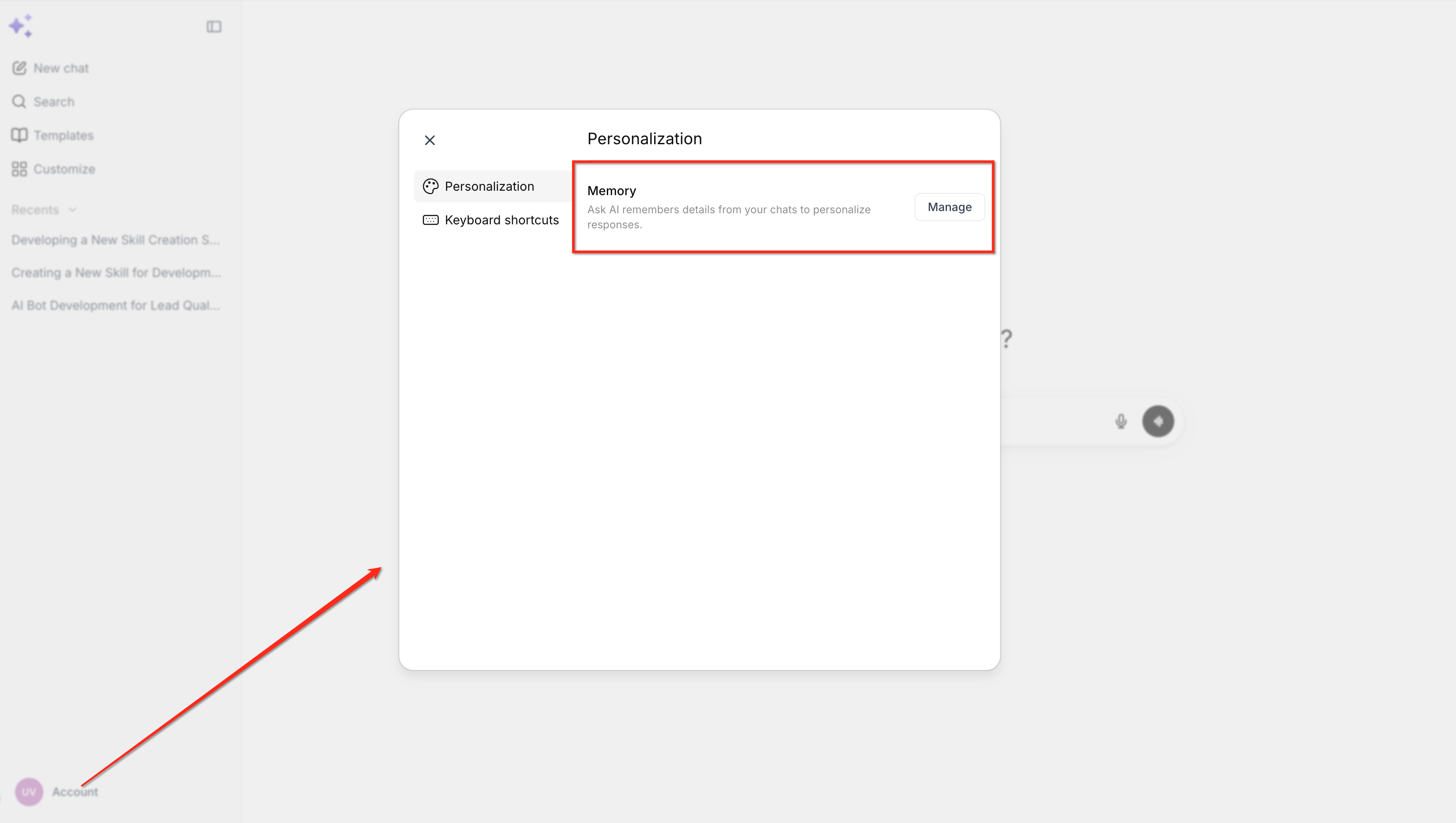
Tap Import memories.
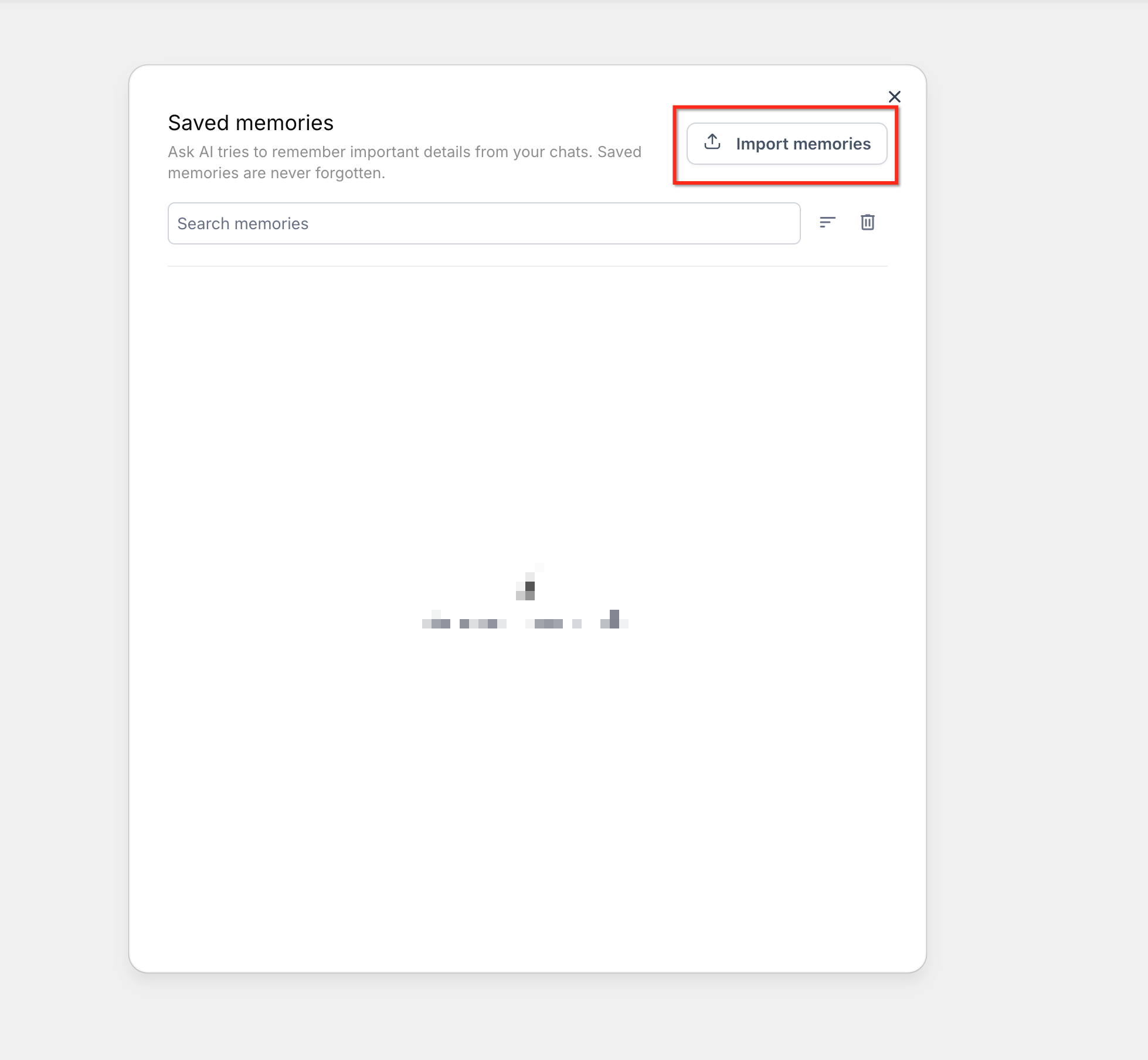
Review the provided export prompt.
Tap Copy to copy the prompt. You can also select Show more to read the full prompt.
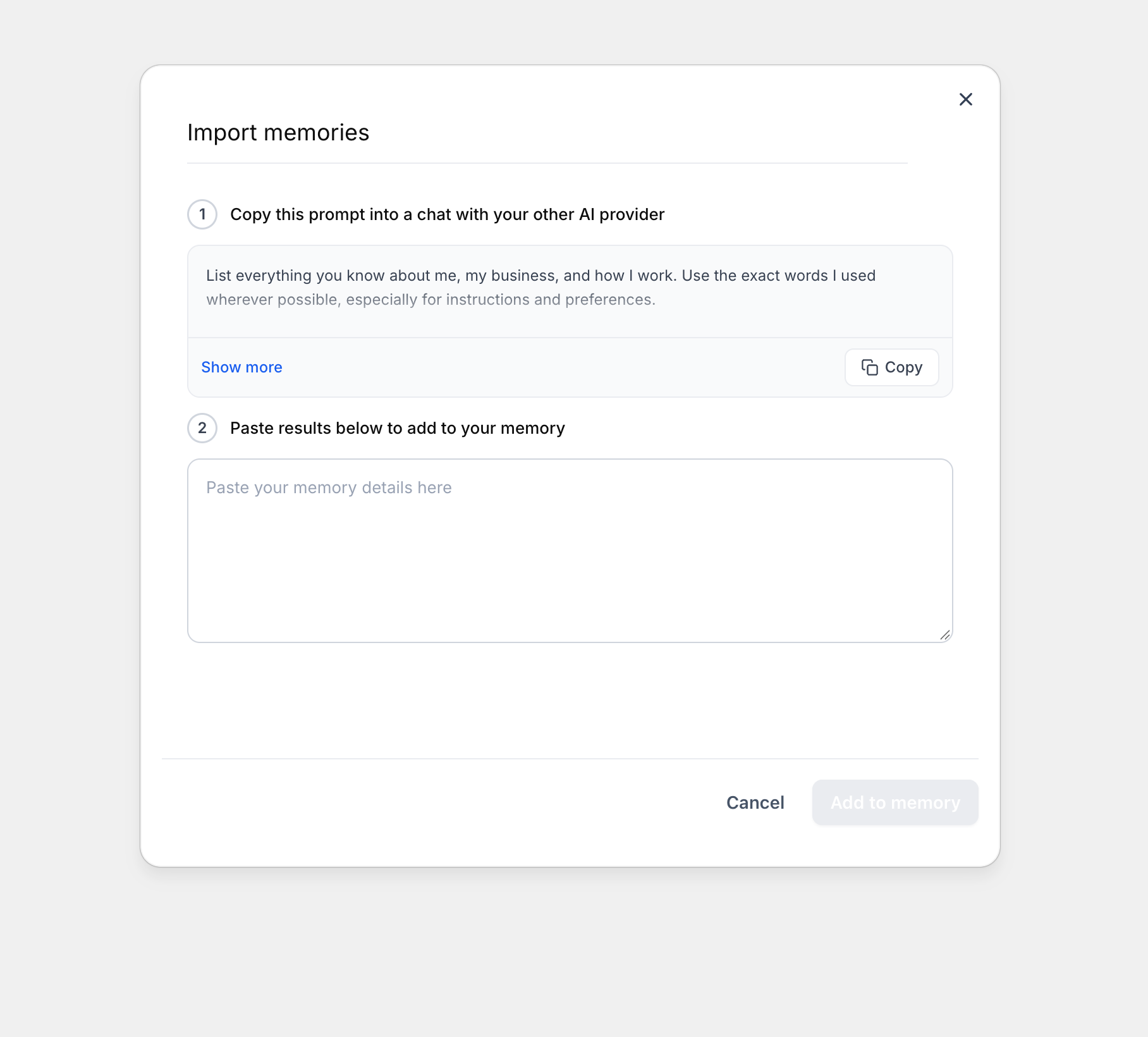
Open the AI assistant that already contains the information you want to transfer, such as ChatGPT or Claude.
Paste and run the copied prompt.
Copy the assistant's complete response.
Step 2: Import the Response Into Ask AI
Return to the Import memories workflow in the mobile app.
Paste the complete response from the other AI assistant into the provided field.
Tap Add to memory.
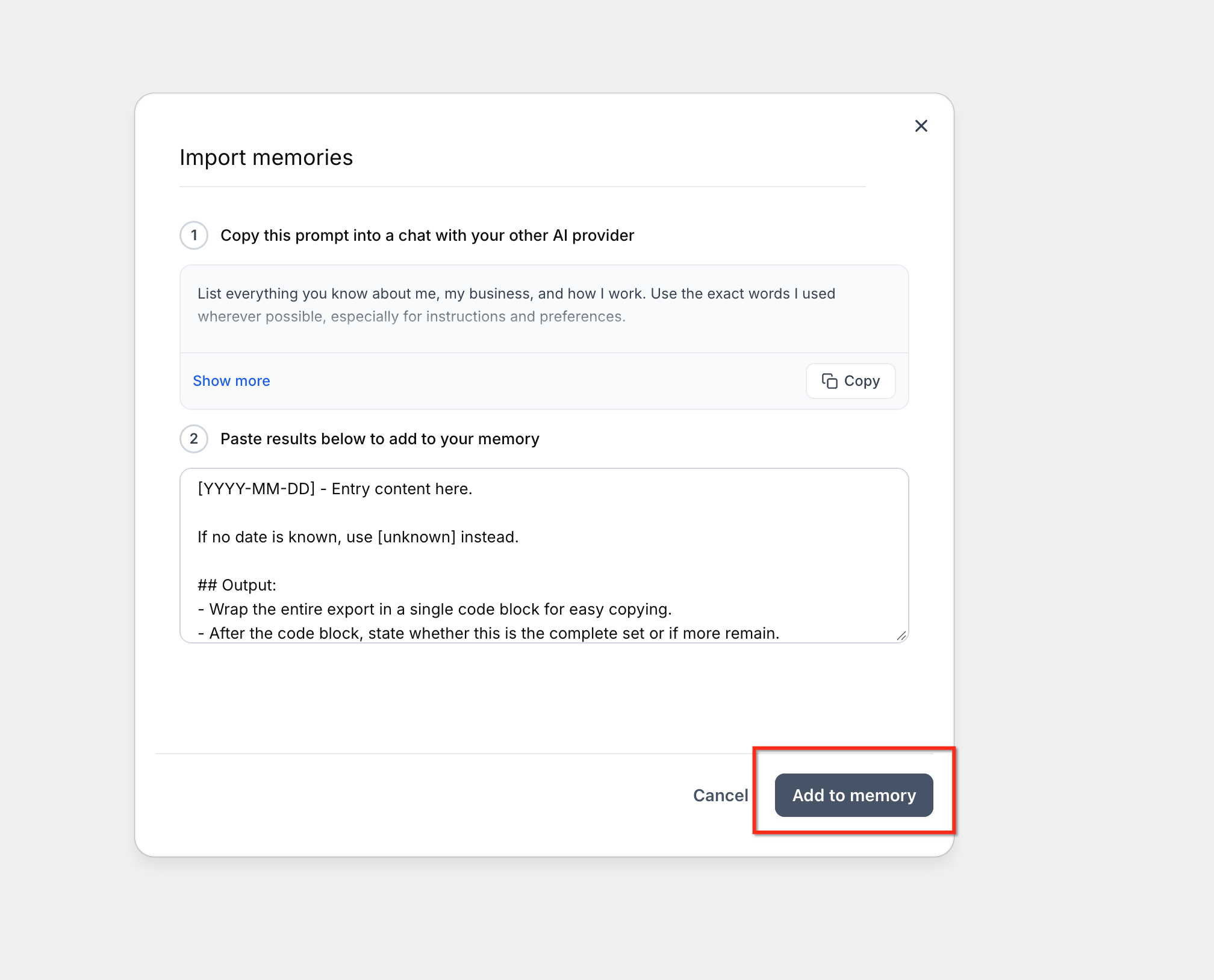
Ask AI processes the pasted response and converts the relevant entries into saved memories. The importer removes common export formatting, such as dates, bullets, and headers, before saving individual memory entries.
Ask AI Memory vs. Chat History
Memory and Chat History serve different purposes in Ask AI. Understanding the difference makes it easier to decide whether you need reusable context or want to return to an earlier conversation.
Saved Memories contain reusable information that can provide context for future Ask AI conversations.
Chat History lets you return to previous Ask AI conversations and review earlier messages.
Removing a saved memory is different from managing an existing conversation in Chat History.
Ask AI Memory vs. Skills
Memories and Skills can both make Ask AI more useful, but they serve different purposes. Memories provide reusable context about you and your work, while Skills provide reusable instructions or workflows for completing specific types of tasks.
Use Memory for information Ask AI may need across conversations, such as business context, preferences, or recurring details.
Use Skills when you want Ask AI to follow defined instructions or a repeatable workflow for a particular task.
How to Set Up and Manage Ask AI Memory on Mobile
Reviewing and managing saved memories helps keep the context available to Ask AI relevant to your current work.
The mobile app provides direct access to Memory Settings from Ask AI, where you can review existing information before deciding whether to search, delete, clear, or import memories.
Open the mobile app.
Tap Ask AI.
Open Chat History.
Tap the memory icon in the header. The icon appears before New chat.
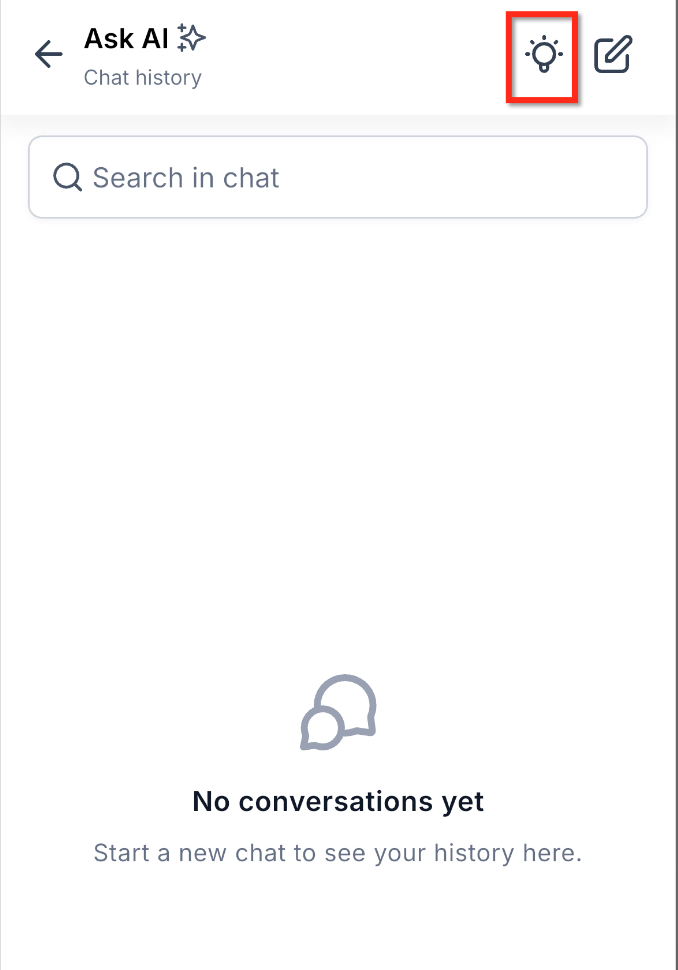
Review the memories currently saved.
Use Search or the sort control to locate information when needed.
To remove one memory, tap its trash icon.
To remove all saved memories, tap the trash icon in the header and confirm the action.
To transfer context from another AI assistant, tap Import memories.
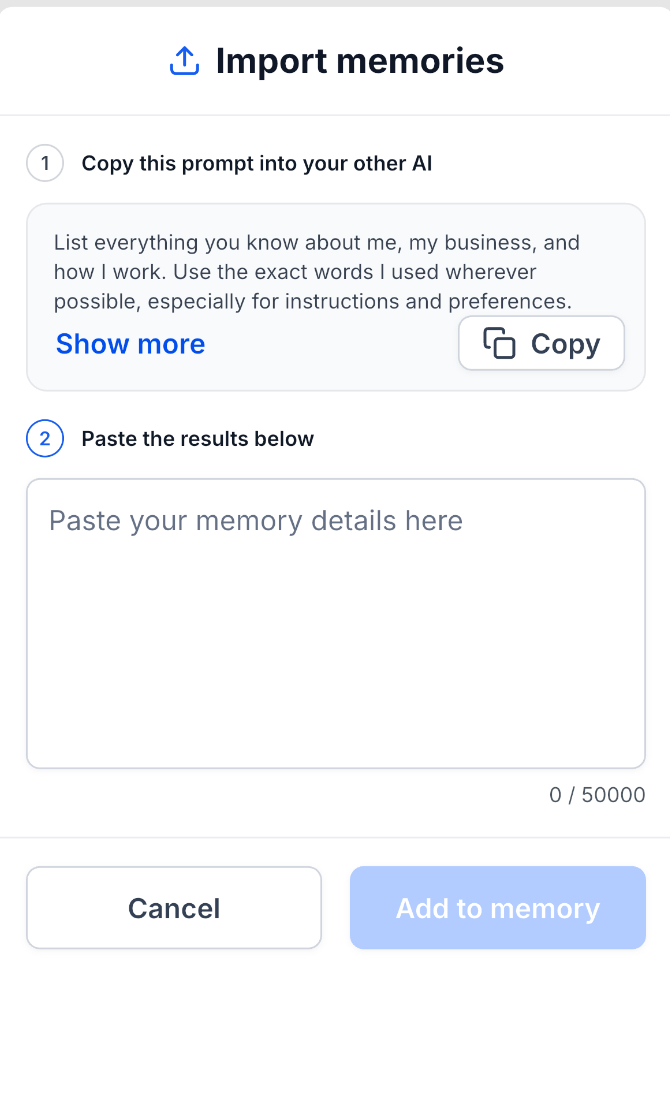
Copy the provided prompt and run it in the other AI assistant.
Copy the assistant's response and return to the mobile app.
Paste the complete response into the importer.
Tap Add to memory.
Frequently Asked Questions
Does deleting a saved memory delete my Ask AI conversation?
No. Saved Memory and Chat History serve different purposes. Removing a saved memory removes that reusable memory entry rather than deleting a conversation from Chat History.
Can I import information from ChatGPT or Claude?
Yes. The import workflow provides a prompt that you can run in another AI assistant. Copy that assistant's response and paste it into the importer to convert relevant information into Ask AI memories.
How many memories can I import at once?
Ask AI Memory supports importing up to 100 memories at once.
Do I need to manually remove bullets and dates from an imported response?
No. The mobile importer is designed to parse the export and remove common formatting such as dates, bullets, and headers before saving individual memory entries.
Should I use a Memory or a Skill for reusable instructions?
Use Memory when Ask AI needs reusable context about you or your work. Use Skills when you want Ask AI to follow defined instructions or workflows for particular tasks.
Does Ask AI use every saved memory for every response?
No. The current Memory V1 implementation uses the 20 most recent memories in AI requests. Keep saved information relevant and useful instead of treating memory as an unlimited prompt containing every saved entry.