
Google Demand Gen campaigns in Ad Manager help you reach potential customers with visually rich ads across Google surfaces like YouTube, Discover, Gmail, Maps, and the Google Display Network.
This campaign type is useful when you want to build awareness, drive clicks, or optimize for conversions before someone performs a direct search.
Ad Manager brings campaign creation, audience targeting, and ad setup into one workflow, making it easier to create and manage Google campaigns from one place.
TABLE OF CONTENTS
- What is Google Demand Gen in Ad Manager?
- Key Benefits of Google Demand Gen Campaigns
- Campaign Goals
- Audience Targeting
- Ad Formats and Creative Requirements
- How to Set Up Google Demand Gen Campaigns
- Frequently Asked Questions
What is Google Demand Gen in Ad Manager?
Google Demand Gen campaigns help you connect with people earlier in the buying journey using visual ad placements across Google-owned and partner surfaces.
In Ad Manager, you can create these campaigns, choose a goal, define targeting, add creative assets, and publish from a guided workflow. Google Ads manages campaign delivery and optimization.
Choose where your ads can appear:
All Google channels – Allows Google to automatically select eligible channels and inventory.
Manual channel selection, including:
YouTube
In-stream
In-feed
Shorts
Google Discover
Gmail
Google Maps
Google Display Network
Demand Gen campaigns help you reach potential customers with visually rich ads across eligible Google surfaces.
Key Benefits of Google Demand Gen Campaigns
Google Demand Gen campaigns combine broad reach, visual ad formats, and a guided campaign setup experience.
They can help you attract attention before someone actively searches for your offer while giving you control over targeting, campaign settings, and creative setup.
Visual reach: Run image- and video-led campaigns across YouTube, Discover, Gmail, and other eligible Google surfaces.
Flexible optimization: Choose Conversions, Clicks, or YouTube Engagements based on whether your goal is action, traffic, or video interaction.
Centralized setup: Build and manage the campaign from Ad Manager instead of configuring each part in separate tools.
Audience control: Use Google audience segment options such as Customer Match, Website Visitors, Interest Segments, and Lookalike Segments.
Creative flexibility: Depending on the selected goal, use supported formats such as single image ads, single video ads, or carousel ads.
Campaign preparation: Configure related Google Ads features, such as conversion actions and supported campaign-level assets, before launch.
Campaign Goals
Your campaign goal determines how Google optimizes delivery. Select the goal that best matches the outcome you want from the campaign.
Demand Gen supports these campaign goals:
Conversions
Use Conversions when you want Google to optimize toward conversion actions such as leads or other tracked outcomes.
Make sure the required Google Ads conversion actions are available before launching the campaign. Google Ads offline conversion actions can also be created and managed from Ad Manager.
Clicks
Use Clicks when your goal is to drive traffic to a page, offer, or funnel.
This option prioritizes visits instead of optimizing toward a specific conversion event.
YouTube Engagements
Use YouTube Engagements when you want to focus on video interactions.
This option requires video-based creative, so prepare the required video assets before selecting this goal.
Audience Targeting
Audience targeting determines who can see your ads and helps you balance campaign reach with audience relevance.
When setting up a Demand Gen campaign, you can use supported Google audience segment types, including:
Customer Match: Use first-party customer data to reach people from existing customer lists. This can support remarketing, re-engagement, and audience expansion strategies.
Website Visitors: Reach people who have previously visited your website.
Interest Segments: Reach users based on interests and buying signals. This includes audience concepts such as Affinity and In-Market segments.
Lookalike Segments: Use an existing seed audience to help Google identify additional users who may be relevant to your campaign.
Google is transitioning Lookalike Segments in Demand Gen toward an audience-suggestion model. Depending on availability in your Google Ads account, the seed audience can act as a signal while Google reaches qualified users beyond the original similarity thresholds.
Location targeting, language targeting, and placements are also available during ad group setup.
Eligible placement behavior follows Google Demand Gen rules and can depend on the campaign configuration and Google Ads availability.
Ad Formats and Creative Requirements
Creative assets are an important part of Demand Gen campaigns because these campaigns rely heavily on visual placements across Google surfaces.
Prepare the required creative before beginning campaign setup.
Supported formats include:
Single Image Ads
Single Video Ads
Carousel Ads
Keep these points in mind when preparing your creative:
Match the format to the goal: YouTube Engagements requires video-focused creative.
Prepare assets in advance: Having the required images, videos, copy, and destination information ready can make campaign setup easier.
Use supported campaign-level assets: Google campaigns can use assets such as Business Logos, Image Assets, Call Extensions, and Sitelinks where supported.
Keep creative consistent: Use appropriate logos, images, and destination details across your ads, particularly when they can appear on multiple Google surfaces.
How to Set Up Google Demand Gen Campaigns
Before creating your campaign, confirm that your Google account is connected and prepare any audiences, creative assets, and conversion actions required for your selected goal.
1. Connect Your Google Account and Google Ads Account
Connect Google with Ad Manager before creating and publishing Google campaigns.
2. Prepare Required Conversion Actions
If you plan to use Conversions as the campaign goal, make sure the required conversion actions are available.
Google Ads offline conversion actions can be created and managed inside Ad Manager for supported outcomes such as qualified leads, booked appointments, or closed deals.
3. Create a New Campaign
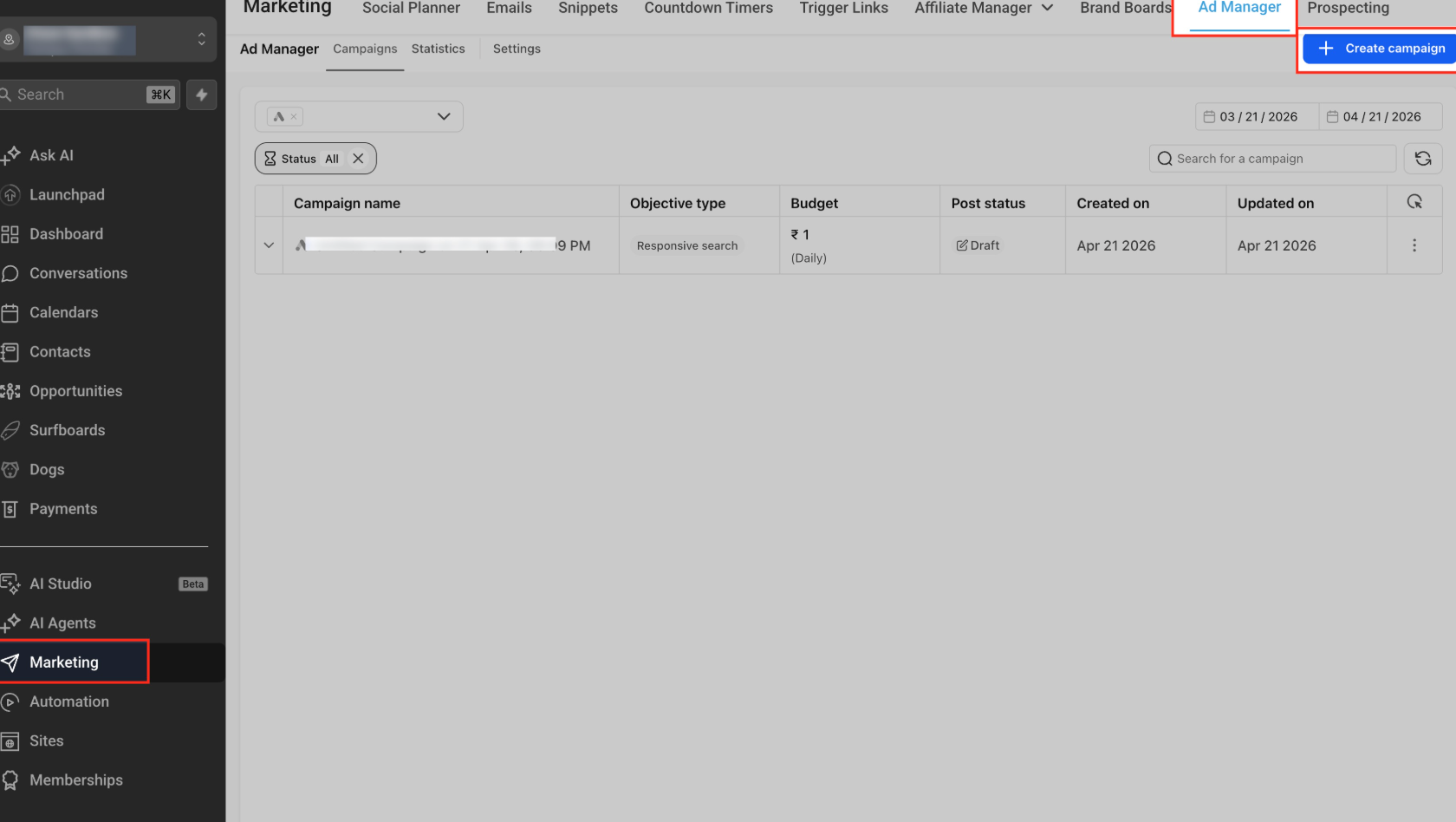
Open Ad Manager.
Click Create Campaign.
Select Google as the advertising platform.
Continue through the campaign creation flow.
Select Demand Gen Ads as the campaign objective.
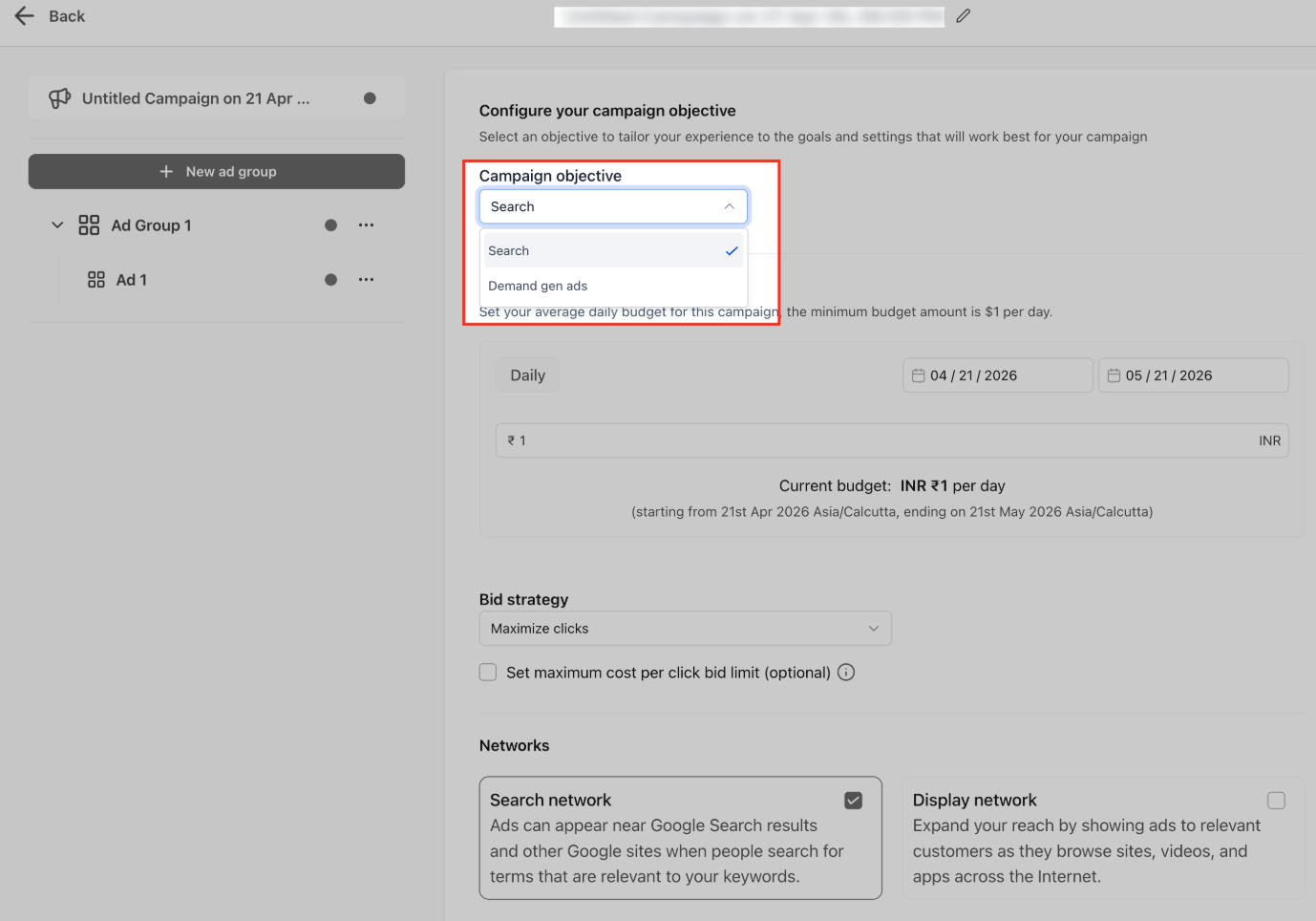
Demand Gen campaigns can be used to:
Reach new audiences before they search.
Run visual or video-first campaigns.
Support awareness and consideration goals.
Build broader Google advertising strategies from Ad Manager.
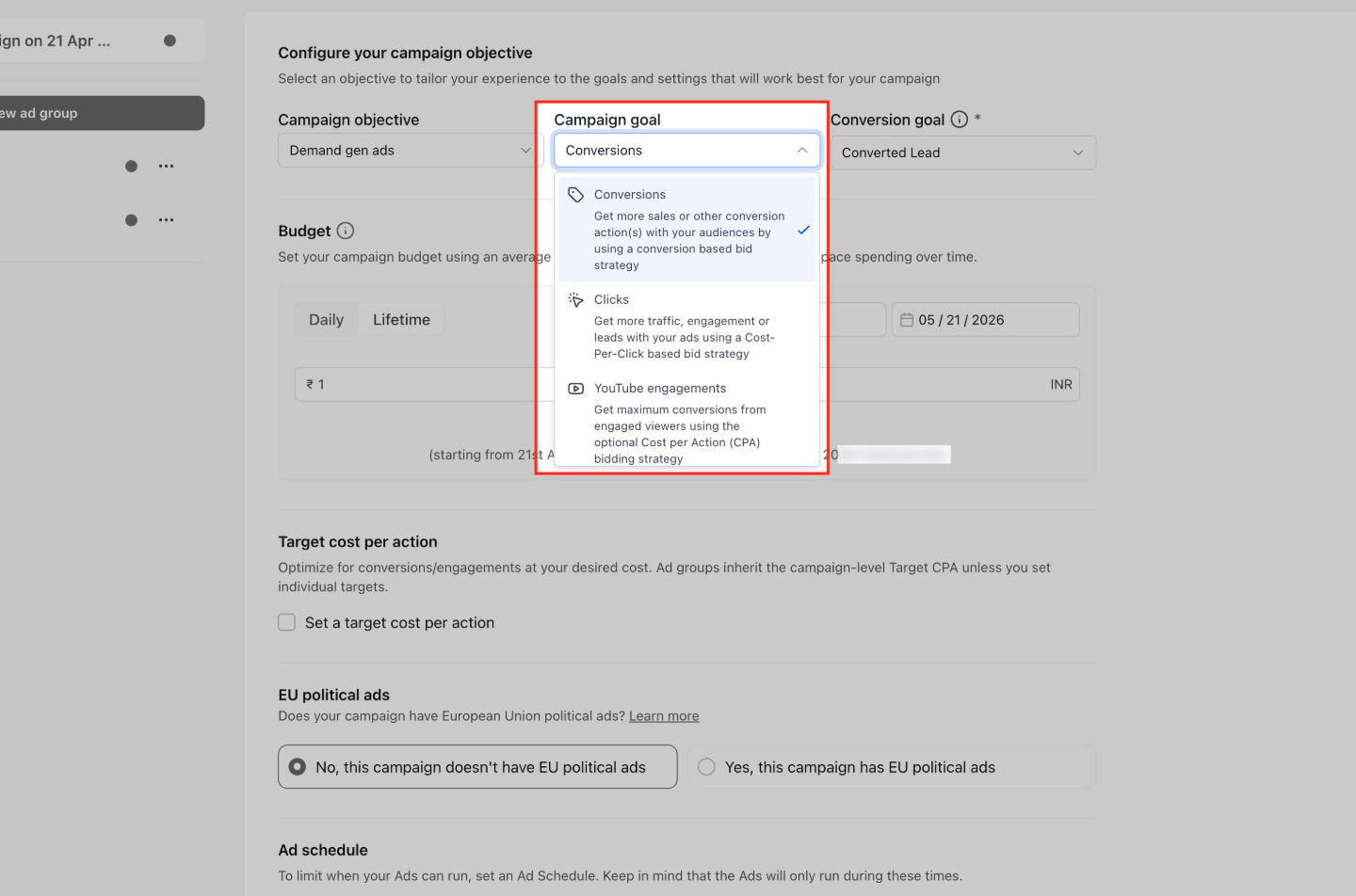
4. Choose Your Campaign Goal
Select Conversions, Clicks, or YouTube Engagements based on the outcome you want Google to optimize.
Conversions
Select an existing conversion goal from your connected Google Ads account.
Complete the available optimization settings for your campaign.
Clicks
Optimizes the campaign for traffic.
No conversion goal is required.
YouTube Engagements
Optimizes for eligible YouTube engagement actions, such as channel subscriptions or follow-on views.
Serves only on eligible YouTube inventory.
Requires video creative.
Supports applicable conversion-focused bidding options.
Requires the Google Ads account and relevant YouTube channel to be properly linked for YouTube engagement conversion actions.
5. Set Budget and Schedule
Enter the campaign budget and define the campaign schedule.
These settings determine the campaign's delivery parameters and when it becomes active.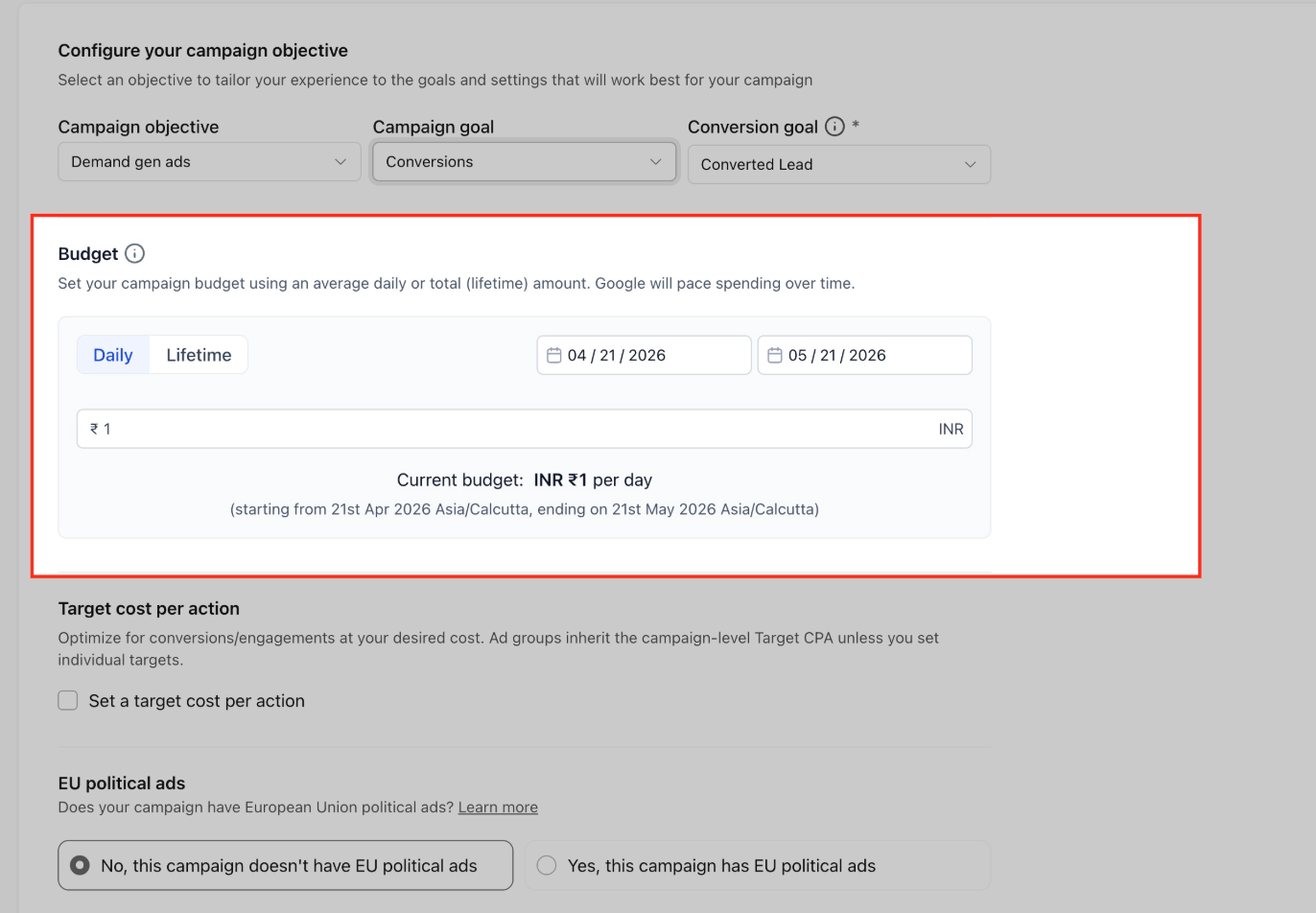
6. Configure Ad Group Settings
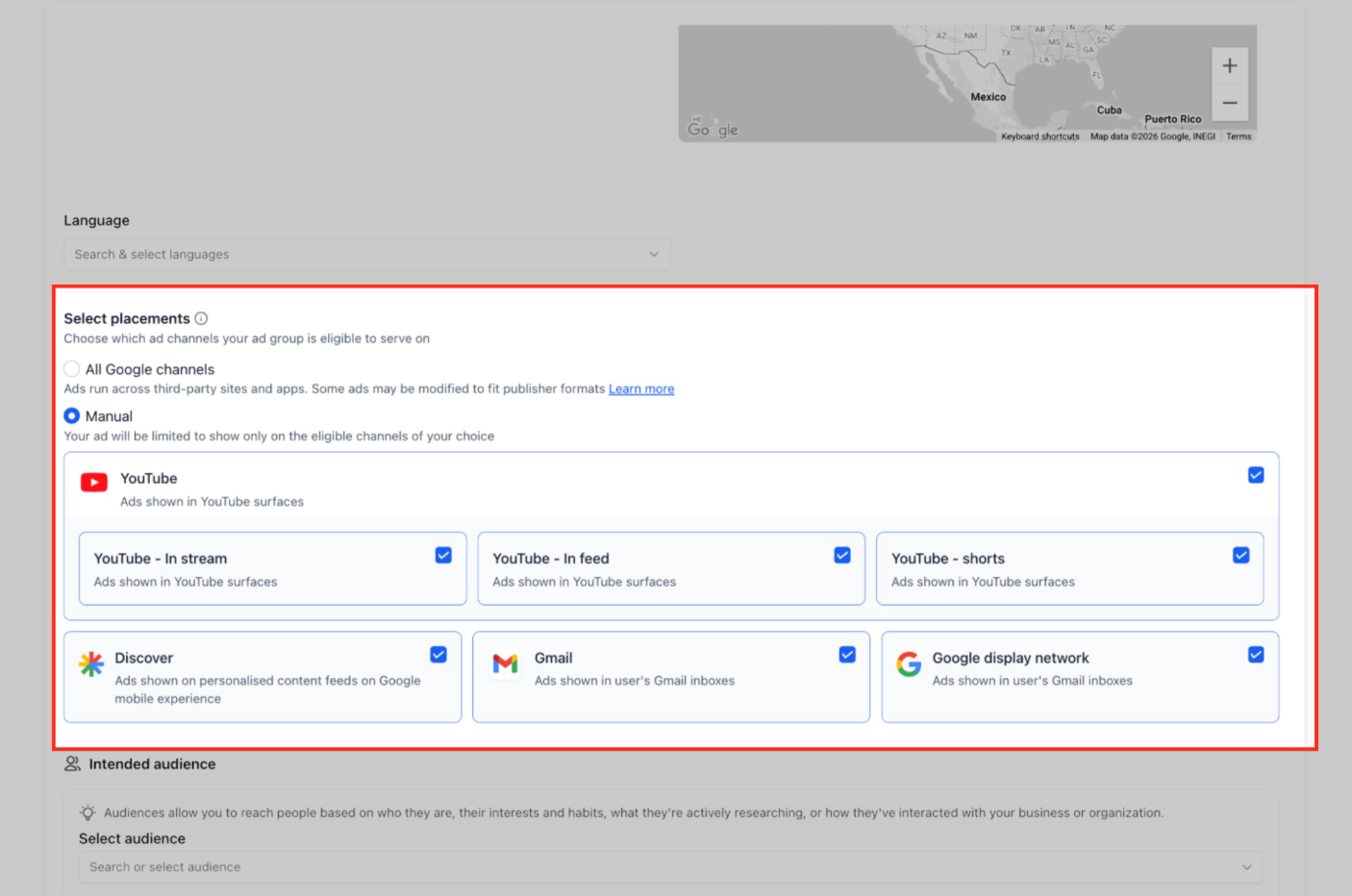
Configure the ad group details, including applicable targeting options such as location targeting, language targeting, and placements.
Choose where your ads can appear:
All Google channels for automatic placement.
Manual placement selection, including:
YouTube
In-stream
In-feed
Shorts
Google Discover
Gmail
Google Display Network
7. Define the Audience
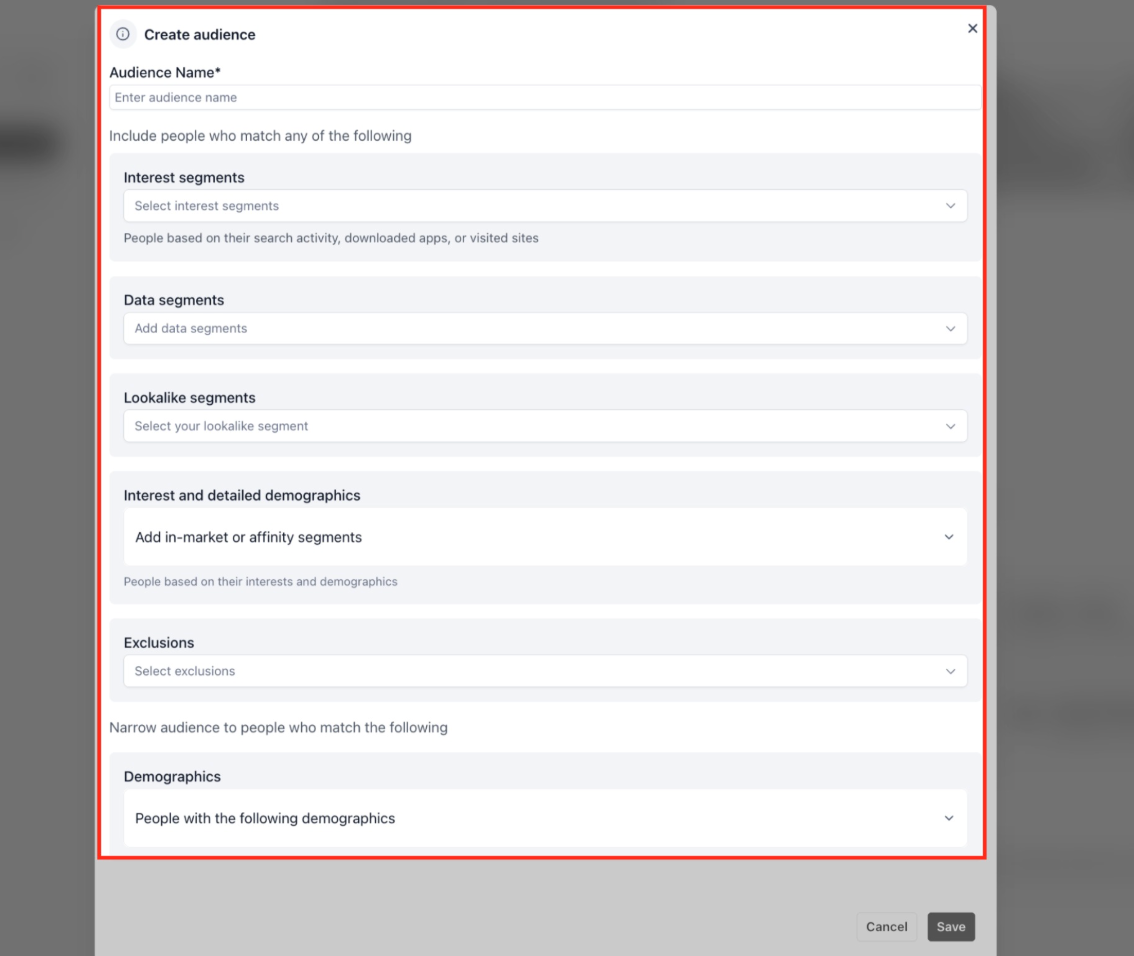
Choose the audience strategy that best fits the campaign.
Available audience types can include:
Customer Match
Website Visitors
Interest Segments
Lookalike Segments
You can use existing audiences for re-engagement or broader interest and Lookalike audiences for reaching new potential customers.
8. Create the Ad
Add the creative assets required for your selected format.
Supported formats include:
Single image
Single video
Carousel
If you selected YouTube Engagements, use video assets.
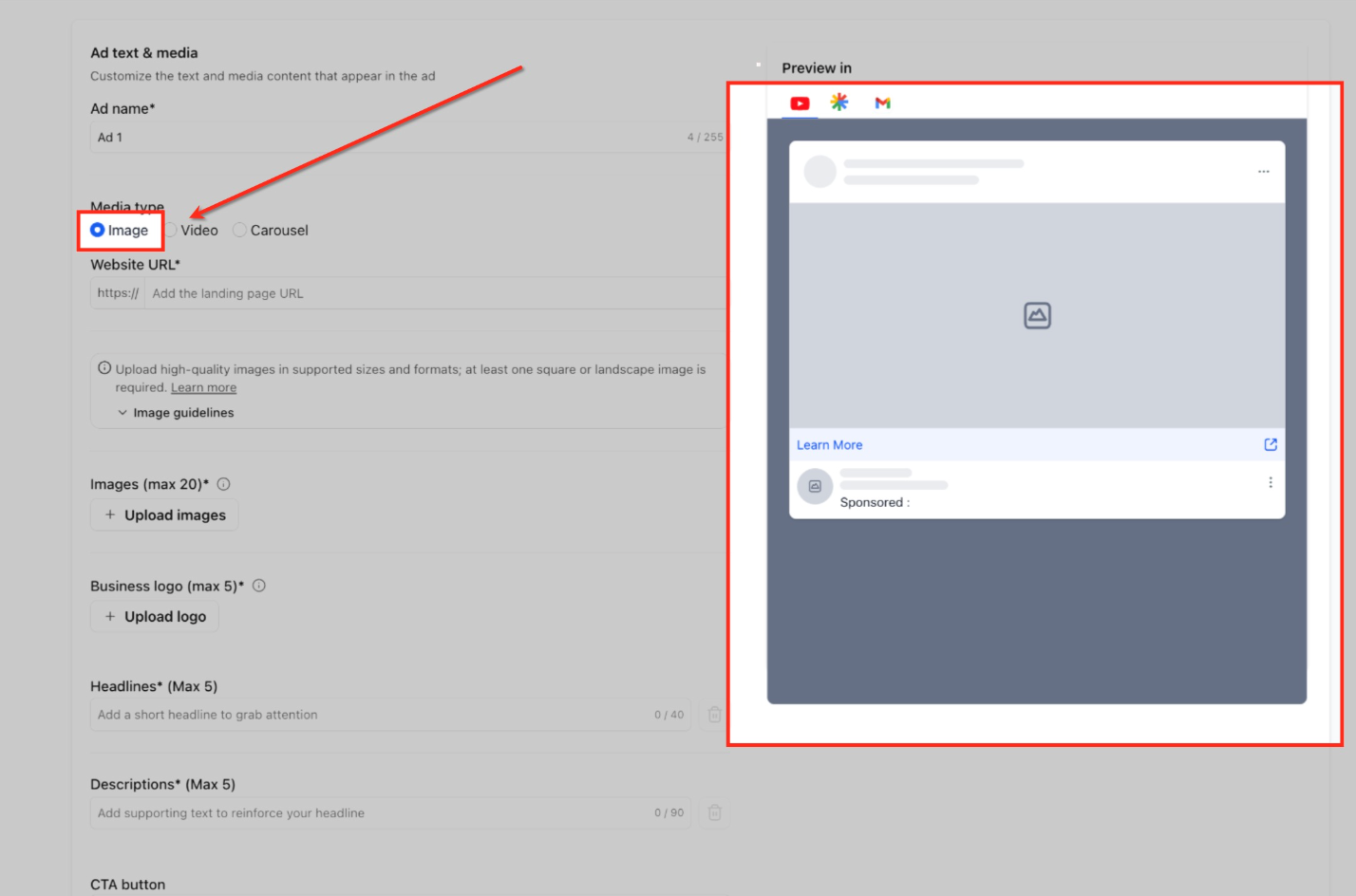
9. Single Image Ads
Upload up to 20 images.
Upload up to 5 business logos. Business logos are required.
Add up to 5 headlines and 5 descriptions.
Choose a CTA and enter the business name.
10. Single Video Ads
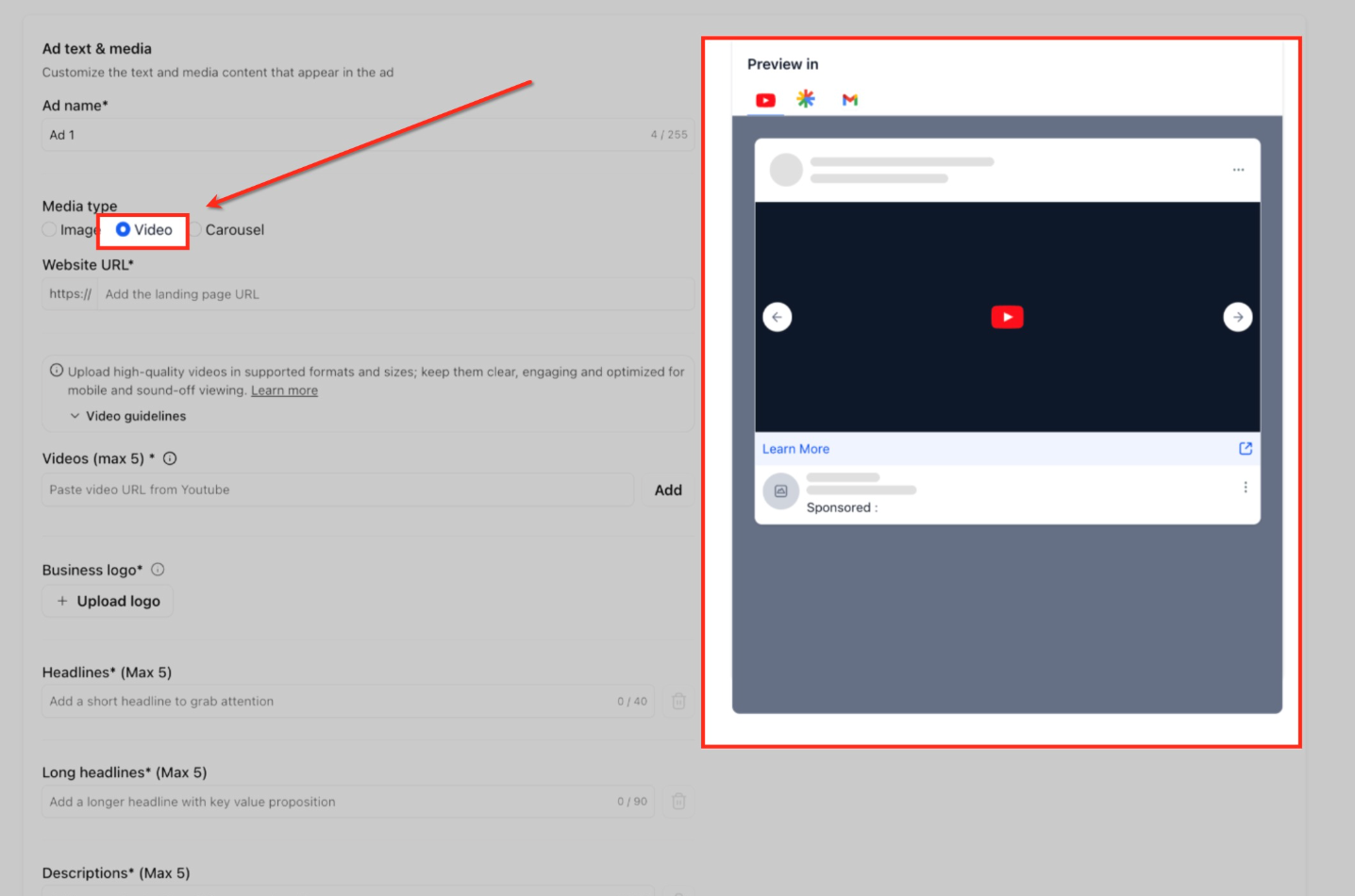
Add up to 5 YouTube video URLs.
Videos must be at least 10 seconds long.
Using multiple aspect ratios is recommended, including:
16:9
9:16
1:1
Upload business logos.
Add headlines, long headlines, descriptions, a CTA, and the business name.
Sitelinks are supported and shared at the campaign level.
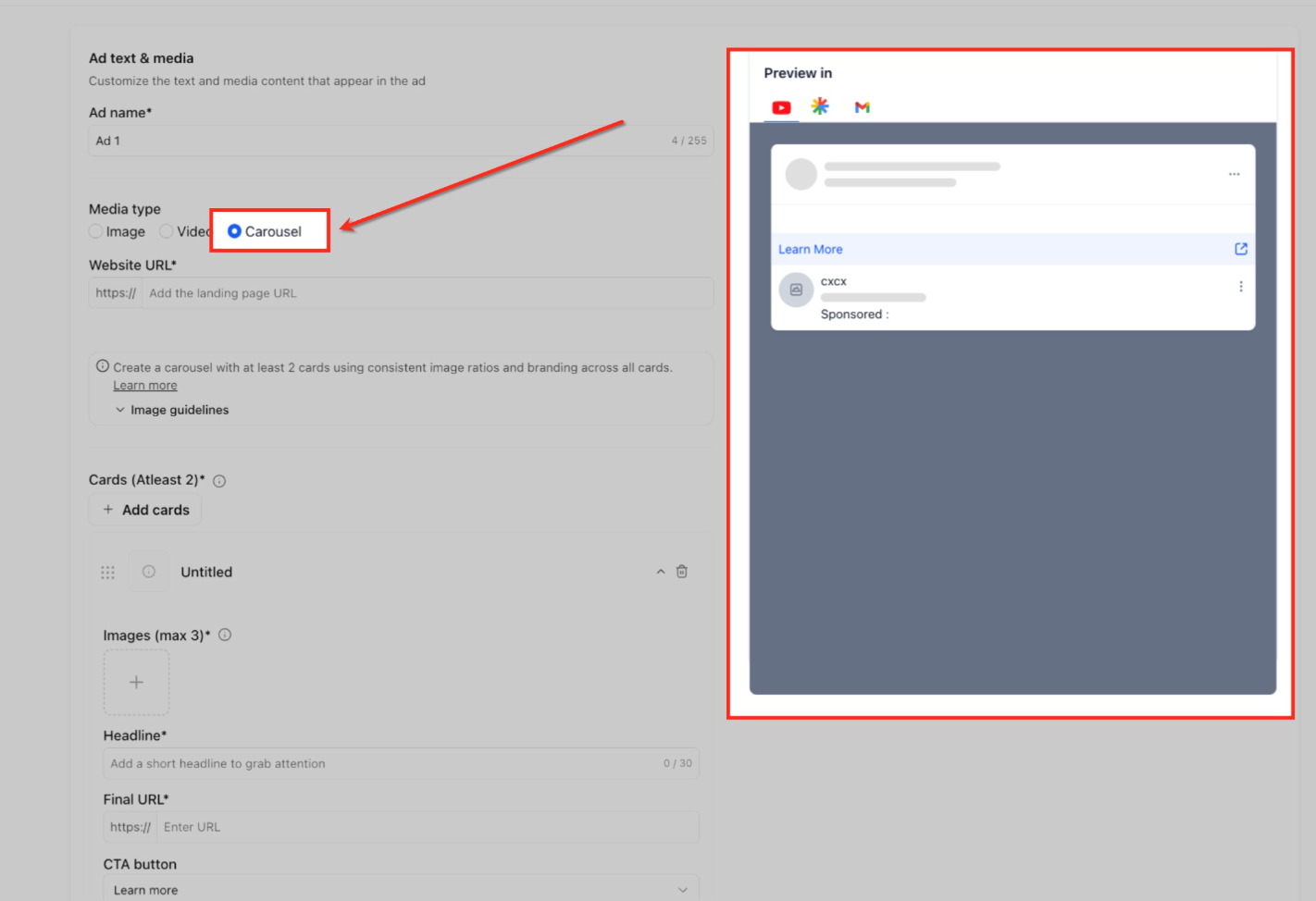
11. Carousel Ads
Add a minimum of 2 cards and up to 10 cards.
Each card includes:
One image
Headline
Final URL
Keep the image aspect ratio consistent across all cards.
Use consistent branding throughout the carousel.
12. Review and Publish the Campaign
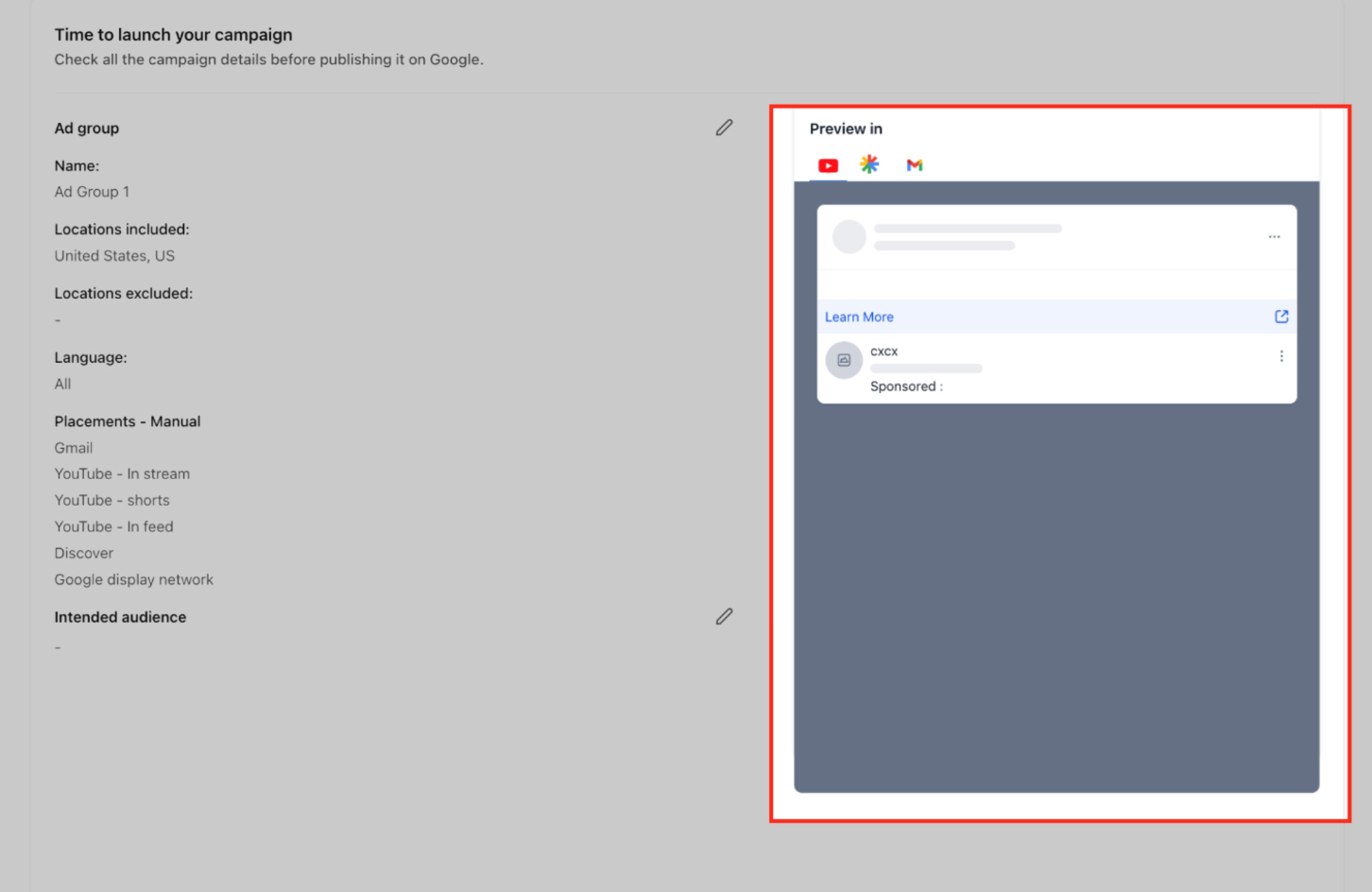
Review the campaign summary and confirm that the goal, audience, campaign settings, schedule, and creative are correct.
When the setup is complete, publish the campaign from Ad Manager.
Important Notes
A Google account connection is required before publishing Google campaigns from Ad Manager.
Conversion-based optimization requires the appropriate conversion actions to be available.
Creative should align with the selected campaign goal, especially when using YouTube Engagements.
Google campaigns can use supported campaign-level assets such as logos, image assets, call extensions, and Sitelinks.
Frequently Asked Questions
Q. When should I choose Conversions instead of Clicks?
Choose Conversions when you want Google to optimize for a tracked business outcome, such as a qualified lead or booked appointment.
Choose Clicks when your primary goal is traffic to a landing page, website, or offer.
Q. Do I need to connect Google before creating a Demand Gen campaign?
Yes. Connect your Google account and Google Ads account before publishing Google campaigns through Ad Manager.
Q. What should I do if no conversion goal appears during setup?
Check whether the required Google Ads conversion actions are configured and available.
You can create and manage supported Google Ads offline conversion actions inside Ad Manager.
Q. Can I use audience segments directly in Ad Manager?
Yes. Supported Google Audience Segments include Customer Match, Website Visitors, Interest Segments, and Lookalike Segments.
Google is transitioning Lookalike Segments in Demand Gen toward an audience-suggestion model during 2026.
Depending on your Google Ads account and rollout status, Lookalike audiences may act as signals that help Google identify relevant users beyond the original similarity thresholds.
Q. Which ad format should I prepare before starting?
Prepare the format that matches your campaign goal and strategy.
Demand Gen supports single image ads, single video ads, and carousel ads. YouTube Engagements requires video-focused creative.
Q. Are additional campaign assets available for Google campaigns?
Yes. Supported Google campaign-level assets include Business Logos, Image Assets, Call Extensions, and Sitelinks.
Q. Where can Google Demand Gen ads appear?
Demand Gen ads can appear across eligible Google surfaces, including YouTube, Discover, Gmail, Google Maps, and the Google Display Network.
Available placements can depend on campaign settings, ad format, assets, and Google Ads eligibility.
Q. Is Demand Gen the same as a Google Search campaign?
No.
Demand Gen is a visually driven campaign type designed for discovery and engagement across eligible Google surfaces.
Google Search campaigns focus on keyword-driven search intent and use a separate campaign workflow.
Q. How do Lookalike Segments work in Demand Gen campaigns?
Lookalike Segments use an existing seed audience to help Google identify additional users who may be relevant to your campaign.
Google is transitioning Demand Gen Lookalikes toward an audience-suggestion model during 2026. The seed audience and selected reach settings can act as signals instead of strict targeting limits.
Exact behavior can depend on your Google Ads account and rollout status.