
Snapshots let agencies copy dashboard configurations into destination sub-accounts without rebuilding them manually. During a Snapshot load, you can select which dashboards to copy and choose one as the destination sub-account's default dashboard. If you do not select a new default, the platform uses the Snapshot's existing default dashboard. This guide explains how to load dashboards and manage the default-dashboard selection.
Learn how to select dashboard assets during a Snapshot load, choose the destination sub-account's default dashboard, review dashboard dependencies and permissions, resolve asset conflicts, and verify the imported dashboards after the load completes.
What Is Loading Snapshots with Dashboards?
Loading dashboards through a Snapshot lets you copy selected dashboard configurations into an existing sub-account. This helps agencies deploy a consistent reporting experience without manually rebuilding dashboards in every account.
During the Snapshot load, you can choose which dashboards to import and optionally mark one selected dashboard as the destination sub-account's default. If you do not mark a new default dashboard, the platform uses the Snapshot's existing default dashboard.
Key Benefits of Loading Snapshots with Dashboards
Loading dashboards through Snapshots helps agencies standardize reporting while reducing the manual work required after a Snapshot is deployed.
- Faster Deployment: Copy existing dashboard configurations instead of rebuilding them in each sub-account.
- Default Dashboard Control: Choose the destination sub-account's default dashboard during the Snapshot load.
- Less Manual Work: Avoid opening the destination sub-account after loading only to change its default dashboard.
- Flexible Defaults: Keep the Snapshot's existing default dashboard when a different dashboard does not need to be selected.
Prerequisites and Limitations
Reviewing dashboard availability, permissions, and dependencies before loading helps prevent missing data or access issues in the destination sub-account.
- The Snapshot must contain the dashboards you want to load.
- Private dashboards are not included in the Snapshot asset list.
- Only one selected dashboard can be marked as the default during the Snapshot load.
- If no dashboard is marked as the new default, the platform uses the Snapshot's existing default dashboard.
- Users who need to open the default dashboard must have at least VIEW permission for that dashboard.
- Include supported assets referenced by dashboard widgets, such as Custom Values or Pipelines, when required.
Important: A dashboard can load successfully while individual widgets still encounter issues if required linked assets are missing from the destination sub-account.
How To Load Snapshots with Dashboards
The Snapshot load flow lets you select dashboard assets, choose the destination sub-account's default dashboard, include required supporting assets, review conflicts, and confirm the import before changes are applied.
From Agency View, select Sub-Accounts in the left-hand menu. Locate the destination sub-account, click the three-dot menu, and select Manage Client.
Click Actions in the upper-right corner, then select Load Snapshot.
Open Pick a Snapshot, select the Snapshot you want to load, and click Proceed.
In the asset list, locate Dashboards and select the dashboard assets you want to load into the destination sub-account.
To choose a default dashboard, click Set as default on one of the selected dashboards.
- Click Set as default on another selected dashboard to move the default selection.
- Click the currently marked dashboard again to remove the selection.
- If no dashboard is marked, the platform uses the Snapshot's existing default dashboard.
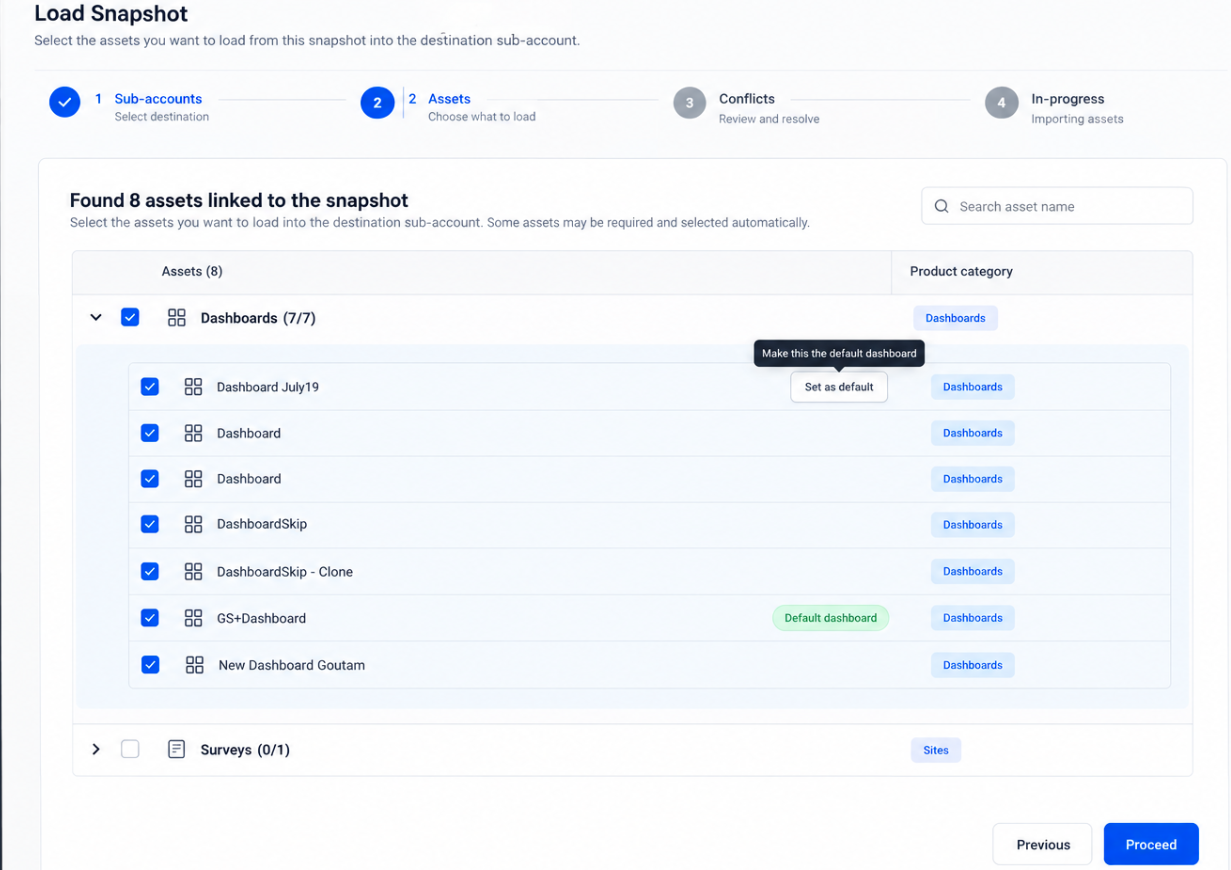
Select any other Snapshot assets required by the dashboards, such as supported Custom Values or Pipelines referenced by dashboard widgets, then click Proceed.
Review any conflicts detected in the destination sub-account. Select Override to replace an existing asset or Skip to keep the existing version.
Click Proceed after reviewing the conflicts. When prompted, enter confirm, then click Proceed to start the Snapshot load.
From Agency View, select Sub-Accounts, open the destination sub-account, then select Dashboard in the left-hand menu. Confirm the expected dashboard is the default and its widgets display correctly.
Tip: Verify both the default-dashboard selection and the dashboard's user permissions after loading so the intended users can open the dashboard successfully.
Frequently Asked Questions
Need Help?
- A dashboard is missing from the asset list: Private dashboards are not included in Snapshot assets. Confirm the dashboard you want to load is available in the Snapshot.
- A widget shows missing data or a property error: Confirm the Snapshot load included supported linked assets used by the dashboard, such as Custom Values or Pipelines.
- The wrong dashboard is marked as default: During asset selection, choose Set as default on the dashboard you want. Selecting another dashboard moves the default designation.
- A user cannot open the default dashboard: Confirm the user has at least VIEW permission for that dashboard.