
Learn why countdown timers become placeholders when email templates are copied between sub-accounts, how to copy the template, and how to connect the placeholder to a working timer in the destination sub-account.
What Is a Countdown Timer Placeholder?
A Countdown Timer Placeholder appears when an email template containing a countdown timer is copied to another sub-account. The placeholder preserves the timer's position in the template but does not function as a countdown until a timer from the destination sub-account is selected.
Countdown Timer placeholders are currently documented for shared email templates.
Important: A Countdown Timer Placeholder is not a working timer. Before using the copied email template, select an existing countdown timer from the destination sub-account or create a new one.
How to Copy an Email Template With a Countdown Timer
Copy the email template normally. The countdown timer will automatically become a placeholder when the template is copied to another sub-account.
- Go to Marketing → Emails → Templates.
- Create or open an email template that contains a countdown timer.
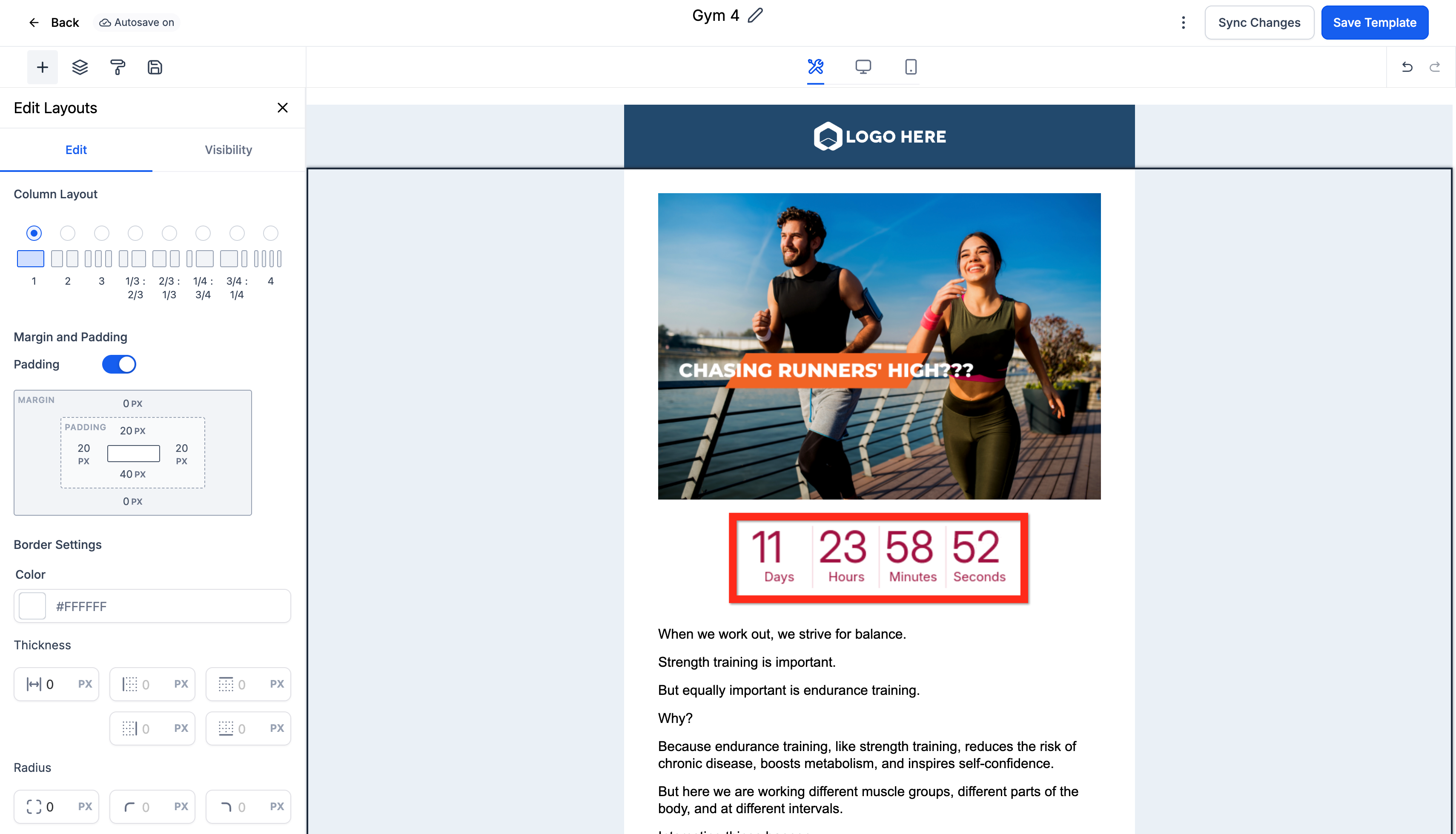
- Return to the Templates list.
- Open the template's three-dot menu and select Share.
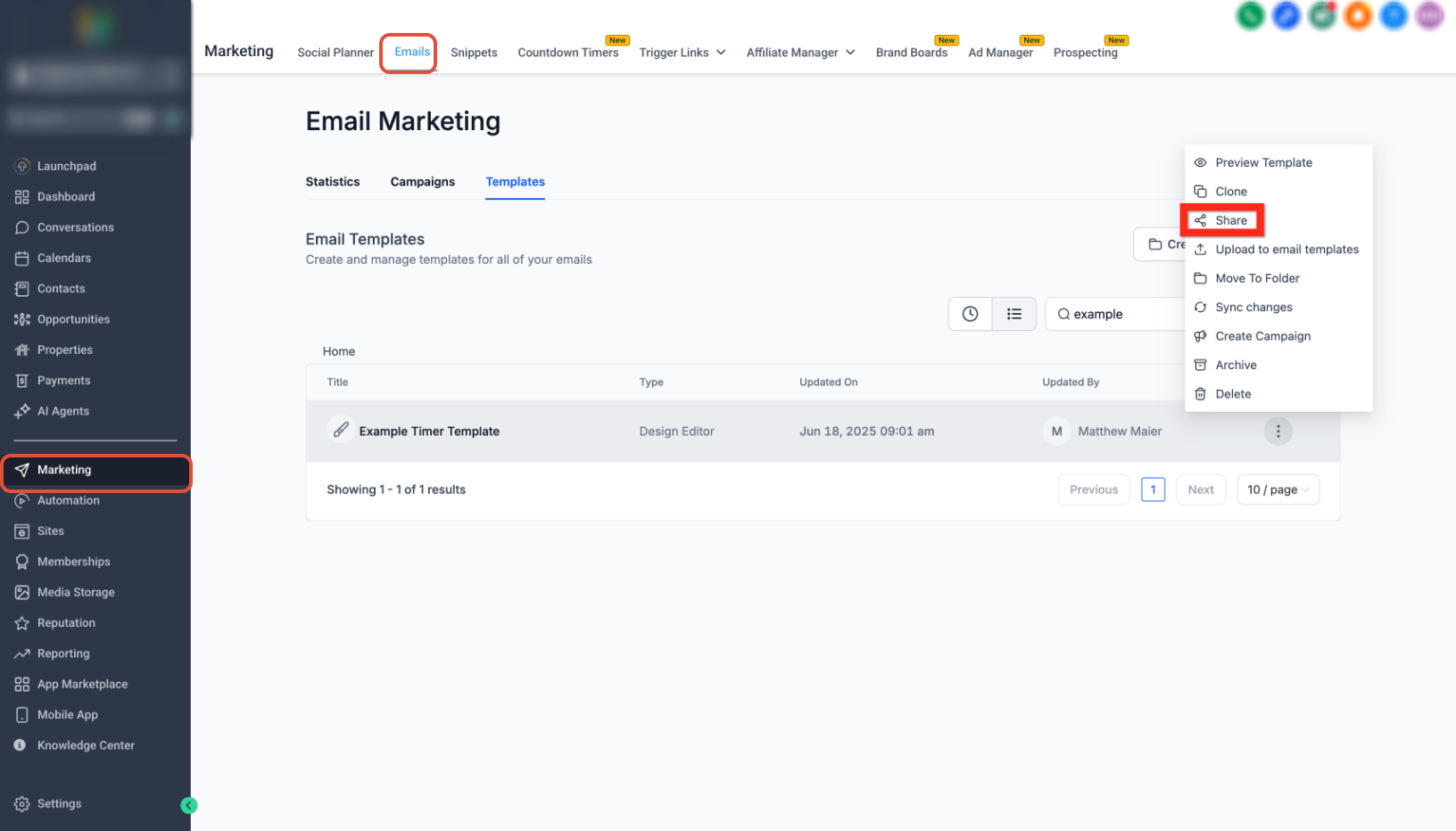
- Configure the sharing permissions and copy the template link.
- Open the share link and select Add Template.
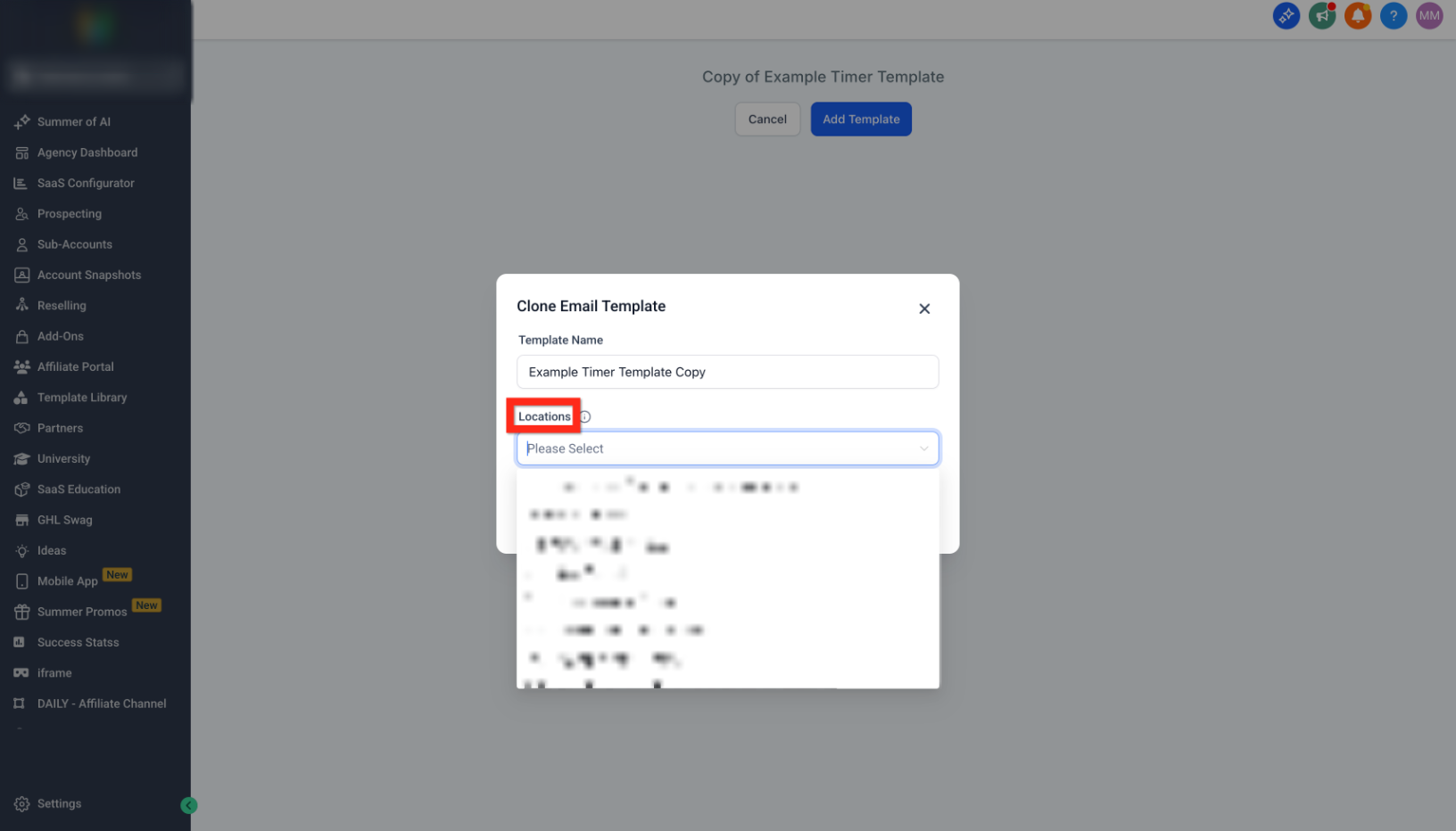
- Select the destination sub-account, rename the template if needed, and clone the template.
How to Replace the Countdown Timer Placeholder
The copied template cannot use the original countdown timer automatically. Select a countdown timer available in the destination sub-account before using the email.
- In the destination sub-account, go to Marketing → Emails → Templates.
- Open the copied email template.
- Select the Countdown Timer Placeholder.
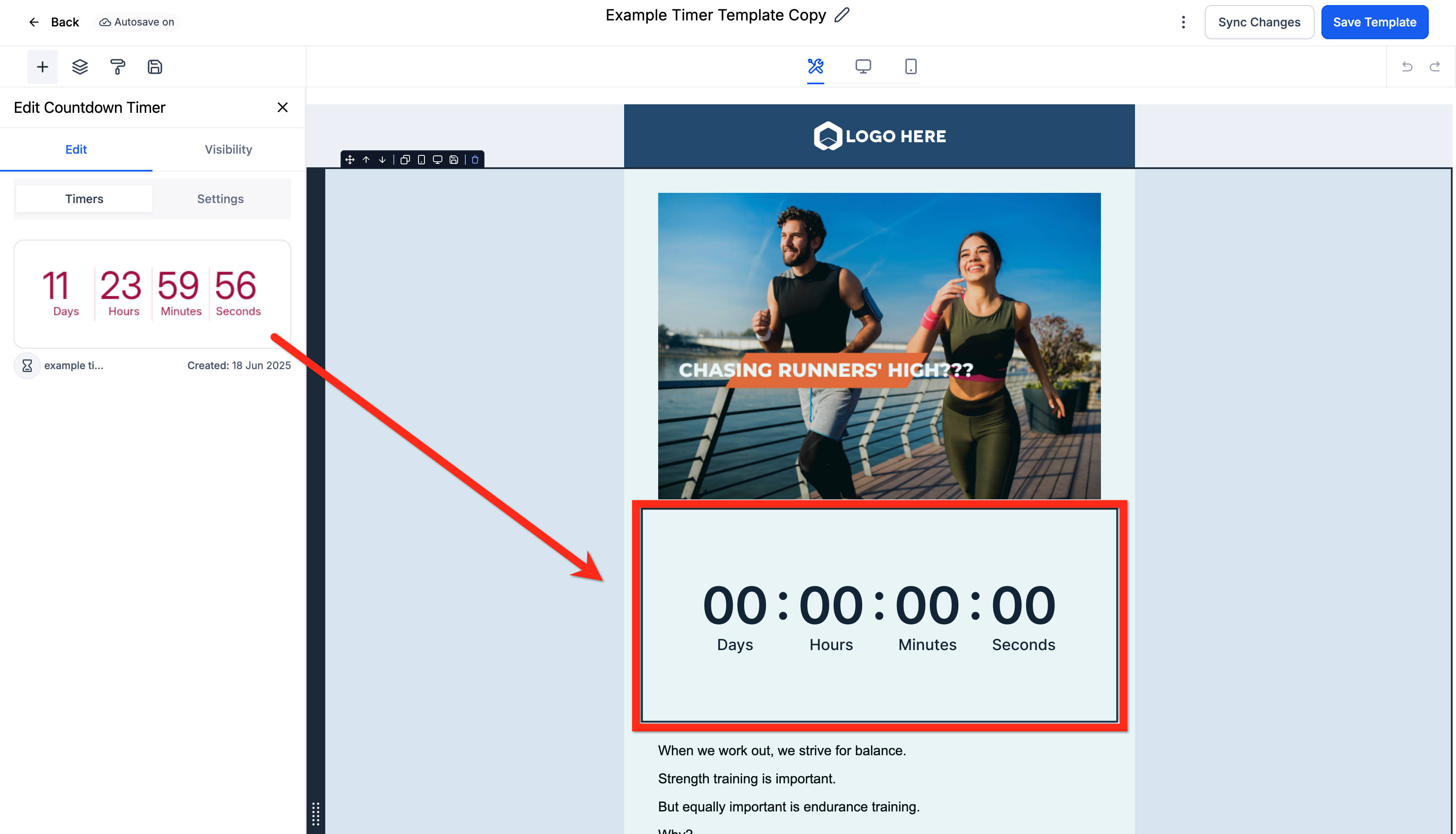
- Choose an existing countdown timer from the destination sub-account.
- If no suitable timer exists, go to Marketing → Countdown Timers and create one. Then return to the email template and select the new timer.
- Save and test the email before using it in a campaign.
Frequently Asked Questions
Need Help?
- The placeholder is still visible: Open the copied template and select a countdown timer available in the destination sub-account.
- No countdown timers are available: Go to Marketing → Countdown Timers, create a timer, then return to the email template and select it.
- The timer does not appear correctly: Save the template and test the email before using it in a campaign.
- Still need assistance? Contact your administrator or support team with the affected sub-account and email template details.