
This guide explains how to configure the PayPal Payouts API and use PayPal Auto Payouts to pay affiliates directly from Affiliate Manager. PayPal is the supported method for automated payouts. Bank and other payment methods are handled manually.
TABLE OF CONTENTS
- Requirements
- 1. Set Up PayPal for Auto Payouts
- 2. Use PayPal for Affiliate Payouts
- What Happens After a Payout?
- 3. Add an Affiliate's PayPal Account for Payouts
Requirements
Before setting up PayPal Auto Payouts, make sure you have:
A PayPal Business account.
Payouts enabled on your PayPal account.
A valid PayPal payout method configured for each affiliate who will receive PayPal payouts.
1. Set Up PayPal for Auto Payouts
Before paying affiliates, configure PayPal Payouts and connect your PayPal account.
Step 1: Access the PayPal Developer Dashboard
Go to the PayPal Developer page.
Log in to the developer dashboard using the Log into dashboard option.
Step 2: Enable Payouts
In the PayPal developer dashboard, open My Account.
Scroll to the Permissions table.
Check whether Payouts has a green checkmark under the Live column.
If Payouts is not enabled, click Enable and follow PayPal's instructions.
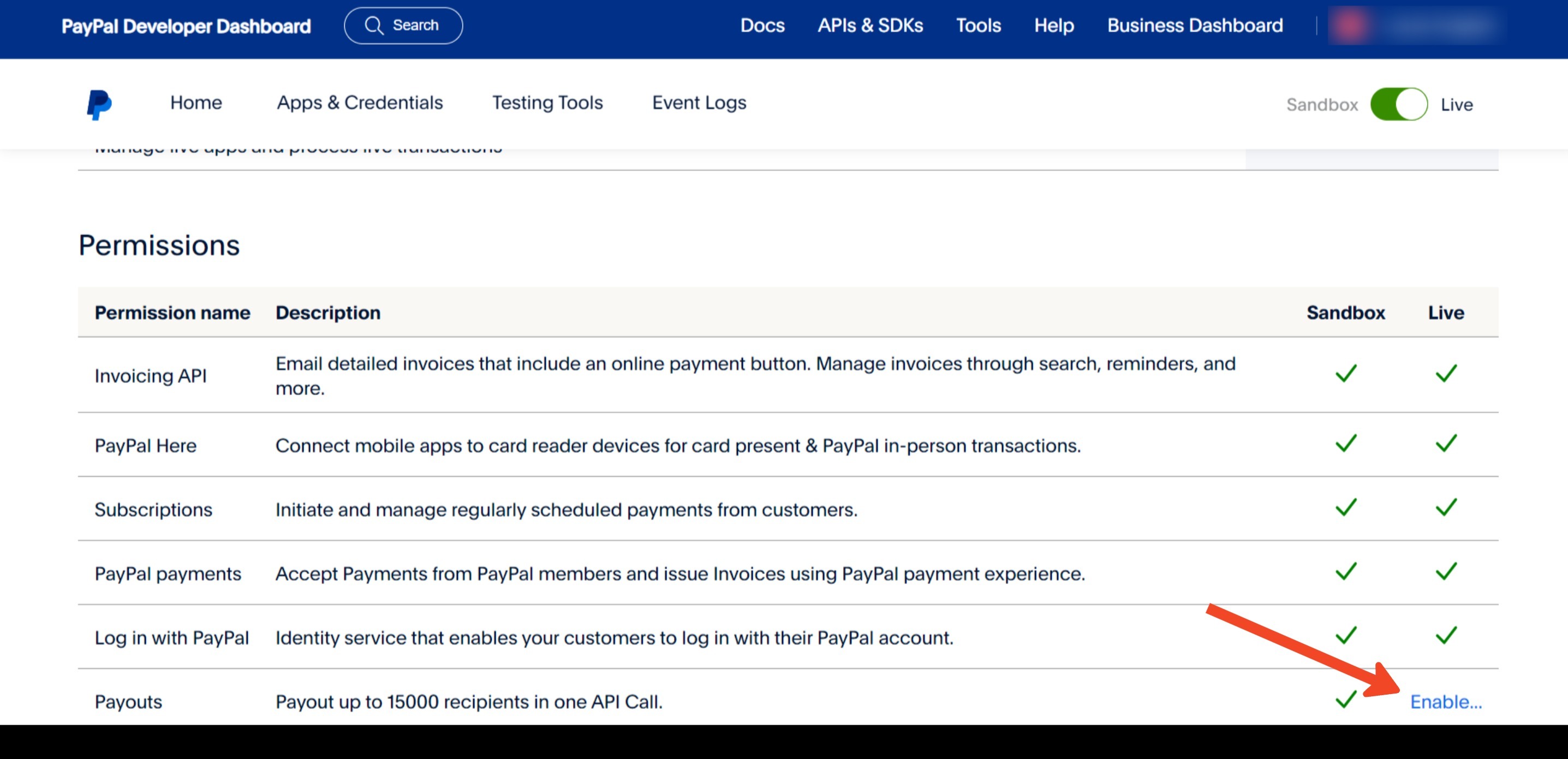
You may need to contact PayPal to enable access to the Payouts API.
Step 3: Create a PayPal App
In the left menu, click Apps and Credentials.
Select Live.
Click Create App.
Enter a recognizable app name, such as Affiliate Payouts.
Click Create App.
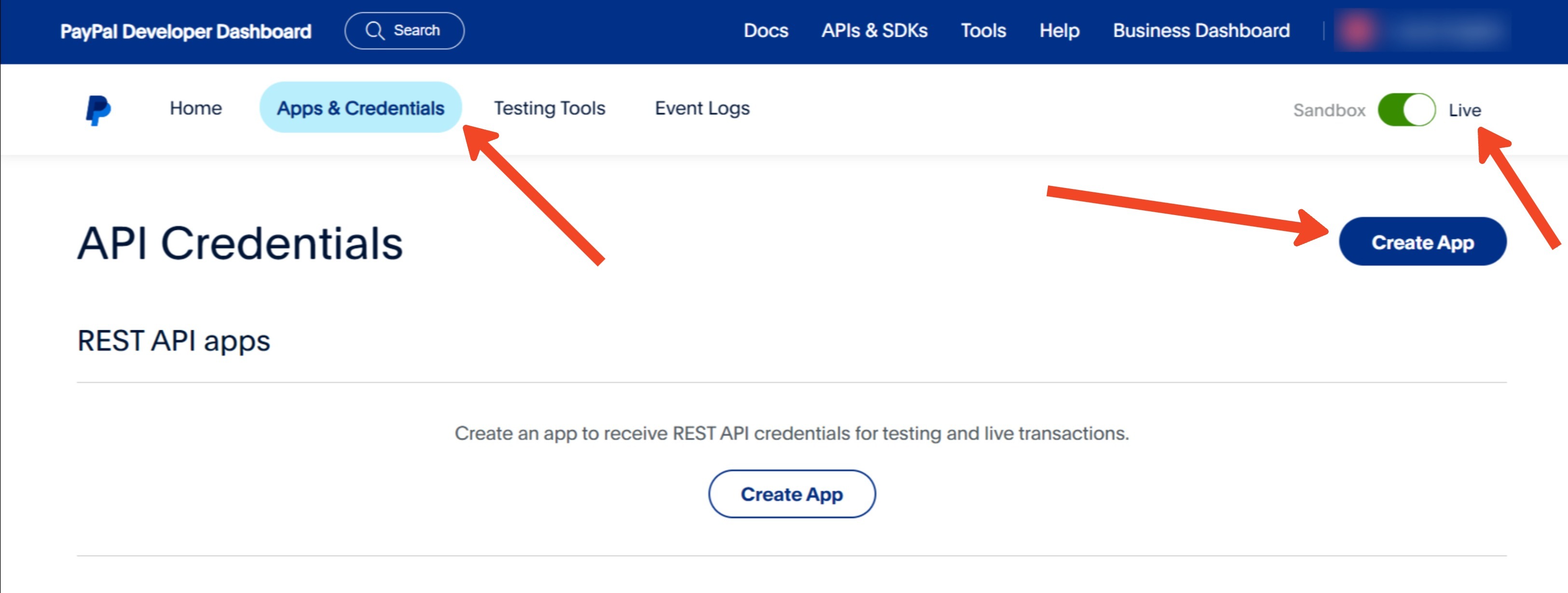
If you already have an app configured, you can skip this step.
Important: If you see a Live/Sandbox selector after creating the app, make sure Live is selected when configuring production payouts.
Step 4: Get Your App Credentials
After creating the app, PayPal provides:
Client ID
Secret Key
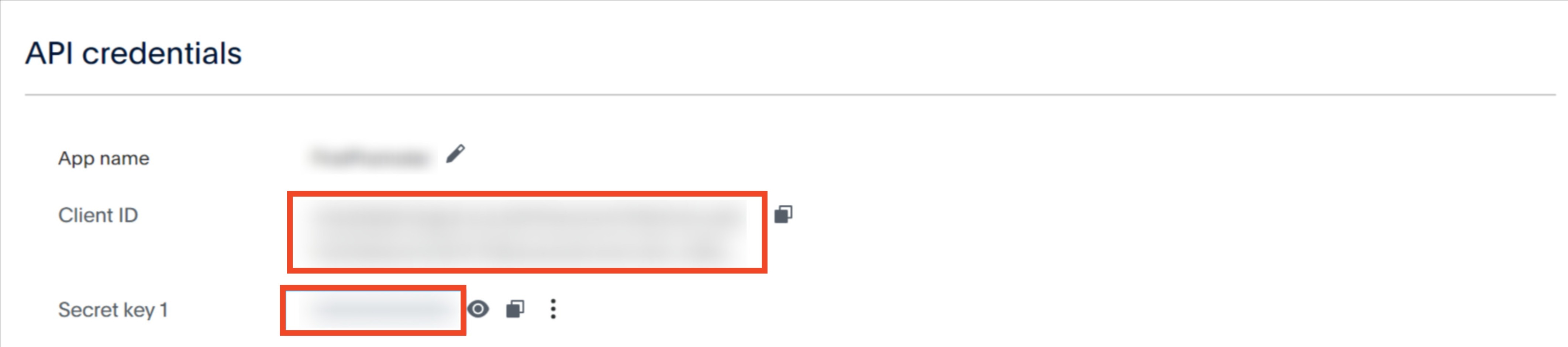
Keep these credentials available because you need them to connect PayPal.
Step 5: Connect PayPal
Go to Payments → Integrations.
Select PayPal.
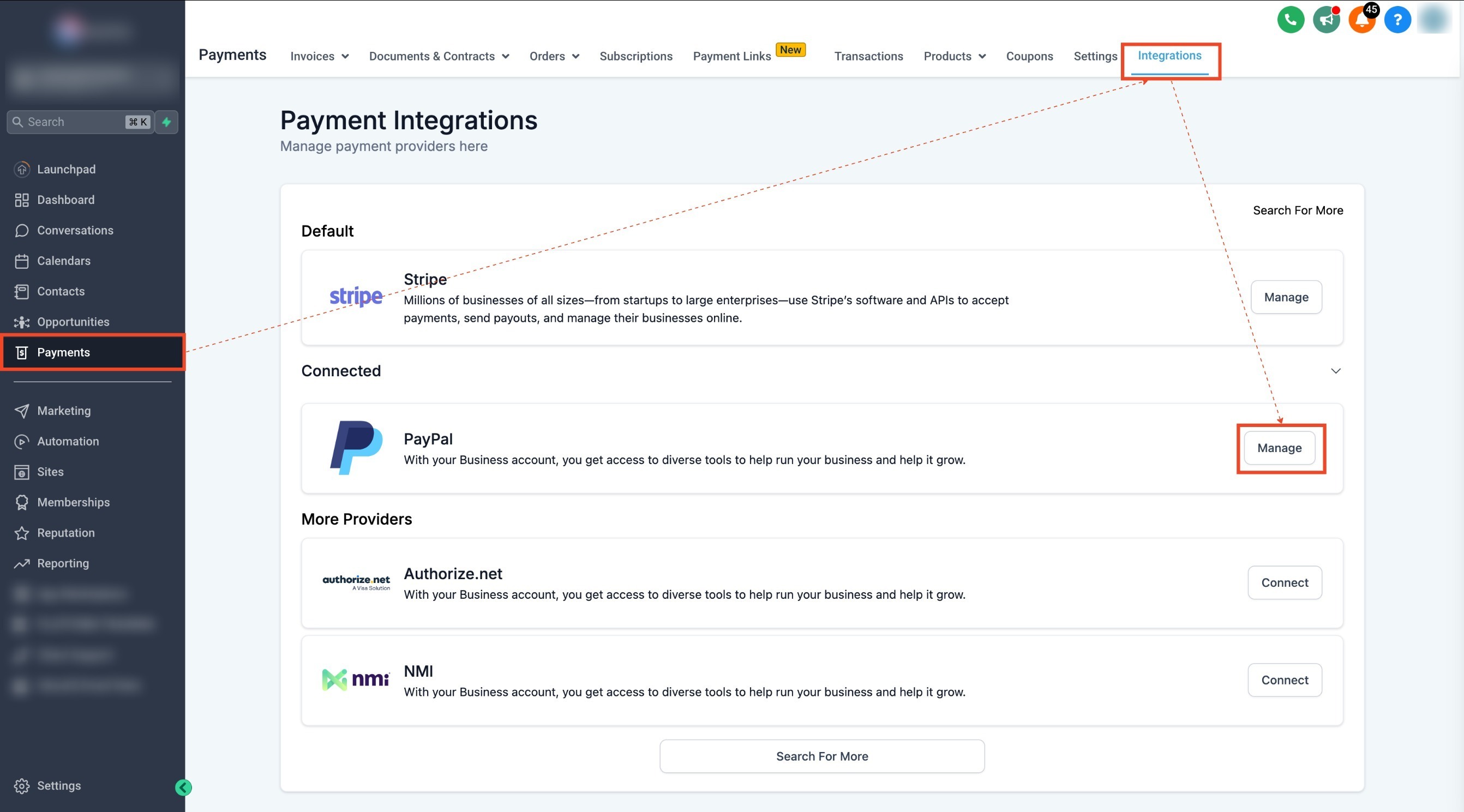
Enter the Live Client ID and Secret Key from your PayPal developer account.
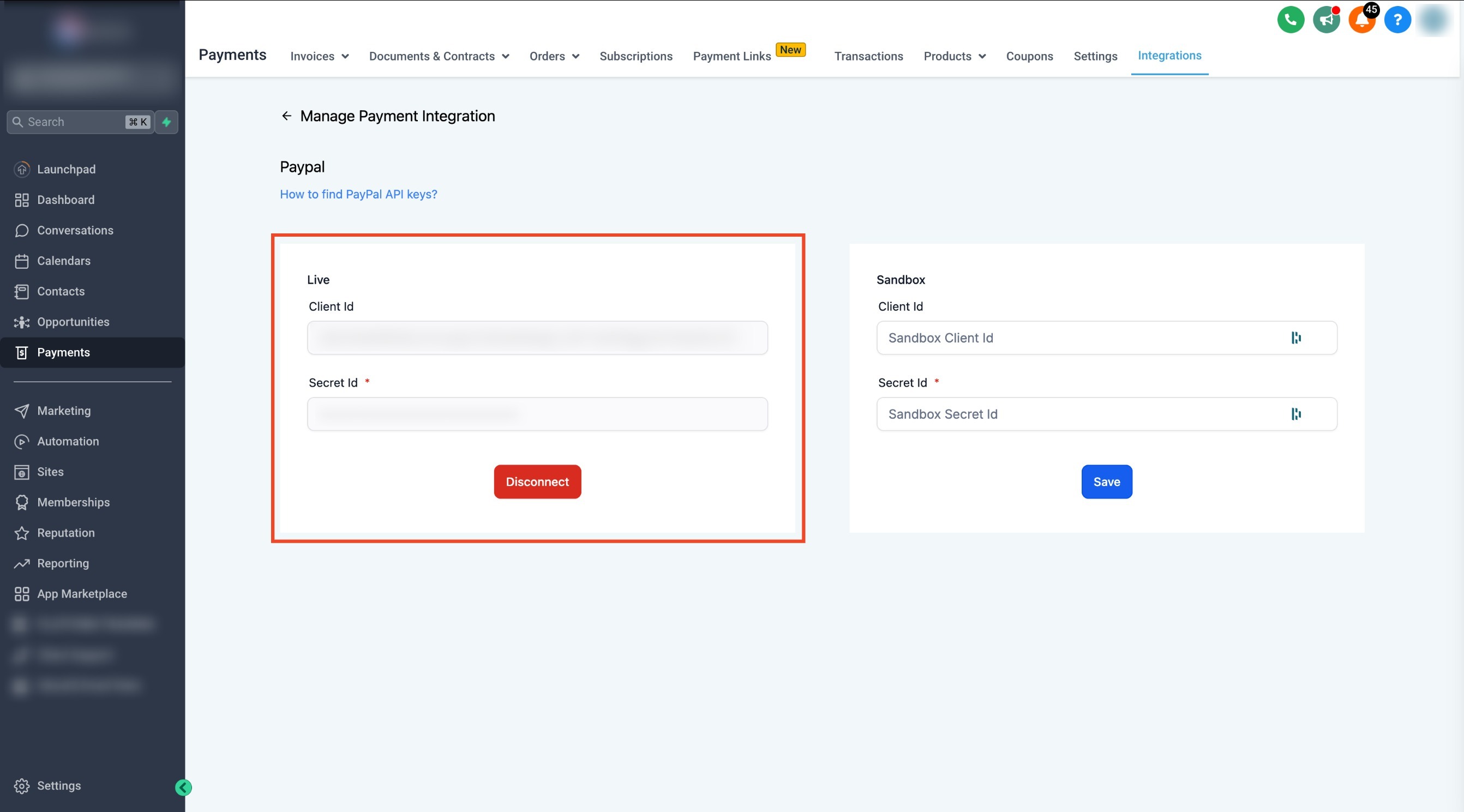
Save the integration.
If you are testing in a sandbox environment, repeat the process using your sandbox credentials and make sure Sandbox is selected in PayPal.
2. Use PayPal for Affiliate Payouts
After PayPal is configured, you can process approved affiliate payouts using Auto Payouts.
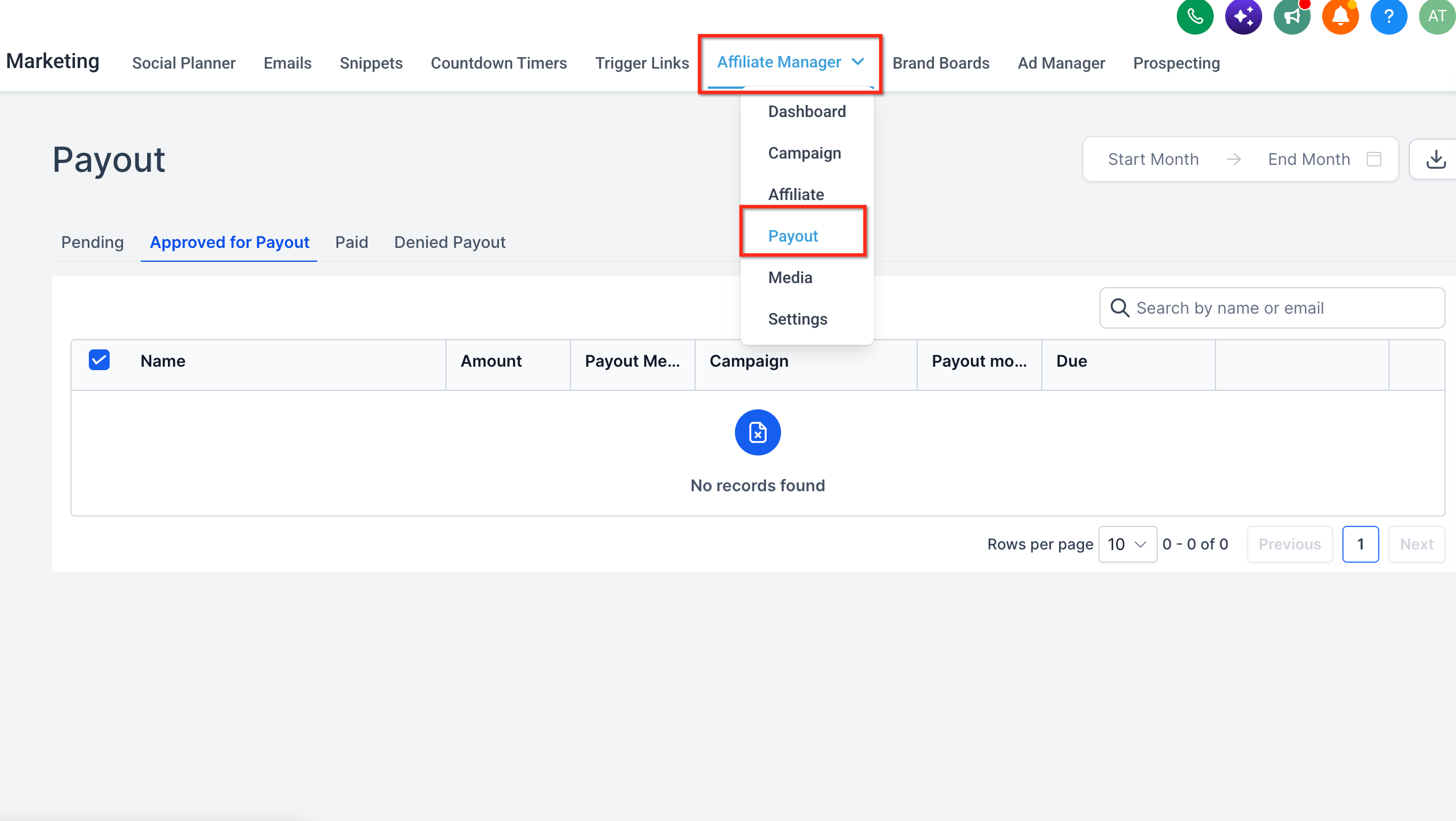
Step 1: Open the Payouts Page
In Affiliate Manager, go to the Payouts page.
Step 2: Review Approved Payouts
Affiliate payouts are first generated in the Pending tab.
Review eligible payouts.
Approve the payouts you want to process.
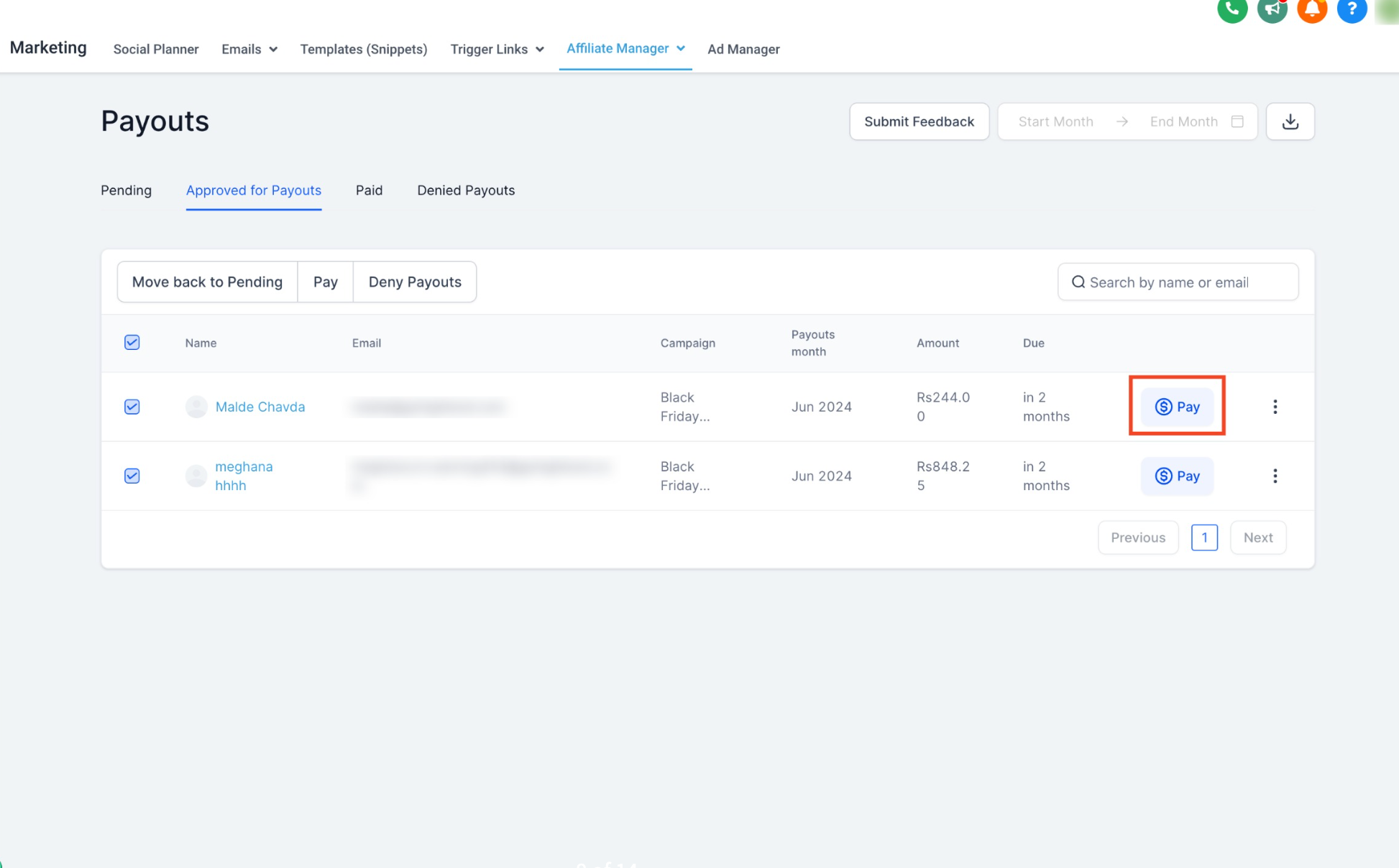
Open the Approved for Payout tab.
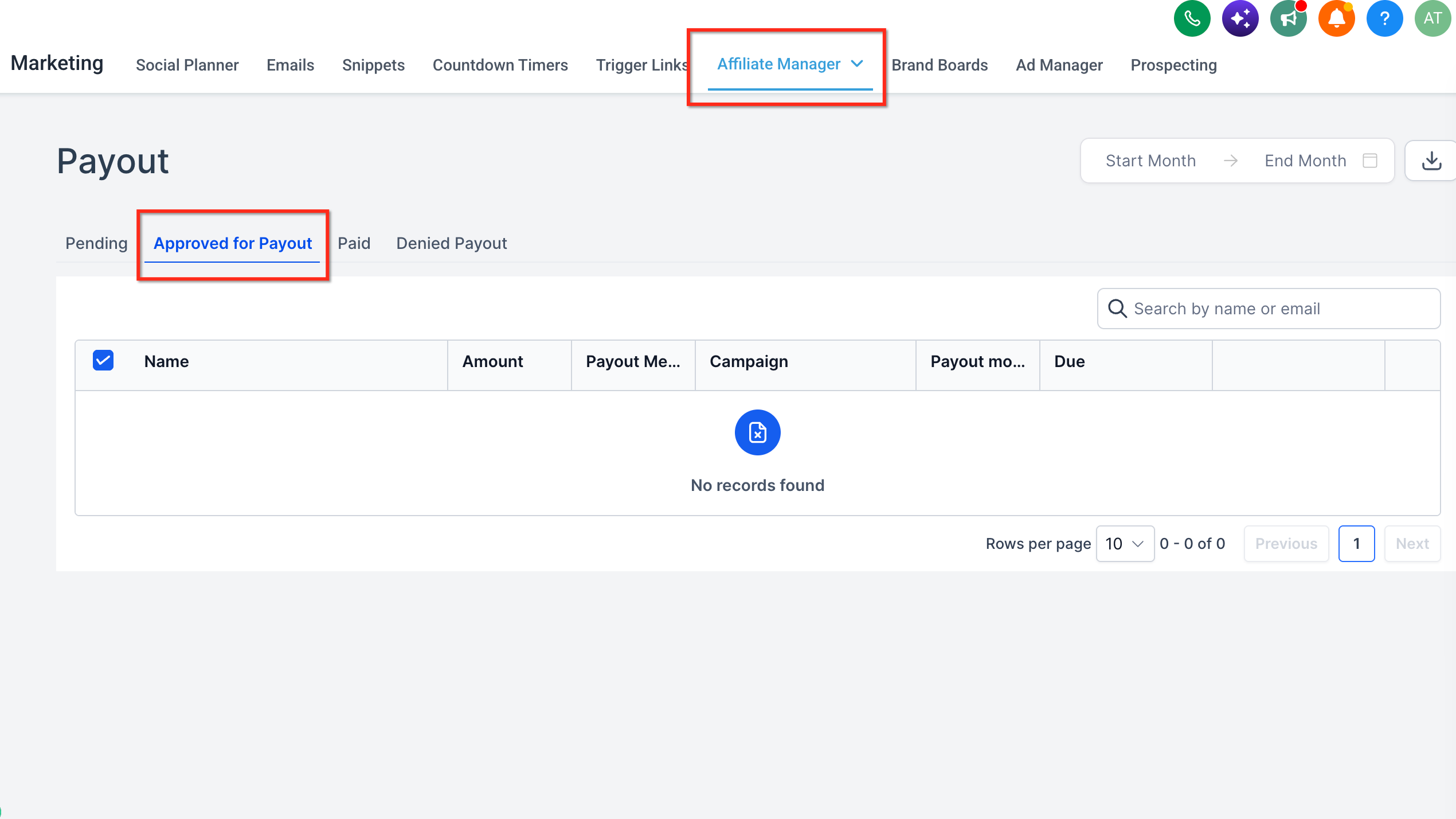
The approved payouts awaiting payment appear here.
Step 3: Select Affiliates for Payout
Select the checkbox next to the payouts or affiliates you want to pay.
Step 4: Initiate the Payout
To pay multiple affiliates at once:
Select the applicable payouts.
Click Pay.
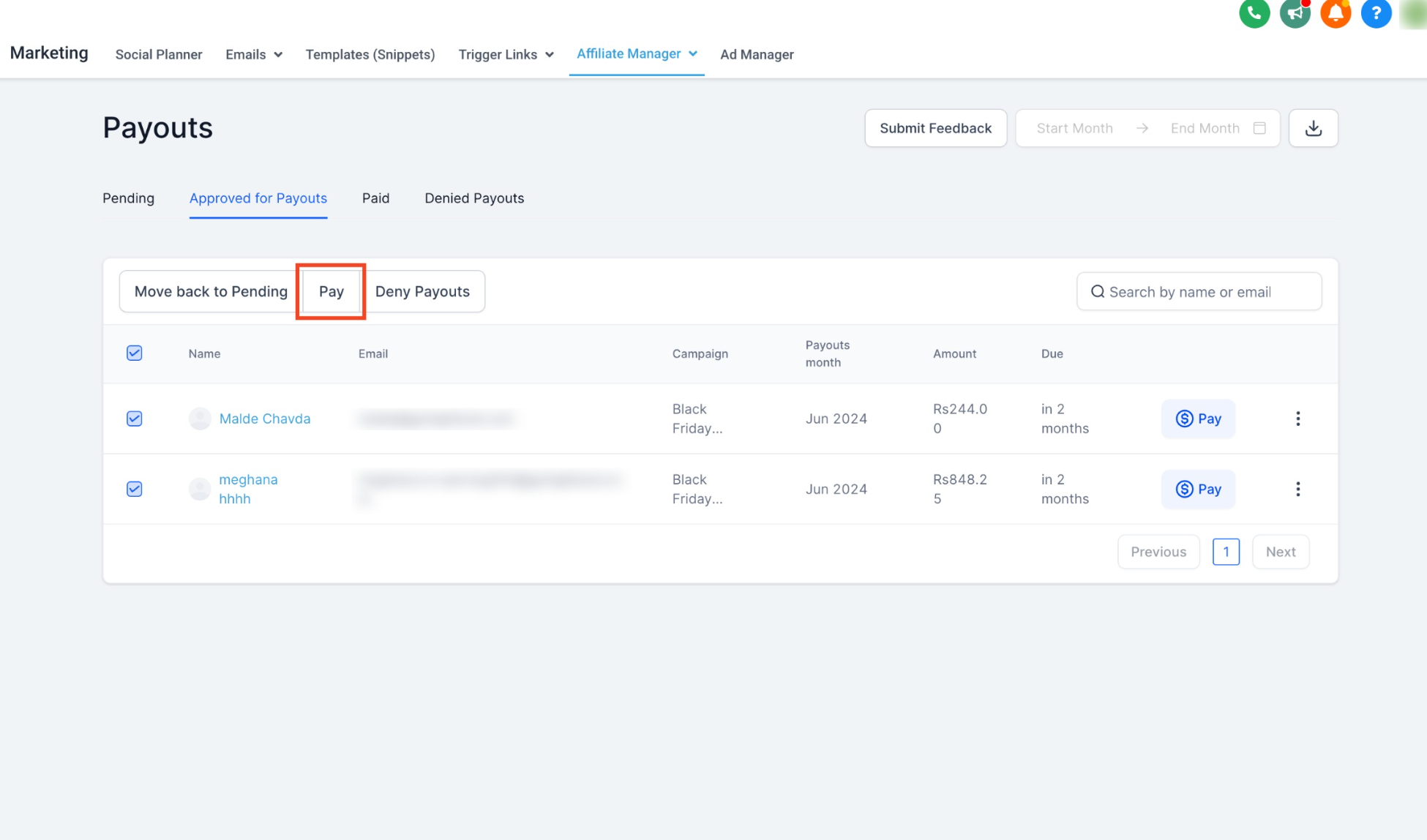
To pay an individual affiliate, use the Pay icon next to that affiliate's payout.
Step 5: Review and Confirm
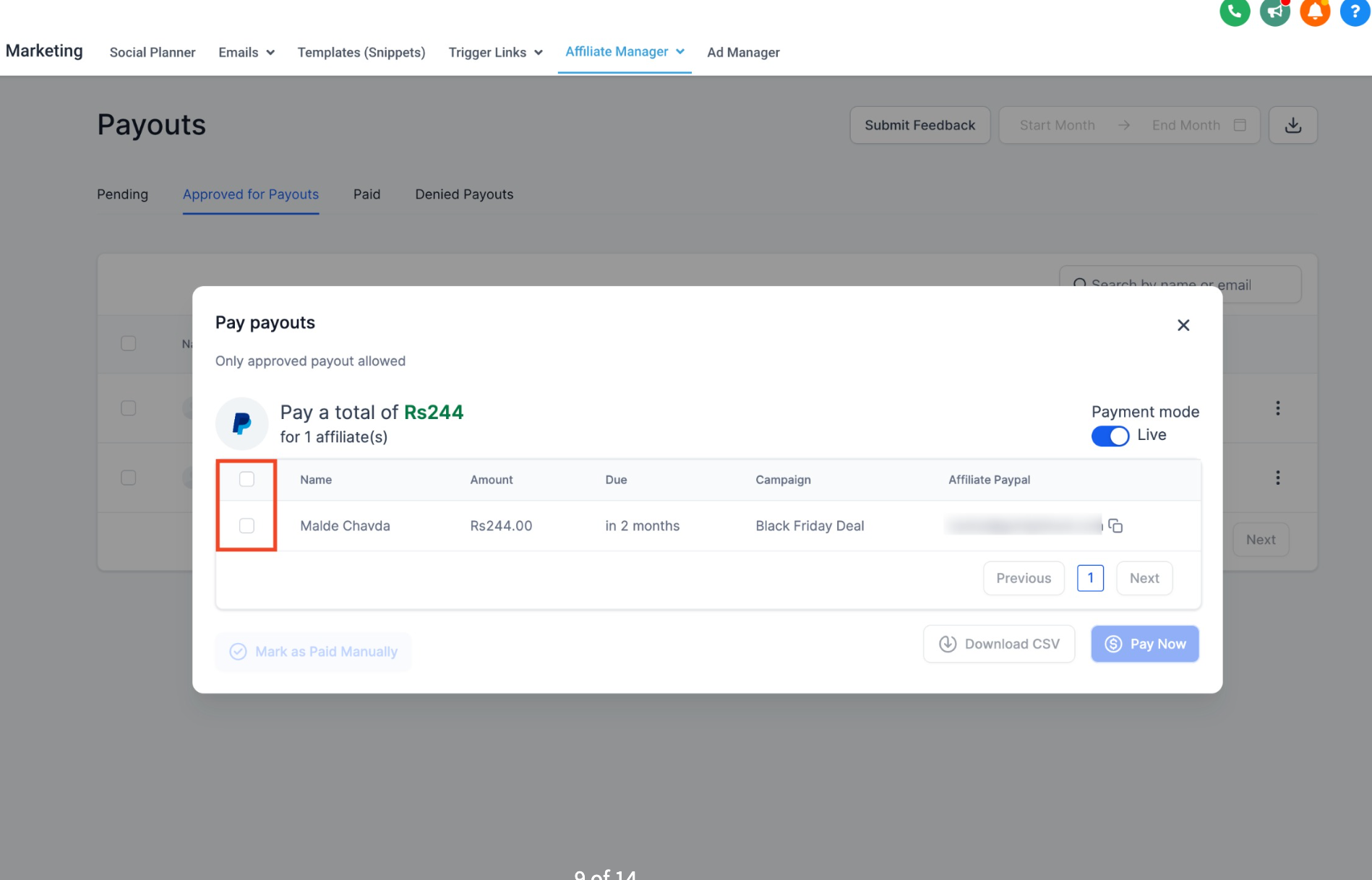
Review the selected payouts and payment details.
Click Pay Now to initiate the transfer.
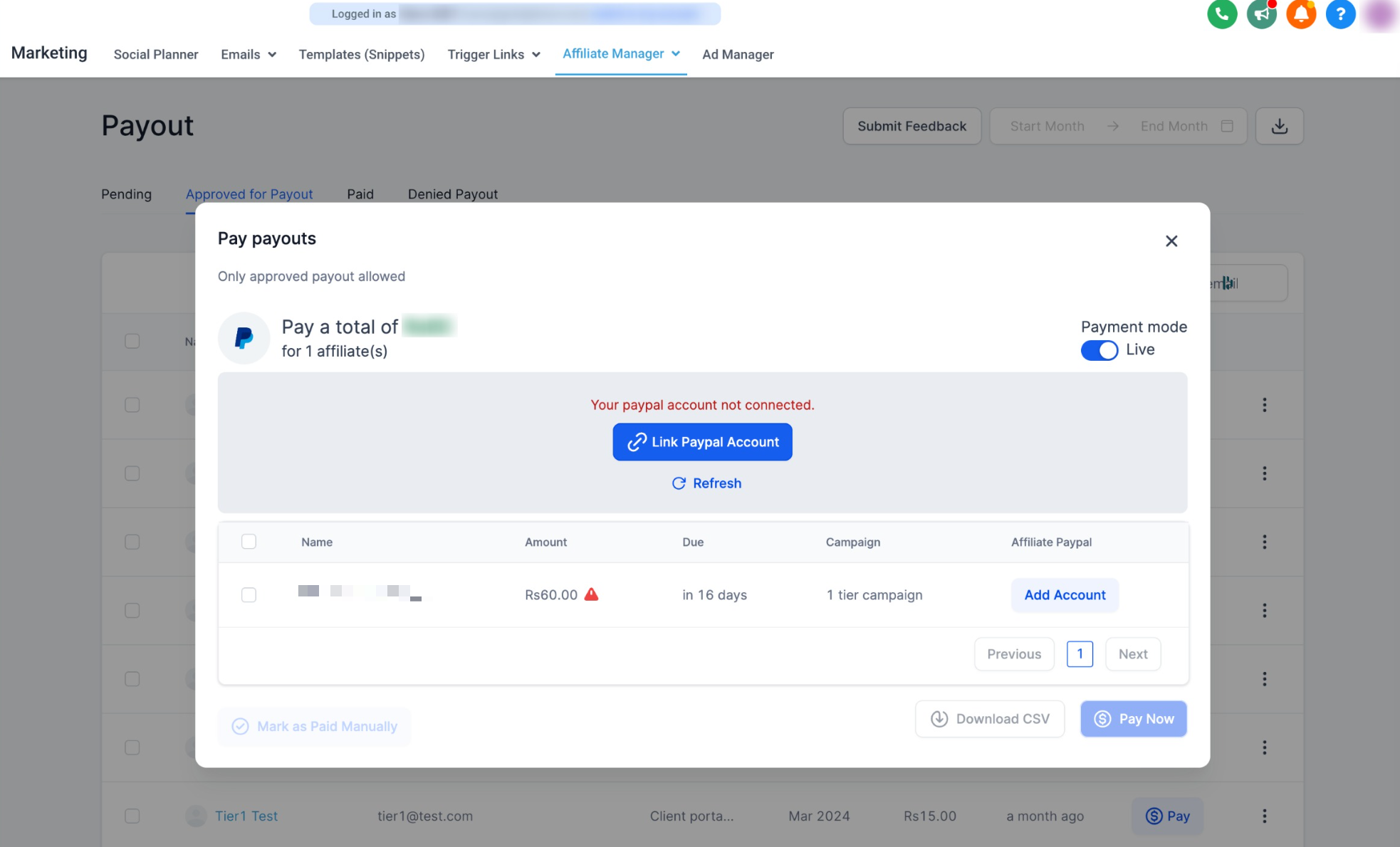
Important: If your PayPal Business account is not connected, you will be prompted to link the account before continuing.
What Happens After a Payout?
After you click Pay Now:
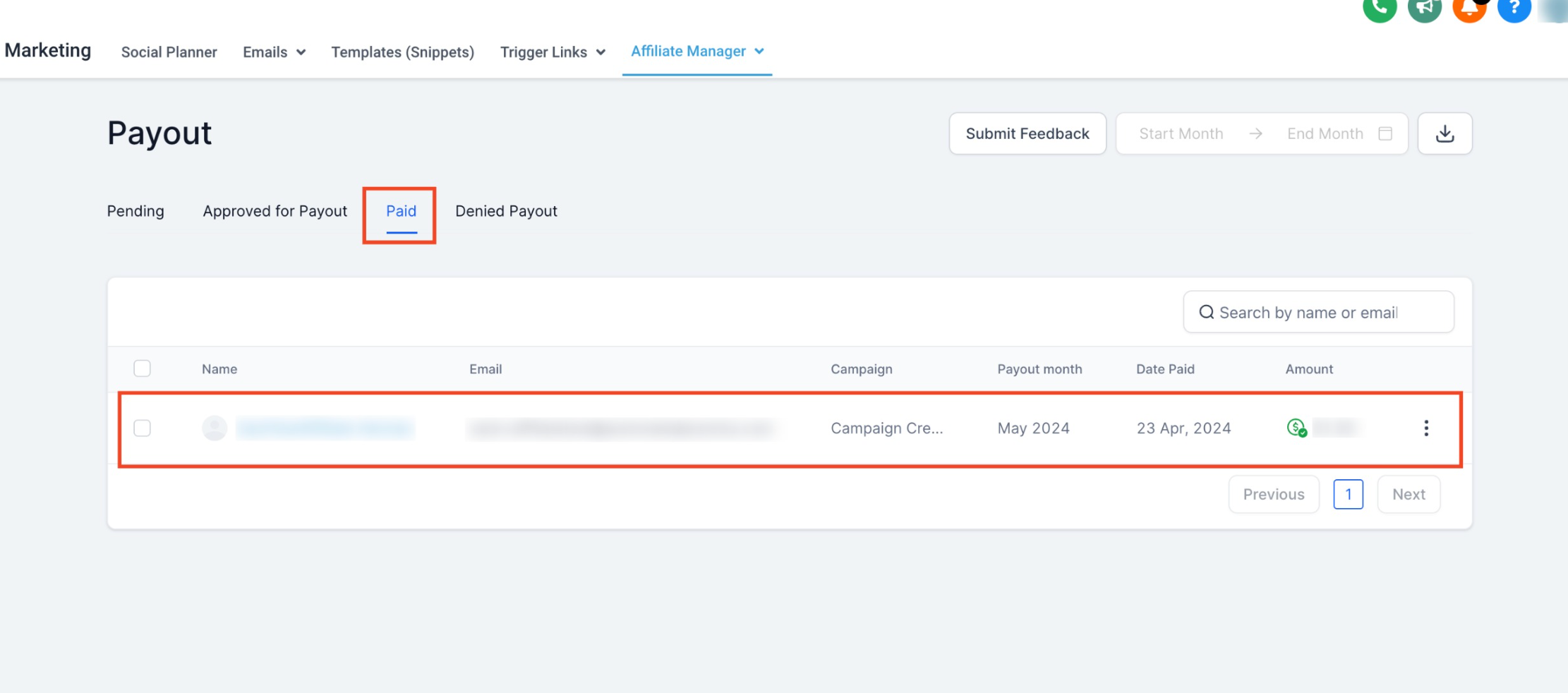
Successfully initiated payouts move toward the Paid status.
PayPal may still show a processing or pending status while the transfer is completing.
Successful payouts appear under the Paid tab.
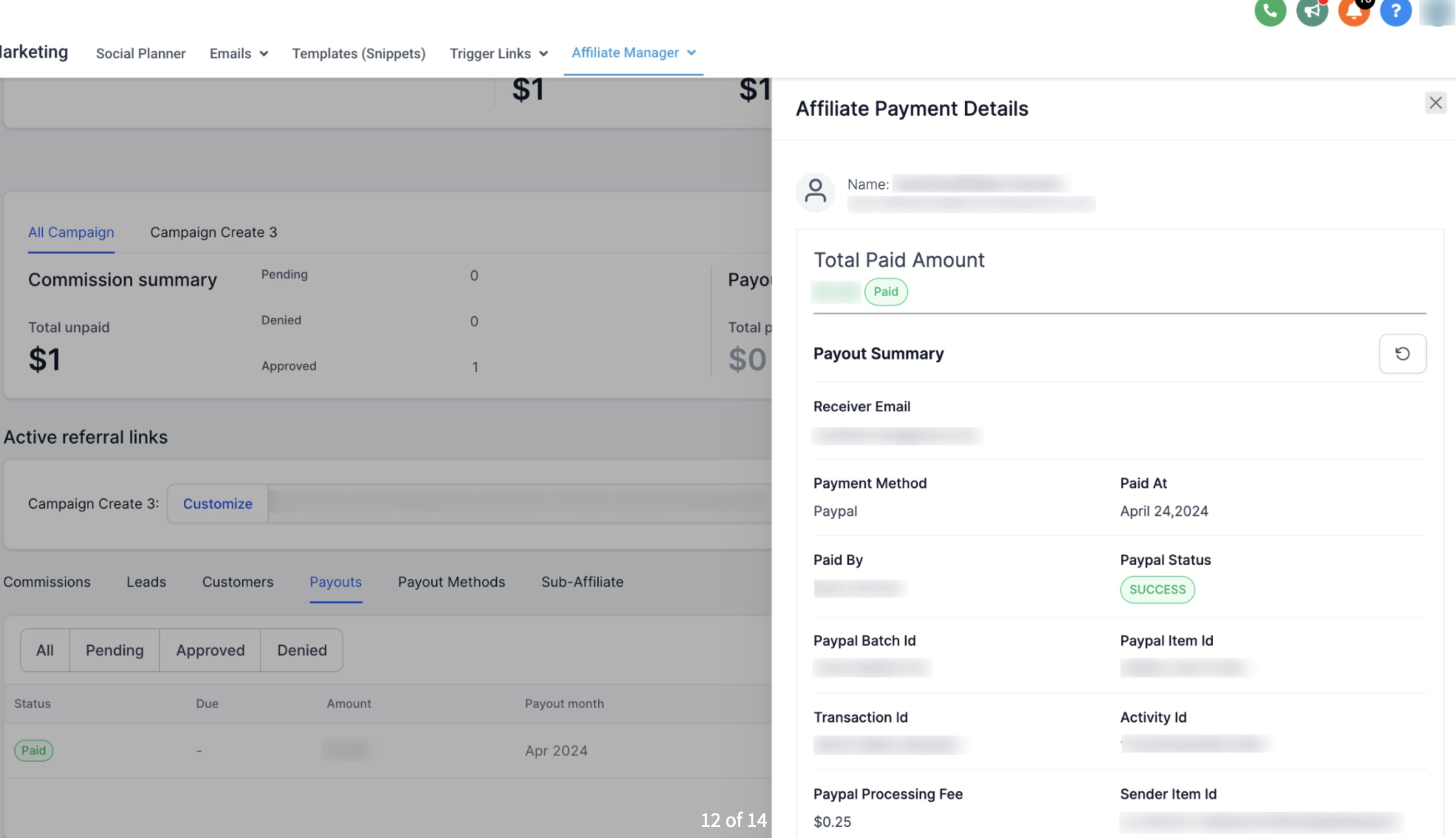
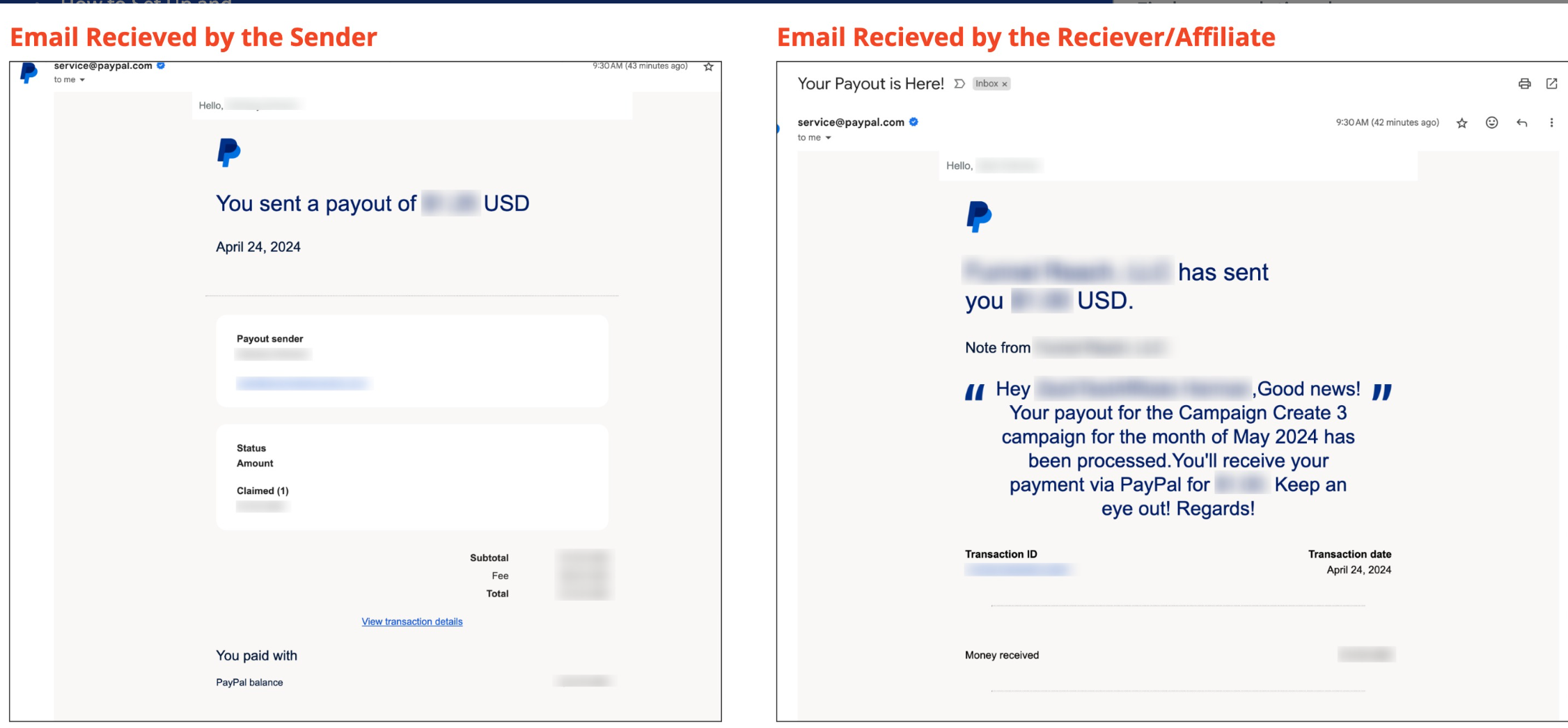
The sender and affiliate receive confirmation emails after a successful payout.
3. Add an Affiliate's PayPal Account for Payouts
Make sure the affiliate's PayPal email address is correct before processing the payout.
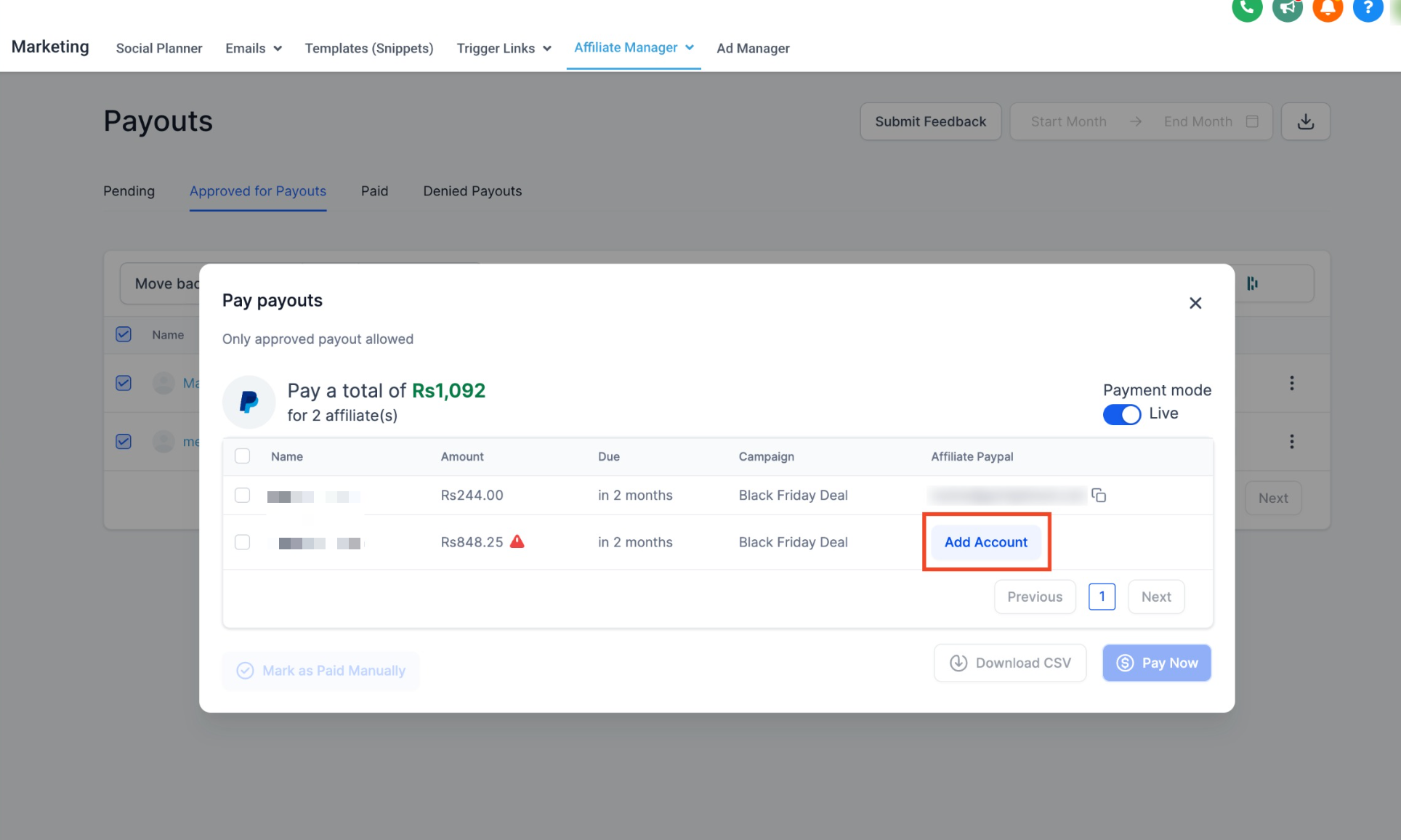
PayPal does not validate the affiliate's email address through the Payouts API.