
Affiliate payouts are the amounts distributed to affiliates for sales generated through their efforts. This article explains how commissions are tracked, how payout terms work, and how to manage payouts in Affiliate Manager.
TABLE OF CONTENTS
- Key Points to Note
- Payout Terms
- How to Navigate the Payouts Tab
- How Are Payouts Generated?
- How Do Commissions Work?
Key Points to Note
Commission Tracking: Commissions are tracked through sales processed via Stripe. The system does not automatically track refunds for one-time products or subscriptions.
Subscription Cancellations: Choose a payout term that aligns with your refund or chargeback window. Available payout terms range from NET-7 through NET-90.
One-Time and Recurring Commissions: Commissions can be one-time or recurring, depending on the product sold through Stripe.
Coupons and Discounts: If a discount is applied during checkout, the commission is calculated based on the discounted amount.
Payout Terms
Payout terms let you set a delay between when a commission is earned and when it is due for payment.
For example, if you offer a 30-day refund period, you can use a NET-30 payout term so the commission becomes due after that period.
Supported Payout Terms
NET-7: 7 days after month end
NET-15: 15 days after month end
NET-30: 30 days after month end
NET-45: 45 days after month end
NET-60: 60 days after month end
NET-90: 90 days after month end
You can configure payout terms in:
Campaign → Additional Settings
Global Settings
Affiliates can also view the applicable payout term in their affiliate portal.
How to Navigate the Payouts Tab
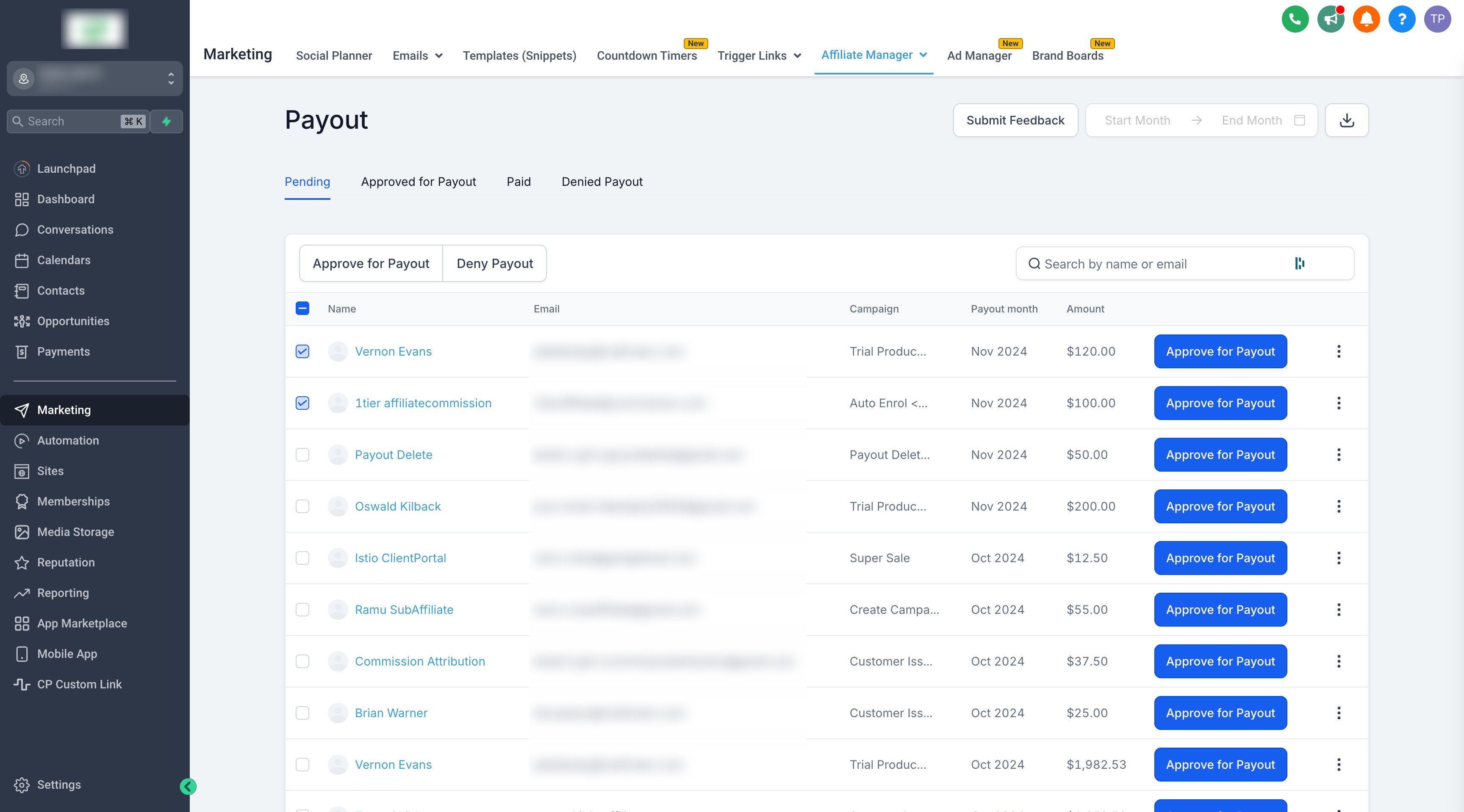
The Payouts screen contains four tabs that represent different payout statuses.
1. Pending
The Pending tab displays pending payouts for each campaign, organized by month.
You can review payout details at the campaign and month levels using the three-dot menu.
For eligible payouts, approve the payout so it can move to the next stage.
If a payout does not apply, select Deny Payout. The payout then moves to the Denied Payouts tab.
2. Approved for Payout
After you approve a payout in the Pending tab, it moves to Approved for Payout.
From this tab, you can:
Process eligible payouts using PayPal Auto Payouts.
Use a manual payment method, such as a bank transfer.
Mark manually processed payouts as Paid after completing the payment.
Move a payout back to Pending when needed.
Important: Processing a payout requires the Pay Affiliate Manager Payout permission. Users without this permission do not see the payout action.
3. Paid
The Paid tab lists affiliates who have received their payouts and shows the transaction date.
Payouts in this tab cannot be modified because Paid is the final payout status.
4. Denied Payouts
The Denied Payouts tab contains payouts that were denied.
You can deny a payout from either the Pending or Approved for Payout tab.
How Are Payouts Generated?
Payouts are generated in the Pending tab on the first day of each month.
Each payout includes a Due date that indicates when the affiliate should be paid. The due date is based on the payout term configured for the campaign.
You can approve and pay payouts at a later date when needed, such as when reviewing possible refunds.
How Do Commissions Work?
Affiliates earn commissions when a sale is made through their unique affiliate link.
The commission amount depends on the commission settings configured for the campaign.
Campaigns can support:
One-time commissions
Recurring commissions
Additional commission rules based on the campaign configuration
Understanding how commissions connect to affiliate payouts helps you review and manage payments accurately.