
Agent Studio lets you manage, update, test, and maintain existing flow-based AI agents using a visual builder. While new agents should now be created with Managed Agents, existing flow-based agents continue to work and can still be edited without rebuilding their connected automations. This guide explains how to manage existing agents, work with tool nodes and logic, test changes, and control which version is used in production.
TABLE OF CONTENTS
- What Is Agent Studio?
- Manage Existing Agents in the Visual Builder
- Tool Nodes
- Logic and Flow Control
- Version Management
- Manage an Existing Flow-Based Agent
- Frequently Asked Questions
- Need Help?
What Is Agent Studio?
Agent Studio is a visual builder used to manage existing flow-based AI agents. It lets you review agent logic, update nodes, configure variables, test behavior, and manage versions without rebuilding the entire agent.
Existing flow-based agents and their connected triggers can continue operating while you maintain or improve their configuration. For new agent creation, use Managed Agents.
Manage Existing Agents in the Visual Builder
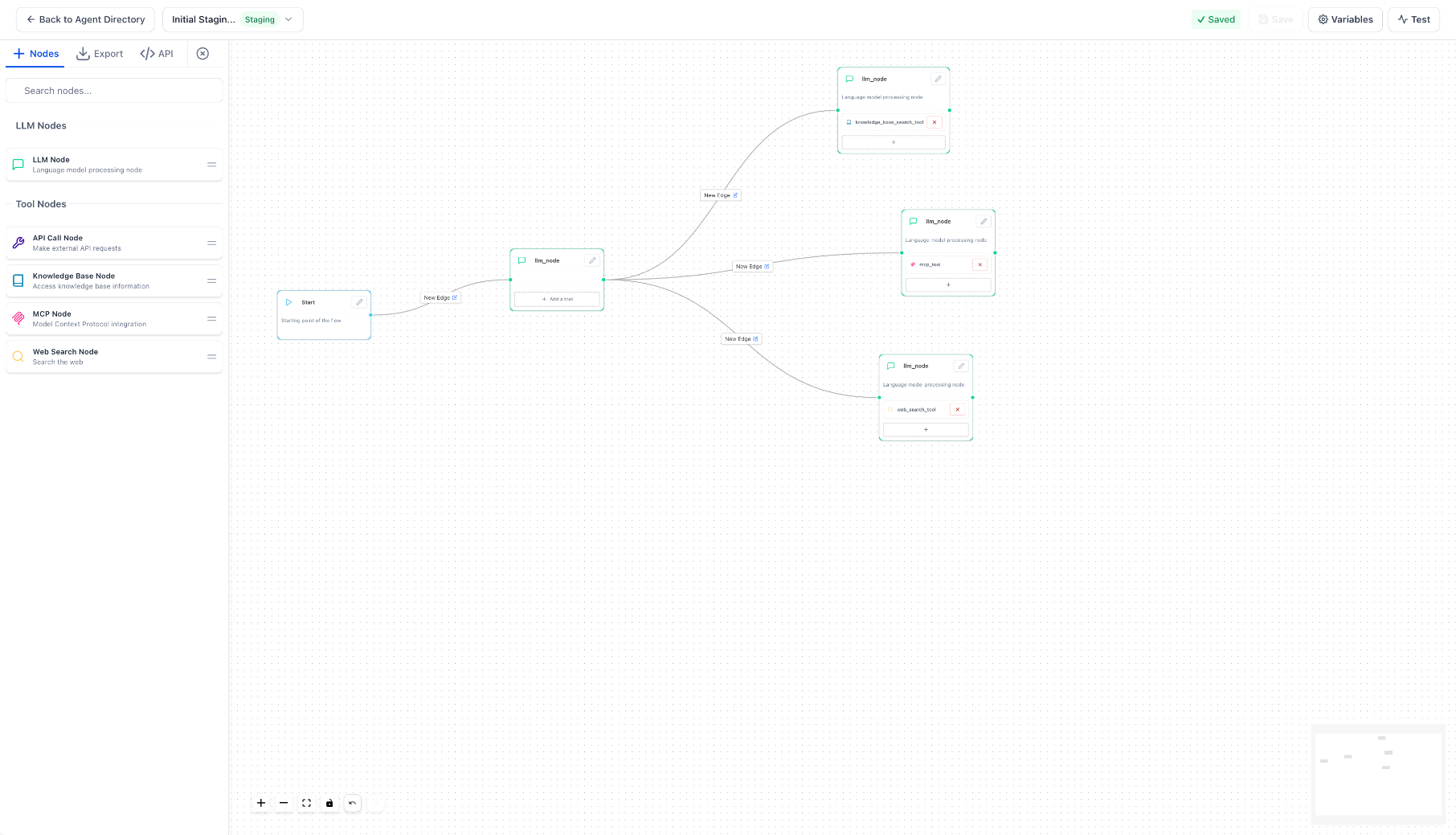
The visual canvas shows how the nodes and decision paths inside an existing agent are connected. Use it to review the current configuration, troubleshoot behavior, or update how the agent processes information.
From the visual builder, you can:
- Review an existing agent and its connected nodes.
- Follow node connections and decision paths.
- Update prompt logic and downstream actions.
- Add or revise supported nodes.
- Review how information moves through the complete agent flow.
Tool Nodes
Tool nodes extend what an existing flow-based agent can do. Each node performs a specific function within the agent flow.
LLM Node
The LLM node uses a large language model to generate context-aware responses. Configure its prompts, parameters, and output handling based on the agent's requirements.
MCP Tool Node
The MCP Tool Node connects the agent to supported external tools through Model Context Protocol (MCP). It can be used to retrieve external information or perform supported actions.
API Tool Node
The API Tool Node connects the agent to external services by sending and receiving data through an API.
Knowledge Base Tool Node
The Knowledge Base Tool Node gives the agent access to connected reference information so it can use approved content when generating responses.
Web Search Tool Node
The Web Search Tool Node allows the agent to retrieve information from the web when current external information is needed.
Logic and Flow Control
Logic and flow controls determine how information moves through an existing agent and which path is followed based on the available data.
- Edge conditions: Create different paths based on input or variable values.
- Variables: Store and pass information between nodes so later steps can use data collected earlier in the flow.
Review these configurations carefully when troubleshooting an agent or changing how it makes decisions.
Version Management
Agent Studio uses separate Staging and Production versions so changes can be tested before they affect live interactions.
- Staging: The work-in-progress version used for saved updates and testing.
- Production: The live version used for real interactions.
Saving changes updates the Staging version without changing the current Production version. When the updated agent is ready to go live, promote the Staging version to Production.
Manage an Existing Flow-Based Agent
Step 1: Open Agent Studio
From the Sub-Account view, go to AI Agents → Agent Studio.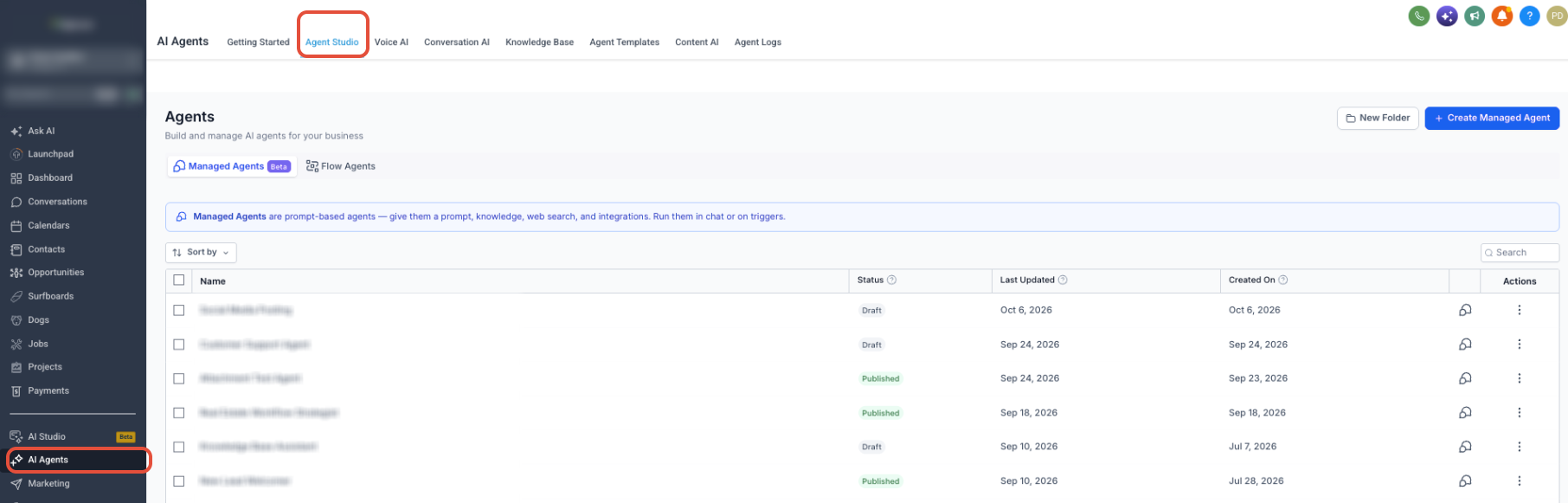
Step 2: Open Flow Agents
Select Flow Agents to view your existing flow-based agents.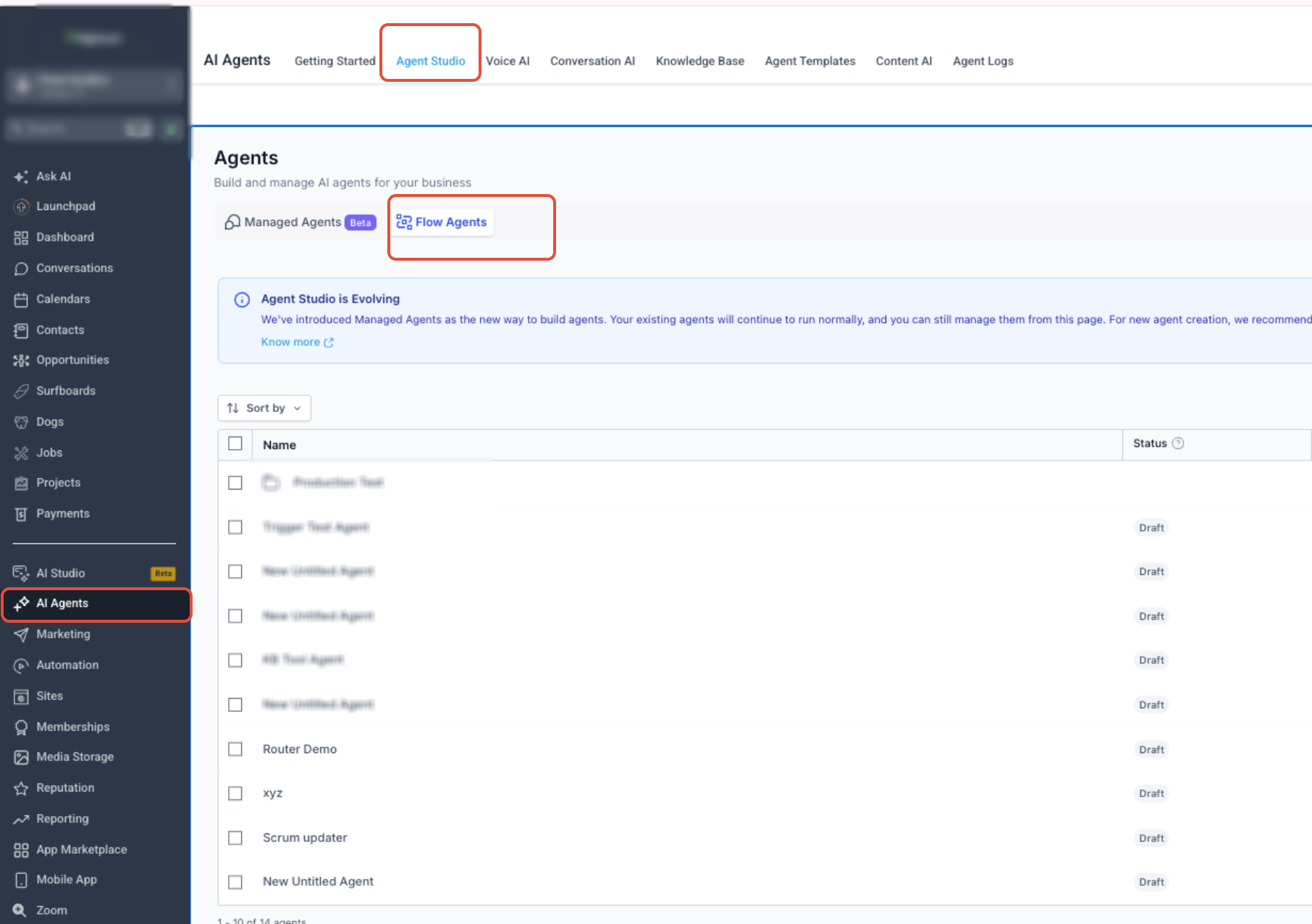
Step 3: Select an Existing Agent
Click the name of the existing flow-based agent you want to review or update.
Step 4: Review or Update the Agent Flow
Review the existing nodes and connections. Update supported tool nodes, prompts, logic, or other configuration as required.
Supported nodes can include:
- LLM
- MCP
- API
- Knowledge Base
- Web Search
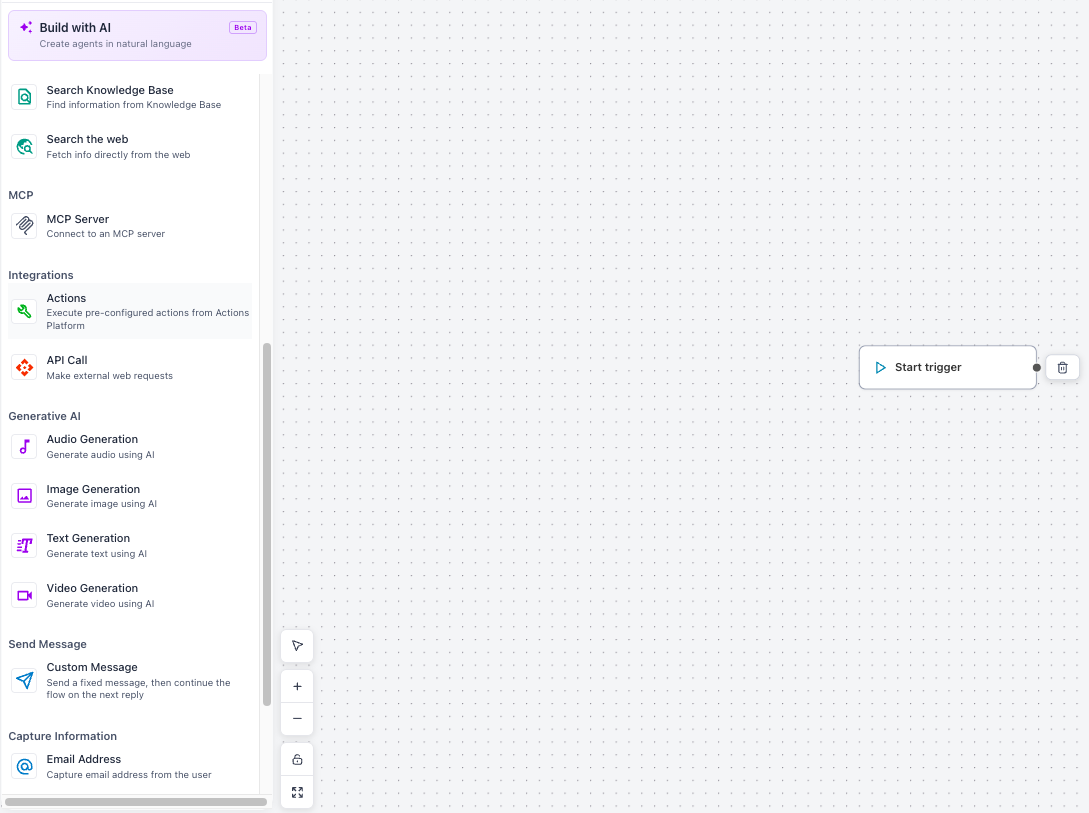
Review edge conditions and variables used throughout the flow. Make sure information is being passed to the correct nodes and that each decision path produces the intended result.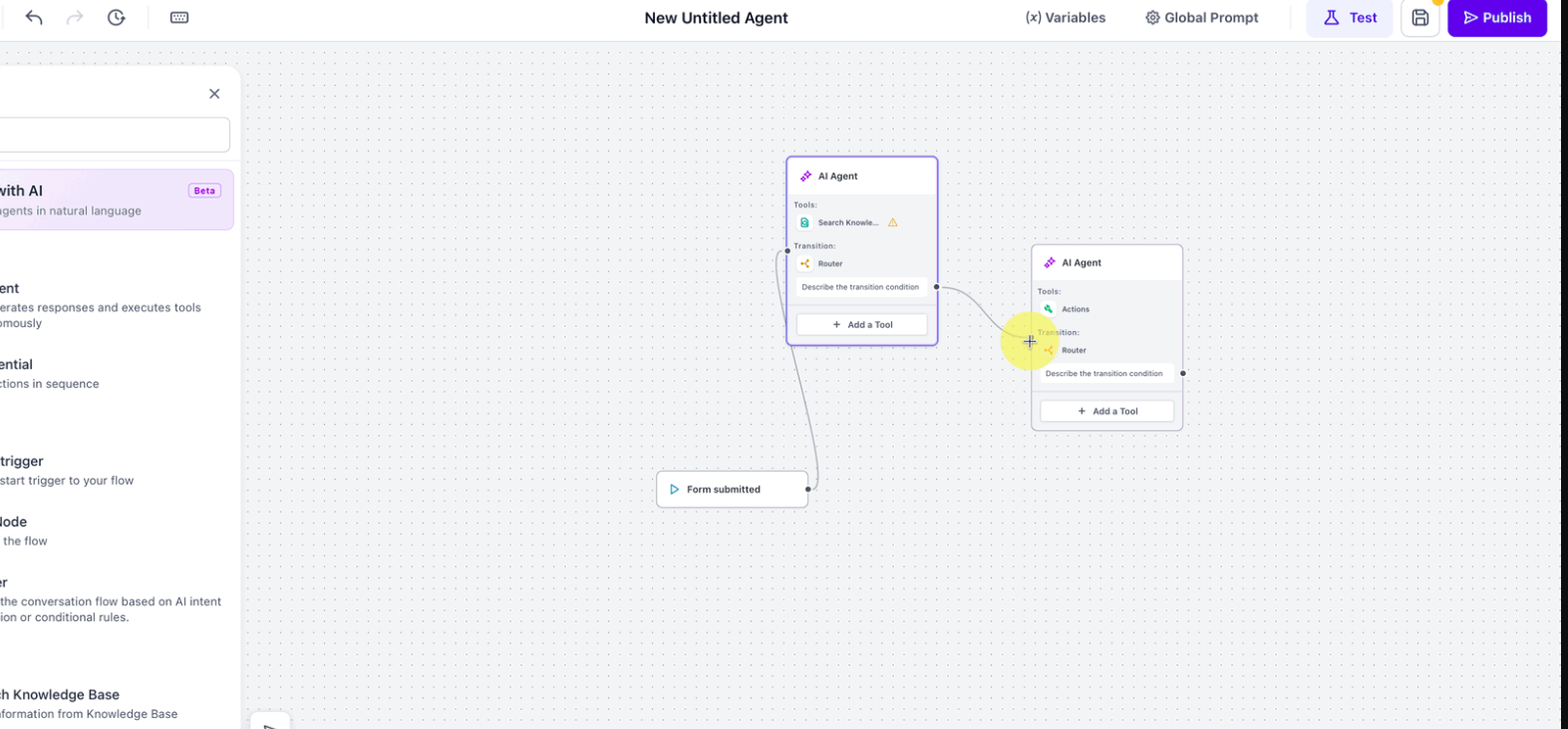
Step 6: Test the Agent
Open the Test tab and test realistic scenarios before updating the live version. Confirm that the correct nodes run, variables contain the expected values, and the agent follows the intended paths.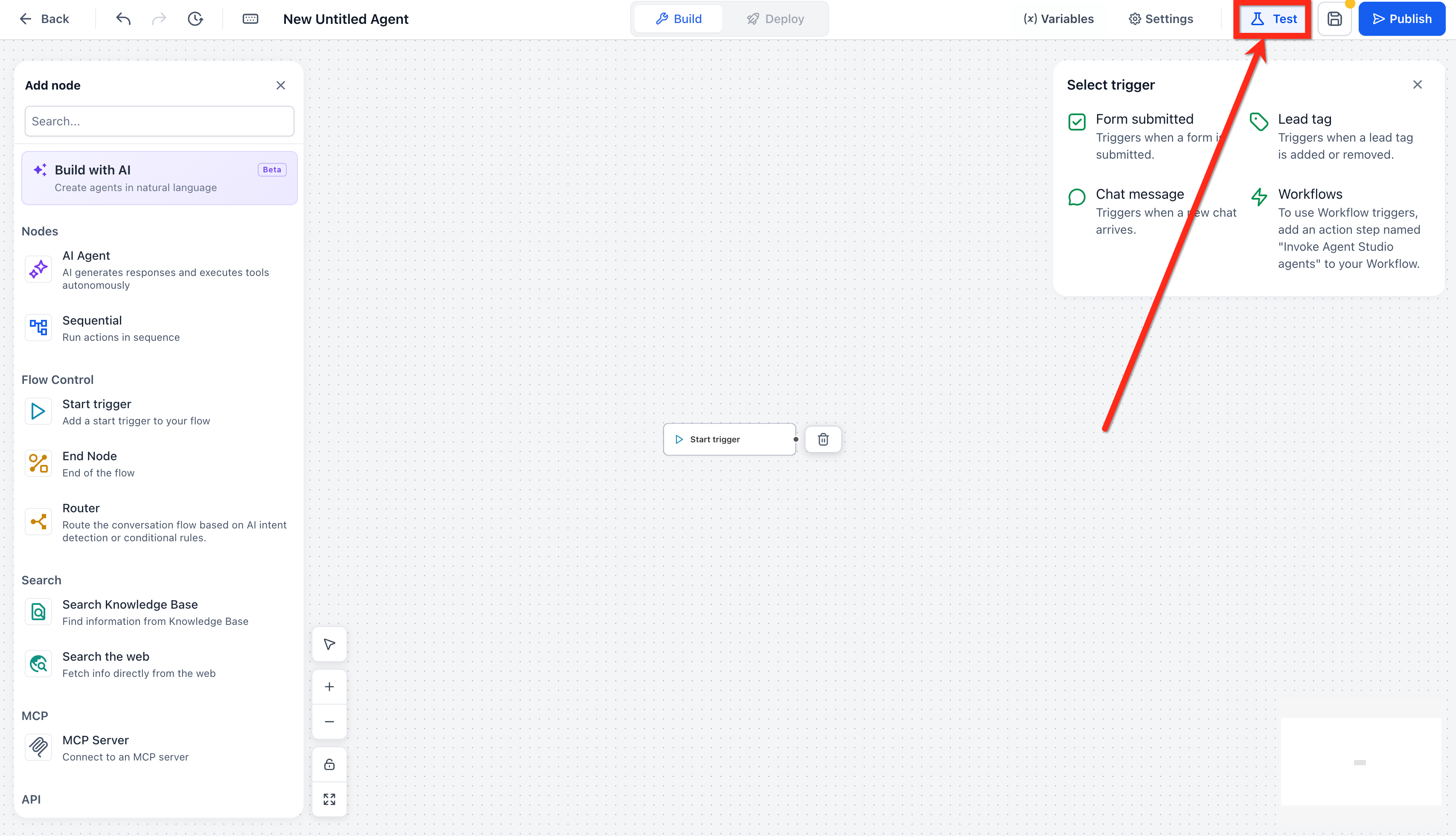
Step 7: Save the Staging Version
Save and publish your changes to update the agent's Staging version. Changes in Staging do not replace the live Production version until they are promoted.
Step 8: Promote to Production
After testing the Staging version, promote it to Production when you are ready for the changes to affect live interactions.
Existing triggers connected to the flow-based agent continue running, so you do not need to rebuild those trigger connections simply to update the agent.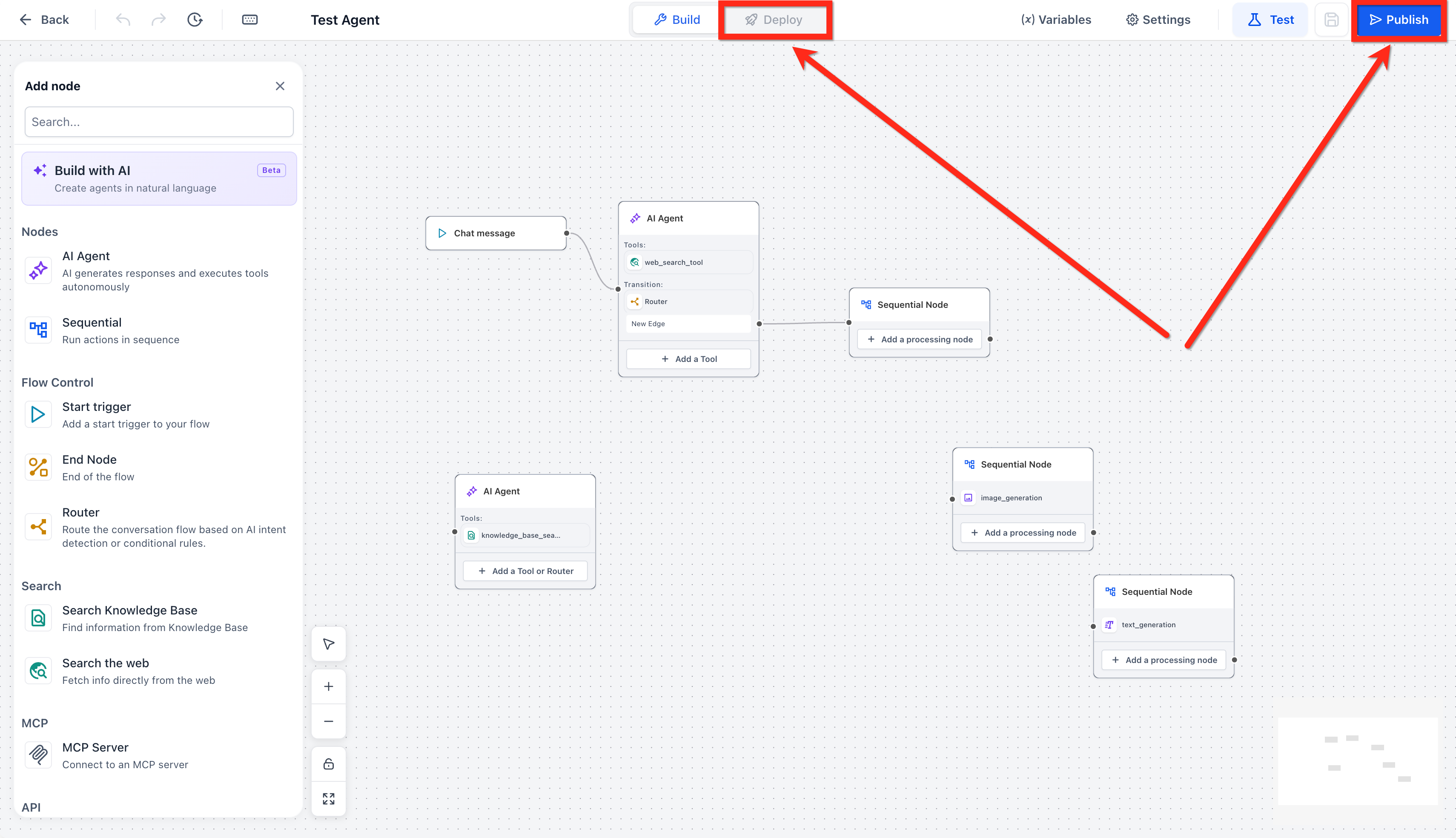
Frequently Asked Questions
Q: Can I still create new agents with the flow-based builder?
No. Use Managed Agents for new agent creation. Agent Studio's flow-based builder remains available for managing existing flow-based agents.
Q: What happens to my existing flow-based agents?
Existing flow-based agents continue to work. You can still open, edit, test, and manage them from the Sub-Account view.
Q: Will existing triggers connected to my flow-based agents continue working?
Yes. Existing triggers connected to current flow-based agents continue running.
Q: Can I still edit nodes and logic inside an existing agent?
Yes. You can continue editing supported nodes, decision paths, variables, prompts, and other configurations within existing flow-based agents.
Q: Where should I create a new agent?
Create new agents using Managed Agents.
Q: Can I still test changes before they go live?
Yes. Update and test the Staging version first, then promote it to Production when the changes are ready for live use.
Q: Do I need to move all existing flow-based agents to Managed Agents immediately?
No. Existing flow-based agents can continue operating and can still be managed in Agent Studio. Use Managed Agents for new agent creation unless your organization has a separate migration plan.
Need Help?
If an existing flow-based agent is not working as expected, verify that:
- You are editing the correct agent in the correct Sub-Account.
- The required nodes are connected correctly.
- Edge conditions route information through the intended path.
- Required variables contain the expected values.
- External API or MCP connections used by the agent are available.
- The correct Knowledge Base source is connected when applicable.
- The updated configuration was tested before being promoted.
- The intended Staging version was promoted to Production.
- Existing triggers are still connected to the correct agent.
If the issue continues, collect the agent name, affected node or path, expected behavior, actual behavior, Staging or Production version, relevant error details, and screenshots before contacting support.