
User Access lets you control who can access a Sub-Account and what each user is allowed to do. From Users, you can add and manage users, update their information, configure permissions, and manage access as responsibilities change. This guide also explains login-email verification and recommended practices for maintaining secure user access.
TABLE OF CONTENTS
- Manage Users
- User Details and Settings
- Permissions and Roles
- Email Change Verification
- Best Practices
- Frequently Asked Questions
- Need Help?
Manage Users
Users with the appropriate access can manage other users within a Sub-Account from the Users area.
How to Access Users
- Open the required Sub-Account.
- Go to Settings → Users.
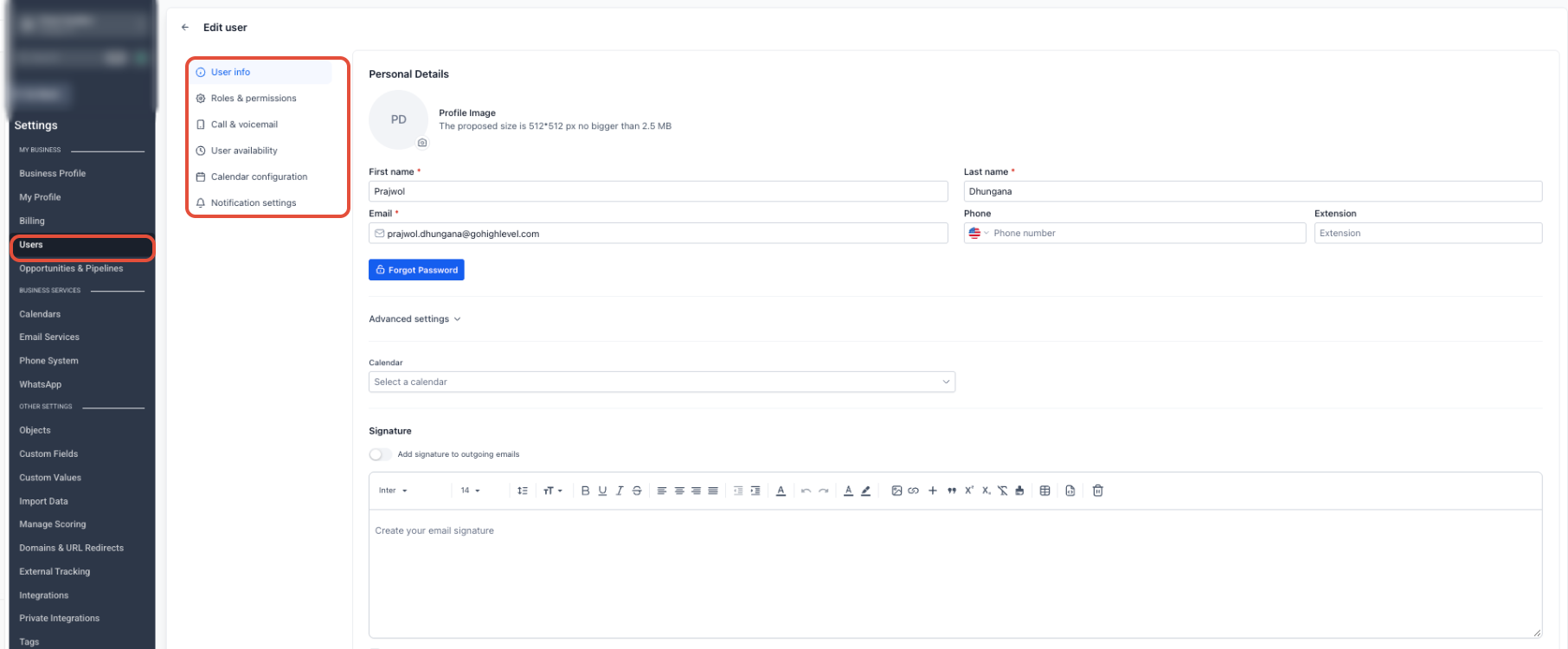
What You Can Do
From Users, you can:
- Search for existing users.
- Add new users.
- Edit existing users.
- Manage available roles and permissions.
- Remove users who no longer require access.
When creating a user, available options can also include call-forwarding defaults and voicemail setup.
User Details and Settings
When adding or editing a user, supported details can include:
- Personal logo
- First name
- Last name
- Email used for login
- Phone number
- Password
- Permissions
If an email address is already associated with an existing user, follow the guidance shown in Users to continue with the existing user instead of creating a duplicate.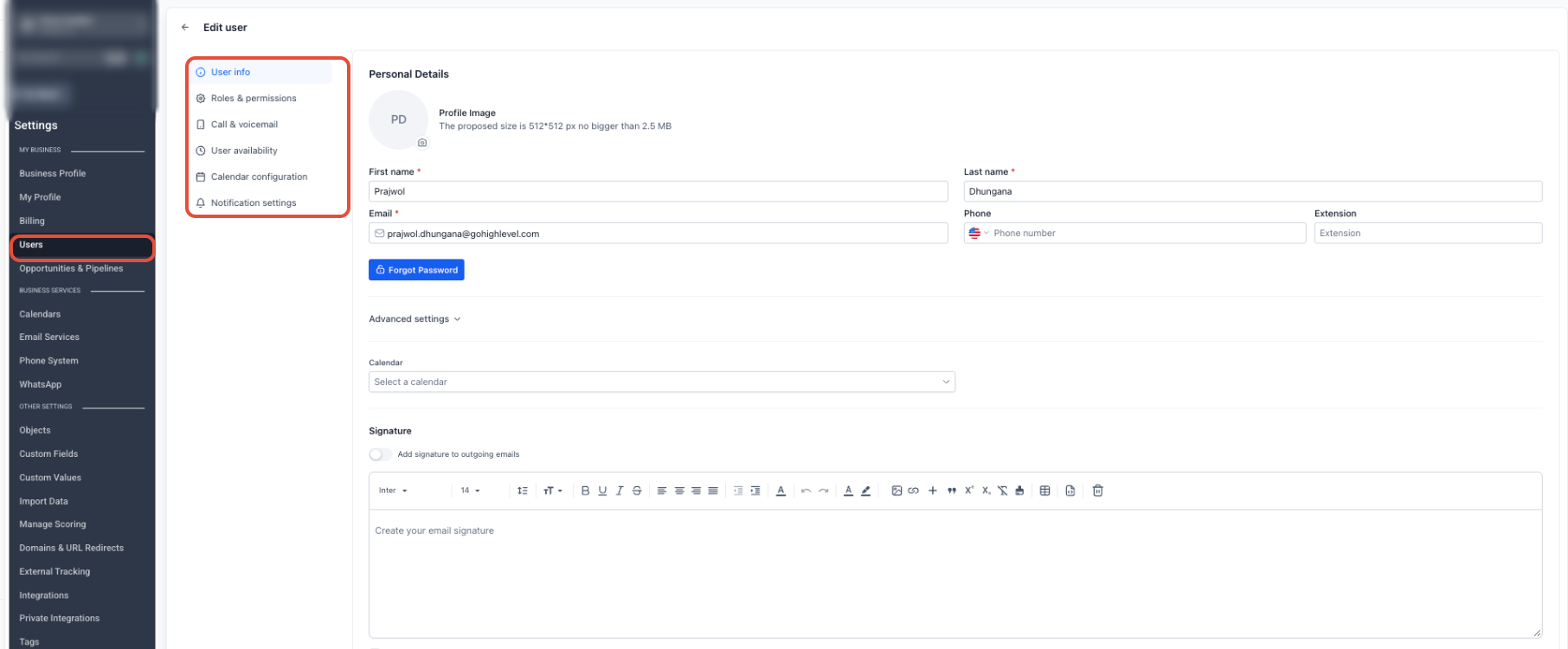
Permissions and Roles
Roles and permissions determine which supported areas and actions a user can access within the Sub-Account.
Depending on the available settings, permissions can control:
- Which areas of the account a user can access.
- Which supported actions the user can perform.
- Whether the user can view or edit specific features.
- Which assigned data the user can work with.
Email Change Verification
Changing a login email is a sensitive account update. Multi-channel OTP verification can be used to confirm identity, including when the current email address is unavailable.
Available verification methods can include:
- Email OTP
- Phone (SMS) OTP
- TOTP (Authenticator app)
The verification methods shown depend on the user's verified two-factor authentication methods.
Change Your Own Login Email
Go to My Profile → Security to manage your own login email.
- You are prompted to verify using another available method, such as SMS or an Authenticator app.
- If no other verified method is available, you may be prompted to set up an authenticator app.
Change Another User's Login Email
When an authorized admin changes another user's login email, the available verification methods for that user are displayed. These can include Email, SMS, and/or an Authenticator app.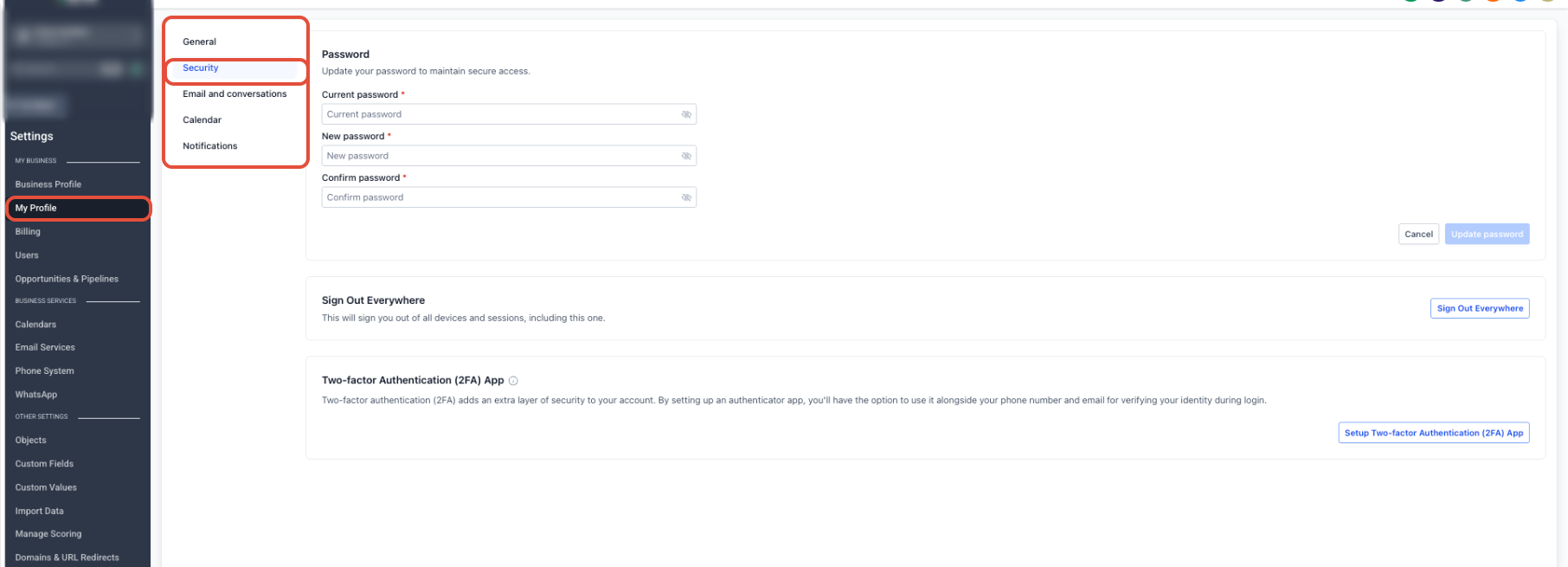
Best Practices
- Use least privilege: Give each user only the permissions required for their responsibilities.
- Review permissions before granting access: Confirm that users can access only the features and data they need.
- Track access changes: Maintain clear records when user access or responsibilities change.
- Review access periodically: Update permissions or remove users when access is no longer required.
Frequently Asked Questions
Q: Where do I manage users in a Sub-Account?
Go to Settings → Users in the required Sub-Account.
Q: Can I set different permission levels for different users?
Yes. Available permission settings let you control which supported features and actions each user can access.
Q: How do I change someone's access if their responsibilities change?
Go to Settings → Users, open the user, then update the available permissions or access settings as needed.
Q: What should I do if the email address already belongs to an existing user?
Follow the guidance shown in Users for the existing email address rather than creating a duplicate user.
Q: Where can I change my own login email?
Go to My Profile → Security. The available verification method depends on the two-factor authentication methods already verified for your account.
Need Help?
If a user cannot access the expected features or account information, verify that:
- The correct user is being edited.
- The user's email address is correct.
- The required permissions are enabled.
- The user has access to the intended Sub-Account.
- Any recent permission changes were saved.
- The appropriate verification method is available when changing a login email.
If the issue continues, collect the affected user's email address, the expected access, the actual behavior, and relevant screenshots before contacting support.