
Email signatures help keep outbound emails consistent and professional by adding your saved name, title, contact information, links, images, and other signature content to supported emails. Each user can manage their own signature from My Profile, automatically apply it to outgoing messages, or insert it manually using the user signature custom value.
TABLE OF CONTENTS
- What Is an Email Signature?
- Set Up or Edit Your Email Signature
- Configure Signature Settings
- Insert a User Signature Using Custom Values
- Use an Email Signature in a Campaign
- Frequently Asked Questions
- Need Help?
What Is an Email Signature?
An email signature is saved per user within a Sub-Account. It can include information such as your name, title, phone number, links, images, and other formatted content.
Your saved signature can be applied automatically to supported outgoing emails or inserted manually where needed using the user email-signature custom value.
Set Up or Edit Your Email Signature
Use the steps below to create or update your email signature from My Profile.
Step 1: Open My Profile
From the Sub-Account view, go to Settings → My Profile → General.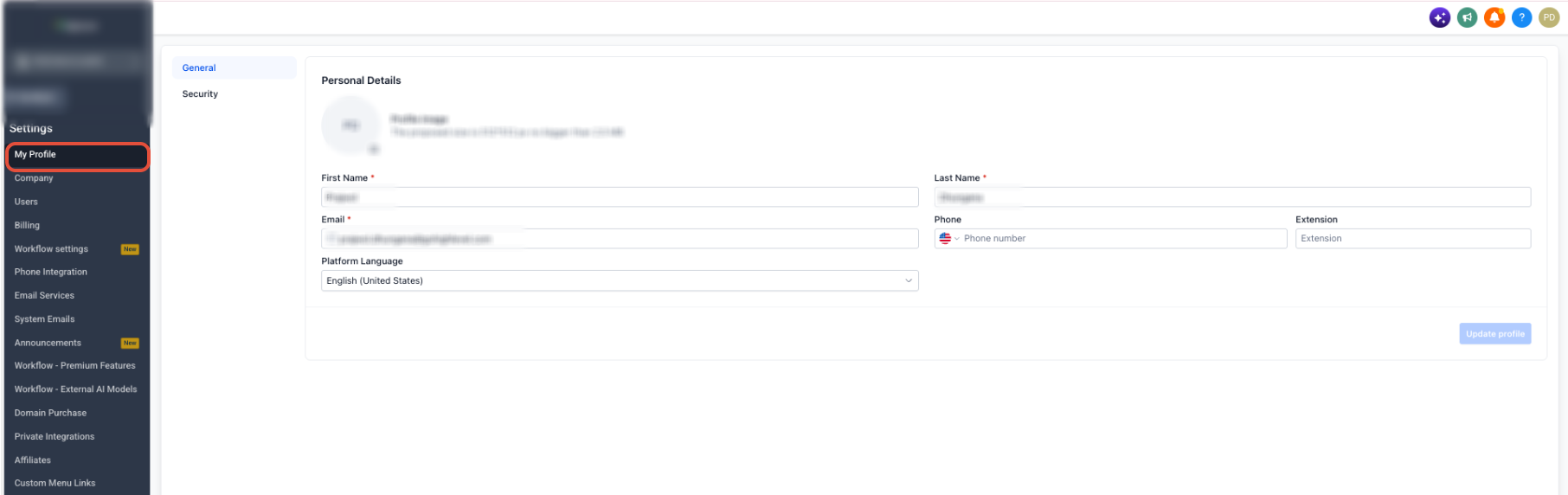
Step 2: Open the Email Signature Section
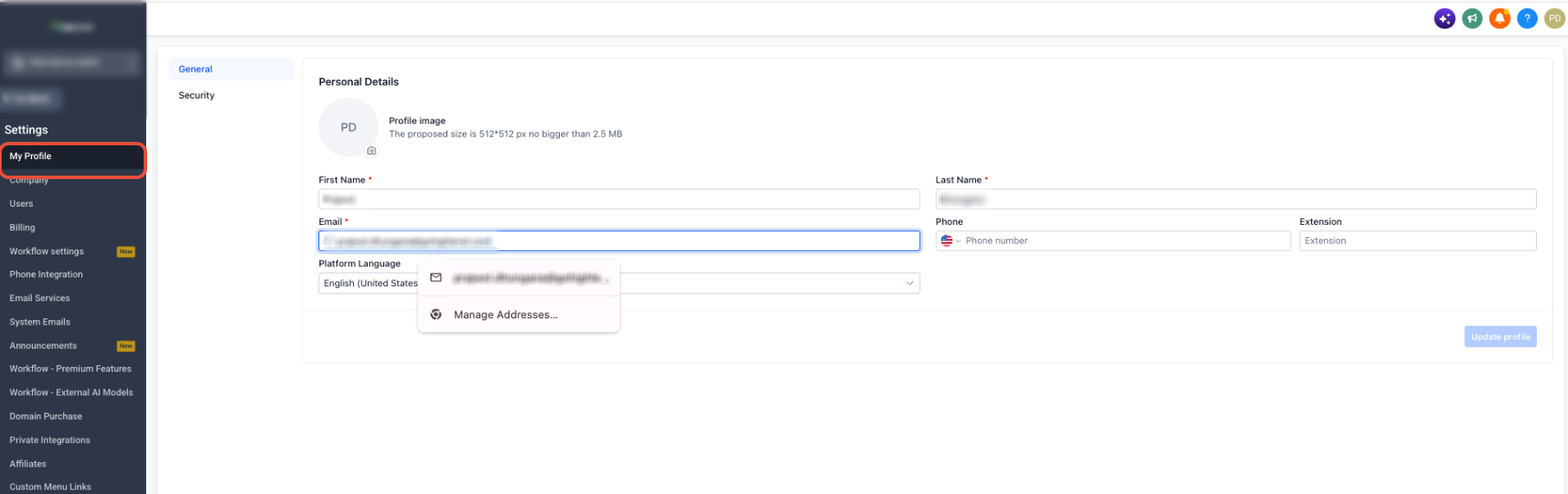
In the General tab, locate the email signature editor.
Step 3: Create or Update Your Signature
Enter or update your signature content using the available editor controls. Supported formatting options can include:
- Fonts and font sizes
- Line height
- Text colors
- Text alignment
- Links
- Images
- Custom values
- HTML/source editing
- Clear All
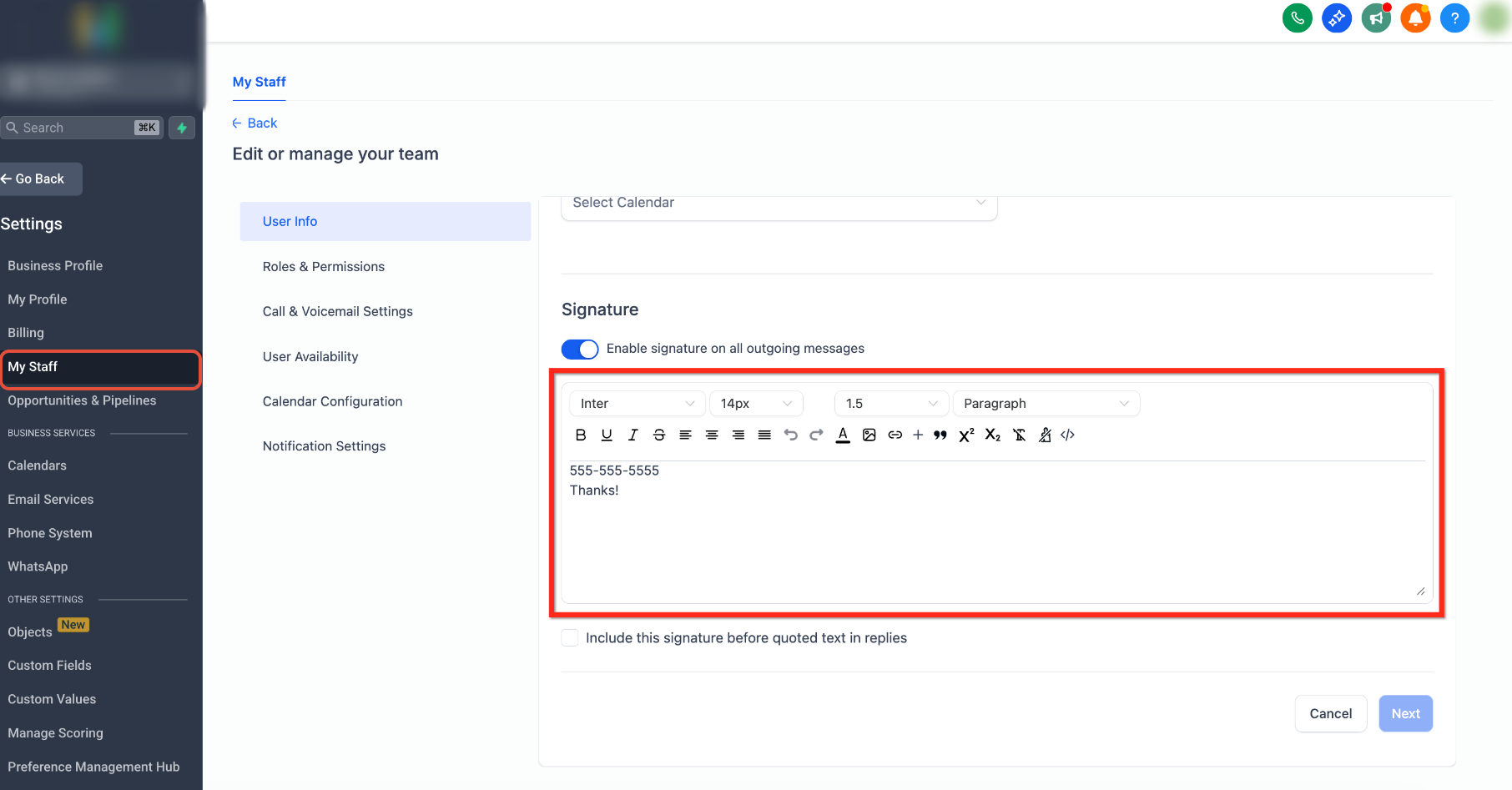
Use Insert HTML or the available source view when you need to paste or edit HTML directly.
Use Clear All to remove the current signature content and start over.
The updated editor also improves HTML and table rendering so pasted or imported signatures display more consistently in the editor and in sent emails.
Step 4: Configure Optional Settings
Configure the available signature options based on how you want your signature to appear in outgoing messages.
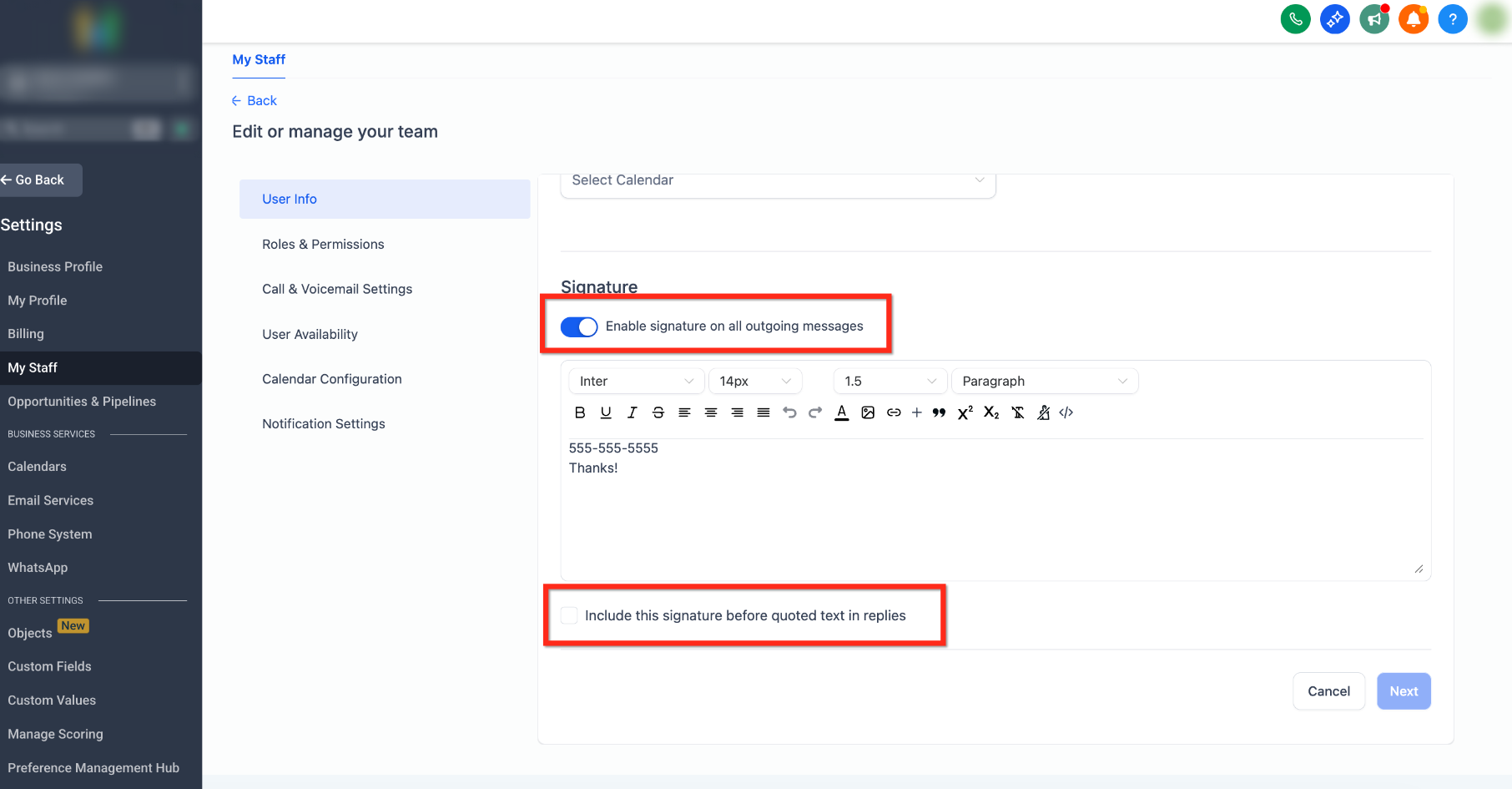
- Turn on Enable Signature in All Outgoing Messages to automatically apply your saved signature to supported outgoing emails.
- Enable Include This Signature Before Quoted Text in Replies if you want your signature to appear above the quoted email thread when replying.
Step 5: Apply Your Changes
After reviewing your signature and settings, complete the save action shown in My Profile, if required, to apply your changes.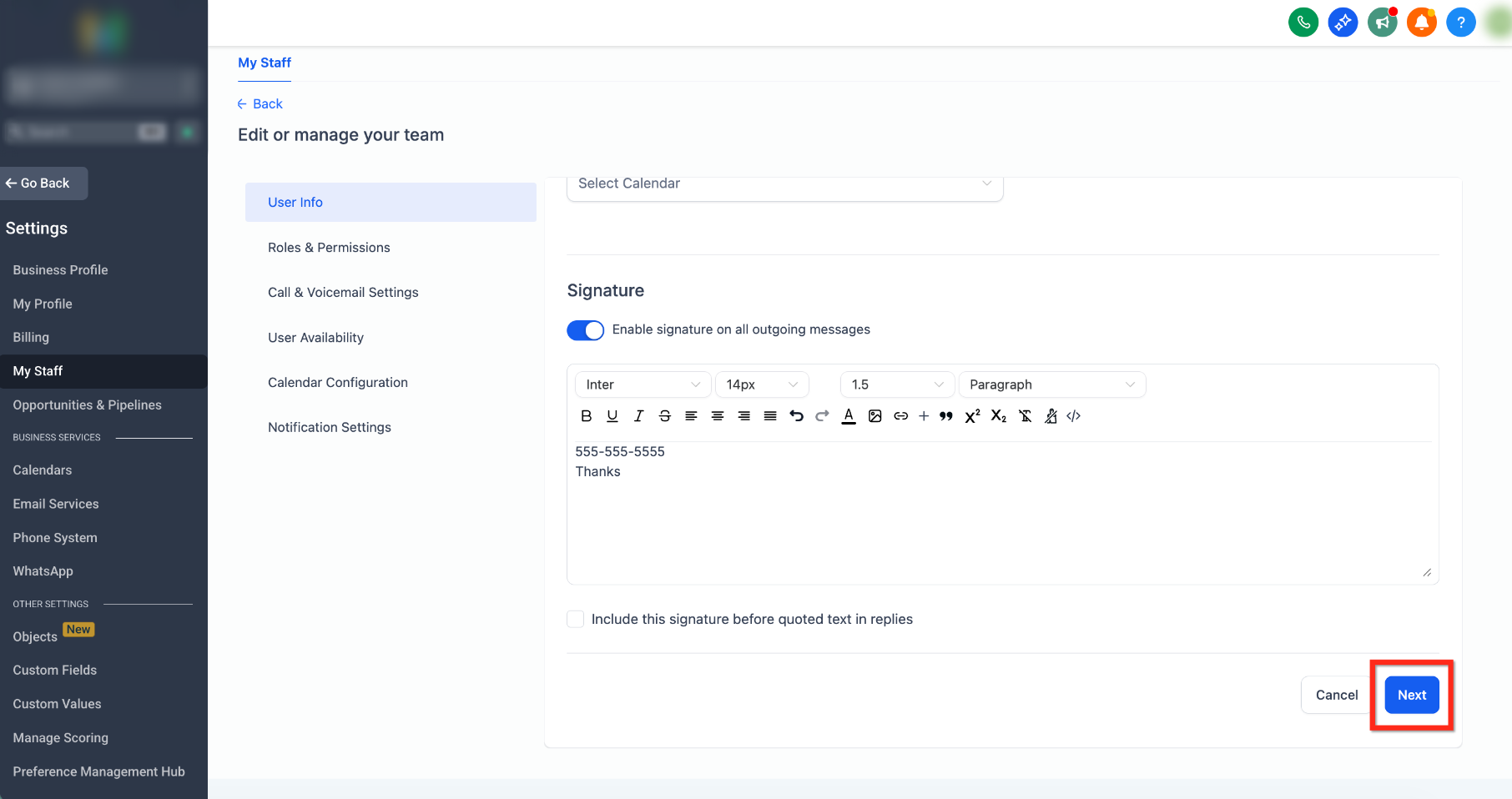
Configure Signature Settings
When Enable Signature in All Outgoing Messages is enabled, your saved signature can be added automatically to supported outgoing emails.
The quoted-text setting controls whether your signature appears above the quoted content when replying to an existing email thread.
Insert a User Signature Using Custom Values
Using the email-signature custom value gives you more control over where the signature appears. This is useful when you want the signature in a specific location within a campaign, template, or supported email editor.
- Open the email editor where you want the signature to appear.
- Select Custom Values.
- Go to User, then select Signature.
The email-signature custom value is:
{{user.email_signature}}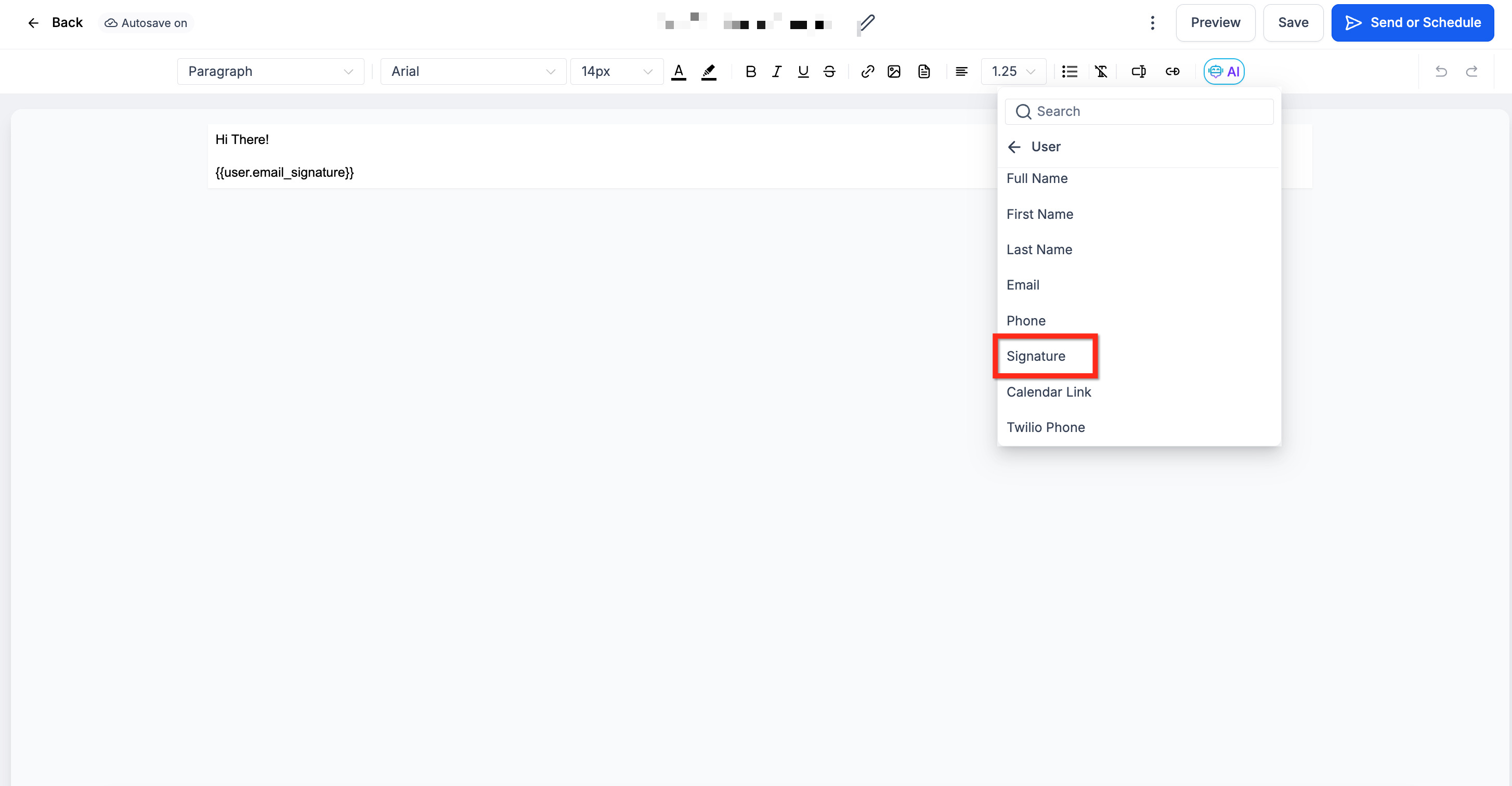
Use an Email Signature in a Campaign
The {{user.email_signature}} merge field dynamically inserts the saved signature associated with the available user context when the email is generated.
Add the merge field where you want the signature to appear:
{{user.email_signature}}
For example, place it below your closing message so the appropriate saved user signature is inserted when the email is generated.
Important: If the signature appears blank or displays the wrong user's information, verify the user context associated with the email, such as the assigned user or sender.
Frequently Asked Questions
Q: Is the email signature set per user or per Sub-Account?
Email signatures are saved per user within a Sub-Account. Each user can have a different signature.
Q: I updated my signature, but I do not see it when sending emails. What should I check?
Confirm that you updated the correct user profile and verify whether Enable Signature in All Outgoing Messages is enabled. If you are using {{user.email_signature}}, also verify the user context associated with the email.
Q: What formatting options can I use in my signature?
The signature editor supports formatting options such as fonts, font sizes, line height, text colors, alignment, links, images, custom values, and HTML/source editing.
Q: Can I paste or edit HTML in my email signature?
Yes. Use Insert HTML or the available source view in the signature editor to add or edit HTML directly.
Q: Can I place my signature before quoted text in replies?
Yes. Enable Include This Signature Before Quoted Text in Replies.
Need Help?
If your email signature is not appearing as expected, verify that:
- You updated the correct user profile.
- Your signature content is saved in My Profile → General.
- Enable Signature in All Outgoing Messages is enabled when automatic insertion is required.
- The
{{user.email_signature}}custom value is placed correctly when inserting the signature manually. - The email has the expected sender or assigned-user context.
- Any HTML used in the signature is valid and renders correctly in the editor.
If the issue continues, collect the affected user, where the signature is being used, the expected result, the actual result, and relevant screenshots before contacting support.