
Live Chat notifications help you stay informed when new messages arrive so you can respond quickly and keep conversations moving. Live Chat uses your existing Conversation notification preferences, allowing you to control which events trigger alerts and how those alerts are delivered.
TABLE OF CONTENTS
- What Are Live Chat Notifications?
- Key Benefits
- Set Up and Customize Live Chat Notifications
- Conversation Notification Options
- Notification Channels
- Frequently Asked Questions
- Need Help?
What Are Live Chat Notifications?
Live Chat notifications alert you when supported Live Chat activity occurs.
These alerts use the same Conversation notification settings as other conversation types, so you do not need to configure a separate set of Live Chat notification preferences.
Depending on the notification type and your preferences, supported alerts can be delivered through channels such as In-App, Email, or SMS.
Key Benefits
- Stay informed: Receive alerts for supported Live Chat activity.
- No separate setup: Live Chat uses your existing Conversation notification preferences.
- Centralized management: Manage Live Chat and other Conversation alerts from My Profile.
- Flexible delivery: Choose the supported notification channels that work best for you.
Set Up and Customize Live Chat Notifications
Live Chat notifications are managed through your Conversation notification settings.
Step 1: Open Notifications
Go to Settings → My Profile → Notifications.
In My Profile, select Notifications from the left-side menu.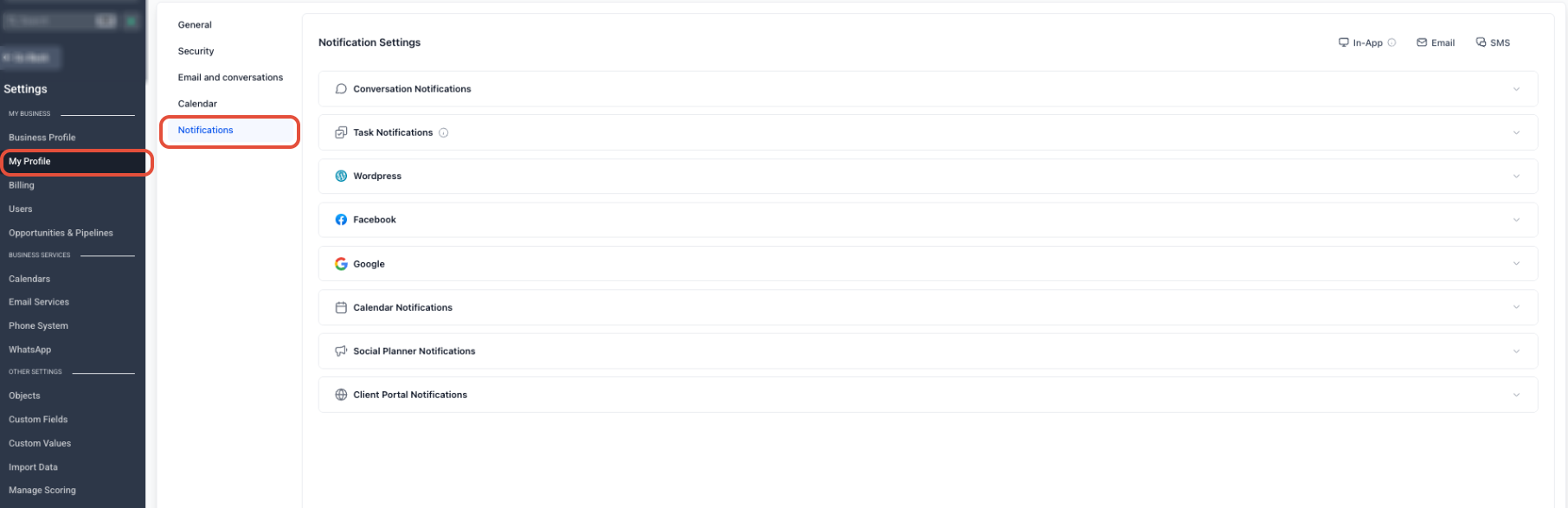
Step 2: Configure Conversation Notifications
Review the available Conversation notification options and enable the alerts that match the activity you want to follow.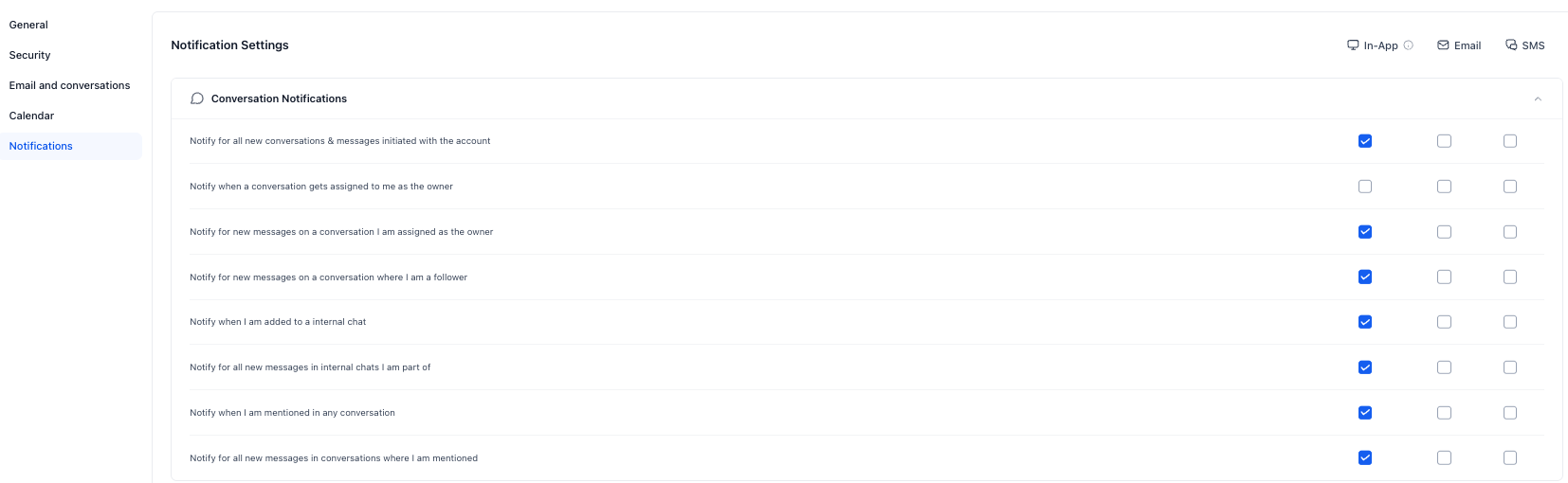
Step 3: Choose Notification Channels
Select the available delivery channels for each notification type based on how you want to receive alerts.
Available channels can include In-App, Email, and SMS.
Step 4: Apply Your Changes
After configuring your notification options and channels, use the available save action to apply your changes.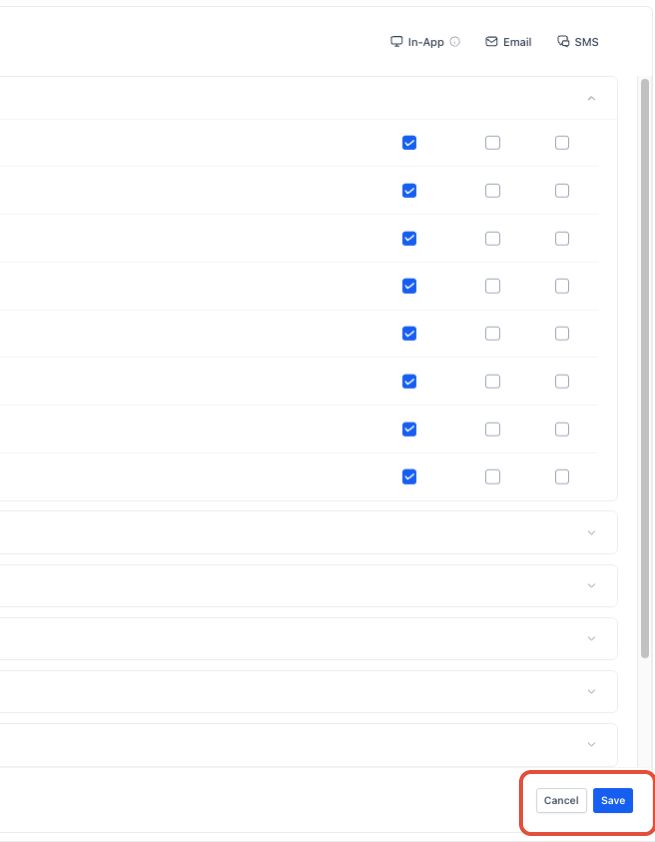
Conversation Notification Options
Available Conversation notification settings can include:
- Notify for all new conversations & messages initiated with the account: Receive alerts when a new conversation or message is initiated with the account.
- Notify when a conversation gets assigned to me: Receive an alert when a conversation is assigned to you.
- Notify for new messages on a conversation I am assigned to: Receive alerts for new messages in conversations assigned to you.
- Notify when I am added to an internal chat: Receive an In-App notification when you are added to a supported internal chat.
- Notify for all new messages in internal chats I am part of: Receive In-App alerts for supported new messages in internal chats you have joined.
- Notify when I am mentioned in any conversation: Receive an alert when another user mentions you in a conversation.
- Notify for all new messages in conversations where I am mentioned: Continue receiving supported alerts for new messages after being mentioned in a conversation.
Live Chat activity follows the applicable Conversation notification settings, so no separate Live Chat notification configuration is required.
Notification Channels
Available channels depend on the notification type and can include:
- In-App: Displays supported alerts while you are working in the platform.
- Email: Sends supported notifications to your registered email address.
- SMS: Sends supported notification alerts to your configured phone number.
You can enable the supported combination of channels that best fits your workflow.
Frequently Asked Questions
Q: If I disable "Notify for all new conversations & messages initiated with the account," will I still receive Live Chat notifications for conversations assigned to me?
Yes. If Notify when a conversation gets assigned to me or Notify for new messages on a conversation I am assigned to remains enabled, you can still receive supported alerts for conversations assigned to you.
Q: Can I choose individual notification channels for Live Chat alerts?
Yes. Supported notification channels can be enabled or disabled independently for the applicable Conversation notification type.
Q: How do mention notifications work together?
Notify when I am mentioned in any conversation alerts you when you are mentioned. Notify for all new messages in conversations where I am mentioned continues sending supported alerts for later messages in that conversation.
Q: Will changing my notification preferences affect other users?
No. Notification preferences are specific to each user's profile. Other users can configure their own Conversation notification options and channels.
Q: Do I need to configure Live Chat notifications separately?
No. Live Chat uses the applicable Conversation notification settings configured under My Profile → Notifications.
Need Help?
If Live Chat notifications are not working as expected:
- Go to Settings → My Profile → Notifications and confirm the required Conversation notification option is enabled.
- Verify that the desired notification channel is selected.
- Confirm the conversation is assigned to you when using assignment-based notification settings.
- Review mention-based notification settings if you expect alerts after being mentioned in a conversation.
- Apply any changes before testing notifications again.
If the issue continues, capture the notification type, expected delivery channel, affected conversation, and relevant screenshots before contacting support.