
A Primary Calendar controls how supported appointments and third-party calendar events sync for your user profile. This article explains how to configure your Primary Calendar, manage Contact Creation and triggers, and use conflict calendars to help prevent overlapping bookings.
TABLE OF CONTENTS
- Open Calendar Settings
- Primary Calendar
- Primary Calendar Dropdown
- Allow Contact Creation
- Allow Trigger
- Check for Conflicts
- Frequently Asked Questions
- Need Help?
Open Calendar Settings
Go to Settings → My Profile → Calendar.
In My Profile, select Calendar from the left-side menu.
This section displays the supported third-party calendar integrations connected to your user profile and provides access to synchronization settings such as Primary Calendar and Check for Conflicts.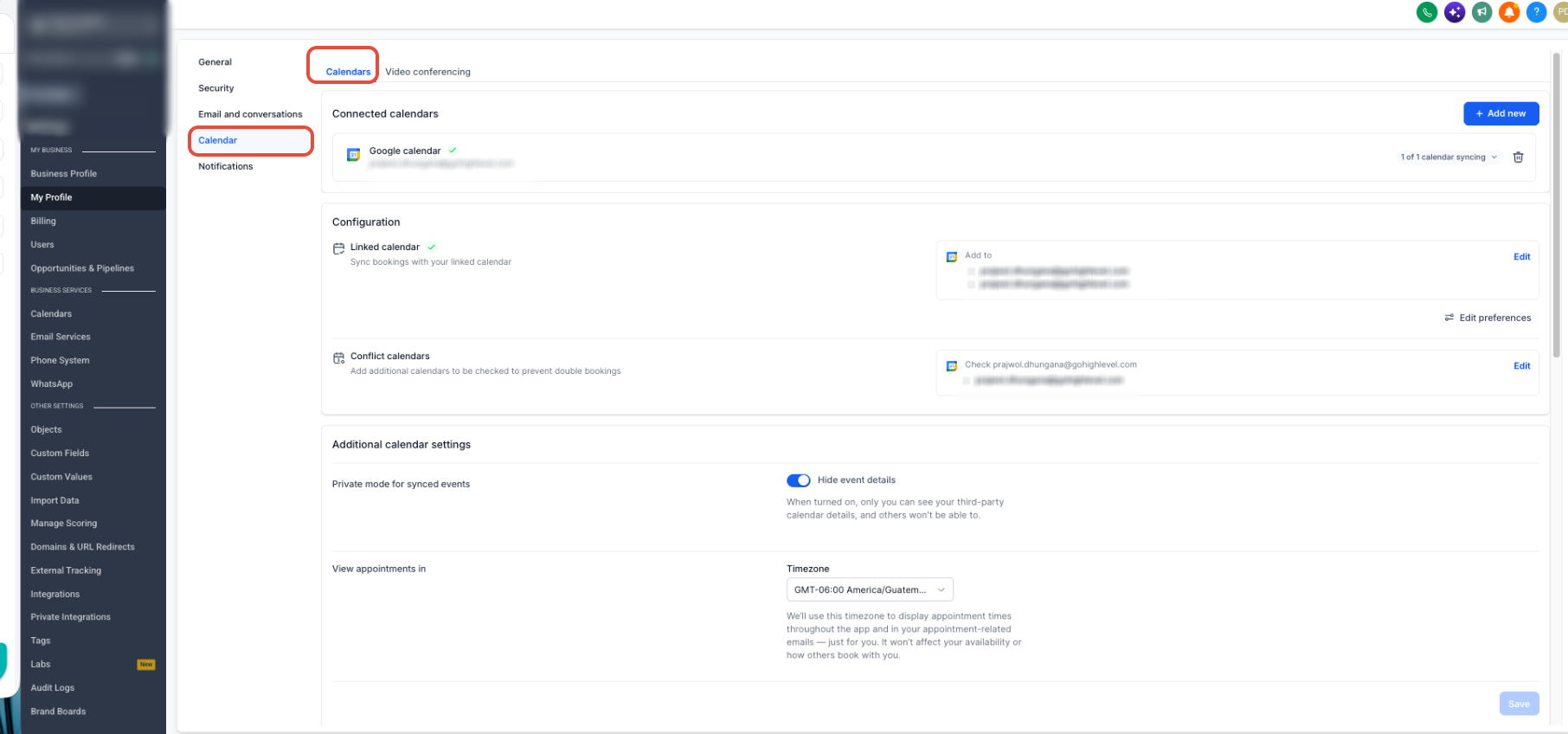
Primary Calendar
In supported Group calendars, including Round Robin, Service, Class, and Collective calendars, appointments assigned to a user can sync with connected third-party calendars such as Google, Outlook, or iCloud.
The Primary Calendar is the main calendar used to write supported appointments to the connected third-party calendar. It can also read supported events from the external calendar.
When Contact Creation is enabled, supported Google or Outlook events that include attendees can be converted into appointments and contacts. Recurring events are excluded from this behavior.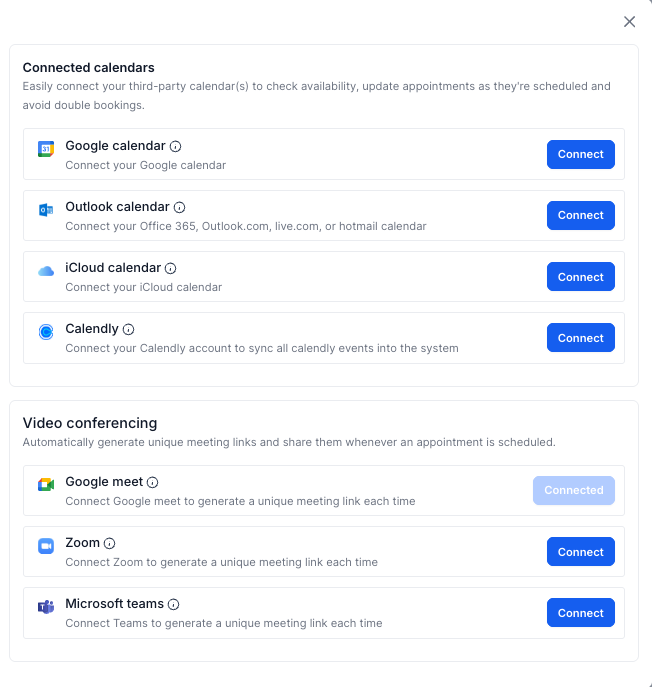
Primary Calendar Dropdown
The Primary Calendar dropdown displays the supported calendars connected to your user profile.
A calendar may be unavailable for selection if it is being used for conflict checking or does not have the required write access.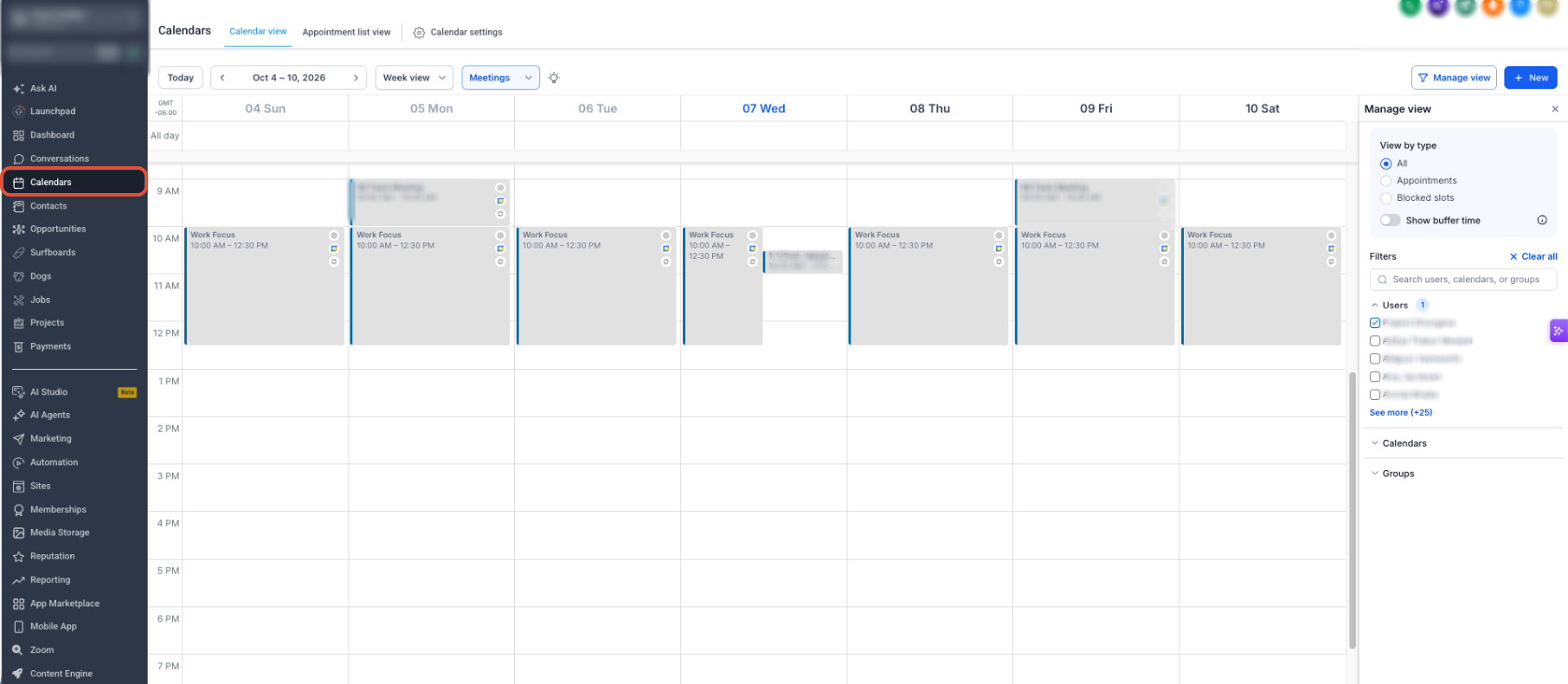
Allow Contact Creation
Use Allow Contact Creation when supported Google or Outlook calendar events should create appointments and contacts in the selected calendar.
Select the applicable calendar from the available dropdown. Supported Group calendars that the user belongs to can appear as options.
If you do not want external calendar events to create appointments or contacts, leave the option set to None.
Allow Trigger
The Allow Trigger option appears when a calendar is selected for Contact Creation.
This setting applies to appointments created from supported Google or Outlook synchronization. When enabled, applicable triggers can run for appointments created through the sync. When disabled, those appointments are created without firing the applicable trigger.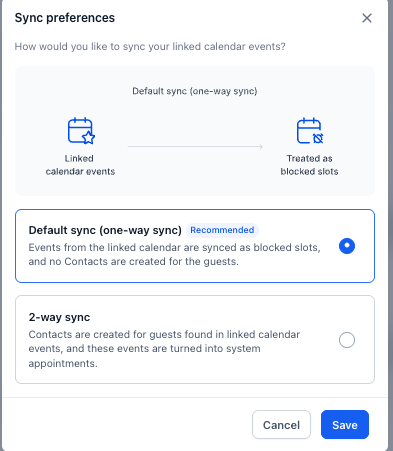
Check for Conflicts
Calendars selected for conflict checking are read for existing events so unavailable times can be blocked from new bookings.
Unlike the Primary Calendar, a calendar used only for conflict checking does not create appointments from its events. Its purpose is to help prevent scheduling conflicts and double bookings.
Manage these settings from Settings → My Profile → Calendar.
Frequently Asked Questions
Q: What is the difference between the Primary Calendar and Check for Conflicts?
The Primary Calendar handles supported read-and-write synchronization for appointments. Calendars used for conflict checking are read to block unavailable times and help prevent overlapping bookings.
Q: Can I connect multiple third-party calendars?
Yes. A user can have multiple supported third-party calendars connected. The calendar configuration determines which calendar is used for synchronization and which calendars are checked for conflicts.
Q: Why is a connected calendar unavailable in the Primary Calendar dropdown?
The calendar may be configured for conflict checking or may not have the required write access. Review the connected calendar permissions and configuration.
Q: When does Allow Trigger appear?
Allow Trigger appears when a calendar is selected for Contact Creation. It controls whether applicable triggers run for appointments created through supported external calendar synchronization.
Q: Do conflict calendars create appointments from external events?
No. Calendars used only for conflict checking read existing events to determine availability. They do not create appointments from those events.
Need Help?
If calendar synchronization is not working as expected:
- Confirm the third-party calendar is connected to the correct user profile.
- Review the selected Primary Calendar.
- Confirm the calendar has the required permissions for synchronization.
- Review Check for Conflicts if unexpected time slots are unavailable.
- Review Allow Contact Creation if external events are not creating appointments or contacts.
- Review Allow Trigger if expected automation is not running for synced appointments.
If the issue continues, capture the affected calendar, synchronization direction, appointment details, and relevant screenshots before contacting support.