
Working Hours for Conversation AI gives businesses control over when each AI agent actively responds to customers. You can create per-agent schedules, choose which channels follow those hours, and use either the contact's timezone or the business timezone. After-hours options can acknowledge customers, notify your team, tag contacts, and follow up when business hours resume. This guide explains how Working Hours operates and how to configure it for your Conversation AI agents.
TABLE OF CONTENTS
- What Is Working Hours for Conversation AI?
- Key Benefits of Working Hours for Conversation AI
- Prerequisites and Limitations
- How Working Hours Operates
- Set Up Working Hours for Conversation AI
- After-Hours Options
- Frequently Asked Questions
- Related Articles
- Need Help?
What Is Working Hours for Conversation AI?
Working Hours lets you control when a Conversation AI agent actively responds to customers. Instead of allowing the agent to respond at any time, you can assign specific working days and hours to each agent.
You can also decide which communication channels follow the schedule and whether the schedule uses each contact's local timezone or your business timezone.
Working Hours is configured per agent. Different Conversation AI agents can follow different schedules based on how your business operates.
Key Benefits of Working Hours for Conversation AI
Working Hours helps align AI availability with your operating schedule while giving customers a clear experience outside normal business hours.
- Flexible Scheduling: Set different working hours for each day and add multiple time slots to support breaks or split shifts.
- Channel-Specific Control: Apply Working Hours to selected channels while allowing unselected channels to continue responding normally.
- Timezone Flexibility: Run the schedule using each contact's local timezone or your business timezone.
- Ongoing Conversation Support: Allow an agent to continue an existing conversation after closing time until the conversation becomes inactive.
- After-Hours Acknowledgment: Send a customized Off-Hours Auto-Reply when a customer contacts your business outside the configured schedule.
- Team Notifications: Notify supported recipients when customers message after hours.
- Contact Organization: Automatically apply selected tags to contacts who reach out after hours.
- Automatic Reopening Follow-Up: Follow up when business hours resume if the customer has not already received a response.
Prerequisites and Limitations
Understanding how Working Hours interacts with your existing Conversation AI configuration helps ensure your agents behave as expected across each selected channel.
Before configuring Working Hours:
- Working Hours is currently available through Labs.
- Enable the feature from Settings → Labs before configuring it for your agents.
- Working Hours is configured separately for each Conversation AI agent.
Keep these behaviors in mind:
- Working Hours is optional. If it is not enabled, the agent continues responding according to its existing configuration.
- Working Hours applies only to the channels selected in the agent's schedule.
- Channels that are not selected continue responding normally.
- In Suggestive Mode, AI suggestions can still be generated for your team after Working Hours.
- When Followup Hours is also configured for Advanced Follow-Up, the agent's Working Hours takes priority for channels included in the Working Hours schedule.
- Agents can still be manually activated outside their Working Hours through the conversation panel.
How Working Hours Operates
Working Hours determines when an agent can actively respond on the channels included in its schedule.
During Working Hours
During the configured schedule, the agent responds to customer messages on selected channels according to the agent's existing settings.
Outside Working Hours
Outside the configured schedule, the agent does not actively respond on channels included in Working Hours.
Channels that are not included in the Working Hours schedule continue operating according to their existing configuration.
Ongoing Conversations
You can allow an agent to continue replying after closing time when the conversation began during Working Hours.
When enabled, the agent continues the ongoing conversation until the conversation becomes inactive.
Per-Agent Schedules
Working Hours is configured individually for each agent, allowing different agents to follow different schedules.
For example, one agent can follow standard weekday business hours while another uses a different schedule based on its role or audience.
Suggestive Mode
Suggestive Mode continues to help your team even when the agent is outside its Working Hours.
AI suggestions can still be generated after Working Hours for team members to review and send.
Manual Activation
Working Hours does not prevent your team from manually activating an agent when an exception is needed.
Agents can still be manually activated outside their Working Hours through the conversation panel.
Set Up Working Hours for Conversation AI
Configure Working Hours from the selected agent's Deploy settings. First enable the Labs feature, then choose the channels, timezone, schedule, and after-hours behavior that should apply to the agent.
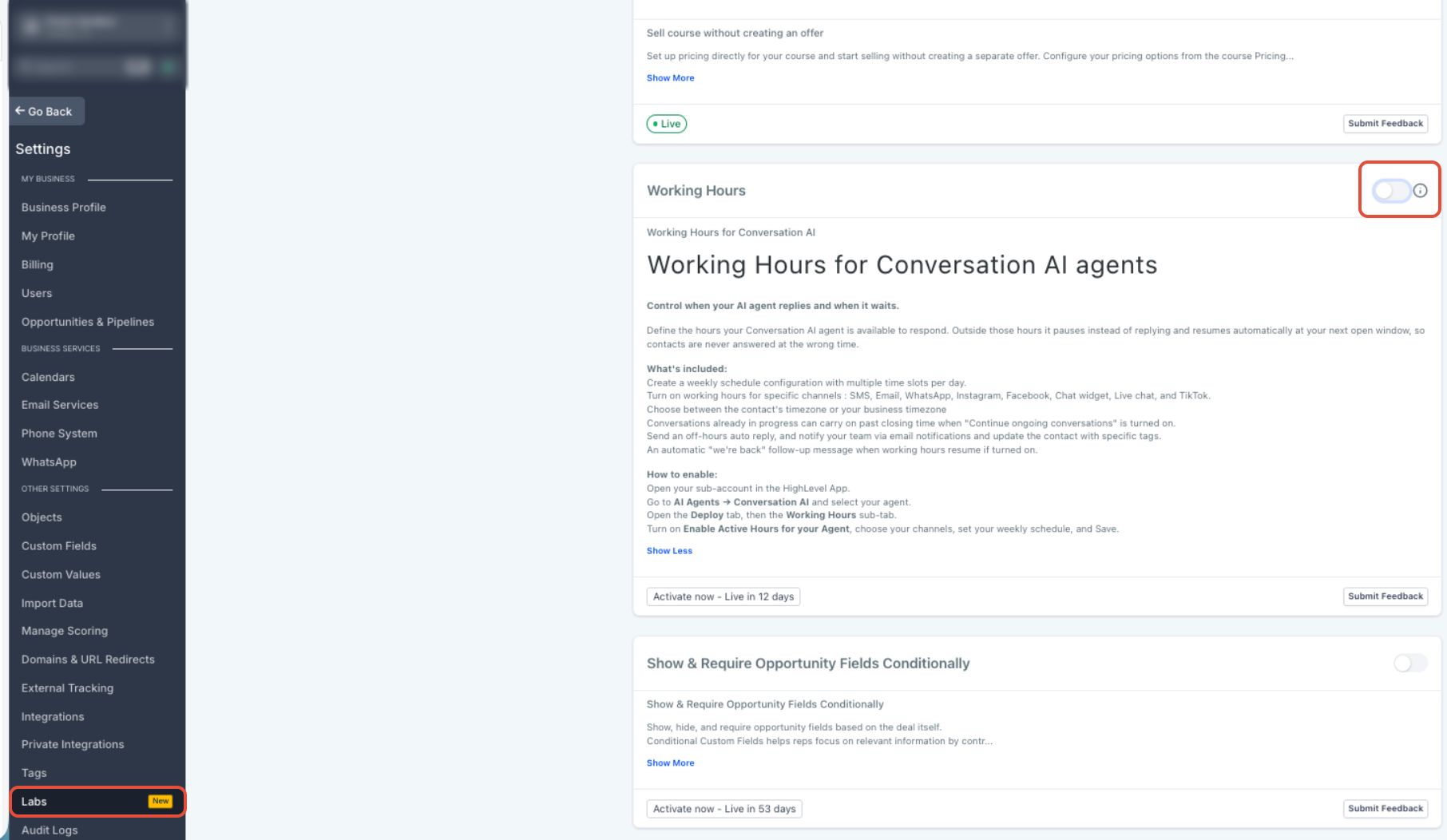
Step 1: Enable Working Hours in Labs
Working Hours must be enabled from Labs before its configuration options become available for Conversation AI agents.
- From your Account, go to Settings.
- Select Labs.
- Search for Working Hours.
- Enable the Working Hours feature flag.
Step 2: Open the Conversation AI Agent
Open the specific agent you want to manage because Working Hours is configured independently for each agent.
- From your Account, select AI Agents.
- Select Conversation AI.
- Open the Agents List.
- Select the agent you want to configure.
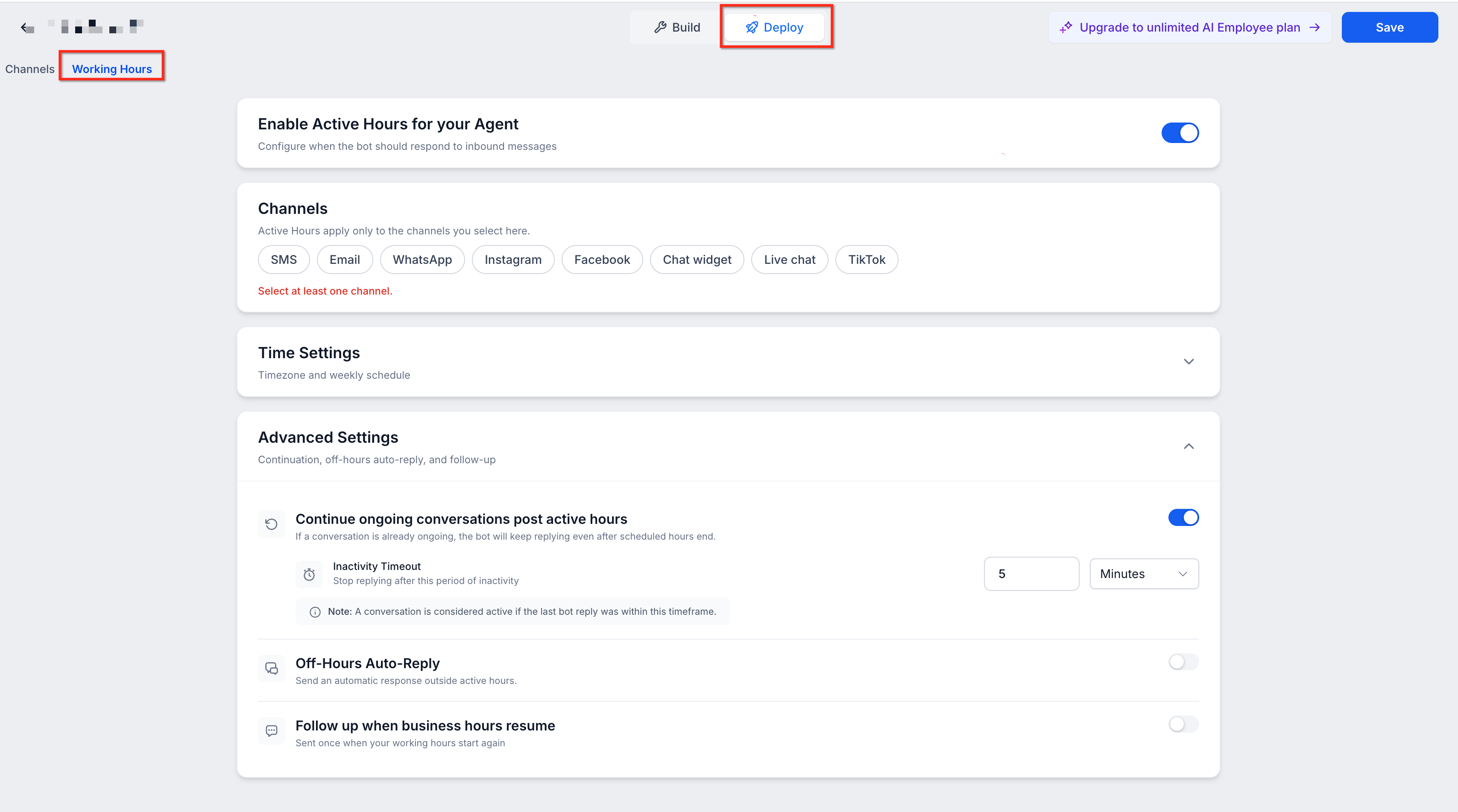
Step 3: Open Working Hours
Working Hours settings are managed from the selected agent's deployment configuration.
- Inside the selected agent, select the Deploy tab.
- Select Working Hours.
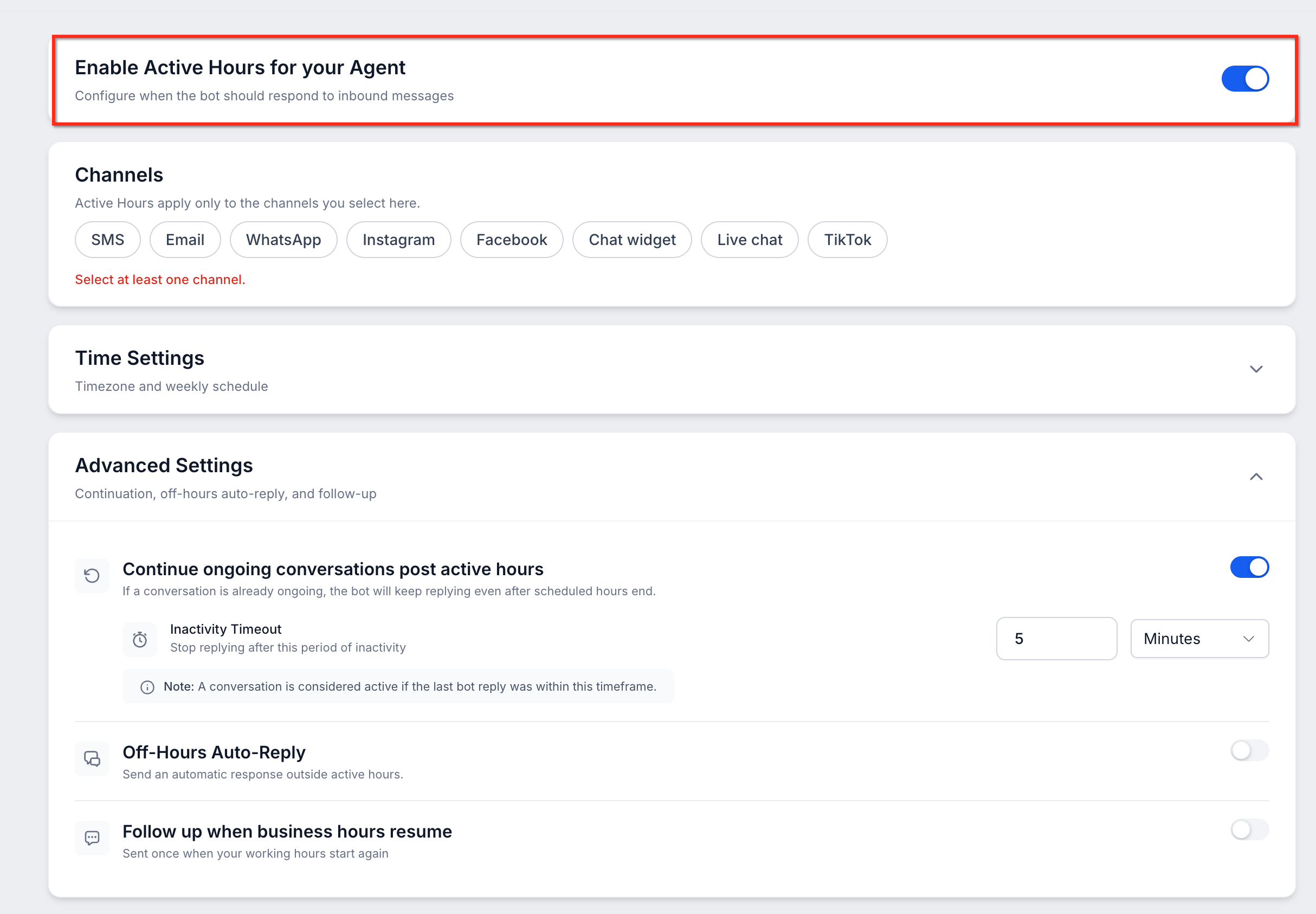
Step 4: Enable Active Hours
Active Hours turns the schedule on for the selected agent.
- Turn on Active Hours.
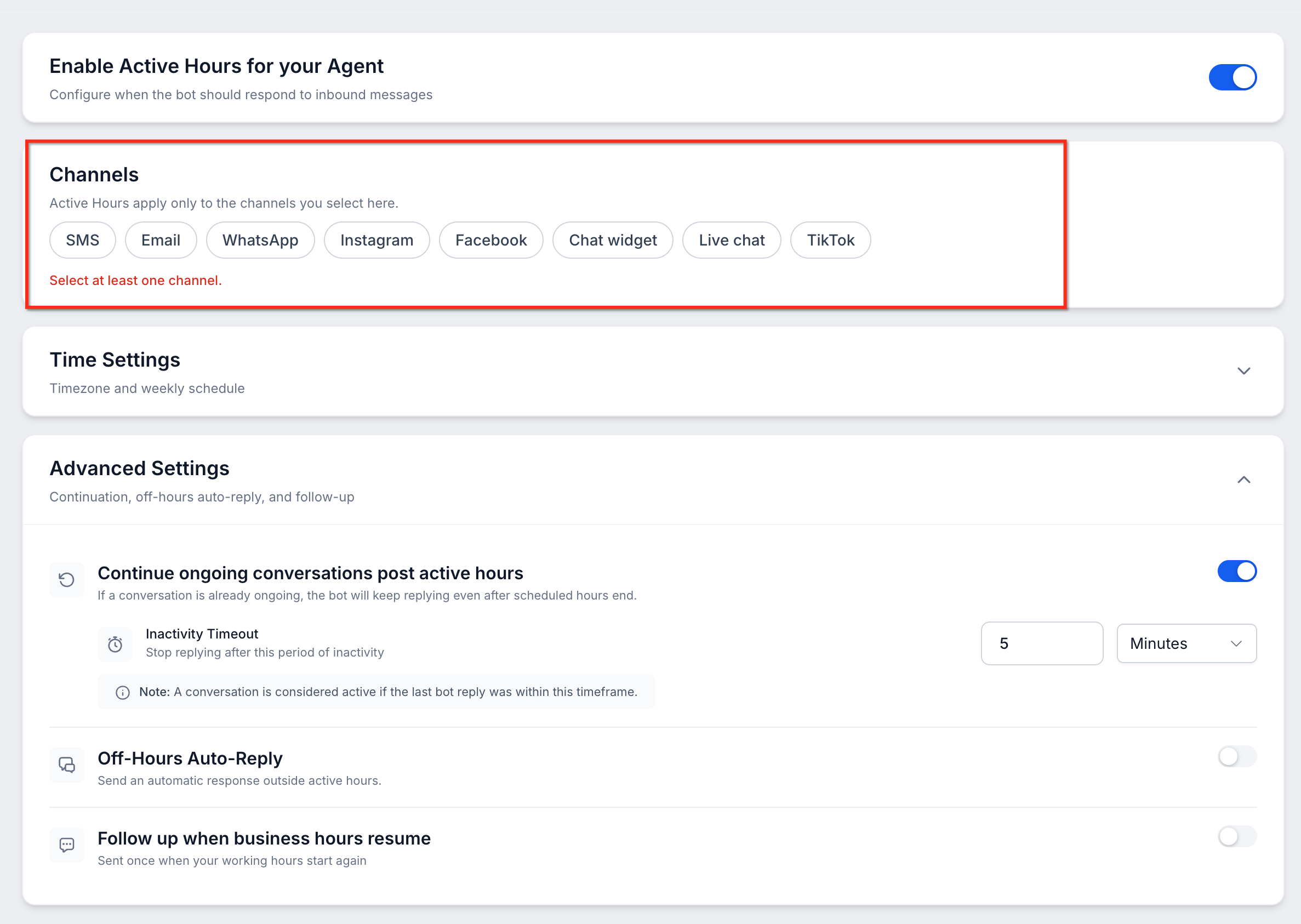
Step 5: Select Channels
Channel selection lets you decide where the Working Hours schedule applies while allowing other channels to continue operating normally.
Select the channels that should follow the Working Hours schedule.
Supported channels include:
- SMS
- Chat Widget
- Live Chat
- TikTok
Channels you do not select continue responding according to their existing configuration.
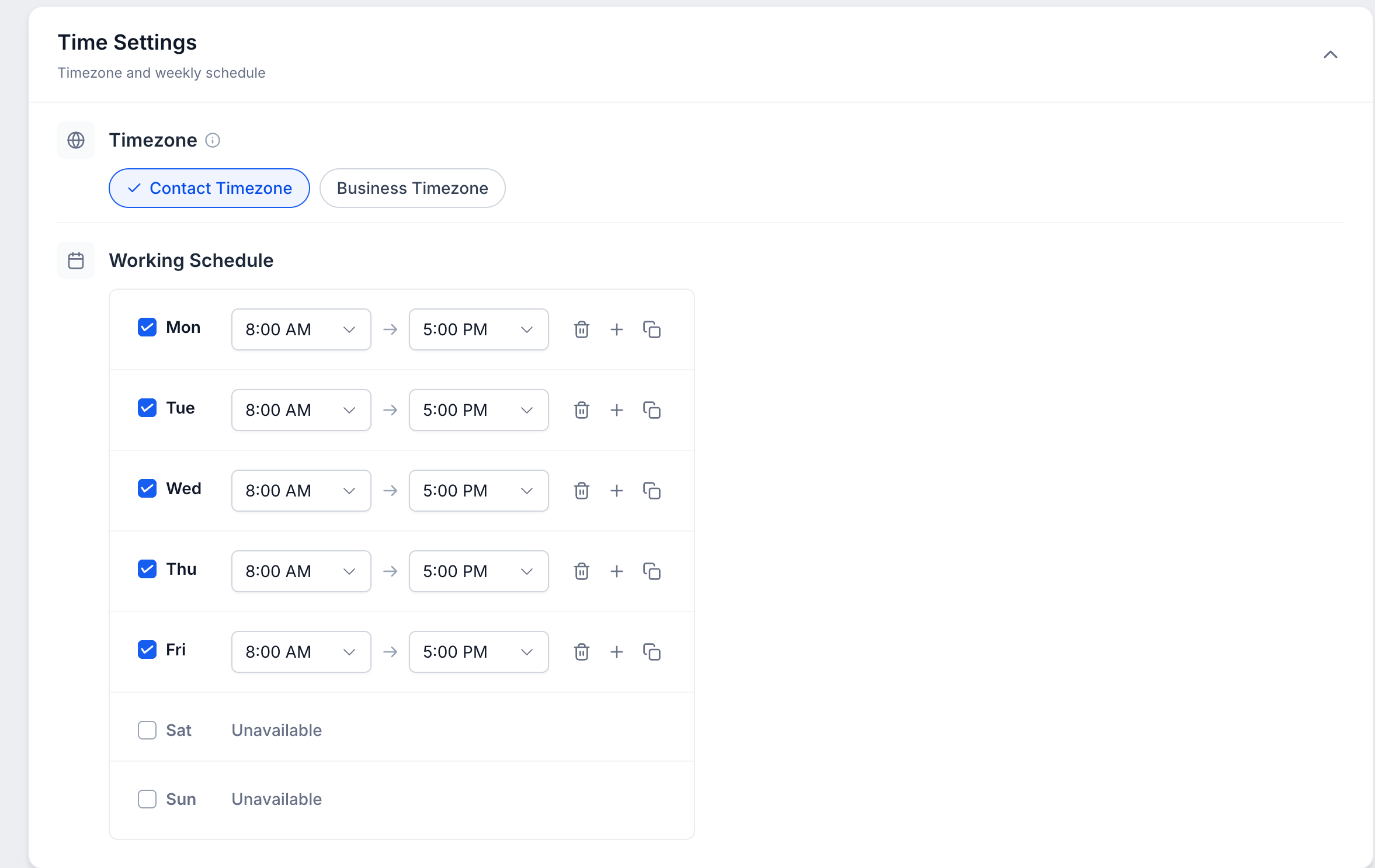
Step 6: Choose the Timezone
Timezone selection determines which local time the platform evaluates against the Working Hours schedule.
Choose one of the following options:
- Contact Timezone: Uses the individual contact's local timezone.
- Business Timezone: Uses the business timezone for the schedule.
Step 7: Configure Working Days and Hours
Configure the days and times when the agent should actively respond.
- Select the working days for the agent.
- Set the applicable start and end times for each day.
- Add multiple time slots when the agent needs breaks, split shifts, or separate availability periods.
Different days can use different schedules.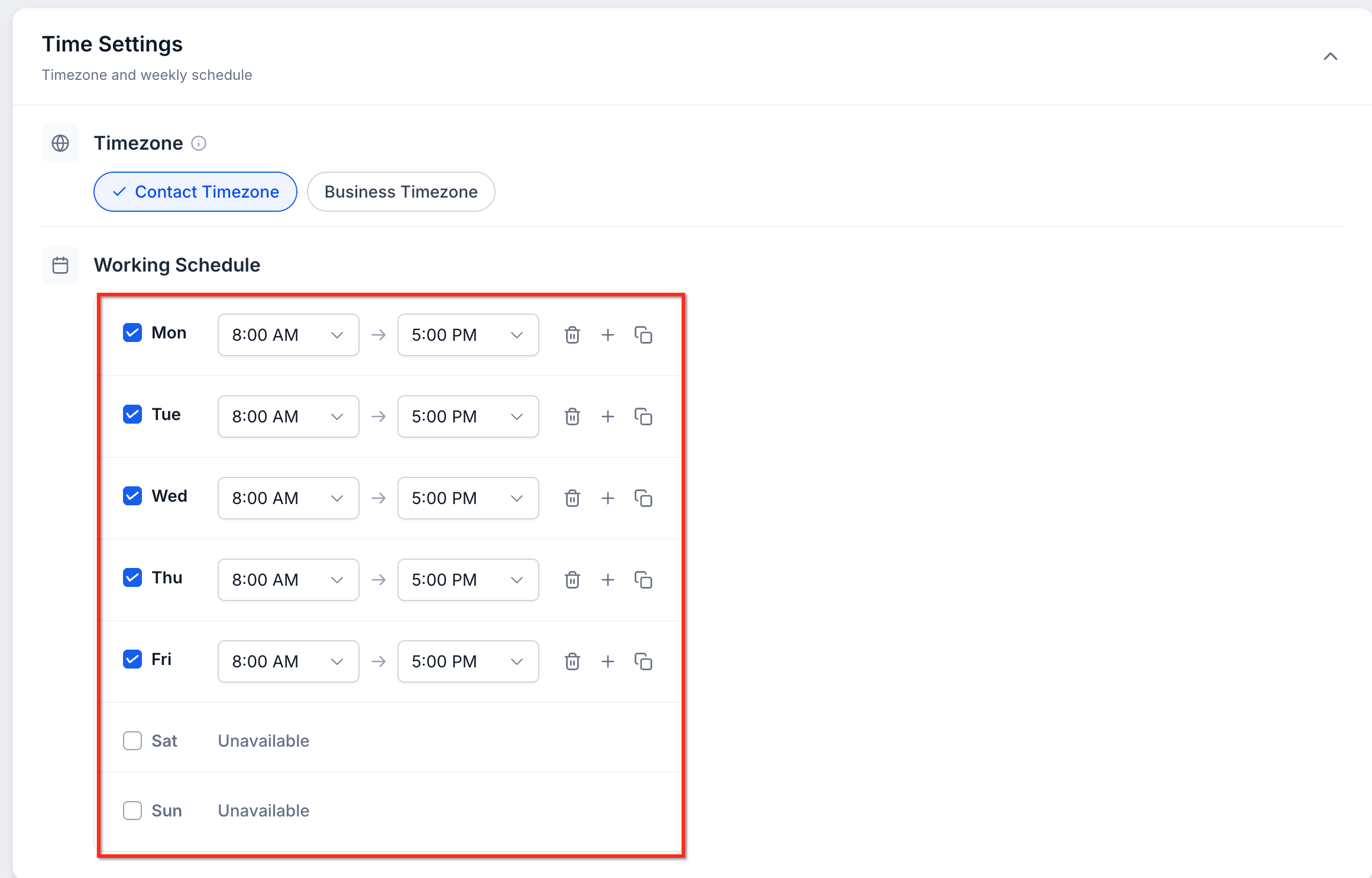
Step 8: Configure After-Hours Options
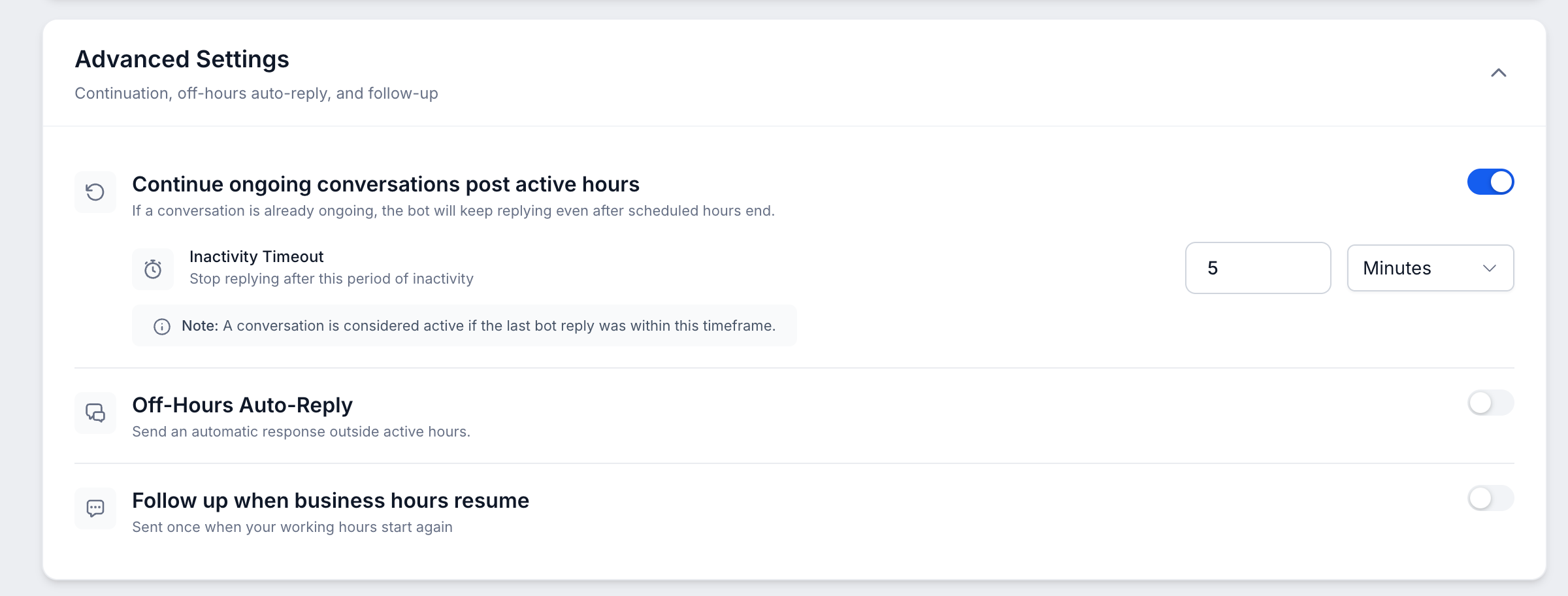
After-hours options determine what the platform should do when customers reach out outside the selected agent's schedule.
Configure any applicable options:
- Continue Ongoing Conversations
- Off-Hours Auto-Reply
- Team Notifications
- Contact Tags
- Follow Up When Business Hours Resume
Step 9: Save the Schedule
Saving applies the configured schedule and after-hours behavior to the selected agent.
- Review the selected channels, timezone, schedule, and optional after-hours settings.
- Click Save.
The agent now follows the configured Working Hours for the selected channels.
After-Hours Options
After-hours settings help acknowledge, organize, and follow up with customers even when the Conversation AI agent is outside its active schedule.
Continue Ongoing Conversations
This option helps prevent an active customer conversation from stopping immediately when the configured closing time arrives.
Enable Continue Ongoing Conversations when you want the agent to continue a conversation that began during Working Hours.
After closing time, the agent can continue replying until the conversation becomes inactive.
Off-Hours Auto-Reply
Off-Hours Auto-Reply acknowledges customers even when the agent is not actively responding.
Enable Off-Hours Auto-Reply and enter the message customers should receive outside Working Hours.
You can personalize the message using supported custom values.
The Off-Hours Auto-Reply triggers once per closed period. Customers do not receive the same acknowledgment for every message they send after hours.
Team Notifications
Team Notifications help make internal users aware of customers who contact the business outside the AI agent's schedule.
Enable notifications and select the appropriate recipients.
Supported recipients include:
- Admins
- Users
- Assigned users
- Selected team members
- Custom email addresses
Notifications trigger once per closed period.
Contact Tags
Contact Tags make it easier to identify, filter, and follow up with customers who contacted the business after hours.
Select the tags that should automatically be added when a contact messages outside Working Hours.
Tags are applied once per closed period.
Follow Up When Business Hours Resume
This option helps ensure an after-hours inquiry is not forgotten when the business reopens.
Enable Follow Up When Business Hours Resume to automatically send a follow-up when the next working period begins.
The follow-up is skipped if the customer has already received a response from either the Conversation AI agent or a team member.
Frequently Asked Questions
Q: What happens if I do not enable Working Hours?
Working Hours is optional. If it is not enabled, the agent continues responding according to its existing configuration.
Q: Do Working Hours apply to every channel?
No. Working Hours applies only to the channels selected during configuration. Other channels continue operating normally.
Q: Can different Conversation AI agents have different Working Hours?
Yes. Working Hours is configured per agent, so each agent can use a different schedule.
Q: Can Suggestive Mode still generate suggestions outside Working Hours?
Yes. Suggestive Mode can continue generating AI suggestions after Working Hours for your team.
Q: What happens if Advanced Follow-Up also has Followup Hours configured?
The agent's Working Hours takes priority for channels included in the agent's Working Hours schedule.
Q: Can I manually activate an agent outside its Working Hours?
Yes. An agent can still be manually activated outside its Working Hours through the conversation panel.
Q: Will customers receive an Off-Hours Auto-Reply for every message they send?
No. The Off-Hours Auto-Reply triggers once per closed period.
Q: Will the business-hours follow-up send if somebody already responded to the customer?
No. The follow-up is skipped if the customer has already received a response from either the AI agent or a team member.
Need Help?
If Working Hours is not behaving as expected, review the selected agent's configuration before contacting support.
- Confirm Working Hours is enabled in Settings → Labs.
- Confirm Active Hours is enabled for the correct Conversation AI agent.
- Verify that the affected communication channel is included in the Working Hours schedule.
- Review whether Contact Timezone or Business Timezone is selected.
- Confirm the configured working days and time ranges.
- Review Continue Ongoing Conversations if the agent continues responding after closing time.
- Review Advanced Follow-Up settings if Followup Hours are also configured.
If the issue continues, capture the affected agent, selected channel, timezone setting, Working Hours schedule, after-hours settings, and relevant screenshots before contacting support.