
Community tagging lets you mention specific members in posts, comments, and replies to bring them into relevant conversations. Type the @ symbol followed by a member's name to find matching members and insert a highlighted tag. Tagged members can receive notifications based on their Community notification preferences. This guide explains how to tag members, manage mention notifications, and control related email preferences.
TABLE OF CONTENTS
- What Is Community Tagging?
- Key Benefits
- Prerequisites and Limitations
- How to Tag Members in Posts
- How to Tag Members in Comments
- Email Notifications for Tags
- Frequently Asked Questions
- Need Help?
What Is Community Tagging?
Community tagging allows you to mention specific members in posts, comments, and replies using the @ symbol. When you select a member from the suggestion list, their name appears as a highlighted tag within your content.
Tagging helps members participate in relevant discussions and stay informed about conversations that involve them. Depending on their notification preferences, tagged members can receive alerts that link directly to the content where they were mentioned.
Key Benefits
Community tagging makes discussions more interactive by helping members connect with specific people and return to relevant conversations.
- Direct engagement: Mention specific members in posts, comments, and replies to bring them into relevant conversations.
- Easy member selection: Find and select members using the suggestion list that appears when you type the @ symbol.
- Multiple member tagging: Tag multiple members in the same post, comment, or reply.
- Notification awareness: Tagged members can receive notifications based on their Community notification preferences.
- Direct navigation: Supported email notifications include a link to the post or comment where a member was tagged.
Prerequisites and Limitations
Community tagging is available when creating posts, writing comments, or replying to existing discussions.
Understanding how tagging and notification preferences work helps members communicate effectively.
- Tagging is supported in Community posts, comments, and replies.
- Members can be selected from the suggestion list that appears when typing the @ symbol.
- Multiple members can be tagged in the same post, comment, or reply.
- Tagged members can receive notifications based on their Community notification preferences.
- Granular unsubscribe controls are available for eligible Community email notification types.
- Unsubscribing from an eligible email affects only the specific notification type and community identified on the unsubscribe page.
How to Tag Members in Posts
Tagging a member in a Community post helps direct their attention to relevant content and can notify them based on their notification preferences. You can add member tags while creating a post.
- Open the Community where you want to create a post.
- Open the post editor.
- While drafting your post, type the @ symbol followed by the first characters of the member's name.
- As you type, matching members appear in the suggestion list.
- Select the member you want to tag. You can click the member's name or use the keyboard arrow keys to navigate the suggestions.
- The selected member's name appears in the post as a highlighted tag.
- Continue writing your post and publish it when ready.
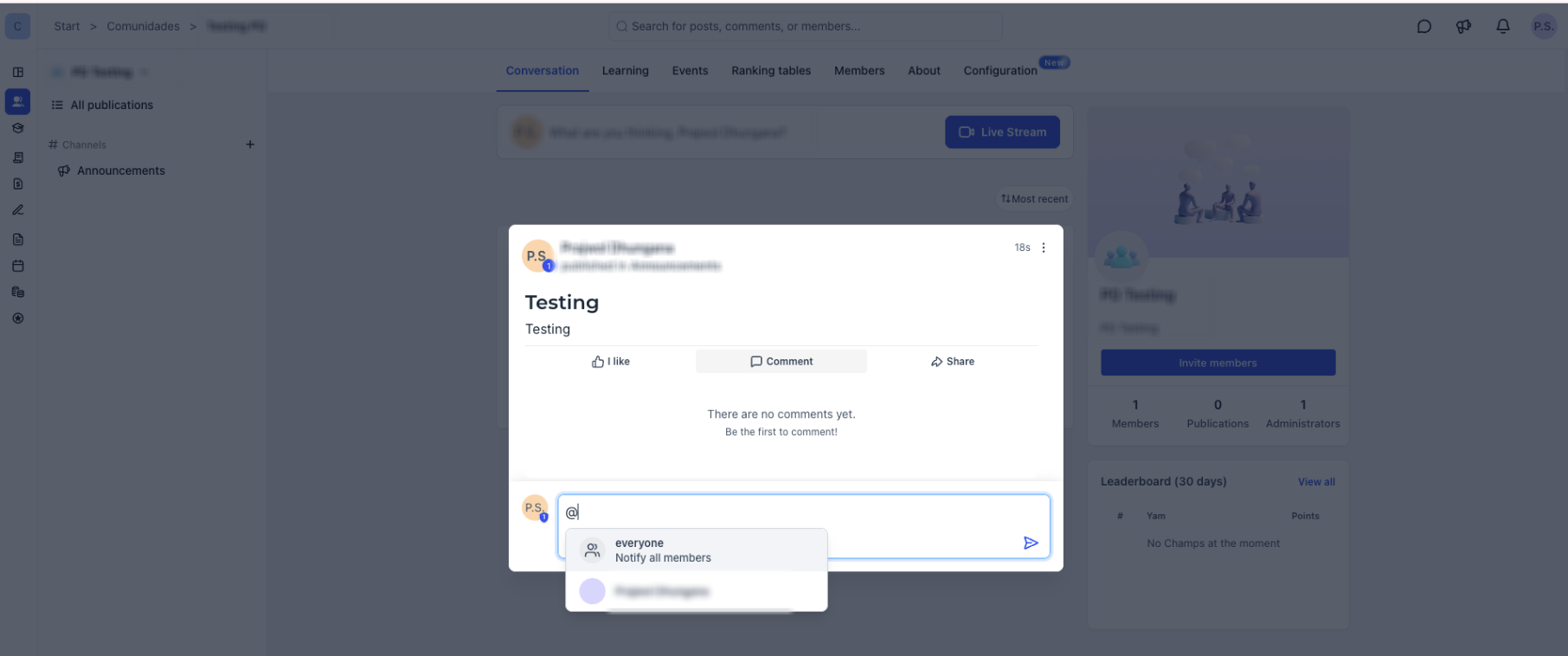
Tagged members can receive a notification based on their Community notification preferences.
Note: You can tag multiple members in the same post. Repeat the tagging process to add additional members.
How to Tag Members in Comments
You can also tag members in comments and replies to bring specific people into an active discussion. This allows members to participate in conversations that are already in progress.
- Open the Community containing the discussion.
- Open the post where you want to leave a comment.
- Click the comment field and type the @ symbol followed by part of the member's name.
- Choose the member from the suggestion list.
- The selected member's name appears as a highlighted tag.
- Finish writing your comment and publish it.
Tagged members can receive a notification based on their Community notification preferences.
Tag Members in Comment Replies
Tagging is also available when replying to an existing comment. This makes it easier to involve other members in ongoing conversations without creating a separate discussion.
- Open the Community post containing the comment.
- Locate the comment you want to reply to.
- Open the reply field.
- Type the @ symbol followed by the member's name.
- Select the member from the suggestion list.
- Complete and publish your reply.
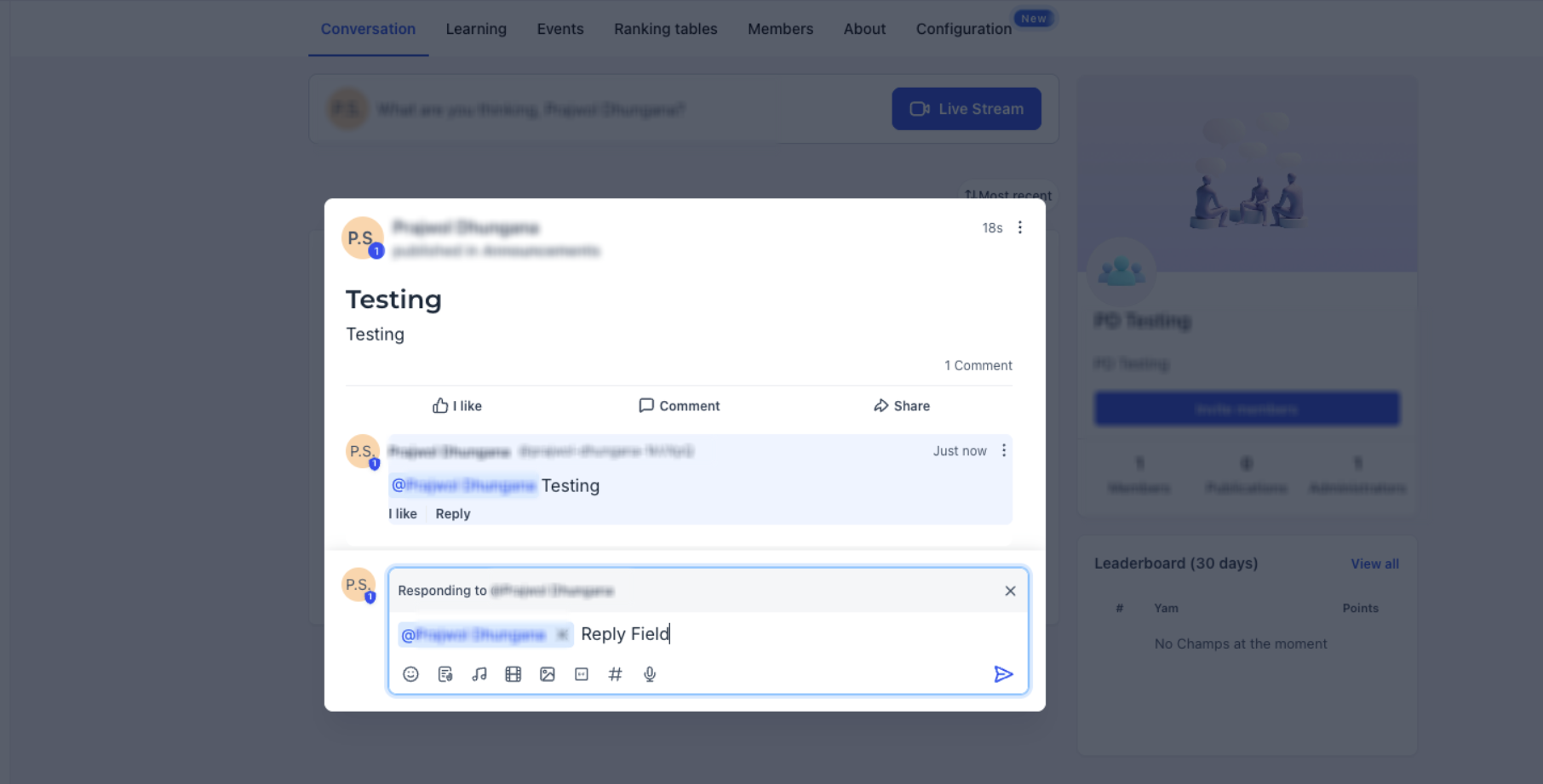
Note: You can tag multiple members in the same post, comment, or reply.
Email Notifications for Tags
Tag and mention notifications help members return directly to conversations that involve them. Whether an email is delivered depends on the member's Community notification preferences.
- Receiving notifications: When someone tags you in a post or comment, you can receive an email notification based on your Community notification preferences.
- Direct navigation: Supported email notifications include a direct link to the post or comment where you were tagged.
Note: If you click Unsubscribe in an eligible Community tag or mention email, the preference applies only to the specific notification type and community shown on the unsubscribe page.

Other notification types from the same community remain unaffected. The same notification type from other communities also remains unaffected, and unrelated platform emails are not affected.

You can re-enable the notification from your notification settings at any time.
Manage Tag Notification Preferences
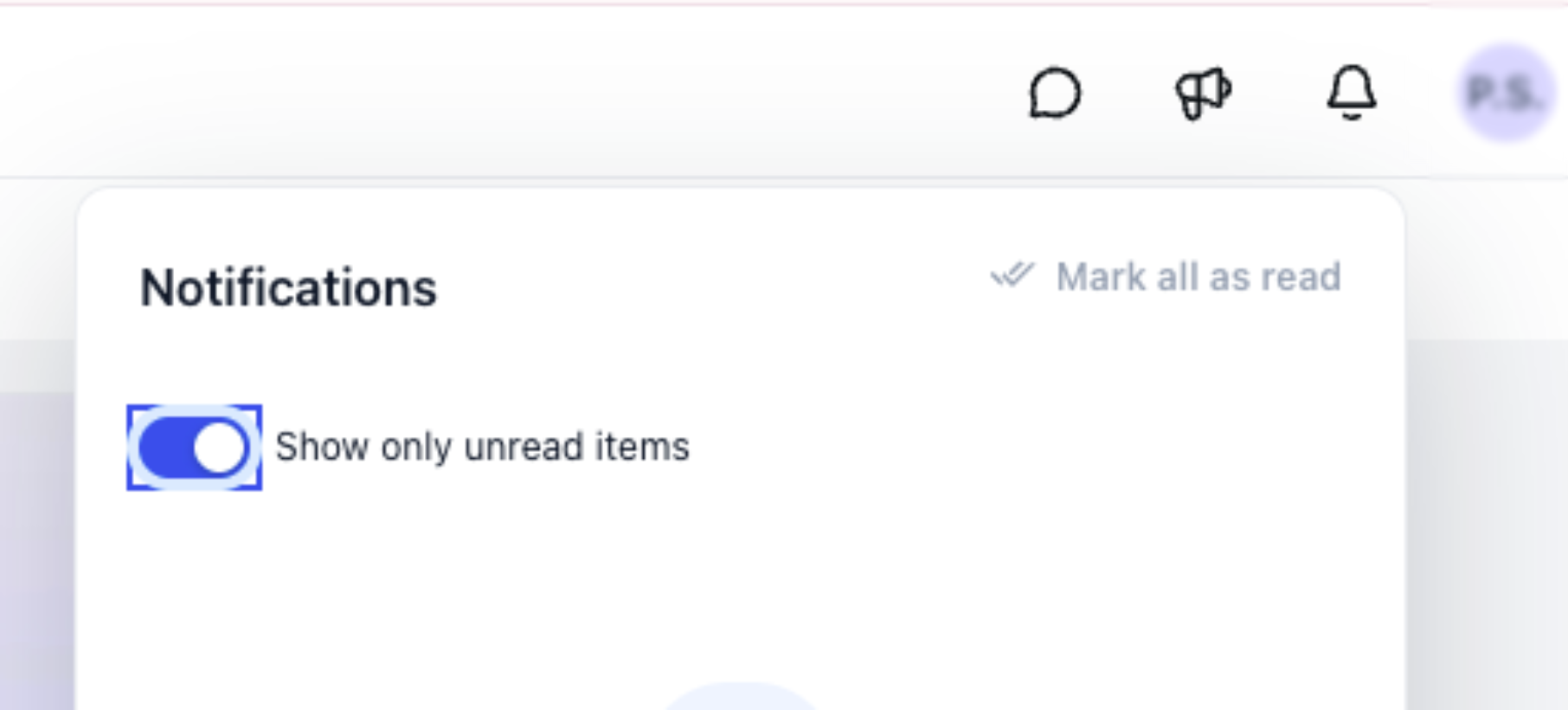
Notification settings allow you to control which supported Community alerts you receive. You can also return to these settings to re-enable eligible notifications after unsubscribing.
- Open the Client Portal, Communities, or Courses area.
- Click your profile icon.
- Select Manage Your Account.
- Open Notifications.
- Locate the applicable Community notification preference.
- Enable or disable the supported notification option as needed.
Frequently Asked Questions
Q: How do I tag someone in a Community post?
Type the @ symbol followed by part of the member's name, then select the member from the suggestion list.
Q: Can I tag members in comments and replies?
Yes. Tagging works in posts, comments, and replies to existing comments.
Q: How will I know if someone has tagged me?
When you are tagged in a post or comment, you can receive a notification based on your Community notification preferences. Supported email notifications include a direct link to the content where you were mentioned.
Q: Does unsubscribing from a tag or mention email disable all Community emails?
No. The preference applies only to the notification type and community shown on the unsubscribe page. Other notification types, other communities, and unrelated platform emails remain unaffected.
Q: Can I turn tag or mention emails back on?
Yes. Open the Client Portal, Communities, or Courses area, click your profile icon, select Manage Your Account, then open Notifications and re-enable the applicable notification.
Q: Can I tag multiple members at once?
Yes. You can tag multiple members in the same post, comment, or reply.
Q: Will the tagged member's name appear differently in the content?
Yes. After selecting a member from the suggestion list, their name appears as a highlighted tag within the post, comment, or reply.
Need Help?
If you experience issues tagging members in Community posts, comments, or replies, or need assistance managing your notification preferences, contact support for help.
When contacting support, include a description of the issue, the Community activity involved, any relevant error messages, and the steps you have already tried. This information can help troubleshoot the problem.