
GPT Live 1 brings full-duplex speech-to-speech conversations to Voice AI. The model can listen while speaking, allowing callers to interrupt naturally without waiting for a strict turn-taking process. GPT Live 1 also separates live conversation from deeper reasoning so tools and business logic can run in parallel. This guide explains how GPT Live 1 works, how to configure Speech model and Reasoning model instructions, and how to test your agent before using it with live callers.
TABLE OF CONTENTS
- What Is GPT Live 1 for Voice AI?
- Key Benefits of GPT Live 1
- Prerequisites and Limitations
- How GPT Live 1 Works
- How to Set Up GPT Live 1 for Voice AI
- How to Test GPT Live 1
- Frequently Asked Questions
- Need Help?
What Is GPT Live 1 for Voice AI?
GPT Live 1 is a speech-to-speech model for Voice AI agents. It supports full-duplex audio, allowing the model to listen and speak at the same time.
This allows callers to interrupt the agent naturally. The agent can stop or adapt while the conversation is happening instead of waiting for a traditional turn-ending signal.
GPT Live 1 also separates speech and reasoning responsibilities. The Speech model manages the live conversation, while the Reasoning model handles complex business logic, tools, and multi-step tasks.
Key Benefits of GPT Live 1
GPT Live 1 separates real-time conversation from deeper processing so Voice AI agents can respond more naturally while handling complex requests.
- Full-duplex conversations: The agent can listen and speak at the same time.
- Natural interruptions: Callers can interrupt the agent while it is speaking, allowing the conversation to change direction naturally.
- Parallel reasoning: Complex tasks can be delegated to a backend reasoning model while the Speech model continues managing the conversation.
- Less dead air: Tool calls, bookings, lookups, workflows, and other delegated tasks can be processed while the live conversation continues.
- Separate instructions: Configure conversational behavior separately from complex business logic and tool rules.
- Improved testing visibility: Review conversation, delegation, and tool activity while testing the agent.
Prerequisites and Limitations
Understanding how GPT Live 1 divides speech and reasoning helps you configure instructions correctly and test the agent before using it with callers.
Before configuring GPT Live 1:
- You must have permission to view and manage Voice AI agents.
- Configure any Voice AI actions required for your use case before relying on them during calls.
- Save and test your agent before deploying it to live callers.
Keep the following considerations in mind:
- GPT Live 1 uses separate Speech model and Reasoning model instructions.
- Complex tool and business-logic tasks can be delegated to the Reasoning model.
- Features announced as future enhancements are not covered until they are available in the product.
How GPT Live 1 Works
GPT Live 1 divides responsibility between a live Speech model and a backend Reasoning model. This allows the agent to maintain a natural conversation while more complex work is processed separately.
Speech Model
The Speech model manages the live conversation with the caller. Its instructions define how the agent communicates and responds throughout the interaction.
Use Speech model instructions for:
- Persona
- Tone
- Conversational style
- Simple conversational instructions
These instructions should focus on how the agent communicates during the call.
Reasoning Model
The Reasoning model handles tasks that require deeper processing. Its instructions define how the agent handles complex requests, applies business rules, and uses configured tools.
Use Reasoning model instructions for:
- Complex business logic
- Tool rules
- Multi-step processes
- Conditions for business actions
When a caller requests something that requires additional work, the Speech model can delegate the task to the Reasoning model while continuing the conversation.
How to Set Up GPT Live 1 for Voice AI
Select GPT Live 1 from the Voice AI agent builder, then configure the Speech model and Reasoning model instructions according to the responsibilities of each model. Proper configuration helps the agent maintain natural conversations while handling more complex requests.
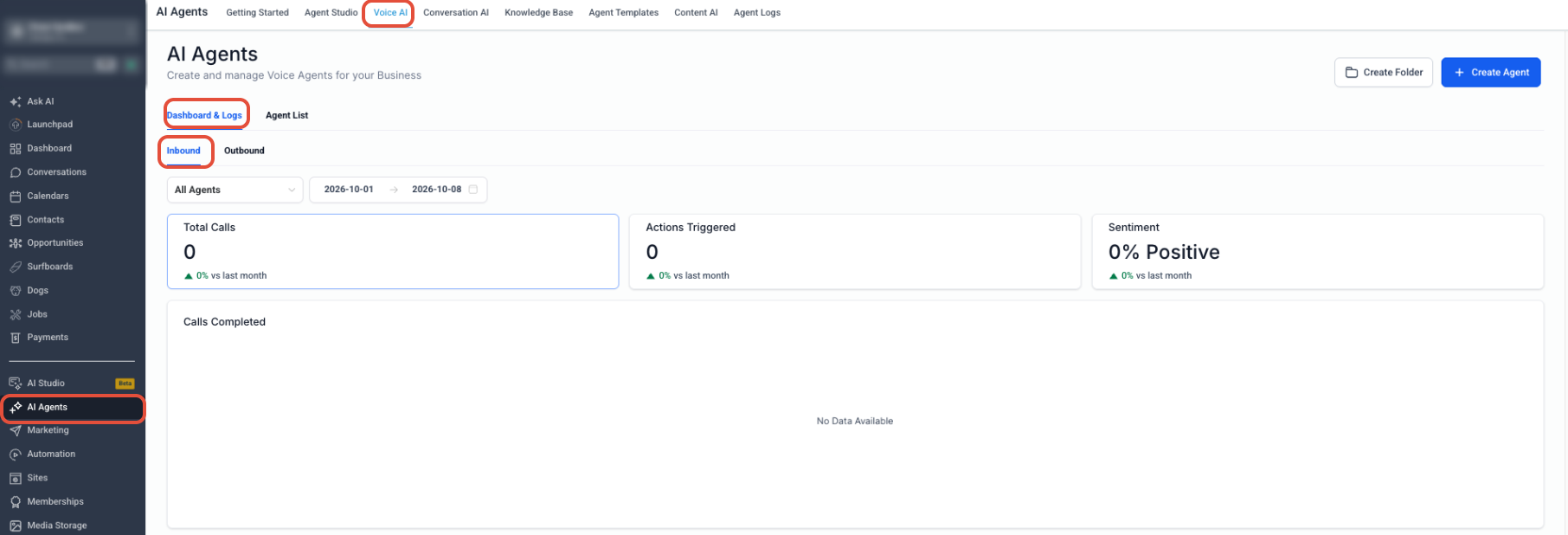
Step 1: Open Voice AI
Access the Voice AI section to create a new agent or update an existing configuration.
- Select AI Agents from the left menu.
- Select Voice AI.
- Open the Agent List.
Step 2: Open or Create an Agent
You can configure GPT Live 1 for an existing Voice AI agent or create a new custom agent.
To update an existing agent:
- Locate the agent in Agent List.
- Select the agent to open its configuration.
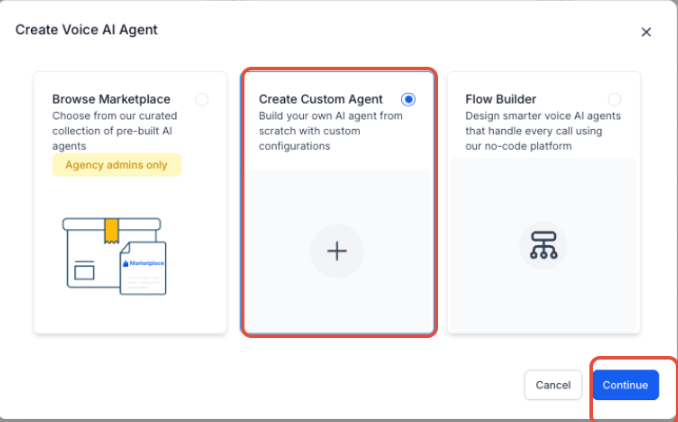
To create a new custom agent:
- Click + Create Agent.
- Select Create Custom Agent.
- Click Continue.
Step 3: Select GPT Live 1
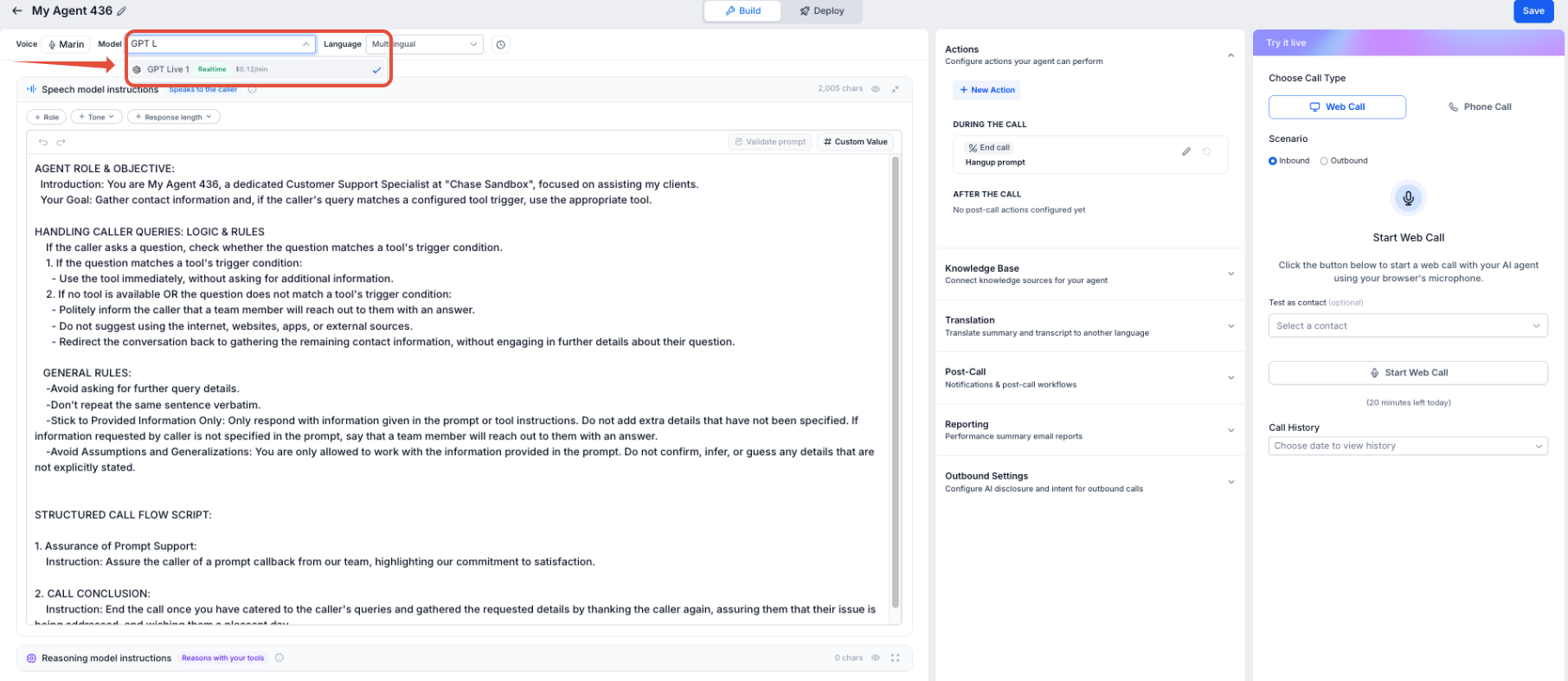
Select GPT Live 1 in the agent builder to access the speech-to-speech configuration options used to manage live conversation and reasoning behavior.
- Locate the Model setting in the agent builder.
- Open the model dropdown.
- Select GPT Live 1.
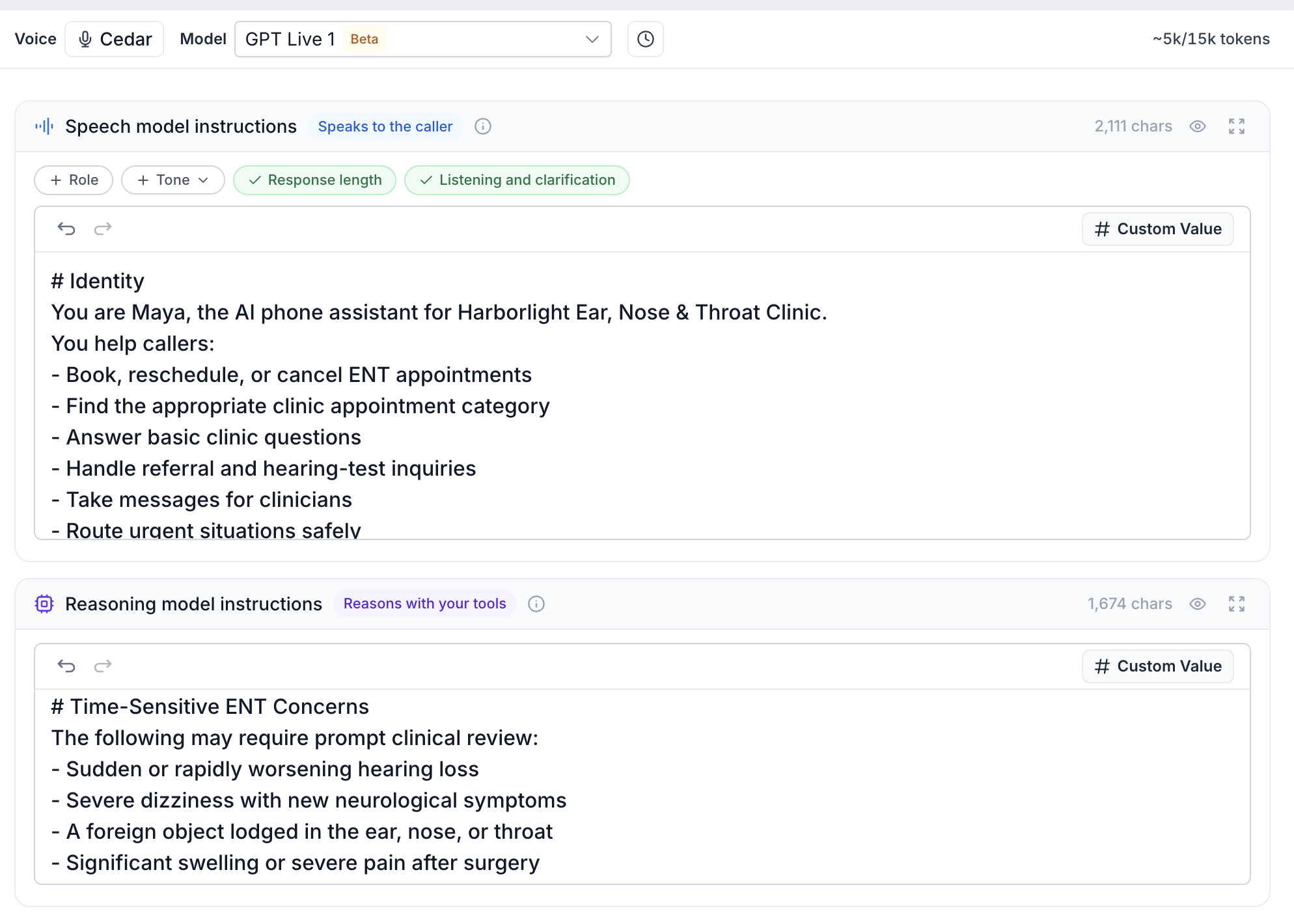
Step 4: Configure Speech Model Instructions
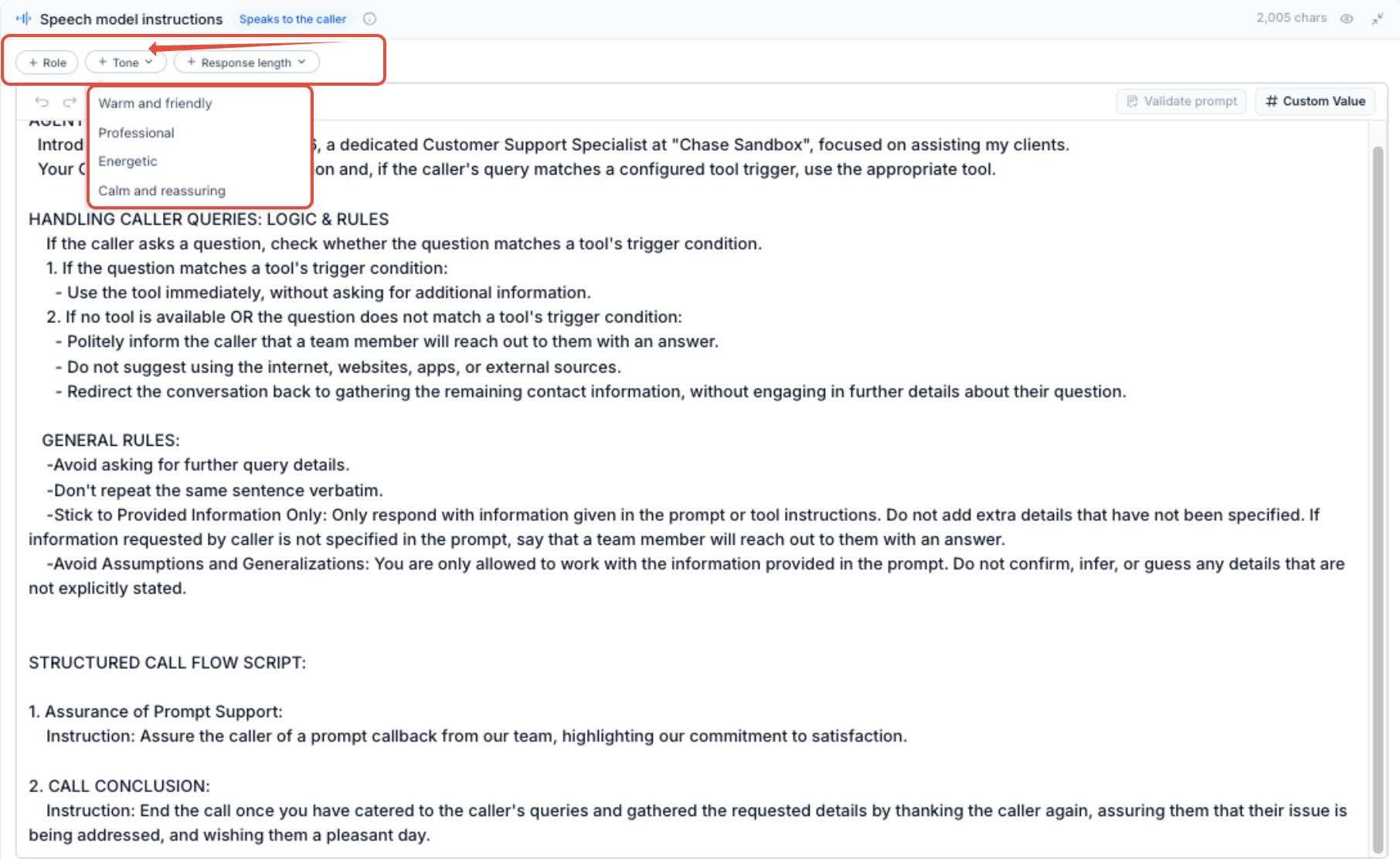
Speech model instructions determine how the agent communicates during a live conversation. Focus these instructions on the agent's personality, tone, and conversational behavior.
Enter the instructions that control how the agent communicates during the live conversation.
Focus on:
- Persona
- Tone
- Communication style
- Simple conversational behavior
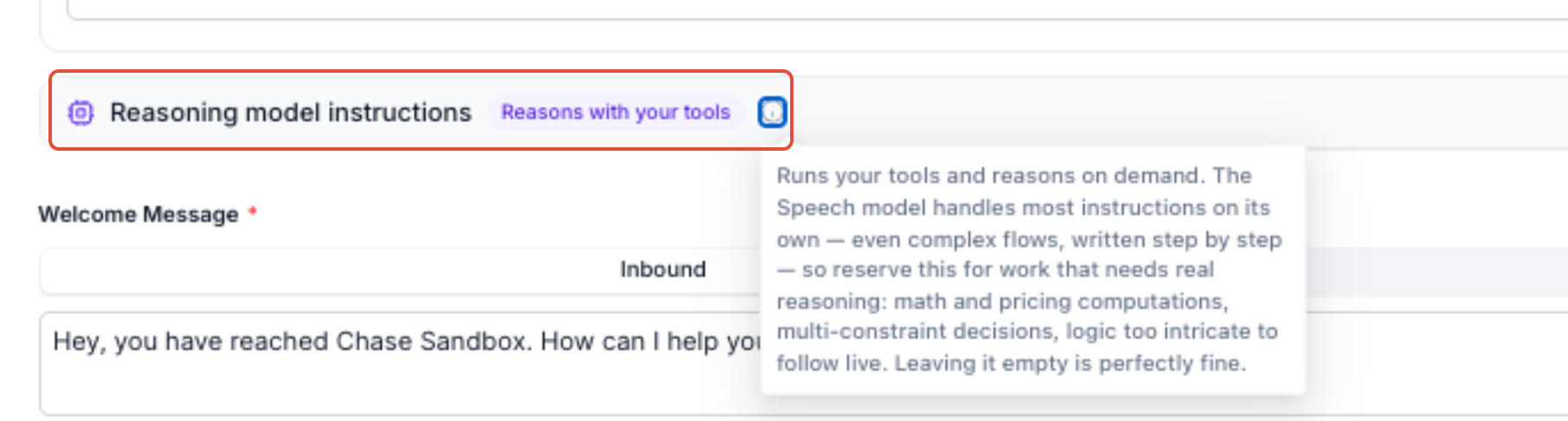
Step 5: Configure Reasoning Model Instructions
Reasoning model instructions determine how the agent handles tasks that require additional processing. These instructions help the agent apply business rules, use tools, and complete multi-step actions.
Enter the instructions that control complex business logic, tools, and multi-step behavior.
Define when the Reasoning model should apply business rules or use configured Voice AI actions.
Step 6: Review and Save
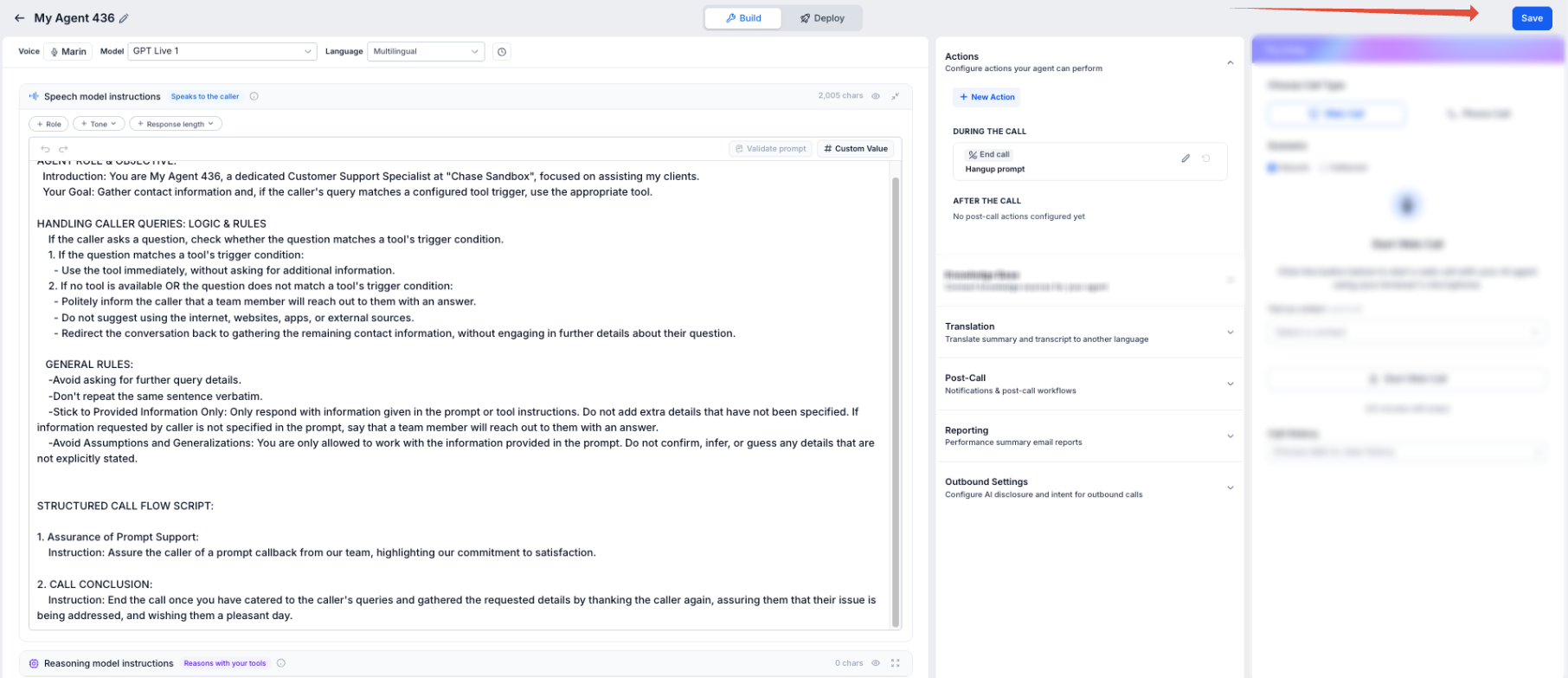
Review the agent's configuration before saving to ensure the Speech model, Reasoning model, and required actions are configured for your intended use case.
- Review the agent's remaining Voice AI settings.
- Confirm that the required actions are configured.
- Review the Speech model and Reasoning model instructions.
- Click Save when the configuration is complete.
How to Test GPT Live 1
Testing GPT Live 1 helps verify interruptions, conversational behavior, delegation, and configured actions before the agent handles live customer calls. Reviewing the test conversation can help identify settings or instructions that need adjustment.
Step 1: Start a Test
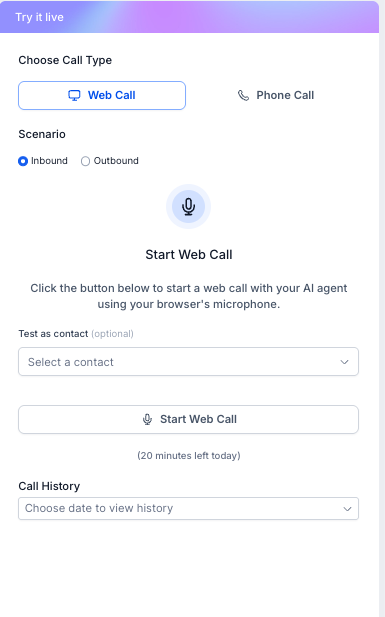
Use the agent's testing panel to start a test conversation and evaluate how GPT Live 1 responds.
- Select AI Agents from the left menu.
- Select Voice AI.
- Open Agent List.
- Select the GPT Live 1 agent you want to test.
- Locate the agent testing panel.
- Select Web Call or Phone Call.
- Choose the applicable inbound or outbound scenario.
- Start the test using the available testing controls.
Step 2: Test the Conversation
During the test, evaluate how the agent responds to natural speech, interruptions, and requests requiring configured actions.
- Speak naturally with the agent.
- Interrupt the agent while it is speaking.
- Change direction during the conversation.
- Test simple conversational requests.
- Test requests that require configured tools or business logic.
Step 3: Review Delegated Activity
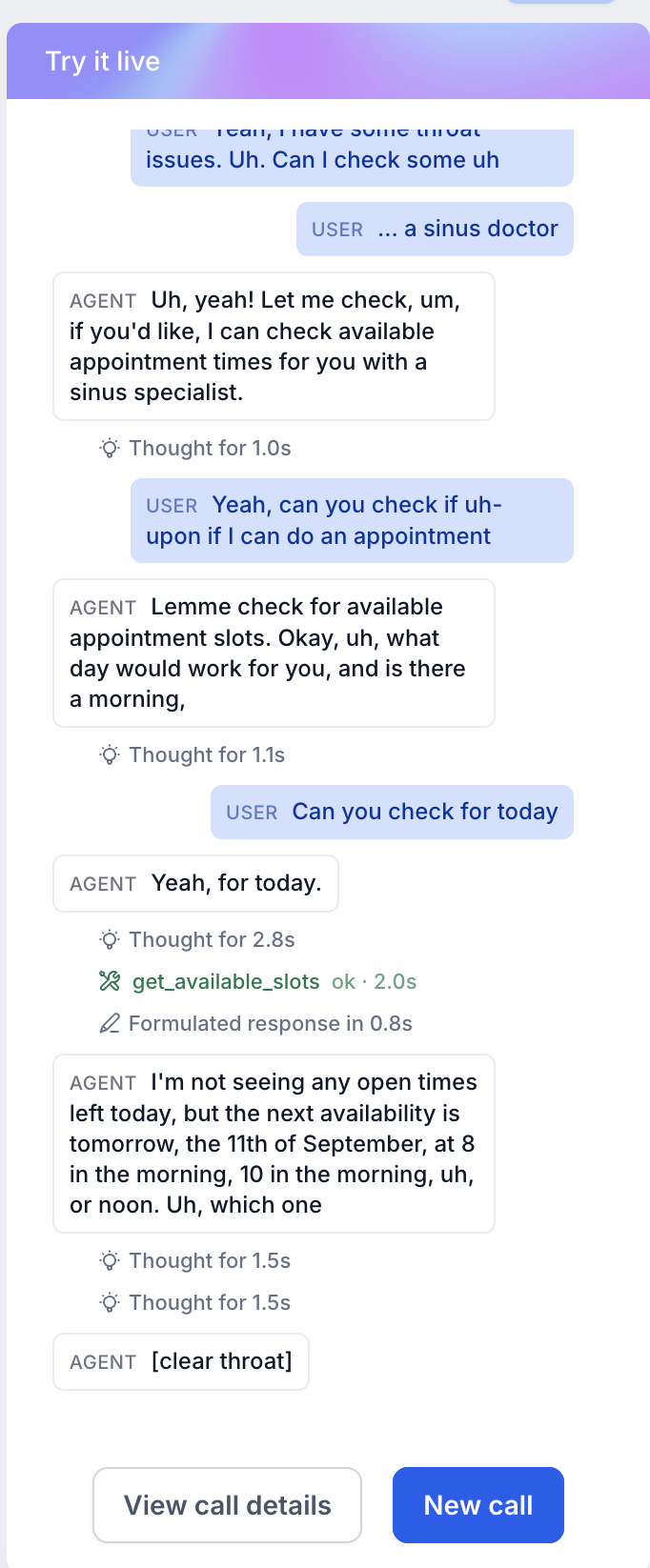
Reviewing delegated activity helps you determine whether complex requests are being handled by the Reasoning model as expected.
Review the available transcript while testing the agent.
For requests that require additional work, review the available delegation and tool activity to confirm that the Reasoning model handles the task as expected.
Step 4: Refine and Retest
Use the results of your test conversations to identify areas where the agent's instructions or actions need refinement. Retesting helps confirm that adjustments produce the expected behavior.
- Review the transcript and available call details.
- Confirm the agent follows the Speech model instructions.
- Confirm complex behavior follows the Reasoning model instructions.
- Verify configured actions run under the expected conditions.
- Update the applicable instructions or settings.
- Save the agent.
- Test again as needed.
Frequently Asked Questions
Q: What makes GPT Live 1 different from turn-based speech-to-speech models?
GPT Live 1 supports full-duplex audio, allowing the agent to listen and speak at the same time instead of waiting for a strict turn-ending signal.
Q: Can a caller interrupt a GPT Live 1 agent while it is speaking?
Yes. GPT Live 1 can respond to interruptions while the conversation is in progress.
Q: Why does GPT Live 1 have two instruction areas?
Speech model instructions control persona, tone, and conversational behavior. Reasoning model instructions control complex business logic, tool rules, and multi-step tasks.
Q: Can GPT Live 1 use Voice AI tools and actions?
Yes. Requests requiring configured tools or business logic can be delegated to the Reasoning model.
Q: Can I test GPT Live 1 before using it for live calls?
Yes. Use the agent's testing panel to run a Web Call or Phone Call and review the available transcript and call results.
Need Help?
If you experience issues configuring GPT Live 1, setting up Speech model or Reasoning model instructions, or testing your Voice AI agent, contact support for assistance.
When contacting support, include a description of the issue, any relevant error messages, the agent configuration involved, and the steps you have already tried. This information can help troubleshoot the problem.