
Live Preview in Ecommerce Store Builder lets you test your Store with real product data before publishing. You can browse products, select variants, use Add to Cart, update quantities, and move through supported Store pages directly inside the builder. Turn Live Preview off whenever you want to return to dummy product data. This guide explains how Live Preview works, what you can test, and how preview behavior changes across Store pages.
TABLE OF CONTENTS
- What Is Live Preview in Ecommerce Store Builder?
- Key Benefits of Live Preview
- Prerequisites and Limitations
- How to Use Live Preview
- Preview Products and Store Interactions
- Interact with Sections in the Builder
- Frequently Asked Questions
- Need Help?
What Is Live Preview in Ecommerce Store Builder?
Live Preview lets you use real product data while designing and reviewing your Ecommerce Store inside the Store Builder.
When enabled, supported Store pages and product elements display real products instead of dummy preview data.
You can then test supported product, navigation, and cart interactions without leaving the builder.
Turn Live Preview off whenever you want to return to dummy product data.
Key Benefits of Live Preview
Live Preview gives you a more realistic way to review the Store experience before publishing.
- Real product data: Preview your Store with available products.
- Interactive product testing: Navigate products, select variants, and test supported Add to Cart actions.
- Cart testing: Add products, update quantities, and remove items.
- Cross-page preview: Carry preview-cart products through Cart, Checkout, and Thank You.
- Flexible previewing: Switch between real and dummy product data while designing.
Prerequisites and Limitations
Live Preview behavior depends on whether products are available and which Store page you are editing Understanding these conditions helps you determine what can be tested inside the builder.
- If products are available, Live Preview is ON by default.
- If no products are available, Live Preview is OFF by default and dummy products appear.
- Custom Product Details Pages do not include the Live Preview toggle and continue using dummy preview data.
- Checkout inside Live Preview is a preview experience only.
- Real-time shipping rates, taxes, multiple payment methods, and functional checkout fields are not supported in the current Checkout preview.
Note: Checkout limitations described in this article apply only to the Store Builder Live Preview experience. They do not describe the behavior of the published Ecommerce Store checkout.
How to Use Live Preview
Use the Live Preview toggle to switch between real and dummy product data while reviewing your Store. This allows you to test supported product interactions without leaving the Store Builder.
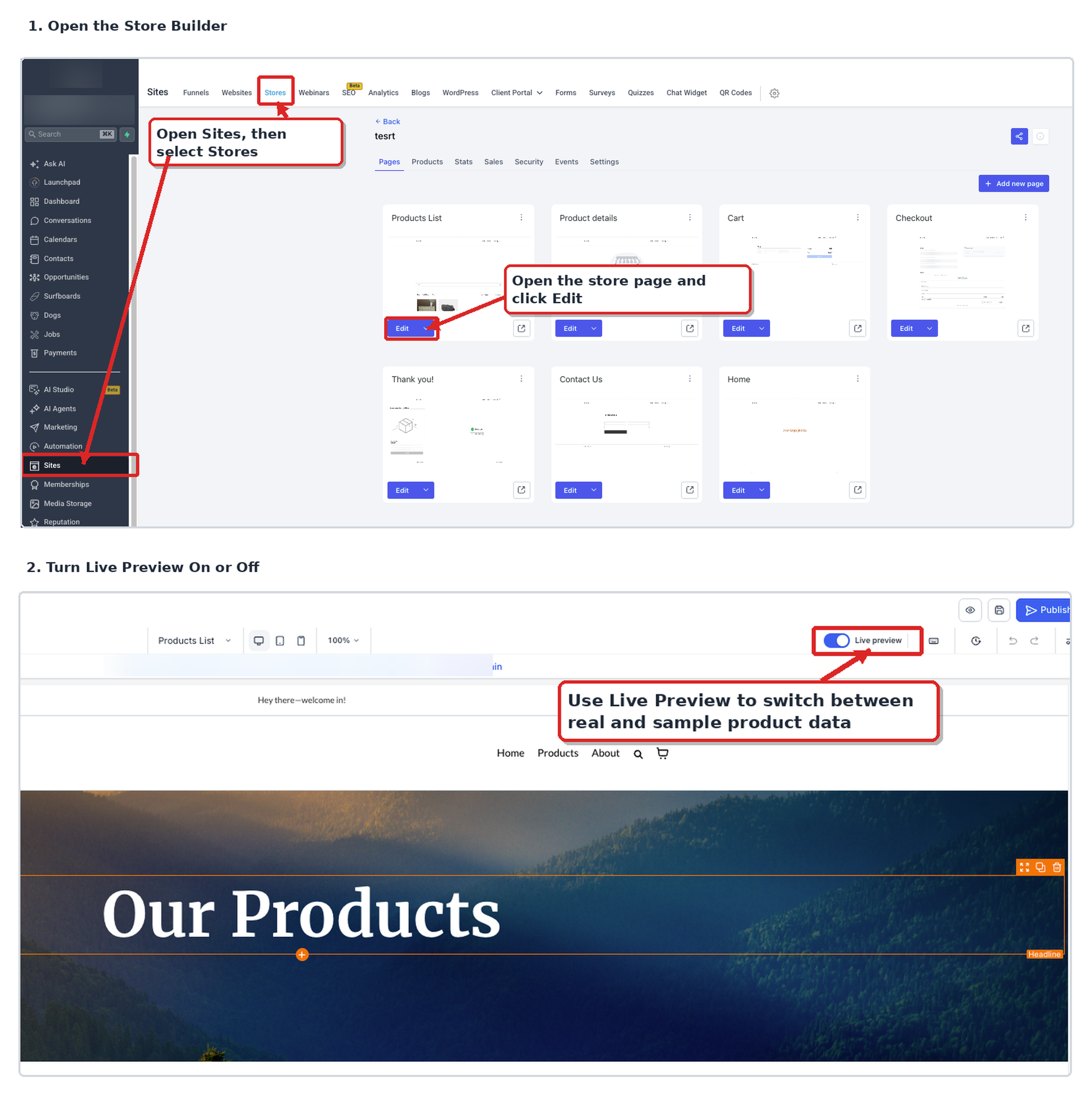
- Go to Sites.
- Select Stores.
- Open the Ecommerce Store you want to edit.
- Find the Store page you want to review and click Edit.
- Locate the Live Preview toggle in the upper-right area of the Store Builder.
- Turn Live Preview on to use available real product data.
- Test supported products, variants, navigation, and cart actions.
- Turn Live Preview off to return to dummy product data.
Preview Products and Store Interactions
Live Preview lets you test supported interactions across the Store flow instead of reviewing each page with static product data. You can review how products, widgets, and cart actions behave before publishing your Store.
Product List Page and Product Details Page
Use the Product List Page and Product Details Page to review how real products behave inside the builder. With Live Preview enabled, you can test product navigation, variants, and supported cart actions.
With Live Preview enabled, you can:
- Navigate from the Product List Page (PLP) to a product.
- Review real product data on the Product Details Page (PDP).
- Select available product variants.
- Use supported Add to Cart actions.
- Navigate through supported Store pages.
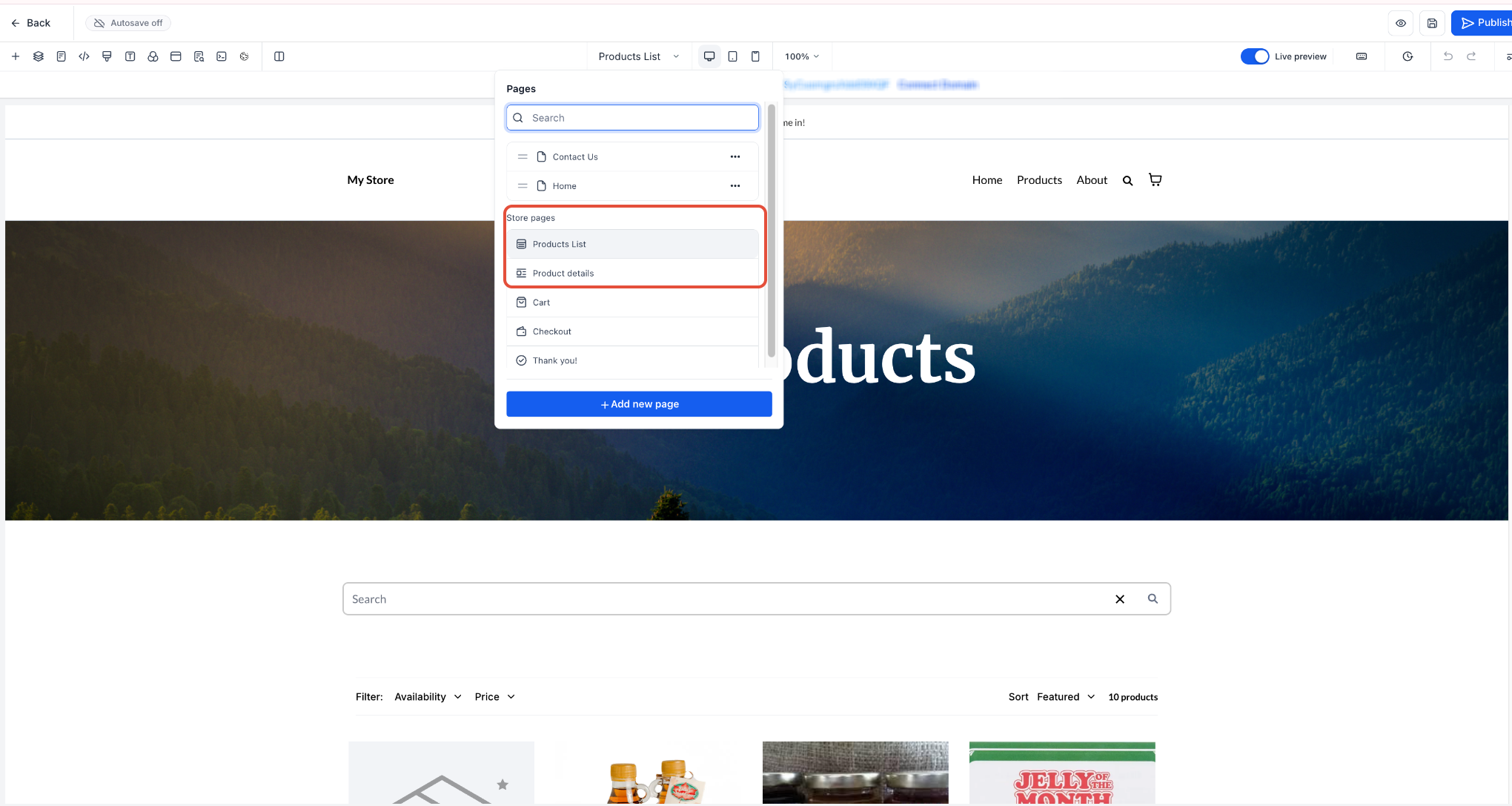
If you open the default PDP directly in the builder, the Store Builder displays one random real product from the available products.
Note: Custom Product Details Pages continue using dummy preview behavior and do not include the Live Preview toggle.
Product Widgets
Product widgets continue using their configured actions while you preview the Store. Their displayed product data depends on the Live Preview state and the product assigned to each widget.
Supported widgets include:
- Featured Product
- Featured Products
- Upsell
Whether a widget displays dummy or real product data depends on the Live Preview state and its configured product assignment.
Cart, Checkout, and Thank You
The preview cart carries supported product data through the Store flow so you can review multiple pages with realistic content. This helps you evaluate the shopping experience before publishing.
With Live Preview enabled, you can:
- Add products to the cart.
- Update quantities.
- Remove items.
- Review products on the Cart page.
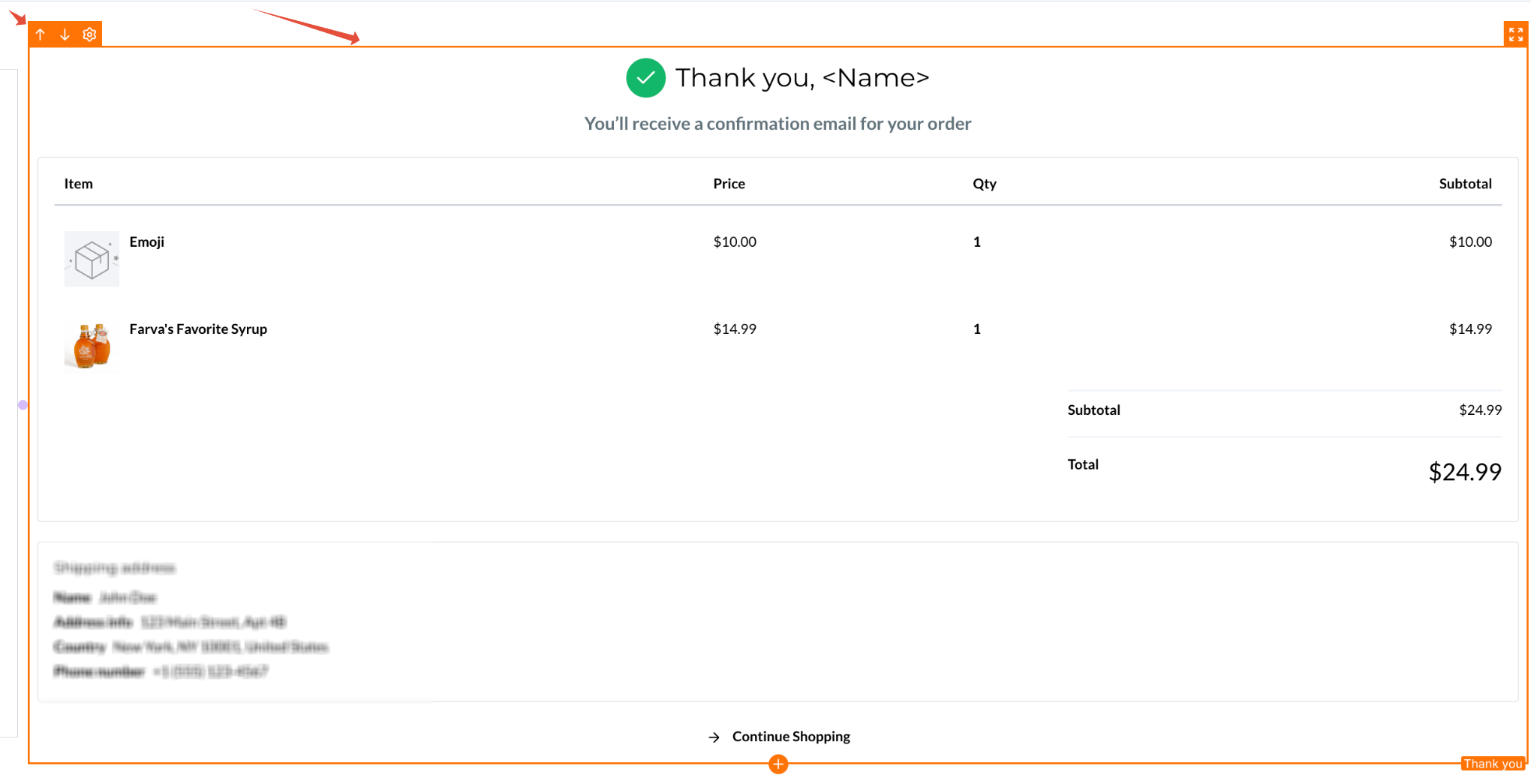
- Carry preview-cart contents into Checkout and Thank You.
If the preview cart is empty, Checkout and Thank You still display one or two available products so you can review the page design.
Checkout remains preview-only inside the builder. Real-time shipping rates, taxes, multiple payment methods, and functional checkout fields are not included in the current Live Preview experience.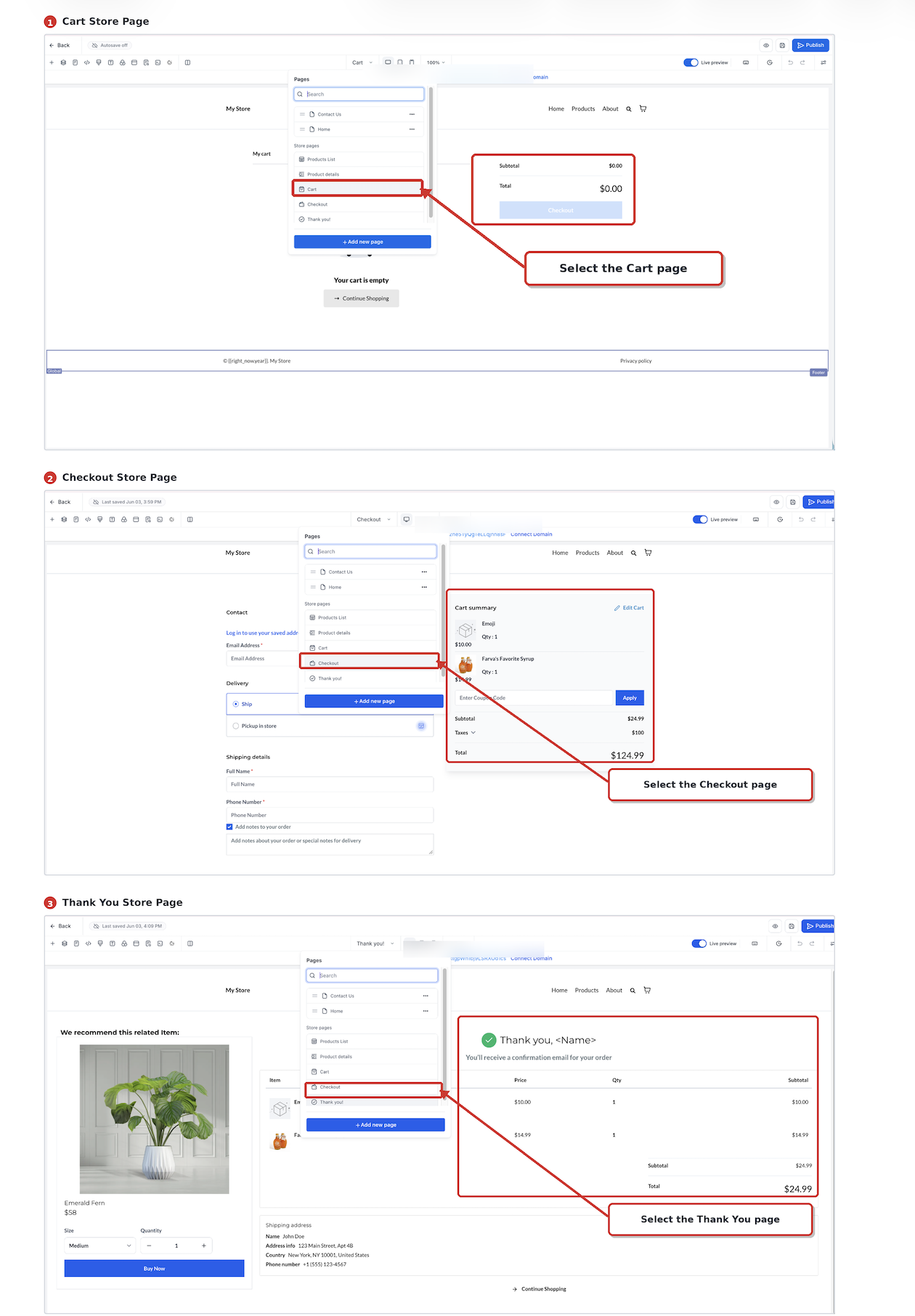
Interact with Sections in the Builder
The Store Builder separates selecting a section for editing from interacting with actionable elements inside that section. This allows you to edit the Store while also testing supported customer interactions.
The first click on a section selects it for editing.
After the section is selected, supported actionable elements can perform their expected preview behavior, including:
- Product navigation
- Redirection
- Add to Cart
Frequently Asked Questions
Q: What happens when I enable Live Preview?
Supported Store pages and product elements use available real product data instead of dummy preview data.
Q: Is Live Preview enabled automatically?
Yes. When products are available, Live Preview is on by default. If no products exist, Live Preview is off by default and dummy products appear.
Q: Can I switch back to dummy product data?
Yes. Turn Live Preview off at any time.
Q: Does Live Preview work with Custom Product Details Pages?
No. Custom PDPs continue using dummy preview behavior and do not include the Live Preview toggle.
Q: What happens when I open the default Product Details Page directly?
With Live Preview enabled, the builder displays one random real product from the available products.
Q: What happens when the preview cart is empty?
Checkout and Thank You can still display one or two available products so you can review their page designs.
Q: Can I complete a real checkout inside Live Preview?
No. Checkout inside Live Preview is for reviewing the Store experience. Functional checkout fields, real-time shipping rates, taxes, and multiple payment methods are not supported in the current Live Preview experience.
Need Help?
If you experience issues with Live Preview in Ecommerce Store Builder, confirm that your Store has products available and that the page supports Live Preview.
If you continue experiencing issues with product previews, cart interactions, or Store navigation, contact support for assistance.
When contacting support, include a description of the issue, the Store page involved, and any relevant screenshots or error messages.