
Add a live Instagram feed directly to a Funnel, Website, or Store page with the Instagram Feed widget. Select an Instagram Business or Creator account already connected in Social Planner, choose a starting layout, and customize how posts appear across devices. Visitors can browse supported posts and interact with your feed without a third-party embed service. This guide explains how to add, style, preview, publish, and reconnect the Instagram Feed.
TABLE OF CONTENTS
- What Is the Instagram Feed Widget?
- Key Benefits of the Instagram Feed Widget
- Prerequisites and Limitations
- How to Set Up the Instagram Feed Widget
- Customize the Feed Layout
- Customize Profile and Post Display
- Configure Post Click Behavior
- Customize Colors and Visibility
- Reconnect an Instagram Account
- Frequently Asked Questions
- Need Help?
What Is the Instagram Feed Widget?
The Instagram Feed widget is a native Page Builder element that displays posts from a connected Instagram account on Funnels, Websites, and Store pages.
Add the widget from Social Widgets, choose a template, select an Instagram account connected in Social Planner, and customize the feed for your page.
The widget provides built-in options for layouts, post displays, interactions, and styling without requiring a separate Instagram feed service or custom embed code.
Key Benefits of the Instagram Feed Widget
The Instagram Feed widget provides a built-in way to display current Instagram content while controlling how the feed looks and behaves. Its customizable settings help you create a consistent experience across different pages and devices.
- Five starting templates: Start with a preconfigured layout and customize it afterward.
- Grid or Slider layouts: Switch between supported layouts at any time.
- Responsive controls: Configure columns, rows, and spacing by device.
- Flexible post display: Control post type, tile style, crop, and displayed details.
- Built-in lightbox: Let visitors view supported posts, carousels, and videos without leaving the page.
- Custom styling: Use light or dark color schemes and customize supported colors.
Prerequisites and Limitations
Connect a supported Instagram account before adding the widget so it can retrieve content through Social Planner. Understanding the supported account types and content-loading behavior helps you configure the feed correctly.
- Use an Instagram Business or Creator account connected in Social Planner.
- Personal Instagram accounts are not supported.
- Feed history varies based on the content Instagram makes available through its API.
- Posts load progressively, with up to 50 posts per request.
- Additional posts can load through supported Load More or Slider navigation.
How to Set Up the Instagram Feed Widget
Add the Instagram Feed from the Page Builder, choose a starting template, and select the Instagram account you want to display. Once connected, you can customize the feed and publish it on your page.
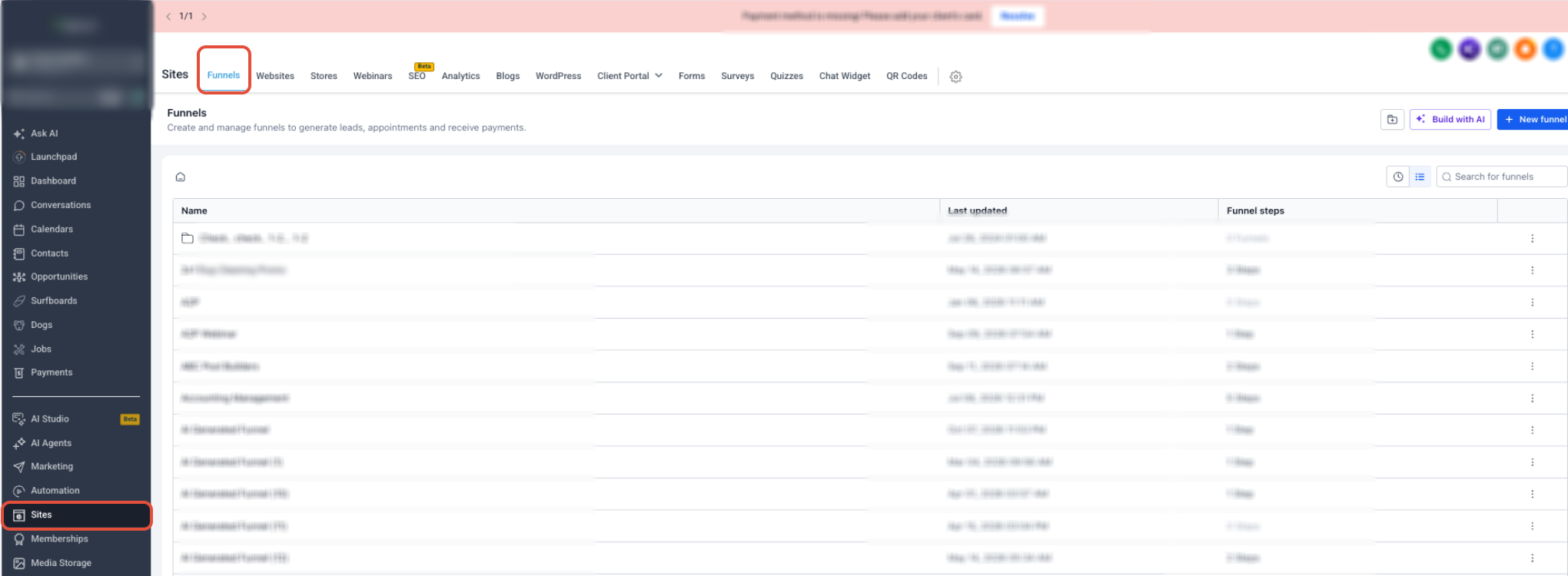
Step 1: Open the Page Builder
Open the page where you want to display the Instagram Feed. The widget is supported in Funnels, Websites, and Stores.
- Go to Sites.
- Select the applicable section:
- Funnels: Open the Funnel containing the step you want to edit.
- Websites: Open the Website containing the page you want to edit.
- Stores: Open the Store containing the page you want to edit.
- Funnels: Open the Funnel containing the step you want to edit.
- Select the applicable Funnel step or page.
- Open it in the Page Builder using the available editing controls.
Step 2: Add the Instagram Feed
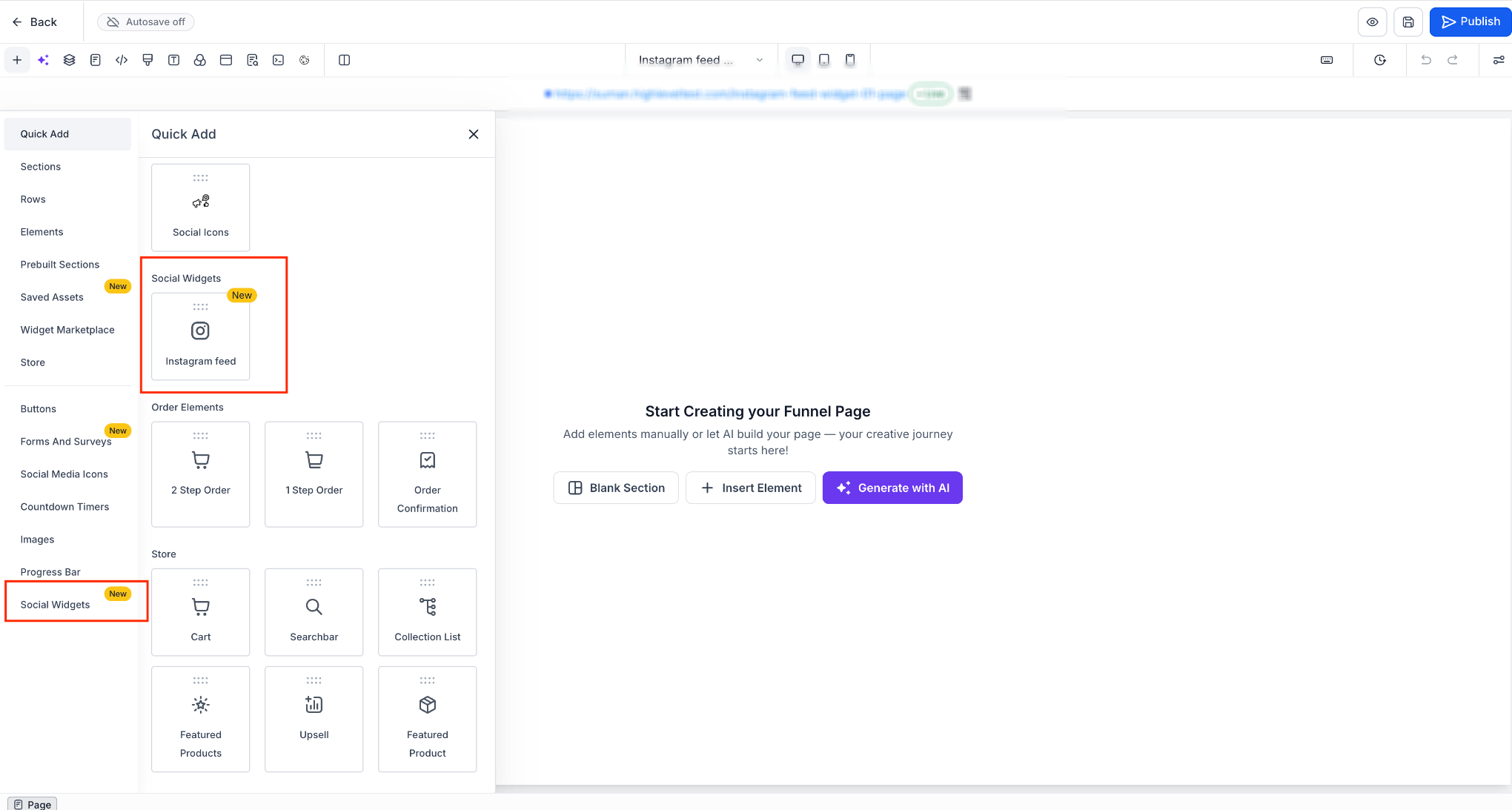
The Instagram Feed is available under Social Widgets in the Page Builder. Select a starting template to add the widget to your page.
- Open the element panel in the Page Builder.
- Select Social Widgets.
- Select Instagram Feed.
- Drag the widget onto the page.
- Choose a starting template.
Available starting templates include:
- Profile widget: Displays a profile header with a post grid.
- Grid: Displays a post grid without the profile header.
- Small widget: Displays a compact 2×2 layout.
- Post slider: Displays posts in a horizontal carousel.
- Dark profile widget: Uses a profile layout with a dark color scheme.
You can customize any starting template after adding it.
Step 3: Select an Instagram Account
Choose an Instagram Business or Creator account that is already connected in Social Planner. The widget uses that connection to retrieve and display available Instagram posts.
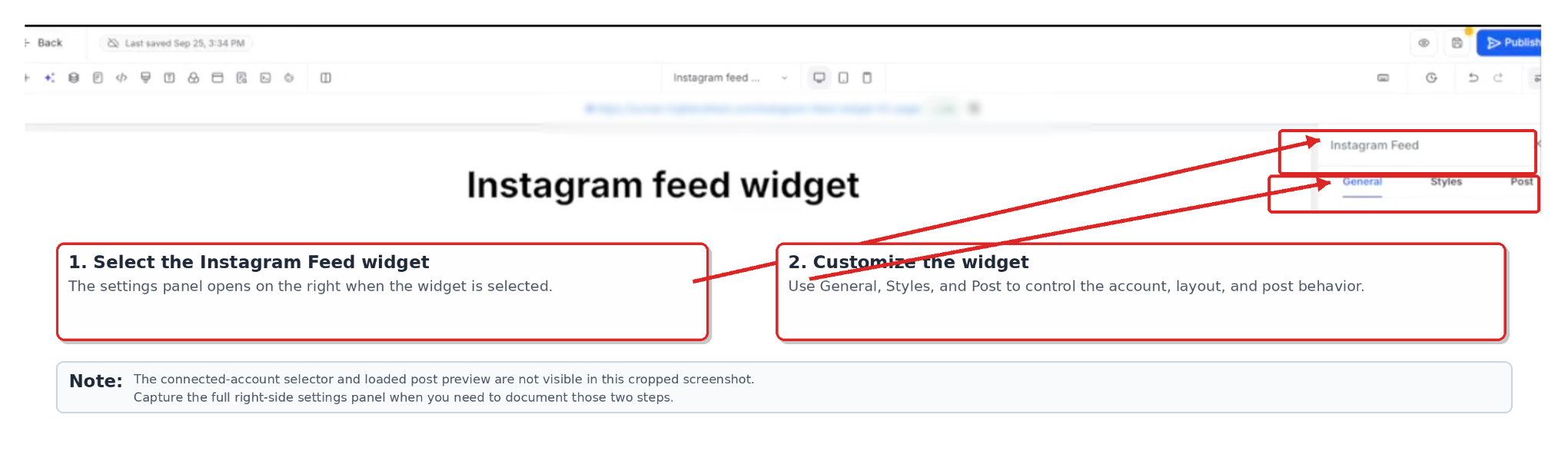
- Select the Instagram Feed widget on your page.
- Choose an Instagram account already connected in Social Planner.
- Confirm that available posts appear in the widget.
- Use the General, Styles, and Post tabs to customize the widget.
- Save your changes and preview the page.
- Publish when the page is ready.
Customize the Feed Layout
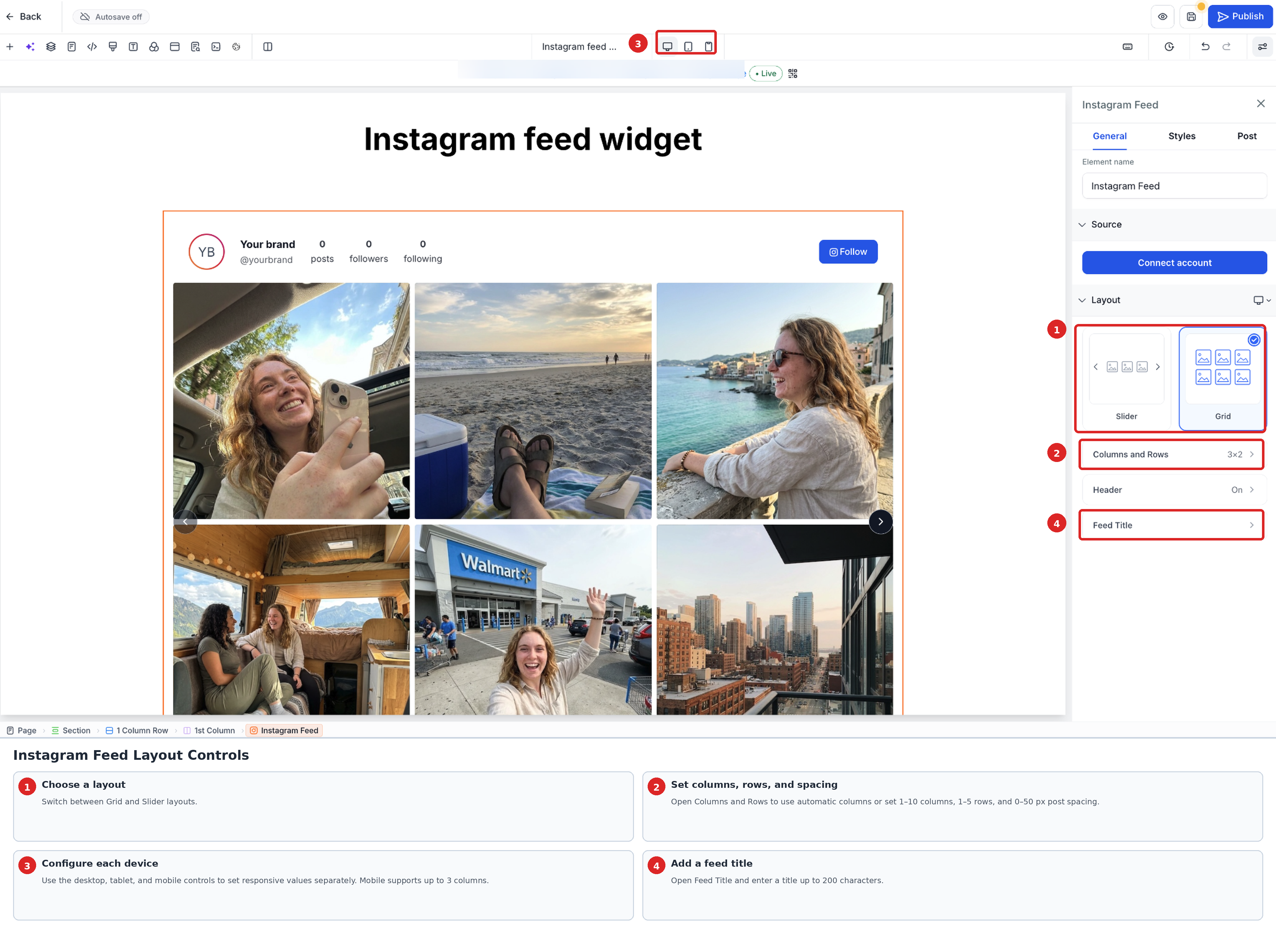
Layout controls determine how posts appear across desktop, tablet, and mobile. Adjust the feed's structure and spacing to match your page design and improve the viewing experience across devices.
You can:
Switch between Grid and Slider layouts.- Use automatic columns or set 1–10 columns.
- Set 1–5 rows.
- Set post spacing from 0–50 px.
- Configure columns, rows, and spacing separately by device.
- Use up to 3 columns on mobile.
- Add a feed title up to 200 characters.
Tablet initially follows the mobile settings. After you change a tablet-specific setting, tablet and mobile can be configured independently.
Customize Profile and Post Display
Control which profile information and post details visitors see. These settings help you decide how much information to display and how Instagram content appears within the widget.
Profile Header
The profile header provides information about the connected Instagram account. You can show or hide the complete header or individual supported elements.
Available elements include:
- Profile picture
- Display name
- @handle
- Post count
- Follower count
- Following count
- Follow button
Posts
Post settings determine which Instagram content appears and how each post is presented. You can choose supported content types, tile styles, image crops, and post details.
Choose which posts appear:
- All supported posts
- Photos only
- Videos only
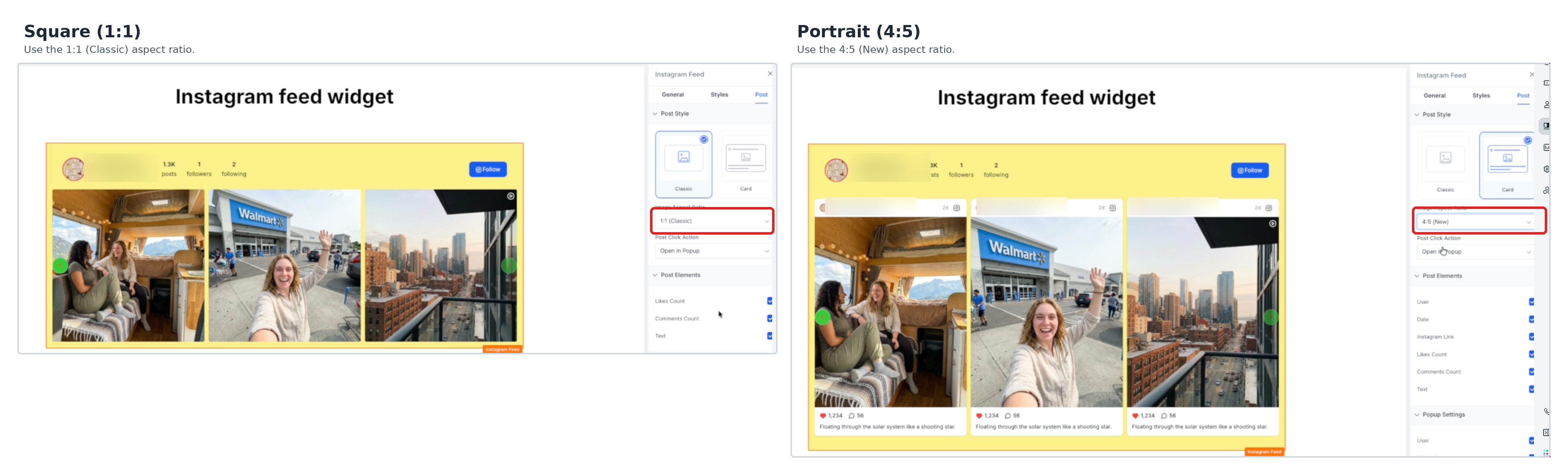
Choose a tile style:
- Classic: Displays an image with a hover overlay.
- Card: Displays an image with a caption block.
Choose an image crop:
- Square (1:1)
- Portrait (4:5)
Depending on the selected tile style, you can show supported details such as:
- Author
- Date
- Instagram link
- Likes
- Comments
- Caption
Slider Controls
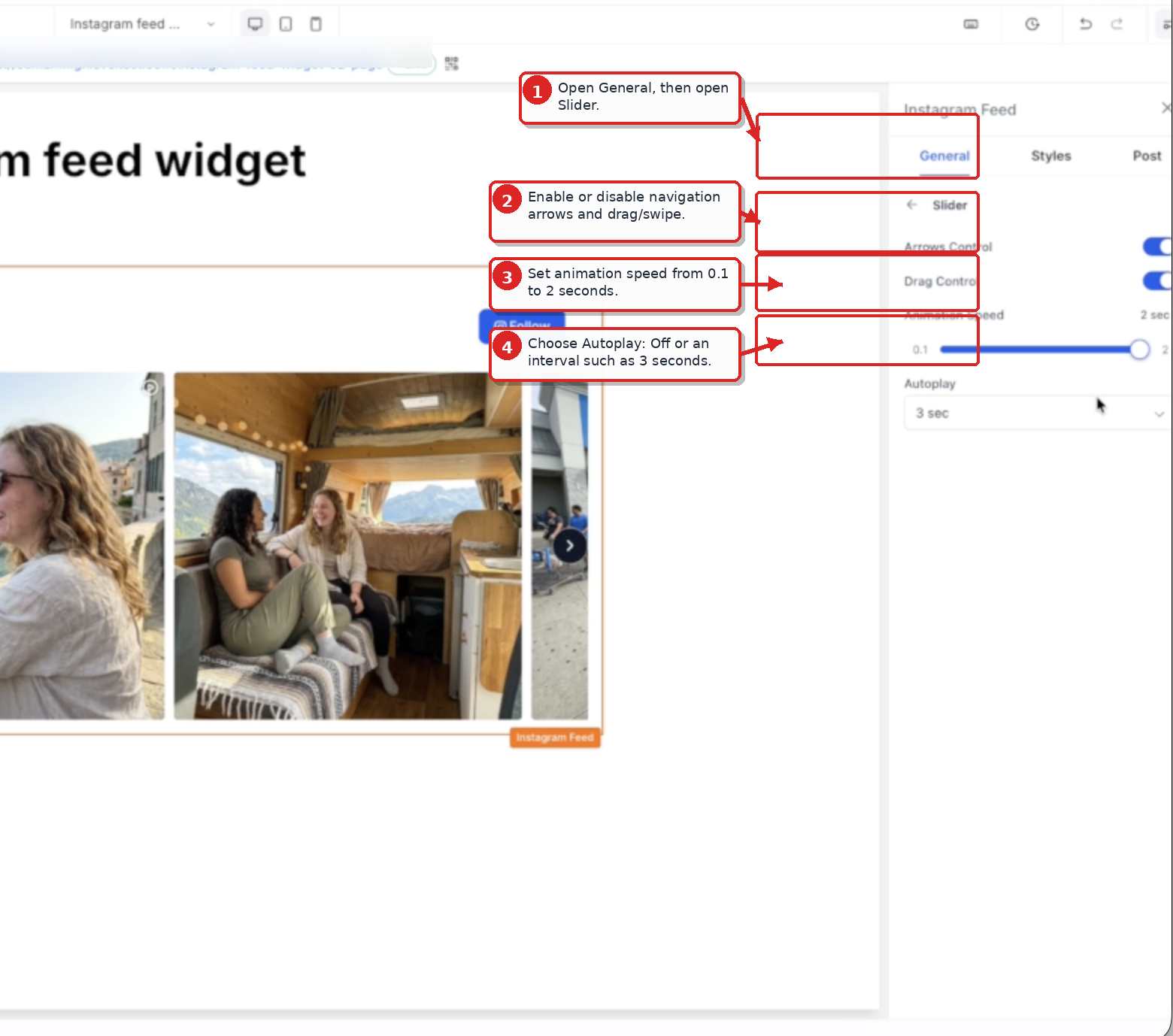
Slider controls determine how visitors navigate posts in a horizontal layout. Configure navigation options and timing to control how the feed moves between posts.
For Slider layouts, you can configure:
- Navigation arrows: Enable or disable the arrows used to move between posts.
- Drag/swipe: Enable or disable drag and swipe navigation.
- Animation speed: Set the transition duration from 0.1–2.0 seconds.
- Autoplay: Turn autoplay off or select an interval from 3–30 seconds.
Configure Post Click Behavior
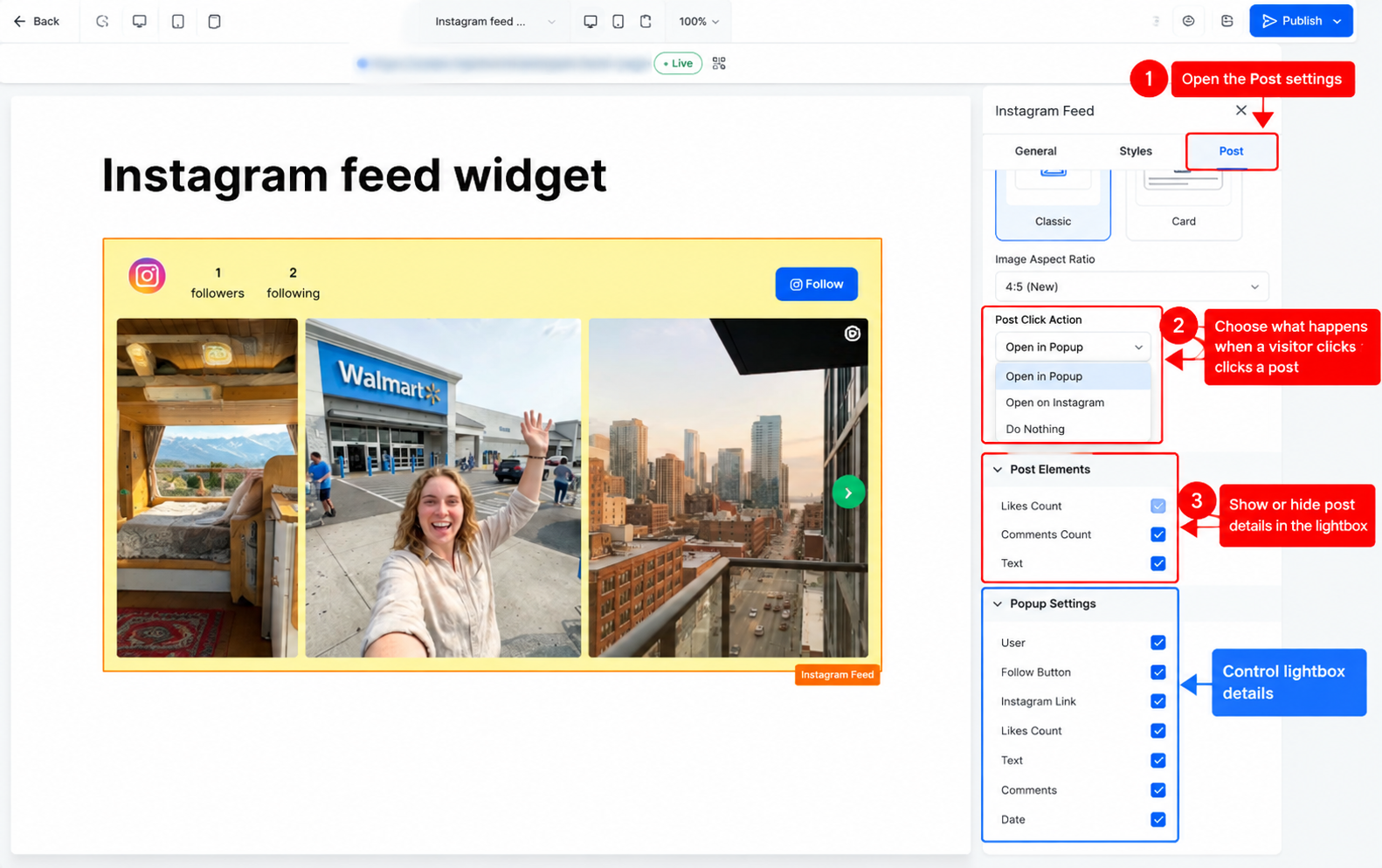
Post click settings determine what happens when visitors select an Instagram post. You can open content within the page, redirect visitors to Instagram, or disable click actions.
Available click actions include:
- Open in Popup: Opens the post in the built-in lightbox.
- Open on Instagram: Opens the selected post on Instagram.
- Do Nothing: Does not perform an action when the post is selected.
The built-in lightbox supports carousel posts, video playback, and keyboard navigation.
Visitors can use the arrow keys to navigate supported content and press Escape to close the lightbox.
You can also control supported lightbox details, including:
- Author
- Follow button
- Instagram link
- Likes
- Caption
- Comments
- Date
Customize Colors and Visibility
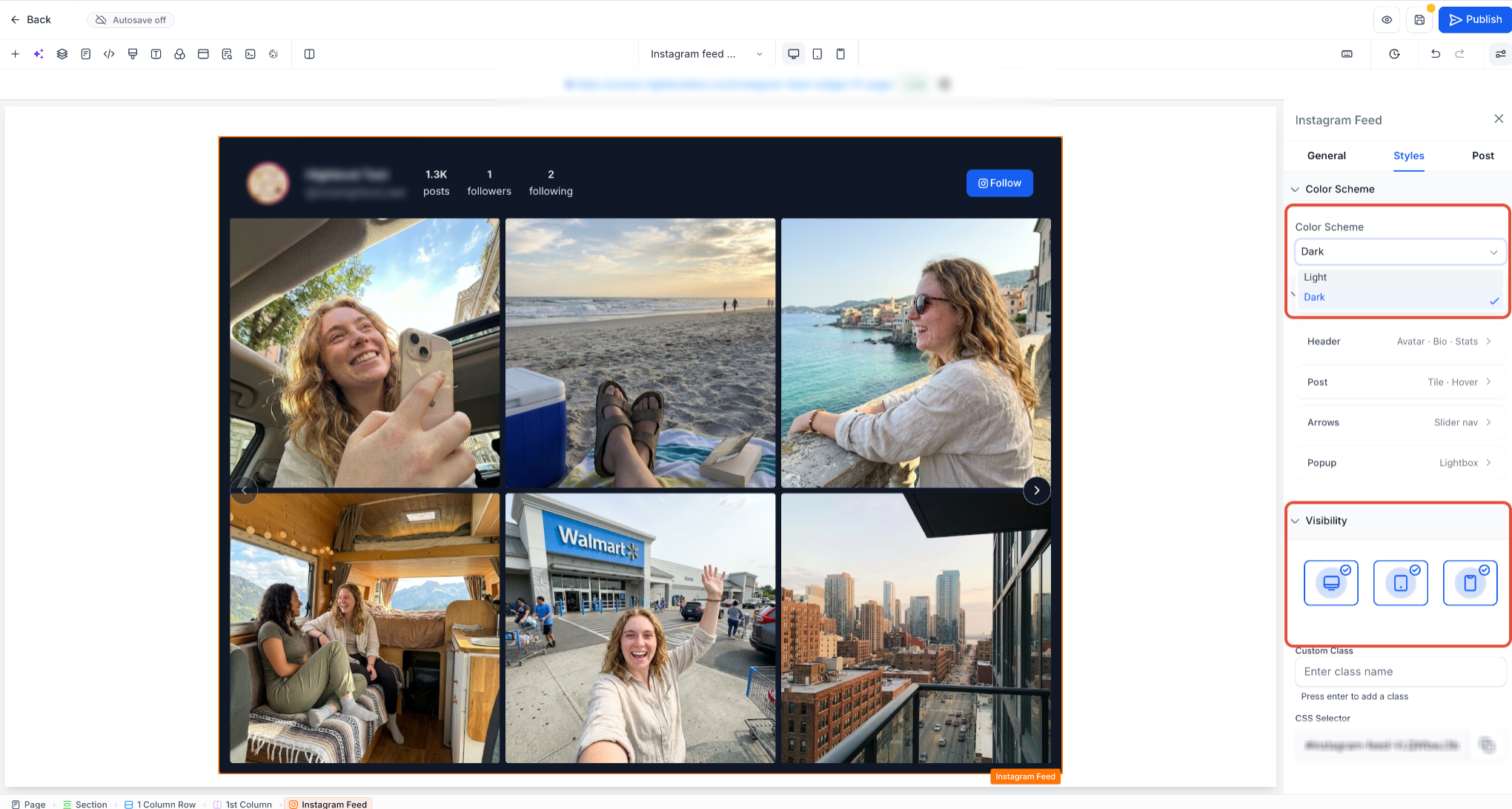
Use styling controls to match the Instagram Feed to your page and control where it appears. You can choose a starting color scheme and adjust supported visual elements.
Start with a Light or Dark color scheme, then customize supported colors for:
- Header
- Posts
- Slider arrows
- Popup
- Load More
You can also:
- Add a custom CSS class to the widget.
- Control visibility by device.
- Review the widget across desktop, tablet, and mobile views.
Reconnect an Instagram Account
The Instagram Feed requires an active Social Planner connection to retrieve current content. Understanding how the widget handles an expired or unavailable connection helps you maintain the feed on your published pages.
If the Instagram connection expires, the widget displays a Disconnected badge and a Reconnect account button.
Use the available reconnection control to restore the Instagram connection.
If Instagram or Social Planner is temporarily unavailable, the published widget can display cached content.
If no cached content is available, the widget hides instead of displaying an error on the page.
Frequently Asked Questions
Q: Which Instagram accounts can I use?
Use an Instagram Business or Creator account connected in Social Planner. Personal Instagram accounts are not supported.
Q: Do I need a third-party Instagram feed service?
No. The Instagram Feed widget is built into the Page Builder and does not require a separate embed service or custom code.
Q: Can I use the widget on Store pages?
Yes. The widget is supported on Funnels, Websites, and Store pages.
Q: Can I configure the feed differently on mobile?
Yes. The widget supports device-specific layout settings. Mobile supports up to three columns.
Q: What happens if my Instagram connection expires?
The widget displays a Disconnected badge and a Reconnect account button.
Q: What happens if Instagram is temporarily unavailable?
Available cached content can remain visible. If no cached content exists, the widget hides instead of displaying an error.
Q: How many Instagram posts can the widget load?
Posts load progressively, with up to 50 posts per request. Total feed history depends on the content Instagram makes available for the connected account.
Need Help?
If you experience issues adding or customizing the Instagram Feed widget, confirm that a supported Instagram Business or Creator account is connected in Social Planner.
Check that the widget is using the intended Instagram account and that the connection is active.
If posts still do not appear or the widget does not behave as expected, contact support for assistance.
When contacting support, include a description of the issue, the page where the widget is installed, and any relevant screenshots or error messages.
