
You can now verify email addresses as part of the contact import itself. Select one checkbox on the last step of the import, and every imported email is checked automatically once the import finishes.
This article explains why the option was added, how to turn it on, how to track progress in Bulk Actions, and how to create a Smart List of valid emails for safe sending.
Why Email Verification Was Added to Import
Bulk email validation has always been available from the contact list, but it was a separate step from the import. To validate newly imported contacts, you had to:
- Complete the import
- Navigate to the contact list
- Manually multi-select the imported records
- Trigger bulk validation separately
These extra steps made it easy to skip validation entirely, which meant campaigns were often sent to lists containing invalid addresses.
Email verification is now built into the import flow. Select it on the final step, and verification runs automatically after the import completes. No extra navigation or multi-selecting needed.
The Simplified Journey
The whole process now fits into one continuous flow:
How to Verify Emails During Contact Import
Go to Contacts → Import. Work through the Start, Upload and Map steps as usual: select the objects to import, upload your file, configure settings and map columns to fields.
On the final Verify step, under Preferences, find the Add email verification section and tick:
☑ Enable email verification and verify email addresses for this import
Then review your file, tick the consent confirmation at the bottom of the page and click Start import.
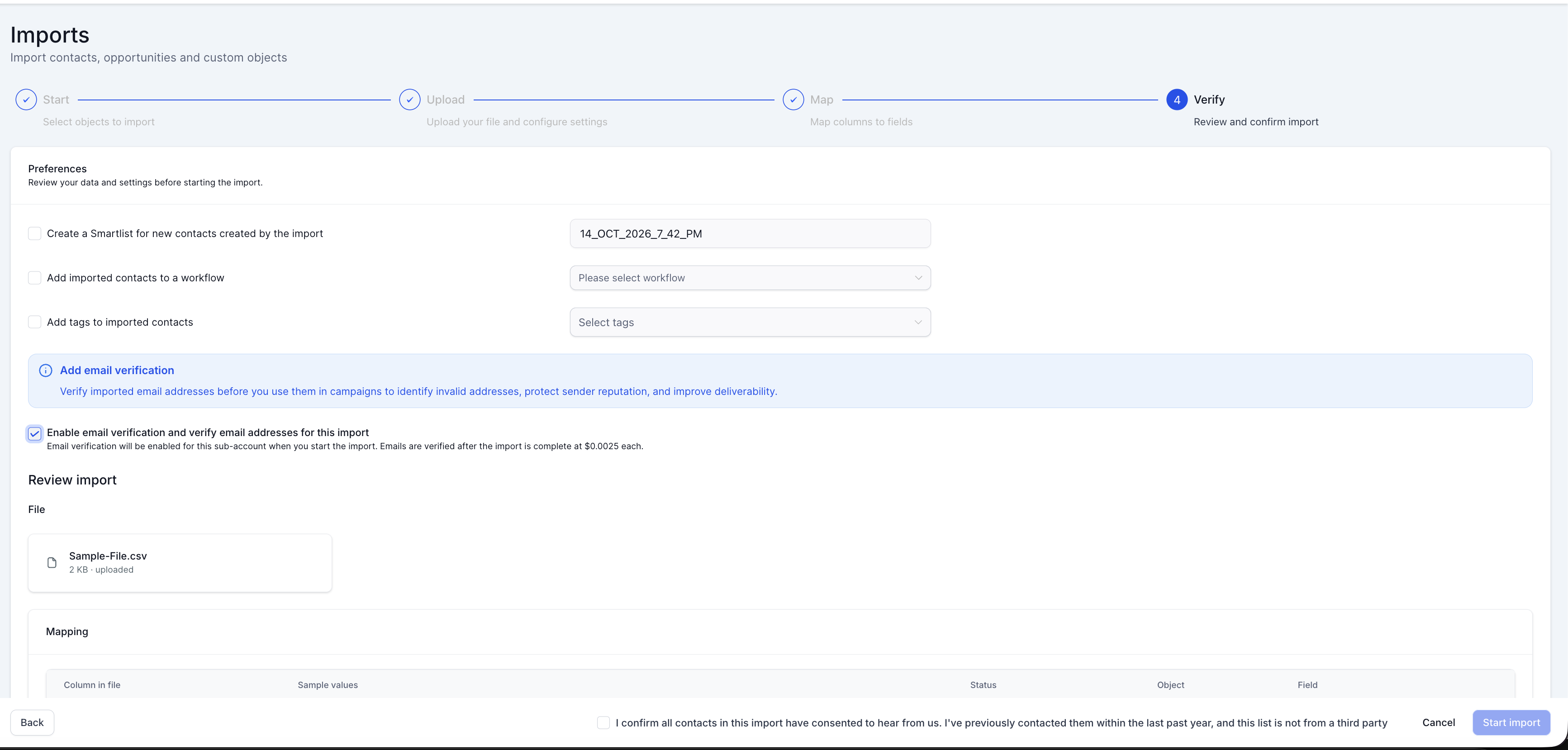
Selecting this option enables email verification for the sub-account when you start the import. Emails are verified after the import completes and are charged at $0.0025 per email.
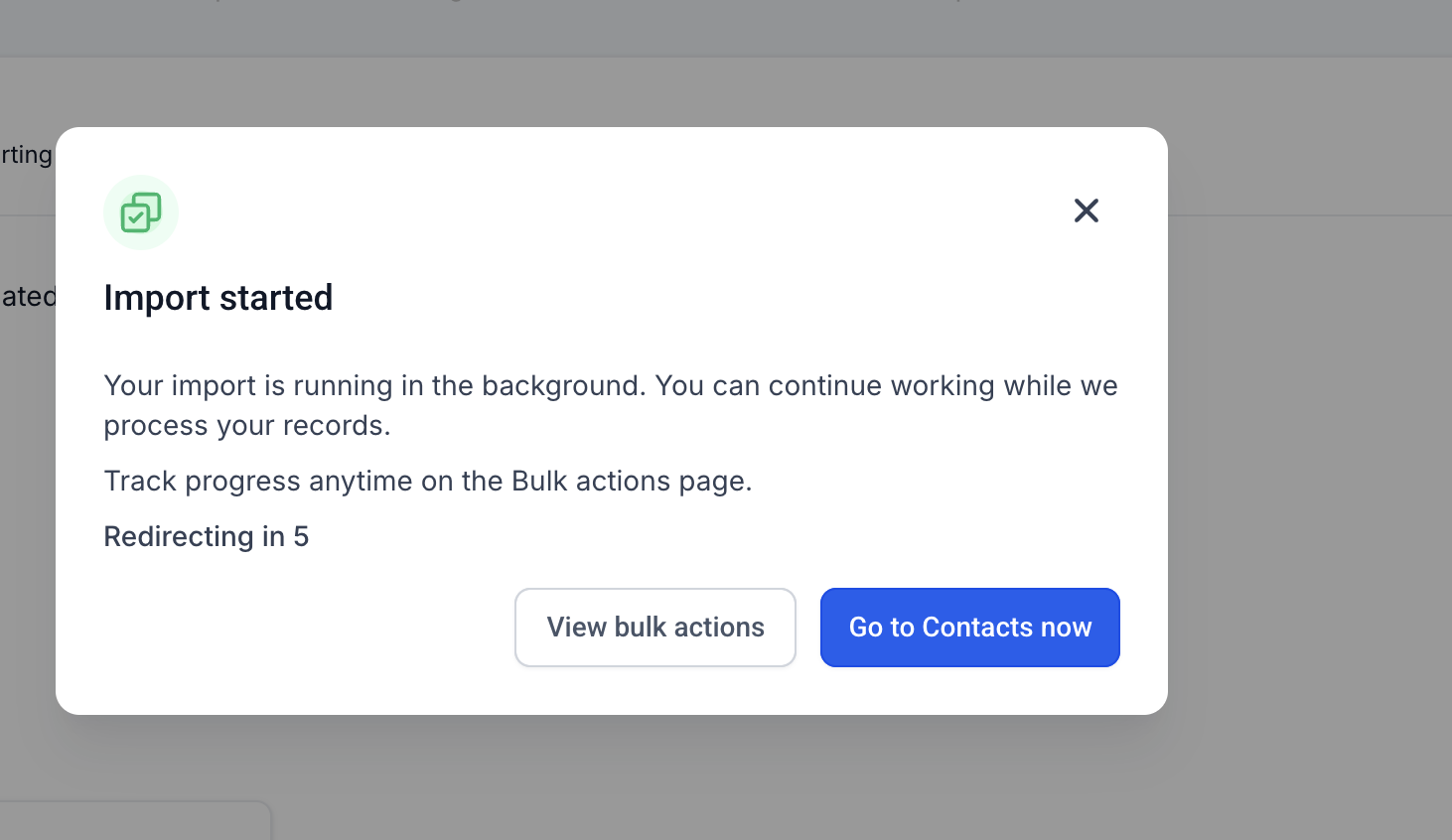
Once you start the import, a confirmation pop-up appears letting you know your import (and email verification, if selected) is running in the background. You can keep working while the records are processed. Click View bulk actions to track progress, or Go to Contacts now. You'll be redirected automatically after a few seconds.
A bulk action is created automatically, named Contact_import_{{DATE-TIME}}. Its status shows as Processing while the import and verification run, then changes to Completed.
Once completed, the bulk action displays the total contacts processed along with the number of Valid, Invalid and Error results.
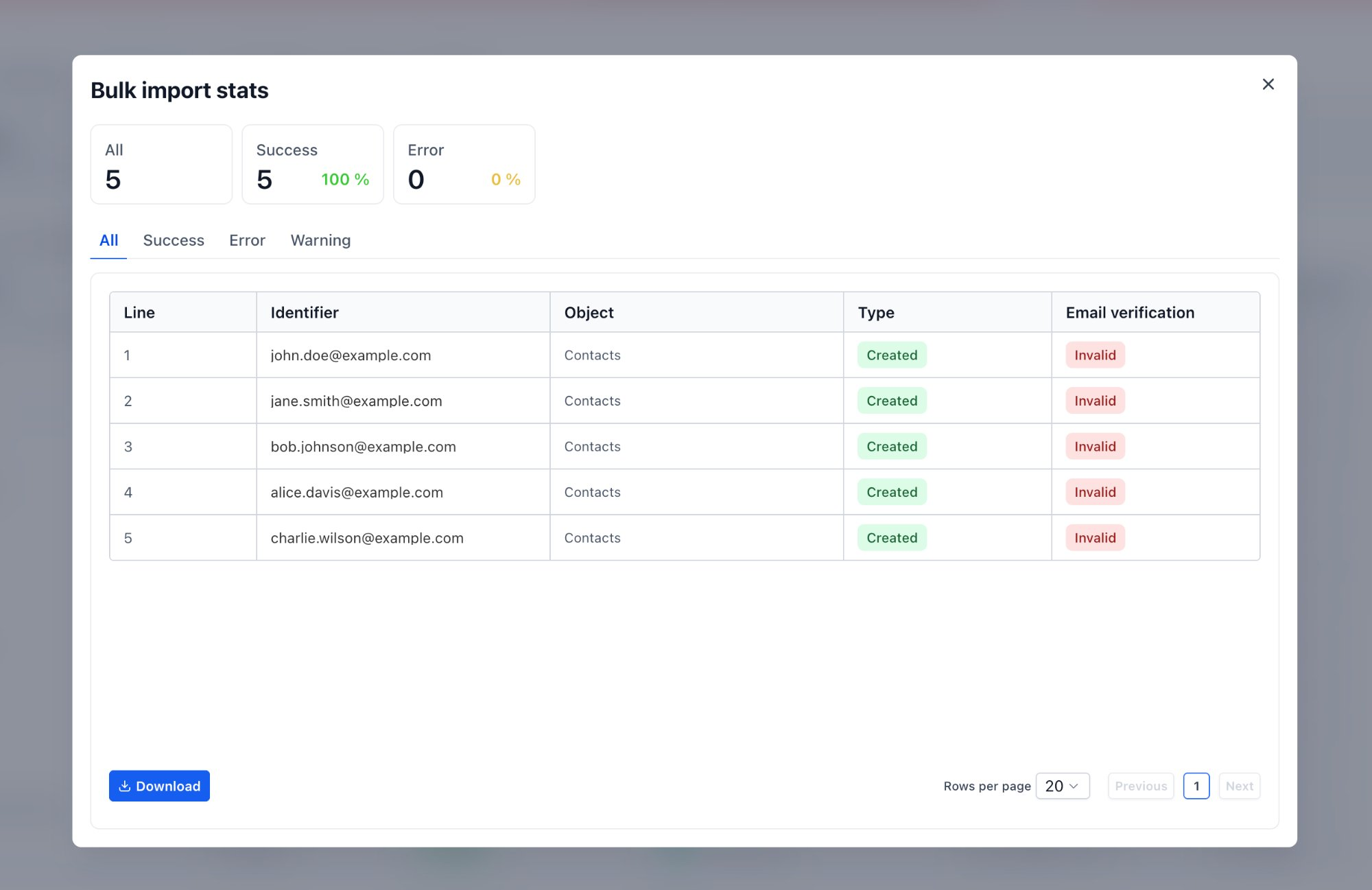
Click the stats on the bulk action to open Bulk import stats. Each imported line shows its identifier, object, import type (for example Created) and a new Email verification column with the result. Use the All, Success, Error and Warning tabs to filter, or click Download to export the results.
Click Create Smart List of Valid Emails to instantly build a list containing only valid addresses.
Your new Smart List is ready to use right away. Select it as the audience for your next campaign to send only to verified, valid email addresses.
Understanding Verification Results
Import status and email verification status are tracked separately. A contact can be imported successfully (Created) and still have an Invalid email.
| Result | What it means | Recommended action |
|---|---|---|
| Valid | The email address passed verification and can receive mail. | Include in campaigns via the valid-emails Smart List. |
| Invalid | The address is unlikely to receive mail (e.g. non-existent mailbox or domain). | Exclude from sends to protect sender reputation; correct the address if possible. |
| Error | Verification could not be completed for this record. | Review the record and re-run bulk validation from the contact list if needed. |
Sending to invalid addresses increases bounce rates and can damage your sender reputation and deliverability. Always send campaigns to the valid-only Smart List rather than the full import.