
This article explains how to set up a dedicated notification domain for each SaaS brand configured under Settings → Company → Whitelabel.
Once configured, system-generated notification emails for a brand use that brand's notification domain instead of the default brand's domain.
TABLE OF CONTENTS
What Is Multi-Brand Management?
Multi-Brand Management allows SaaS providers to create and manage up to two independent brand identities within a single LeadConnector account. Each brand operates as a separate, fully customizable white label experience that can be assigned to different customer segments.
This capability is designed for providers who serve multiple markets, business verticals, or customer types and need to deliver distinct brand experiences without the overhead of managing separate accounts.
- Each brand functions independently with its own configuration settings.
- Brands are configured under Settings → Company → Whitelabel.
- Account management and billing stay centralized in one place.
A truly independent brand experience extends to the inbox. Giving each brand its own notification domain means customers only ever see the brand they signed up with — not another brand's domain.
How Notification Domains Work Per Brand
Each brand sends notification emails through one selected domain. You configure this in the Notification Section under Settings → Email Services → Dedicated Domain and IP.
| Brand Setup | Notification Emails Are Sent From |
|---|---|
| Brand has its own notification domain | That brand's own domain |
| Brand has no notification domain | The default brand's notification domain |
If you skip this setup for a brand, its customers will receive notifications from the default brand's domain. To keep brands fully separate, add a domain for every brand.
Before You Begin
Make sure you have the following ready:
Set Up a Notification Domain for a Brand
From the agency view, go to Settings → Email Services and open the Dedicated Domain and IP tab.
Below Dedicated IPs, find the Notification Section. It shows one card per brand. Use the Brand dropdown on the right to view All brands or filter to a single brand.
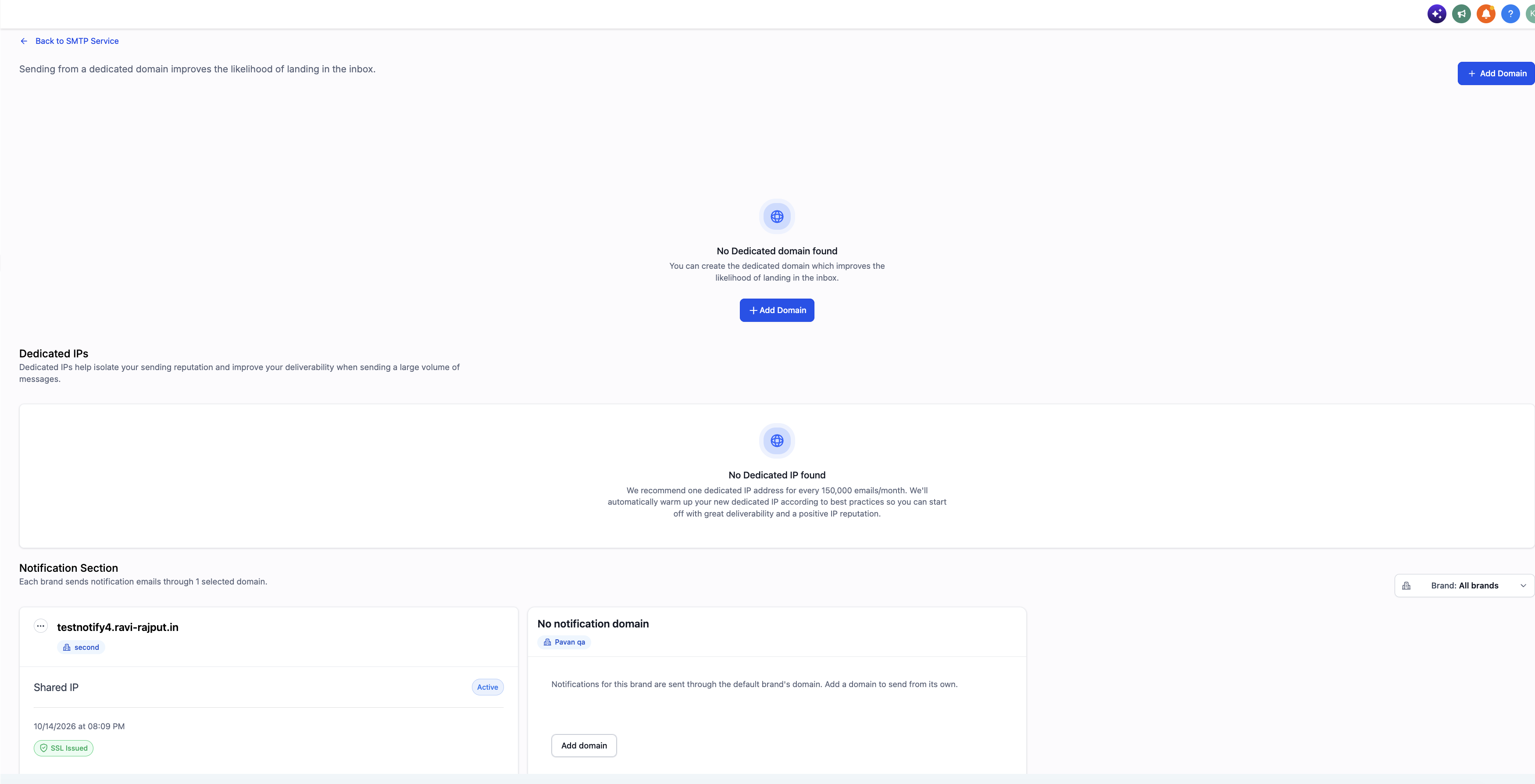
The Notification Section lists each brand. Brands without a domain show an Add domain button.
Find the card labeled No notification domain with the brand tag you want to configure, then click Add domain.
Enter the domain or subdomain that belongs to this brand (for example, notify.brandname.com) and continue.
Copy the DNS records shown on screen and add them at your domain's DNS provider. Return to the platform and click Verify. DNS changes can take some time to propagate.
Once verified, the brand's card shows the domain name, the brand tag, an Active status, and an SSL Issued badge.
System-generated notification emails for this brand now use its configured notification domain. Repeat these steps for any other brand that needs a separate notification email identity.
Understanding the Notification Section
Each brand card shows the following details:
| Element | What It Means |
|---|---|
| Domain name | The domain used to send this brand's notification emails. |
| Brand tag | The brand (from Company → Whitelabel) this domain is assigned to. |
| Shared IP | The IP type the domain sends through. Shared IP is used when no dedicated IP is assigned. |
| Active | The domain is verified and sending notification emails. |
| Date & time | When the domain was added. |
| SSL Issued | An SSL certificate has been issued for the domain. |
| ··· menu | Options for managing an existing notification domain, including updating or removing the domain. Each brand's notification domain can be managed independently without changing another brand's configuration. |
| No notification domain | The brand has no domain yet and uses the default brand's domain. Click Add domain to set one. |
Sending a large volume of email? A dedicated IP isolates your sending reputation. One dedicated IP is recommended for every 150,000 emails per month, and new dedicated IPs are warmed up automatically.