
The Social Element in the Email Builder lets you add clickable social links directly to an email. Use it in newsletters, promotional emails, and other branded communications to help recipients connect with your social profiles. You can customize how the social links appear, control their visibility, and adjust the layout to fit your email design. Preview and test the email before sending because responsive styling can vary between email clients.
TABLE OF CONTENTS
- What Is the Social Element in Email Builder?
- Key Benefits of the Social Element
- Prerequisites and Limitations
- Social Element Customization Options
- Visibility and Conditional Sending
- Mobile and Email Client Behavior
- How to Add and Test the Social Element
- Frequently Asked Questions
- Need Help?
What Is the Social Element in Email Builder?
The Social Element is a drag-and-drop block in the Email Builder that lets you add linked social profiles to an email. Each social item directs recipients to the profile URL or supported handle you configure.
The element gives you control over how the social links appear without requiring you to manually build and align individual icons.
Key Benefits of the Social Element
The Social Element provides a reusable way to connect email recipients with your social channels while keeping the links consistent with the rest of your email design.
- Direct Social Links: Give recipients quick access to your social profiles from the email.
- Flexible Display: Choose from available display options to show icons, text labels, or both.
- Customizable Design: Adjust supported styles, sizing, alignment, spacing, and padding.
- Visibility Controls: Control when the Social Element appears using device visibility or supported Conditional Sending rules.
- Reusable Layout: Save supported elements or layouts for reuse in other email templates.
Prerequisites and Limitations
Before adding social links, open an email template in the Design Editor and prepare the destinations you want recipients to visit. Reviewing the available settings and email client behavior helps you create links that display and function as intended.
- Design Editor: Use the Design Editor to add and configure the Social Element.
- Social Profile Links: Prepare the destination URL or supported handle for each social profile.
- Available Platforms: The supported social platforms, icon styles, and appearance controls depend on the options currently available in the editor.
- Visibility: Device-Based Visibility and Conditional Sending can affect whether recipients see the element.
- Email Client Rendering: Social icons and responsive formatting may appear differently across email clients. Preview and test the email before sending.
Social Element Customization Options
Select the Social Element in the Design Editor to configure the social profiles and adjust how they appear in the email.
- Social Profiles: Add the available social platforms you want to display and enter the applicable profile URL or supported handle.
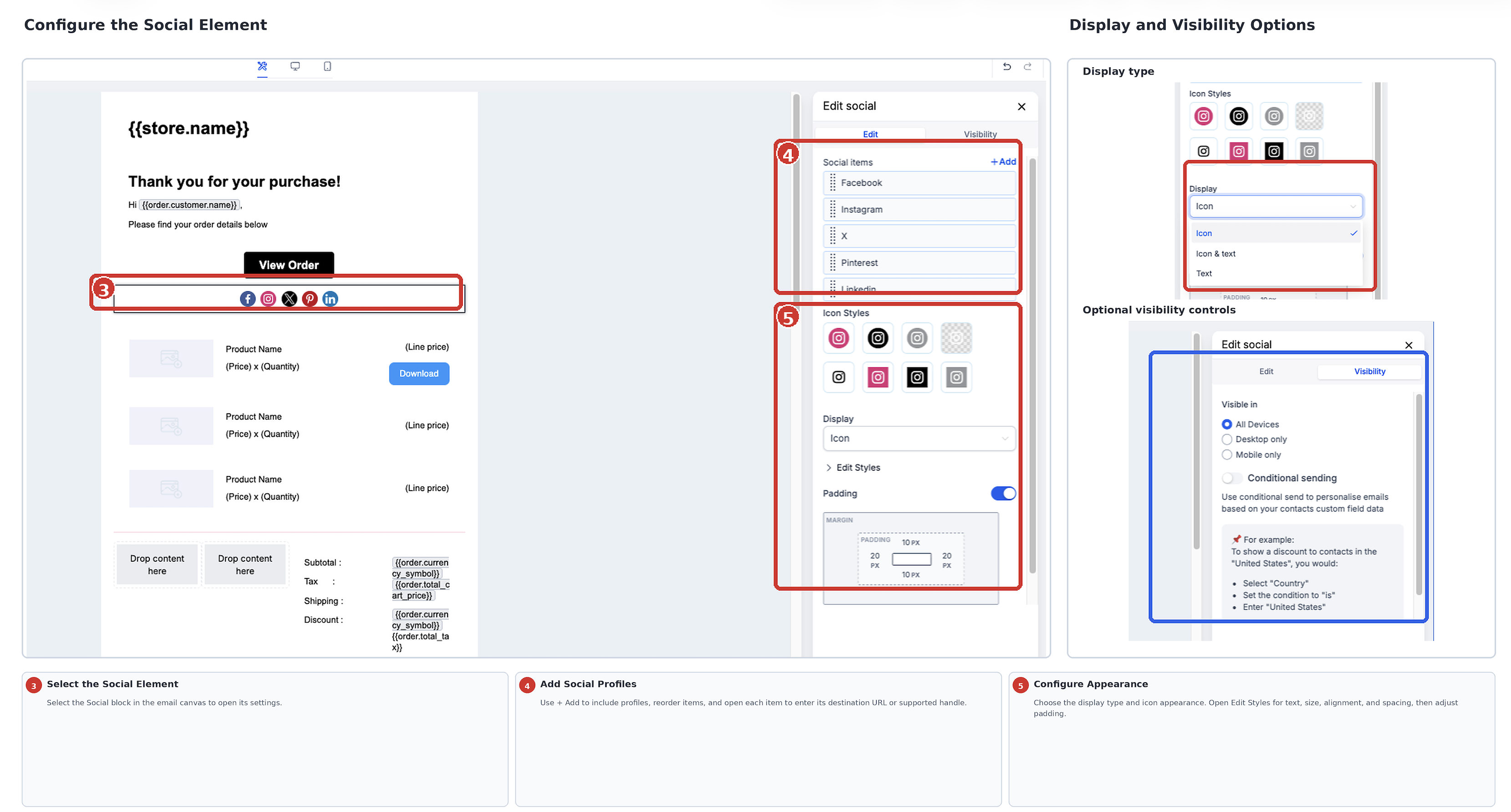
- Display Type: Choose from available options such as Icon, Text, or Icon and Text.
- Icon Appearance: Choose from the icon styles and appearance options currently available in the editor.
- Text Settings: When text labels are displayed, configure the available font and text-color settings.
- Icon Size: Adjust the size of the displayed social icons.
- Alignment: Align the Social Element to the left, center, or right.
- Spacing: Adjust the space between social items.
- Padding: Control the space surrounding the Social Element within the email layout.
Note: Available social platforms, icon styles, and appearance controls can change as the Email Builder is updated. Review the options currently shown in the editor when configuring the element.
If the social platform you need is not available in the Social Element, you can use a linked Image Element with the appropriate image and destination URL instead.
Visibility and Conditional Sending
Use the Social Element's visibility settings when the social links should appear only on certain devices or for recipients who meet specific conditions.
- Device-Based Visibility: Control whether the element appears on supported desktop or mobile views.
- Conditional Sending: Show or hide the element based on supported contact-related conditions.
Conditional Sending supports operators including Is, Is Not, Is Empty, and Is Present. Available operators can depend on the field being used.
Important: A hidden parent layout also hides the Social Element contained within it. If social links are missing, check both the element's visibility settings and the visibility of its parent layout.
Mobile and Email Client Behavior
Device visibility determines whether the Social Element is displayed. Mobile formatting controls how supported content is styled on smaller screens. These are separate settings.
Email clients can interpret responsive styling differently, so the received email may not look exactly the same as the editor preview.
Preview the email on the available desktop, tablet, and mobile views, then send an actual test email and confirm that each social link opens the intended profile.
How to Add and Test the Social Element
Add the Social Element in the Design Editor, configure the social links and appearance, then test every link before using the template.
- Go to Marketing → Emails → Templates and open an existing template or create a new one using the Design Editor.
- Open Add Elements (+), locate the Social element, and drag it into the desired location in the email.
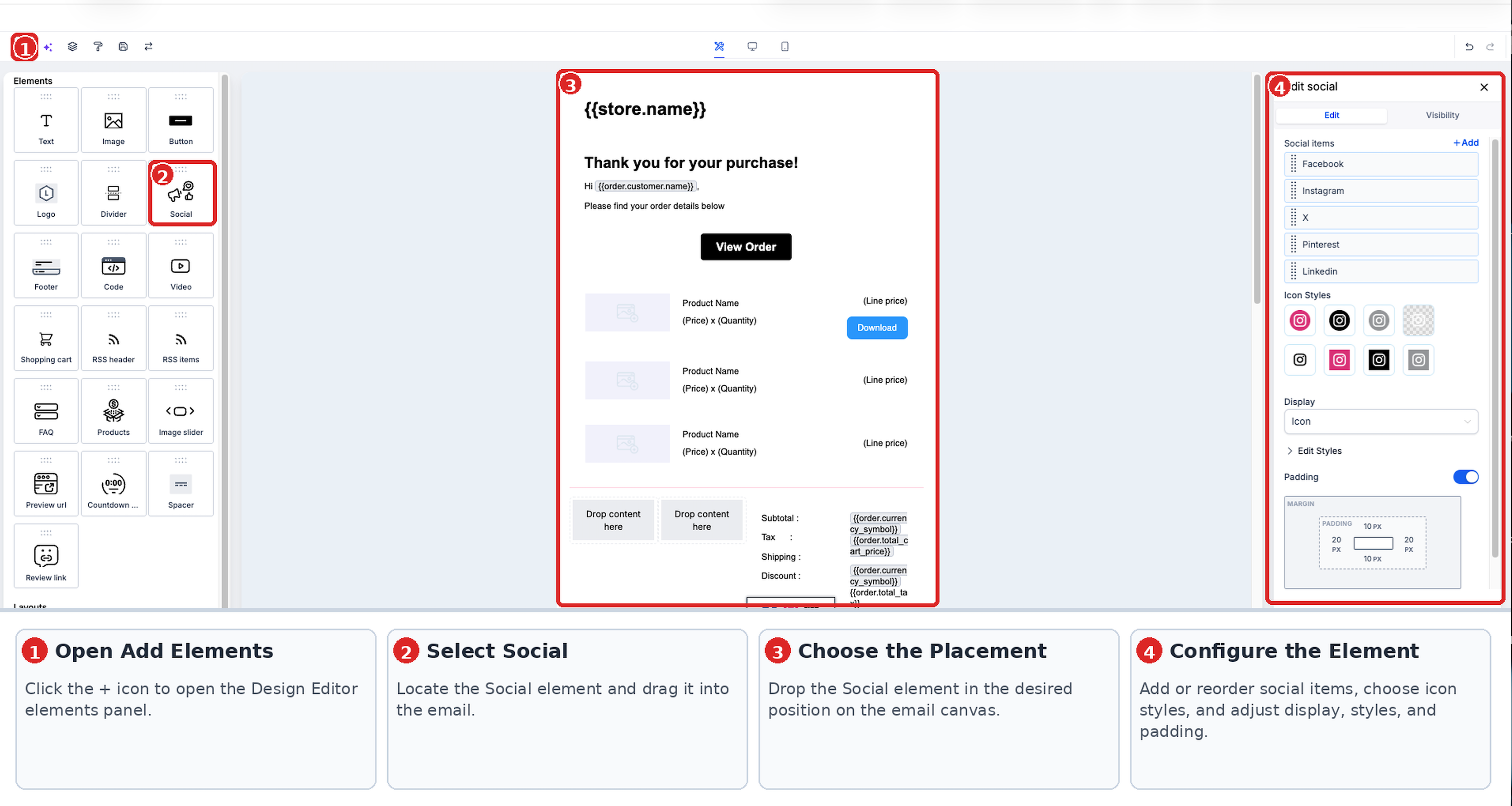
- Select the Social Element to open its settings.
- Under Social Items, add the desired social profiles and enter the correct destination URL or supported handle for each one.
- Configure the available display type, icon appearance, text settings, size, alignment, spacing, and padding.
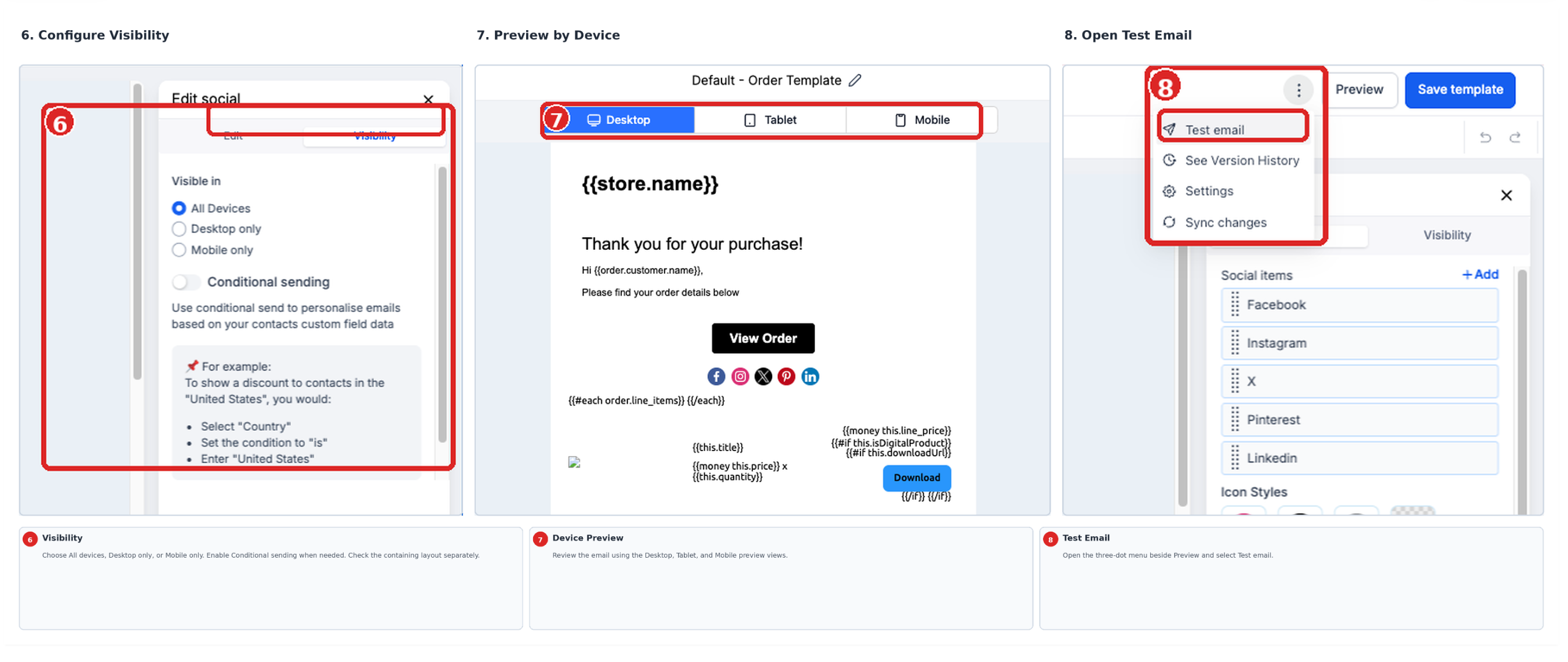
- If needed, open Visibility and configure Device-Based Visibility or Conditional Sending. Check the visibility of the containing layout as well.
- Preview the email using the available desktop, tablet, and mobile views.
- Open the three-dot menu beside Preview and select Test Email.
- Enter the required sender, recipient, subject, preview text, and other available test-email details, then send the test.
- Open the received email and click every social link. Confirm that each one opens the intended social profile.
- Return to the template, correct any issues, and save your changes.
Frequently Asked Questions
Q: What if the social platform I want to use is not available?
Use a linked Image Element with the appropriate image and destination URL when the platform is not available in the Social Element.
Q: Can I reuse my social-link design in another email template?
Yes. Supported elements and layouts can be saved as Saved Items in the Design Editor and reused in other email templates. Saved Items are not currently supported in the AI Editor.
Q: Why does a social icon open the wrong page?
Check the destination configured for that social item. Make sure the URL or supported handle points to the intended profile, then send another test email and verify the link.
Q: Why can some recipients see the social links while others cannot?
Check the Social Element's Device-Based Visibility, Conditional Sending rules, and the visibility of its parent layout. Conditional rules can hide the element for recipients who do not meet the selected criteria.
Q: Why do the social icons look different in the received email than in Preview?
Email clients can render responsive styling differently. Preview helps you review the design, but a test email provides the best indication of how the social links will appear in an actual inbox.
Q: Does the Social Element replace the email footer or unsubscribe link?
No. The Social Element provides links to social profiles. It does not replace required footer content, sender information, or unsubscribe functionality.
Need Help?
If your social links are not displaying or working as expected, review the Social Element's settings before sending the email.
- Missing Social Icons: Check the element's Device-Based Visibility, Conditional Sending rules, and the visibility settings of its parent layout.
- Incorrect Social Links: Open the Social Element settings and verify that each social item uses the correct profile URL or supported handle.
- Formatting Issues: Review the icon size, display type, spacing, alignment, and padding. Preview the email in the available desktop, tablet, and mobile views.
- Different Appearance in Email Clients: Send a test email and compare how the social links appear in the affected inboxes.
- Missing Social Platform: If the Social Element does not support the platform you need, consider using a linked Image Element instead.
If the issue continues, contact support for assistance. Include a description of the problem, the steps you followed, and any relevant screenshots or error messages.