
If your RSS email displays tags such as <p> or <br> instead of formatted text, the feed's HTML may be displayed as plain text. You can render HTML from a trusted feed through a Custom RSS Items layout. The fix is to change the RSS description variable from double braces to triple braces. Follow the steps below and test the result before sending.
TABLE OF CONTENTS
- What Causes HTML Tags to Appear in RSS Emails?
- Key Benefits of Correct RSS HTML Rendering
- Prerequisites and Limitations
- How to Fix HTML Tags in the RSS Email Body
- How to Test the RSS HTML Fix
- Troubleshooting RSS HTML Display
- Frequently Asked Questions
- Need Help?
What Causes HTML Tags to Appear in RSS Emails?
Some RSS feeds contain HTML markup in their post descriptions. By default, {{rss_item.content}} escapes that markup, so tags may appear as text instead of being interpreted as formatting.
Using {{{rss_item.content}}} in a Custom RSS Items layout allows trusted HTML content to render.
Key Benefits of Correct RSS HTML Rendering
Rendering supported HTML correctly helps recipients read RSS descriptions without seeing the code behind the formatting.
- Readable Descriptions: Replace visible HTML tags with formatted text.
- Preserved Formatting: Display supported paragraphs and links from the feed.
- Targeted Fix: Correct the RSS content variable without rebuilding the campaign.
Prerequisites and Limitations
Before making changes, identify the affected RSS email and confirm that the feed is trustworthy. The HTML rendering option changes how feed content appears in the email, so testing is important.
- RSS Email: Open an existing email template or campaign that contains an RSS Items block.
- Custom RSS Layout: Use the Custom option under RSS Editing Options to modify the content variable.
- Trusted RSS Feed: Use triple braces only for HTML content from a source you trust.
- RSS Feed URL: Have a valid RSS Feed URL available when testing the updated email.
- Email Client Compatibility: Supported HTML and styling can render differently across email clients.
How to Fix HTML Tags in the RSS Email Body
The fix is made inside the RSS Items block's Custom layout. Only change the content variable intended to display HTML from a source you trust.
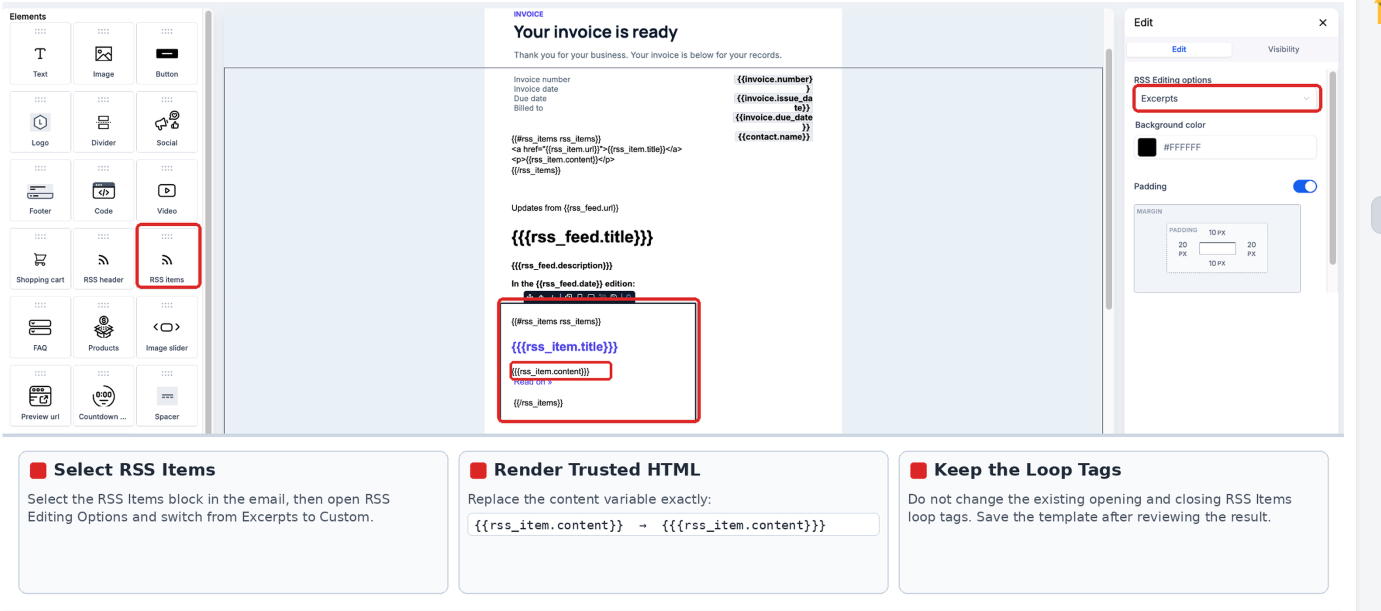
- Go to Marketing → Emails → Templates and open the affected email in the Design Editor. You can also open the affected campaign's email design.
- Select the RSS Items block and choose Custom under RSS Editing Options.
- Find the description variable and replace it exactly as shown below.
Before — HTML escaped:
{{rss_item.content}}After — HTML rendered:
{{{rss_item.content}}}- Keep the existing RSS Items opening and closing loop tags unchanged.
- Save your changes.
Important: Triple braces insert HTML without escaping it. Use them only with RSS feeds you trust. Unsupported HTML or styling may still render differently across email clients.
How to Test the RSS HTML Fix
Testing with actual feed content confirms whether the email displays formatted text rather than HTML tags.
- In the Email Builder, select Preview.
- Open the three-dot menu beside Preview and select Test Email.
- Enter the test-email details and provide a valid RSS Feed URL.
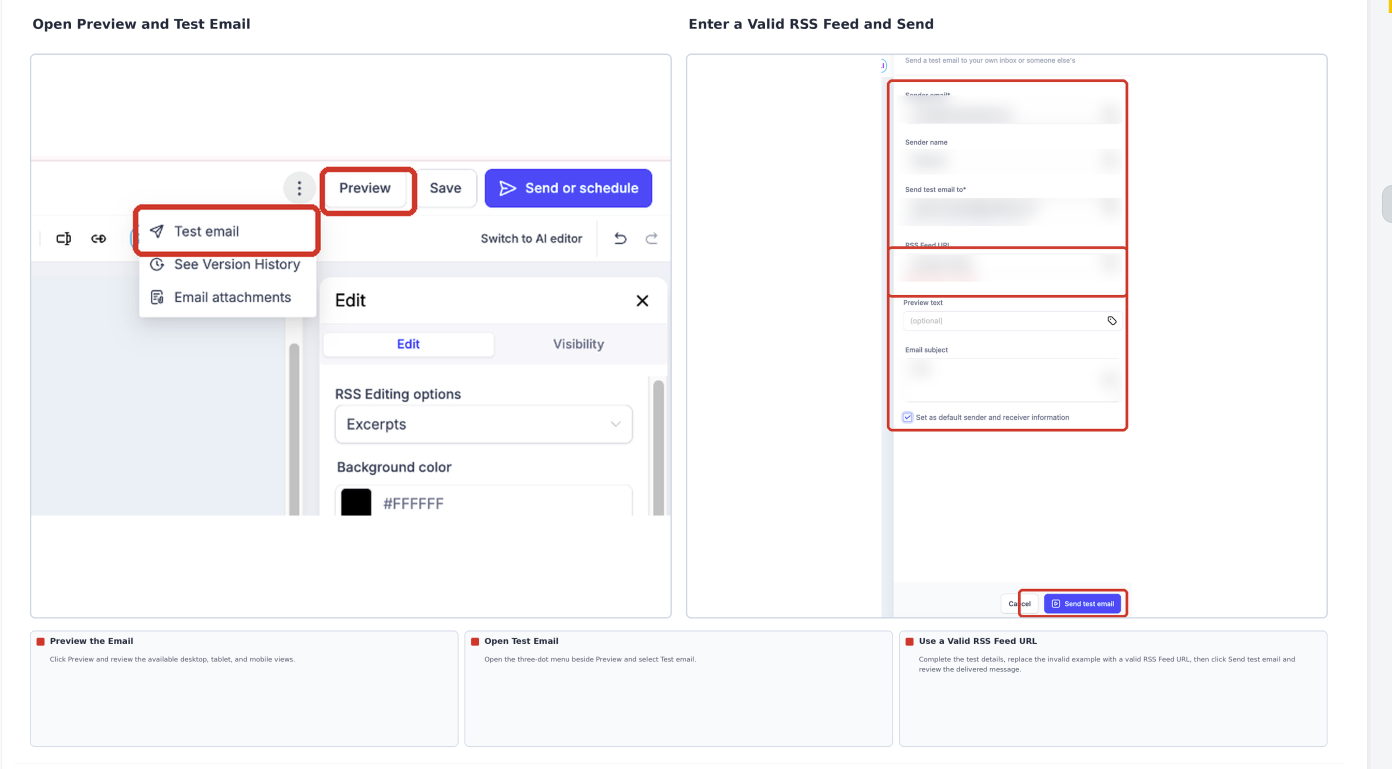
- Send the test email.
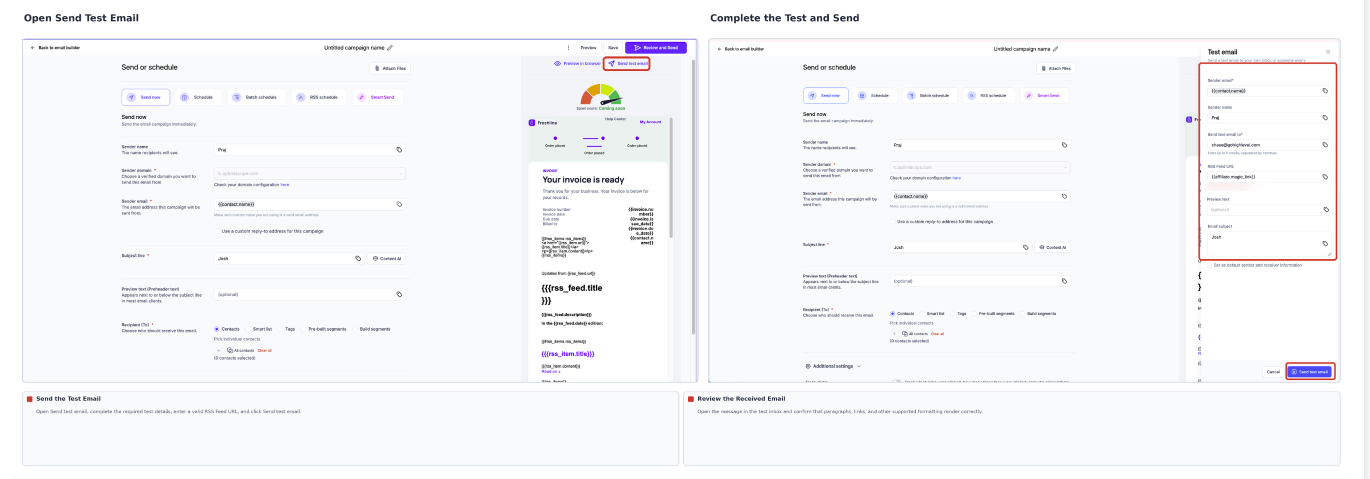
- Open the received email and verify that paragraphs, links, and other supported formatting display correctly.
Tip: Test the email in the inboxes your audience commonly uses. HTML and styling can render differently between email clients.
Troubleshooting RSS HTML Display
If the RSS content still does not display correctly, use the symptom below to identify what to check next.
- HTML Tags Still Appear: Confirm you edited the RSS Items block in Custom mode and changed the correct description variable. Check how the source feed provides its HTML.
- RSS Content Is Blank: Confirm the test includes a valid RSS Feed URL. For live RSS campaigns, use RSS Schedule rather than ordinary sending.
- Formatting Looks Different: Some HTML and CSS are not supported by every email client. Simplify the feed's markup where necessary and send another test.
Frequently Asked Questions
Q: Should I change every RSS variable to triple braces?
No. Change only a field intended to render trusted HTML. Leave title, URL, and other variables in their documented formats unless you have a specific reason to change them.
Q: Does this change edit my website or RSS feed?
No. It changes how the selected RSS field is displayed in the email. The source feed remains unchanged.
Q: What if my RSS descriptions contain only plain text?
Keep the standard double-brace variable. Triple braces are unnecessary when there is no HTML to render.
Q: Will the fix apply to every post in the RSS Items block?
Yes. The Custom RSS Items layout repeats for the posts included in that block, so the updated content variable is used for each rendered item.
Need Help?
If your RSS email still displays HTML tags or the content does not appear as expected, review the RSS Items settings, source feed, and email test results.
- HTML Tags Are Still Visible: Confirm that the correct content variable uses triple braces and that the RSS Items block is configured with a Custom layout.
- RSS Content Is Missing: Check the RSS Feed URL and verify that the feed contains the required content.
- Unexpected Formatting: Review the HTML returned by the RSS feed and test the email in the affected email client.
- Content Displays Differently Across Inboxes: Simplify unsupported HTML or styling where needed, then send another test email.
- RSS Emails Are Not Populating: Check that the live campaign uses RSS Schedule rather than a standard sending option.
If the issue continues, contact support for assistance. Include the affected email template or campaign, RSS Feed URL, relevant error messages, and screenshots of the unexpected formatting.