
SMS keyword campaigns let people request a specific offer or information by texting a keyword to your business number. A workflow can recognize the keyword and send an automated SMS response. You can also track requests and control whether contacts may trigger the workflow again. This guide covers setup, consent considerations, testing, and common issues.
TABLE OF CONTENTS
- What Is an SMS Keyword Campaign?
- Key Benefits of SMS Keyword Campaigns
- How SMS Keyword Campaigns Work
- SMS Keyword Campaign Requirements
- How to Set Up an SMS Keyword Campaign
- How to Test Your SMS Keyword Workflow
- Troubleshooting SMS Keyword Campaigns
- Frequently Asked Questions
- Need Help?
What Is an SMS Keyword Campaign?
An SMS keyword campaign, also called a text-in campaign, lets a contact send a specific word, such as COUPON, to a business's SMS-enabled number. The Customer Replied workflow trigger and SMS keyword filters identify matching inbound messages and run the actions you configure.
A keyword request can start a relevant response, but it is not automatically consent to unrelated or ongoing marketing texts. The displayed opt-in language and recorded consent must match the messaging program.
Key Benefits of SMS Keyword Campaigns
Keyword-based SMS automations give customers a direct way to respond to an offer while helping your team handle qualifying requests consistently.
- Simple Participation: Let people respond to a printed or digital offer using a short keyword.
- Fast Responses: Automatically deliver the requested information with a Send SMS action.
- Precise Matching: Limit the workflow to SMS messages containing the intended keyword.
- Request Tracking: Optionally tag contacts to organize keyword activity.
How SMS Keyword Campaigns Work
The workflow connects an incoming text with a specific response. For example, a customer sees an offer, texts COUPON to the advertised number, and receives the coupon details after the workflow matches the keyword.
Use Reply Channel = SMS to exclude replies from other channels. Use Exact Match Phrase when the incoming message should contain only the keyword. Contains Phrase can also match longer messages and may trigger on unintended text.
In updated workflow interfaces, the Message Body filter provides equivalent matching options, including exactly matches and contains. Choose the condition that matches your intended keyword behavior.
Important: Do not use standard messaging-management words such as STOP or HELP as promotional keywords.
SMS Keyword Campaign Requirements
Confirming the receiving number and consent process before building the workflow helps avoid missed keyword messages, blocked replies, and messaging-policy problems.
- SMS-Enabled Number: Use a business phone number that supports inbound and outbound SMS messaging.
- Messaging Registration: Complete the applicable registration or verification for your number and destination country. For U.S. business messaging from applicable 10-digit local numbers, confirm that the number is associated with an approved A2P 10DLC campaign.
- Clear Call to Action: State the business name, what texting the keyword requests, and appropriate message-frequency, message-and-data-rate, help, opt-out, and policy disclosures for the program.
- Consent and Opt-Out Handling: Send only messages permitted by the contact's consent and your registered use case. Honor STOP requests and existing SMS Do Not Disturb (DND) restrictions.
Example of a one-time offer invitation: "Text COUPON to [business number] for a one-time offer from [Business]. Msg & data rates may apply. Reply HELP for help, STOP to opt out. [Terms/Privacy link]." Adapt this example to your actual messaging program and applicable requirements.
Important: Adding a contact tag or receiving an inbound keyword does not, by itself, establish consent for additional marketing campaigns. Verify and record consent for the specific messages you plan to send. Do not automatically disable SMS DND for an opted-out contact.
How to Set Up an SMS Keyword Campaign
A filtered Customer Replied trigger ensures the workflow responds to the intended SMS keyword. Pair it with a concise reply and publish the workflow only after reviewing the message and consent requirements.
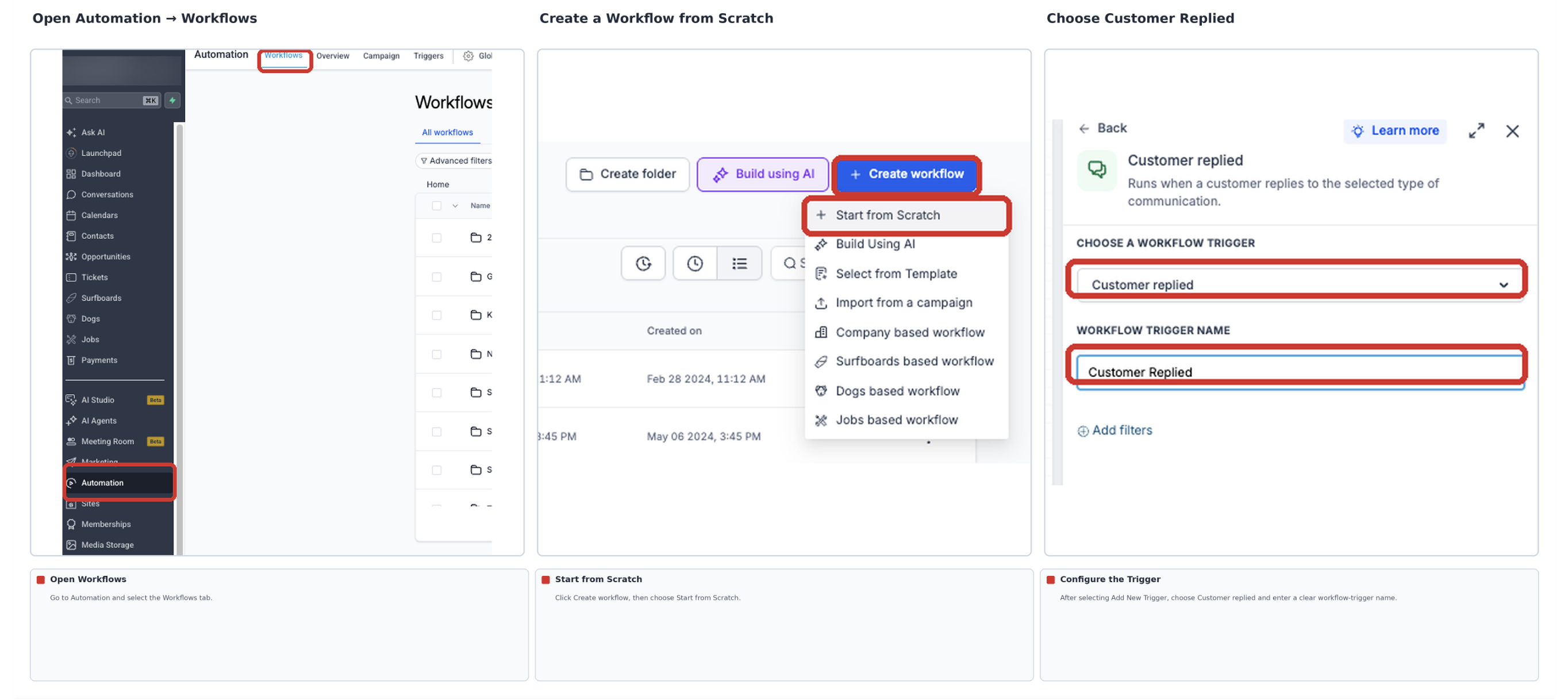
- Go to Automation → Workflows. Click Create Workflow, choose Start from Scratch, and open the new workflow.
- Click Add New Workflow Trigger, select Customer Replied, and enter a clear trigger name.
- Click Add Filters. Set Reply Channel to SMS.
- Add Exact Match Phrase and enter your campaign keyword, such as COUPON. If your editor uses the updated Message Body filter, choose exactly matches and enter the keyword. Click Save Trigger.
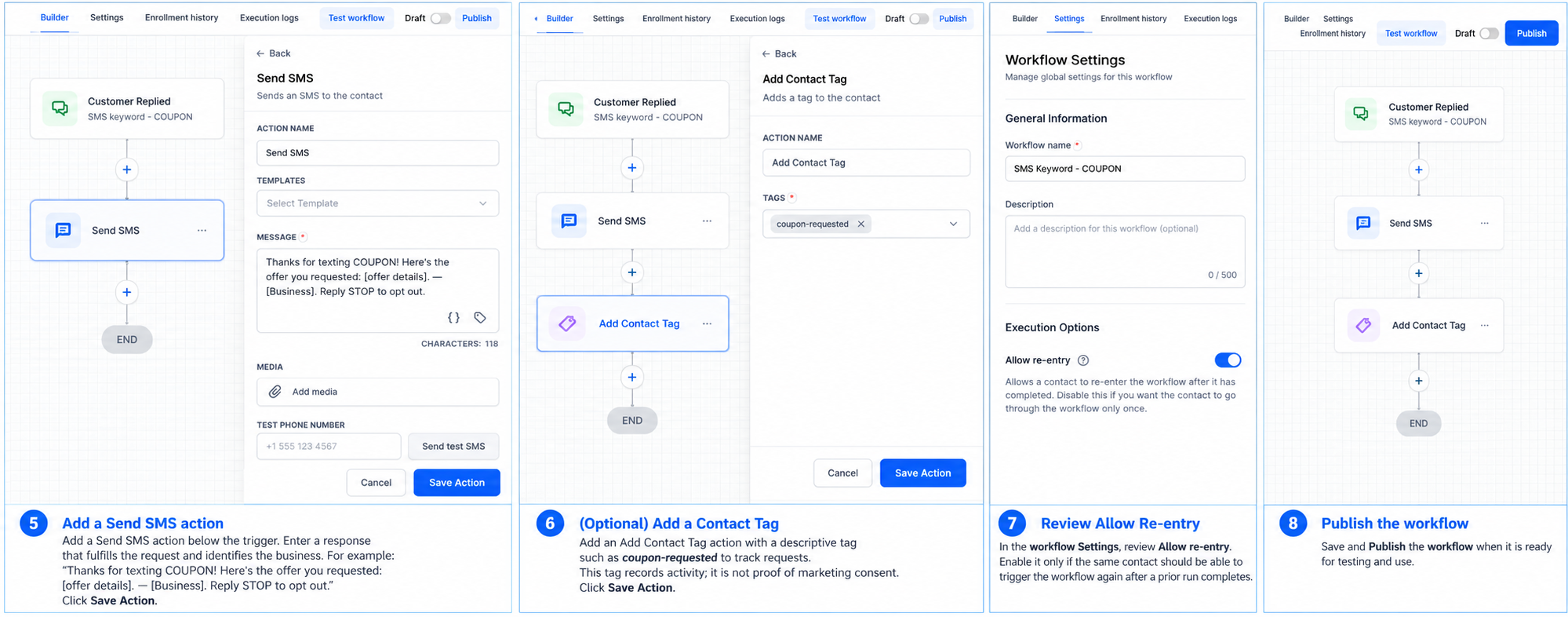
- Add a Send SMS action below the trigger. Enter a response that fulfills the request and identifies the business. For example: "Thanks for texting COUPON! Here's the offer you requested: [offer details]. — [Business]. Reply STOP to opt out." Click Save Action.
- Optional: Add an Add Contact Tag action with a descriptive tag, such as coupon-requested, to track requests. This tag records activity; it is not proof of marketing consent.
- Open the workflow's Settings tab and review Allow Re-entry. Enable it only if the same contact should be able to trigger the workflow again after a prior run completes.
- Save and Publish the workflow when it is ready for testing and use.
How to Test Your SMS Keyword Workflow
A Send SMS action test checks the outgoing message, but only a real inbound keyword test confirms the trigger, matching filters, and complete automation work together.
- From a phone number you control, text the exact keyword to the business SMS number. If the offer targets new contacts, also test with a phone number that has no previous conversation with the business.
- In Conversations, confirm the inbound SMS was received.
- Open the workflow's Execution Logs and check for the matching contact and any skipped or failed steps.
- Confirm the expected automated reply arrives and any optional tracking tag is applied.
- Try a different keyword to confirm the workflow does not respond to unrelated messages. Review repeat-entry behavior if applicable.
Troubleshooting SMS Keyword Campaigns
When the campaign does not respond as expected, check incoming delivery, trigger eligibility, and outgoing delivery separately to locate the cause.
- No Inbound SMS in Conversations: Confirm the customer texted the correct, SMS-enabled business number and that inbound messaging is active.
- SMS Arrives but the Workflow Does Not Run: Check that the workflow is published, Reply Channel is SMS, the keyword meets the configured exact-match condition, and the contact is eligible to re-enter.
- Workflow Runs but No Reply Arrives: Review the Send SMS action, workflow execution errors, SMS DND or opt-out status, and applicable messaging registration and delivery restrictions.
- More Than One Reply Is Sent: Review other published workflows using the same keyword, as well as repeat-entry settings.
Frequently Asked Questions
Q: Will "COUPON please" trigger a workflow filtered to an exact match of "COUPON"?
No. Exact matching is intended for replies matching the specified phrase. Use a contains condition only if longer messages should qualify, and test for unintended matches.
Q: Can I run separate offers using different keywords?
Yes. Configure the appropriate keywords and response actions in separate filtered workflow paths or workflows so each request receives the correct reply.
Q: Can I send future promotional texts to everyone who requests a coupon?
Not automatically. You need valid consent for the specific ongoing marketing program, with appropriate disclosures and opt-out handling. A one-time keyword request is not blanket permission for unrelated messages.
Q: Why might a returning customer get no second response?
Check Allow Re-entry and whether the contact has completed the prior workflow run. A contact cannot re-enter while still active in the same run.
Q: Can an SMS opt-out be cleared just by adding the contact to this workflow?
No. Do not bypass SMS DND or opt-out restrictions through tags or workflow settings. The contact must follow the applicable valid re-opt-in process before outbound messaging resumes.
Need Help?
If your SMS keyword campaign is not responding as expected, review the phone number, workflow trigger, keyword filters, and SMS delivery settings before making changes.
- Keyword Not Triggering: Confirm the workflow is published and the Customer Replied trigger uses Reply Channel = SMS with the intended keyword-matching condition.
- Inbound Message Missing: Check that the customer used the correct SMS-enabled business number and that the message appears in Conversations.
- Automatic Reply Not Delivered: Review the Send SMS action, Execution Logs, messaging registration, and any SMS DND or opt-out restrictions.
- Unexpected Keyword Matches: Review whether the trigger uses exact matching or contains matching. Use exact matching when the message should contain only the specified keyword.
- Repeat Requests Not Working: Review Allow Re-entry in the workflow's Settings tab. Confirm that the contact has completed the previous workflow run.
- Multiple Automatic Replies: Check for other published workflows that use the same keyword and review the repeat-entry settings.
- Consent or Opt-Out Questions: Review the messaging program's consent records, customer-facing disclosures, and opt-out handling before sending additional messages.
If the issue continues, contact support for assistance. Include the affected workflow name, business SMS number, test keyword, approximate test time, and any relevant execution errors or screenshots.