
When connecting a WhatsApp Business Account (WABA) to LeadConnector, you may encounter an onboarding error if your WABA is configured with an unsupported currency.
LeadConnector currently supports only USD (United States Dollar) and INR (Indian Rupee) for WhatsApp Business Account onboarding.
If your WABA uses another currency, such as EUR or GBP, the onboarding process will fail.
Error message
You may see the following error during WhatsApp onboarding:
This WhatsApp Business Account uses currency (EUR), which we do not support yet. Change the account currency to USD in Meta Business Manager, then try again.
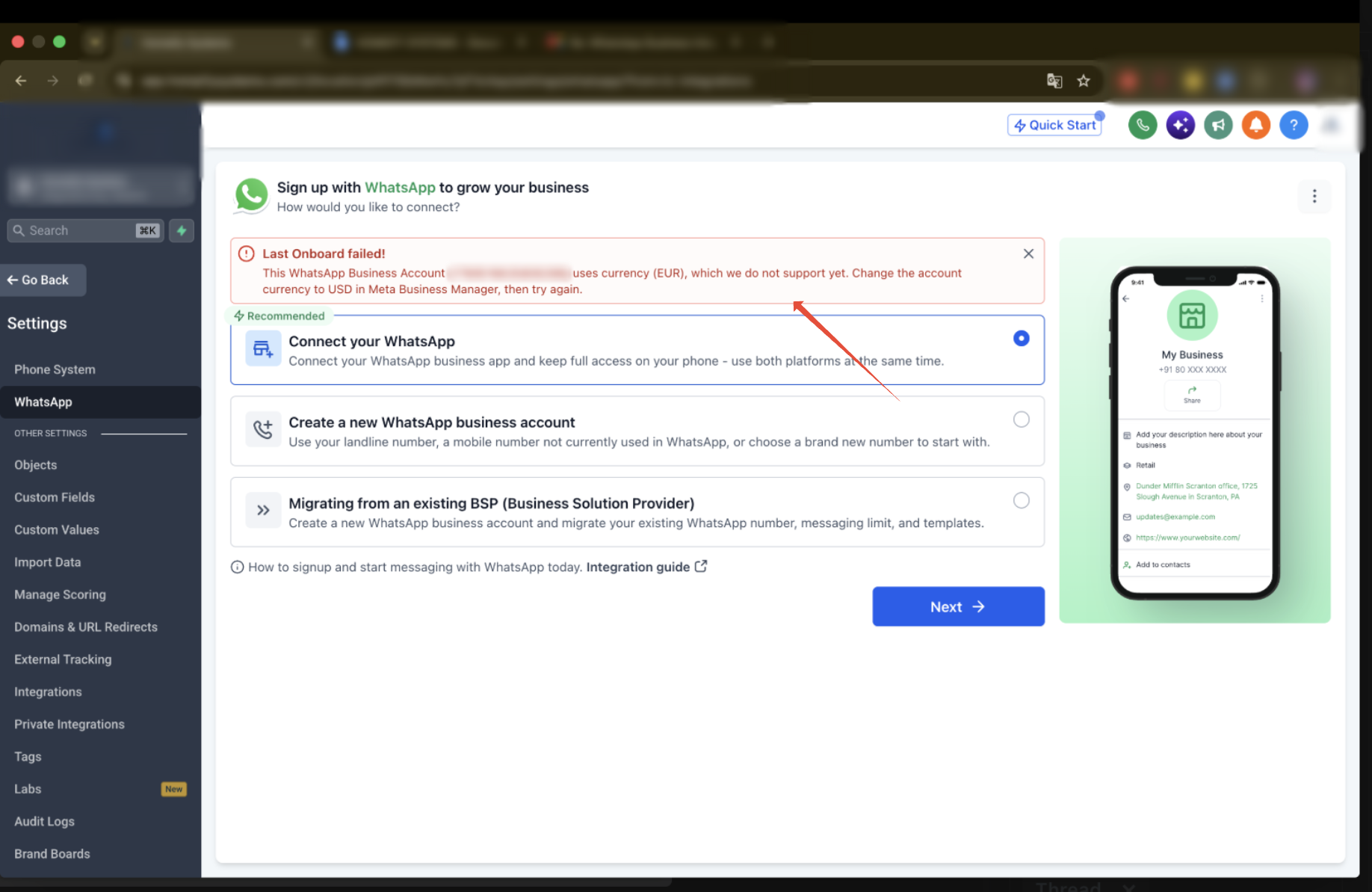
The currency displayed in the error depends on the currency configured for your WABA.
Why does this error occur?
This error occurs because the currency configured for your WhatsApp Business Account is not supported by LeadConnector.
| WABA Currency | Onboarding Status |
|---|---|
| USD | ✓ Supported |
| INR | ✓ Supported |
| EUR | ✗ Not supported |
| GBP | ✗ Not supported |
| Other currencies | ✗ Not supported |
Even if your Meta Business Portfolio is verified and your WhatsApp Business Account is approved, onboarding will fail if the WABA currency is unsupported.
How to resolve the error
- Log in to Meta Business Settings.
- Select the Business Portfolio associated with your WhatsApp Business Account.
- Navigate to Accounts → WhatsApp Accounts.
- Select the WhatsApp Business Account you want to connect.
- Open the Summary tab for the selected WhatsApp Business Account.
- Under Business information, locate the Currency field.
- Verify whether the currency is set to USD or INR.
If the currency is anything other than USD or INR, it is not supported for LeadConnector onboarding.
Update the WhatsApp Business Account currency to USD or INR, if Meta provides an option to do so.
If the currency cannot be edited, contact Meta Support to confirm whether it can be changed. Meta may require you to create a new WhatsApp Business Account with a supported currency.
Changing the currency of your Meta Business Portfolio does not necessarily update the currency of an existing WABA. Make sure the WhatsApp Business Account itself uses a supported currency.
Once your WABA is configured with a supported currency:
- Log in to your LeadConnector sub-account.
- Navigate to Settings → WhatsApp.
- Select the appropriate onboarding option.
- Click Next and complete the Meta onboarding process.
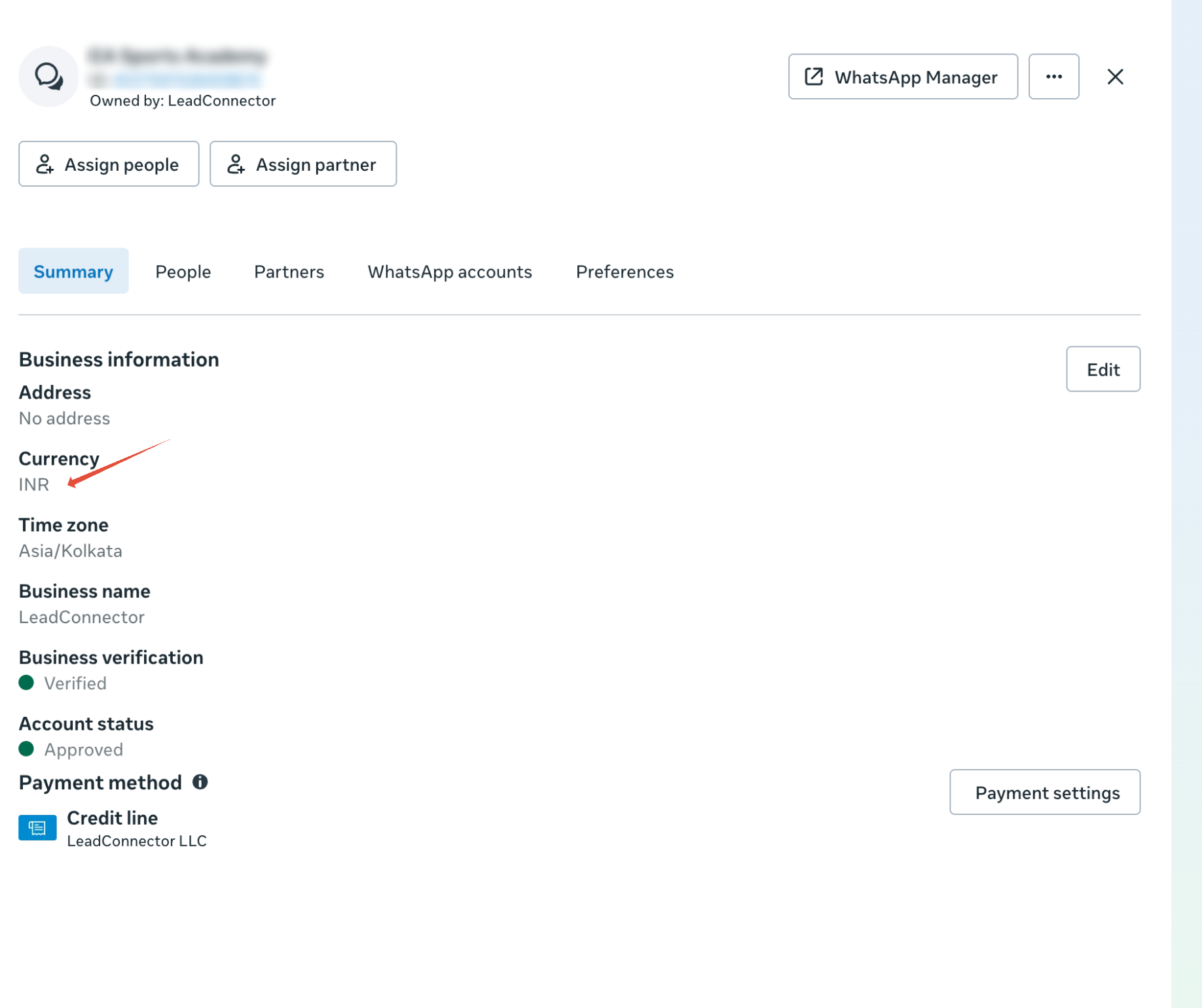
With a USD or INR currency on your WABA, the currency check will pass. Other Meta eligibility and verification requirements may still apply.