
WhatsApp Coexistence allows businesses to connect their existing WhatsApp Business App number to LeadConnector while continuing to use the WhatsApp Business App on their mobile device.
During onboarding, some users may experience issues related to phone number eligibility, previous WhatsApp API connections, Meta Business Account permissions, QR code verification, chat synchronization, or WhatsApp Business Account (WABA) sharing.
This article explains the most common issues, their possible causes, and the recommended troubleshooting steps.
Before You Begin
Before starting WhatsApp Coexistence onboarding, make sure:
- Your WhatsApp Business App is updated to the latest available version.
- Your phone number is actively being used in the WhatsApp Business App.
- You have administrator access to the relevant Meta Business Portfolio.
- Your internet connection is stable.
- You have access to the mobile device running the WhatsApp Business App.
- Your phone number is not associated with an unresolved previous WhatsApp API connection.
WhatsApp Coexistence eligibility is determined by Meta. LeadConnector cannot manually override Meta's eligibility restrictions.
Phone Number Is Not Eligible for WhatsApp Coexistence
Phone number is ineligible, or: “Your phone number isn't eligible to connect to the WhatsApp Business Platform. More activity on the WhatsApp Business App is needed to help determine eligibility.”
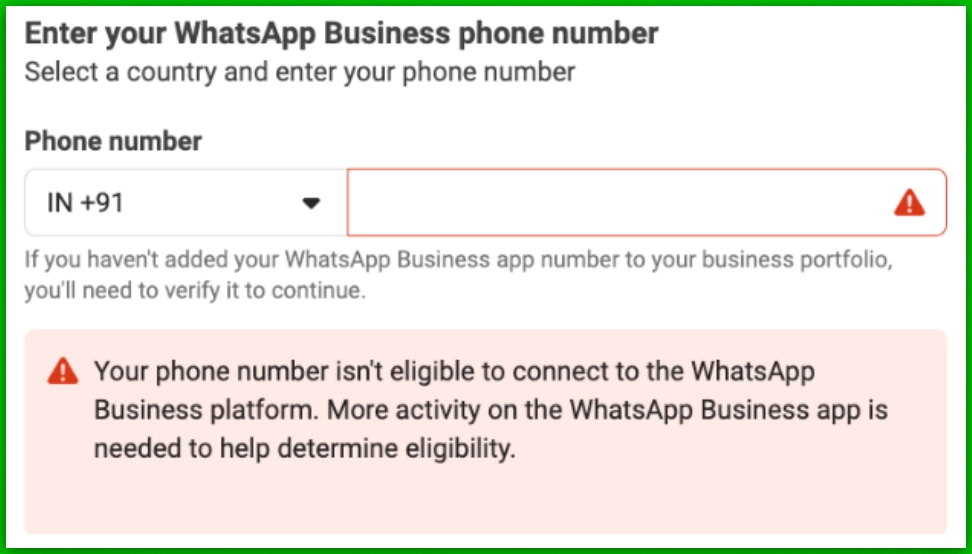
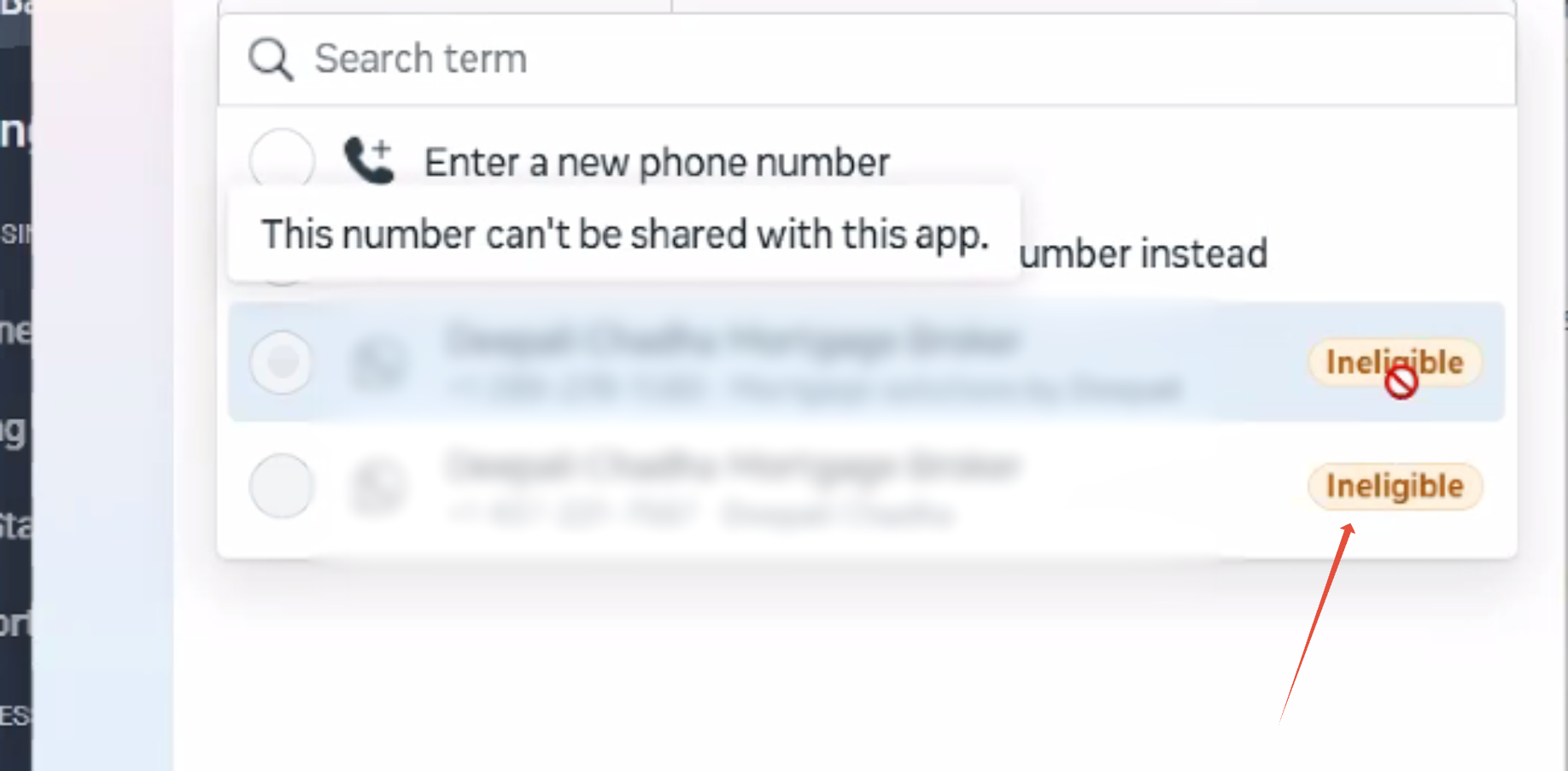
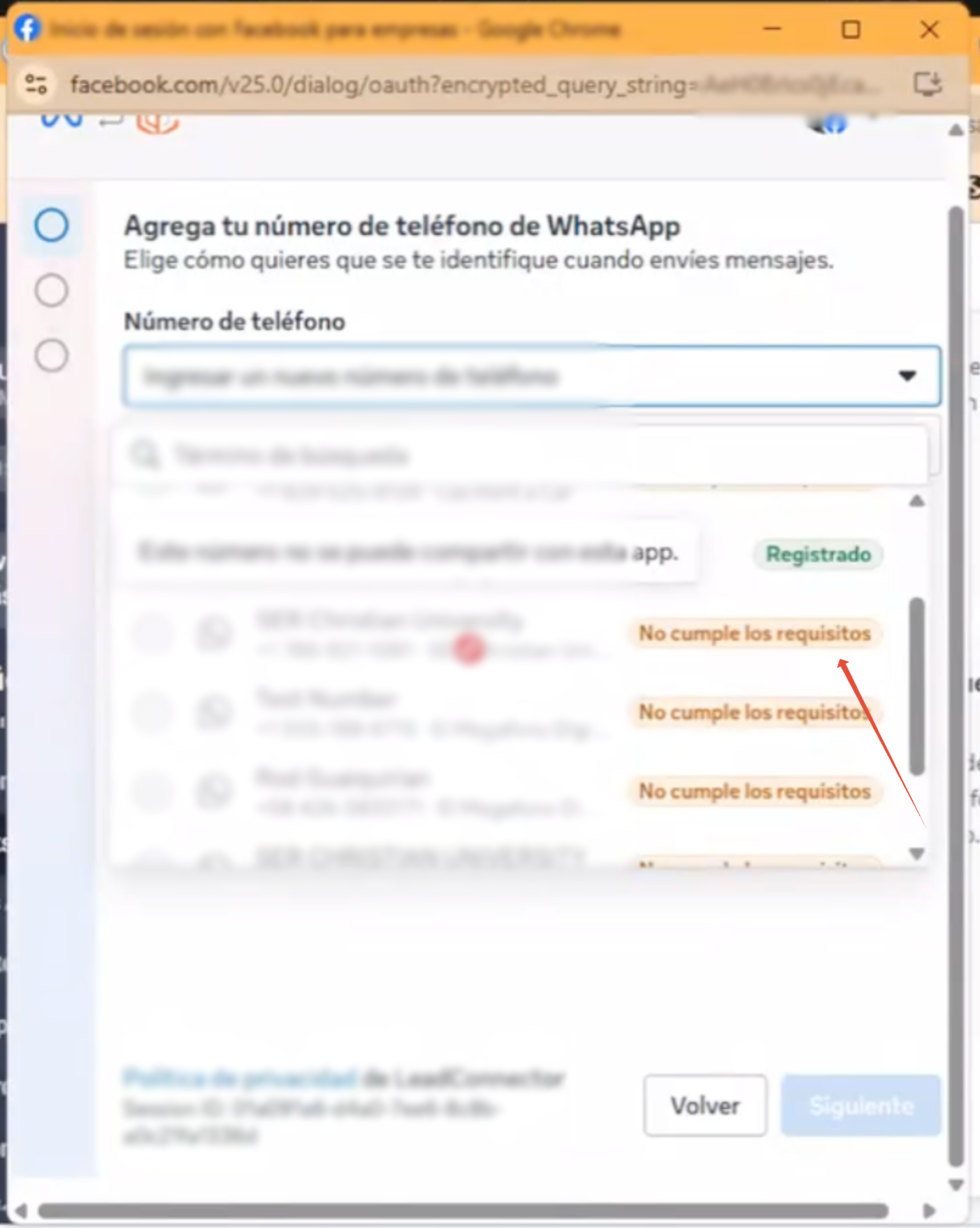
Meta evaluates the phone number's activity and usage history before allowing it to connect through Coexistence.
Newly registered numbers, inactive numbers, or numbers recently migrated from the WhatsApp Business API may not qualify immediately.
- Continue using the number for genuine conversations in the WhatsApp Business App.
- Ensure the number has at least 7 days of activity. Some numbers may require 30–60 days of usage before becoming eligible.
- Avoid repeatedly deleting and re-registering the WhatsApp Business App account.
- Retry the Coexistence onboarding process after the number has established sufficient activity.
- An approved display name is required before a number can be migrated to a new partner.
Meeting the activity requirement does not guarantee approval. Final eligibility remains with Meta.
Phone Number Is Already Registered With Another WhatsApp API Provider
“This number is registered to an existing WhatsApp account. To use this number, disconnect it from the existing account.”
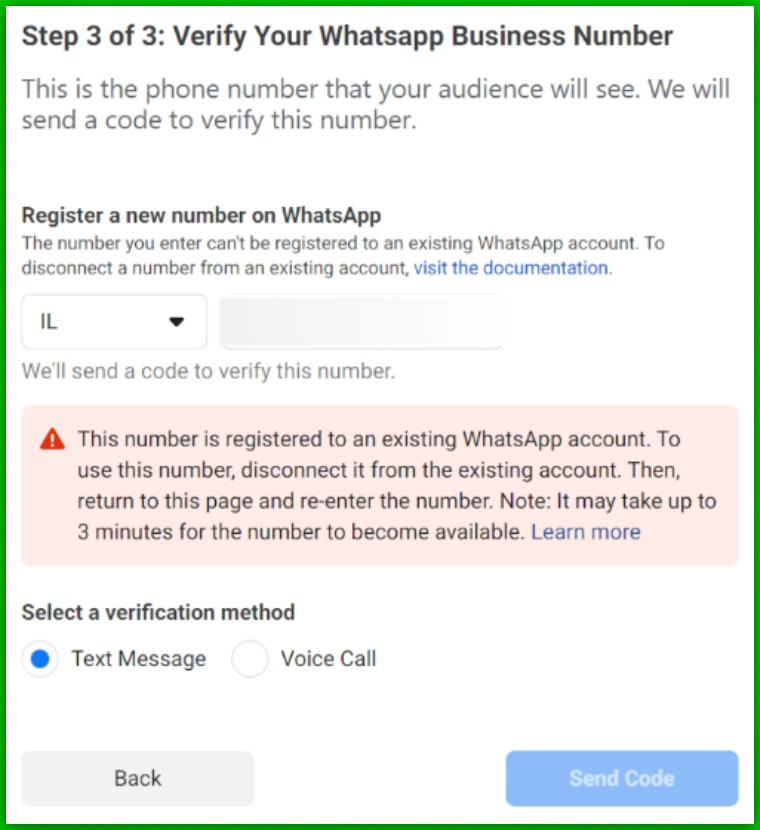
The phone number was previously connected to a WhatsApp Business API provider, and the existing registration may still prevent Coexistence onboarding.
- Identify the previous WhatsApp API provider.
- Confirm whether the number is still registered with that provider.
- If switching to Coexistence, properly disconnect the previous API integration.
- Register or continue using the number in the WhatsApp Business App.
- Use it actively for 1–2 months to rebuild eligibility before attempting Coexistence again — don't try to reconnect to the API right away, or Meta may re-flag it.
Disconnecting a number from a previous provider can affect existing messaging services. Back up important data and confirm the migration path before making changes.
If the number is currently connected to another API provider and you want to migrate to LeadConnector without retaining the mobile app, use the supported BSP migration process instead of Coexistence.
QR Code Is Missing or Cannot Be Scanned
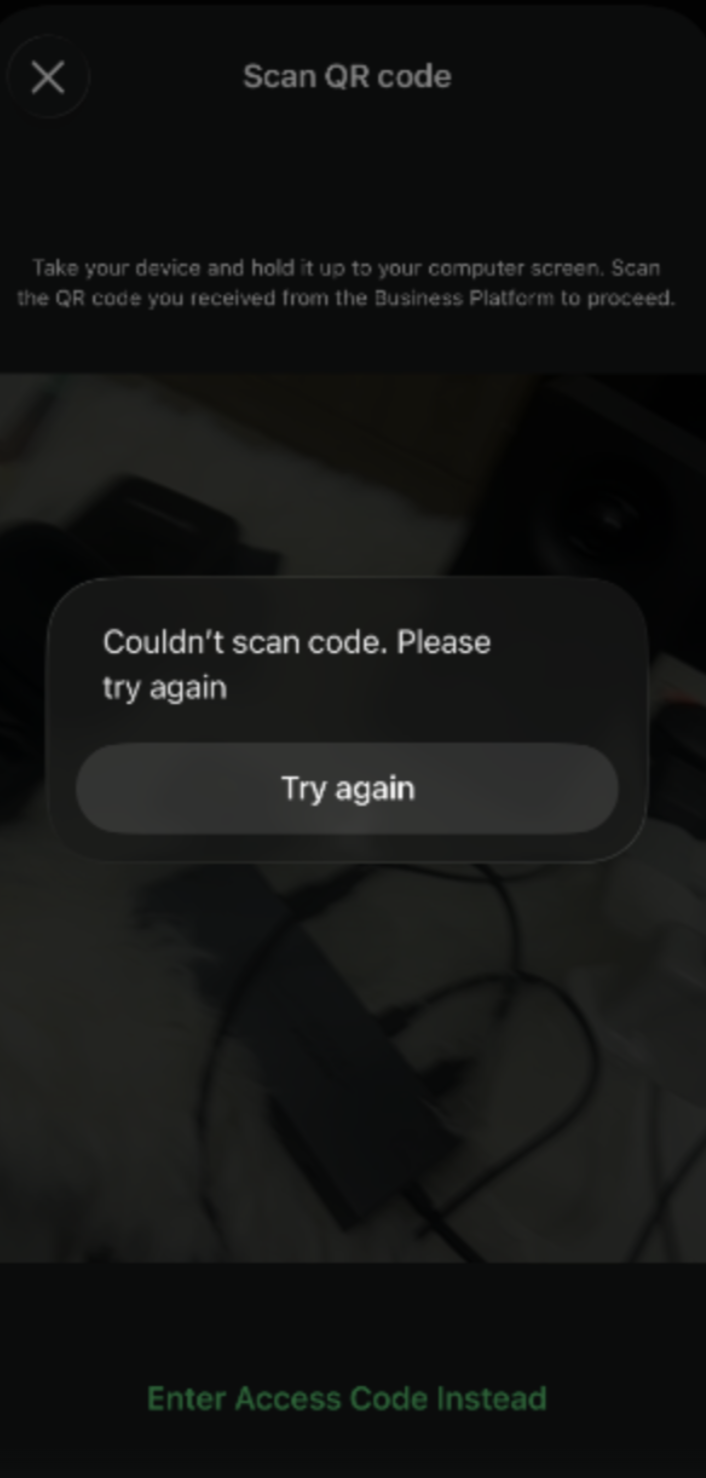
- An outdated WhatsApp Business App.
- An incorrect onboarding flow.
- A temporary Meta-side issue.
- Connectivity or device problems.
- Update the WhatsApp Business App to version 2.24.17 or later. If you instead see the error “Please update your WhatsApp Business App to the latest version”, Meta is blocking signup outright until you update — update before doing anything else.
- Restart the Coexistence onboarding process from LeadConnector.
- Ensure the QR code is scanned using the appropriate WhatsApp Business App flow.
- Check that the phone has a stable internet connection.
- Make sure your camera lens is clean and you're scanning in good lighting.
- If it still fails, retry after a short wait (temporary Meta-side issues do occur).
- As a last resort, uninstall and reinstall the WhatsApp Business App, then retry.
If the QR code is still missing, contact LeadConnector Support with screenshots of the onboarding screen.
Chat History or Contact Synchronization Is Stuck
Chat synchronization may take longer when the WhatsApp Business App contains a large conversation history.
An unstable connection or an inactive mobile app can also interrupt synchronization.
- Keep the WhatsApp Business App open during synchronization.
- Maintain a stable internet connection.
- Allow additional time for large chat histories to synchronize. This can take several hours (up to 6 hours).
- If sync stalls or fails, rescan the QR code to restart the process, confirming the app is on version 2.24.17+.
Avoid deleting the WhatsApp Business App or clearing its data without confirming that important conversations are backed up.
Unable to Link a Meta Business Portfolio
The Facebook account being used may not have the required permissions, or the selected Meta Business Portfolio may have incomplete business information.
- Log in to Meta Business Suite.
- Confirm that you have administrator access to the correct Meta Business Portfolio.
- Verify that the business name, address, and website information are complete.
- Ensure the correct business is selected during embedded signup.
- Retry onboarding.
If the account belongs to a different business, ask the appropriate administrator to grant the necessary permissions.
Unable to Disconnect WhatsApp Coexistence
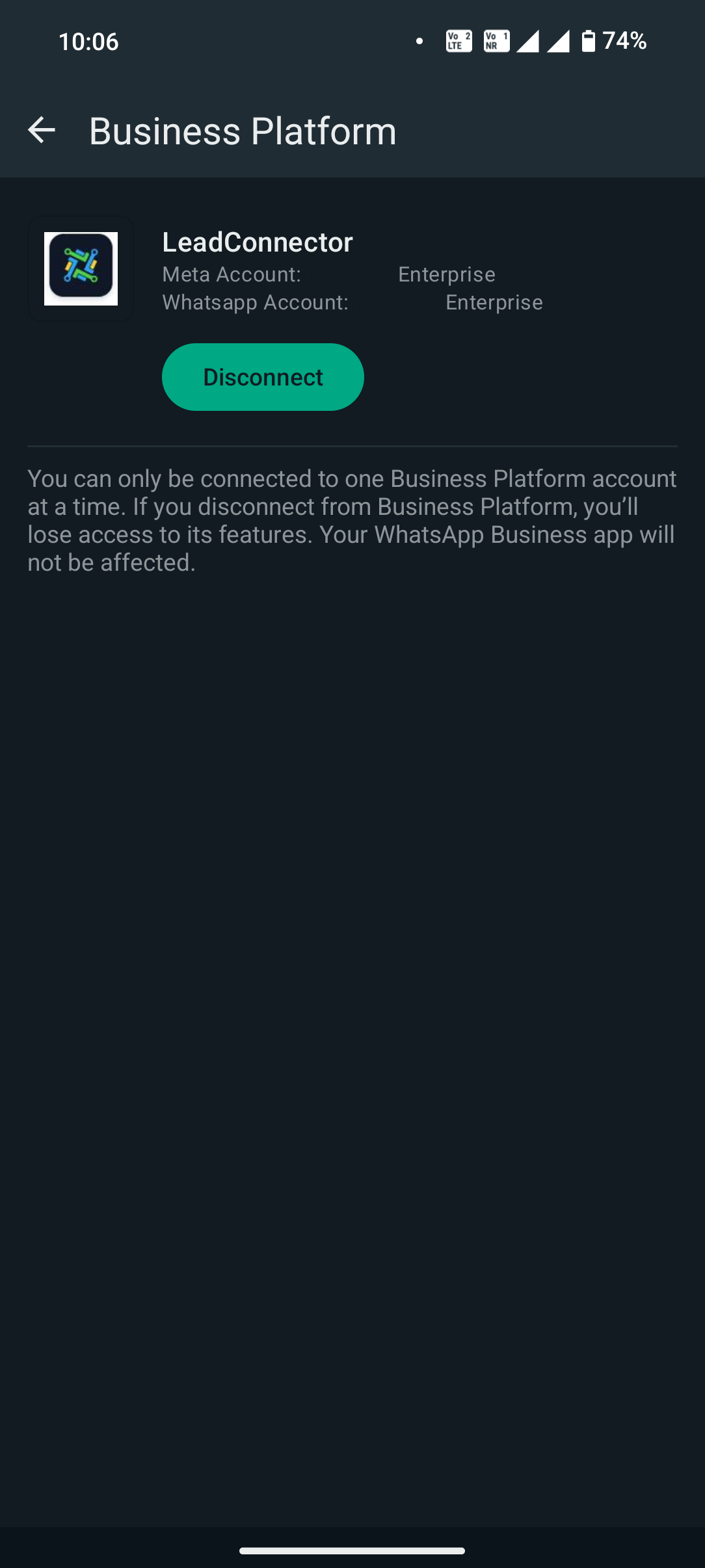
You may not find a disconnect option in the LeadConnector onboarding interface, or may attempt to remove the integration by uninstalling the mobile app.
- Open the WhatsApp Business App.
- Navigate to Settings → Account → Business Platform.
- Select the connected business platform.
- Choose Disconnect, if available.
- Confirm the disconnection.
- Coexistence is disconnected without losing the underlying WhatsApp Business App setup.
Uninstalling the WhatsApp Business App is not the recommended way to disconnect Coexistence.
Messages From Companion Devices Are Not Synchronizing
Not all WhatsApp companion devices support synchronization with the WhatsApp Business Platform.
Use supported companion devices such as WhatsApp Web or WhatsApp for Mac when synchronized messaging is required.
Messages sent through unsupported companion devices, including certain Windows or wearable-device integrations, may not appear in LeadConnector Conversations.
Unable to Change the WhatsApp Business Name
Once Coexistence is enabled, Meta may restrict changes to the business display name.
- Before starting Coexistence setup, confirm the business name is correct in both the WhatsApp Business App and Meta Business Manager — this is your last easy chance to change it.
- Ensure the name is consistent in the WhatsApp Business App and Meta Business Portfolio.
- If the name is locked after onboarding, contact Meta Support or LeadConnector Support for further review.
Display name changes remain subject to Meta's approval.
WABA Sharing or Partner Conflicts
WhatsApp Coexistence onboarding can fail when the WhatsApp Business Account is already associated with another solution provider or when Meta cannot complete the required account-sharing process.
The following errors may appear:
| Error Code | Error Message | Recommended Action |
|---|---|---|
| 2655049 | This account is already shared with another partner. | Unshare the WABA from the other partner in Meta Business Suite, or create a new WABA to use with LeadConnector. |
| 2494029 | This account wasn't able to be shared. | Contact support for further investigation. |
| 2593072 | WABA ID doesn't exist or cannot be accessed. | Verify the WABA ID and account permissions, or choose a different account you have access to. |
| 2494028 | This account is shared with another partner. | Review the existing partner association. Unshare the WABA, or create a new one to use with LeadConnector. |
| 2494091 | Solution Partner must complete Business Verification. | Complete the required Meta Business Verification, then try onboarding again. |
| 2494120 | This WhatsApp account can't be shared. | Escalate to support for investigation. |
| 2494119 | A duplicate service provider can't exist under the parent WABA. | This WABA is already shared with a provider. Select a different WABA, or resolve the existing sharing relationship first. |
| 2655093 | Switching partners isn't supported. | Disconnect the existing partner through the WhatsApp Business App before retrying. |
- Open Meta Business Suite.
- Navigate to the WhatsApp Business Account settings.
- Review the existing partners and connected service providers.
- Confirm whether the account is already shared with another provider.
- If necessary, disconnect the previous provider using the supported process.
- Retry onboarding with LeadConnector.
Do not remove existing partner access without confirming the impact on active messaging services. Some WABA sharing conflicts require Meta Support intervention.
Phone Number Is Not Associated With the Selected Business
Error code: 3441041
“Phone number not associated with the business you selected.”
The phone number may belong to a different Meta Business Portfolio than the one selected during onboarding.
- Verify which Meta Business Portfolio owns the phone number.
- Select the correct business during embedded signup.
- Review any existing number associations.
- Resolve incorrect business associations before retrying.
Phone Number Is Not Registered With WhatsApp Business
Error codes: 2655095 2655048
Meta cannot identify an active WhatsApp Business App registration for the phone number.
- Confirm that the number is registered in the WhatsApp Business App.
- Verify that the app is active and functioning.
- Retry Coexistence onboarding after registration is complete.
WhatsApp Coexistence Is Not Available in Your Region
Error code: 3441042
“This feature isn't available for phone numbers from this region.”
Meta has not enabled WhatsApp Coexistence for the selected phone number's country or region.
Confirm whether the number's country is supported by Meta for Coexistence.
If the region is unsupported, you must wait until Meta makes the feature available or use another supported WhatsApp integration method.
LeadConnector cannot override regional eligibility restrictions.
Phone Number Is Already Linked to Another Facebook Page
Error code: 2655082
The phone number is already associated with a different Facebook Page.
- Open Meta Business Suite.
- Review the Facebook Page associated with the number.
- Confirm that the correct Page is selected during onboarding.
- If necessary, unlink the incorrect Page.
- Retry the Coexistence process.
WhatsApp Business Account Uses Marketing Messages Lite
Error code: 3441047
“Not available for accounts using Marketing Messages.”
The selected WhatsApp Business Account is configured for Marketing Messages Lite (MM Lite), which is incompatible with the Coexistence onboarding flow described here.
Select an eligible WhatsApp Business Account that is not configured for Marketing Messages Lite.
If you specifically require MM Lite, use the appropriate supported onboarding process rather than Coexistence.
What to Do if the Issue Persists
If none of the troubleshooting steps resolve the issue, contact LeadConnector Support and provide the following information:
Providing these details helps the support team identify whether the failure is related to account configuration, existing provider associations, or Meta-side restrictions.
Frequently Asked Questions
Most WhatsApp Coexistence signup failures are related to phone number eligibility, previous API registrations, Meta Business Portfolio permissions, or existing WABA partner associations.
Before retrying onboarding, verify that the number is active in the WhatsApp Business App, that the correct Meta Business Portfolio is selected, and that there are no unresolved connections with previous providers.
If the issue continues, contact LeadConnector Support with the relevant error codes and account details for further investigation.